2 minutes
Create
Use Xello's Advisement tools to bring everything you need directly into one workspace. You can view your student's complete academic picture, leverage smart conversation prompts, and keep personal quick notes. These tools streamline session documentation and help ensure every student receives a
You can select who can view the session. Keep it exclusively to yourself, or allow other educators, the student, and the student's parent/guardian to view the session as well. If you allow other educators visibility, only those at your school who have a Xello account and can see the student's profile can read it. This means educators with Limited access can only view the sessions on students assigned to them.
As you and other educators add sessions to a student’s profile over the years, it might be helpful to narrow the list of sessions by using the filters. You can narrow it by who created the note, or by category. Your school or
Start an advisement session
To start an
-
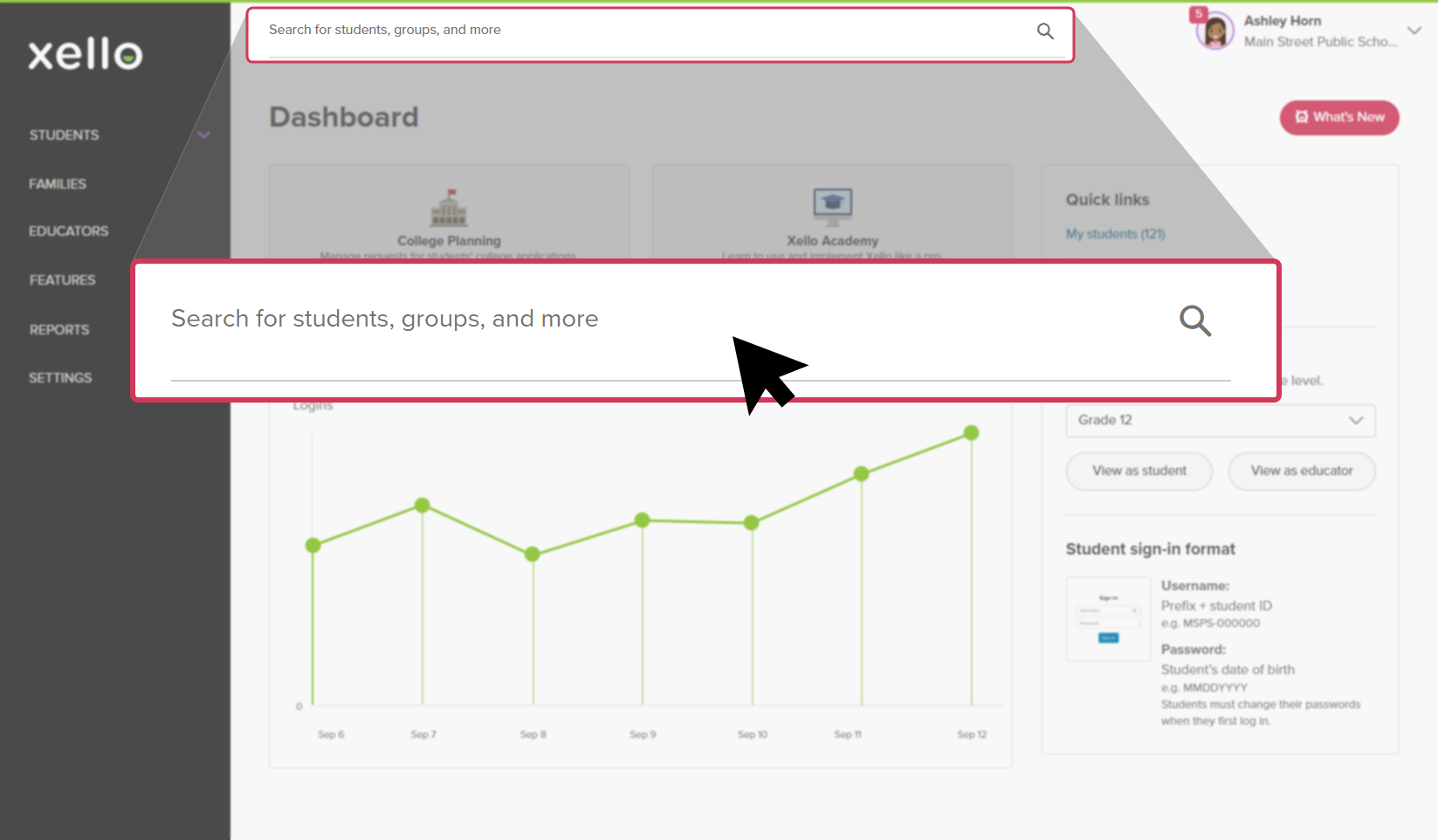
In the search bar located at the top of any page in your educator account, enter the student's name or ID.
 Click to enlarge
 Tip: Alternatively, from the left menu, click Students and select Student list to browse the full list of students.
 -
Click on the student's name. The About student tab of their profile opens.
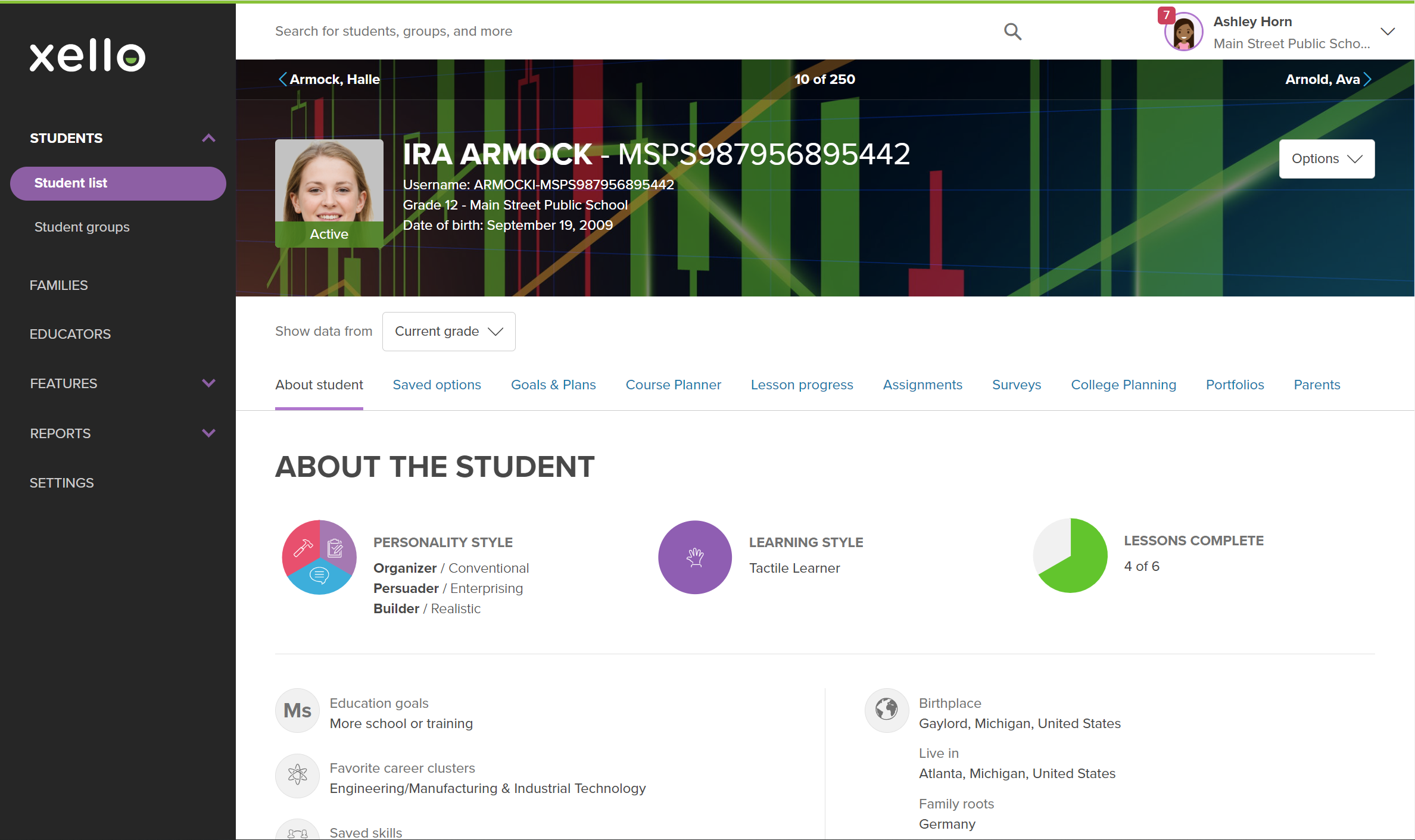 Click to enlarge
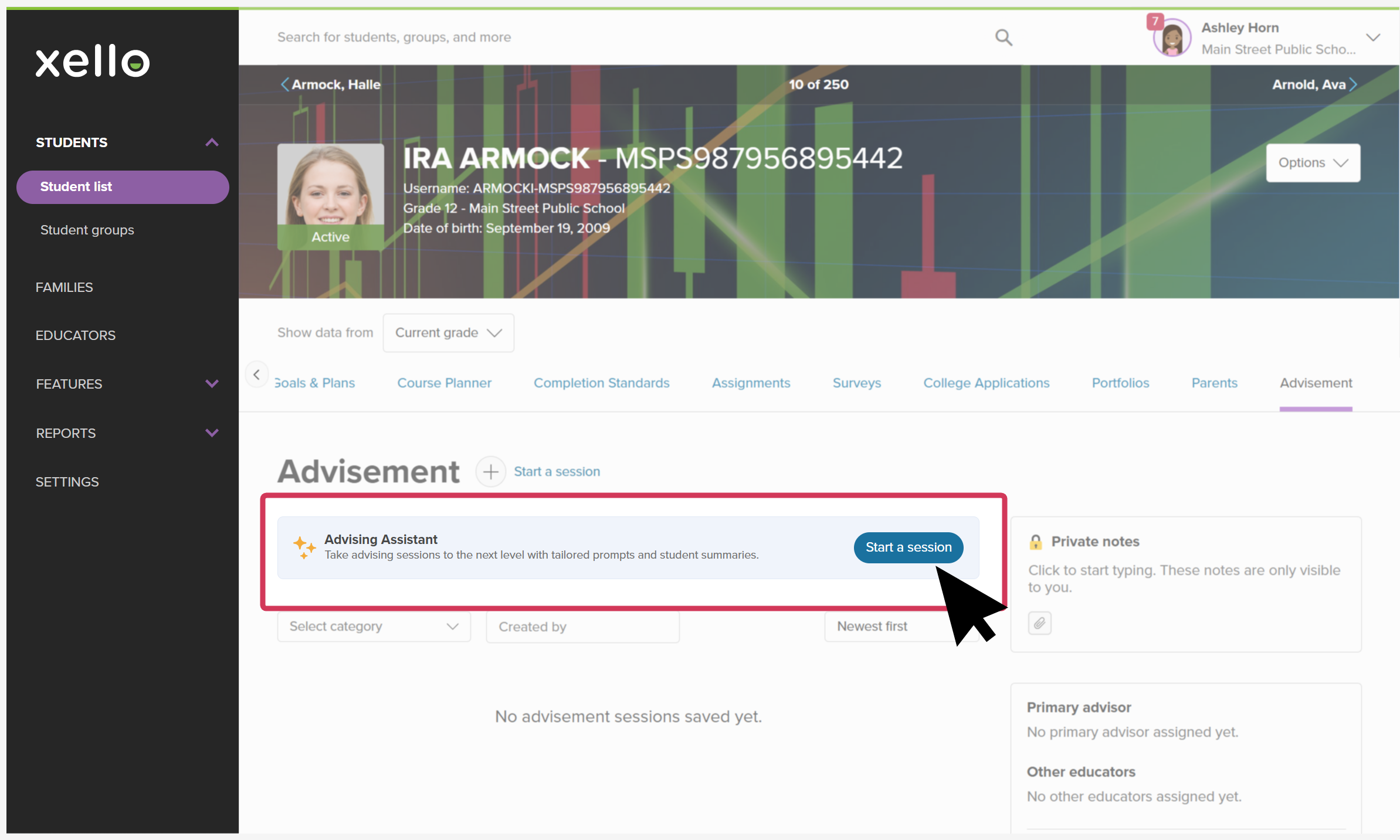
- Click the
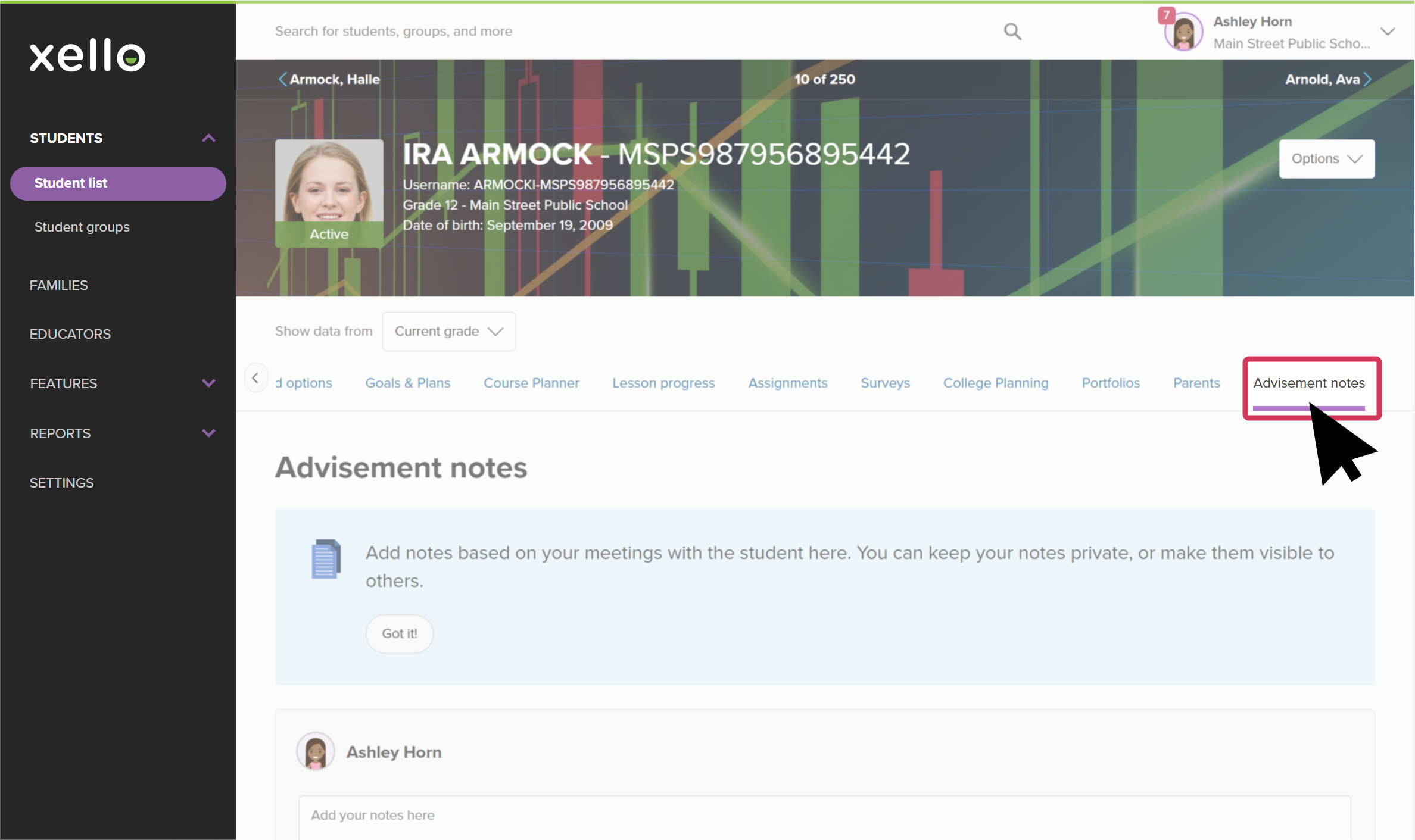 Click to enlarge
- Click Start a session to open the session panel.
 Click to enlarge
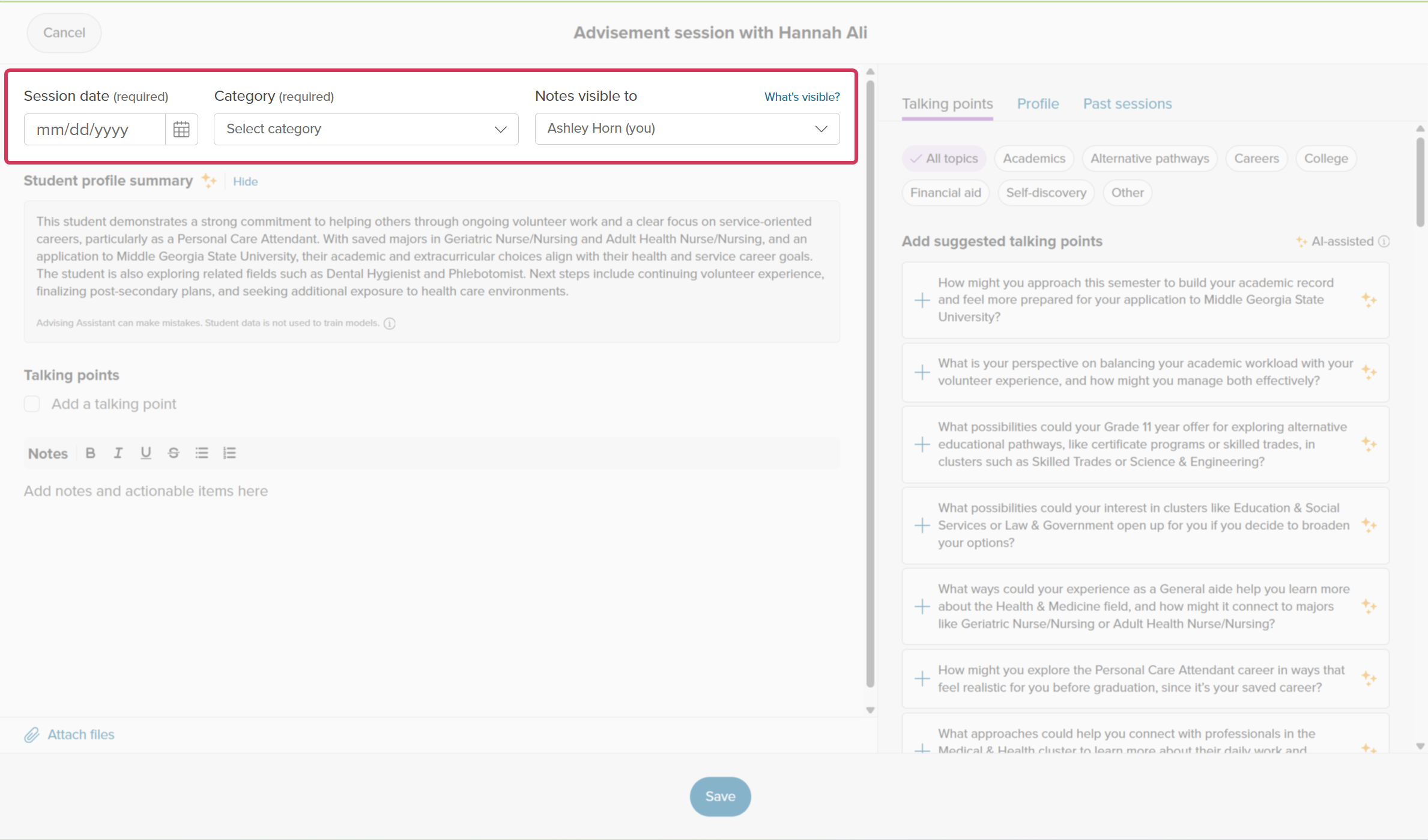
- Set the session details:
- Session date: Add the meeting date.
- Category: Choose the primary focus of the meeting from the dropdown (options include academic success, activities and experiences, and personal advisement, among others)
- Notes visible to: Choose who can view the saved note, including only yourself, the student, parents/guardians of the student, and other educators. By default, it will only be visible to you.
 Click to enlarge
- Fill in the meeting notes, add any files, or take advantage of the extra tools outlined below.
- Once all the information is added, click Save.
 Back to top
Make the most of your advisement sessions
The session panel includes tools designed to speed up preparation, guide confident discussions, and maintain clear records over time.
Review student profile data
Instead of navigating across multiple screens to prepare for a meeting, select the Profile tab inside the session panel. This provides a holistic snapshot of student progress and interests while you're writing out the session details. This will keep you from needing to exit the session panel to view what work the student has completed and where they might need encouragement to finish their tasks.
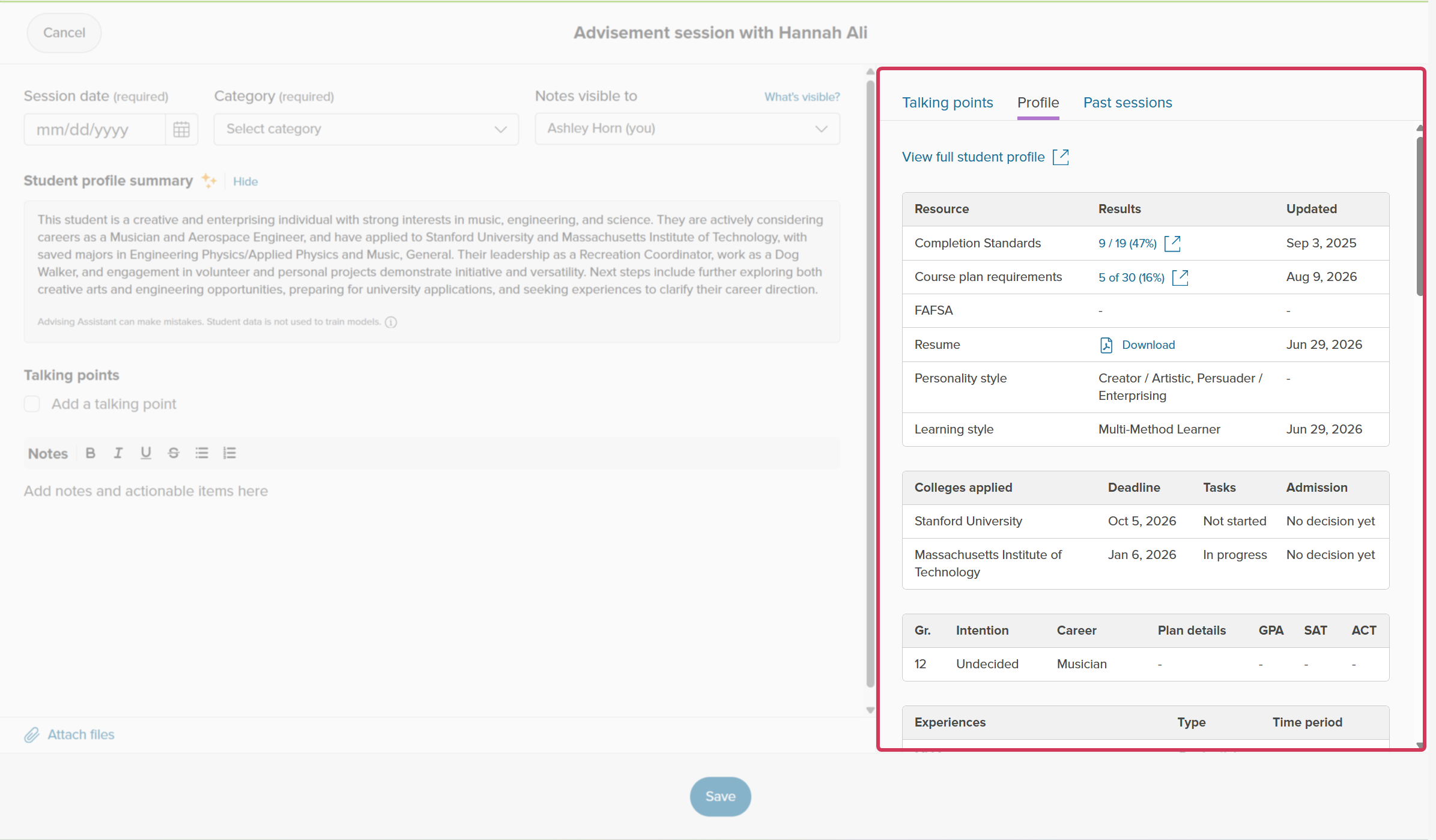
The Profile tab includes, but is not limited to:
- A link to View full student profile.This opens the student profile in a new tab so you don't lose your session work.
- The number of Completion Standards tasks they've completed. Clicking the link opens the Completion Standards tab of the student's profile in a new browser tab.
- The number of Course plan requirements done. Clicking the link opens the Course Planner tab of the student's profile in a new browser tab.
- Their Resume which can be downloaded right from the session.
- Their assessment results, including top career matches, Personality style and Learning style results.
- College Planning details, including which colleges they're applying, their intentions, and saved colleges.
- Completed Plans, which can be opened in a browser tab.
Guide discussions with talking points
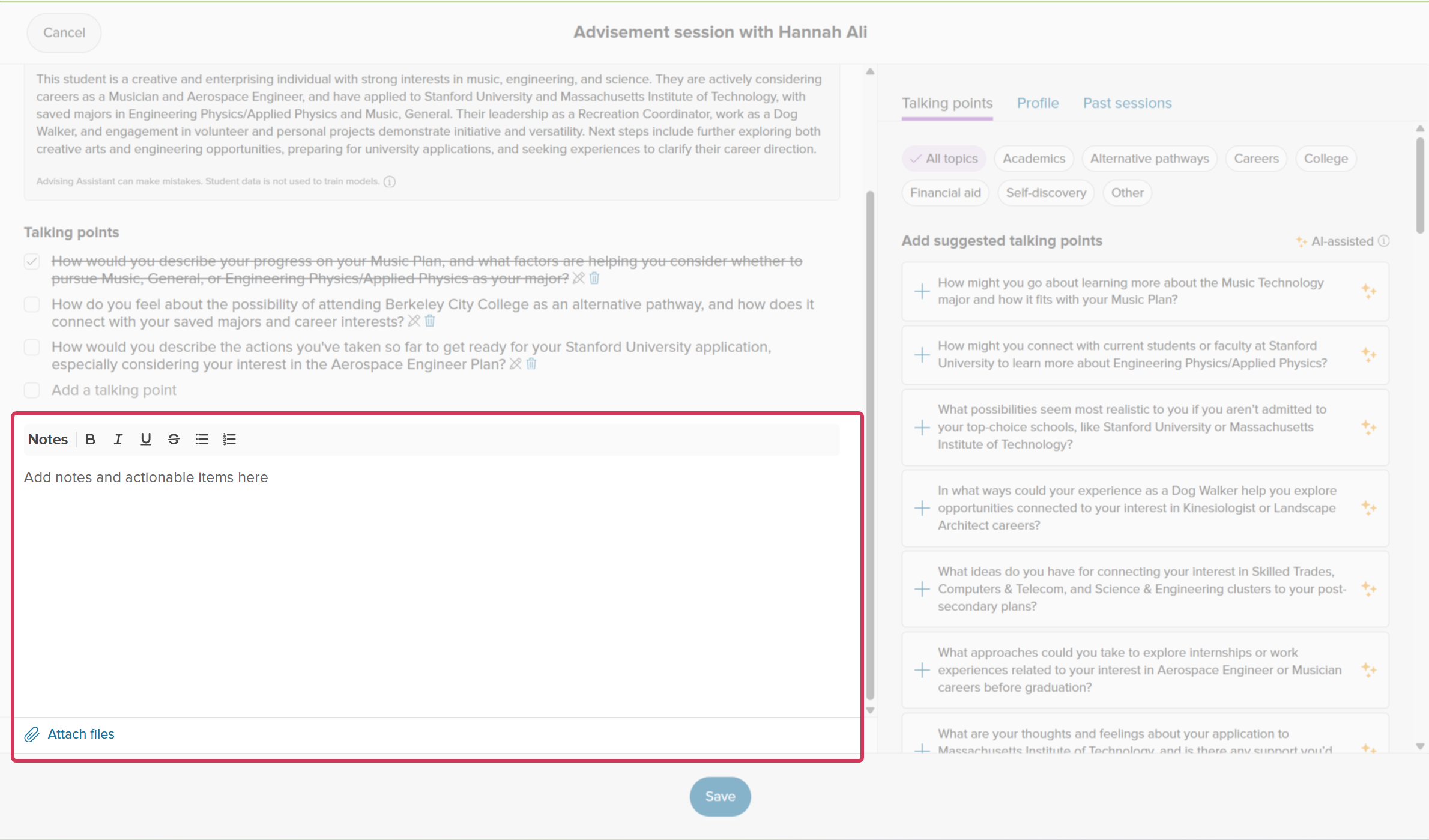
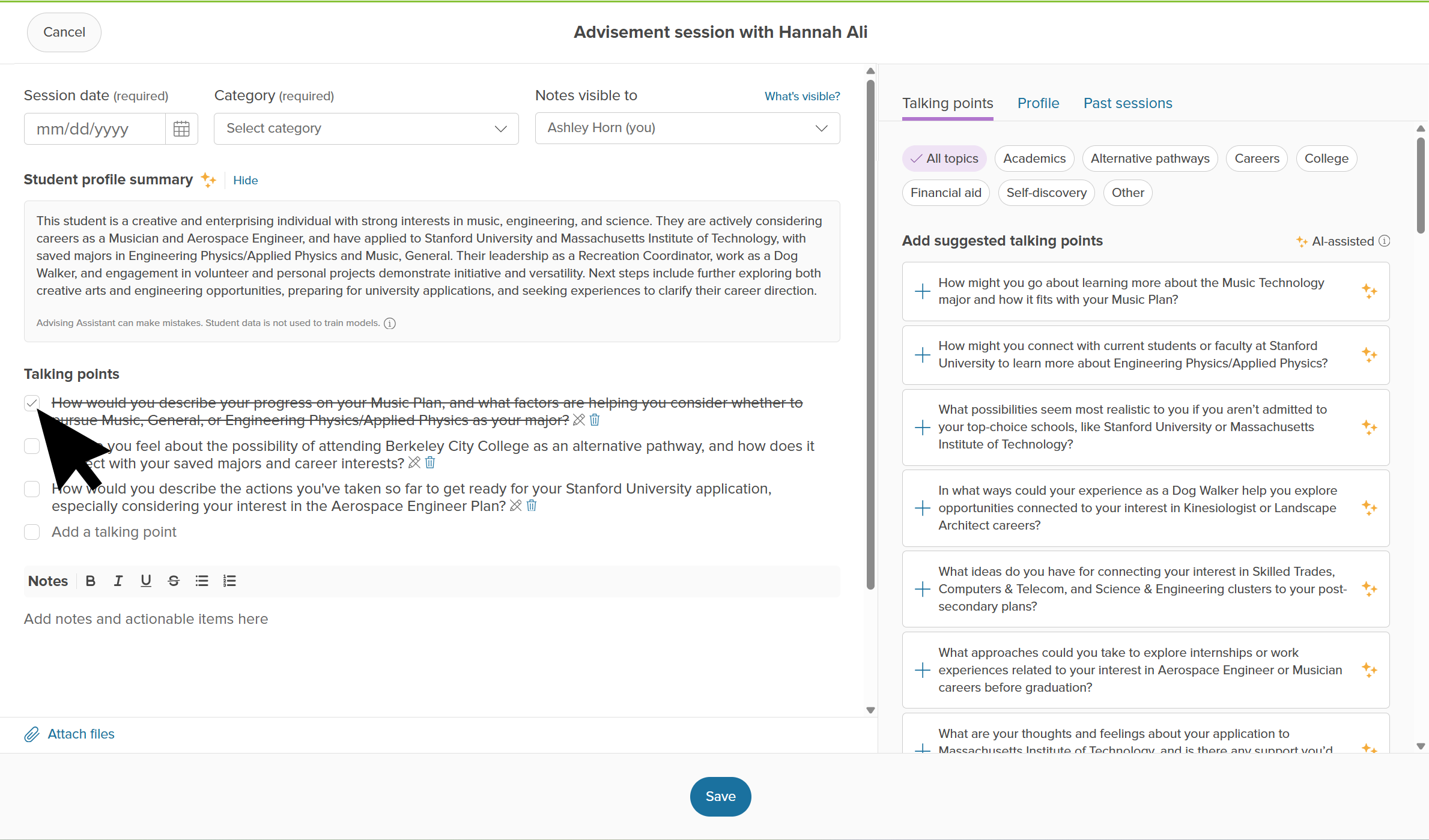
Under the Talking points tab, review conversation starters tailored specifically to the selected student. When AI assistance is enabled, these dynamic prompts are denoted by a sparkle icon and pull directly from the student’s profile data. These talking points will help guide your conversations with your students, help build confidence, and make it easier for you to manage your caseload by providing personalized ideas to cover with your students.
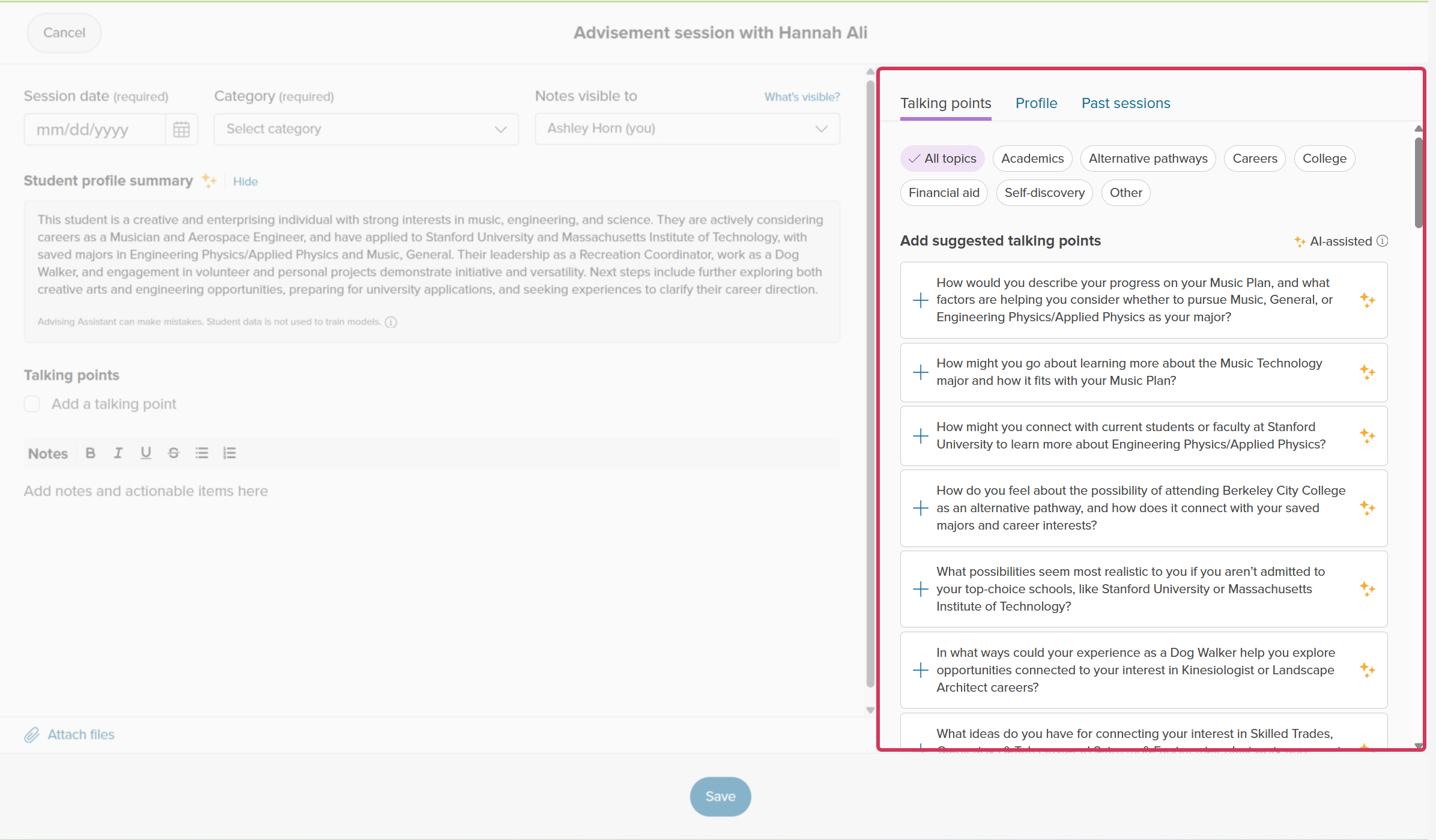
While in the Talking points tab, clicking on a suggestion will add it to the session notes under Talking points. This way you can keep your top questions listed front and center when working with your student. Once you've had the conversation with your student, you can click the listed talking point to cross it off and mark it as done.
Review past sessions
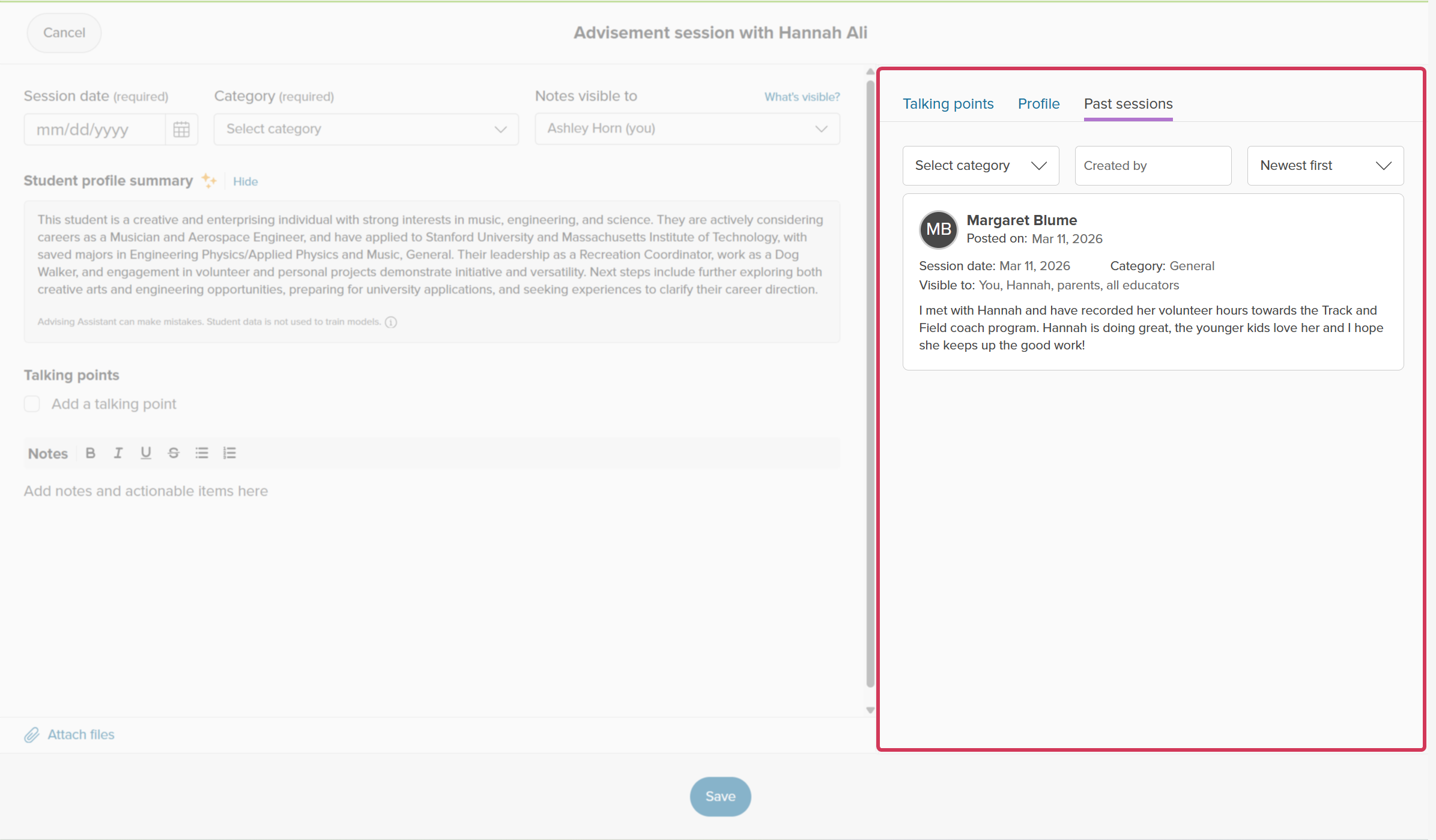
Before jumping in to your meeting with your student, you may want to review past sessions you or other educators have had with the student. Full visibility into past notes maintains continuity, reduces miscommunication, and keeps support consistent.
Click the Past sessions tab to view all visible recorded sessions. You can filter by category, who created the session, and sort by newest or oldest.
Add notes and actionable items
Use the main note area and ability to add attachments during or immediately after a student meeting to record what was discussed and agree on next steps. This provides clear accountability for you and, should you choose to share your notes, with the student, parents/guardians, and other educators. Use this opportunity to upload any files, documents, or approvals to keep an accurate record of what was discussed.