4 minutes
Having an email address in Xello will help students easily recover their own username and password, and to view notifications. While your school may have uploaded students' school email addresses into the system, it's recommended that a student add their personal email
If adding a personal email is an assigned task in Completion Standards, the task will be marked as completed once the student has both added their personal email and verified it.
How students add their email
Adding a personal email ensures students maintain access to Xello and their career plans after  )
)
How students add a personal email address:
- On any page in Xello, from the top right corner, students click their avatar to open a menu.
- From the menu, they click Account to open their profile details.
- In the Personal section, students click the Add email address link to insert their personal email address.
- A validation email is sent to the newly added address.
- Once the student validates their personal email address, it becomes the primary address for notifications from Xello.
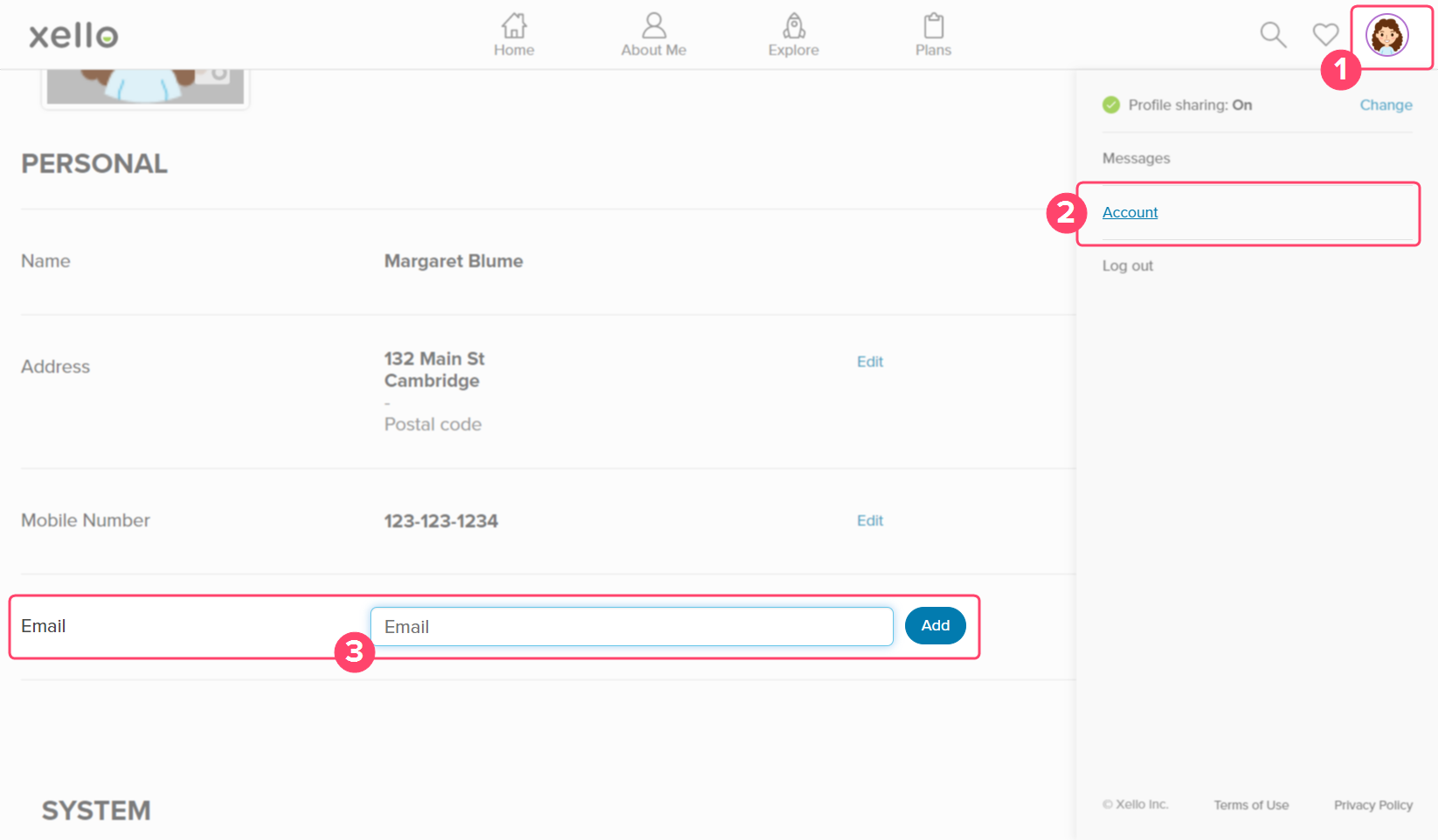 Click to enlarge
- Adding their email address will mark the task on their to-do list as Done. From your educator account, on the student's profile and in reports, the task will be marked as Complete.
 FYI: When a student requests to reset their password, the email will go to both their school and personal email addresses.
 Back to top
Track student emails
Educators can track student emails in two ways, either by running a Completion Standards report to view who has completed the task, or by viewing the student list where you can see the address each student has added.
Completion Standards report
To see how many and which students have added and verified their personal email, you can Run a report on task completion using the Completion Standards reports. This report gives you a high-level view of student progress, showing which students have completed the task, who is still incomplete, and who has been exempted.
View and export email addresses
If you need to see or download the personal email addresses, you'll use the Student list. From here, you can export the list to an Excel or CVS file.
To view and export email addresses:
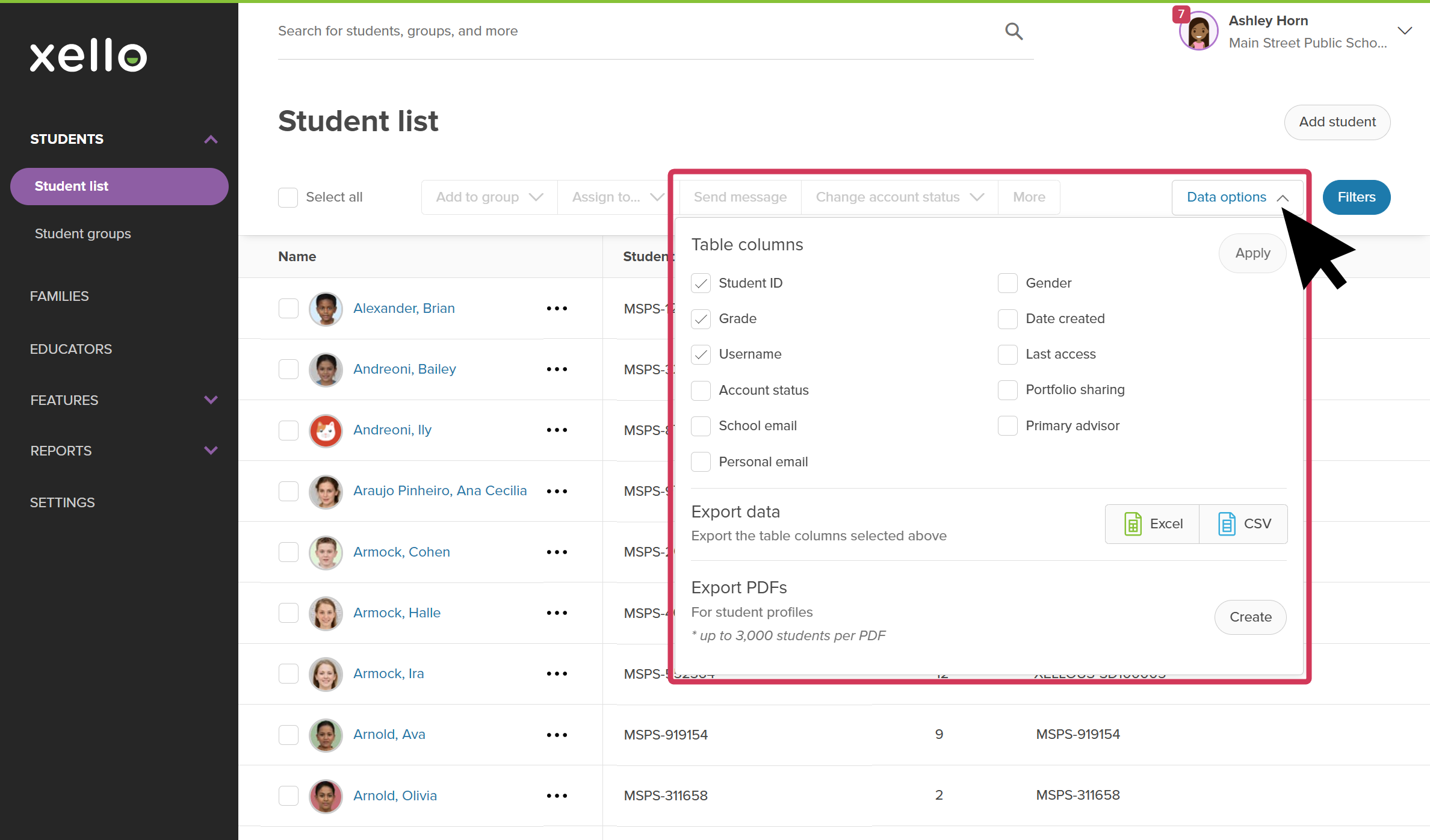
- From your educator account, click Students and select Student list to open the list of all students at your school.
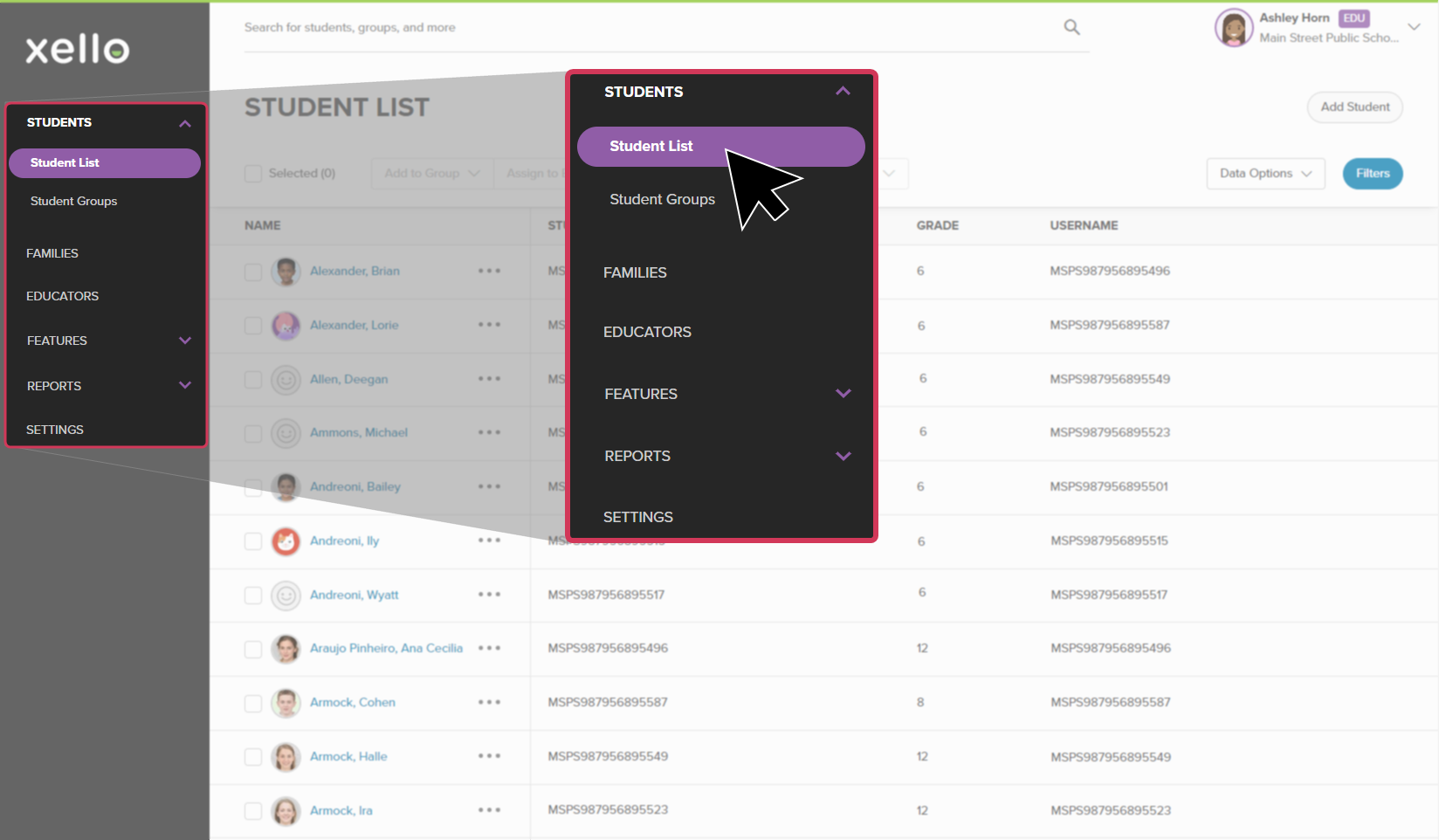 Click to enlarge
- Click the Data options dropdown. This will open a menu with table columns you can add to the list.
 Click to enlarge
- Select Personal email.
- To add the column to the table, click Apply.
- To download the list, click Data options again and select Excel or CSV.

 Select