2 minutes
When a college partner has requested to attend your event, you’ll receive an email. You can use the link in the email to sign in to Xello and approve or decline the college partner.
Events that have pending requests that haven't been viewed yet will show a red notification badge indicating the number of requests.
To approve a college partner for an event:
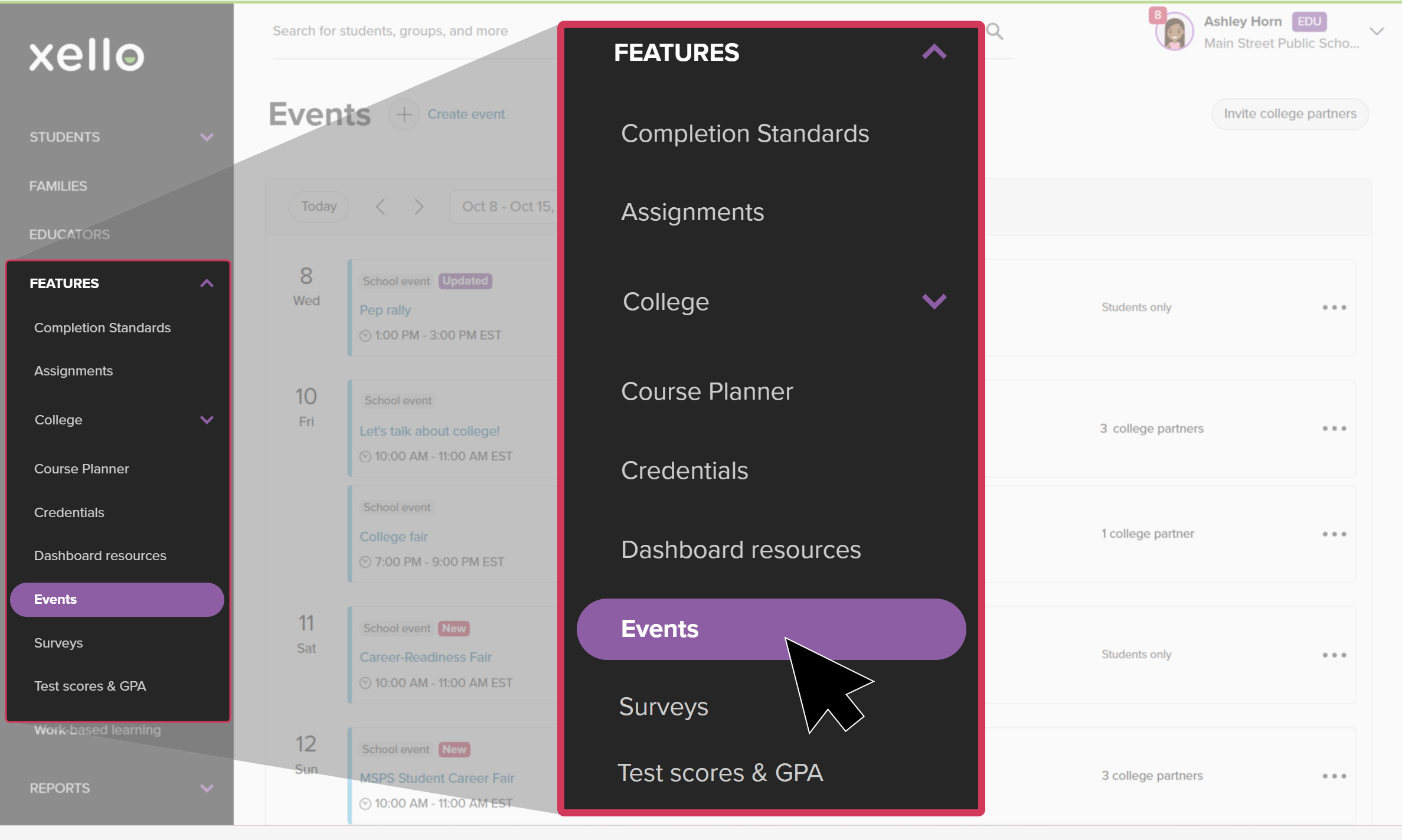
- Click Features and select Events.
 Click to enlarge
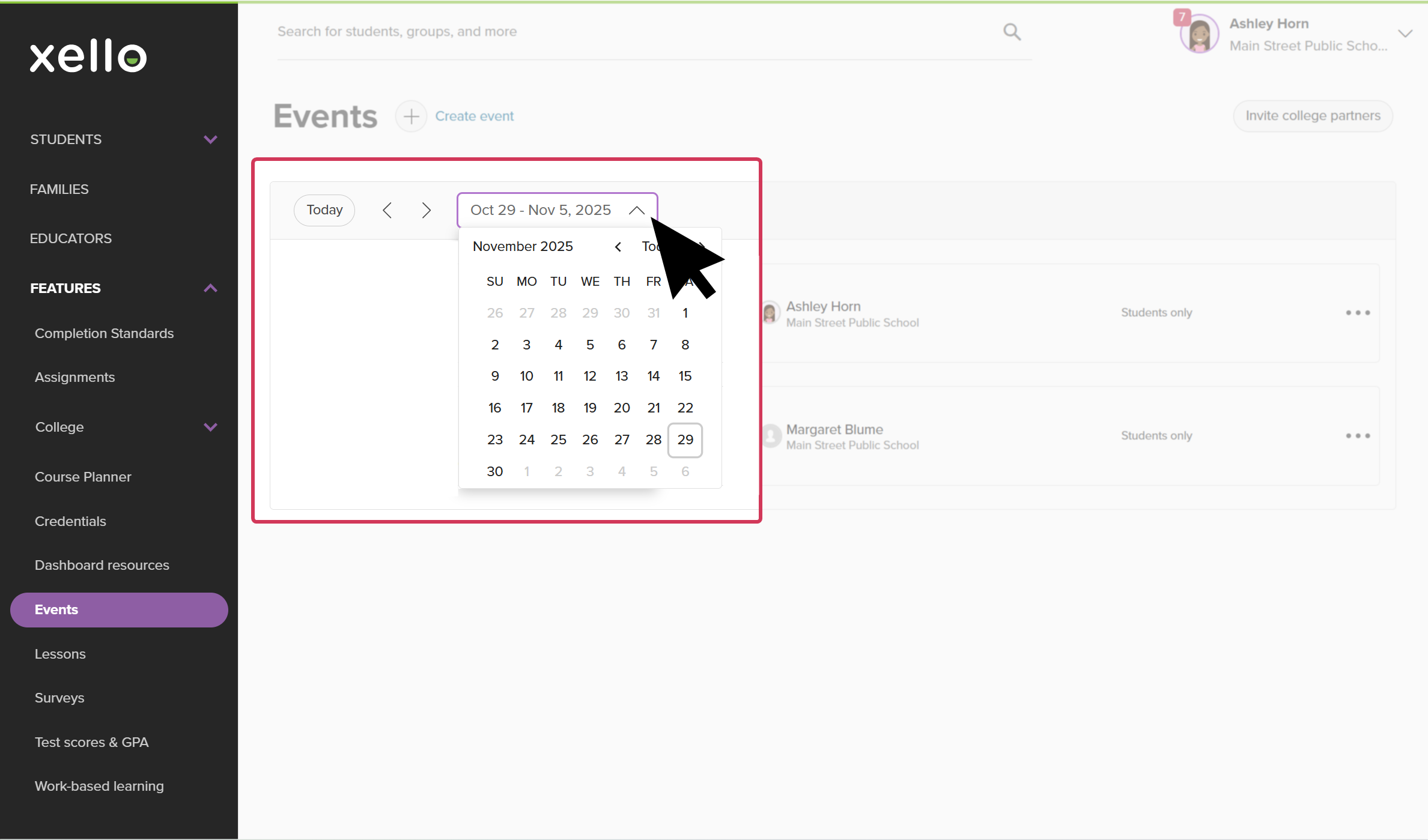
- Use the search, or the date dropdown and calendar to find the event.
 Click to enlarge
- You can also use Filters to show only events you've created, or to narrow the events by location or grades.
- Click the title of the event to view more information.
- Alternatively, if the requests haven’t been looked at yet and you don’t want to view the full event, next to the red notification, click requests and continue to step 5.
- In the College partners section, click Manage requests.
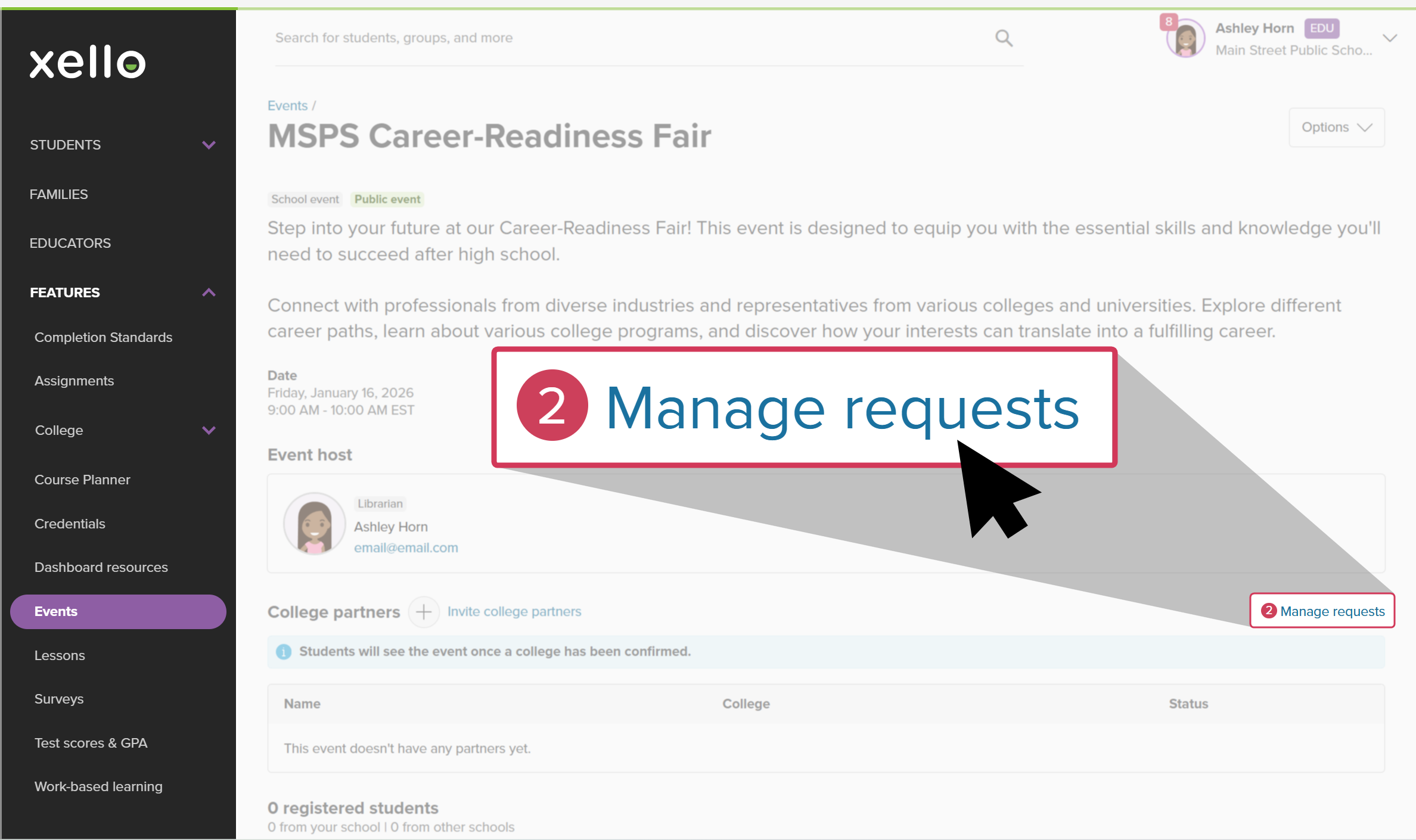 Click to enlarge
- Check the box next to each partner you want to approve.
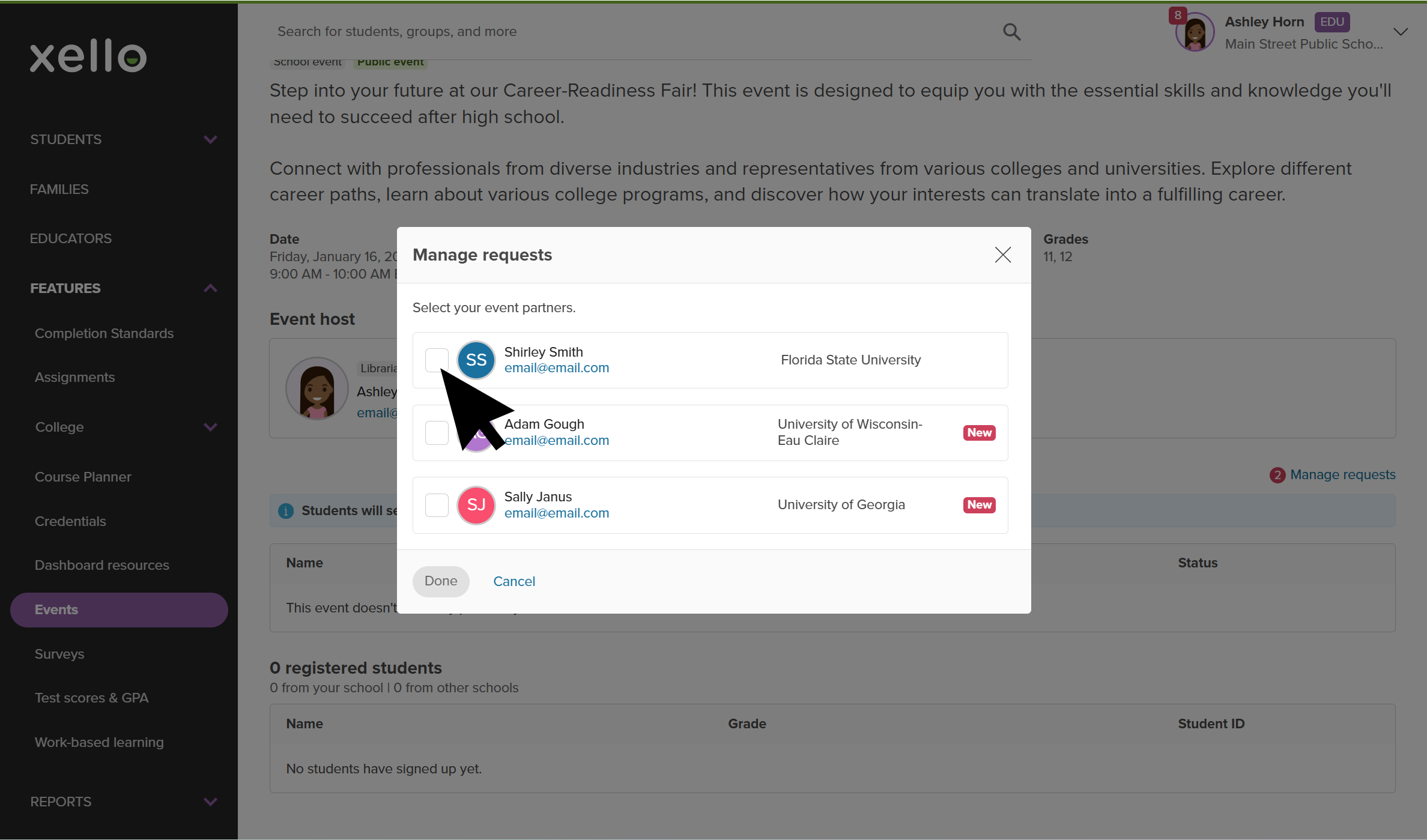 Click to enlarge
- Click Done.
- A banner will indicate success.
- The college partner will receive an email confirming you’ve approved their request.
 Tip: After you’ve approved a college partner, if you don’t want to receive any more requests for your event, you can make the event private. To learn more, check out: Edit an event.