5 minutes
You can share your event with students and fellow educators to help promote awareness and attendance.
After you’ve created an event, you can copy and share the link with your students. Post it in an assignment, as a dashboard resource, or include it in a message to a group of students you think would be interested.
 Note: Events open to college partners won't be visible to students until a college has been confirmed. Check out Approve a college partner to learn more.
To copy and share an event link with students:
- Click Features and select Events.
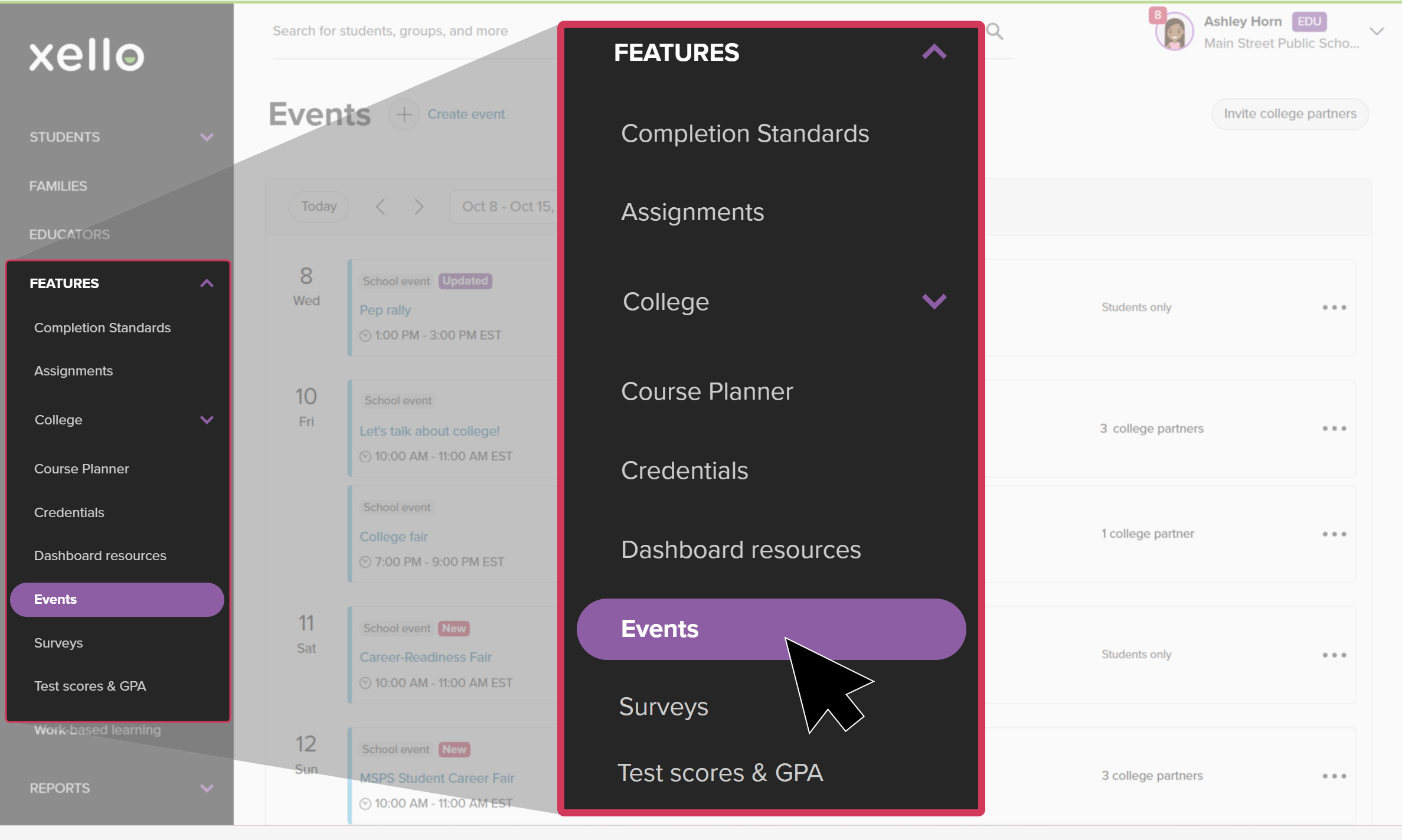 Click to enlarge
- Use the search, or the date dropdown and calendar to find the event.
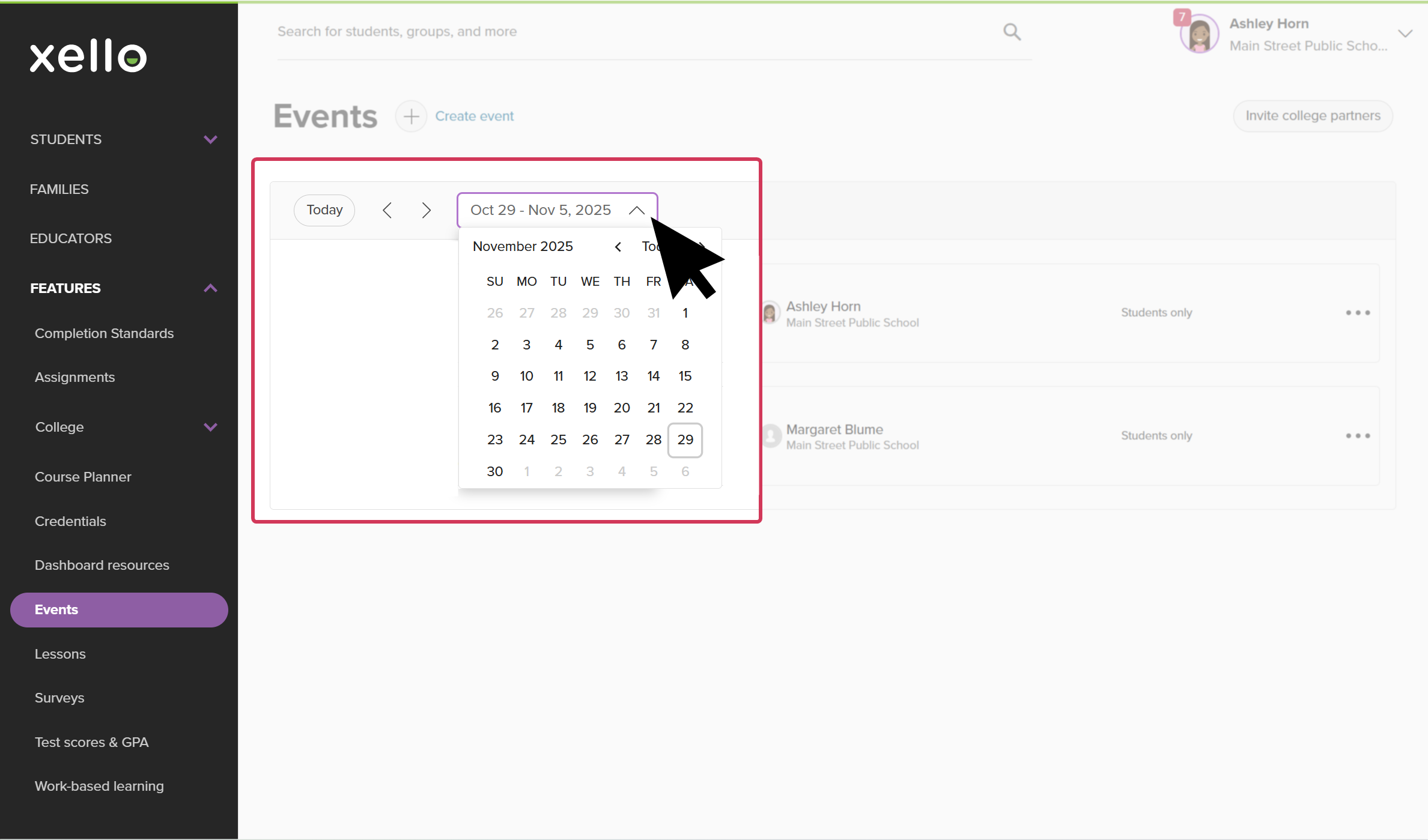 Click to enlarge
- You can also use Filters to show only events you've created, or to narrow the events by location or grades.
- Next to the event, click the three-dot menu and select copy link. This will copy the shareable link to your clipboard which you can then paste.
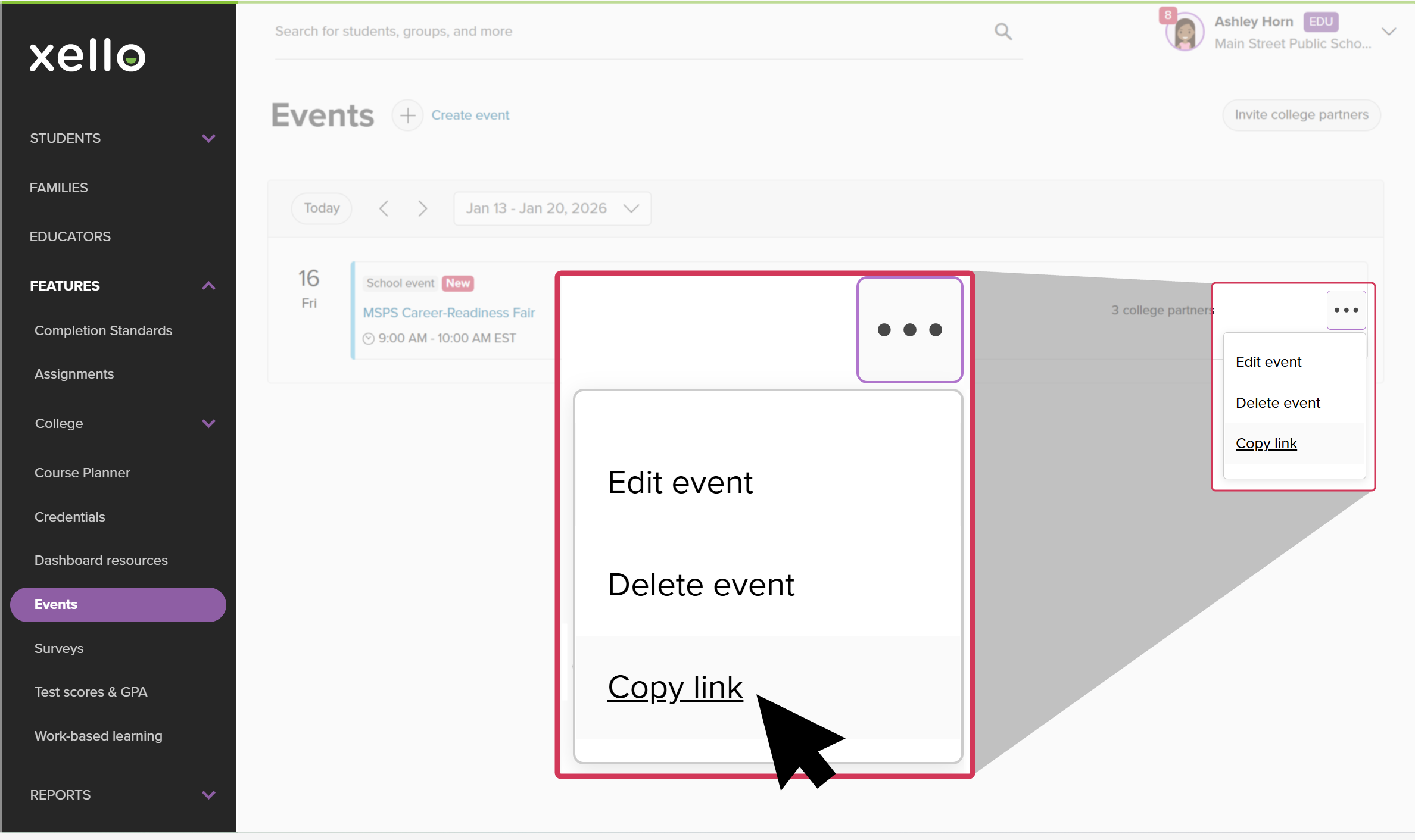 Click to enlarge
- Share it with your students in an assignment, dashboard resource, or create a group of students you'd think would be interested and include the link in a message. For reminders on how, check out the links below:
Once a student accesses the link, it’ll open that event’s detail page where they can get more information and sign up.
 Tip: To learn about the student experience, check out How students work with events.