4 minutes
When a student request requires signatures or forms from specific roles (such as a company supervisor, coordinating educator, or parent), a Missing participants warning appears if any required person is not assigned.
 Note: Signers (such as parents or company supervisors) receive a secure email link to complete and sign forms directly. They do not need a Xello account to complete their required forms.
You can identify and resolve missing participants directly from the main Student requests list or within an individual student request.
Resolve from the Student requests list
While on the Student request page, where you see the Missing participant alert, you can quickly resolve it without even leaving the requests page.
To resolve a Missing participant alert from the Student requests page:
- From your educator account, click Features and select
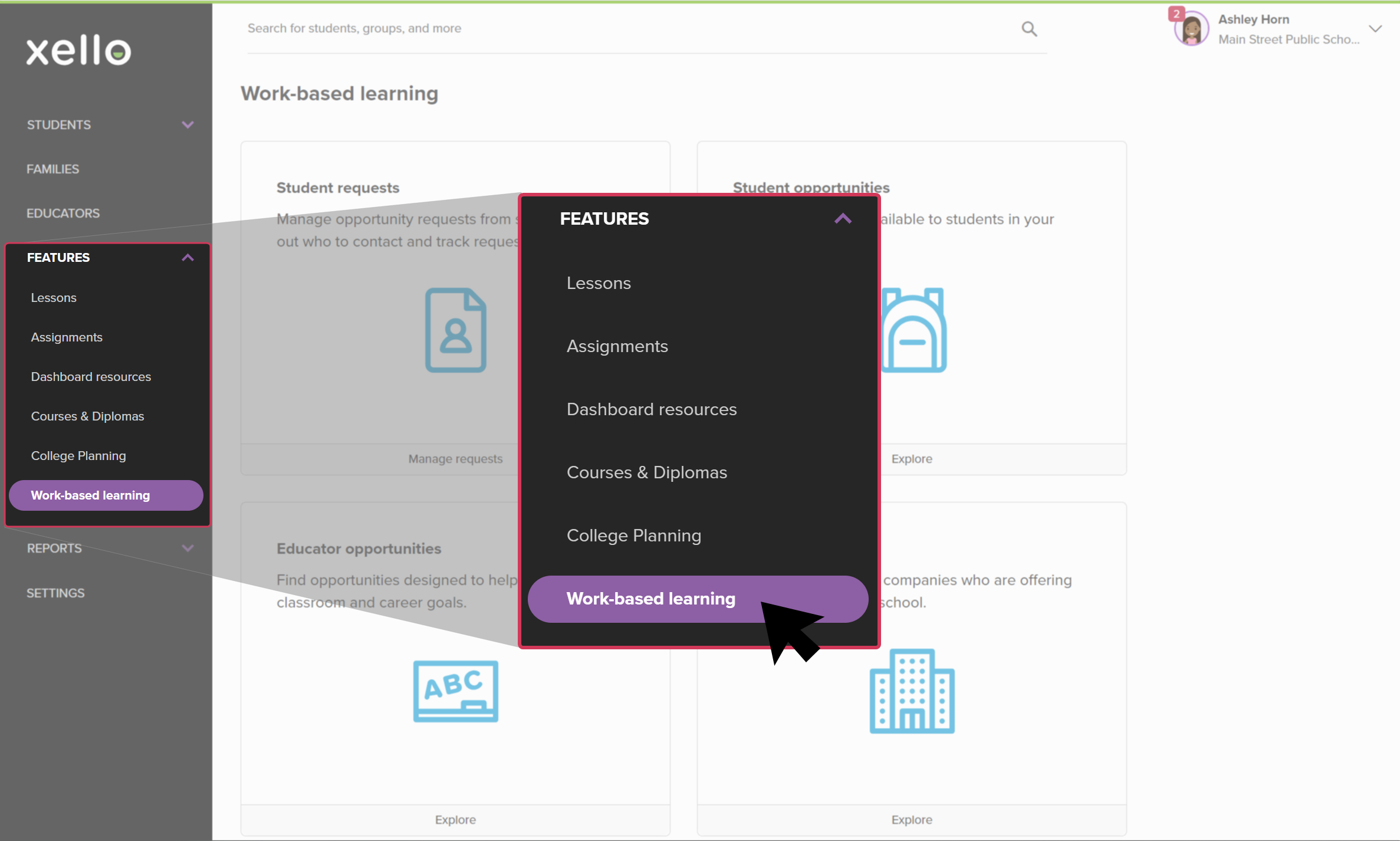 Click to enlarge
- Next to Student requests, click View.
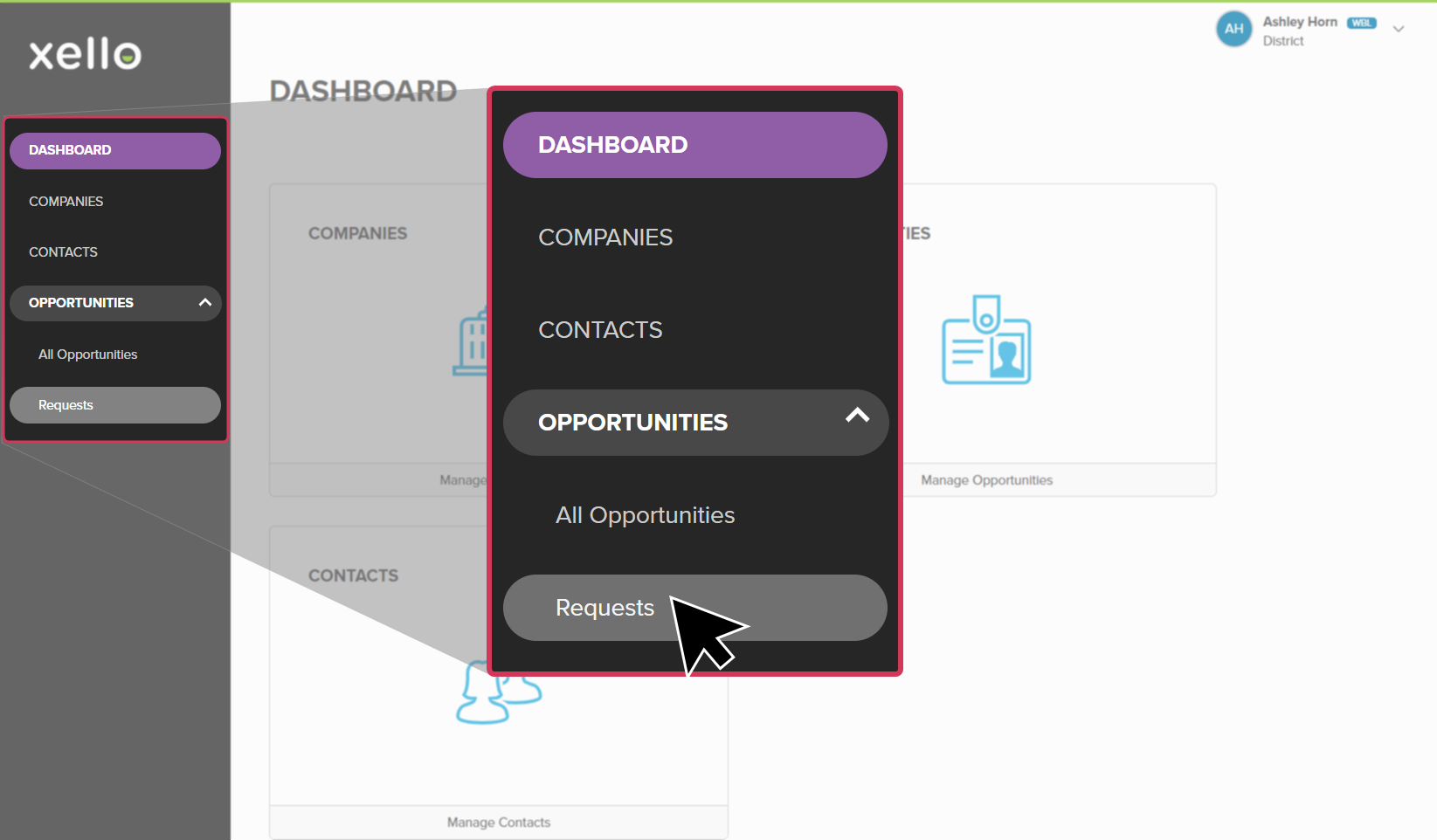 Click to enlarge
- In the Required documents column, click the Missing participants link to open the side panel.
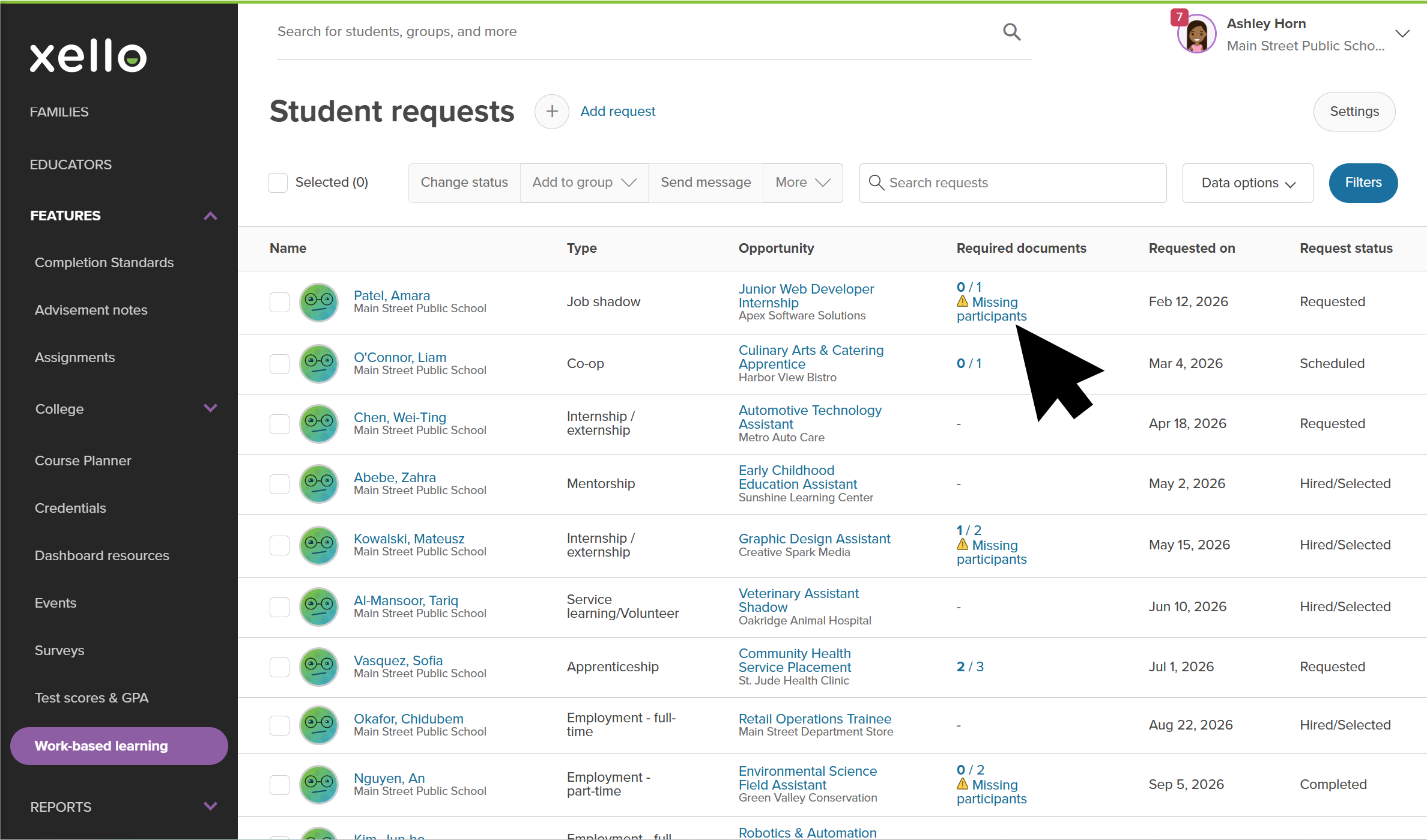 Click to enlarge
- In the side panel, review the requirements to see which participant role is missing:
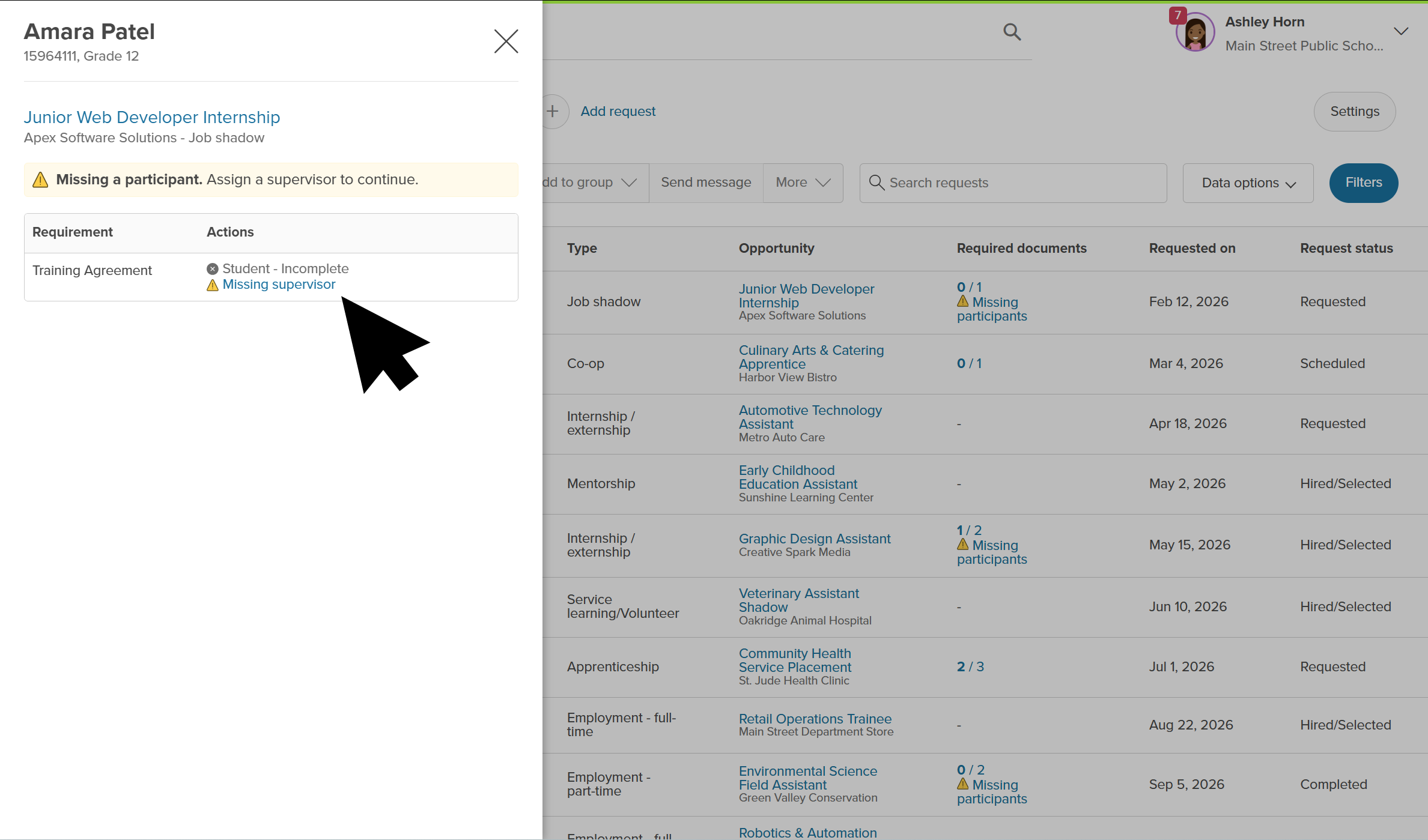 Click to enlarge
- Supervisor: Click the Missing supervisor link. In the pop-up window, select a contact and click Save.
- Coordinating educator: Click the Missing coordinating educator link. In the pop-up window, select an educator from the list and click Save.
- Parent: Click the Missing parent link. You will be redirected to the Parents tab on the student's profile page. Ensure a parent/guardian email is linked so signature requests deliver properly. To learn more, check out Invite a parent/guardian.
Once assigned, any document workflows waiting for that participant automatically send out signature emails to the assigned contact.
 Back to top
Resolve from a student request
If you're already in a student's request and see the alert for a missing participant, you can resolve it while already on the student's request.
To resolve a Missing participant alert from a student's request:
- From your educator account, click Features and select Click to enlarge
- Next to Student requests, click View.
Click to enlarge
- Click the name of the student to open their request page.
- In the Requirements section, click the link to the missing participant.
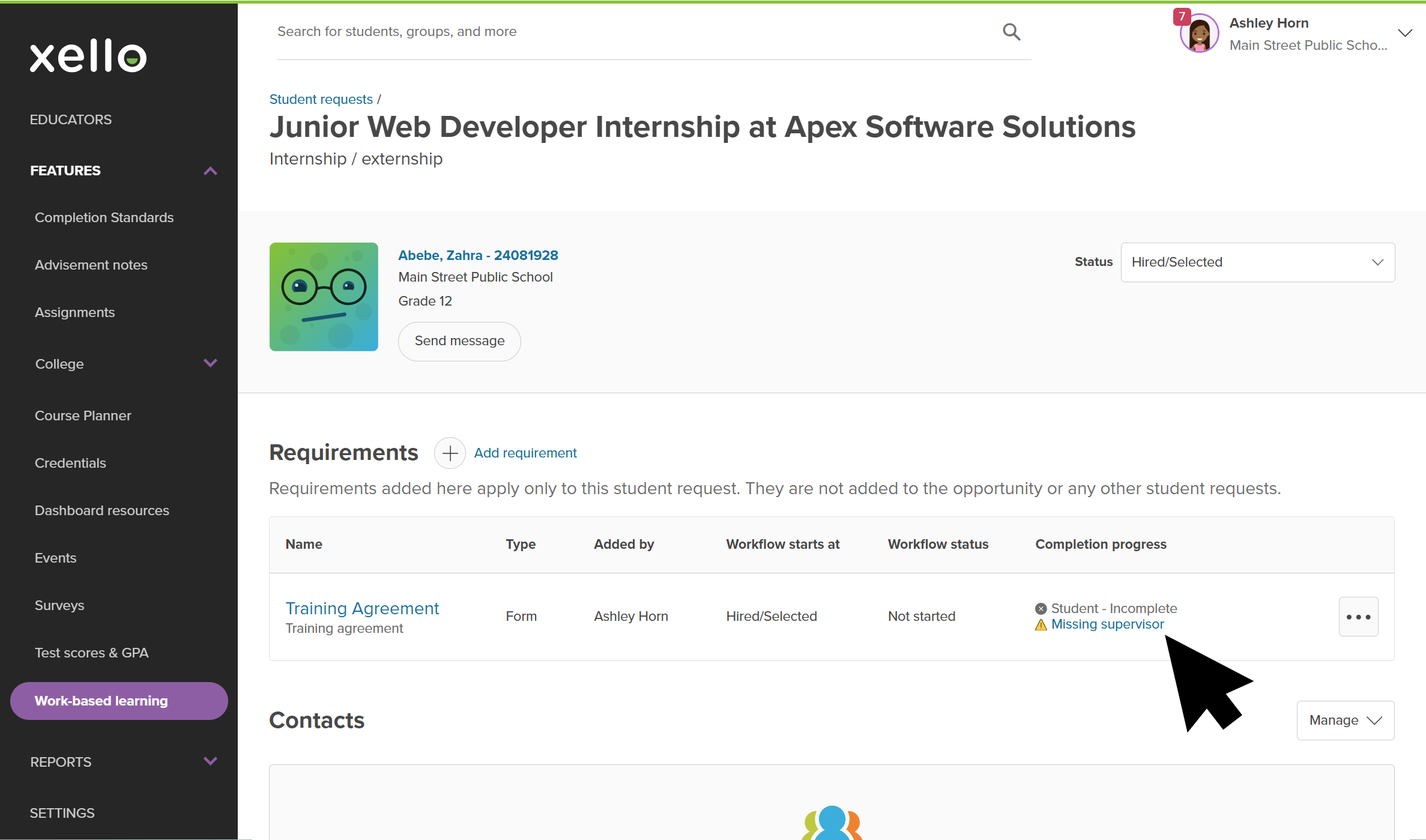 Click to enlarge
- Supervisor: Click the Missing supervisor link. In the pop-up window, select a contact and click Save.
- Coordinating educator: Click the Missing coordinating educator link. In the pop-up window, select an educator from the list and click Save.
- Parent: Click the Missing parent link. You will be redirected to the Parents tab on the student's profile page. Ensure a parent/guardian email is linked so signature requests deliver properly. To learn more, check out Invite a parent/guardian.
Assign supervisors or coordinating educators in bulk
If multiple students are participating in opportunities with the same business or coordinator, you can assign participants to multiple requests at once. Assigning roles early also helps you get ahead of missing participant warnings before document workflows start.
To assign supervisors or coordinating educators in bulk:
- From your educator account, click Features and select Click to enlarge
- Next to Student requests, click View.
Click to enlarge
- Check the boxes next to each student request you want to update.
- Alternatively: Click Filters to narrow the list (by status, opportunity type, or coordinator), click Apply to return to your narrowed list, then click Selected (0) at the top left to select the entire narrowed list at once.
- At the top of the table, click the Actions dropdown and select Assign supervisor or Assign coordinating educator
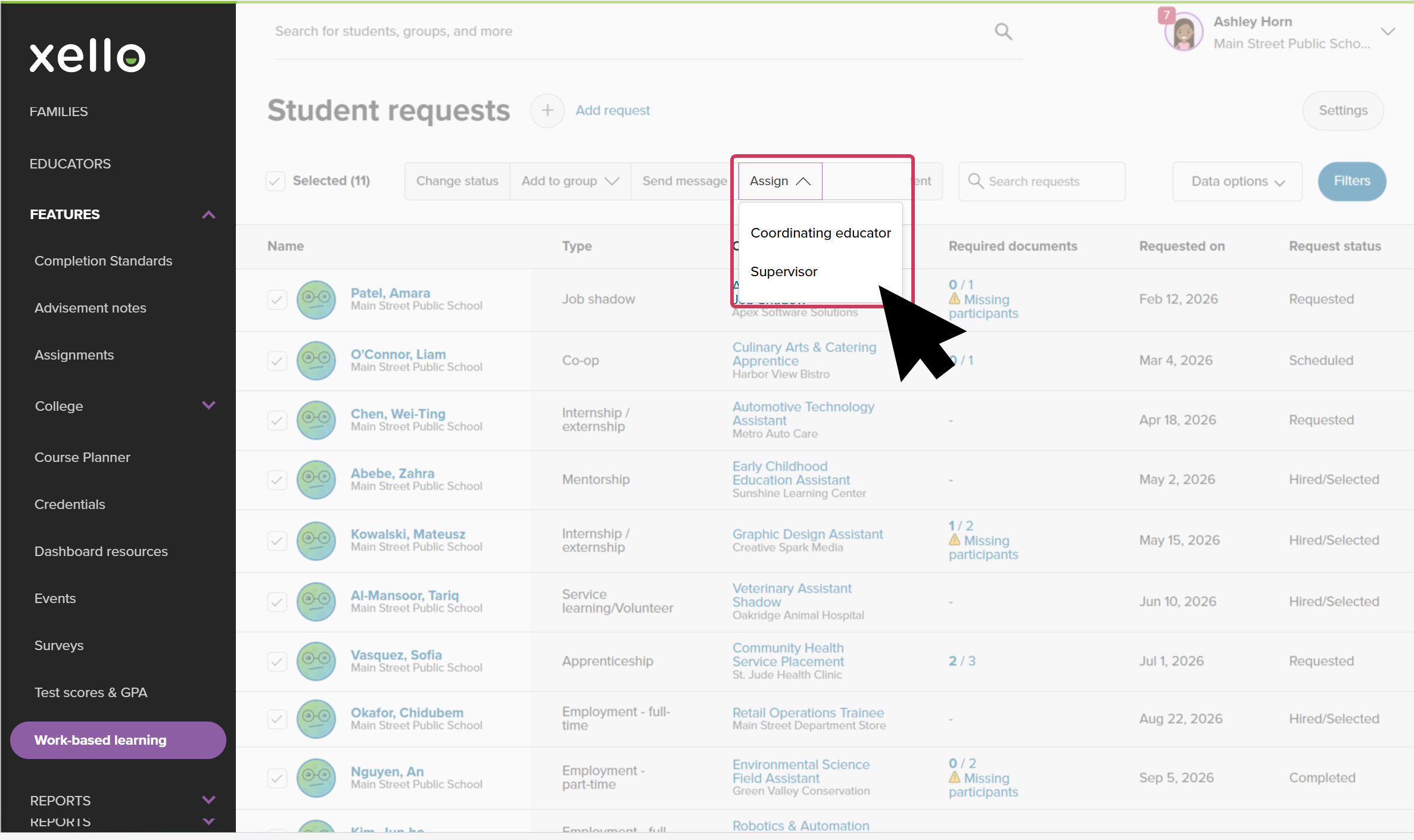 Click to enlarge
- Select the desired individual from the dropdown menu and click Save.
Reassigning participants: If a supervisor or educator changes mid-way through an experience, reassigning them sends out outstanding forms to the new contact. Previously completed forms remain valid, and the previous signer's access link will no longer work.