2 minutes
It happens: sometimes a student makes a mistake in an activity or lesson and needs to start over. In Xello, you can reset a lesson and delete all of the student's progress to give the student a fresh start.
 Note: The option to reset a lesson is available only for Xello-made lessons. Custom lessons cannot be reset.
To reset a lesson for a student:
-
In the search bar located at the top of any page in your educator account, enter the student's name or ID.
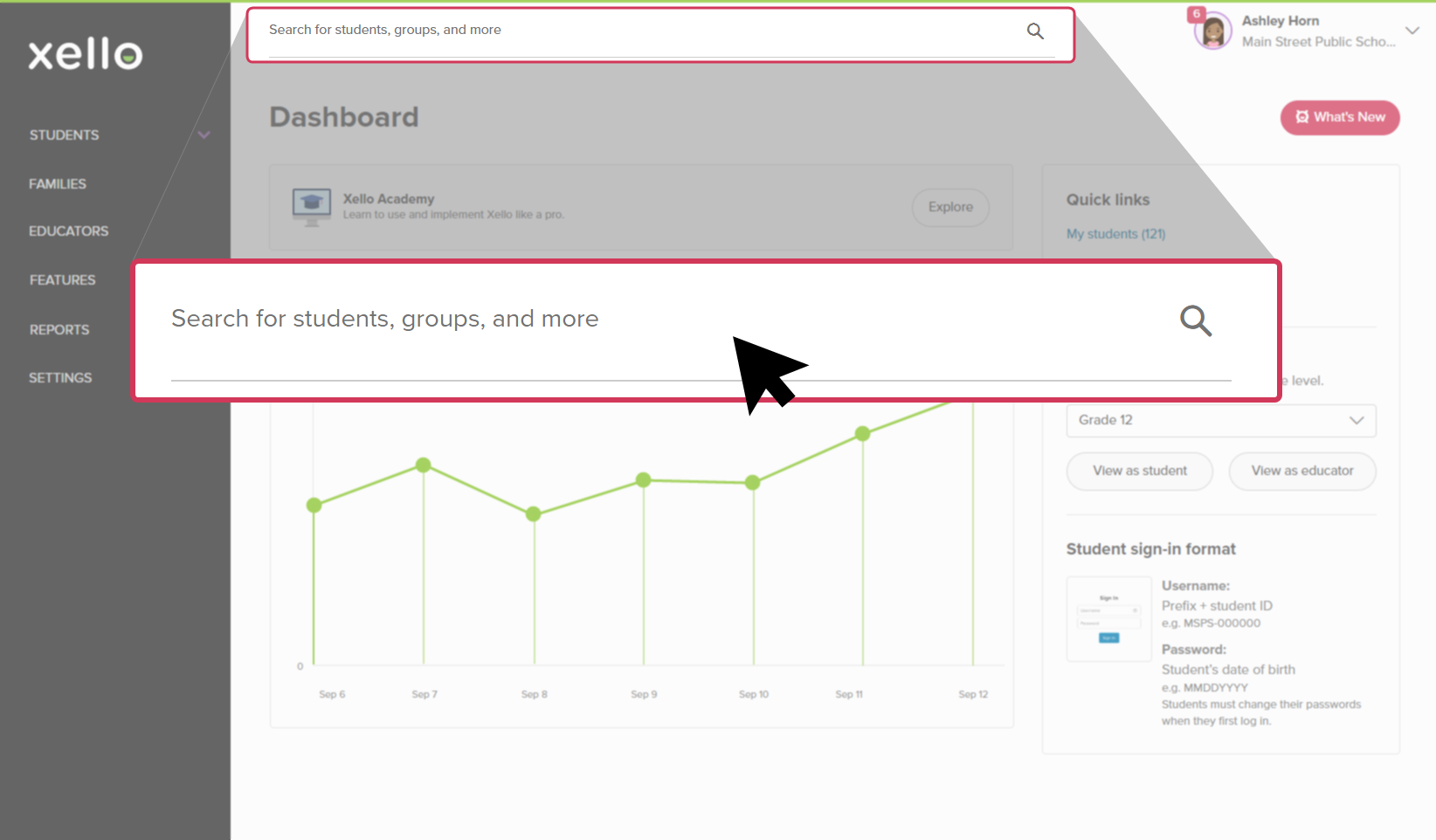 Click to enlarge
 Tip: Alternatively, from the left menu, click Students and select Student list to browse the full list of students.
 -
Click on the student's name. The About student tab of their profile opens.
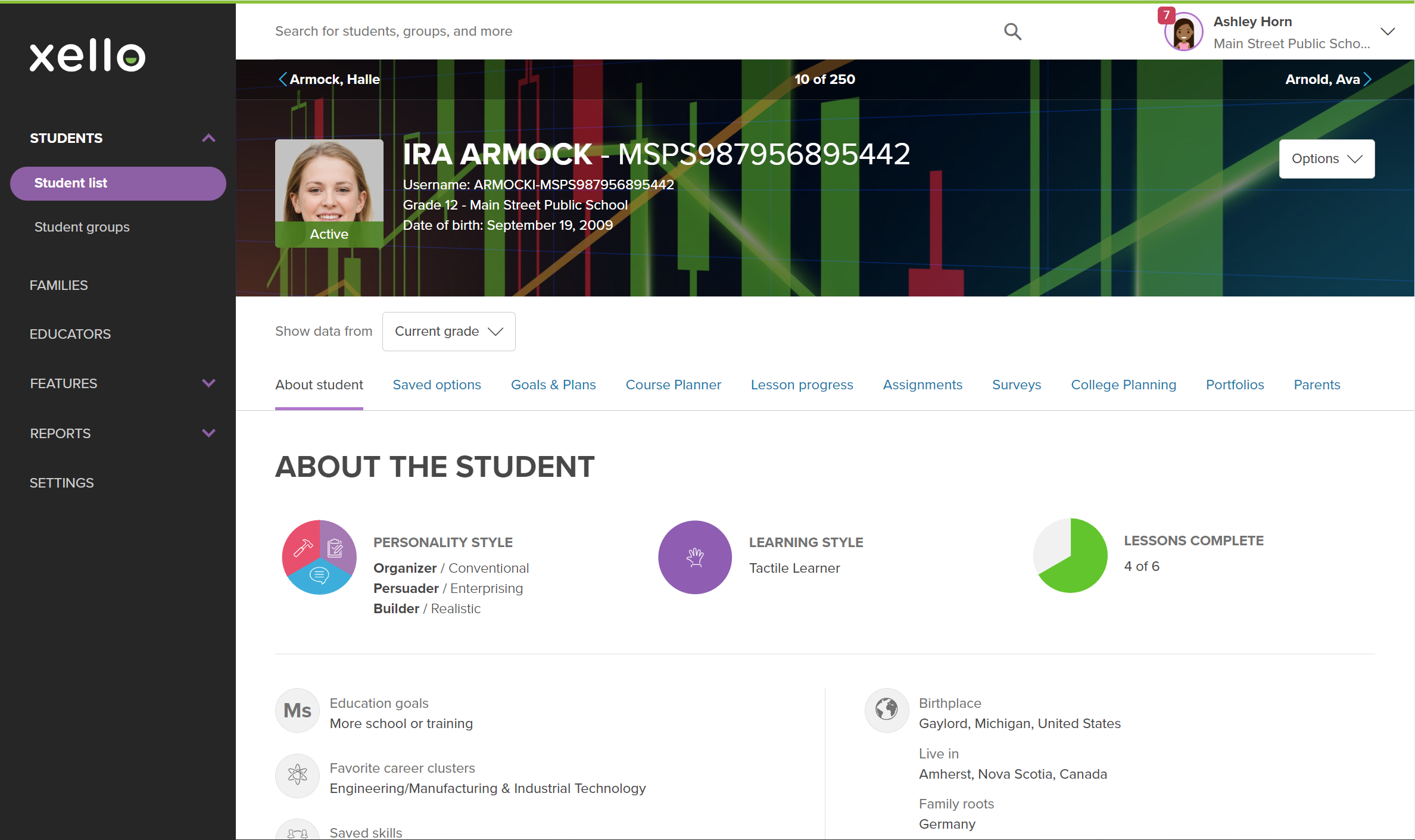 Click to enlarge
 - From the top of the page, click the Completion Standards tab.
- By default, the list is filtered to show assigned tasks. Click Include optional tasks to include optional ones.
- To view tasks and lessons from previous
- Locate the lesson you plan to reset and click on the title.
- In the tile with the student's current progress status, click Reset lesson.
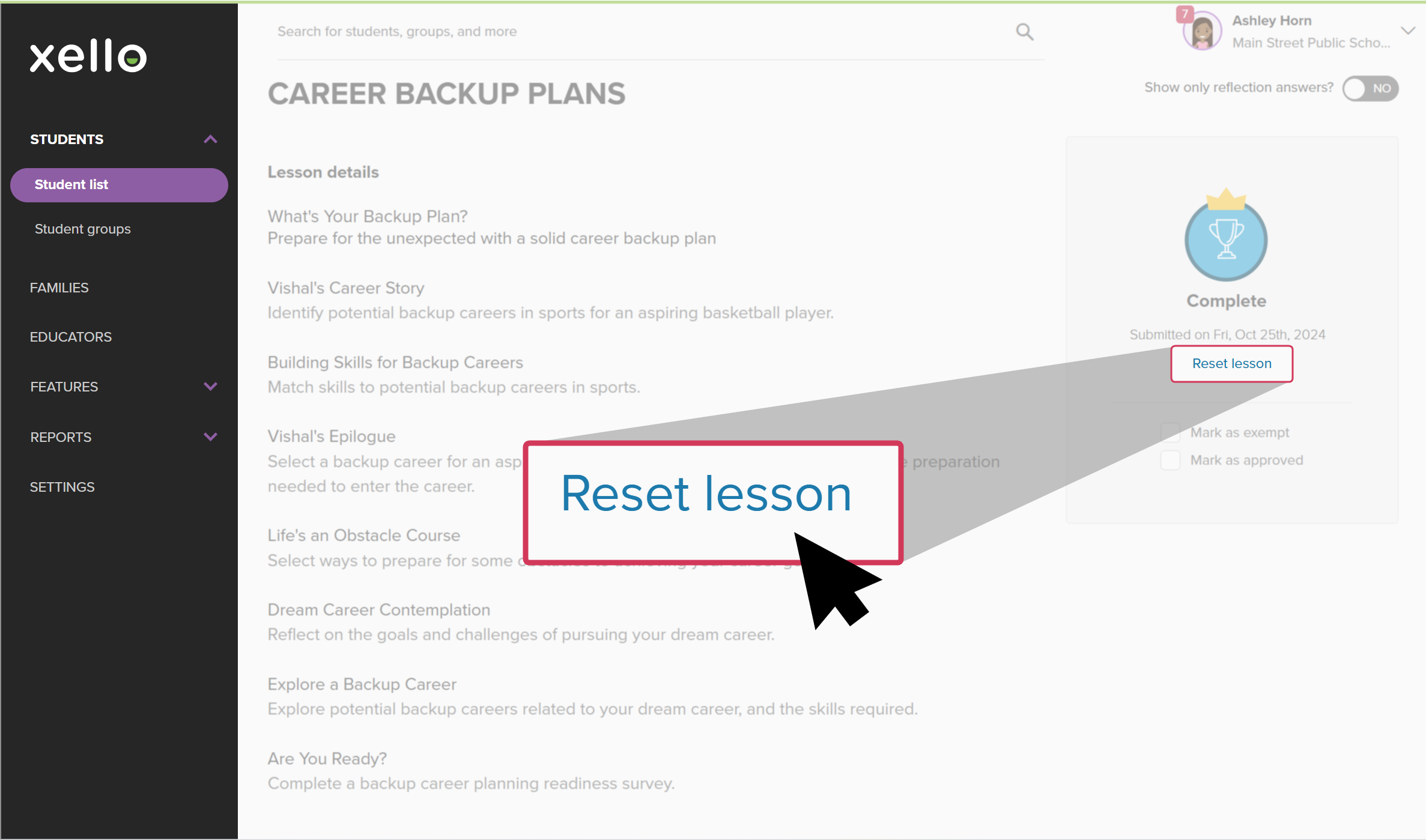 Click to enlarge
 - To confirm you want to reset and delete any progress the student has made in the lesson, click Yes, reset.
 Warning: Resetting a student's lesson cannot be undone. Once you confirm the reset, the student will need to redo the lesson from the beginning.
When students access the lesson after it's been reset, they'll see a notification on the introduction page that states which educator reset the lesson and when. This notification will remain there until they've restarted the lesson.