3 minutes
Setting up Completion Standards helps your students know exactly what they need to do each year, while making it easy for you to track their progress. From the Completion Standards page, you can assign tasks to specific
 Tip: This article covers Xello's tasks. Custom tasks can be created by Xello admin to build upon existing activities. Check out Add custom tasks to learn more.
To configure Xello Completion Standards tasks:
-
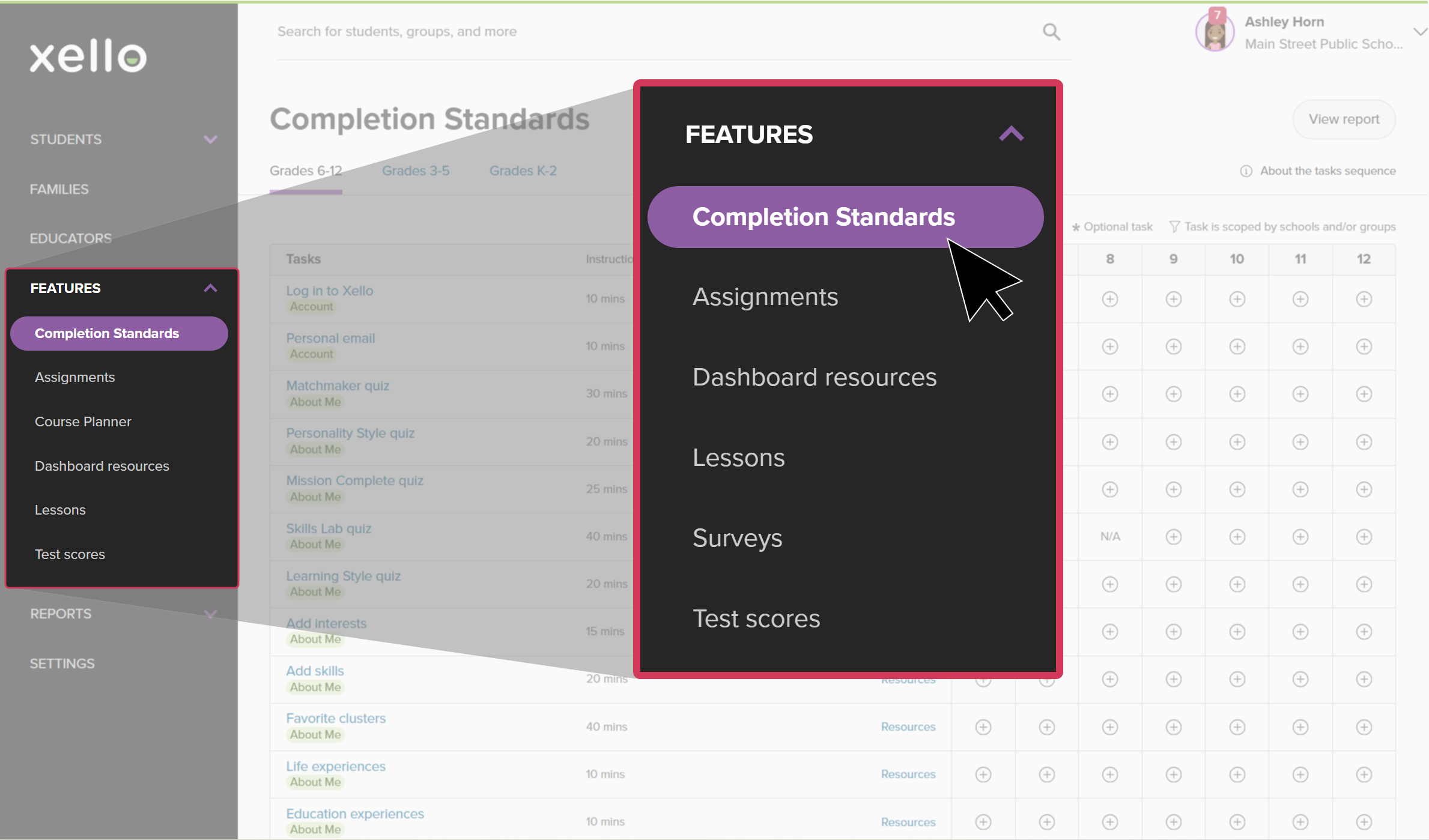
From your educator account, click Features and select Completion Standards.
 Click to enlarge
- Note: If you don't see Completion Standards listed, your school or district may have renamed it to match local requirements.
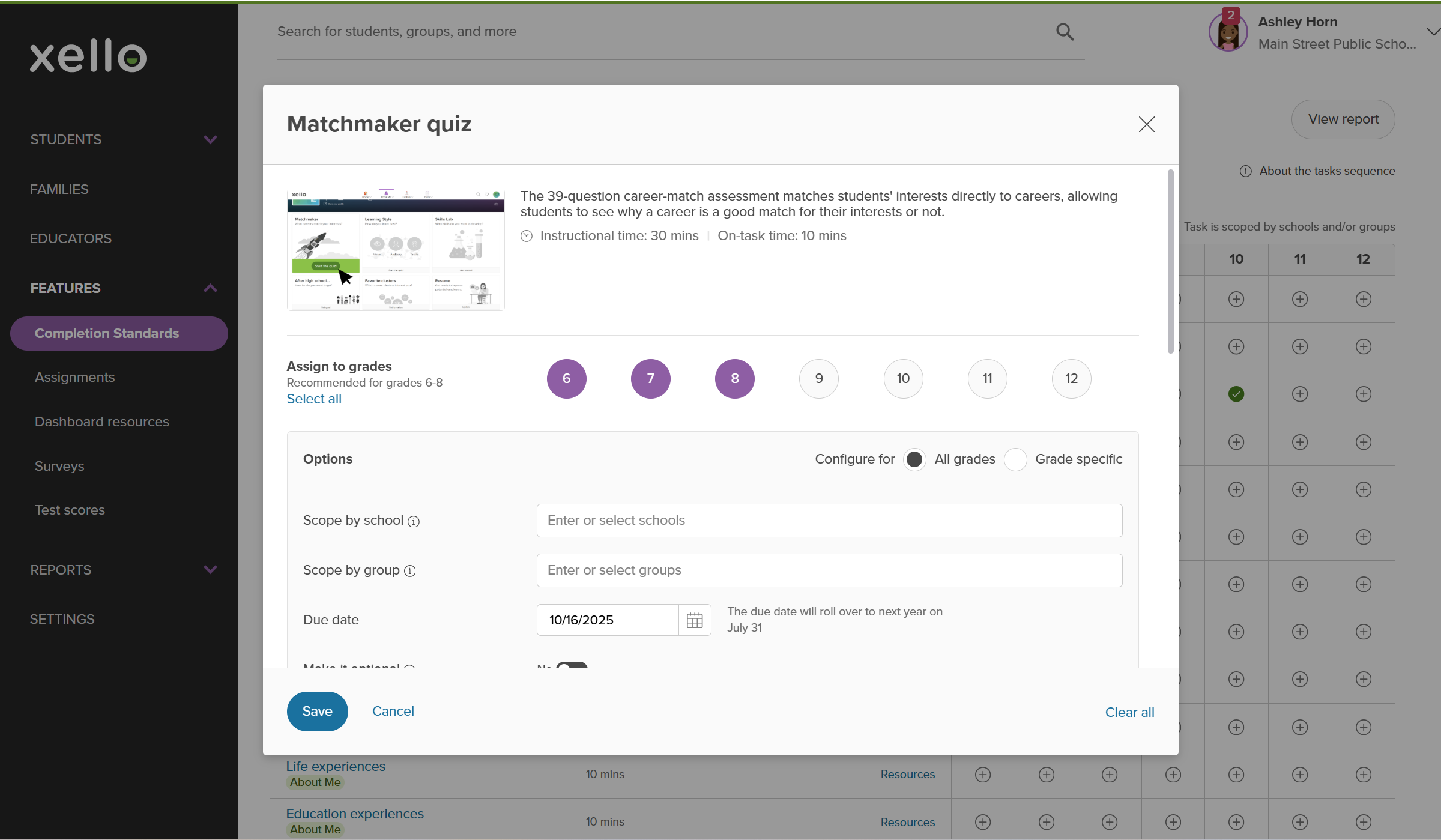
- Click a task to open its configuration settings.
 Click to enlarge
- Select which
- Multiple
- Cumulative tasks: For tasks requiring a minimum number of items (like interests or skills), targets build on previous work. For example, if Grade 6 requires 3 interests and Grade 7 requires 5, a student who completes 3 in Grade 6 only needs to add 2 more in Grade 7.
- Multiple
- Select any additional options you'd like to apply:
- Scope by school or group: Limit task visibility to specific schools or student groups within your chosen
- Due date: Set a deadline for the task. All set due dates automatically roll over to the following school year on June 30.
- Grade-specific settings: Apply configuration options across all assigned grades or customize them grade by grade.
- Scope by school or group: Limit task visibility to specific schools or student groups within your chosen
- When finished, click Save.
Sequence tasks
The order of tasks in your configuration table determines how they appear on student To-do lists.
To rearrange the sequence of tasks:
- On the Completion Standards page, click and drag the task row to move it up or down.
- Release the task in your preferred order. Changes save automatically.
 Note: Due dates override the manual sequence on the student To-do list. Any tasks that are overdue or due within the next 2 weeks will automatically jump to the top of the student's list regardless of table order.
 Back to top