4 minutes
The Real Game gives students a safe and engaging way to experience life as an adult. Through simulations, interactive gameplay, and comprehension activities, students sharpen their critical thinking skills, develop practical financial literacy, and build
Some key lessons students will learn when completing a Quick sim:
- Career and lifestyle exploration: From the very first page, students can begin a simulation by choosing a career, picking a saved career, or even having Xello pick one randomly. If they don't have a career in mind, they can start by choosing the kind of lifestyle they want.
- Education and debt awareness: Students will select their education pathway, like a
- Understanding living costs: Students can add a partner, children, or a pet to their simulation to see how that affects their expenses and income. They'll add common living expenses like housing and transportation. All of these costs are based on real local data for their chosen location, making it very personal and relevant for them.
- Location impact: Students can change their location within their country to see how living costs and salaries differ in various areas.
- Career progression: Students can unlock the mid-level and senior-level for their chosen career to see how a higher salary changes their budget and lifestyle choices.
- Saving multiple scenarios: Students can save and and play many different Quick sims, letting them try out various career and lifestyle combinations.
Access Quick sims
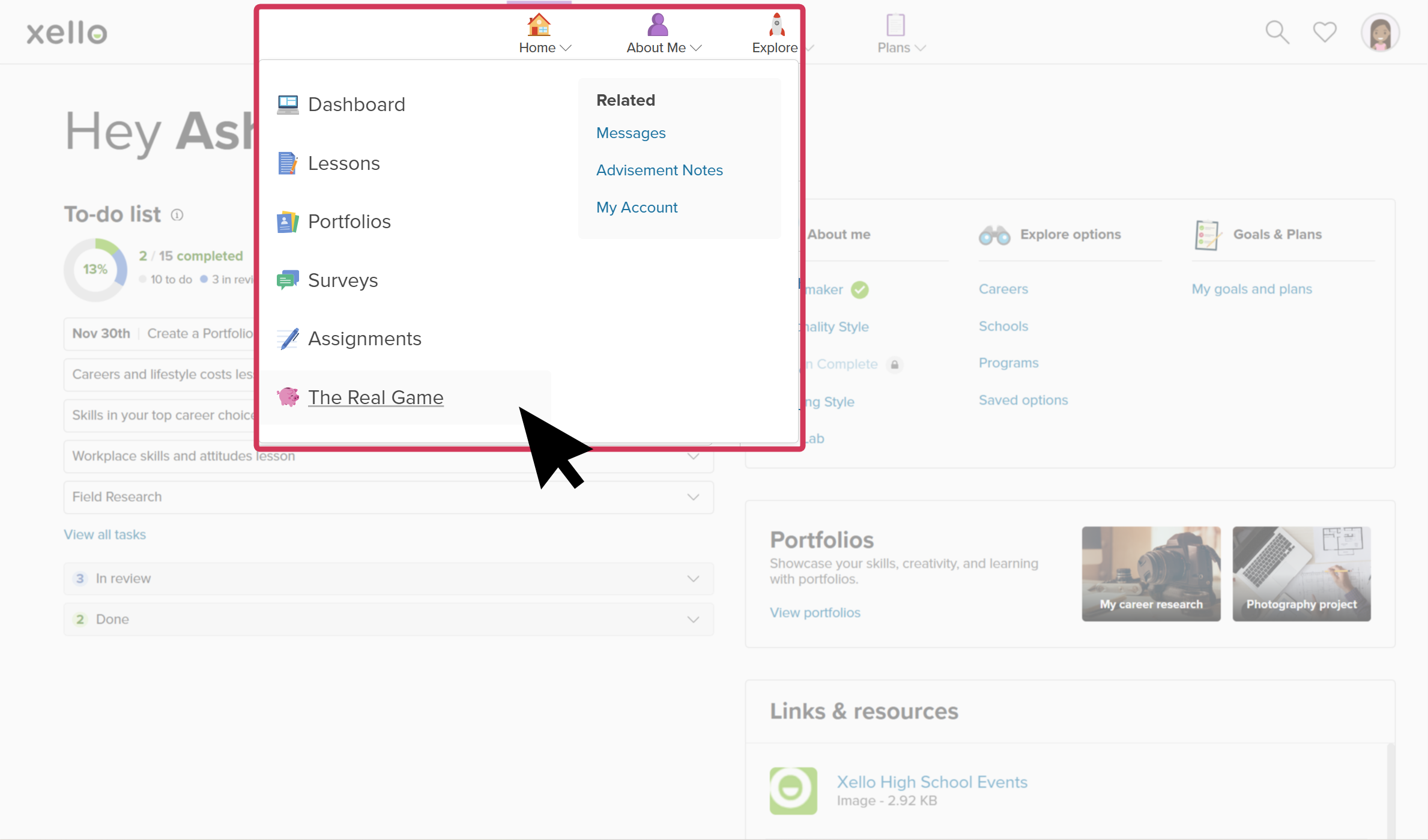
To access and complete a Quick sim, students need to access The Real Game. They can find this under Home and by clicking The Real Game.
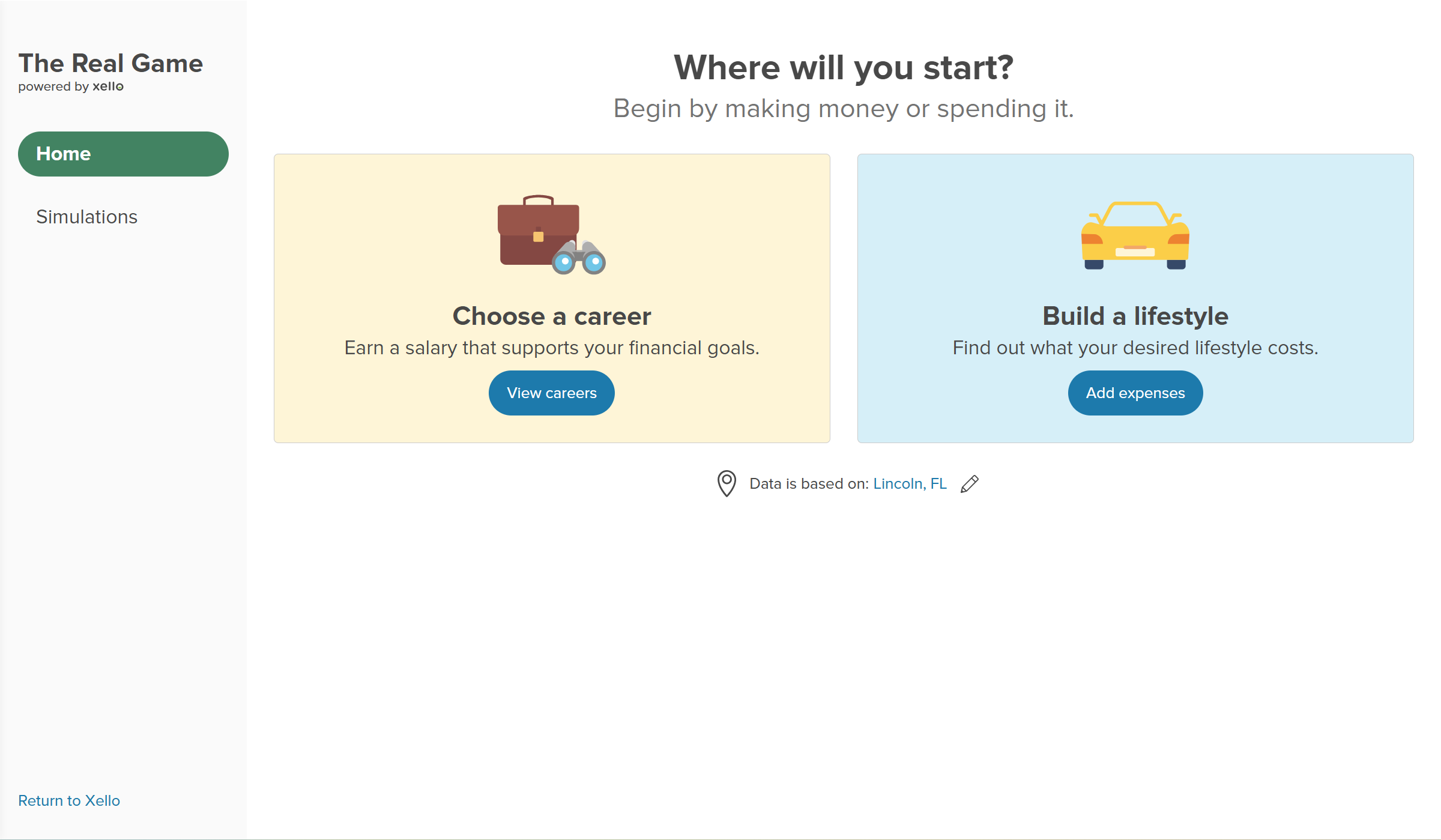
Once on The Real Game dashboard, they'll jump right in to their first simulation by choosing either View careers or Add expenses.
If they're returning to The Real Game and already have sims saved, they click Quick sims and select a saved sim to continue working on.
Advance through career levels
Every Quick sim begins at the entry level. Students can unlock the mid-level and senior-level to see how their budget and lifestyle choices change as their career and salary grow. Students aren't moved up automatically. They choose when to advance.
Unlock mid-level and senior-level
Students click the career level progress meter to see which levels are available. Locked levels show a lock icon until the student meets the requirements. Clicking on the lock icon will open a popover that will explain what the student needs to choose before they can unlock that level.
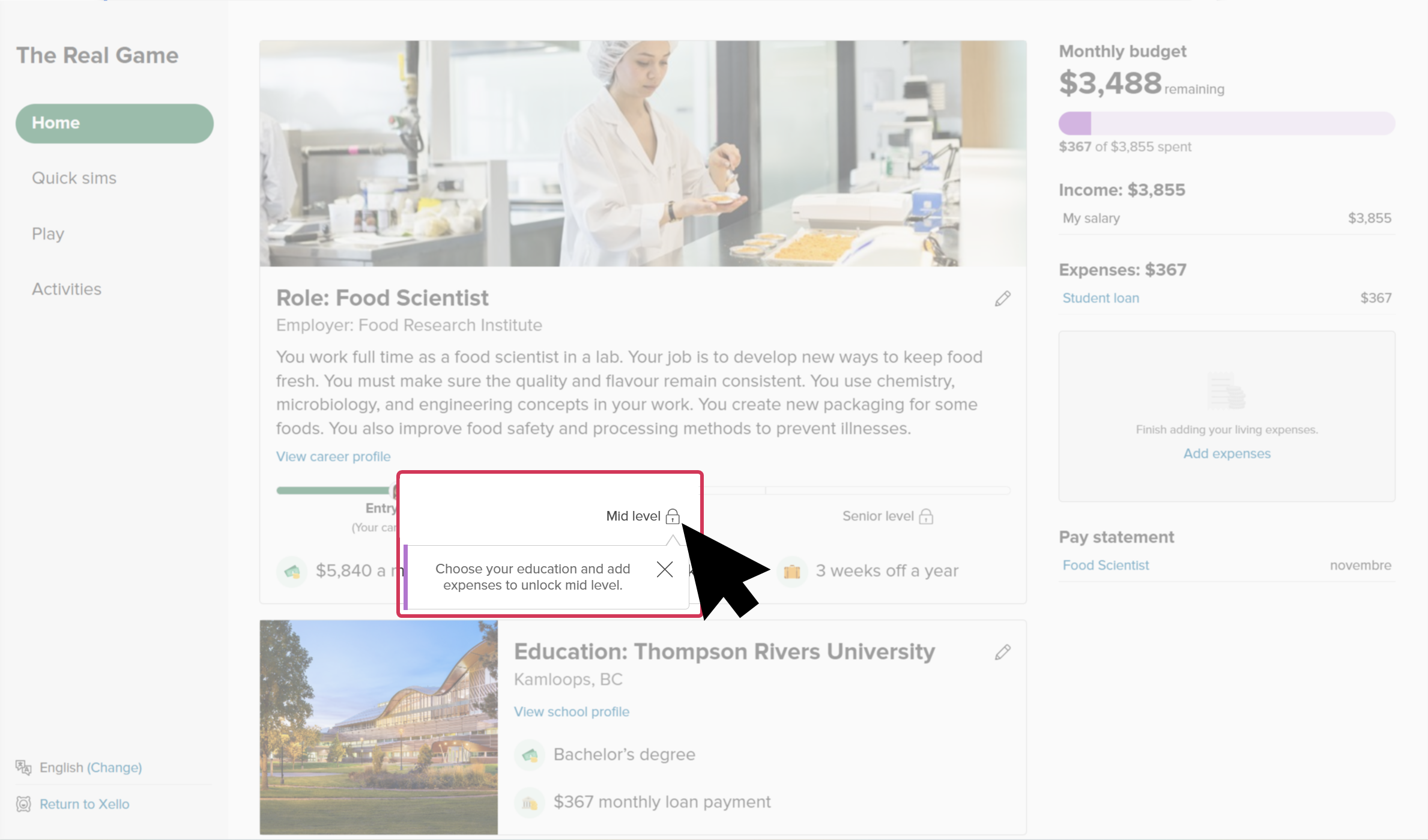
To unlock the mid-level, students must have:
- Chosen a career
- Selected an education pathway
- Added at least one expense
To unlock the senior-level, students must have:
- Opened the Expenses at the mid-level
- Opened the Pay statement at the mid-level
Students don't need to make any changes. Opening each one is enough to unlock the senior-level.
Once a level is unlocked, students click it to advance. Before they do, they're given the chance to close the message and make changes at their current level.
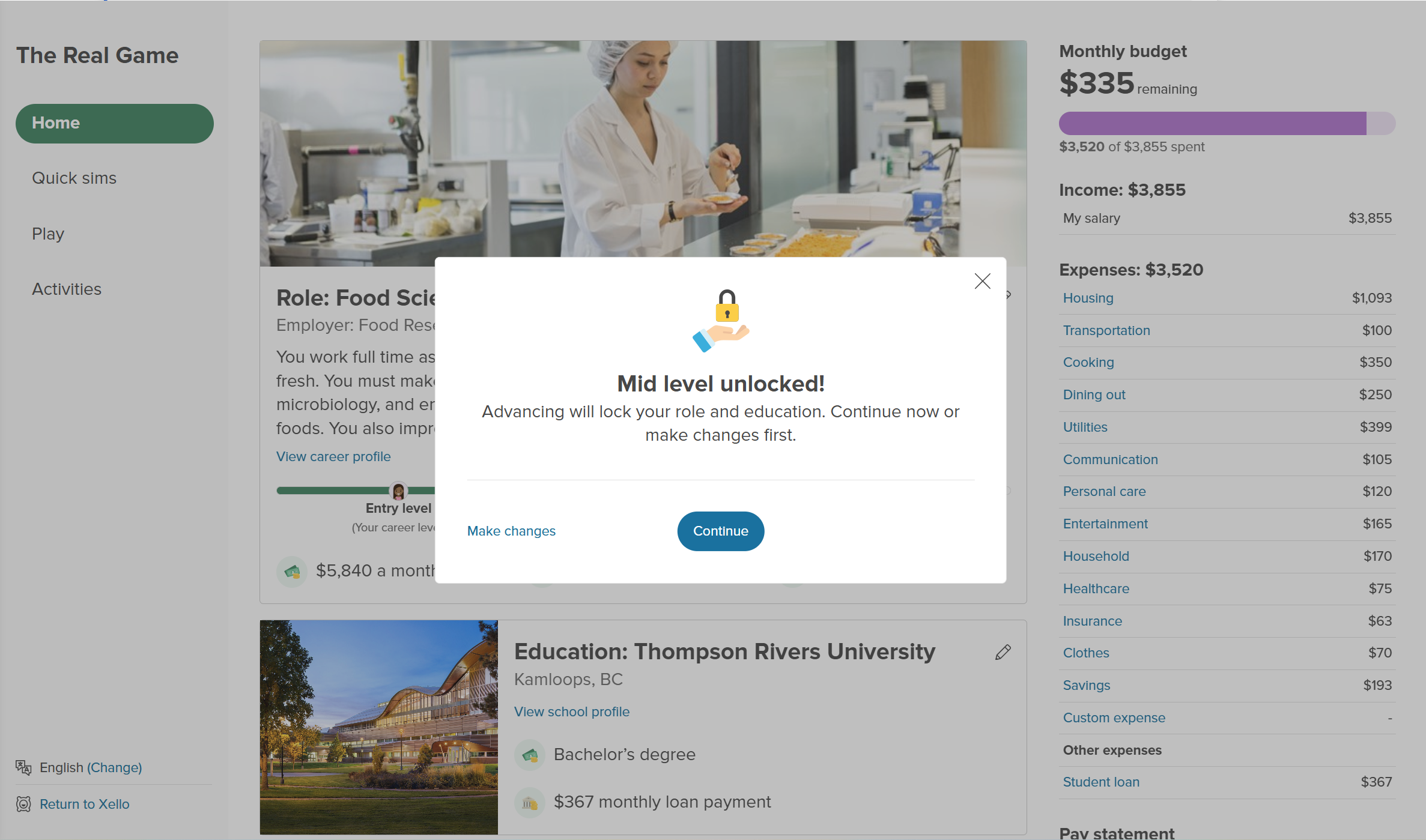
 Note: When a student advances to the mid-level, their career and education pathway are locked for that Quick sim. If they want to explore a different career or pathway, they'll need to start a new Quick sim.
Compare career levels
Students can switch back to any unlocked level at any time to compare their pay statements, expenses, and family composition. This helps them see how the choices they can afford change as their career progresses.
A few things to keep in mind:
- Pay statements update at each level to show the new salary and deductions.
- New expense options unlock at each level.
- Expenses and family members carry forward, but not backward. For example, an expense added at the senior-level won't appear at the mid-level.
- Location applies to every level. If a student changes their location, it changes for all career levels in that Quick sim.
Return to Xello
To return back to Xello, students will first need to exit the Quick sim if they're in the middle of one. They do this by clicking the X at the top right of the page. Don't worry, their work is automatically saved, and they'll be able to pick up right where they left off.
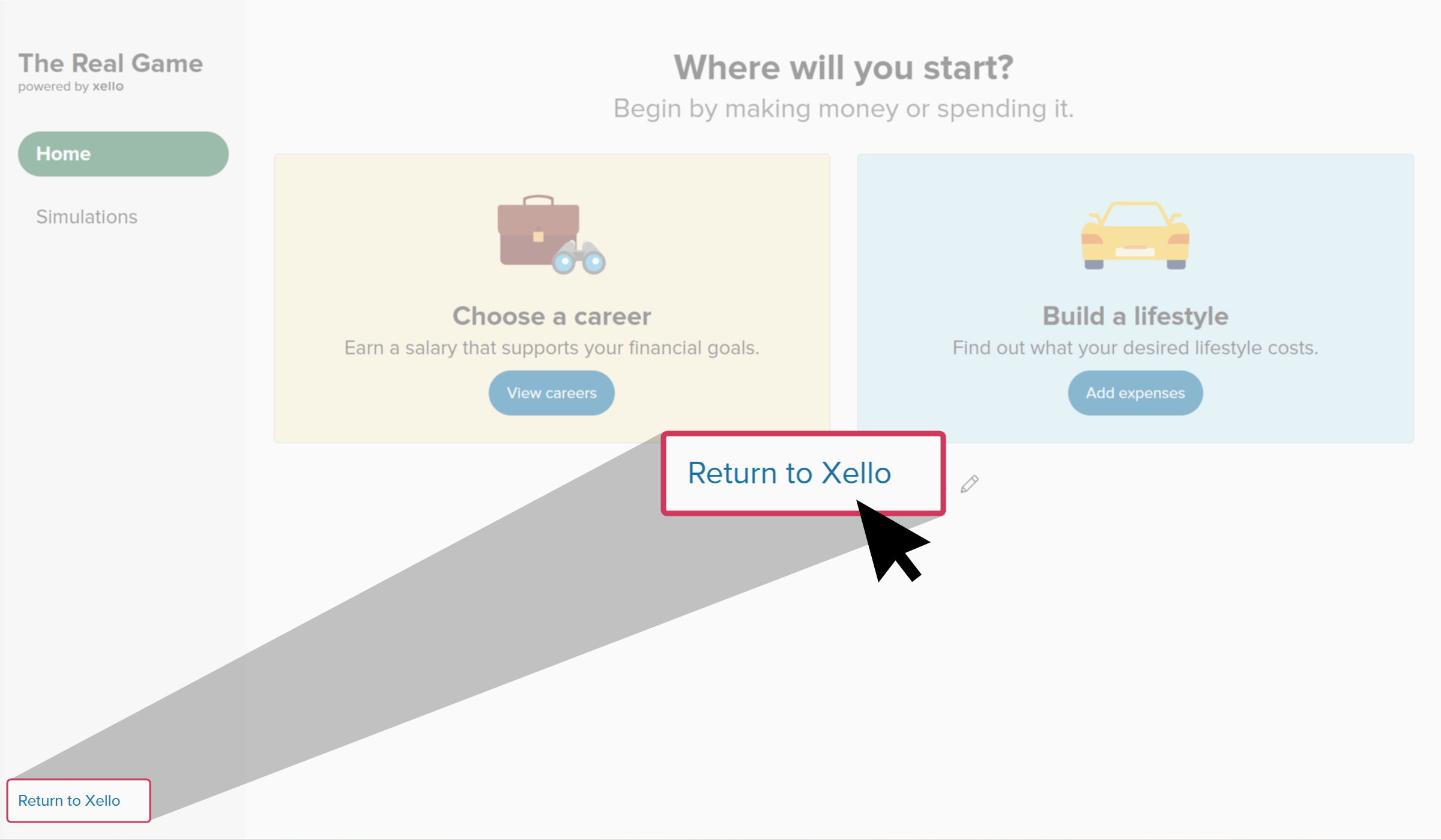
Once they're back on The Real Game dashboard, they click Return to Xello, where they'll be sent back to their Xello dashboard.