6 minutes
The Reports hub brings all your Xello reporting tools together in one central place. Use it to quickly find the reports you need, check student progress at a glance, and save your most-used report views.
To save you time and clicks while working in Xello, the Reports hub allows you to:
- Find reports faster: Search for reports by name or see every available report in one list.
- See key data right away: View quick summary cards for common metrics like student logins and task progress.
- Save your
Access the Reports hub
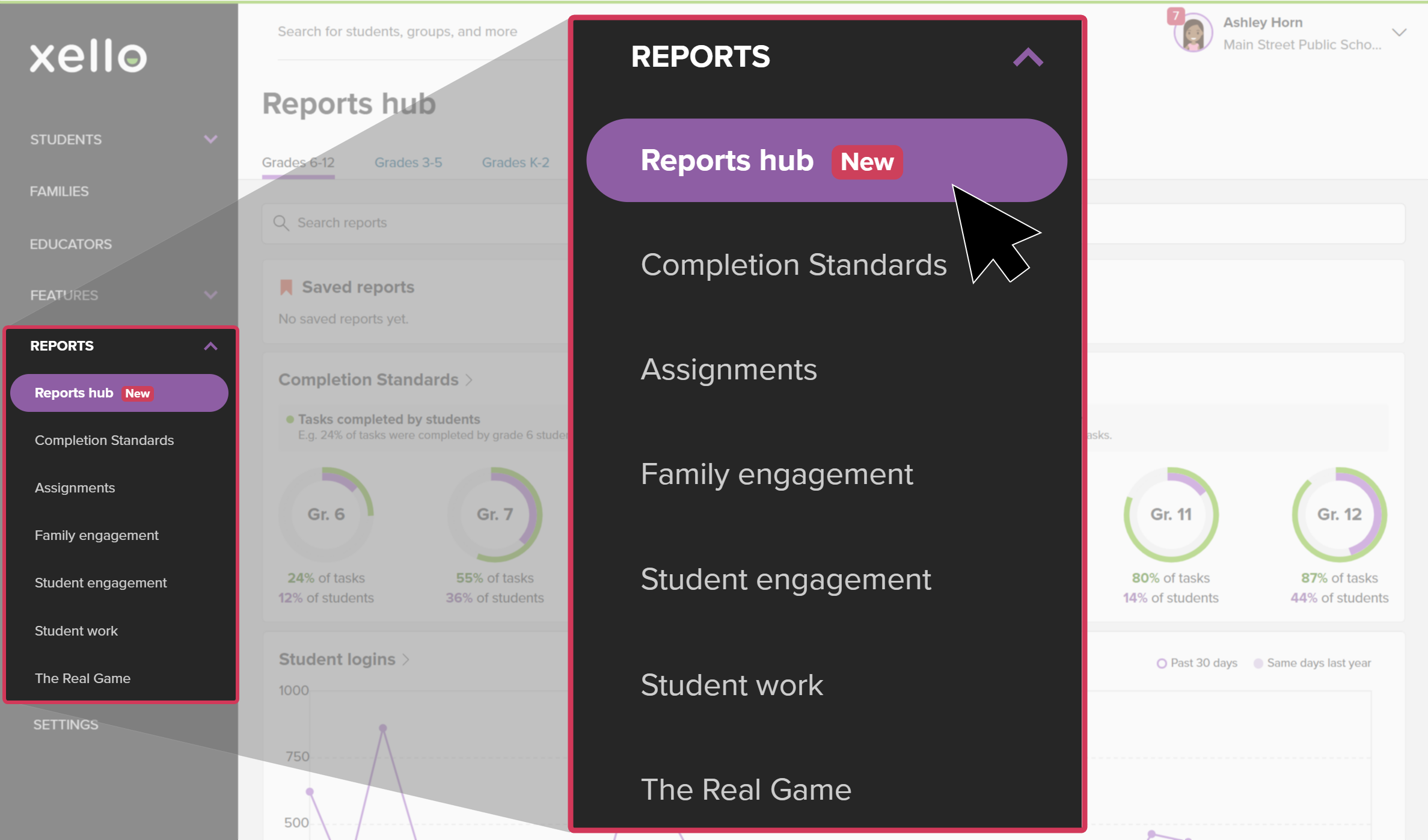
Clicking Reports from the left menu in your educator account will open the hub. From here, you can browse all available reports, view live data, search for specific titles, or save
To access the Reports hub:
- In your educator account, click Reports to open the Reports hub.
 Click to enlarge
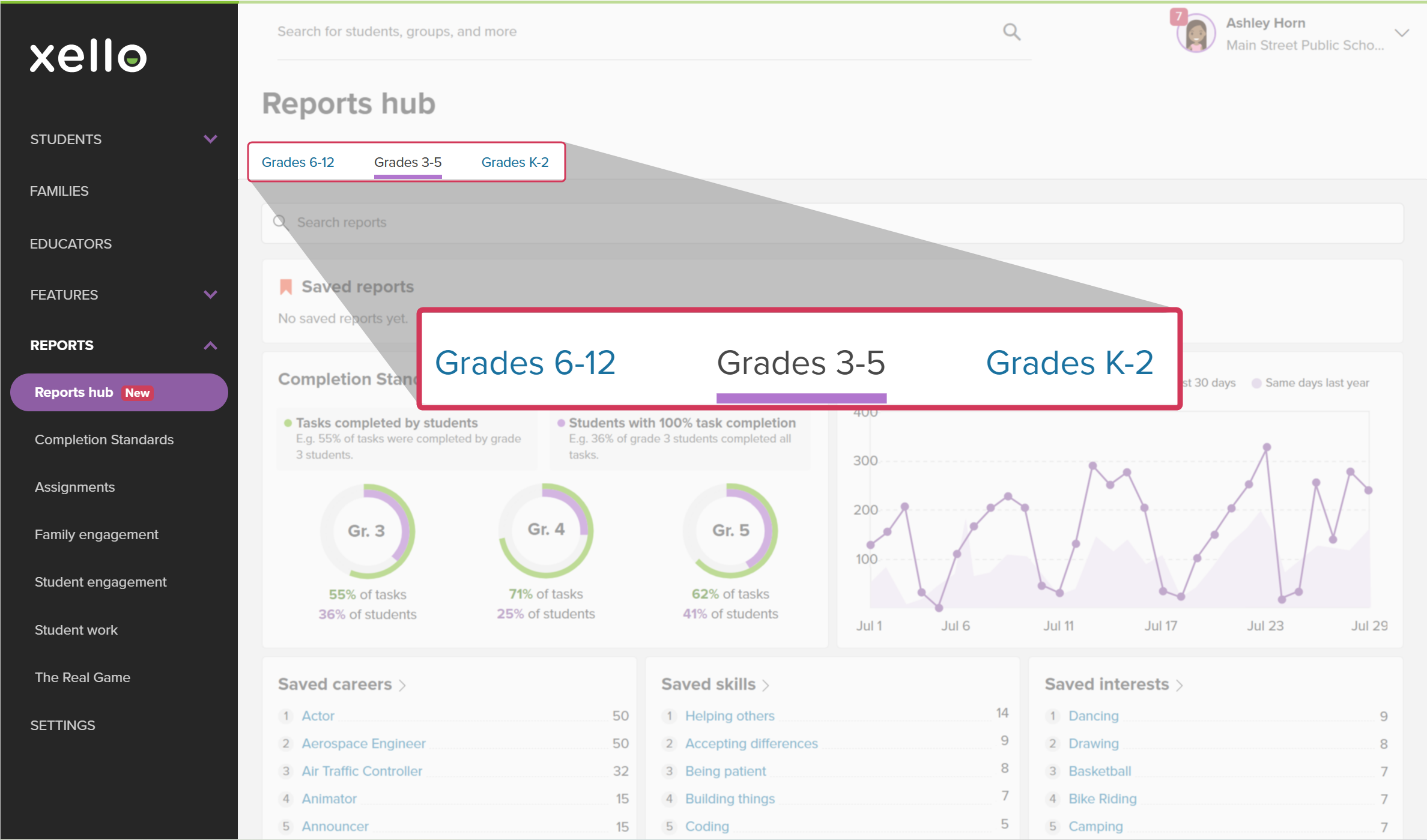
- From the top of the page, ensure the correct grade range is selected.
 Click to enlarge
- From the hub you can begin viewing data, browsing new reports, searching for keywords and titles, and saving the ones you want to return to.
Student activity at a glance
When you first land on the Reports hub page, you'll see live, visual overviews of student engagement and progress.
You can use these sections to quickly monitor the following:
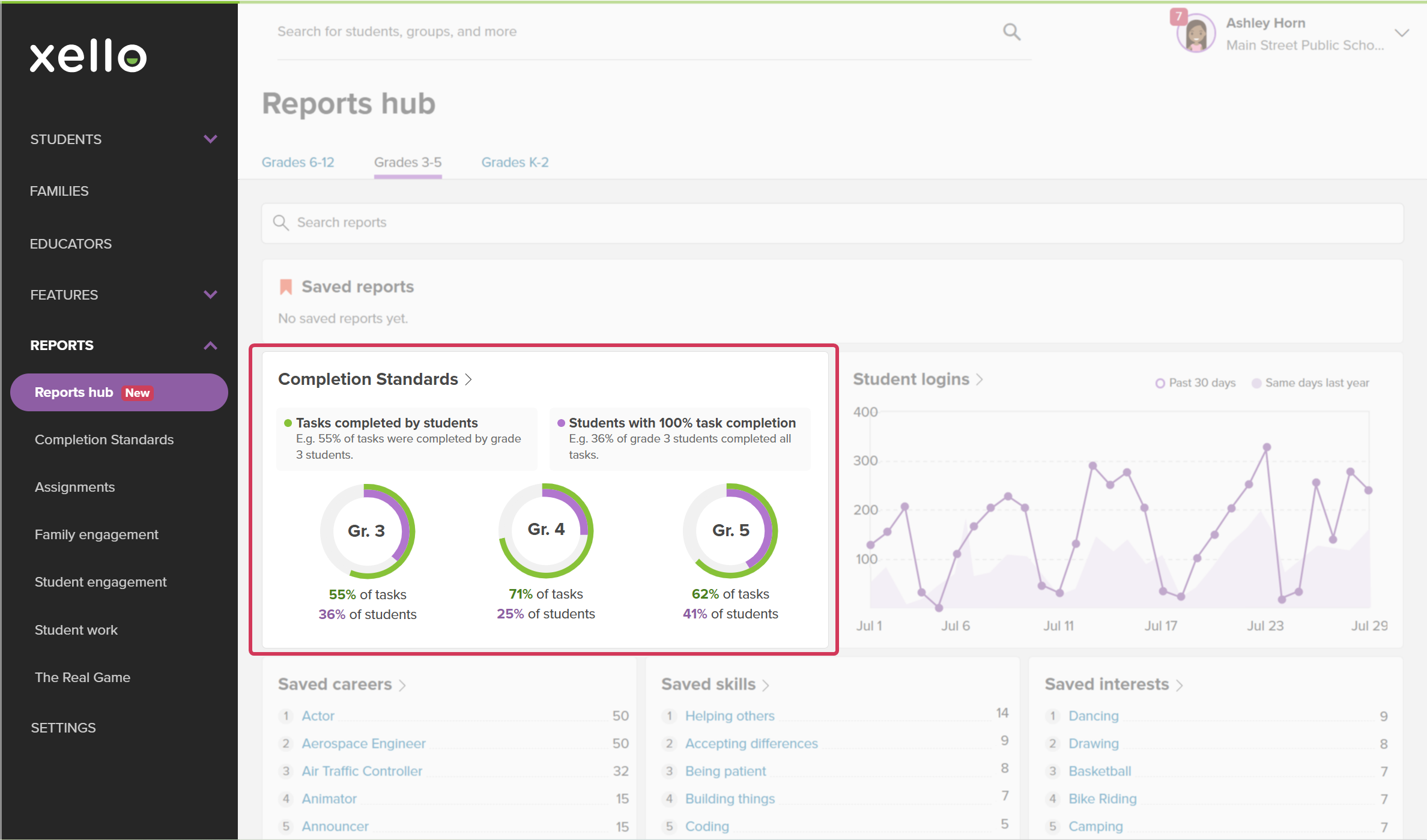
- Completion Standards: See task completion percentages broken down by
 Click to enlarge
 Tip: Check out Run reports on Completion Standards to learn more.
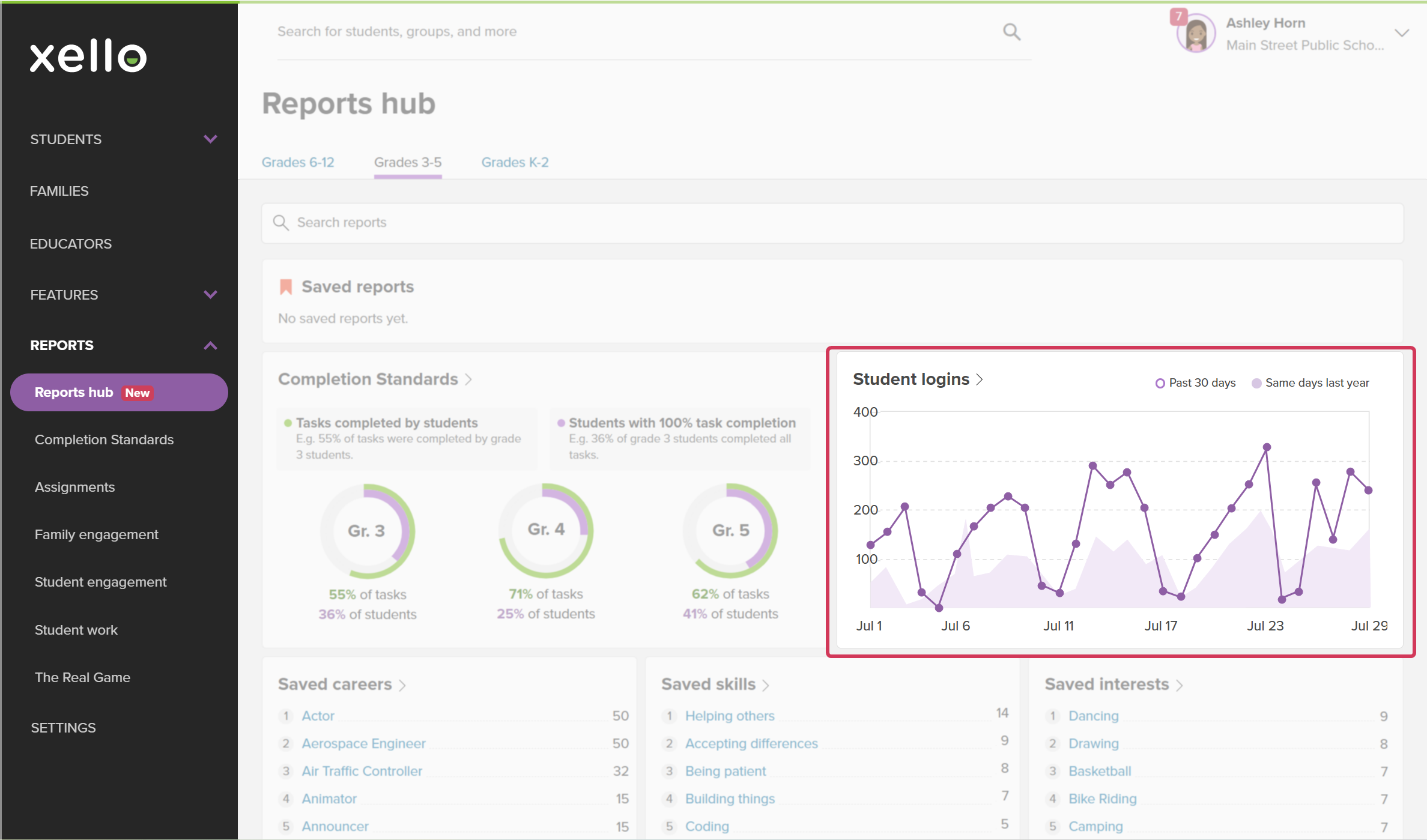
 - Student logins: Track overall login activity over the past 30 days and compare it to the same timeframe last year. Click the title of the graph, Student logins, to open the Logins by day (current academ year) report. Or, click on a data point for a specific day and view which students engaged with Xello on that day.
 Click to enlarge
 Tip: Check out Run reports on student engagement and logins to learn more.
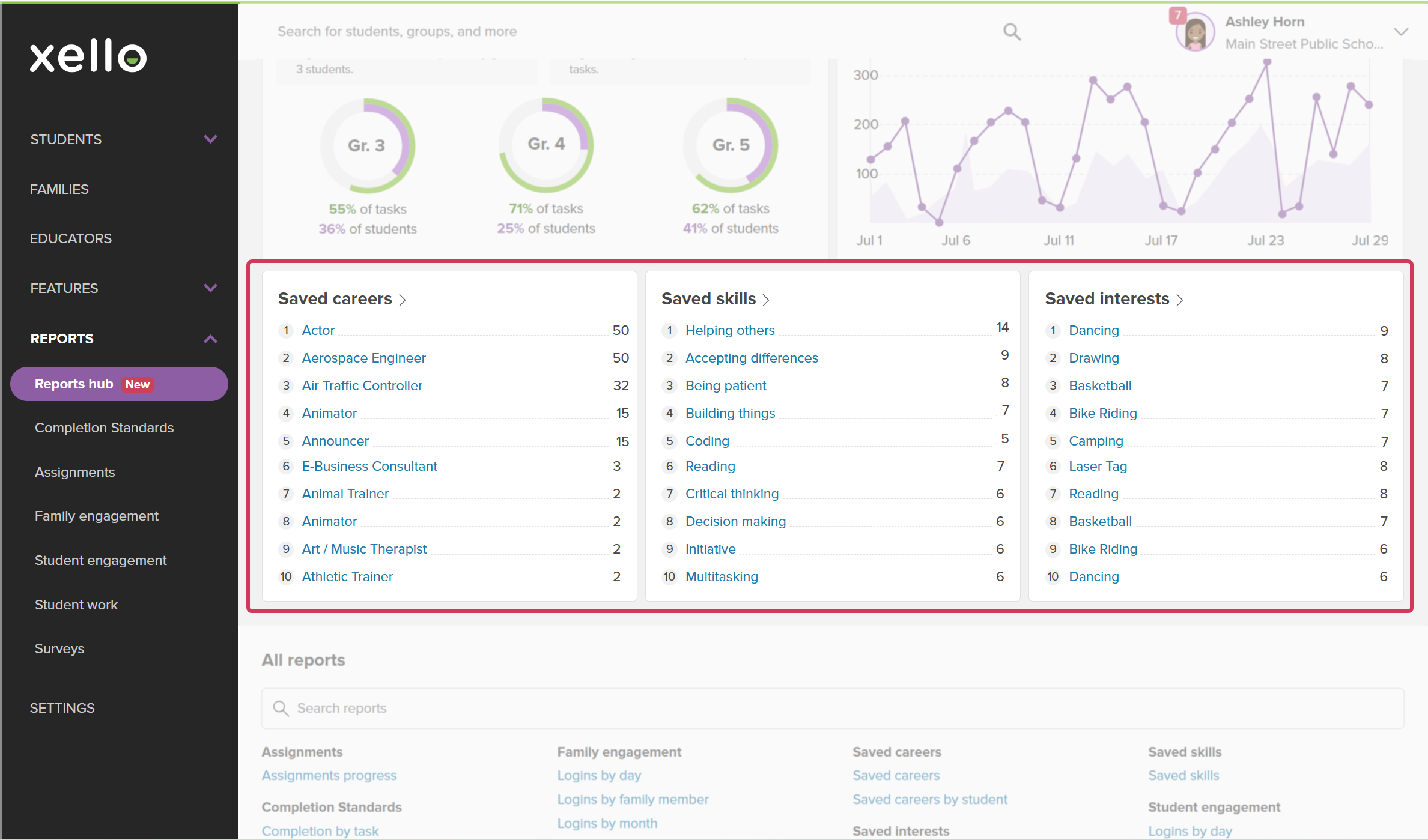
 - Saved items:
 Click to enlarge
 Tip: Check out Run reports on student work to learn more.
Find the report you need
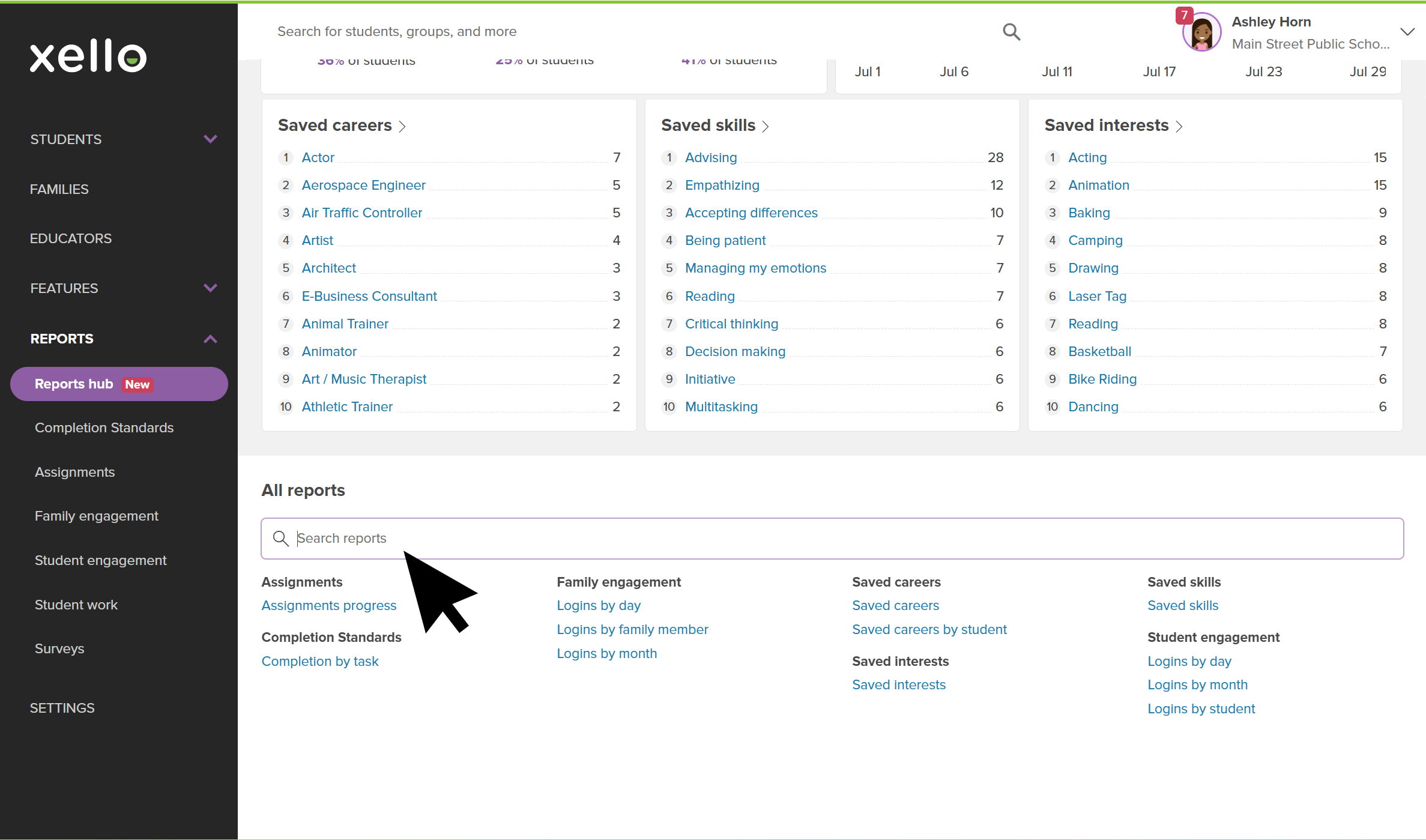
When you need to dig deeper or pull a specific set of student data, you can quickly find any report using the search or browsing by topic.
- Search by keyword: Use the search bar to type part of a report title or a keyword and jump straight to it.
- Browse by category: Scroll through the All reports section to explore available reports grouped by topic, such as Assignments, Saved careers, or Family engagement.
Save and customize reports
Store your custom report configurations to your Reports hub so you can easily access it again later.
Saving your reports allows you to:
- Preserve your setup: Lock in your preferred filters, sorting choices, and selected table columns for next time.
- Access live data: Saved reports always load real-time student data whenever you open them.
- Keep view private: Your saved reports belong to you and no one else can see which report views you save.
To save a report:
- Open the report you want to save and
- Apply your filters, sorting options, and column selections.
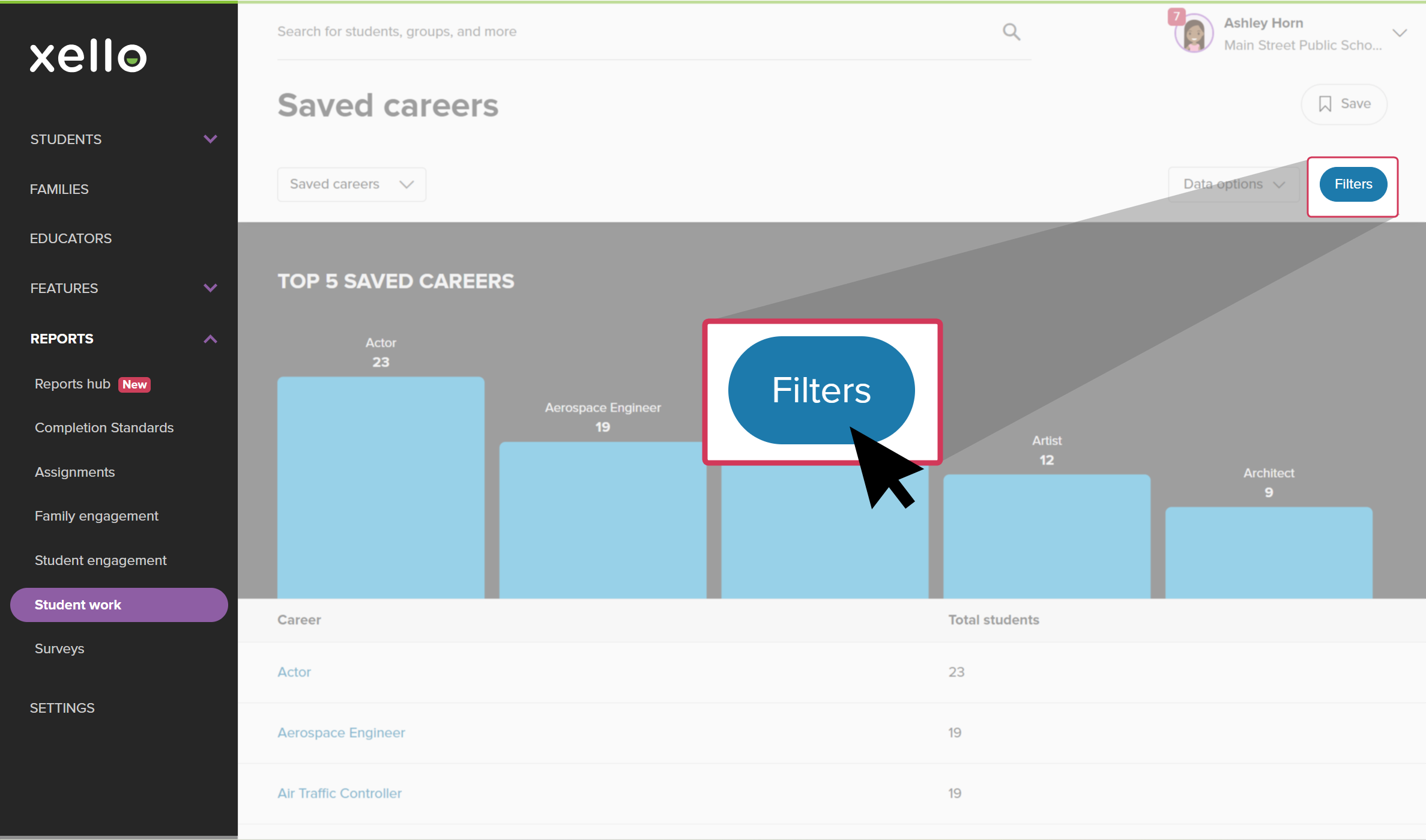 Click to enlarge
- At the top of the report, click Save.
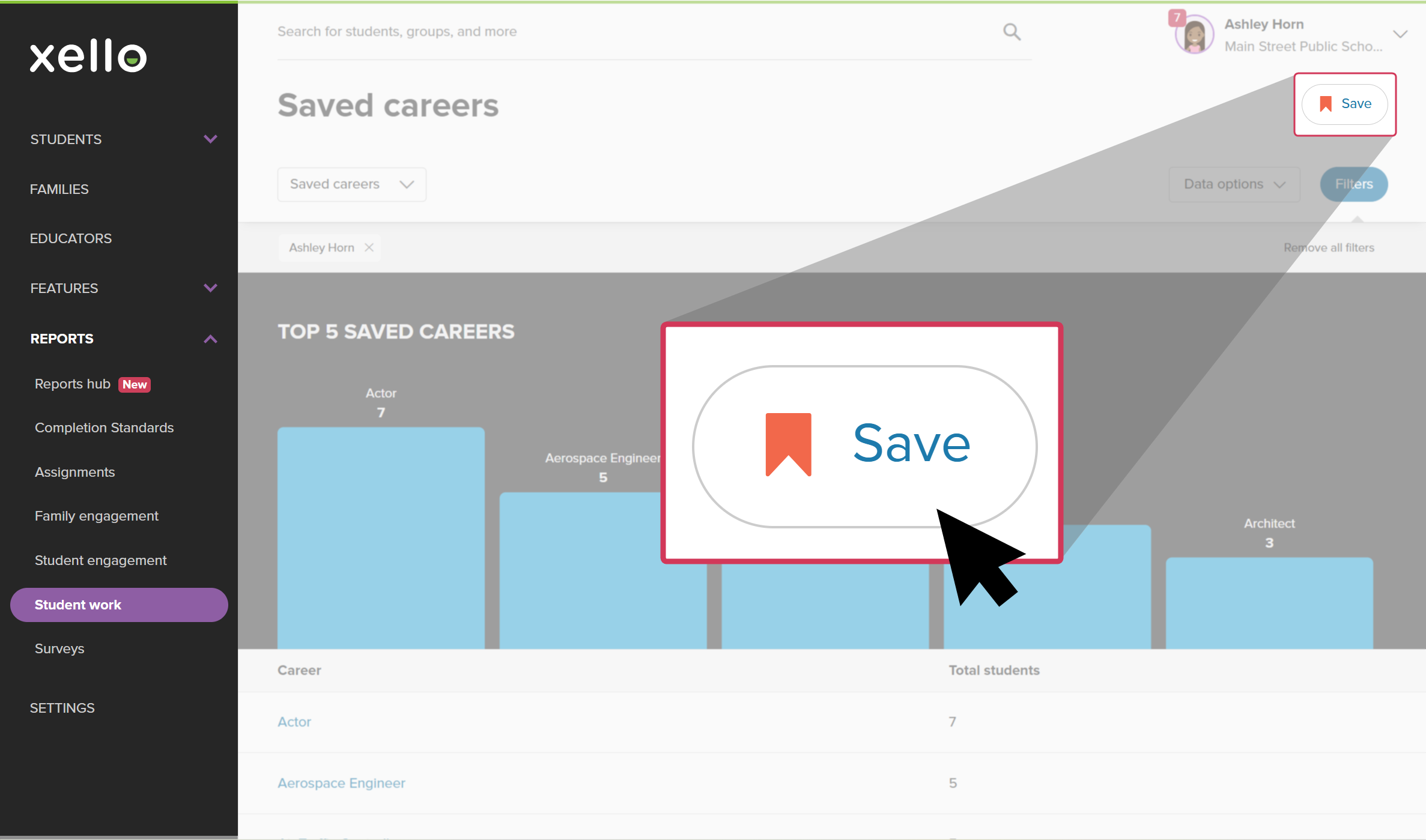 Click to enlarge
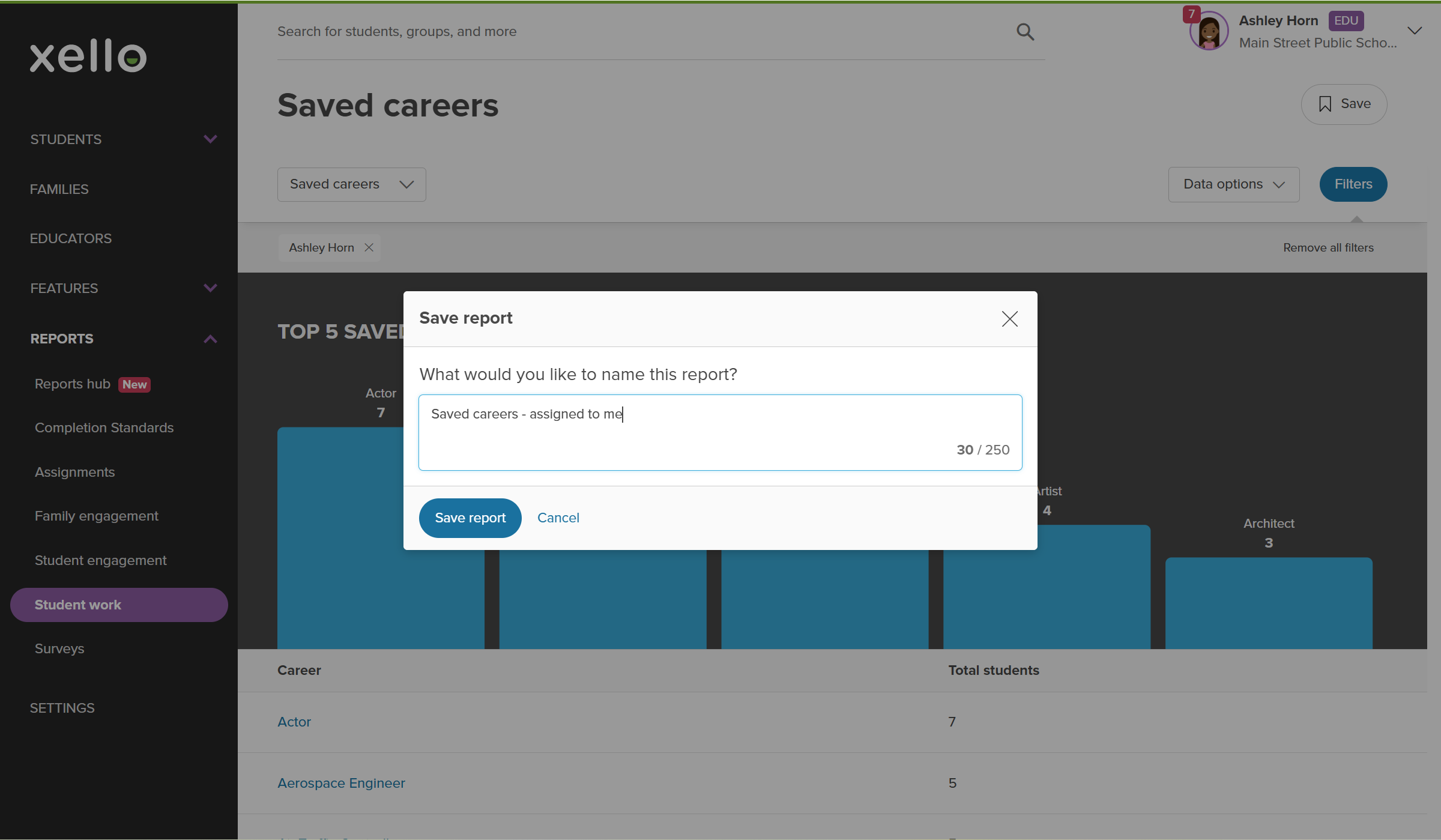
- If prompted, you can edit the name of the report to make it easier to recognize later.
 Click to enlarge
- Click Save report.
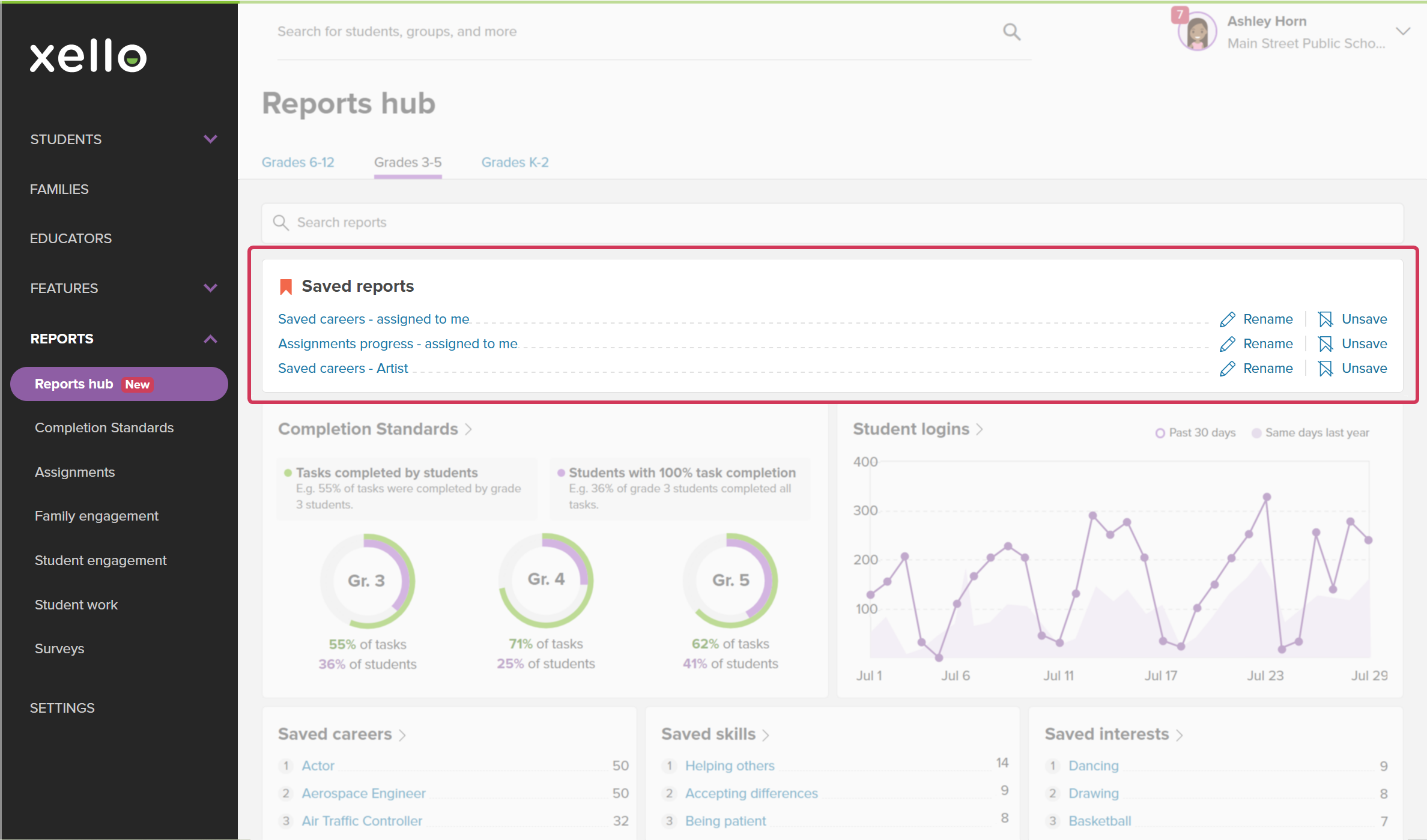
- Your saved report will now appear at the top of the Reports hub page for quick access. You can also rename and unsave your reports here.
 Click to enlarge
- Your saved report will now appear at the top of the Reports hub page for quick access. You can also rename and unsave your reports here.
Frequently asked questions
Can other educators see my saved reports?
No. Your saved reports are yours and yours only. Other educators cannot view or edit your
Does saving a report lock the data in place?
No. Saving a report saved the filters and columns you select. The student data in the report updates in real time whenever you open it.
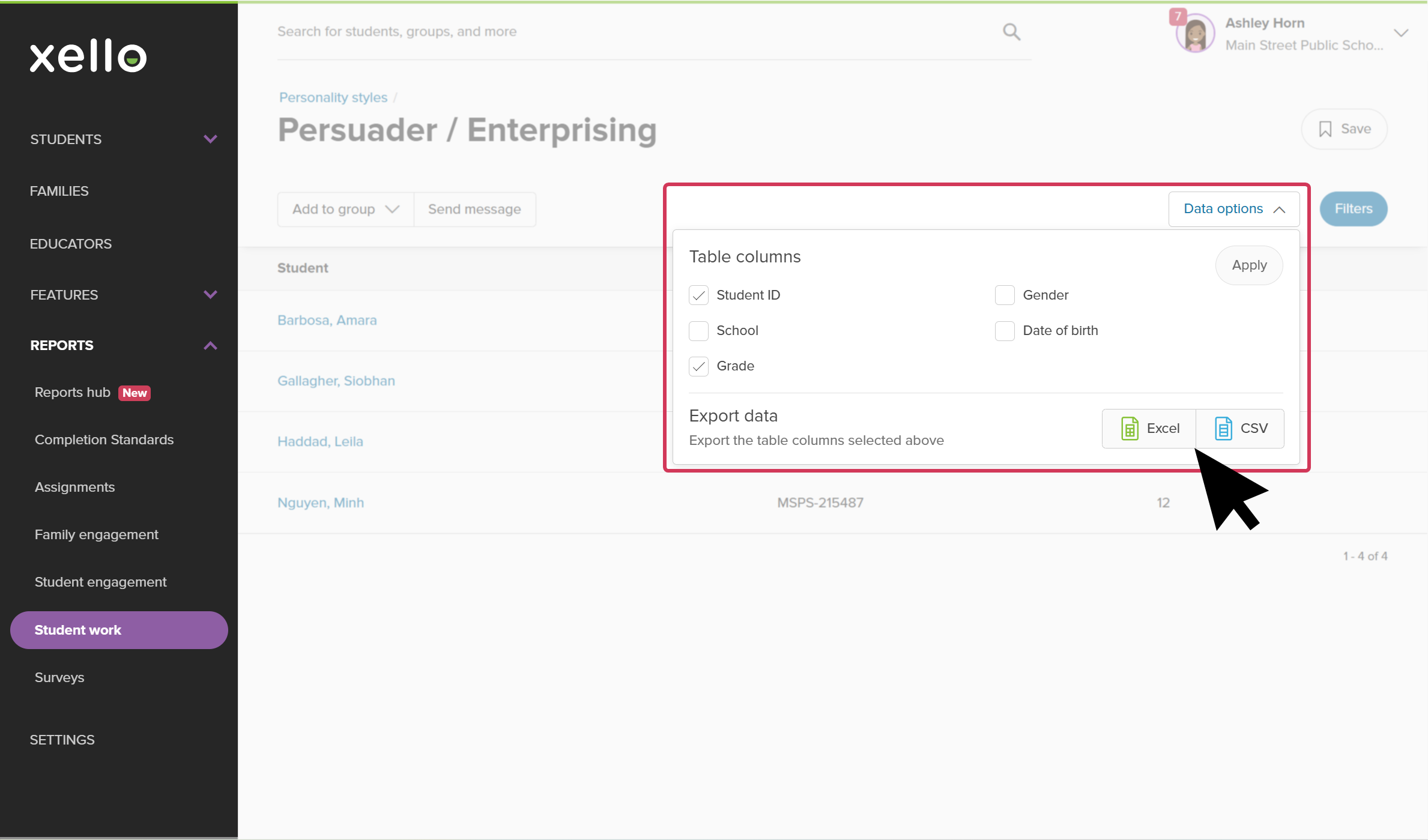
If you want to save the data in a moment in time, you can export the report you're viewing by using the Data options menu located at the top of the report and clicking Excel or CSV.
 Back to top