


 5 minutes
Custom tasks build upon existing Xello activities or introduce new tasks that go beyond the built-in curriculum. They give students a clear place to complete work such as tracking activities done outside of Xello,
When custom tasks are assigned, students see them directly on their dashboard in their To-do list. Students will see the title, a short description, and instructions provided when the task was created. As students submit their work, tasks are marked as Done or moved into In review until an educator approves the submission.
Complete a custom lesson
Custom lessons guide students to build upon a task in Xello or can be used to complement built-in Xello lessons. These tasks can also include prerequisites, ensuring students complete specific Xello activities before they begin.
How students complete a custom lesson in Xello:
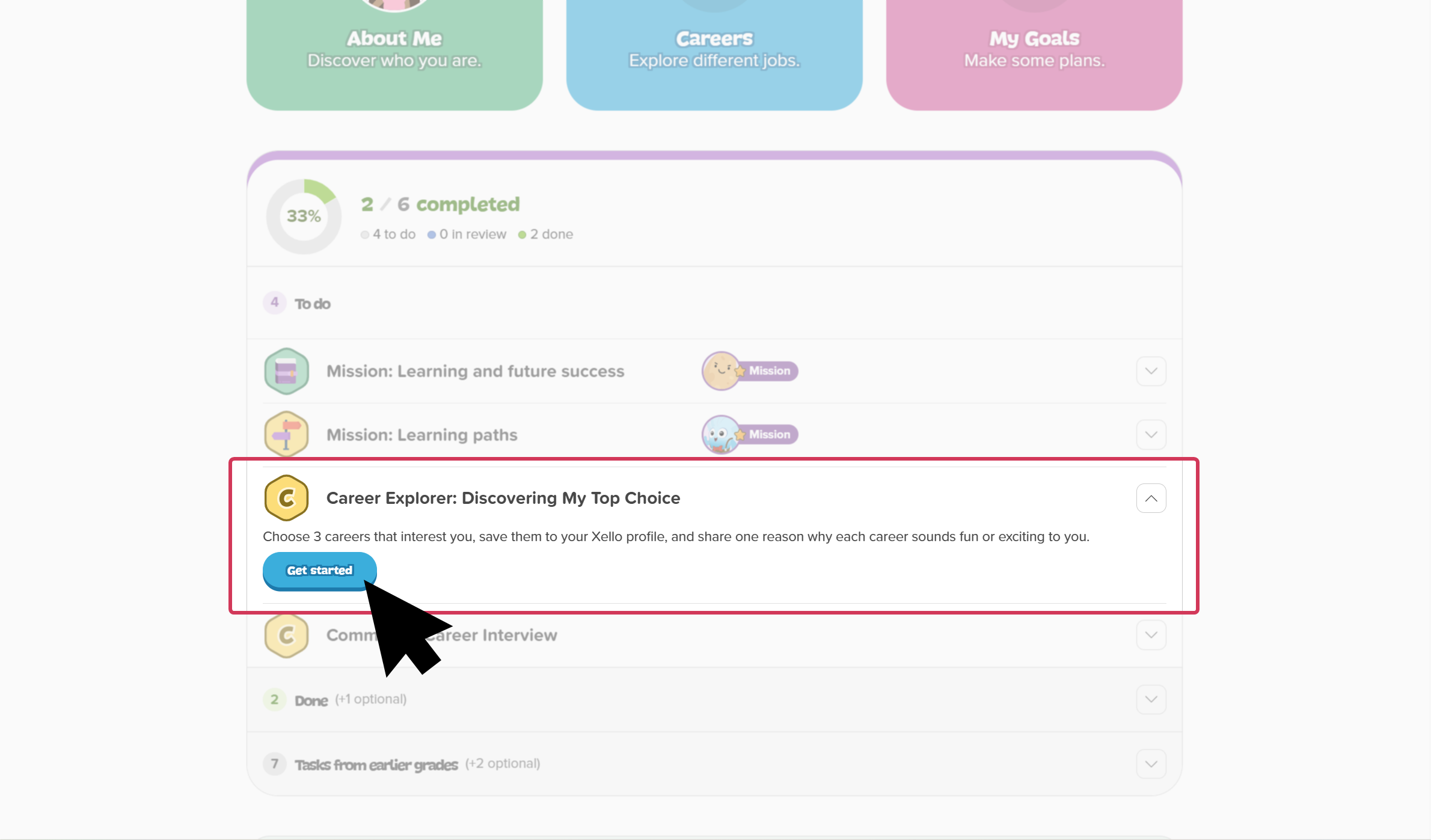
- From their Xello dashboard, in their To-do list, students locate and click the custom lesson.
- The card expands to show a short description of the lesson. Students click Get started.
 Click to enlarge
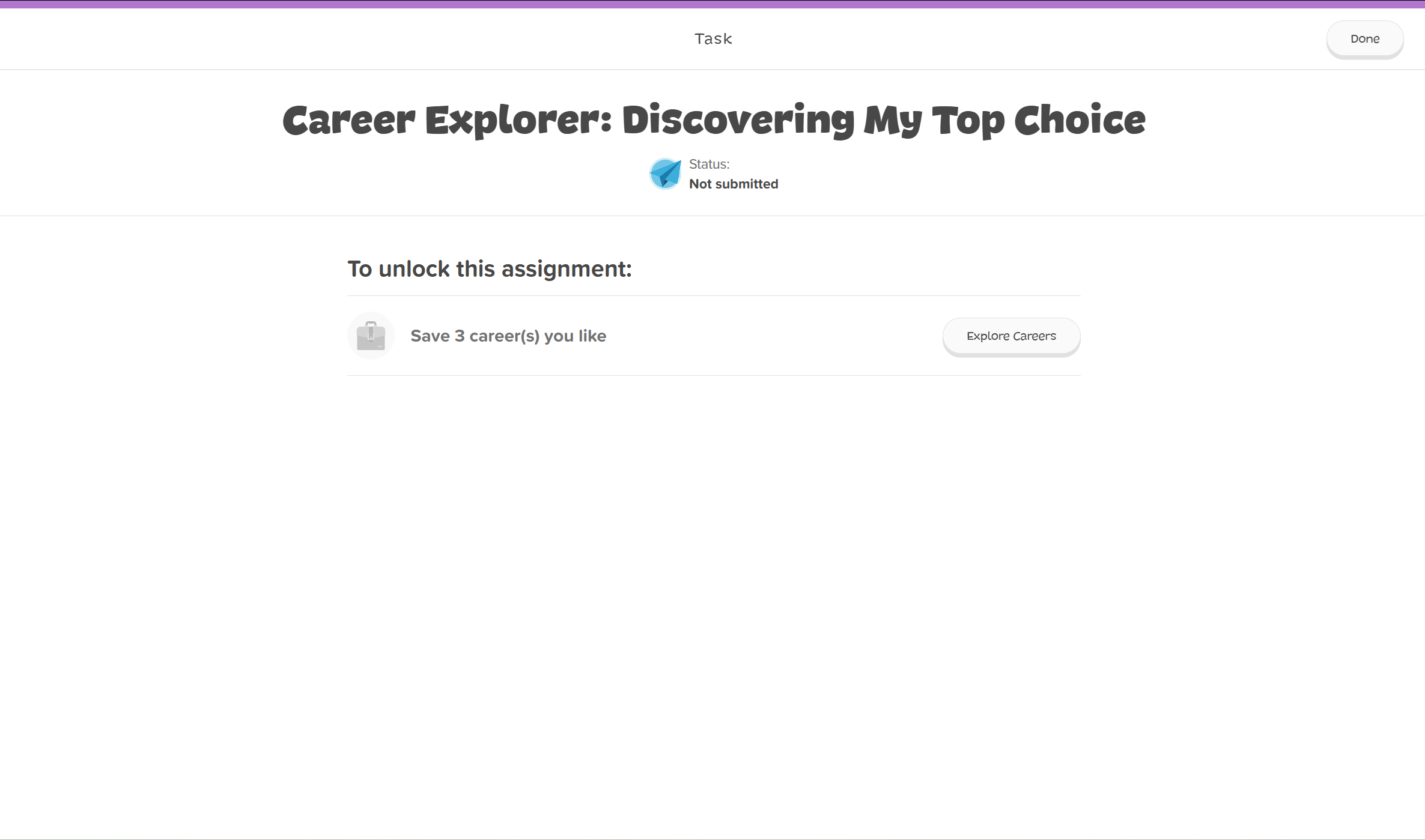
- The custom lesson opens with any assigned prerequisites listed at the top.
- If there are no prerequisites (or they are complete): The student completes the required work or reflection response directly in the task.
- If a prerequisite is incomplete: The task is locked. There will be message explaining the required prerequisite. Where applicable, they'll click a button that takes them directly to the work they need to complete.
 Click to enlarge
- Once finished, they click Submit.
 Back to top
Complete a custom activity
Custom activities give students a way to log achievements, reflections, or work completed both inside and outside of Xello. These tasks guide students to fulfill specific requirements, such as typing a text response or attaching a file to share proof of their work.
How students complete a custom activity:
- From their Xello dashboard, in their To-do list, students locate and click the custom activity.
- The card expands to show a short description of the activity. Students click Get started.
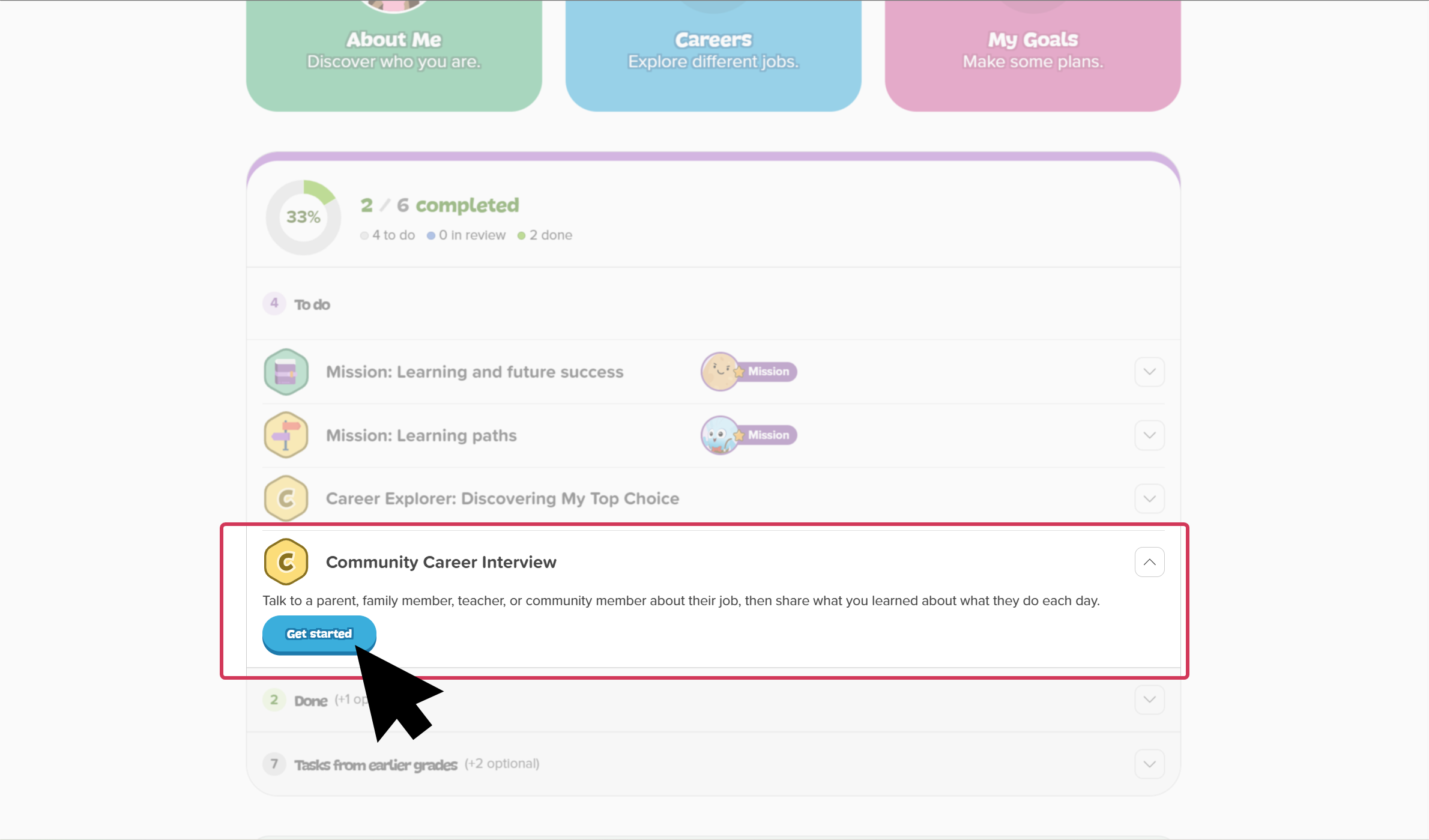 Click to enlarge
- Students enter their response or upload their attachment directly in the task.
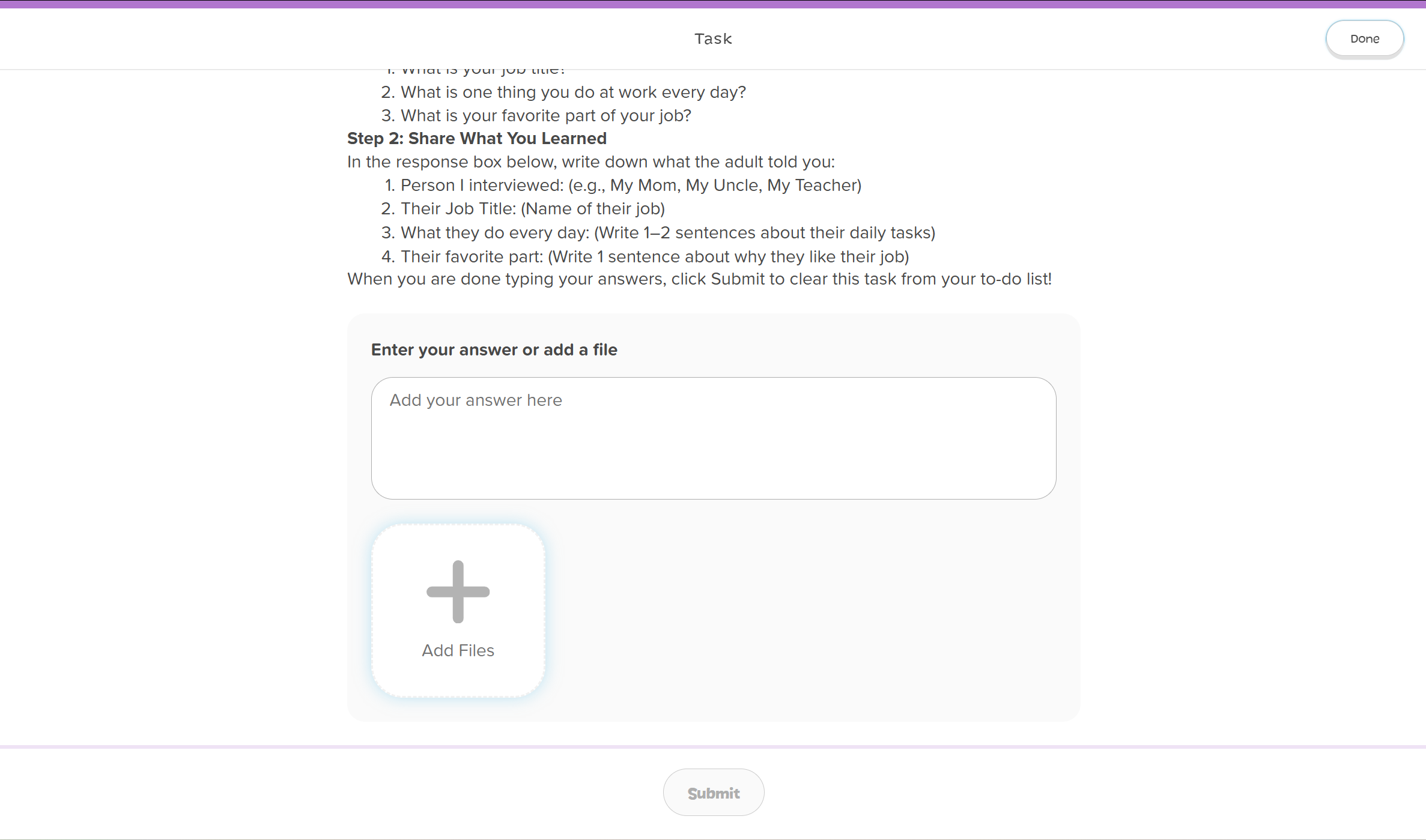 Click to enlarge
- Once finished, they click Submit.
Work with an advisement session
How students complete an advisement session:
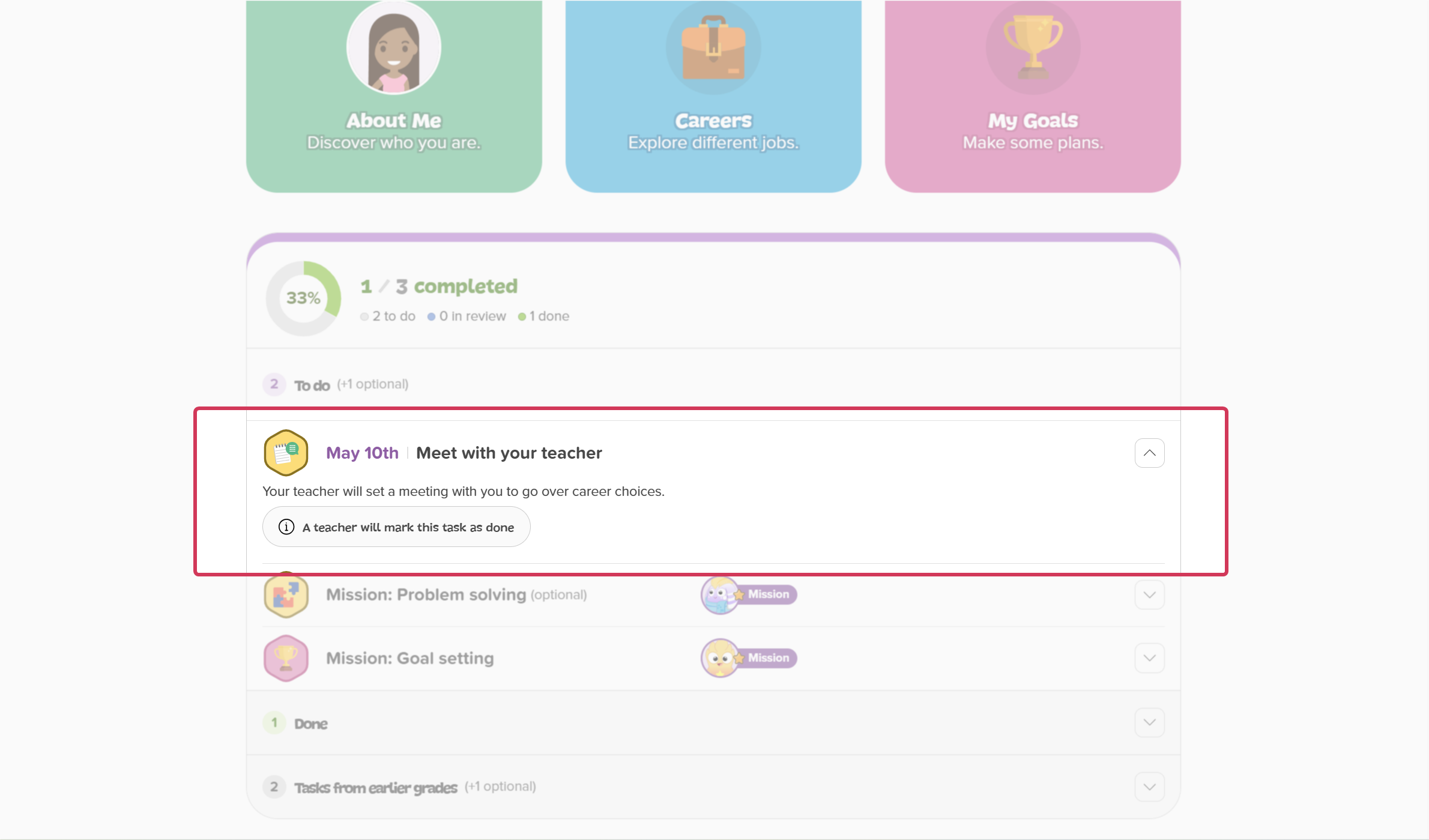
- From their Xello dashboard, in their To-do list, students locate and click the
- The card expands to show a short description.
 Click to enlarge
- This task is read-only for students. Once the educator conducts and logs the required session, the task automatically updates and is marked as Done.

