The Kansas Grad and PSA Tracker is a centralized solution that automates the monitoring of student graduation eligibility and 20+ post secondary assets (PSAs). By pulling data from Xello, your student information system, and even manual spreadsheets into one dashboard, the tracker eliminates the need for manual calculations between disconnected systems. It empowers school staff with real-time monitoring of students’ PSA achievements and course history. Additionally, the tool empowers students and families with built-in planning features that promote shared understanding and visibility of PSA progress.
Students Planning & Completion
When the visibility for the Grad Tracker is toggled to ON, students and parents can see all the Post Secondary Assets and indicate which they plan to pursue.
 Note: If your district does not use Xello’s Course Planner to monitor graduation progress, only Kansas PSA Tracker requirements will be tracked for students in Xello.
Manage visibility for students and parents
You can manage student and parent access to the Grad Tracker and individual requirements from your educator tools in Xello.
Note: Only those with administrator access can create or make these changes. To learn more about educator access and permissions, read the article on Educator permissions.
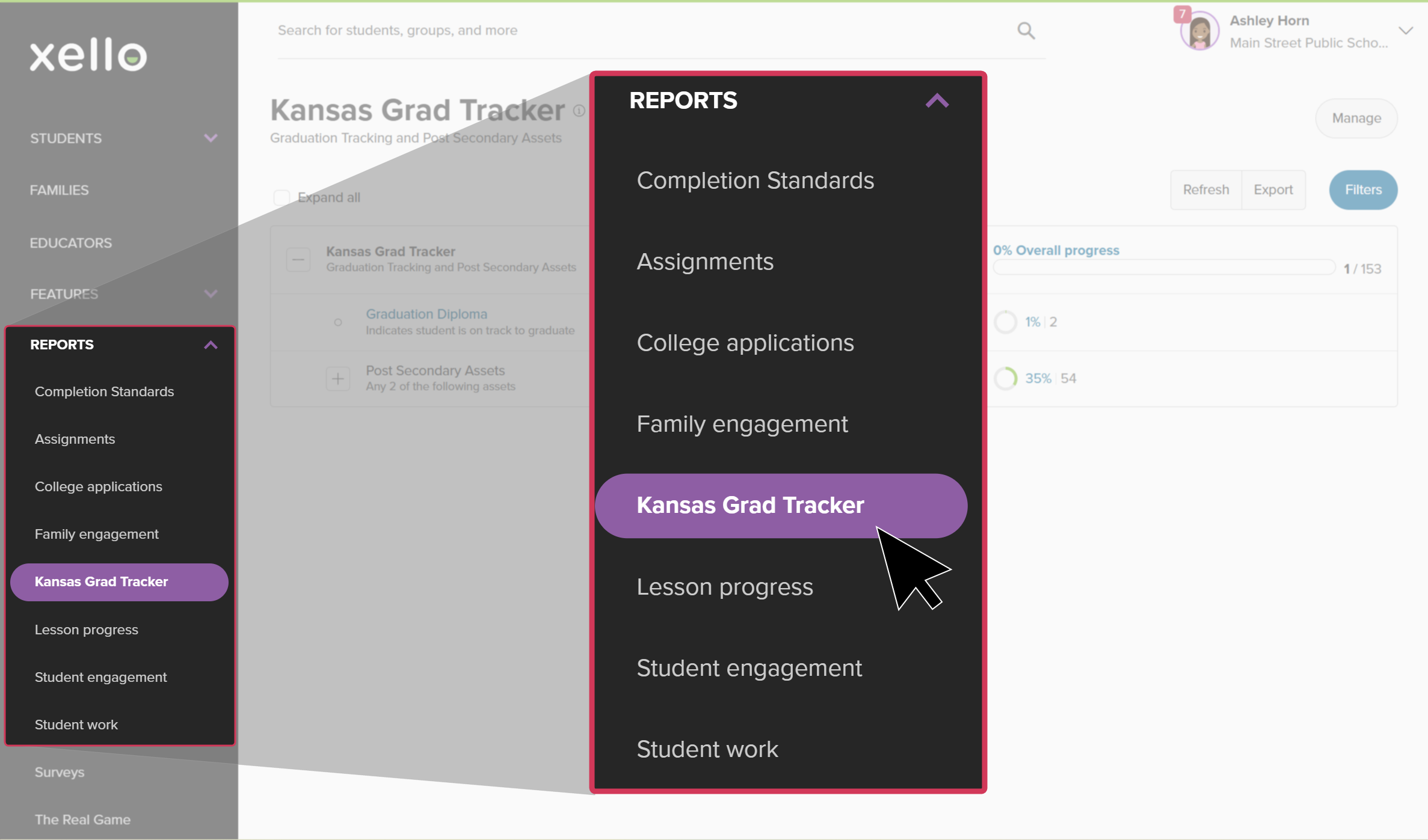
- From your educator account, click Reports and select Kansas Grad Tracker.
 Click to enlarge
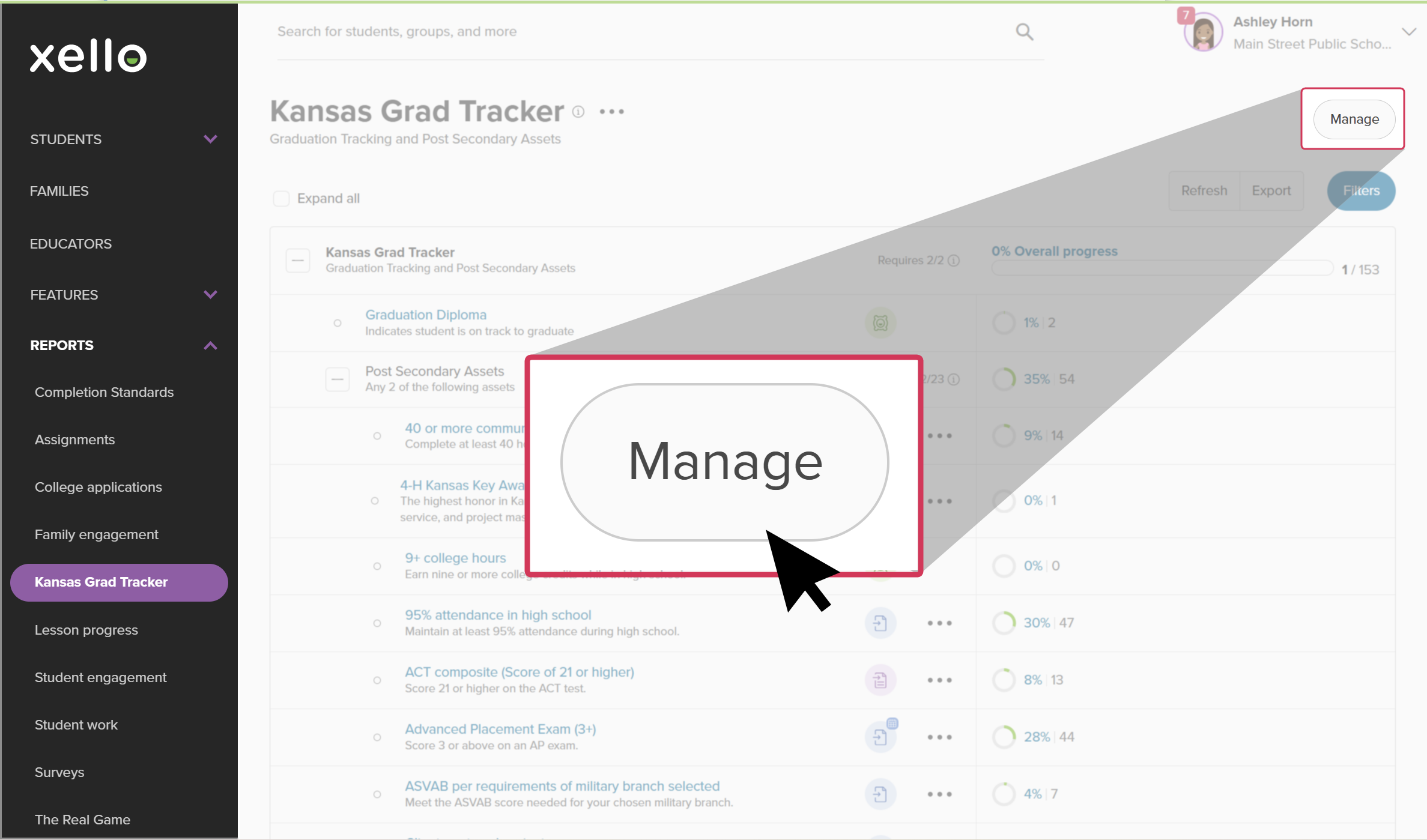
- At the top of the page, click Manage.
 Click to enlarge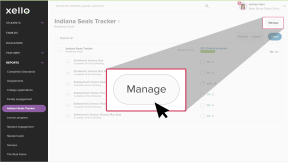
- Choose whether or not students will see the Grad Tracker within the Plans section, if they can also plan the Grad they want to pursue, and the grade range.
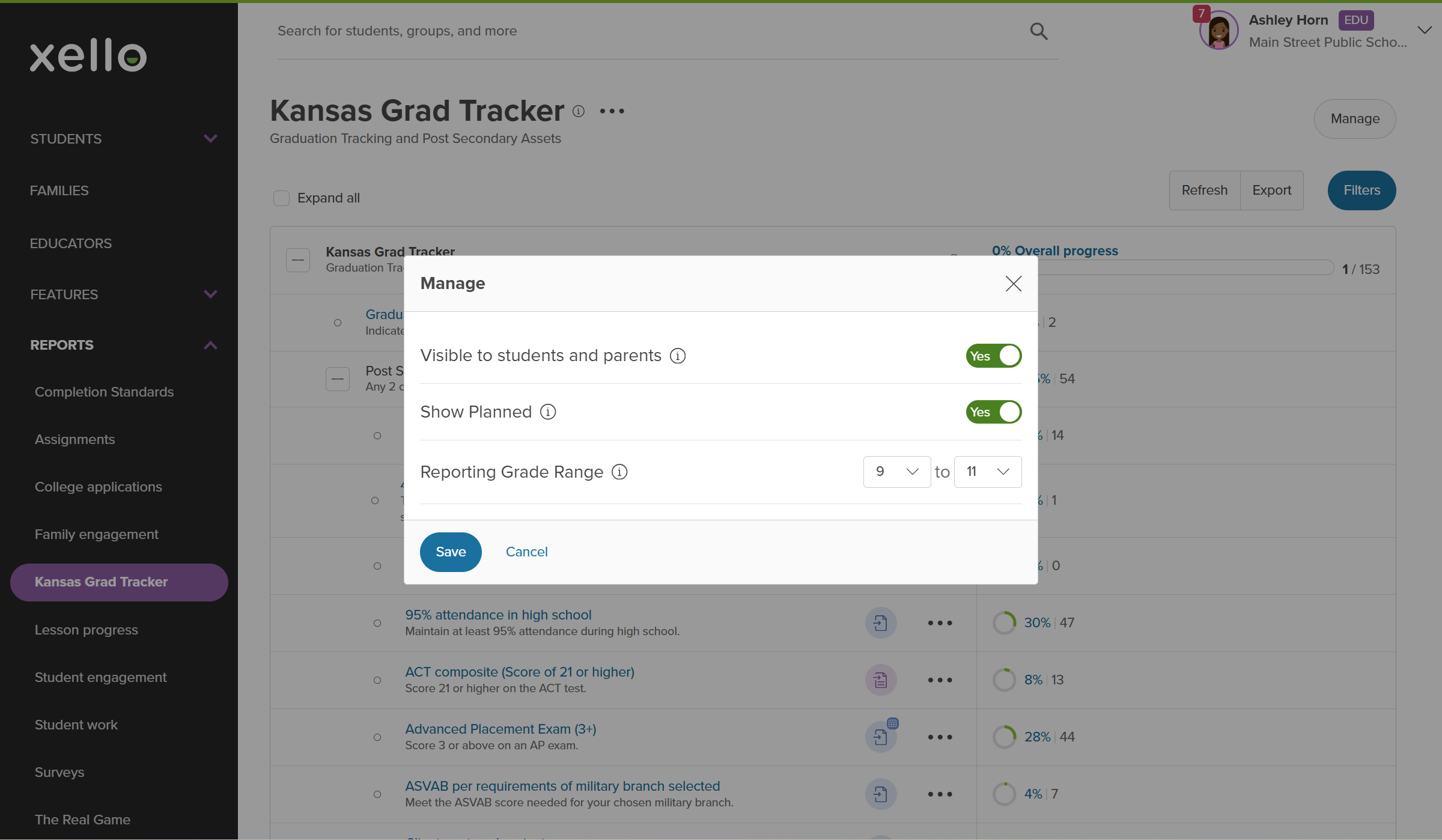 Click to enlarge
- Click Save to confirm the settings.
- To manage the visibility of individual PSA attainment, locate the PSA and select the name to open the requirement details modal.
- Update the Visible to students toggle to Yes or No.
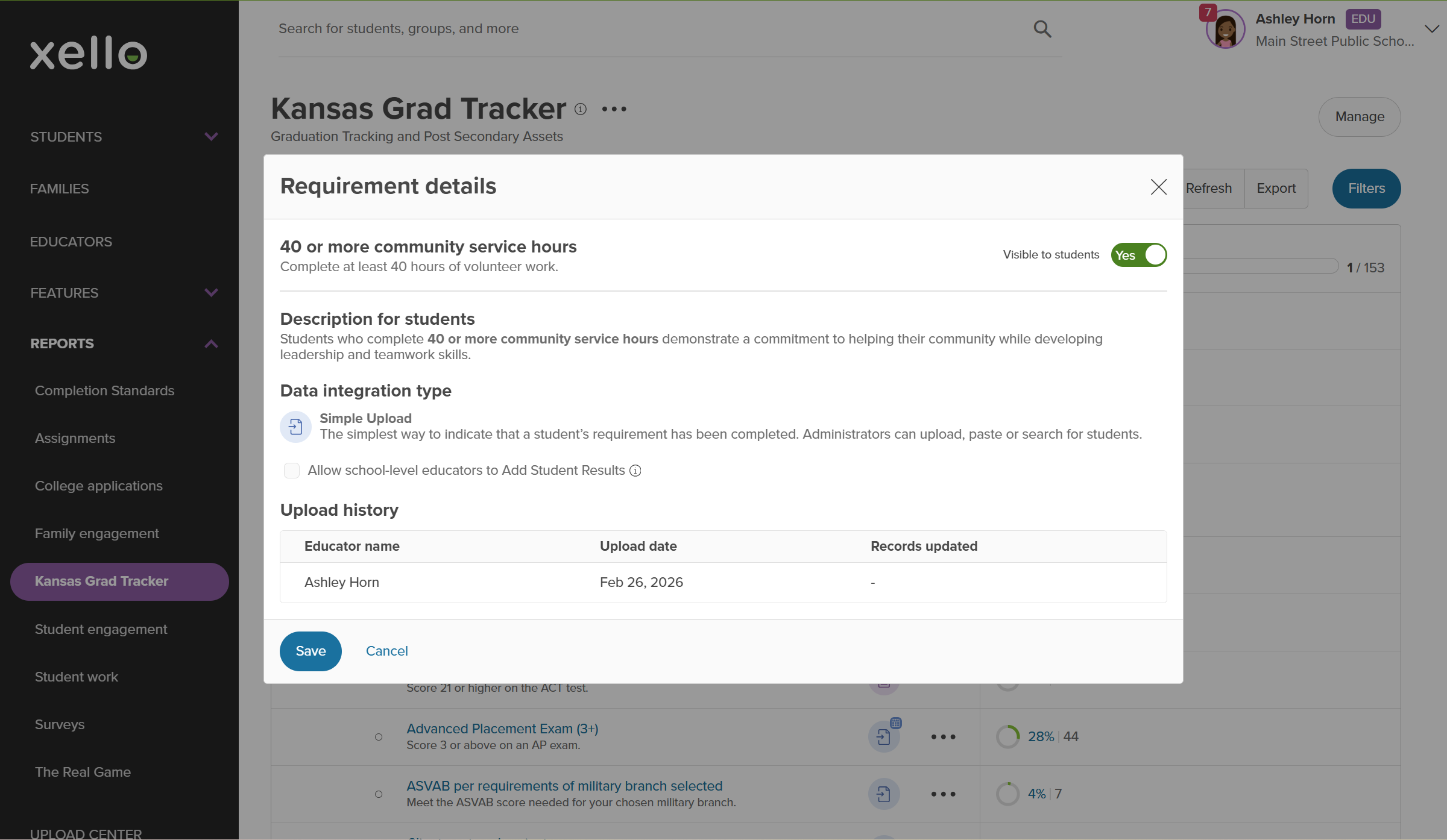 Click to enlarge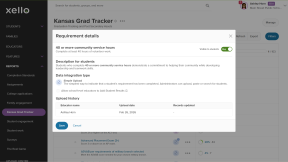
How students plan and track Grad or PSA requirements
Students can plan and track their PSA requirements in Xello when visibility is enabled for their grade level.
Students access the Kansas Grad Tracker from the Plans menu.
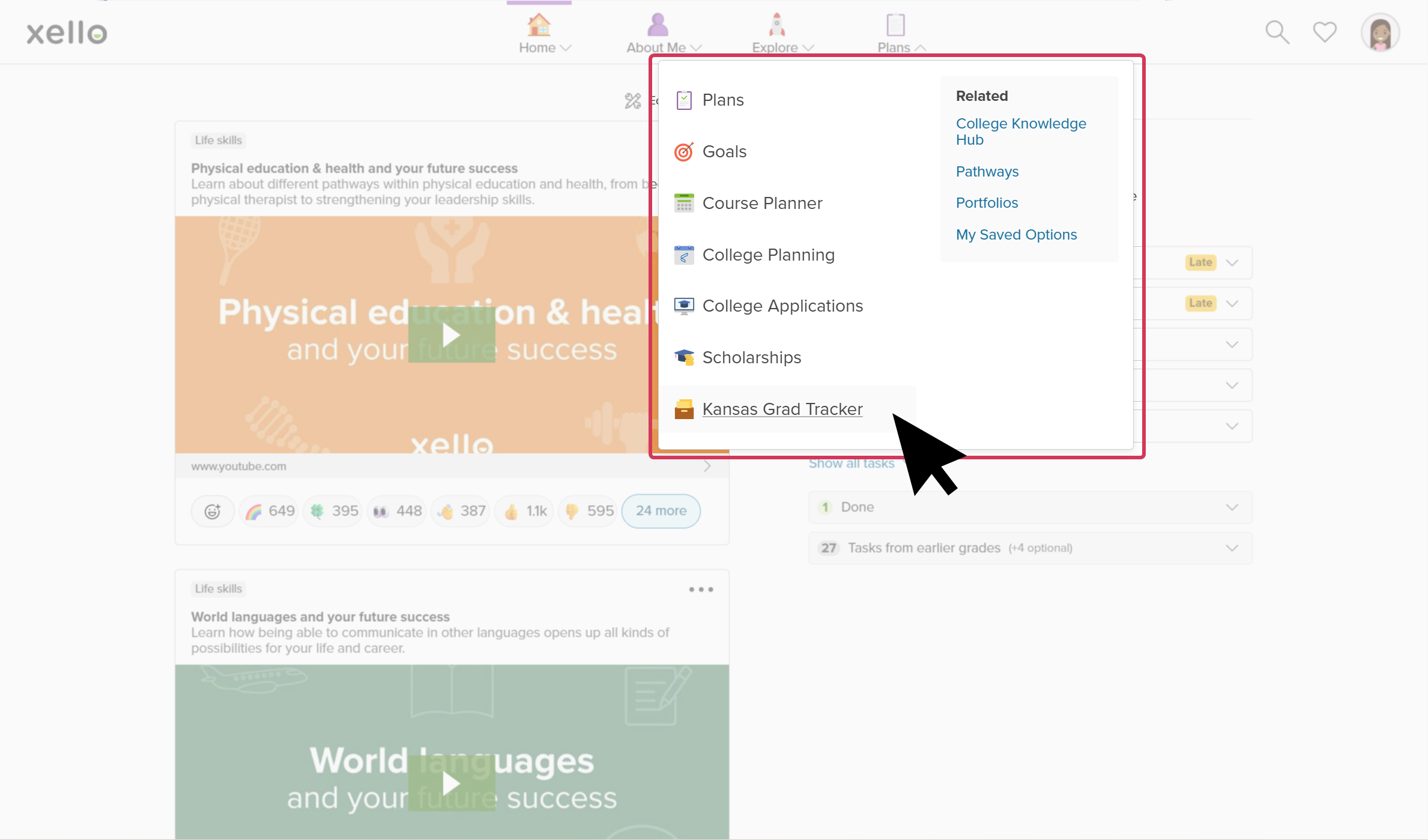
A progress bar at the top of the page lets students know when they’ve met at least one approved readiness requirement. Once they click in, students will find the 20+ PSAs, including a description for each. They have the option to check off the ones they plan to complete. The student cannot change any requirements that have been set to complete.
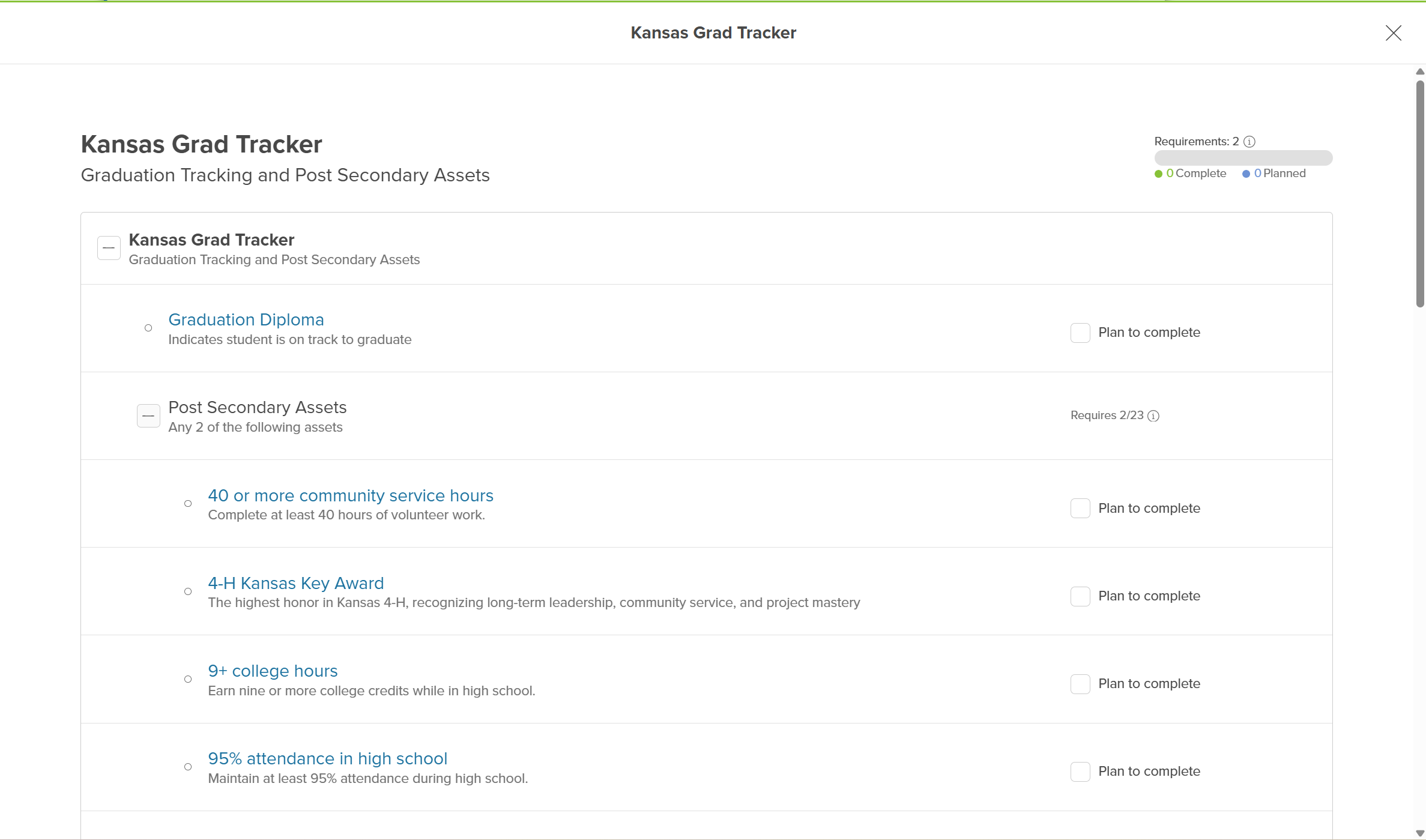
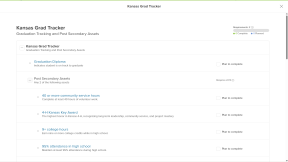
Grad Requirement and PSA Tracking
Data source formats
PSA completion tracking is dependent on your district’s report set up. Each requirement will rely on 1 of 3 source formats:
| Format | Description |
|---|---|
|
Xello automated
|
Xello tracks requirement fulfillment through specific Xello features, like Credentials, Volunteer experiences, and Course Planner. |
|
Simple upload
|
District or educators handle requirement fulfillment through either Yes/No file uploads, copy/paste student IDs, or student search. |
|
Template upload
|
District uploads a CSV file containing a series of columns for each student. Xello validates the file for accuracy before updating requirement fulfillment. |


For Simple or Template uploads, your district may have scheduled these uploads to automatically update through a secure file transfer with Xello. Scheduled uploads will be indicated with a calendar icon within the reporting table.
| Format | Description |
|---|---|
|
Scheduled simple upload
|
District tracks requirement fulfillment through an automated Yes/No secure file transfer. Optionally, educators copy/paste student IDs or search/select students to record fulfillment. |
|
Scheduled template upload
|
District tracks requirement fulfillment through an automated file transfer that contains a series of columns for each student. Xello validates the file for accuracy before updating requirement fulfillment. |


Track PSAs in the student profile
You can review the status of a student’s Grad progress and PSAs in their student profile.
-
In the search bar located at the top of any page in your educator account, enter the student's name or ID.
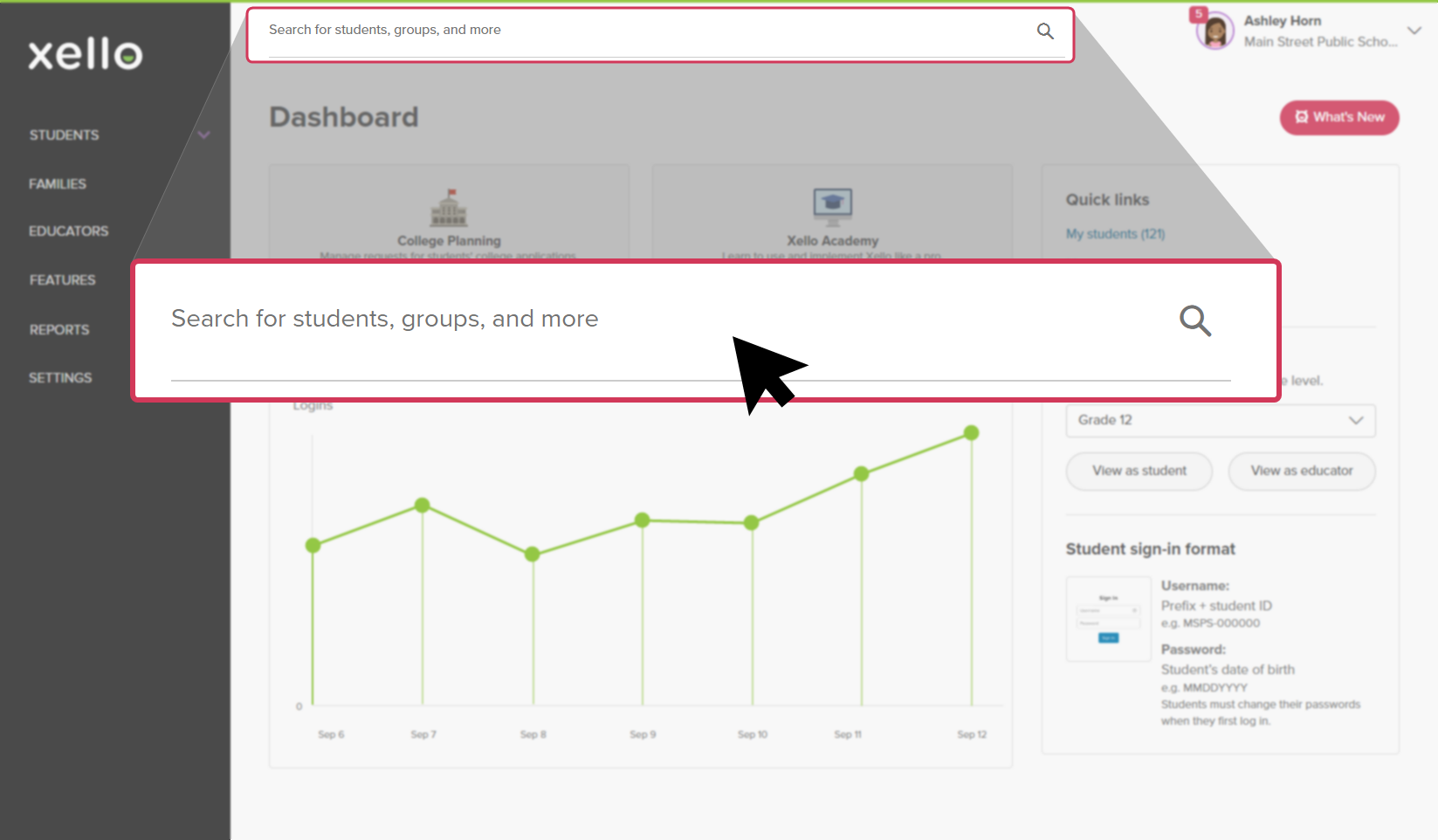 Click to enlarge
 Tip: Alternatively, from the left menu, click Students and select Student list to browse the full list of students.
 -
Click on the student's name. The About student tab of their profile opens.
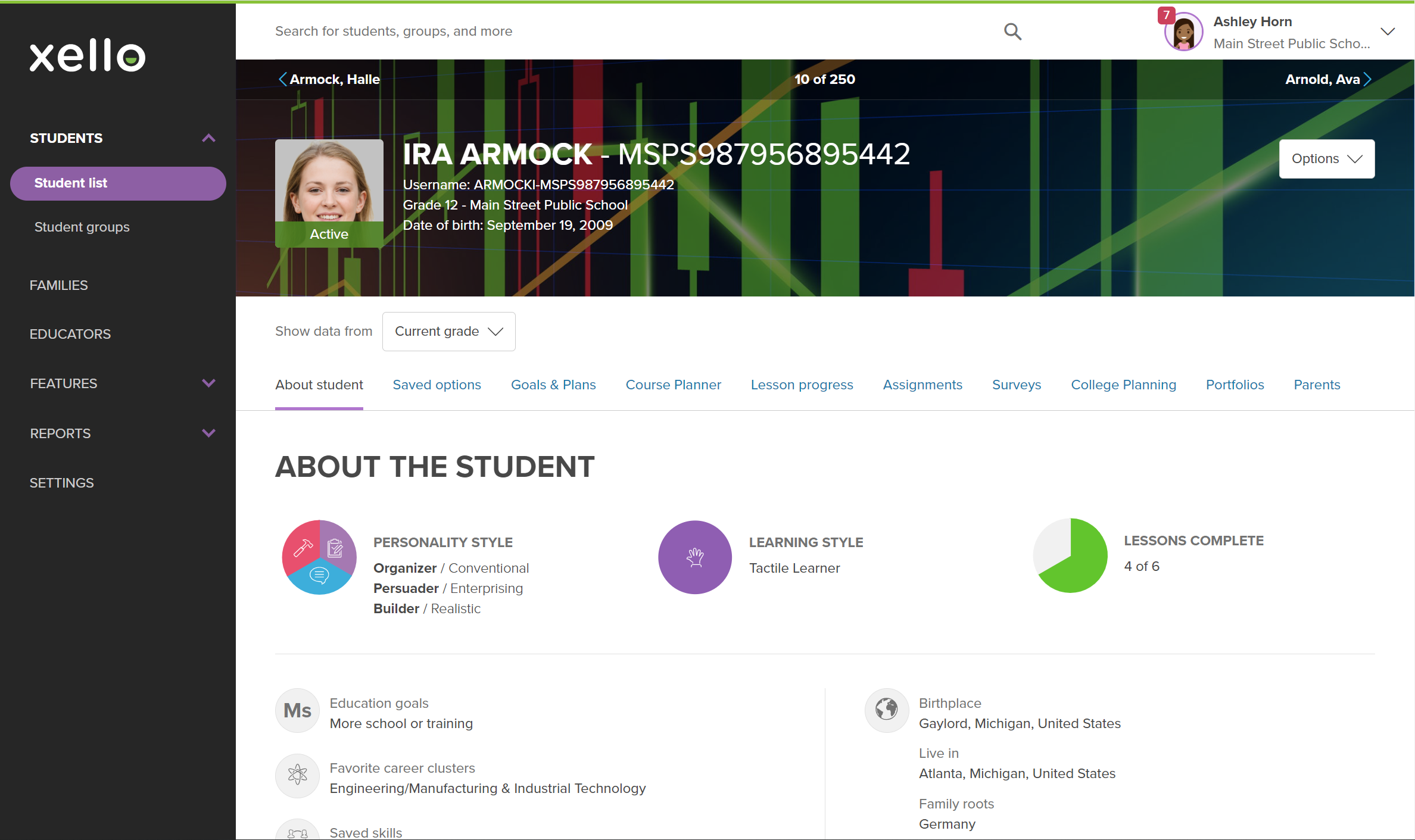 Click to enlarge
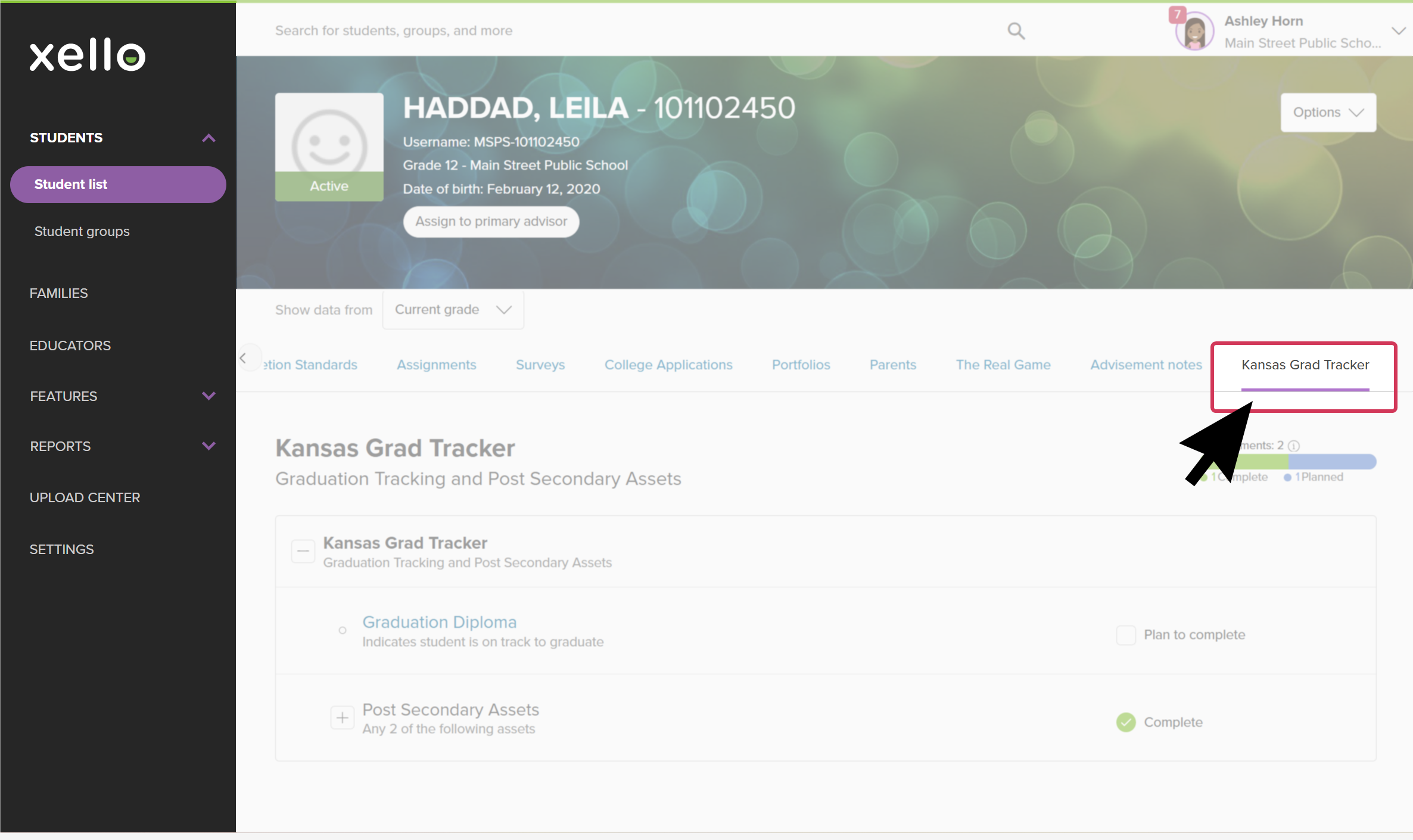
- Click the Kansas Grad Tracker tab.
 Click to enlarge
- Click the plus icon to expand the nested requirement details.
- A green checkmark and ‘Complete’ identifies the PSA(s) the student has completed. A grey checkbox identifies the PSA(s) the student plans to complete.
Note: Students can select which PSA they plan to complete; they cannot enter or modify completion data.
Update student completion data
You have the option to manually update the completion status for one or more students regarding a specific PSA directly within the report. This is dependent on the data source format for the PSA you wish to record and your permission access level.
Follow these steps for those PSAs you have permission to upload completion for:
- From your educator account, click Reports and select Kansas Grad Tracker.
Click to enlarge
- Locate the requirement you need to update.
Note: To review the requirement details, select the requirement name.
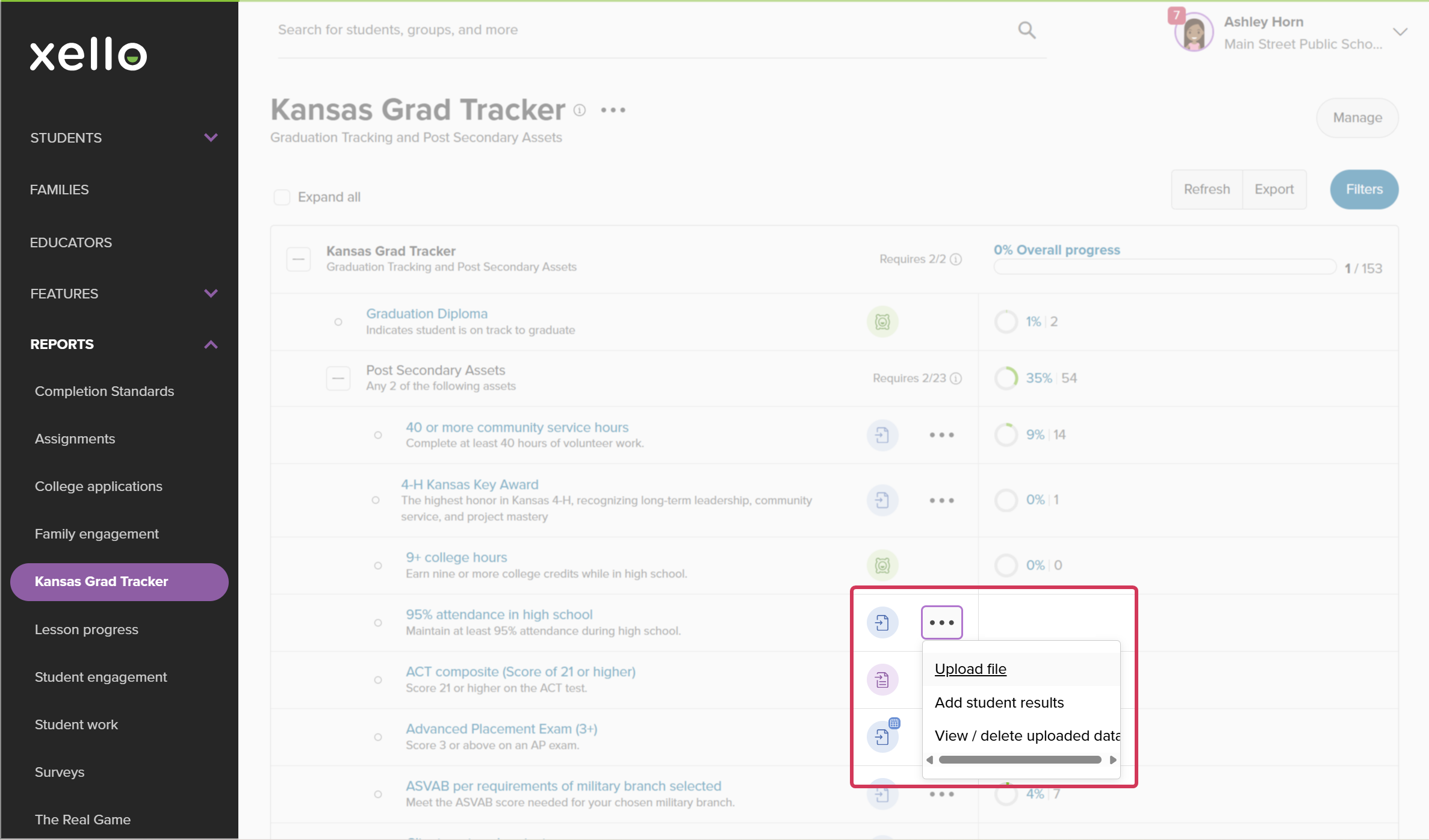
- Next to the requirement, click the three-dot menu and select Upload file.
 Click to enlarge
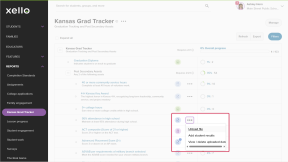 Note: For Simple upload formats you will also have the option to add student results. Click Add student results to paste student IDs or Search for students by name to mark specific students as complete.
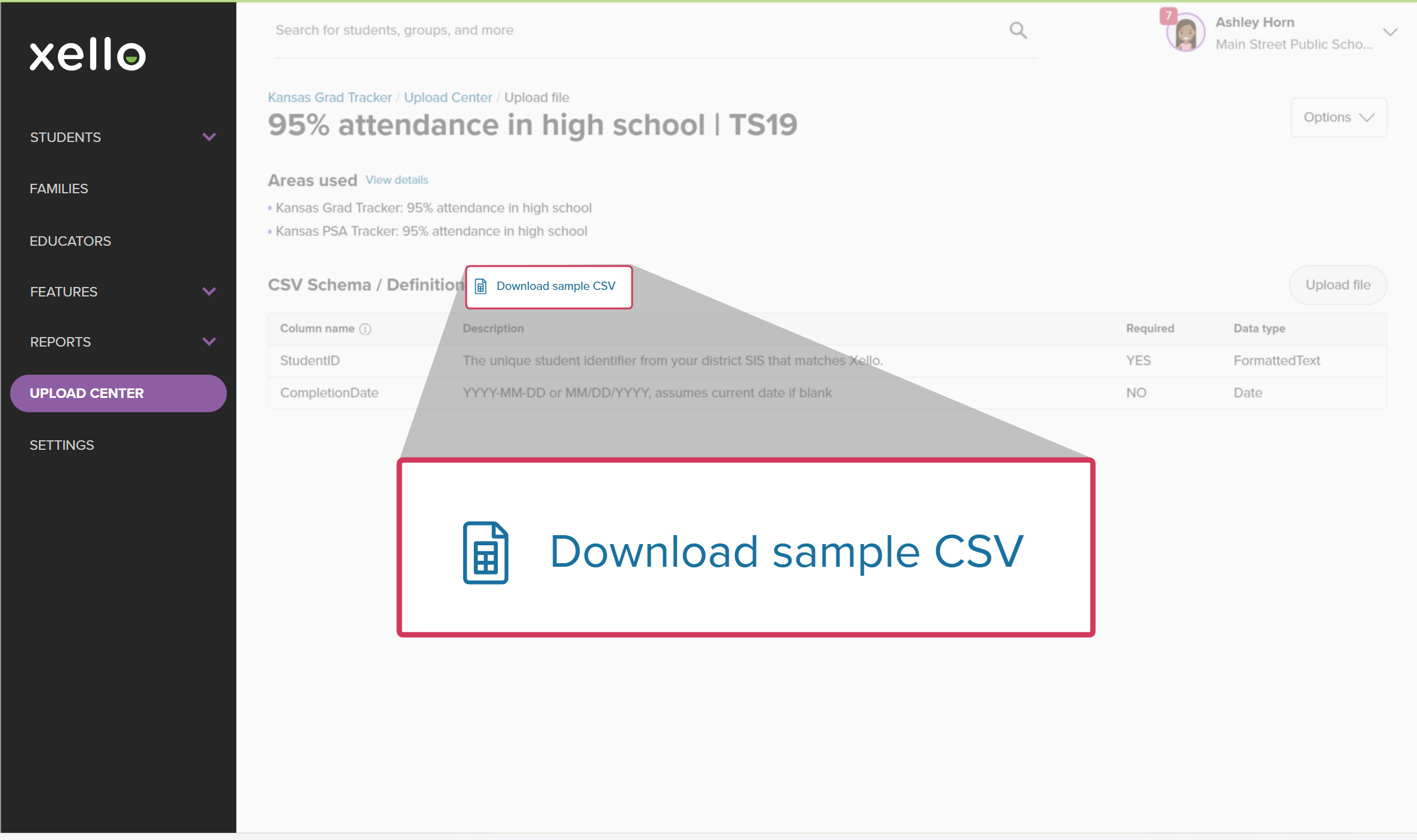
 - Click Download sample CSV for the data file template.
 Click to enlarge
- Update the CSV template with the required data.
- Click Upload file to drag and drop the file or select it from your device.
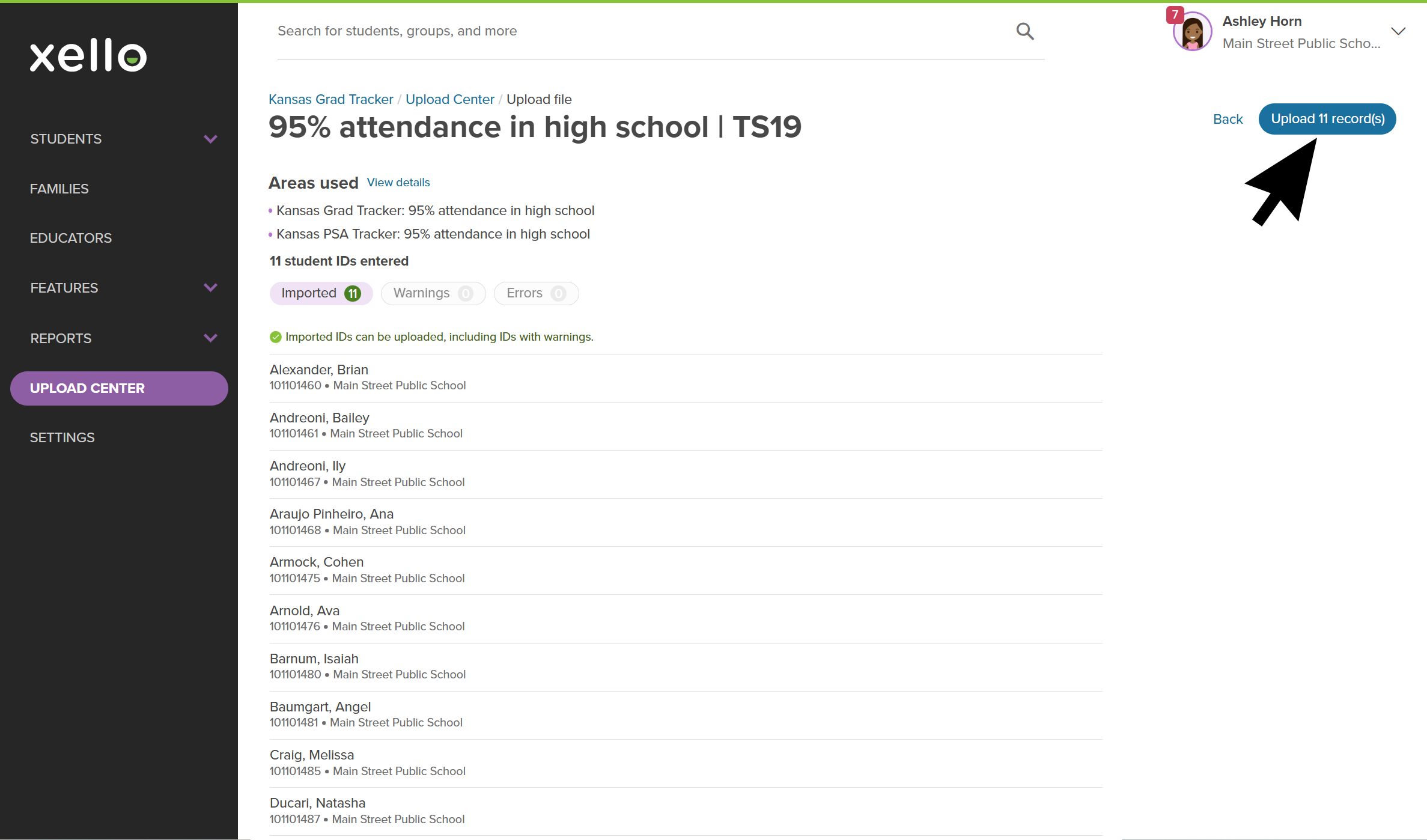
- A summary of your import will display on screen. If there are any issues with the import the details will appear under Warnings or Errors. Fix any issues in your file and re-upload if necessary.
- Click Upload # records to complete the import.
 Click to enlarge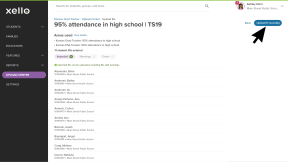
- A banner at the top of the page will confirm the import was successful.
- Return to the Kansas Grad Tracker report to confirm the imported file has been reflected. Select Reports and click Kansas Grad Tracker. Verify the percentage and student count has increased for the requirement you imported.
Run Reports on PSA
You can run reports on your students' PSA attainment.
 FYI: To learn how to group students based on report results, sort the lists in reports, filter the data, and more, check out
Tips and tricks with Reports.
FYI: To learn how to group students based on report results, sort the lists in reports, filter the data, and more, check out
Tips and tricks with Reports.
To run a report on students’ PSA attainment:
- From your educator account, click Reports and select Kansas Grad Tracker.
Click to enlarge
- At the top of the table, click Overall progress.
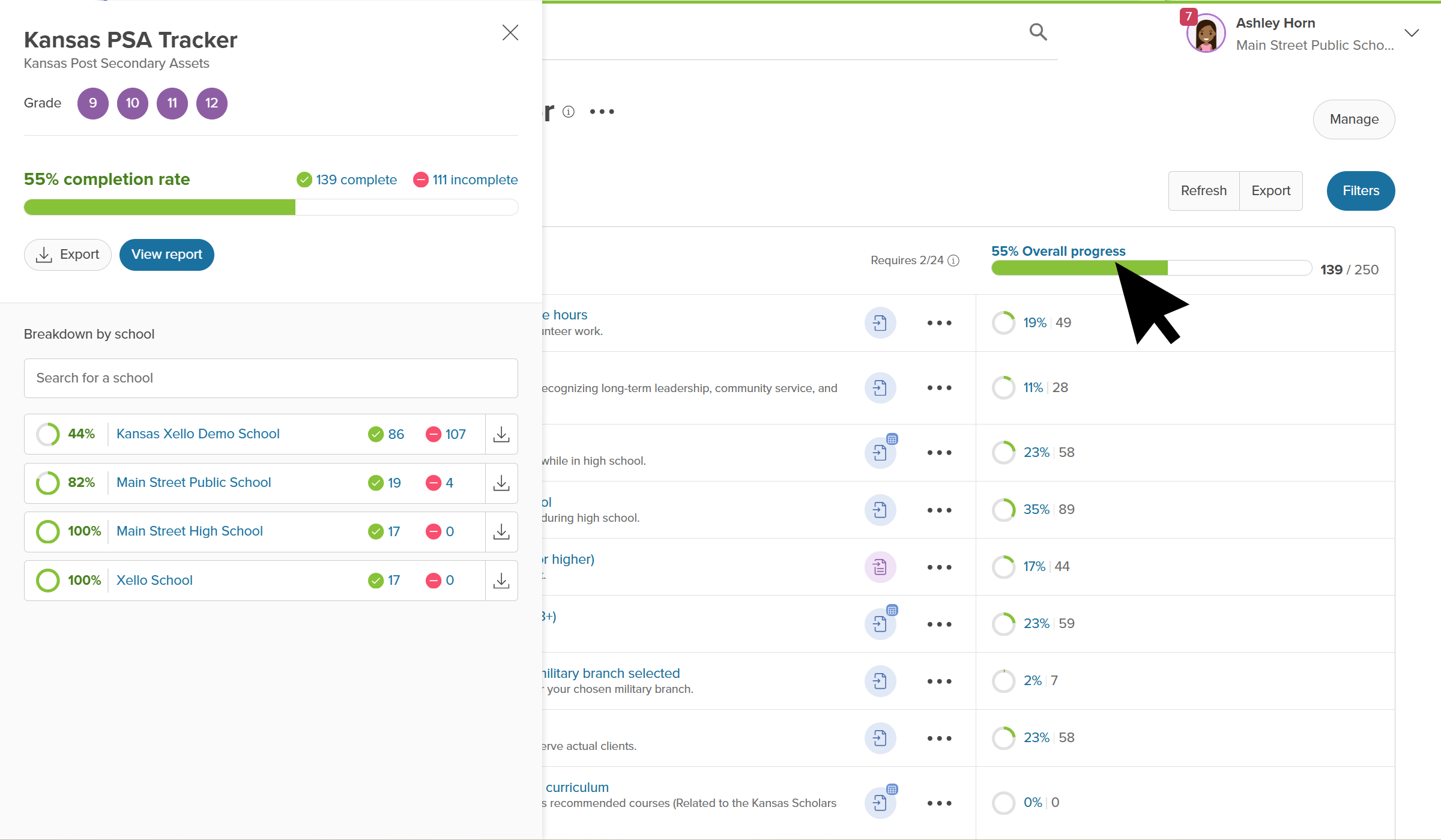 Click to enlarge
- To see the complete list of students and their completion status, click View report. From this report, you can select multiple students to add to a group or send a message to.
Tip: Select only those grades, school name, or completion status to view a filtered view of the report.
- Click Export to download a copy of the current report as a CSV or Excel file. Or to return to the previous view, at the top of the report, click X.
 Back to top