


 2 minutes
Once they’ve begun adding scholarships to their Saved scholarships list, students can easily access all their favorite scholarships in one place. This list includes at-a-glance information such as scholarship deadline, amount, and the student’s status for each scholarship.
Students update their own application scholarship status to keep track of the ones they’re interested in, the ones they’ve applied for, and the ones they’ve won.
 Tip: Share this Discover your scholarship options video with your students to help them learn how to navigate their scholarship options (also available in Spanish).
In your educator account, you can view and run reports on the scholarships your students have saved.
 FYI: For more information on running reports, check out
Run a report on saved scholarships.
How students update their scholarship status:
- From the top menu dropdown in Plans, they click Scholarships.
 Click to enlarge

- On the Scholarship matches page, they click the button with their # saved scholarships.
 Click to enlarge

- Next to the scholarship they want to update, they click Options and choose the appropriate status.
 Click to enlarge

- If the scholarship has been made inactive by an educator, the scholarship will be tagged Unavailable for the student. To stop tracking the scholarship, the student clicks Remove from list.
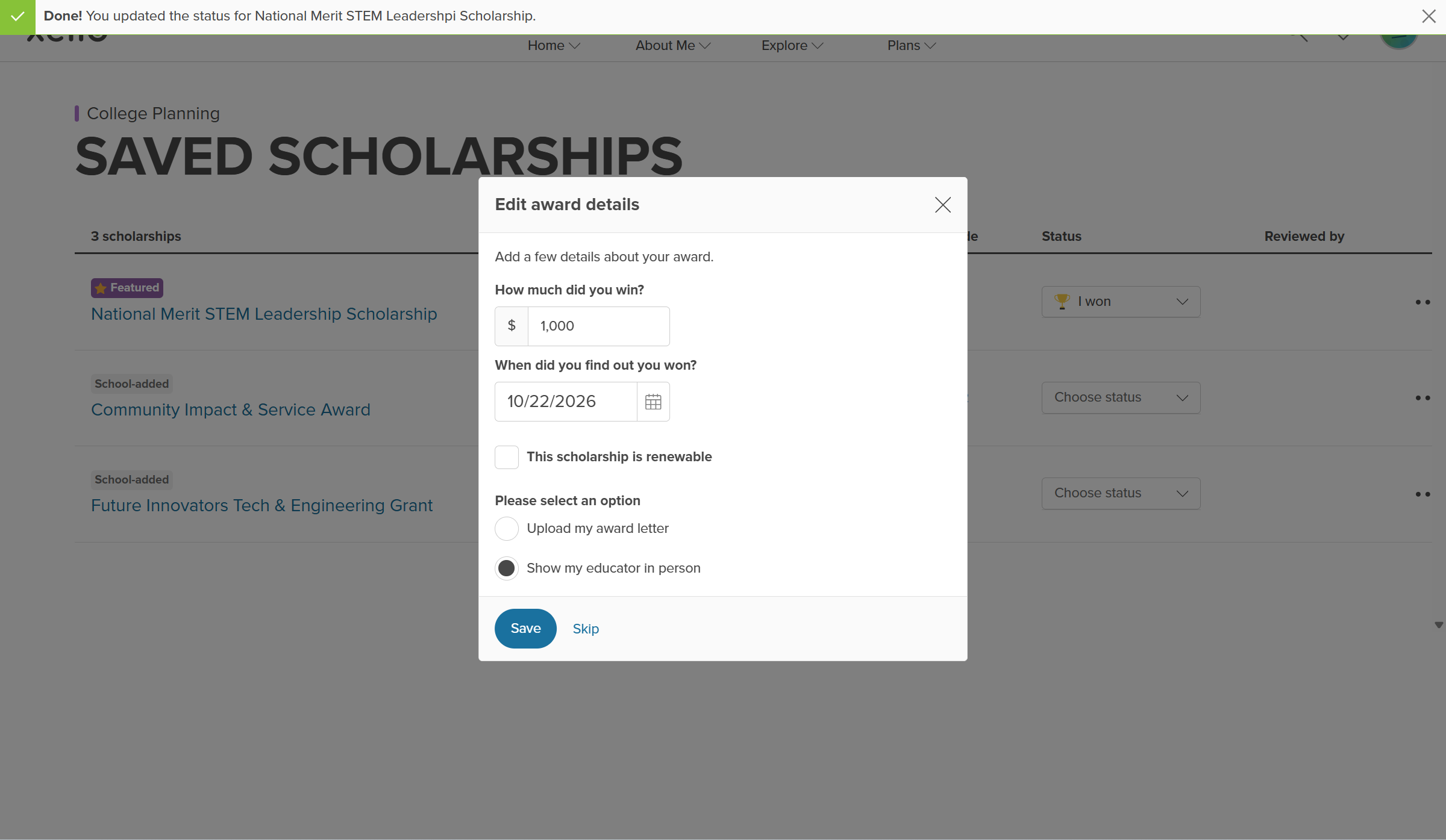
- If they choose I won, a modal will open where they can add details, including the amount, when the found out, whether it's renewable, and the option to either upload their award letter or show their educator the acceptance in person.
 Click to enlarge
 Back to top
Additional resources
-
 PDF
PDFScholarships guide - student guide
Give this guide to students to help them find and track scholarships in Xello.
-
 Short video
Discover your scholarship options - student-facing video
Help students learn how to navigate their scholarship options. From understanding different types of scholarships and how they work, to where students can find verified scholarship opportunities, when to apply, and even what to watch out for.
-
PDF
PDFCollege application tracking in Xello - student guide
Share this guide with your students to help them manage their college applications in Xello, from exploring schools and requesting documents to tracking responses and recording their final decision.
-
Short video
Short videoPaying for college - student-facing video
Help students learn how to navigate their financial aid options. From applying for FAFSA to learning about scholarships, grants, work-study, and loans.
-
 Recording
Navigating college financial aid with students
Master federal student aid (grants, work-study, loans) with Xello! Guide students through the FAFSA®, cost comparison, scholarships, and tracking for confident post-secondary financial planning.
-
Recording
 Select


