3 minutes
Your student may be aiming to achieve one or more specializations (additional designations in conjunction with their graduation diploma). You can assign specializations to your students to accurately keep track of their progress and ensure they’ll meet their goals.
Apply a specialization
To assign your student a specialization:
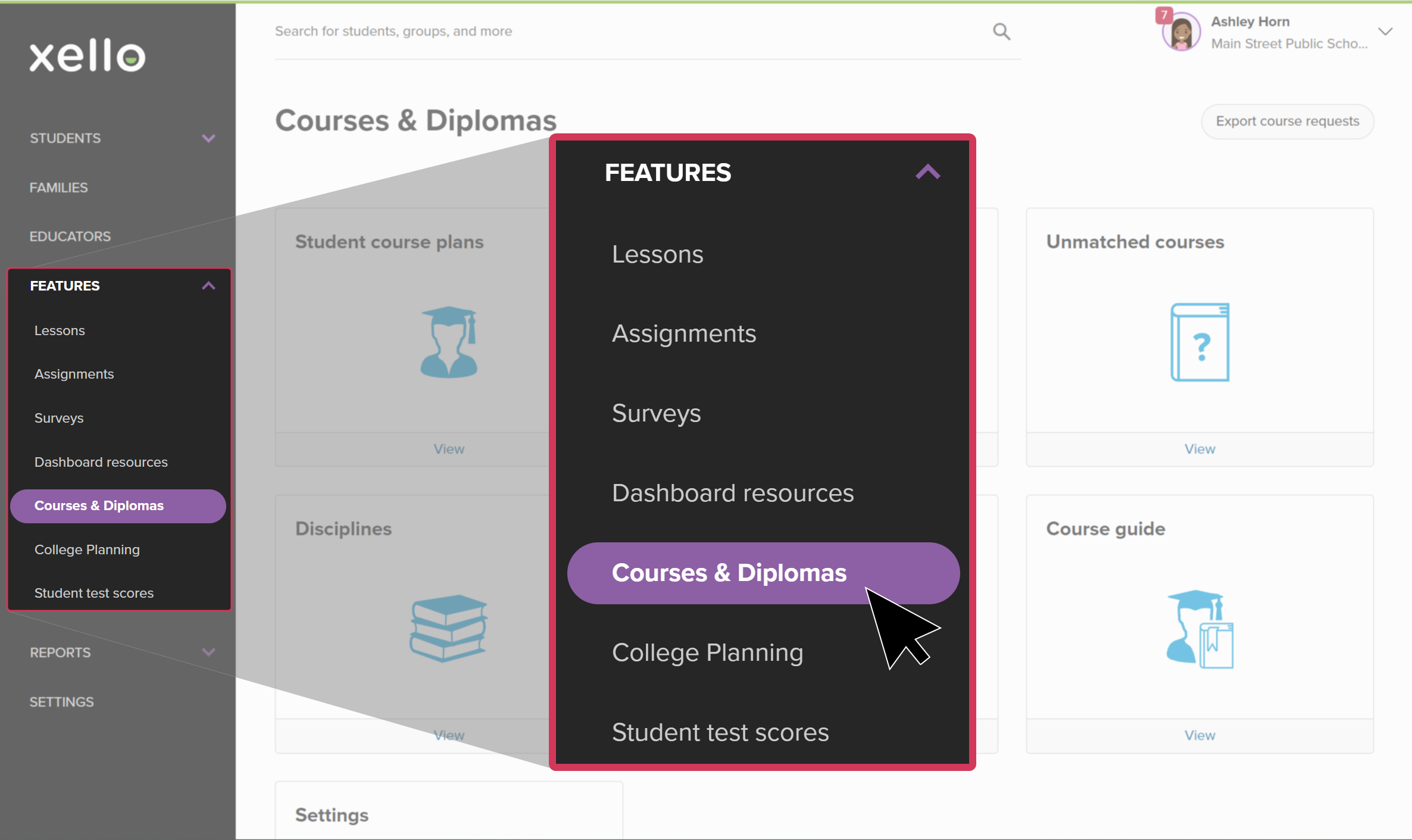
- From your educator account, click Features and select Course Planner.
 Click to enlarge
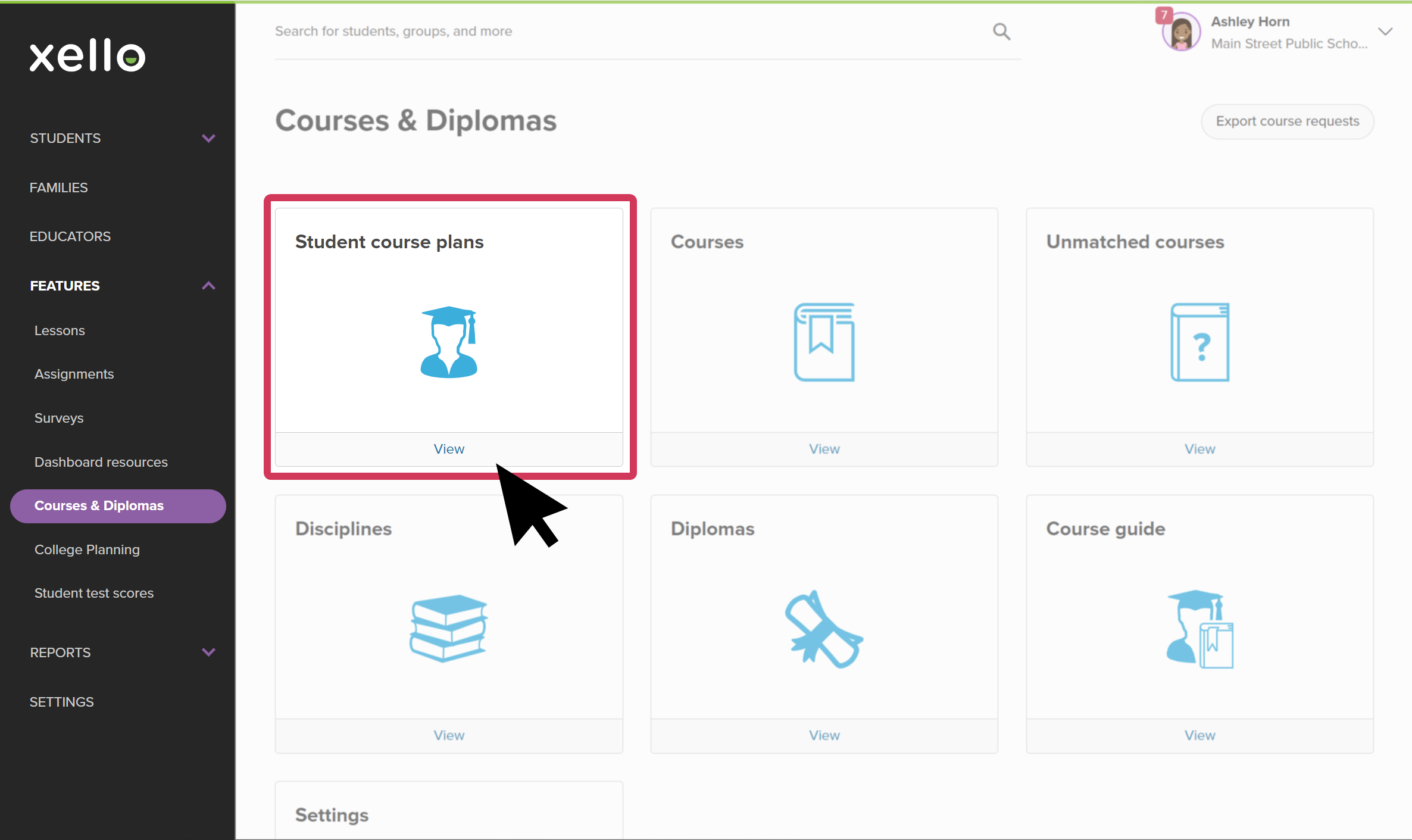
- Click Student course plans to open the student list.
 Click to enlarge
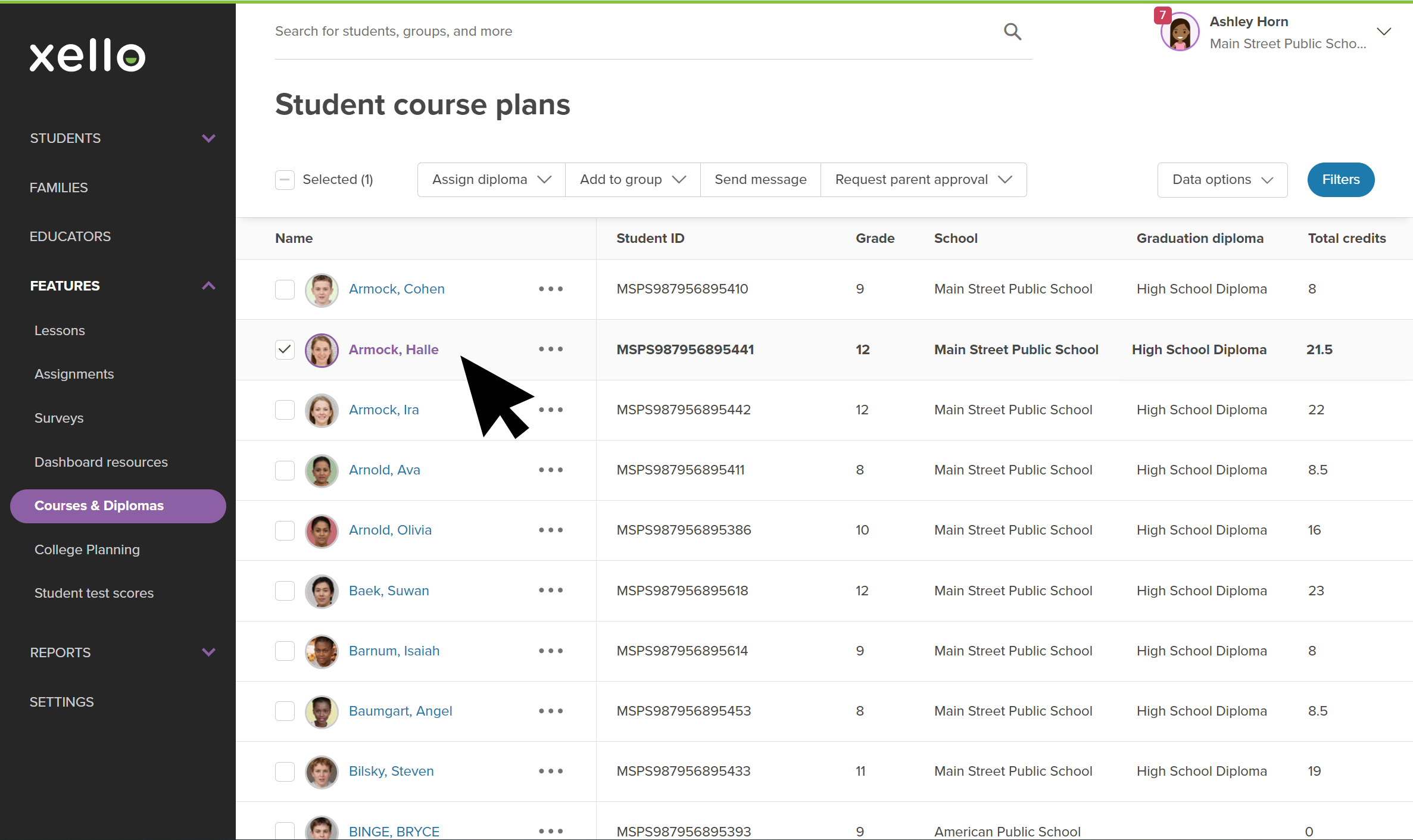
- Locate the student whose specialization you'd like to change.
 Click to enlarge
- Click in the checkbox to the left of their name.
 Tip: To filter and select multiple students, click
Filters to narrow the student list by several options, such as grade, or group. Then click Apply.The student list is narrowed by your filter option. Click the Selected (0) checkbox at the top of the list to select all the students in your newly filtered list.
Tip: To filter and select multiple students, click
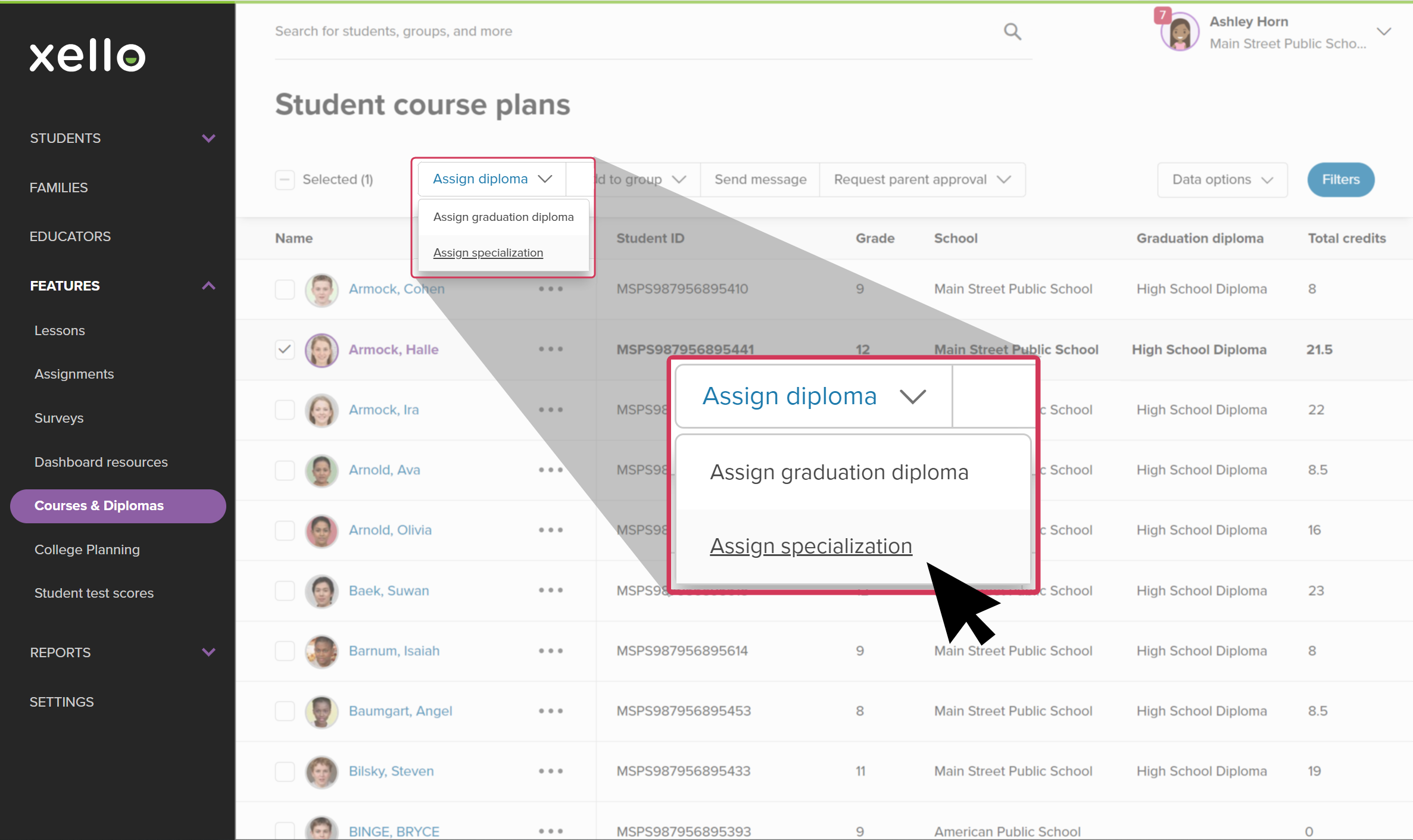
Filters to narrow the student list by several options, such as grade, or group. Then click Apply.The student list is narrowed by your filter option. Click the Selected (0) checkbox at the top of the list to select all the students in your newly filtered list. - From the top of the list, click the Assign diploma dropdown, and select Assign specialization.
 Click to enlarge
- Select the specialization from the available choices and click Assign.
 Back to top
View the progress of a student's specialization
To view a student’s progress in each of their specializations:
- From the Student course plans page, click on the student name.
Click to enlarge
- The Course planner tab on the student's profile opens.
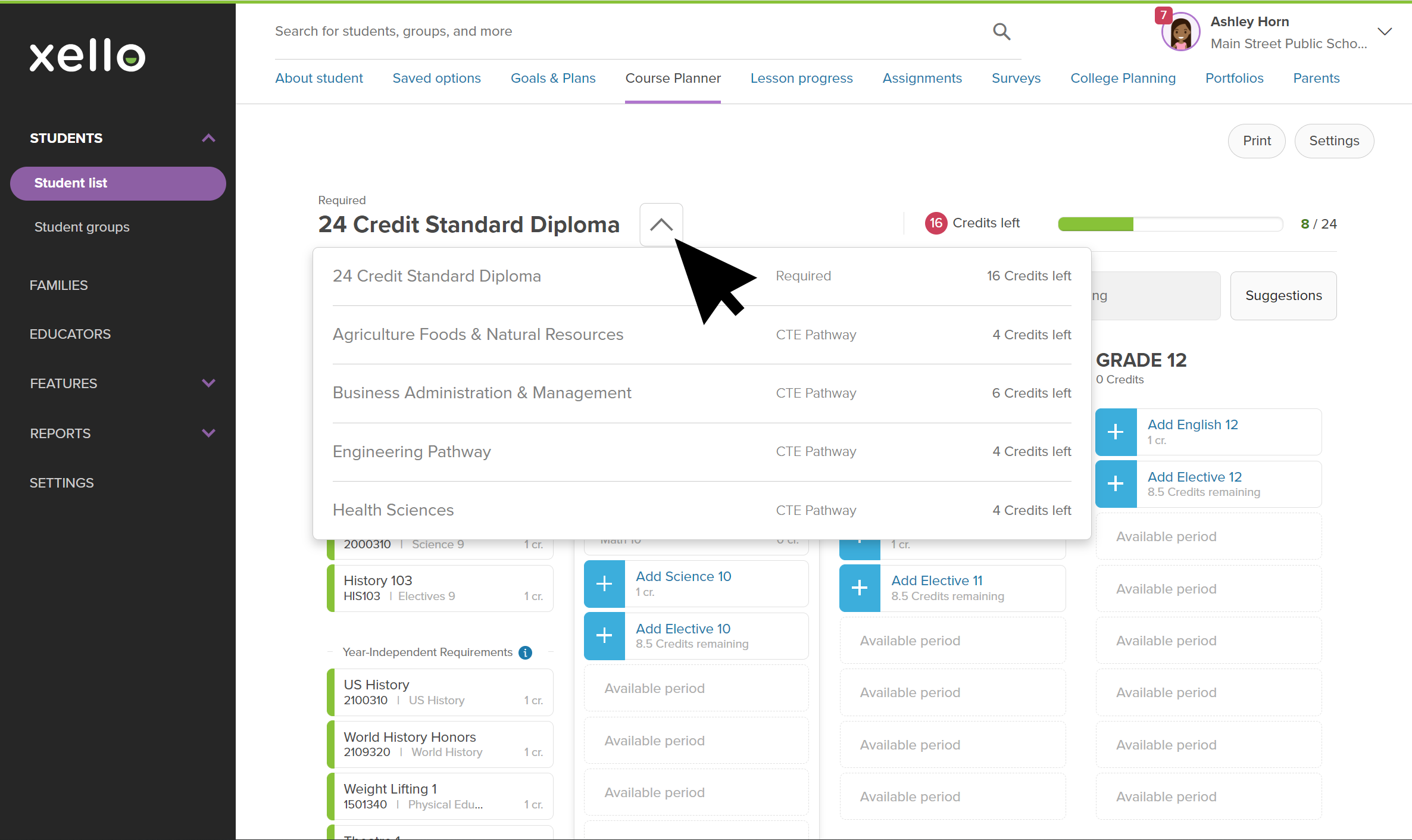
- To the right of the diploma name, click the dropdown to show all the diplomas and specializations assigned to the student.
 Click to enlarge
- Click on the title of the specialization to view their current progress.
Remove a specialization
If you need to, you can remove a specialization from a student's course plan.
To remove a specialization for a student:
-
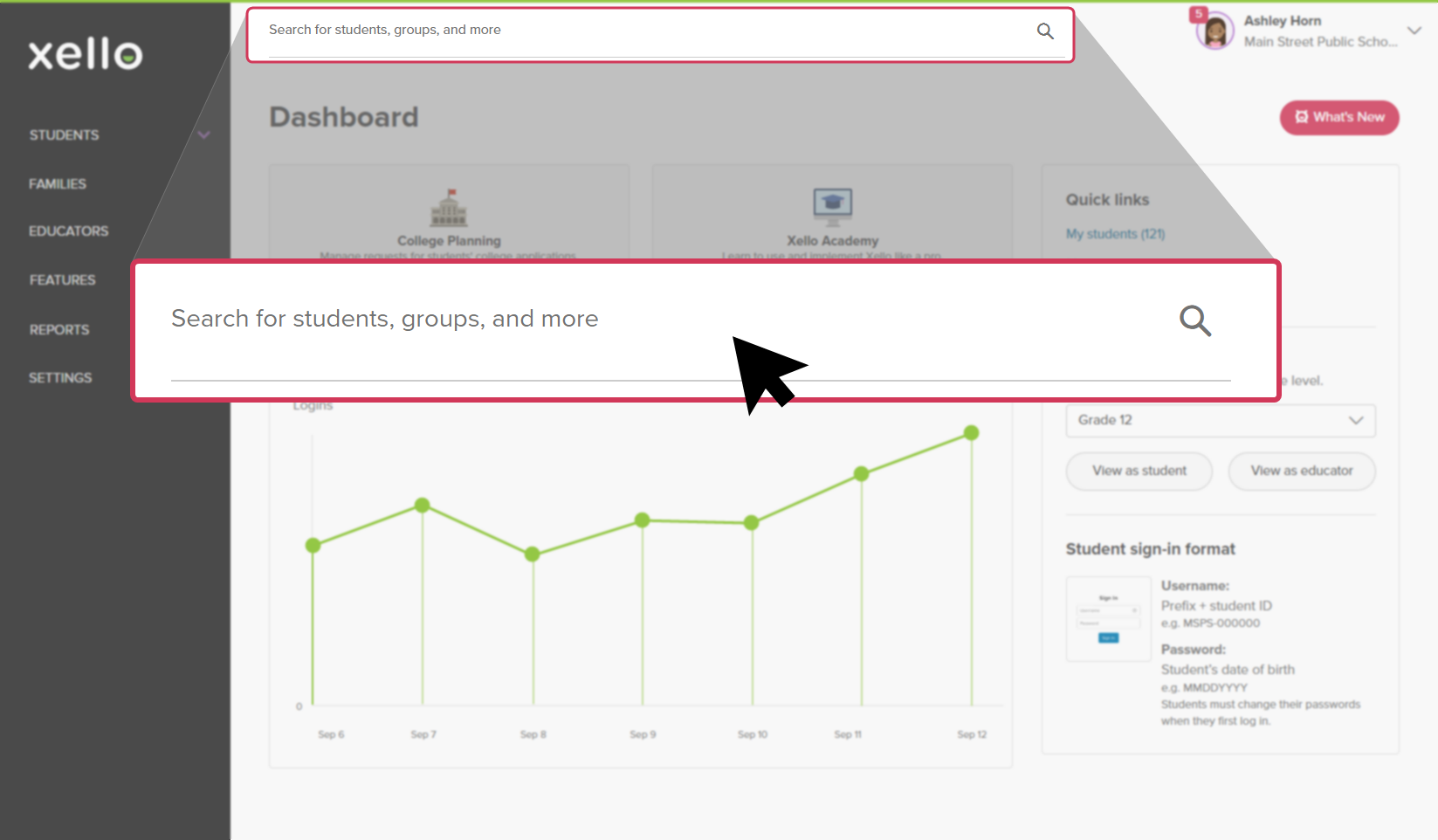
In the search bar located at the top of any page in your educator account, enter the student's name or ID.
 Click to enlarge
 Tip: Alternatively, from the left menu, click Students and select Student list to browse the full list of students.
 -
Click on the student's name. The About student tab of their profile opens.
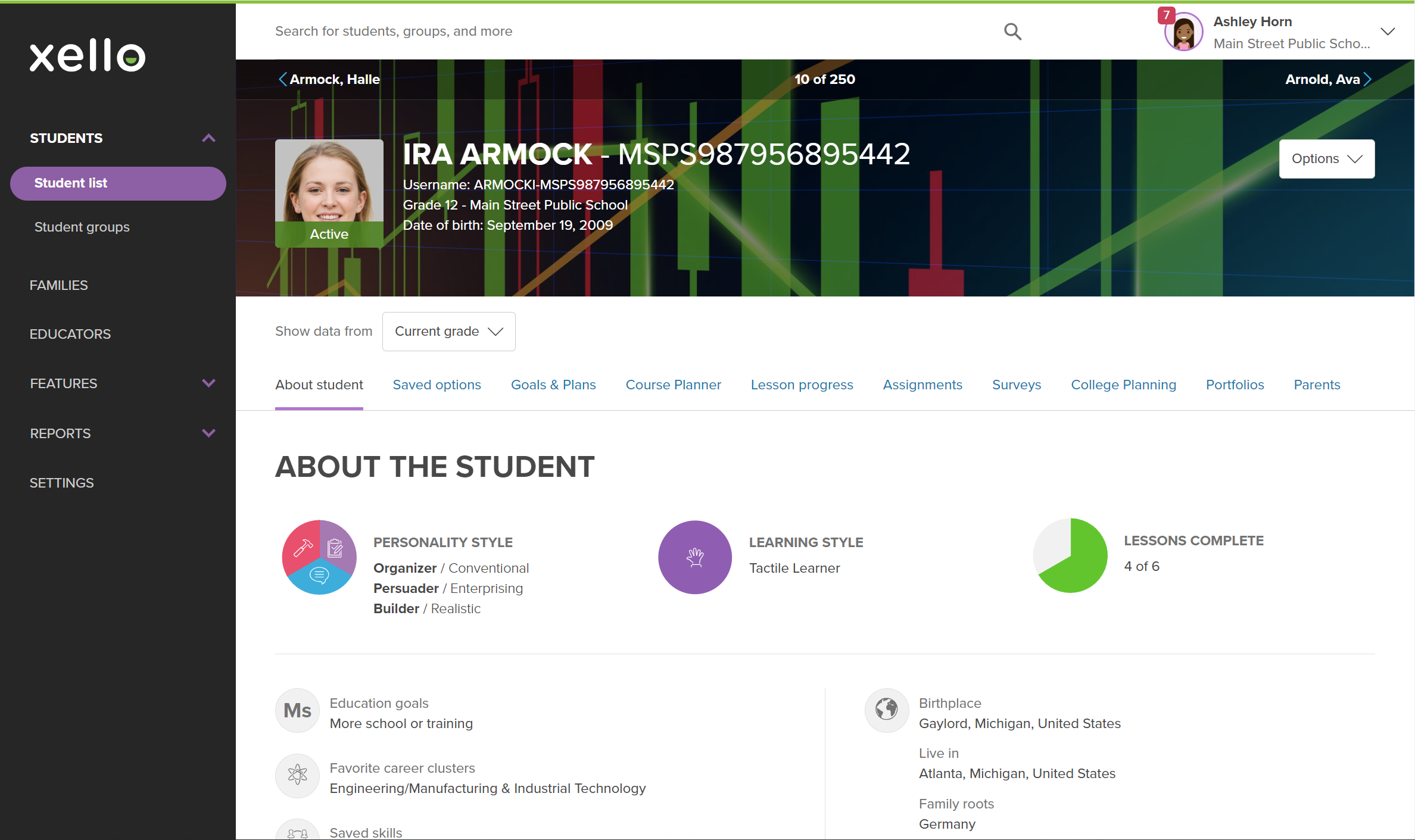 Click to enlarge
- Click the Course Planner tab.
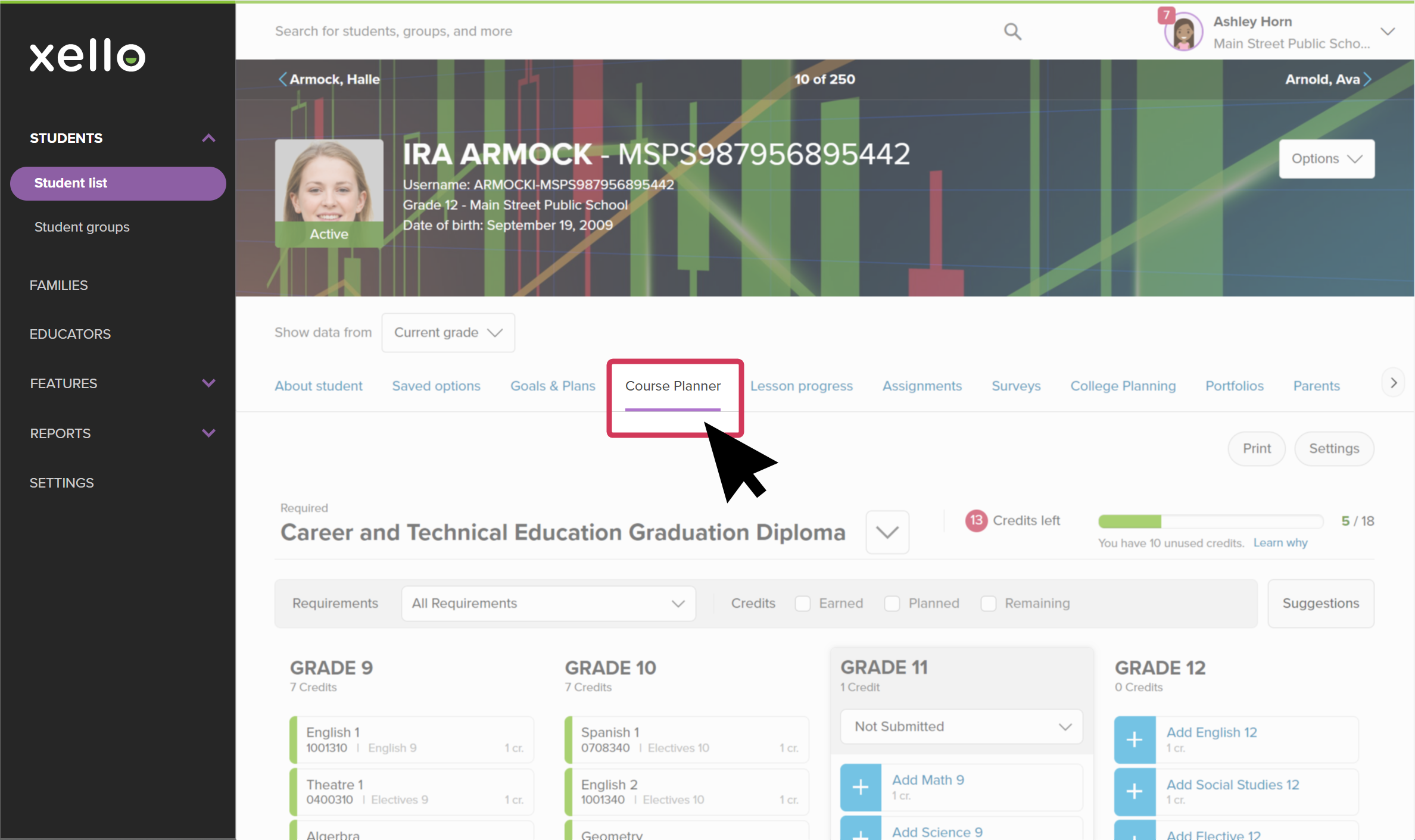 Click to enlarge
- Click Settings.
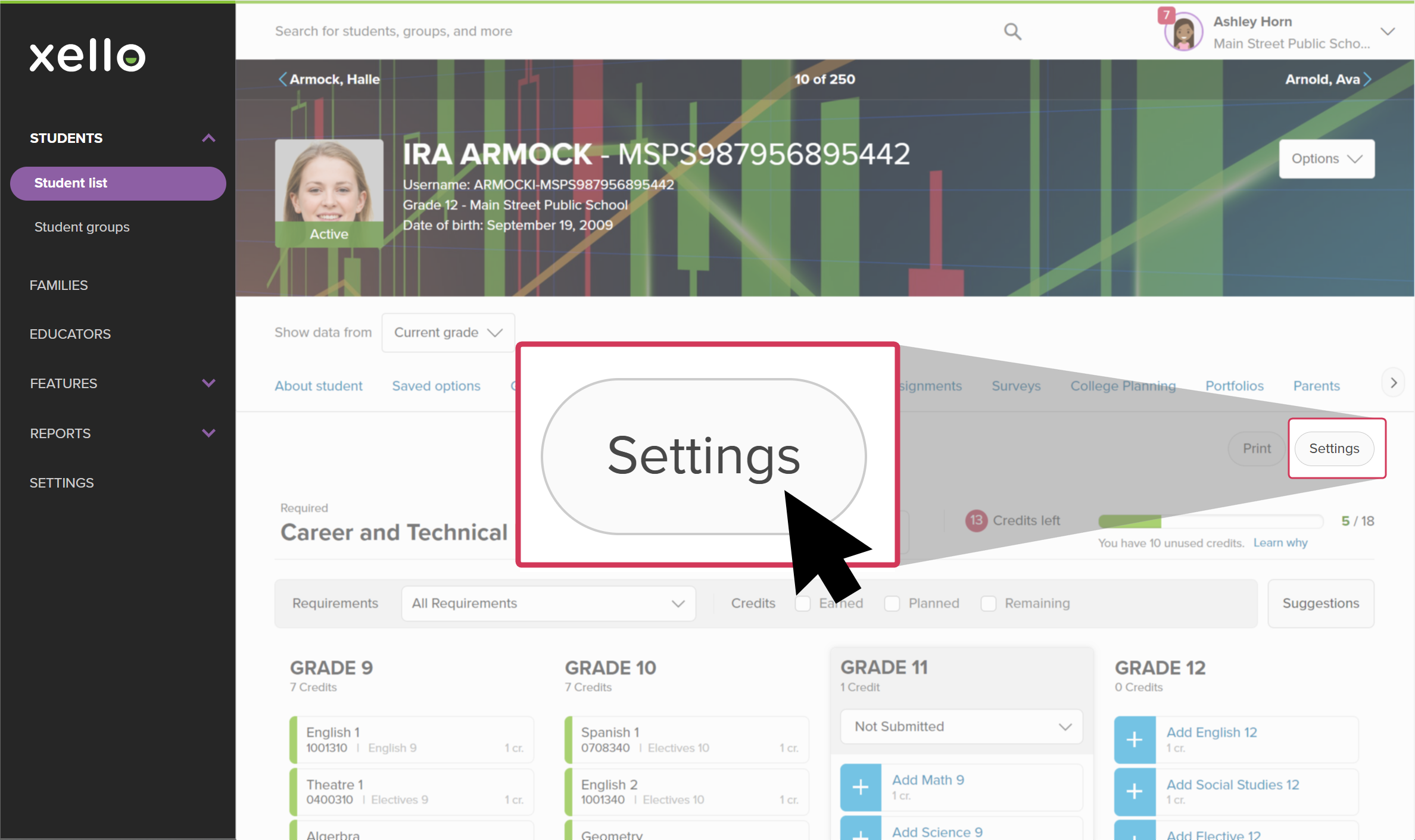 Click to enlarge
- Next to the specialization you want to remove, click the X.
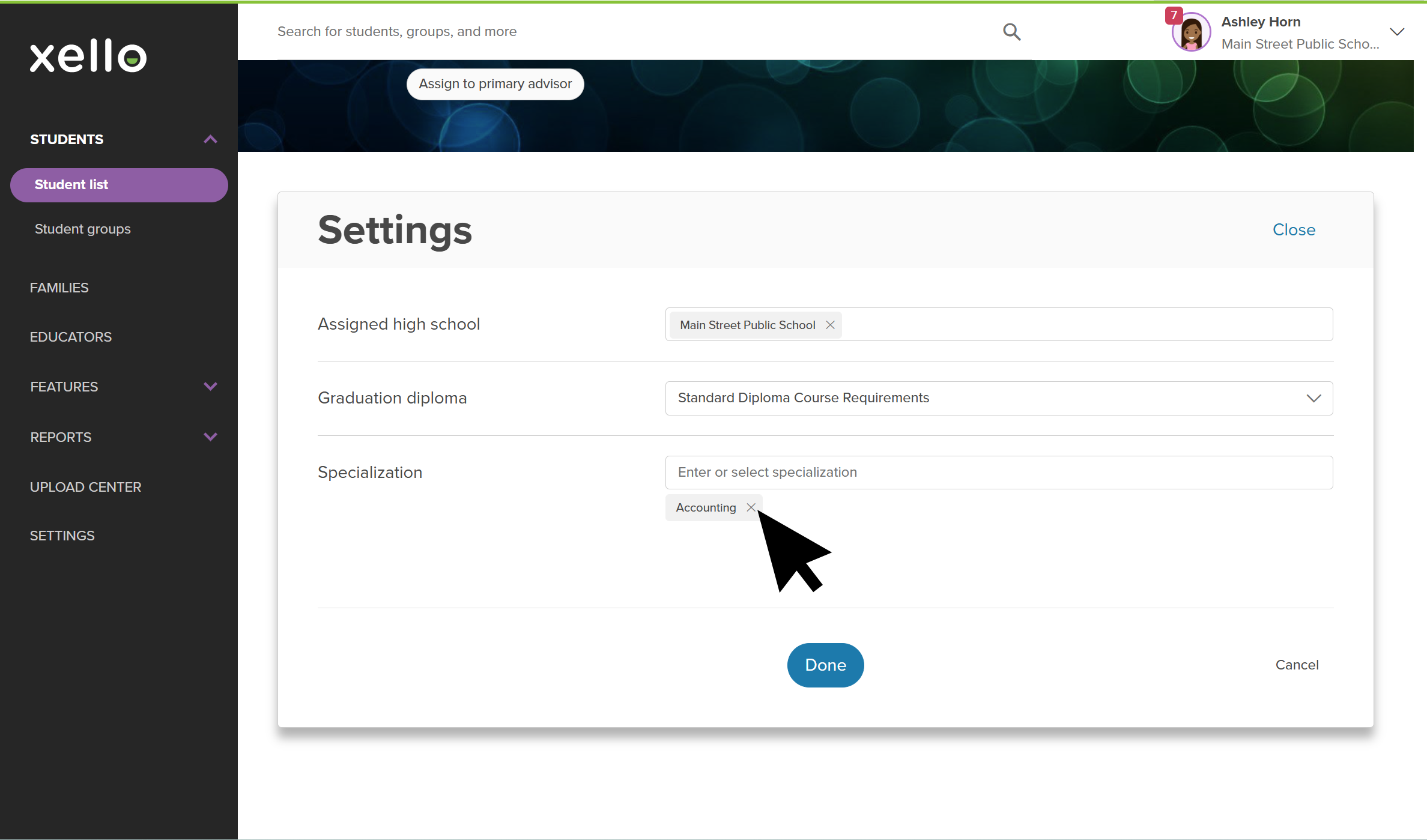 Click to enlarge
- Click Done to save your changes.
Additional resources
-
 Short Video
Managing students' high school course plans - video for educators
Short Video
Short VideoManaging students' high school course plans - video for educatorsIn this short video, you'll see how Xello’s Course Planner lets students manage their course selections to meet diploma requirements.
-
Short Video
Short VideoPlan your high school courses in Xello - video for students
To see how students use Course Planner in Xello, check out this video and share it with your students.
-
 PDF
PDFWork with high school course plans - guide for educators
PDF
PDFWork with high school course plans - guide for educatorsFollow this guide for tips on how to make your high school course planner review process a breeze. Learn how to review, track, action, and approve student course plans.
-
 Xello Academy
Course Planner for high school
Xello Academy
Xello AcademyCourse Planner for high schoolAre you a high school
-
PDF
PDFCourse Planner annual tasks guide
Download this guide for helpful reminders on what to review and update in Xello's Course Planner each year.
 Select