2 minutes
Run a report on Events to view total registered students, see which colleges or institutions are attending, and track student registrations across individual events or your entire district.
 FYI: To learn how to group students based on report results, sort the lists in reports, filter the data, and more, check out
Tips and tricks with reports.
FYI: To learn how to group students based on report results, sort the lists in reports, filter the data, and more, check out
Tips and tricks with reports.
Run a report on Events
Use the main Events report to view a high-level list of all events recorded in Xello. This view gives you a quick snapshot of upcoming and past events, allowing you to see which institutions are participating and how many students have registered before drilling down into individual event details.
To run a report on Events:
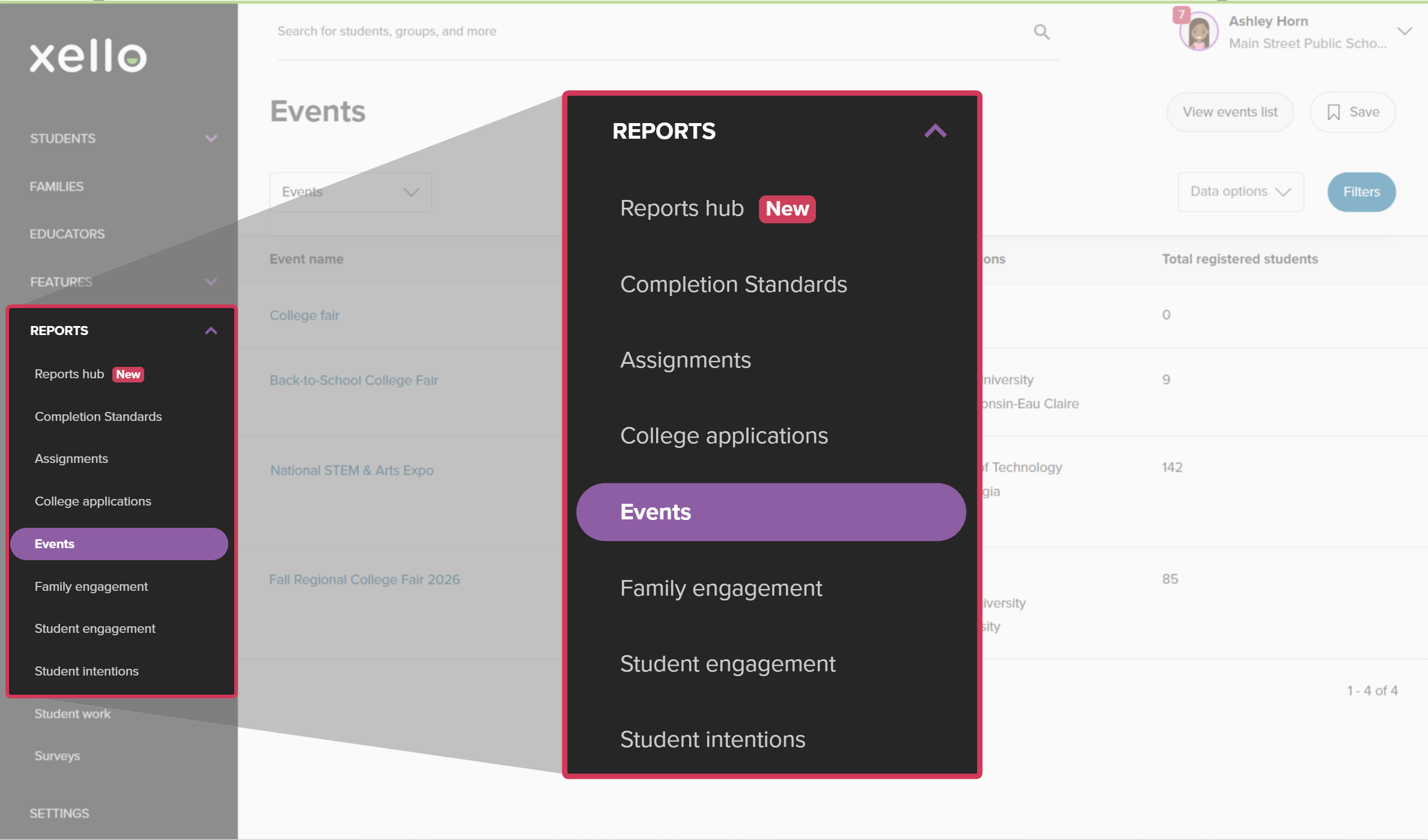
- From your educator account, click Reports and select Events.
 Click to enlarge
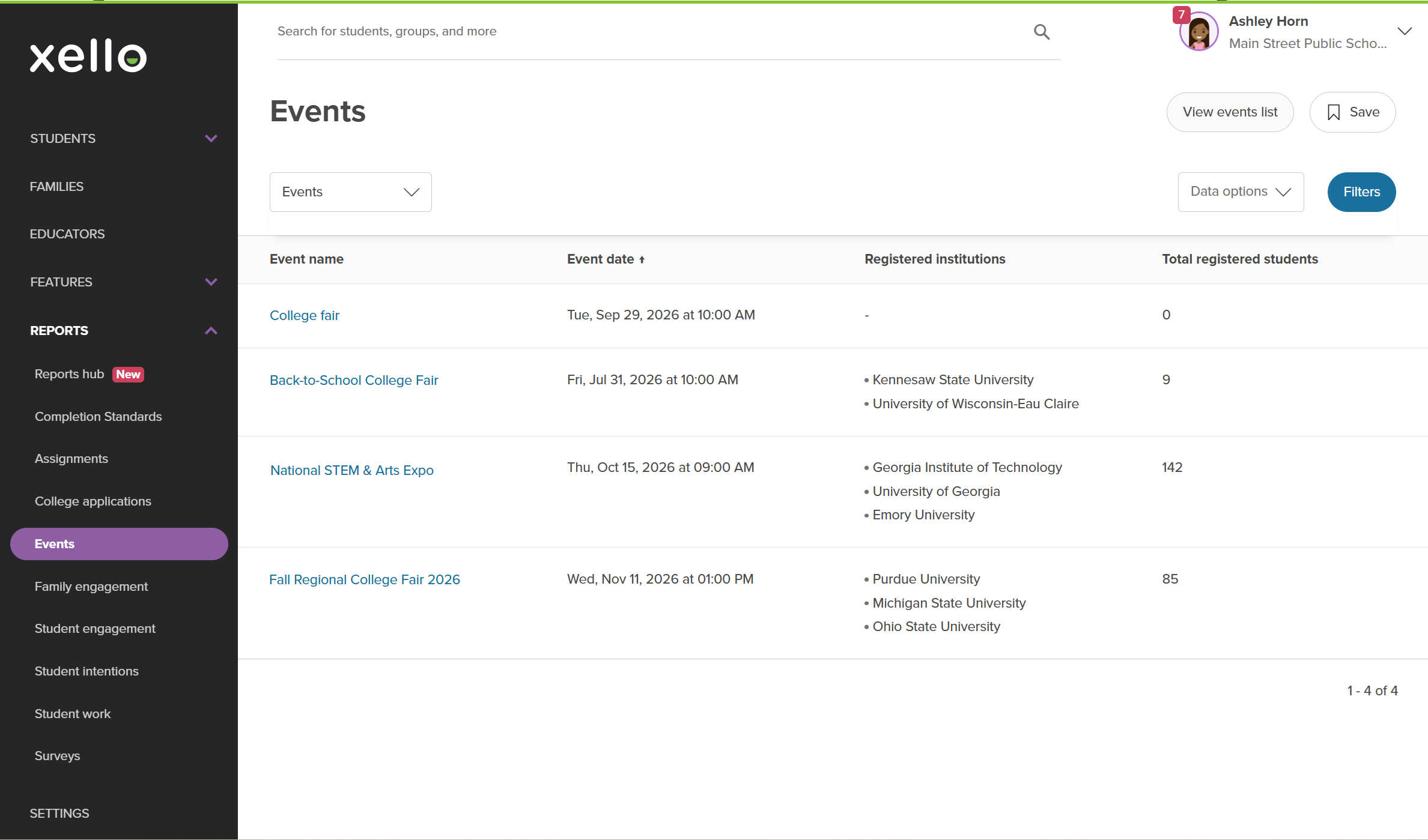
- View the list of Events added to Xello with their registered institutions and students.
 Click to enlarge
- Click a column header to sort the table by that column.
- Use Filters to narrow the data by grade, dates, event type, or registered institution.
- Click Data options to select columns to show or hide, or to export the data to Excel or CSV.
- Click Save to access this view later in your Reports hub.
- Click an event name to view the list of students who have registered for that specific event, including their student ID and grade.
Run a report on Events by student
Use the Events by student report to view a student list of student registration data. This view is helpful for identifying which individual students are actively engaging with upcoming events and checking how many total events a student has signed up for.
To run a report on Events by student:
- From your educator account, click Reports and select Events.
Click to enlarge
- From the dropdown menu at the top of the table, click Events by student.
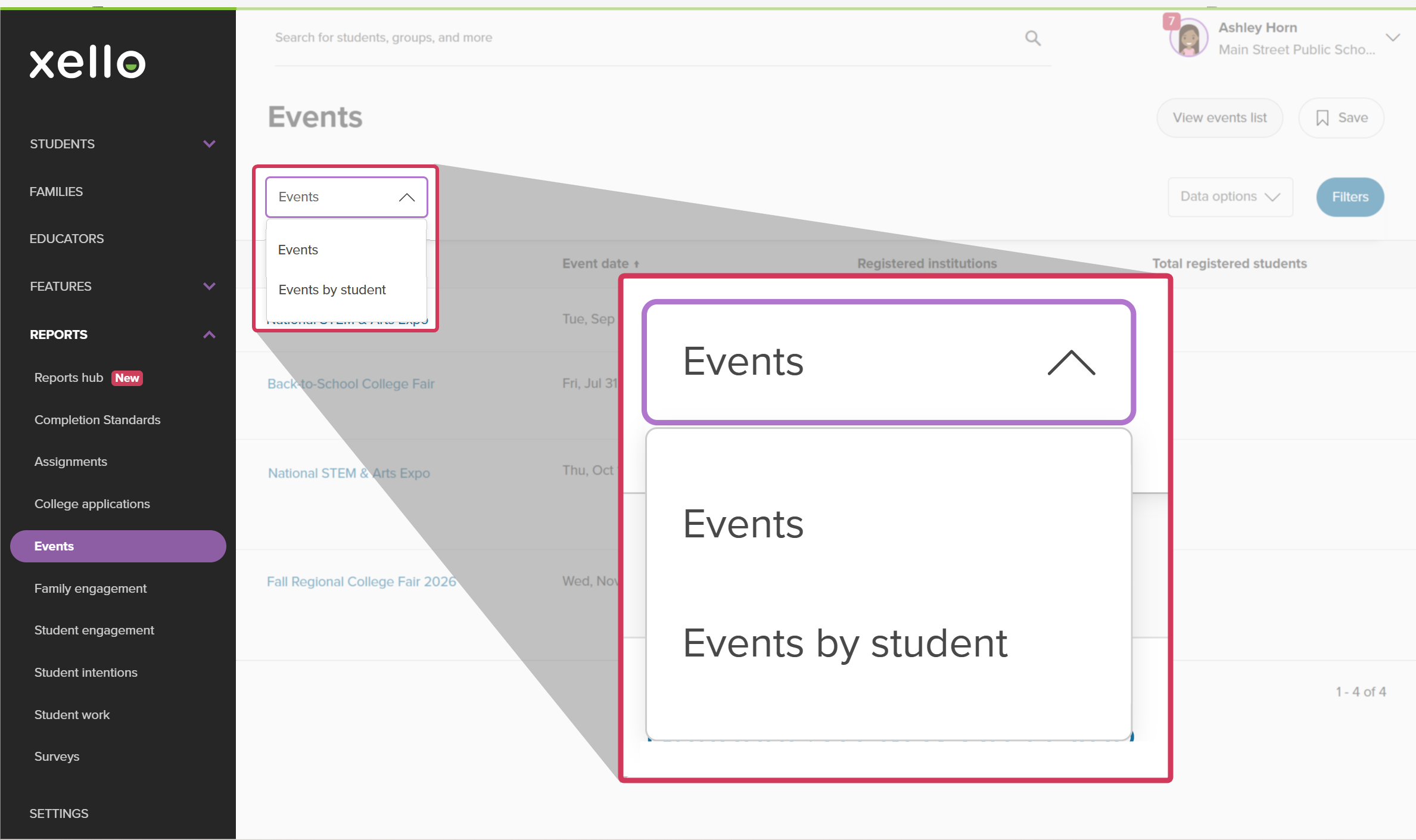 Click to enlarge
- View the list of students who have registered for an event in Xello.
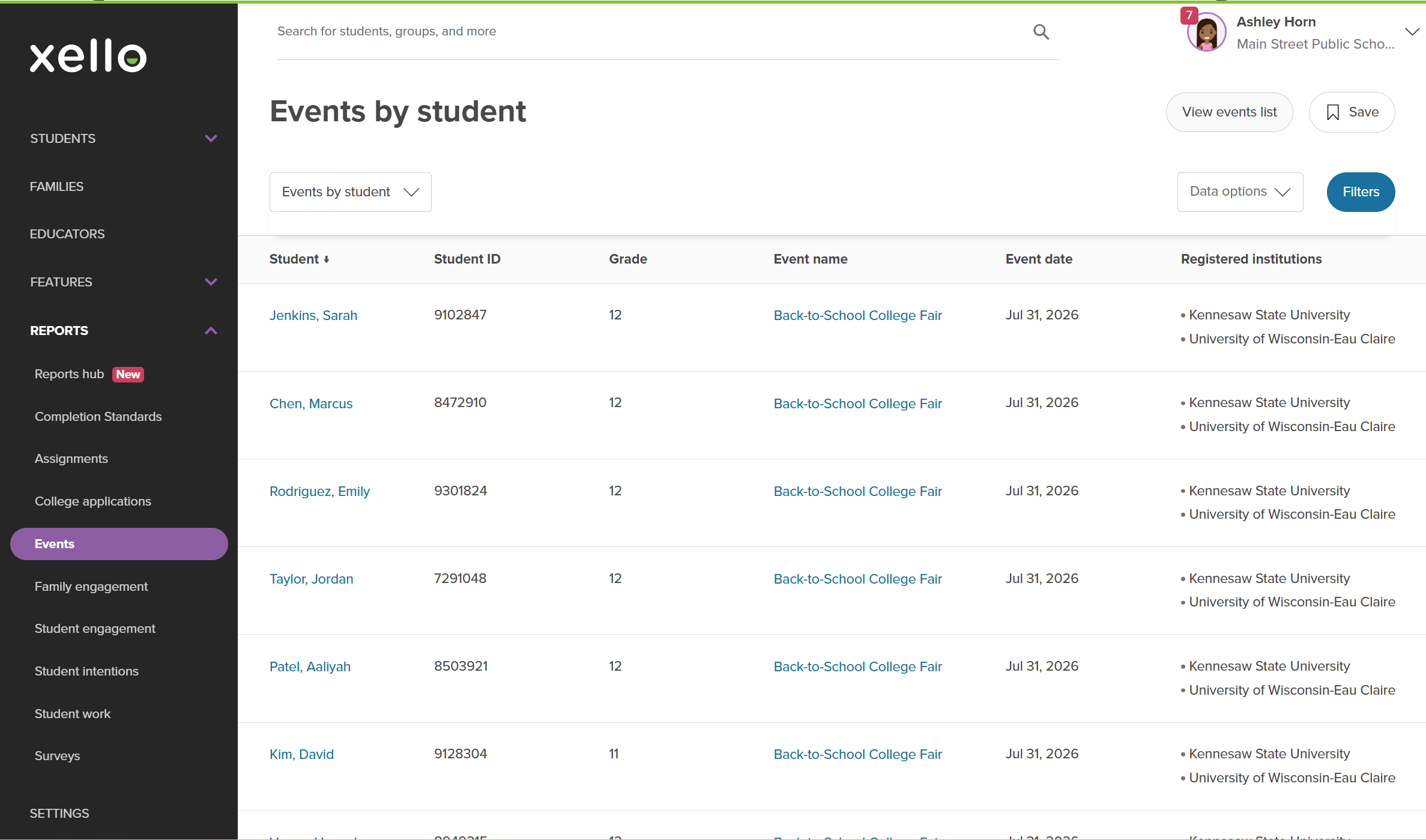 Click to enlarge
- Click a column header to sort the table by that column.
- Use Filters to narrow the data by grade, dates, event type, registered institution, assigned primary advisor for the student and more.
- Click Data options to select columns to show or hide, or to export the data to Excel or CSV.
- Click Save to access this view later in your Reports hub.
- Click a student's name to open their student profile and review their overall progress.
- Click an event name to open the full list of students registered for that specific event.
 Back to top