2 minutes
Once students show interest in an opportunity and request it, you can view and
View and sort the requests list
Use the Student requests page to get a quick glance at the requests for opportunities your students are making. You can also use this page to change the status for a student, or change it for multiple students, and add a request on behalf of a student.
When viewing the list of student requests, you can filter and sort the following ways:
- Use the search bar to narrow the list to show one student or a specific request.
- Filter the table by clicking Filters to narrow the list.
- Click a column heading to sort the table by column data.
To view and
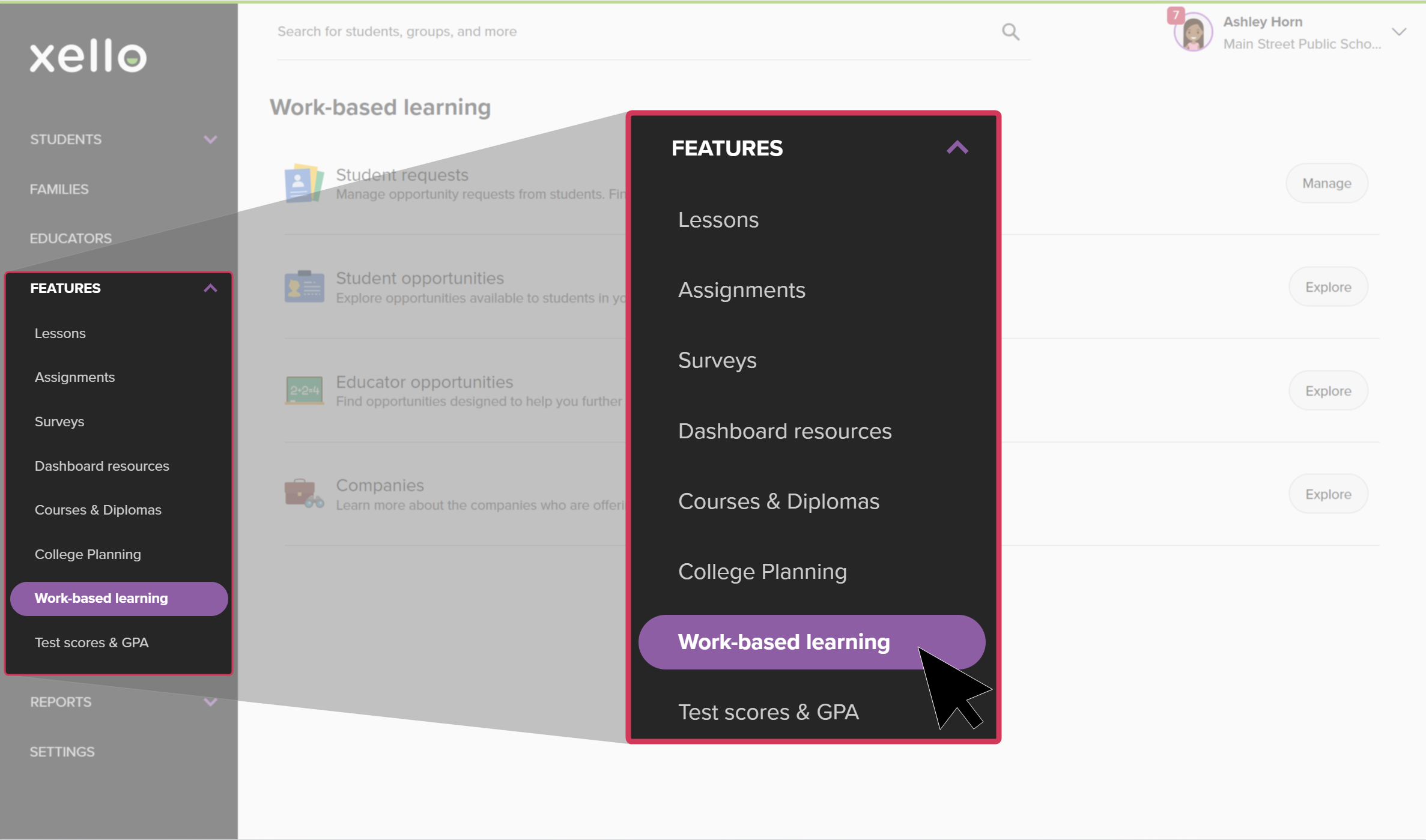
- From your educator account, click Features and select
 Click to enlarge
- Next to Student requests click View to show all the opportunities students requested
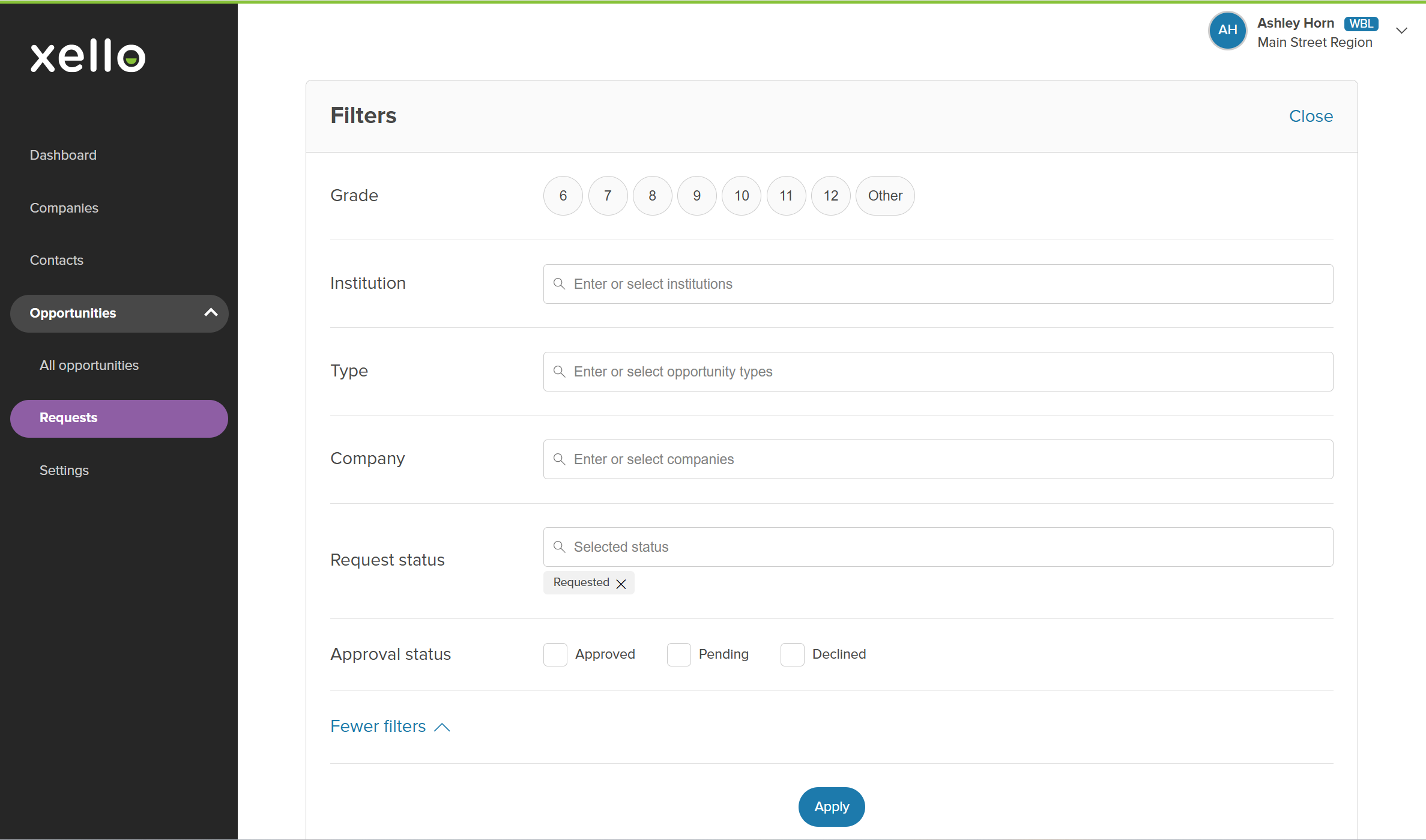
- To narrow the list, click Filters.
- Select between a variety of filtering options, including:
- Grade
- School (at the network level)
- Type
- Company
- Request status. These include:
- Requested
- Setup underway
- Application submitted
- Scheduled
- Hired/Selected
- Canceled
- Approval status. These include:
- Approved
- Pending
- Declined
 Click to enlarge
- Use the search bar to narrow down the list of requests to one student or opportunity.
View a student's request
To check out and learn more about the student's request, from the Student requests page, click the student's name. This opens their request profile where you can view the contacts, any files that have been submitted (such as a timesheet), and learn more about the opportunity.
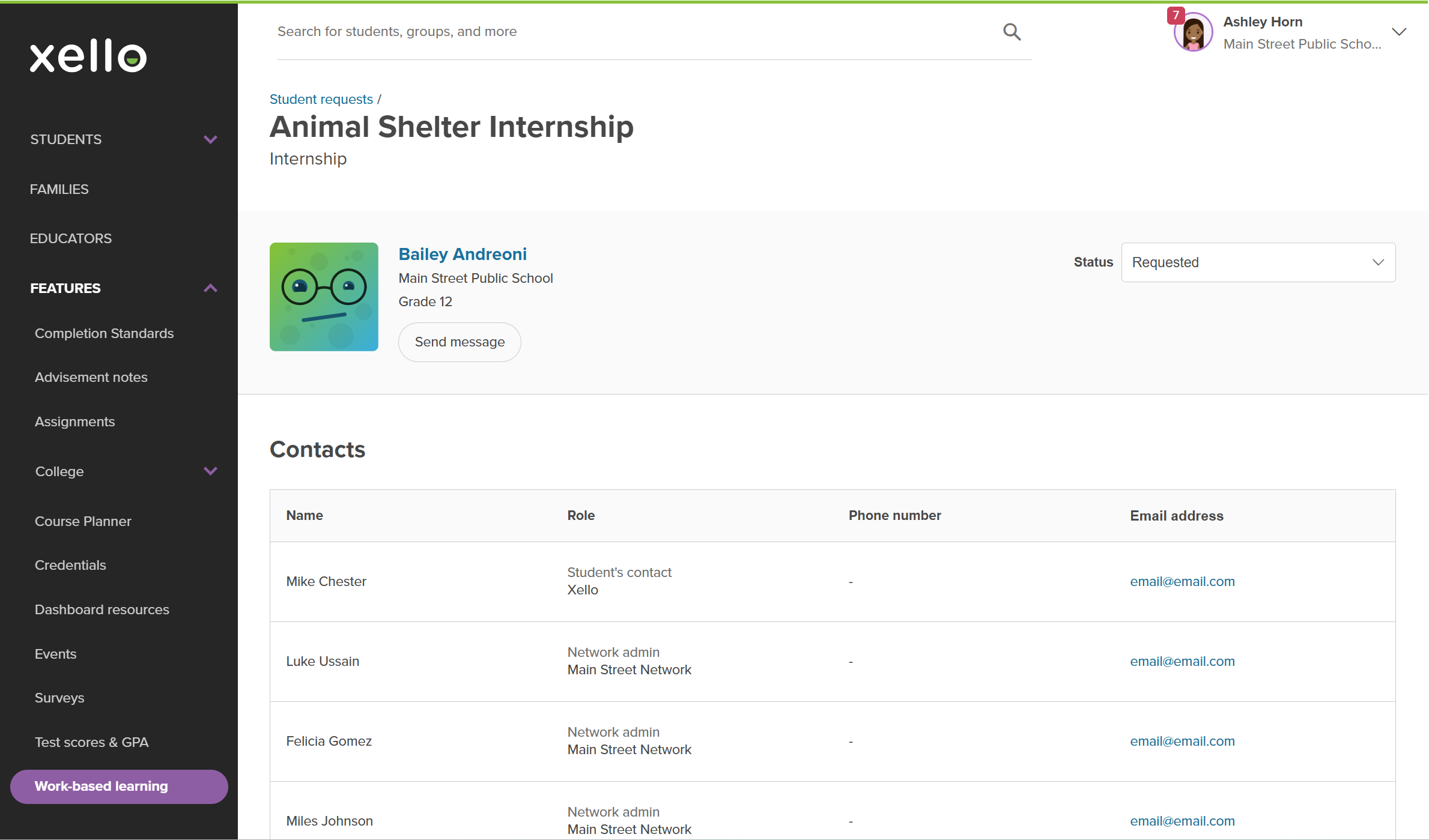
To view other work the student has done in Xello, click their name to open their student profile to the Opportunity requests tab. You'll also be able to see which other opportunities they've requested and the status for each of those.
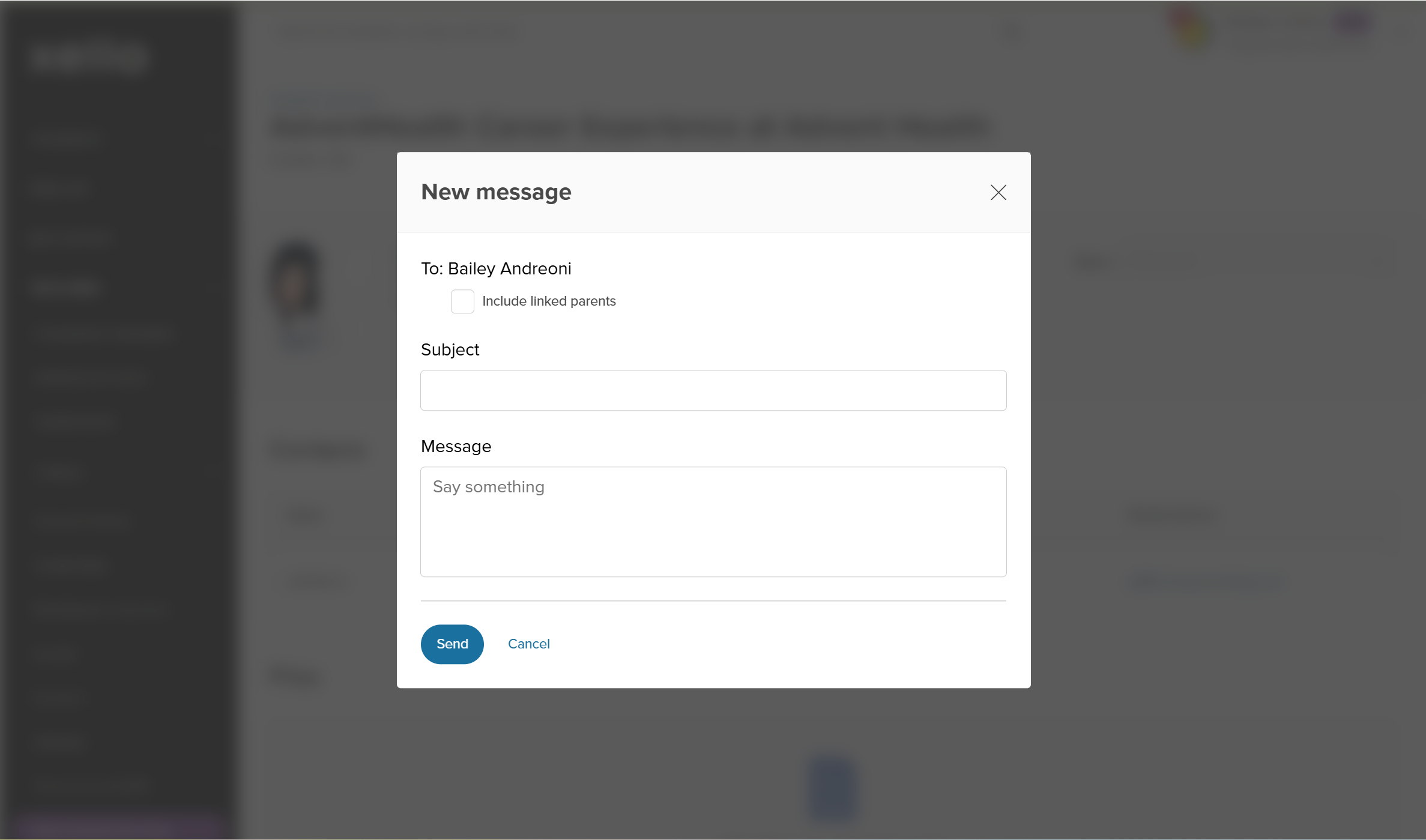
To communicate directly with the student, click Send message. This will open a modal where you can add a subject line and a brief message. The student will get a notification in their account that they've received a message and will be able to view it. From this modal, you can also opt to send the message to linked parents who will be able to view it in their Xello Family account.
You can also update the student's request status by click the Status dropdown.
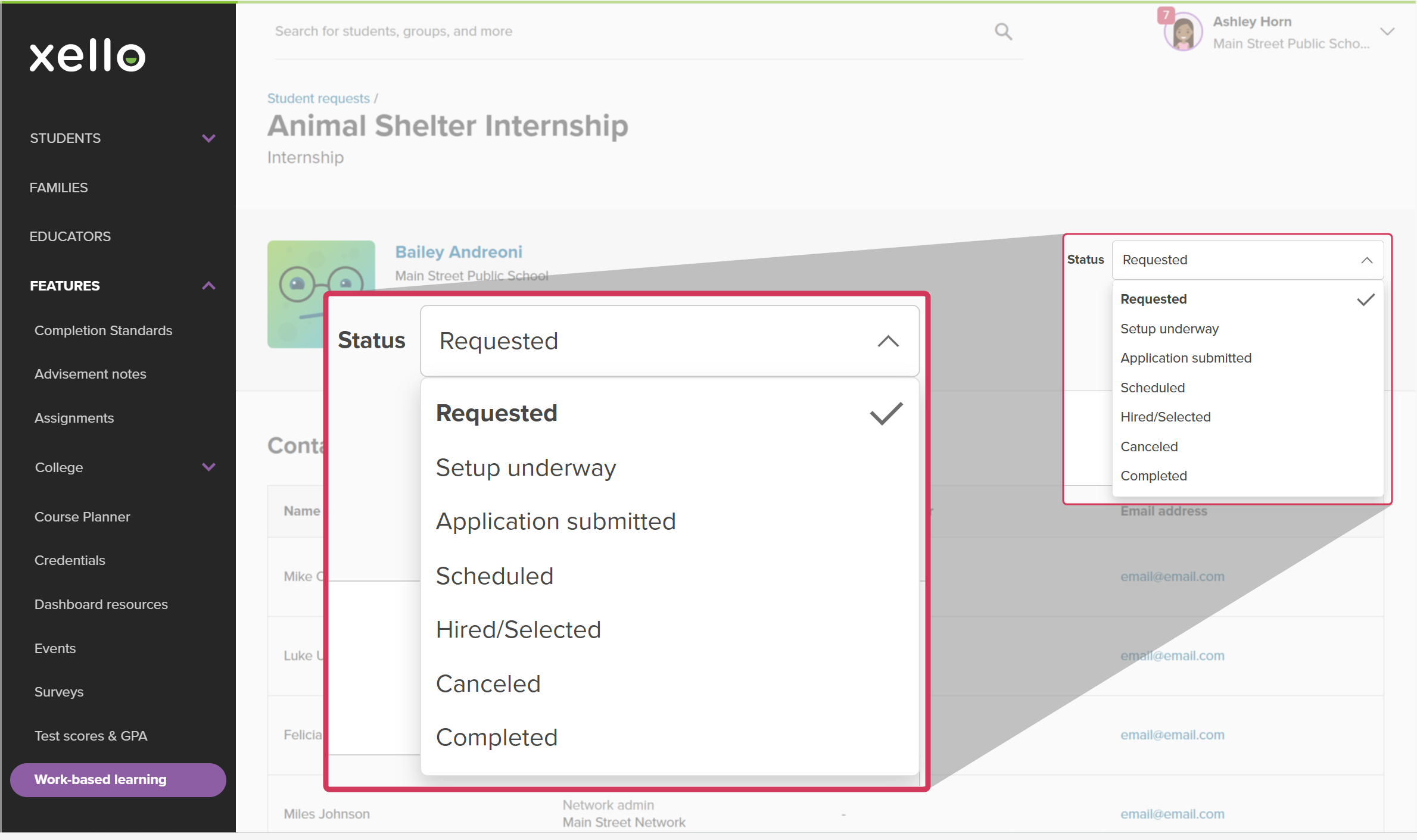
The following are the available statuses:
- Requested
- Setup underway
- Application submitted
- Scheduled
- Hired/Selected
- Canceled
- Completed
Additional resources
-
 PDF
PDFIntroduction to WBL in Xello
PDF
PDFIntroduction to WBL in XelloGet a brief introduction to Work-based learning in Xello.
-
 Short Video
Help students thrive with Work-based learning
Short Video
Short VideoHelp students thrive with Work-based learningUse this short overview video to get an introduction to Xello's work-based learning module. Learn how this integrated platform opens up a world of discovery for students and educators to better prepare them for an ever-changing world.
-
 Recorded webinar
Recorded WebinarThe Basics: WBL in Xello for Admin
Recorded webinar
Recorded WebinarThe Basics: WBL in Xello for AdminLearn the fundamentals of Xello's work-based learning module. This session will review the key components of your WBL Administrator workspace and share best practices to ensure your program’s success.
-
Recorded webinar
Recorded WebinarBeyond Basics: WBL Learning in Xello for Admin
Do you want to leverage your Xello educator workspace to support your WBL program? Dive deeper into Xello’s capabilities to see how your educator tools can be used to communicate opportunities and track work-based learning requirements.
-
 Xello Resource
Get Started for WBL Administrators
Xello Resource
Xello ResourceGet Started for WBL AdministratorsIf you're a WBL admin, use the resources on this page to learn more, and to find shareable resources to help you get started.
 Back to top