Xello 3-5
 3 minutes
Check out the work your student has submitted for custom lessons. For internal tracking purposes, mark it as reviewed. When you're ready, leave feedback for your student to review your comments on their end.
To review a student's work on a custom lesson:
-
In the search bar located at the top of any page in your educator account, enter the student's name or ID.
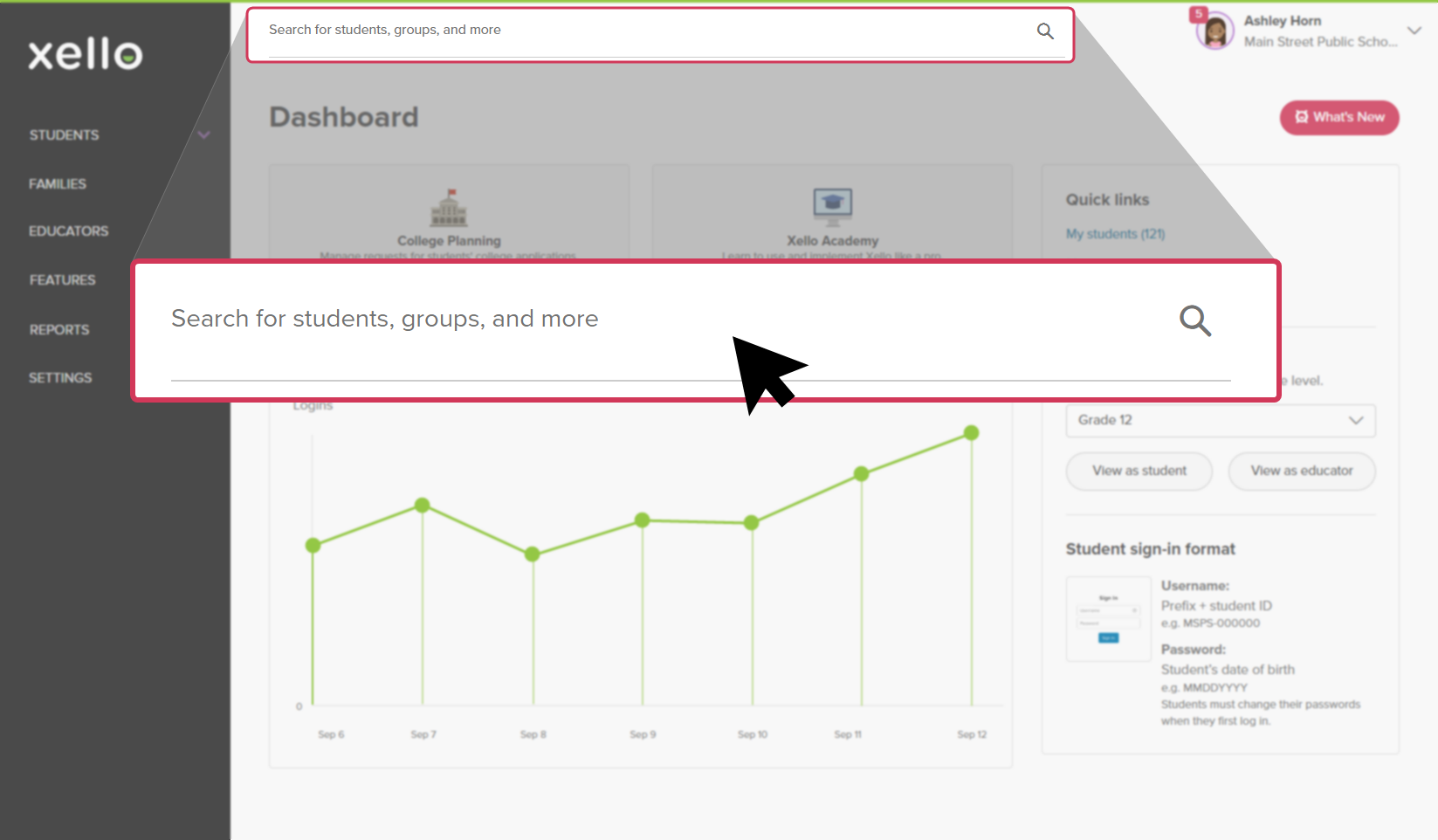 Click to enlarge
 Tip: Alternatively, from the left menu, click Students and select Student list to browse the full list of students.
 -
Click on the student's name. The About student tab of their profile opens.
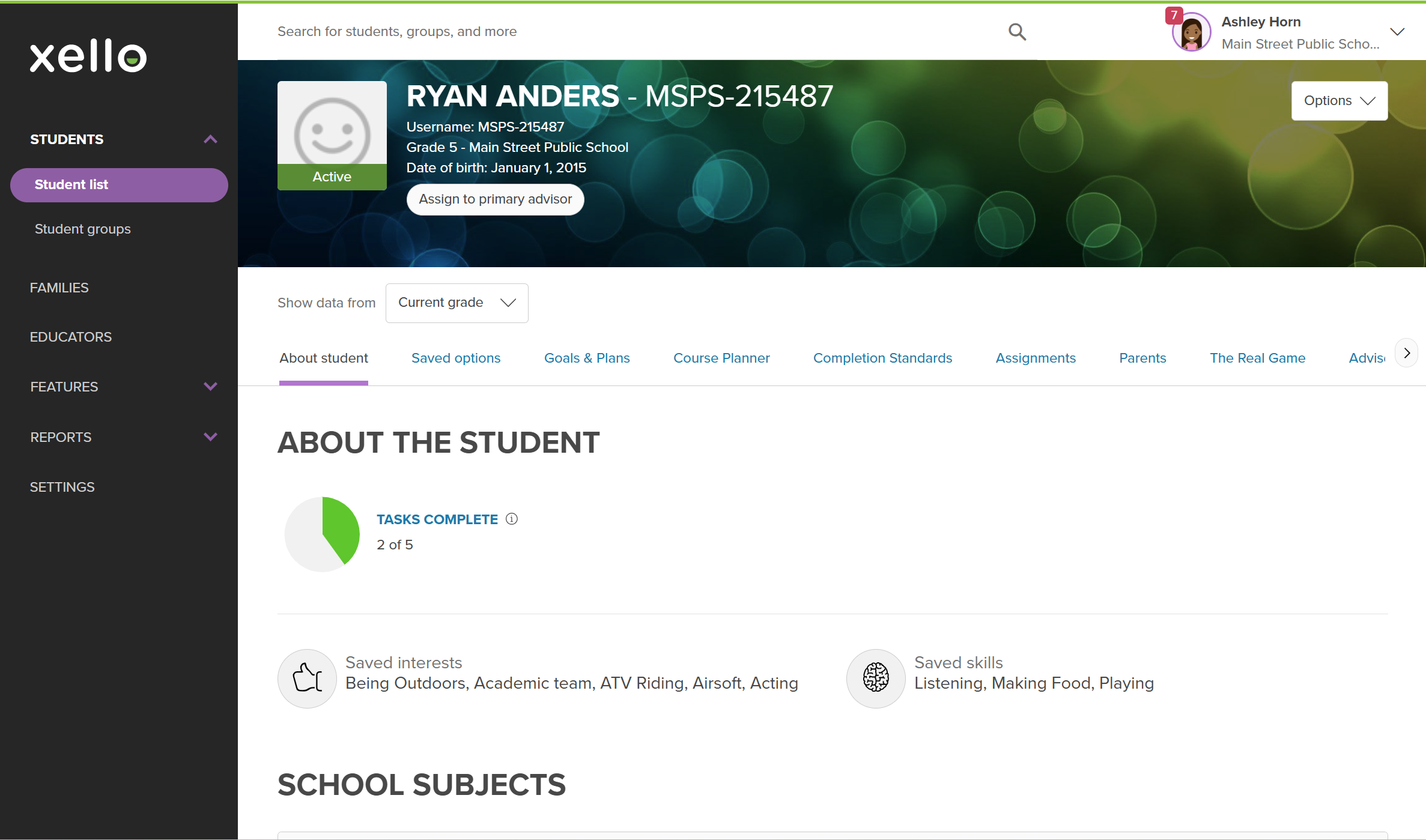 Click to enlarge
- From the top of the page, click the Completion Standards tab.
- By default, the list is filtered to show assigned tasks. Click Include optional tasks to include optional ones.
- To view tasks and lessons from previous
- To mark the student exempt from completing the lesson, switch the toggle to Yes.
 Click to enlarge
- To begin reviewing their answers, click the name of the lesson.
- If the Completion Standards configuration was set up for the lesson or task to require educator approval, and the student has submitted work, you'll see the option to Mark as approved. The task will show as incomplete here and in reports until marked as approved. For students, the task will be marked as In review until it's been approved by an educator.
- To include comments, click Send feedback .
- Students will find the custom lesson in their To-do list in the Done section. A badge will indicate they have new feedback. Once they open the custom lesson, they'll be able to view your comments.
- Feedback history is saved with timestamps so you can leave multiple comments. This includes if the student unsubmits and resubmits the lesson.
- Feedback can be edited or deleted only by the educator who submitted it.