4 minutes
Students applying to colleges through Common App can request teacher evaluations from educators outside their current school district. When a student requests a recommendation for a Common App institution, you will receive an email invitation to submit your evaluation through a secure external portal.
The teacher evaluation is sent to all the Common App colleges the student has assigned to you. This means you only need to fill it out once. Make sure your letter is specific to the student's accomplishments and not to the institution they're applying to.
Access and verification
Once a student submits an evaluation request, you'll receive an email invitation with a link to Xello to begin. You'll enter your email address to receive a temporary access code, sign a waiver, and log in to your Xello external teacher portal.
To access and verify an external teacher Xello account:
- Open the email invitation from Xello and click View request.
- The email will include the name of the student, where they're applying, the deadline, and a link to view the request.
- Enter your email address to be sent a sign in code.
- The code will expire in 10 minutes after being sent. If you didn't get to it in time, you can request a new code.
- Enter the 6-digit code sent to your email and click Continue.
- Review the terms, confirm you are at least 18 years old, accept the waiver, and click Accept and continue to access your external teacher portal.
Set up your teacher profile
Before you can submit an evaluation, Common App requires basic contact and professional details for your profile. This information is saved to the high school listed in the student's request and carries over for future requests from that same school.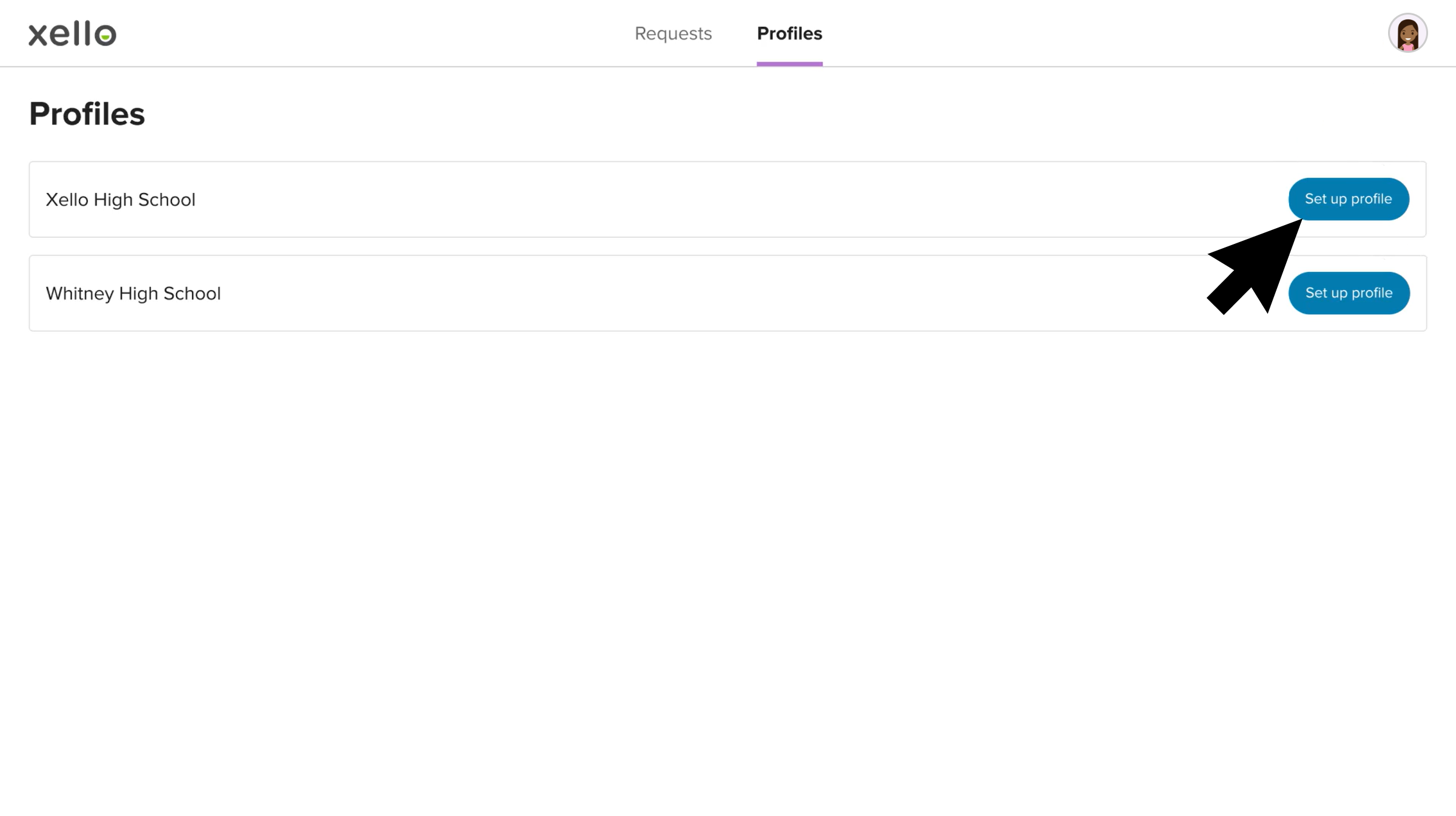
To complete your teacher profile:
- In the Complete your teacher profiles banner, click Complete profile.
 Click to enlarge
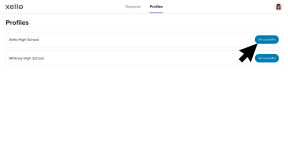
- Next to the listed school, click Set up profile.
Click to enlarge
- In the teacher profile form, complete all required personal and school details and click Complete.
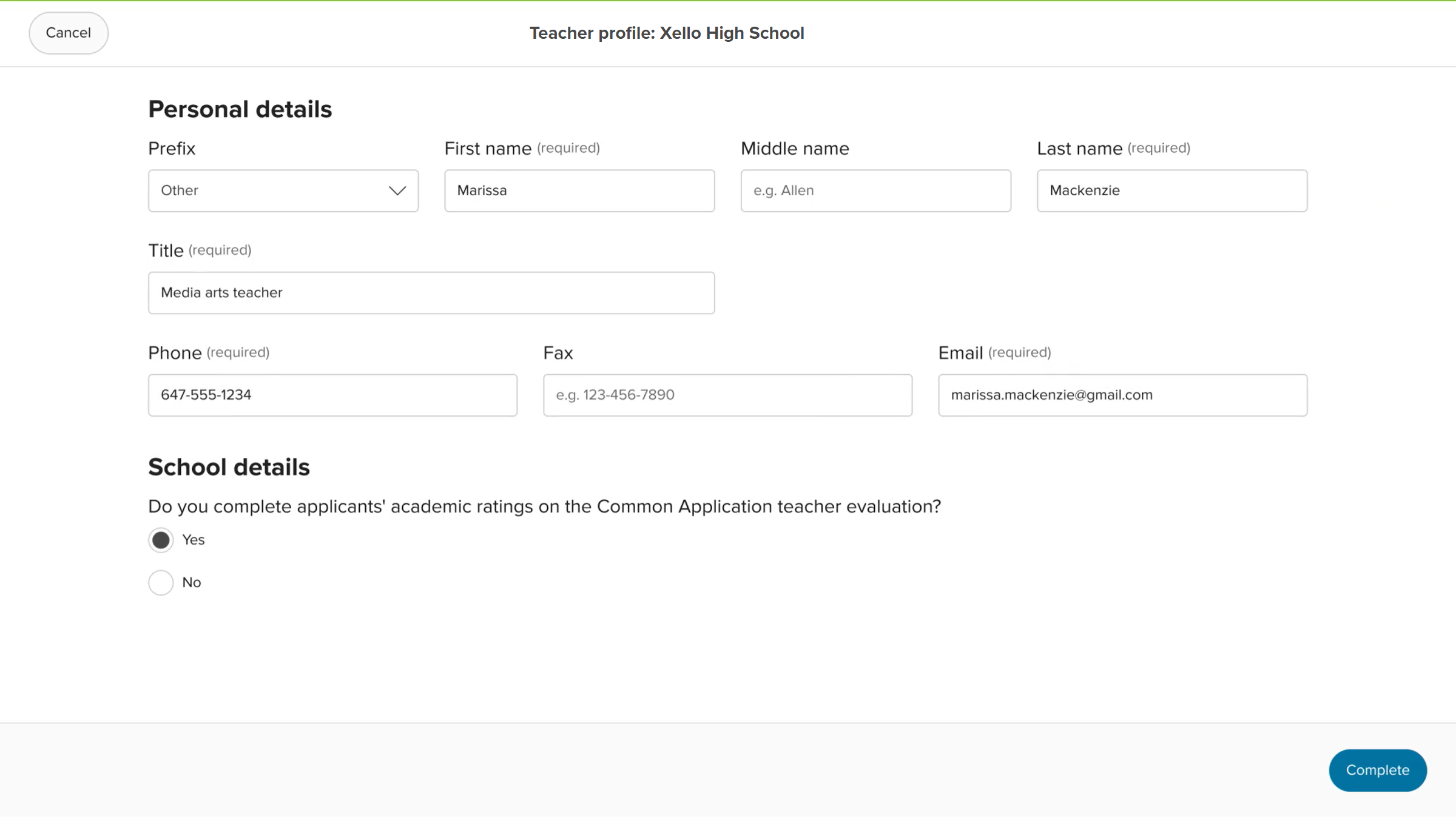 Click to enlarge
- If you've received requests from students for more than one high school, you'll need to complete this profile for each high school.
Complete and send the recommendation
After setting up your teacher profile, you can fill out the evaluation form and upload your letter of recommendation.
To complete and send the recommendation for the student:
- On the Requests page, in the row of the student request, click Fill out form.
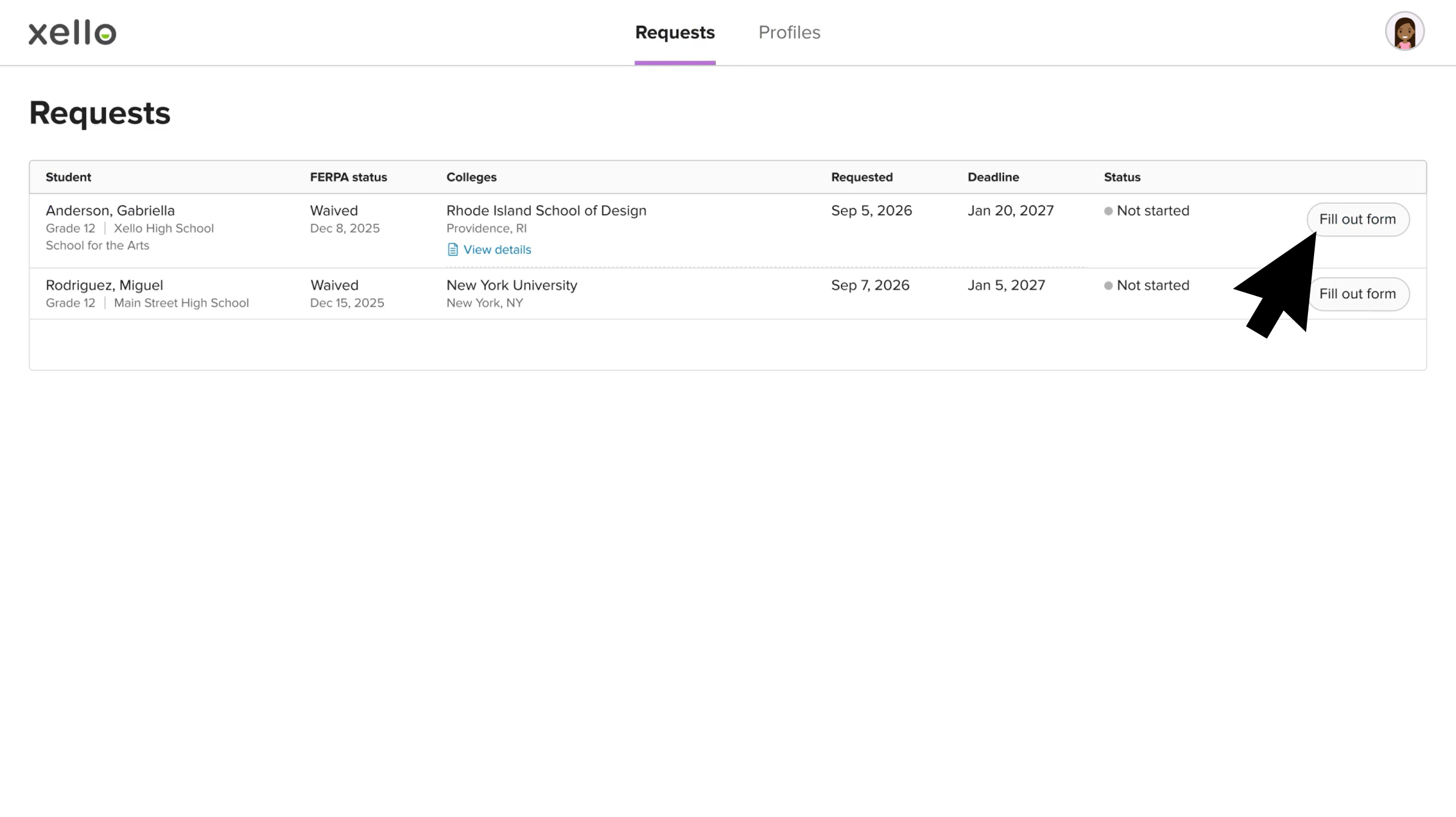 Click to enlarge
- Complete the required fields, including subject area taught, and written evaluations.
- At the bottom of the form, click Upload PDF to attach your formal letter of recommendation.
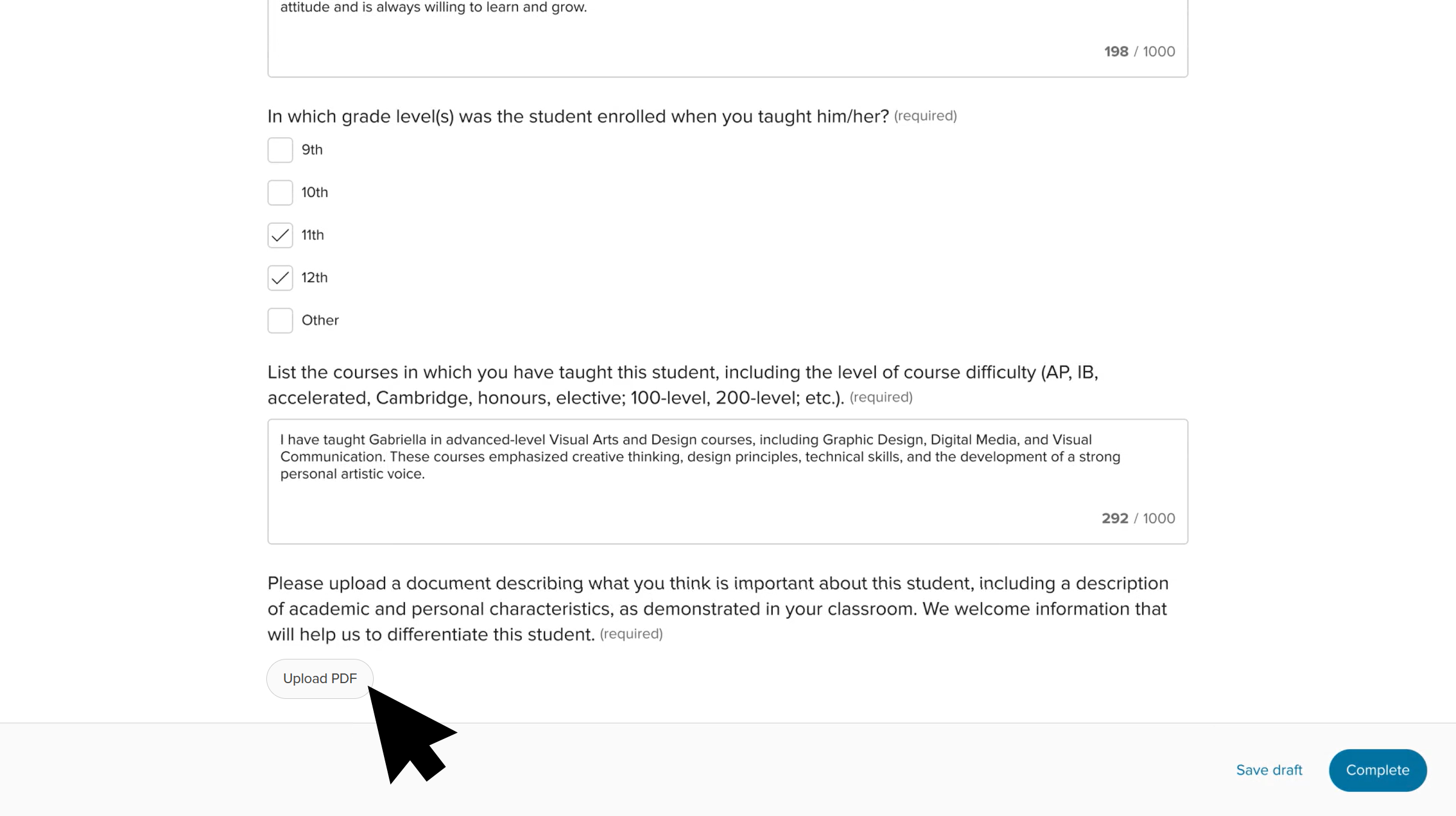 Click to enlarge
- Once you've finished filling out the form, click Complete.
- Alternatively, you can click Save draft to save your work and complete it later.
- A green banner will indicate you've successfully completed the teacher evaluation and you'll be returned to the Requests page.
- The student request will have a status of Ready to send.
- To send the form to Common App, click Send now.
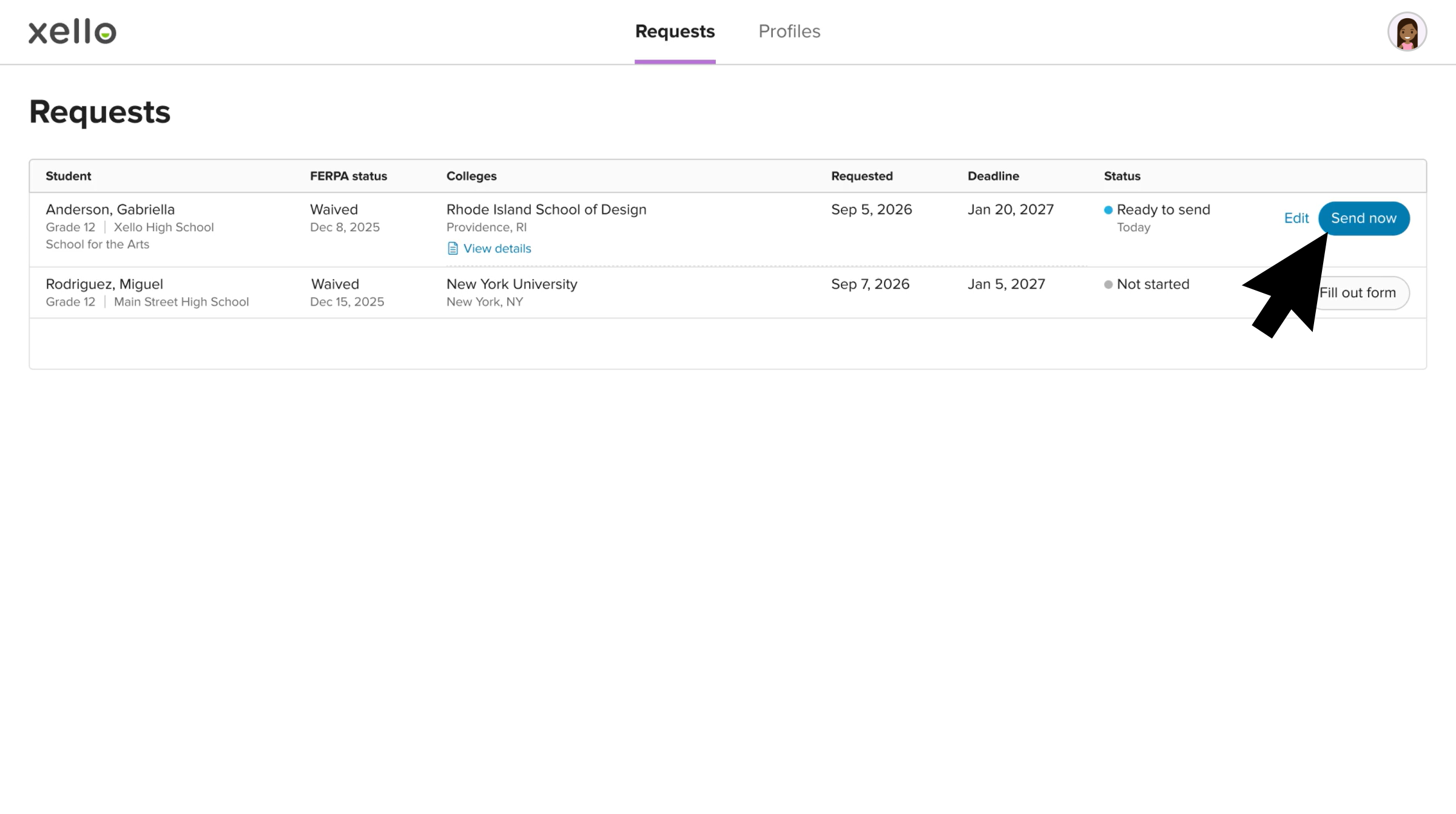 Click to enlarge
- A green banner will indicate the teacher evaluation was successfully sent.
Video walkthrough
Check out this quick video walkthrough of the steps you'll need to complete to send a recommendation for a student:
 Back to top