3 minutes
When students track their scholarship applications in Xello and mark a status as won, they log details such as the amount, date awarded, renewability, and their verification method.
Meanwhile, educators search, filter, and review these submitted awards, then confirm them to ensure accurate financial aid tracking in reports.
 Permission types and scholarships in Xello
Your educator permissions will determine what you can access and the actions you can complete in the College section in Xello. To learn more, including how to find out your permissions, check out Permissions and college applications.
| Admin | User | Limited | |
|---|---|---|---|
| Access and actions |
|
|
|
Work with the Awarded scholarships table
The Awarded scholarships table displays all recorded scholarship wins, whether they've been educator-confirmed or are still pending review. You can quickly search, filter, or customize this list to find specific students or export data for reporting.
To access and view awarded scholarships:
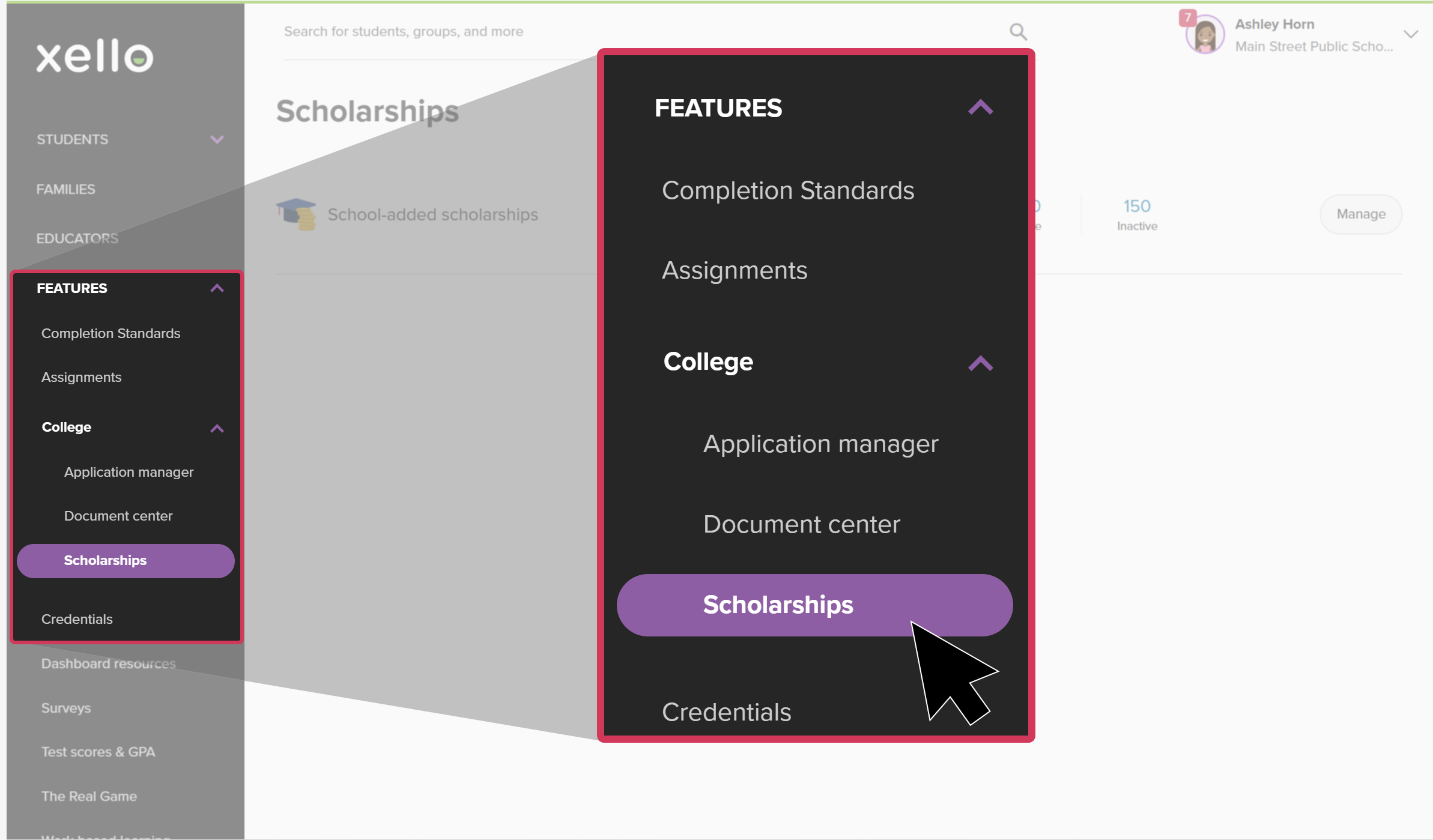
- From your educator account, under Features, click College and select Scholarships.
 Click to enlarge
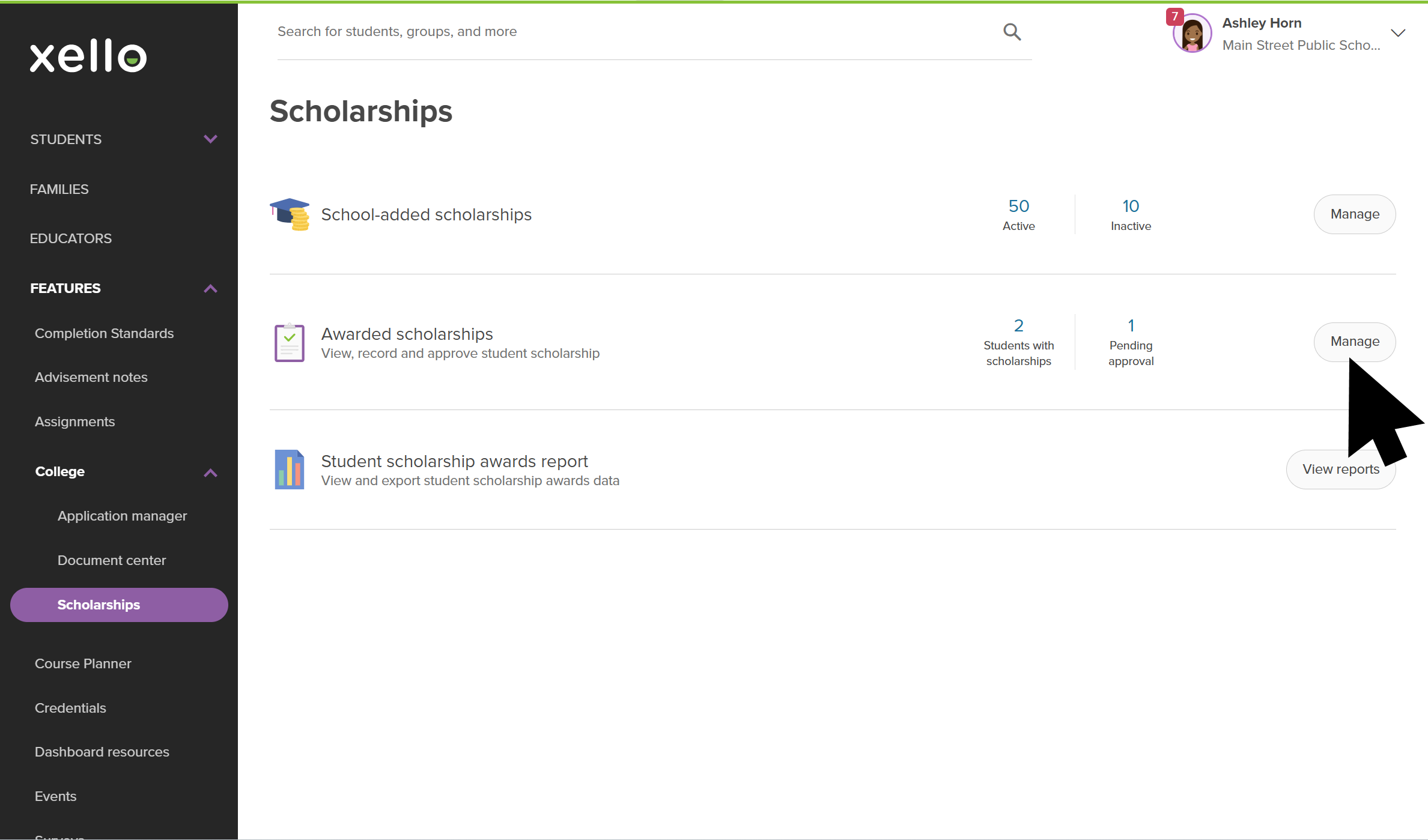
- From next to Awarded scholarships, click Manage.
 Click to enlarge
- Use the search to quickly find a student or scholarship.
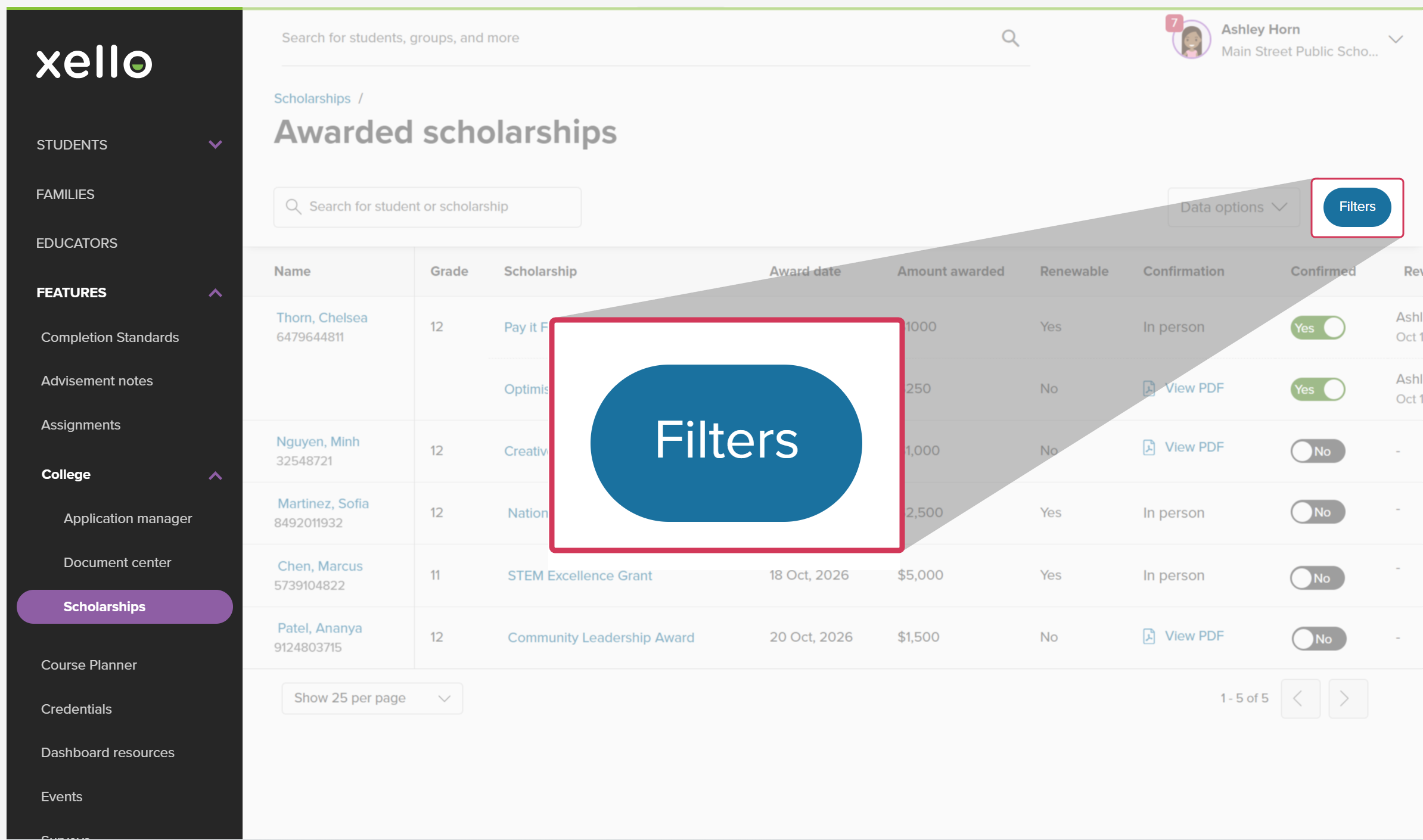
- Narrow the list by clicking Filters. You can filter by grade, educator, primary advisor, group, and more.
 Click to enlarge
- Click a student name to open their profile to the Financial aid tab where you can view FAFSA and state aid applications in addition to their scholarships.
- Click a scholarship name to open and view details of the scholarship.
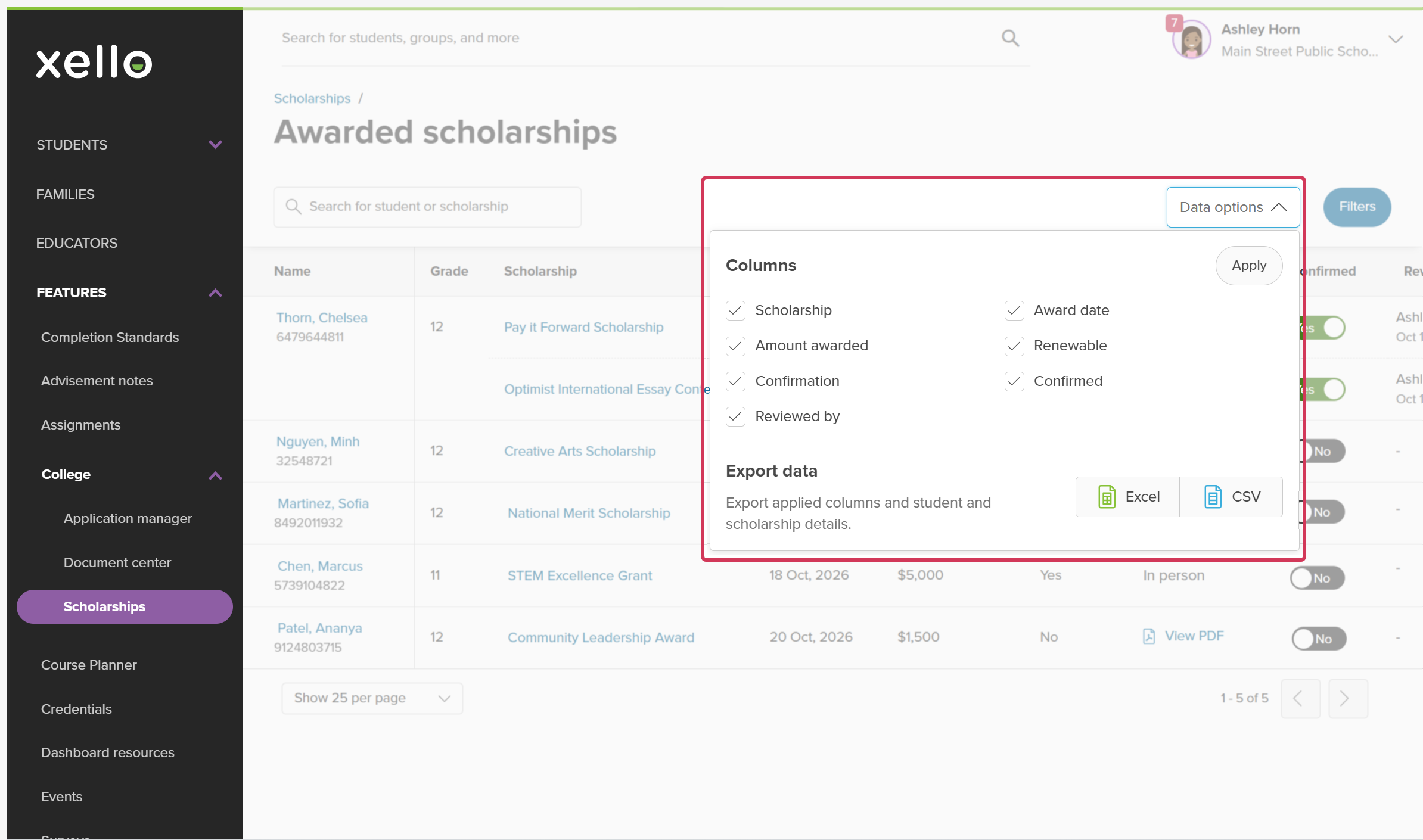
- Click Data options to add or remove table columns, or to export the list to an Excel or CSV file.
 Click to enlarge
 Back to top
Confirm student scholarship awards
Once you've located the student or award you're looking for, review the student-reported details and confirm the award once you've verified their proof.
To confirm a student's scholarship award:
- From your educator account, under Features, click College and select Scholarships.Click to enlarge
- From next to Awarded scholarships, click Manage.
Click to enlarge
- Find the student whose scholarship you want to confirm.
- If you're reviewing their uploaded letter, click View PDF. The letter will open in an overlay for you to check and confirm the details.
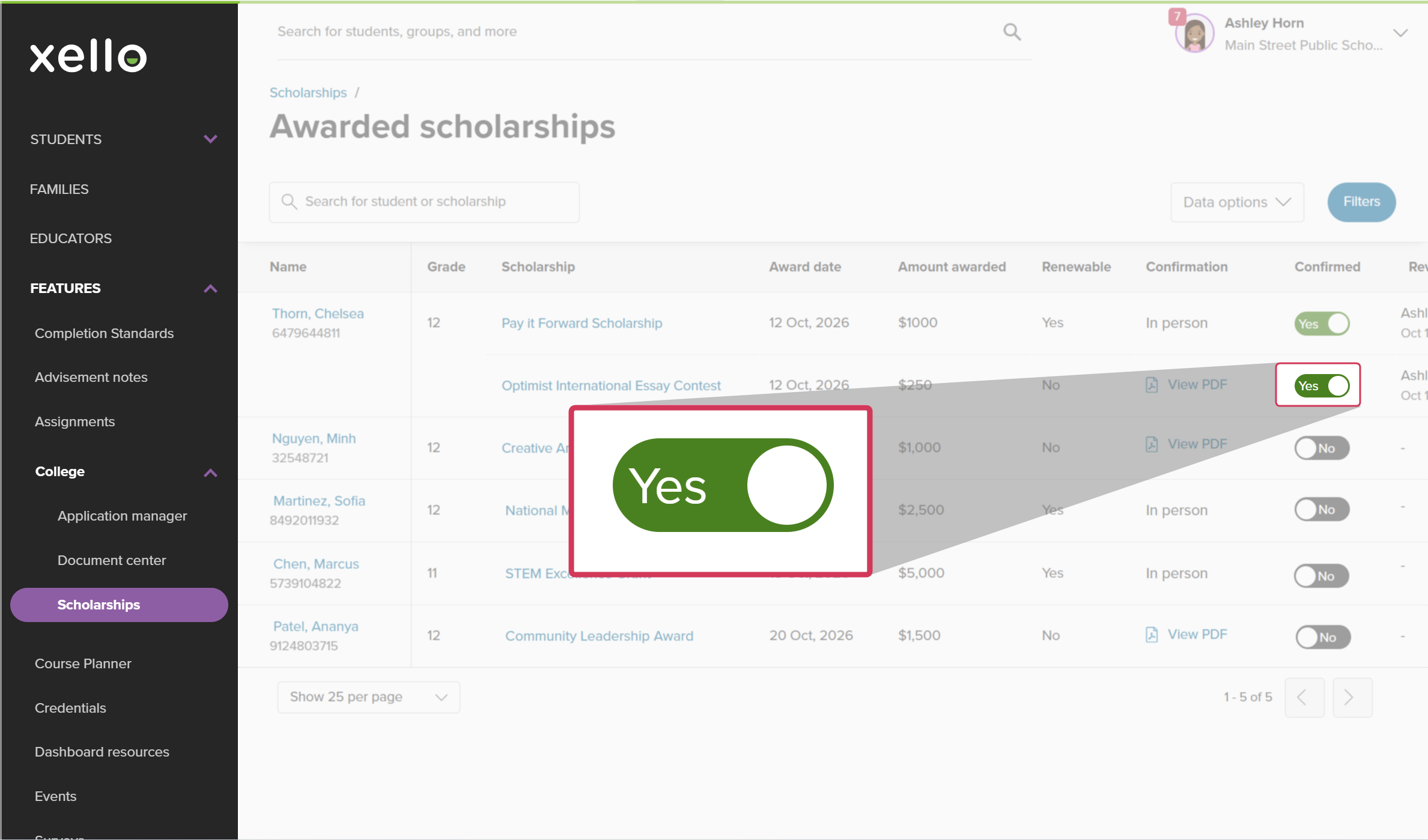
- In the Confirmed column, click the toggle to YES.
 Click to enlarge
- Once you switch the toggle to YES, your name and the current date will show in the Reviewed by column.
Additional resources
-
 PDF
PDFScholarships guide - student guide
PDF
PDFScholarships guide - student guideGive this guide to students to help them find and track scholarships in Xello.
-
 Short video
Discover your scholarship options - student-facing video
Short video
Short videoDiscover your scholarship options - student-facing videoHelp students learn how to navigate their scholarship options. From understanding different types of scholarships and how they work, to where students can find verified scholarship opportunities, when to apply, and even what to watch out for.
-
PDF
PDFCollege application tracking in Xello - student guide
Share this guide with your students to help them manage their college applications in Xello, from exploring schools and requesting documents to tracking responses and recording their final decision.
-
Short video
Short videoPaying for college - student-facing video
Help students learn how to navigate their financial aid options. From applying for FAFSA to learning about scholarships, grants, work-study, and loans.
-
 Recording
Navigating college financial aid with students
Recording
RecordingNavigating college financial aid with studentsMaster federal student aid (grants, work-study, loans) with Xello! Guide students through the FAFSA®, cost comparison, scholarships, and tracking for confident post-secondary financial planning.
-
Recording