6 minutes
It can feel overwhelming to manage the flood of college application document requests, especially during peak application seasons. For transcripts being sent within the Parchment network, use the bulk send option to quickly fulfill transcript requests for multiple students at once.
 Permission types and transcripts in Xello
Your educator permissions will determine what you can access and the actions you can complete in the College section in Xello. To learn more, including how to find out your permissions, check out Permissions and college applications.
| Admin | User | Limited | |
|---|---|---|---|
| Access and actions |
|
|
|
Bulk send transcripts
If your priority is to clear a large backlog of initial, mid-year, or final transcript requests, then you can filter the list of document requests to just those transcripts. Once you've narrowed the list, the only documents that will send in bulk will be transcripts. Depending on the time of year, or students you're working with, or other factors, you can apply further filters to narrow the list even more, helping you complete this task as efficiently as possible.
To bulk send transcripts:
- From your educator account, under Features, click College and select Application manager.
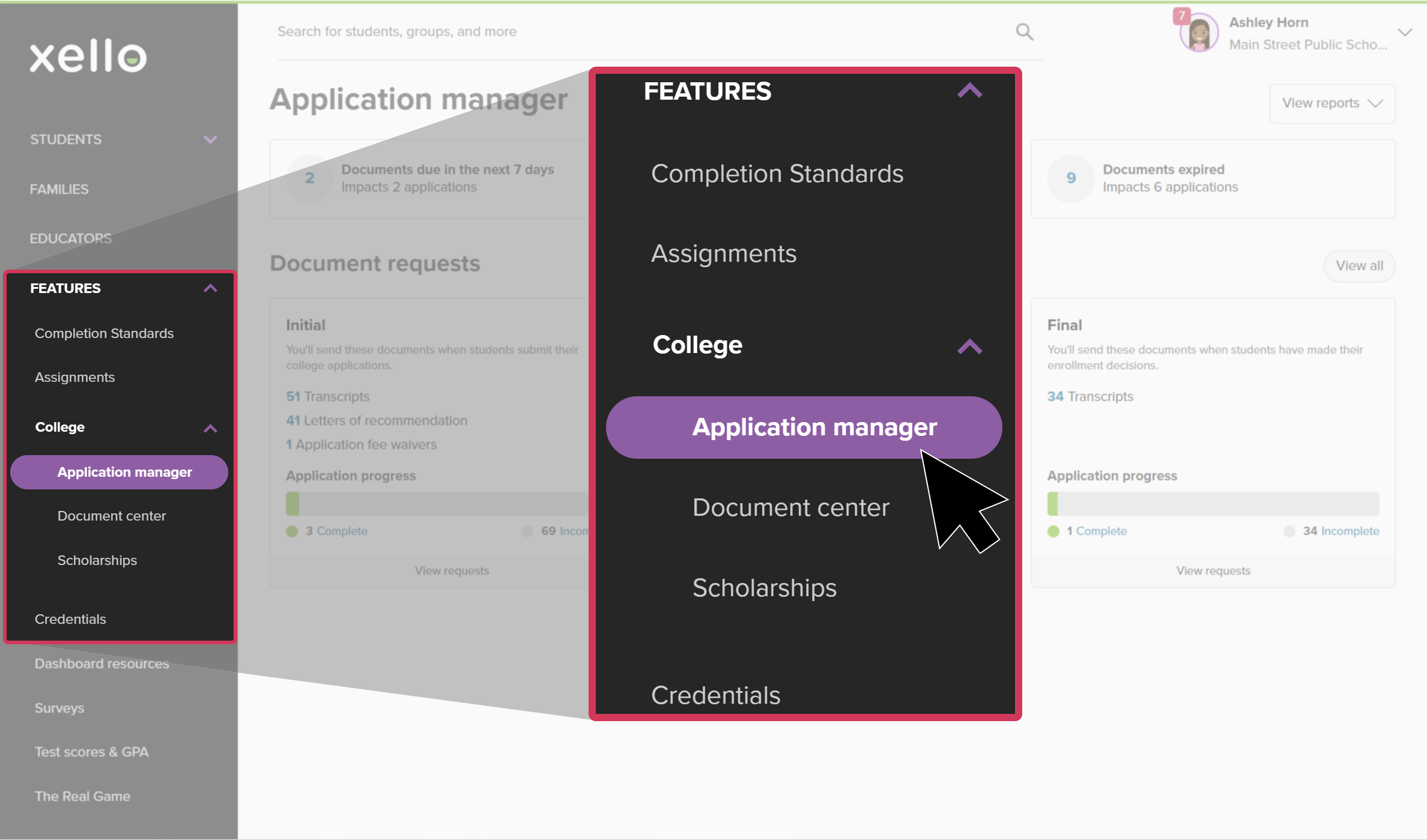 Click to enlarge
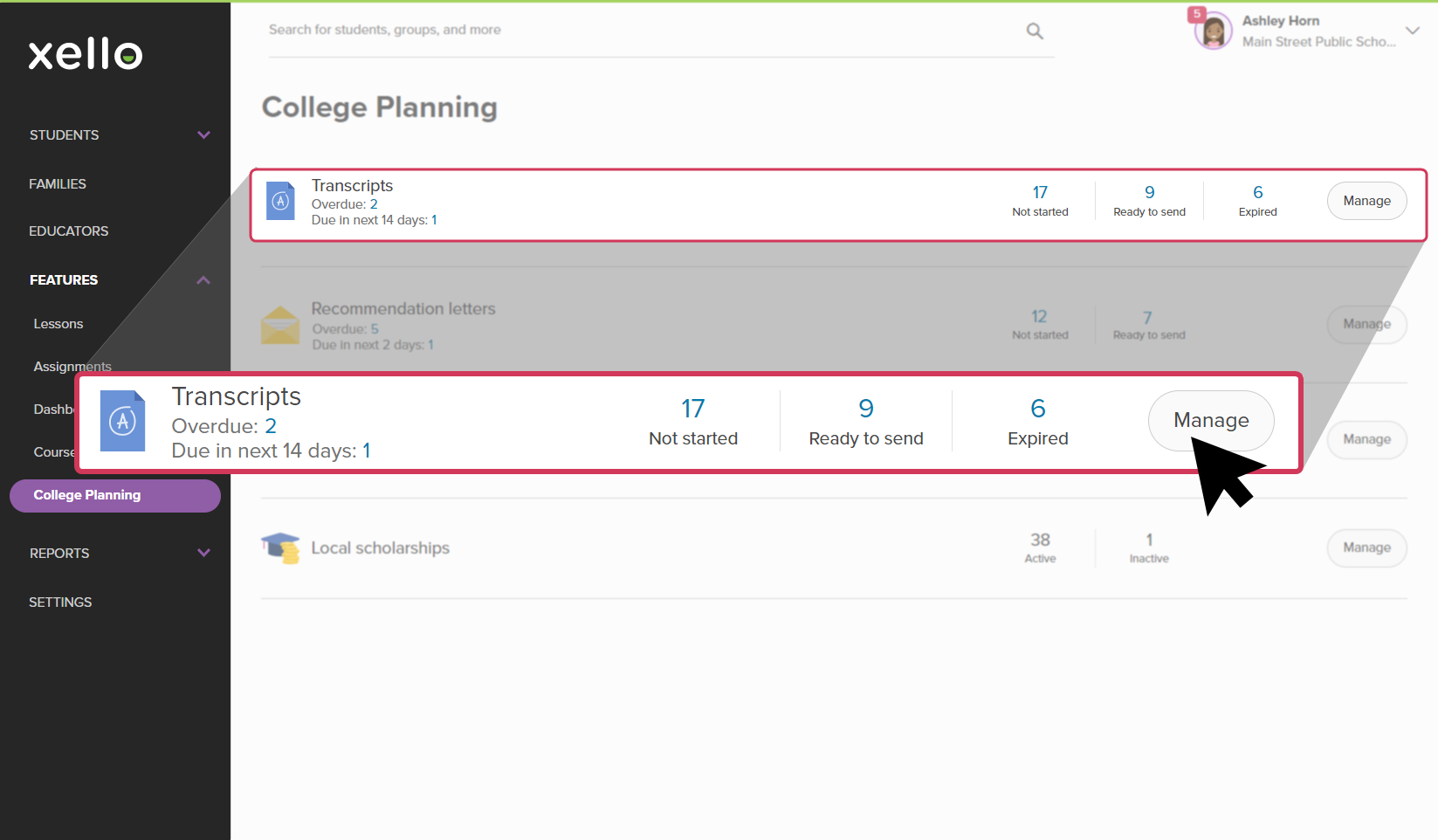
- Or, from your dashboard, click the College applications banner.
- In the relevant Document requests tile (Initial, Mid-year, or Final), click the number next to Transcripts. This will open the list of incomplete document requests that include the transcript type you selected.
 Click to enlarge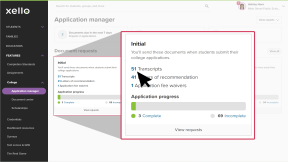
-
 Tip: Once on the All document requests page, if you want to narrow the list of transcript requests further, click Filters and choose one or more. Options can include college, application status, group, grade, and more.
- To send all the requested transcripts in this filtered list, click Bulk send.
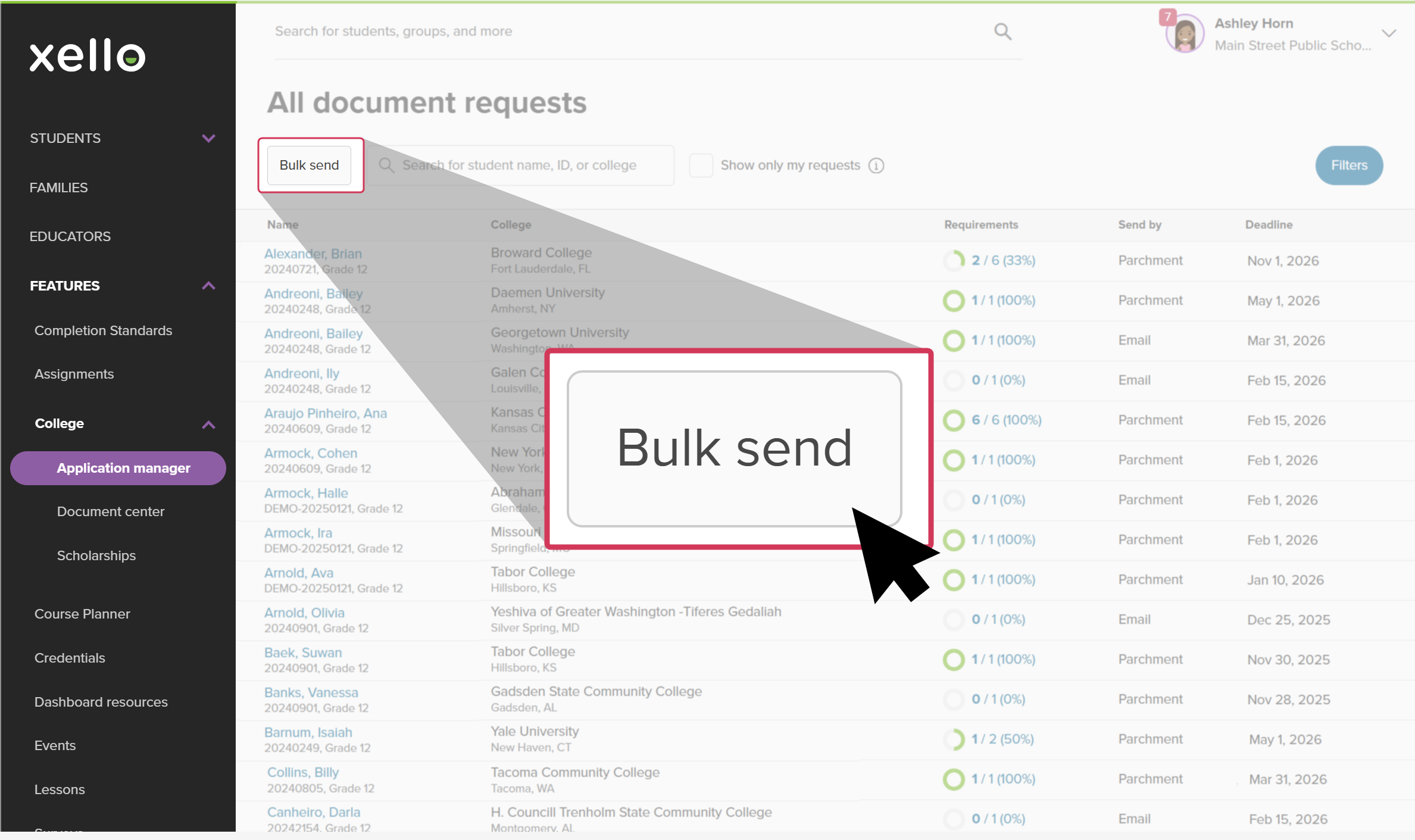 Click to enlarge
- In the Bulk send documents modal that opens, review the students with requests that are ready to send. You can view the name of the student, the college, and the transcripts ready to send.
 Click to enlarge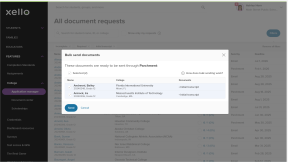
- If there are students you don't want to send transcripts for yet, you can deselect their name. Their transcripts will not send.
- When you're ready, click Send.
- A banner will indicate if the documents were successfully sent.
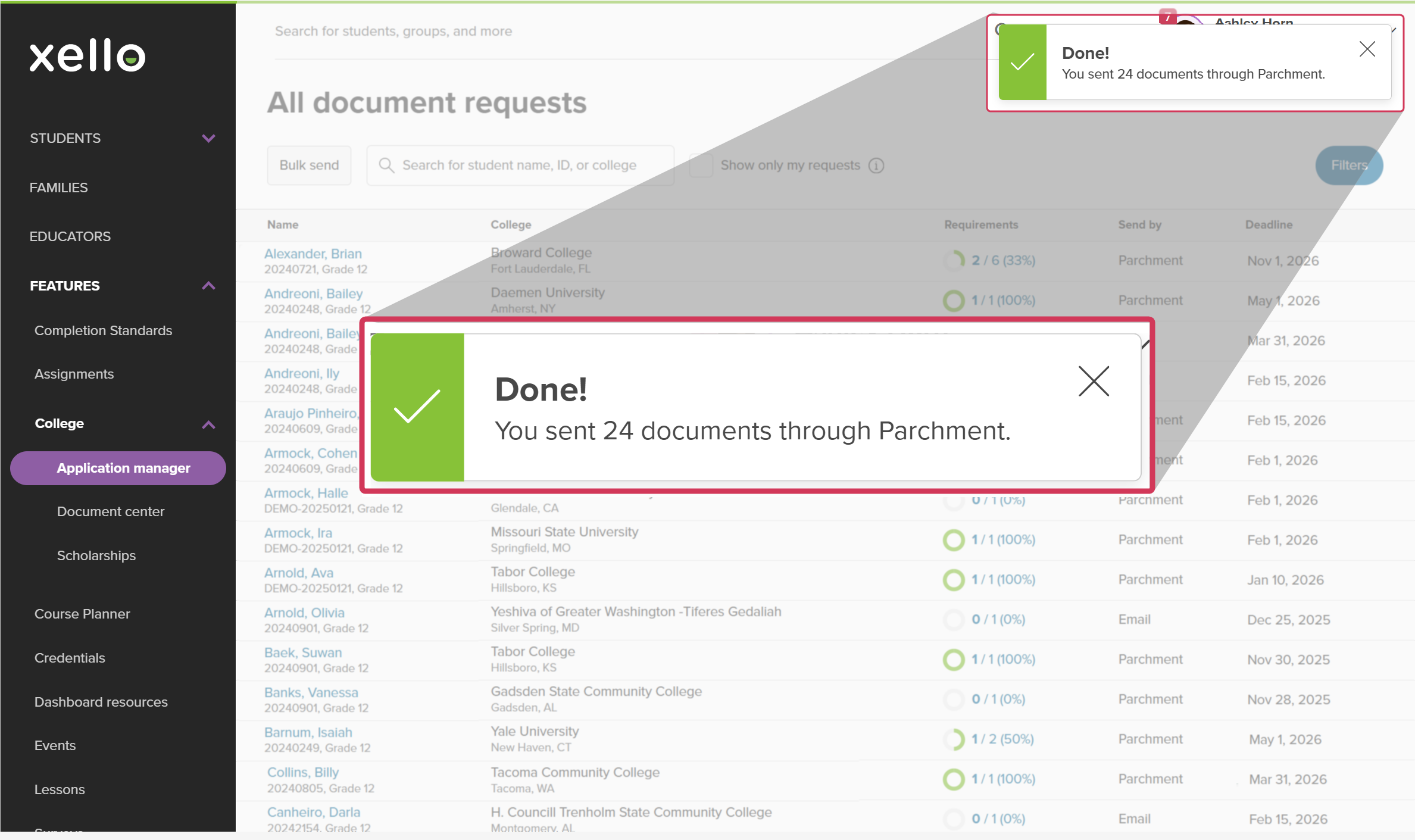 Click to enlarge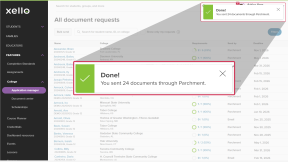
- If there was an issue sending the documents, you'll get an error message letting you know how many documents were sent and how many did not send. You can export the error log to Excel or a CSV file. The log won't be available after the window is closed.
- A banner will indicate if the documents were successfully sent.
 Back to top
Bulk send multiple documents for multiple students
When you have dozens, or even hundreds, of document requests ready to go, use this method to send documents for multiple students across multiple applications. This bulk send option includes all completed documents that are ready to send via Parchment, such as transcripts, fee waivers, and letters of recommendation.
To bulk send multiple documents for multiple students:
- From your educator account, under Features, click College and select Application manager.Click to enlarge
- Or, from your dashboard, click the College applications banner.
- In the relevant Document requests tile (Initial, Mid-year, or Final), click View requests. This will open the list of incomplete document requests for that time.
 Click to enlarge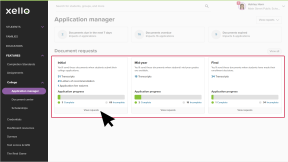
- To send all the requested documents within the Parchment Receive network, click Bulk send.
Click to enlarge
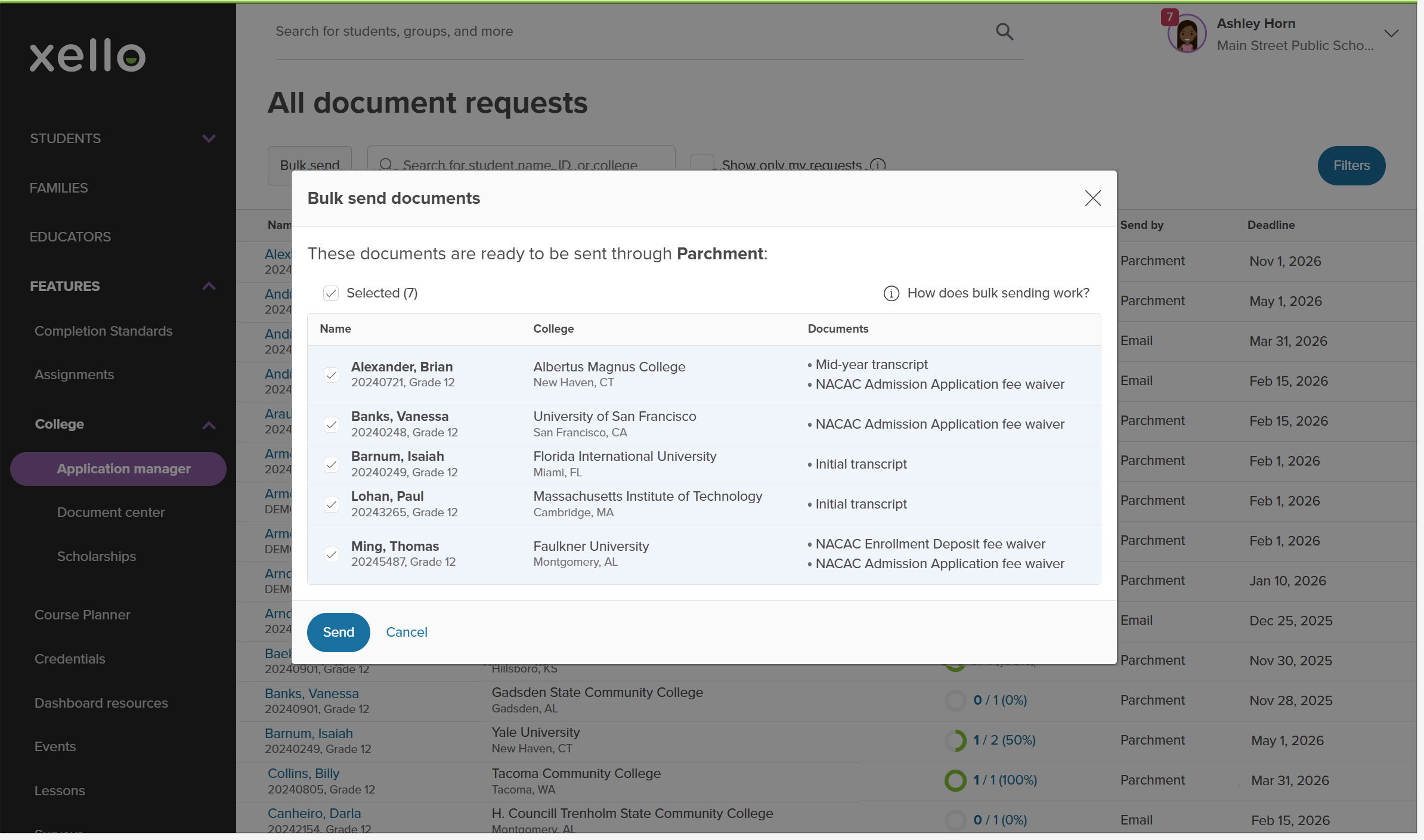
- In the Bulk send documents modal that opens, review the documents that are ready to send. You can view the name of the student, the college, and the documents that will send.
 Click to enlarge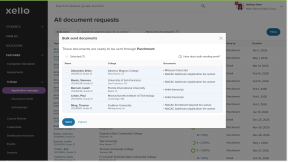
- If there are students you don't want to send documents for yet, you can deselect their name. Their documents will not send.
- Once you've reviewed the documents, click Send.
- A banner will indicate if the documents were successfully sent.
Click to enlarge
- If there was an issue sending the documents, you'll get an error message letting you know how many documents were sent and how many did not send. You can export the error log to Excel or a CSV file. The log won't be available after the window is closed.
- A banner will indicate if the documents were successfully sent.
Additional resources
-
 Recording
recordingCollege Application manager overview
Recording
recordingCollege Application manager overviewCheck out this overview to learn how educators can efficiently manage all student college application requests, transcripts, and recommendation letters from the College Application manager.
-
 PDF
PDFStudent quick guide on transcripts
PDF
PDFStudent quick guide on transcriptsQuick guide for students on how to request transcripts, create an application tracker and view the progress of their transcript request.
-
PDF
PDFTranscripts quick guide - educator guide
Use this quick guide to learn how to complete transcript requests from students, including how to import, send, and track the progress of the transcript.
-
 Xello Academy
Managing Transcripts through Xello
Xello Academy
Xello AcademyManaging Transcripts through XelloIn this course, you'll learn to import and view student transcripts; view and fulfill transcript requests; track their progress; and feel confident in helping students request transcripts in their college application journey.
-
 Short video
Paying for college - student-facing video
Short video
Short videoPaying for college - student-facing videoHelp students learn how to navigate their financial aid options. From applying for FAFSA to learning about scholarships, grants, work-study, and loans.
-
Recording