4 minutes
Attaching required forms to your
Once a student's request reaches the status you chose (like marking a student as Hired/Selected to send a permission form, or Completed to send an evaluation form), forms and signature links send out automatically.
If a student request skips ahead in status, any required forms tied to the skipped steps are automatically included and sent out so no important documentation gets missed.
 Note: This is for educators who are assigned the role of WBL Administrator or WBL Coordinator. To learn more about WBL permissions, check out Work-based learning roles.
Add required forms to an opportunity
Adding a requirement directly to an opportunity ensures that every student who requests that experience gets the necessary forms automatically.
When a form is sent out, participants (students, parents, or supervisors) receive an email with a direct link. They'll click the link to fill in the form and submit their signature. There's no login required for external signers.
To add required forms to an opportunity:
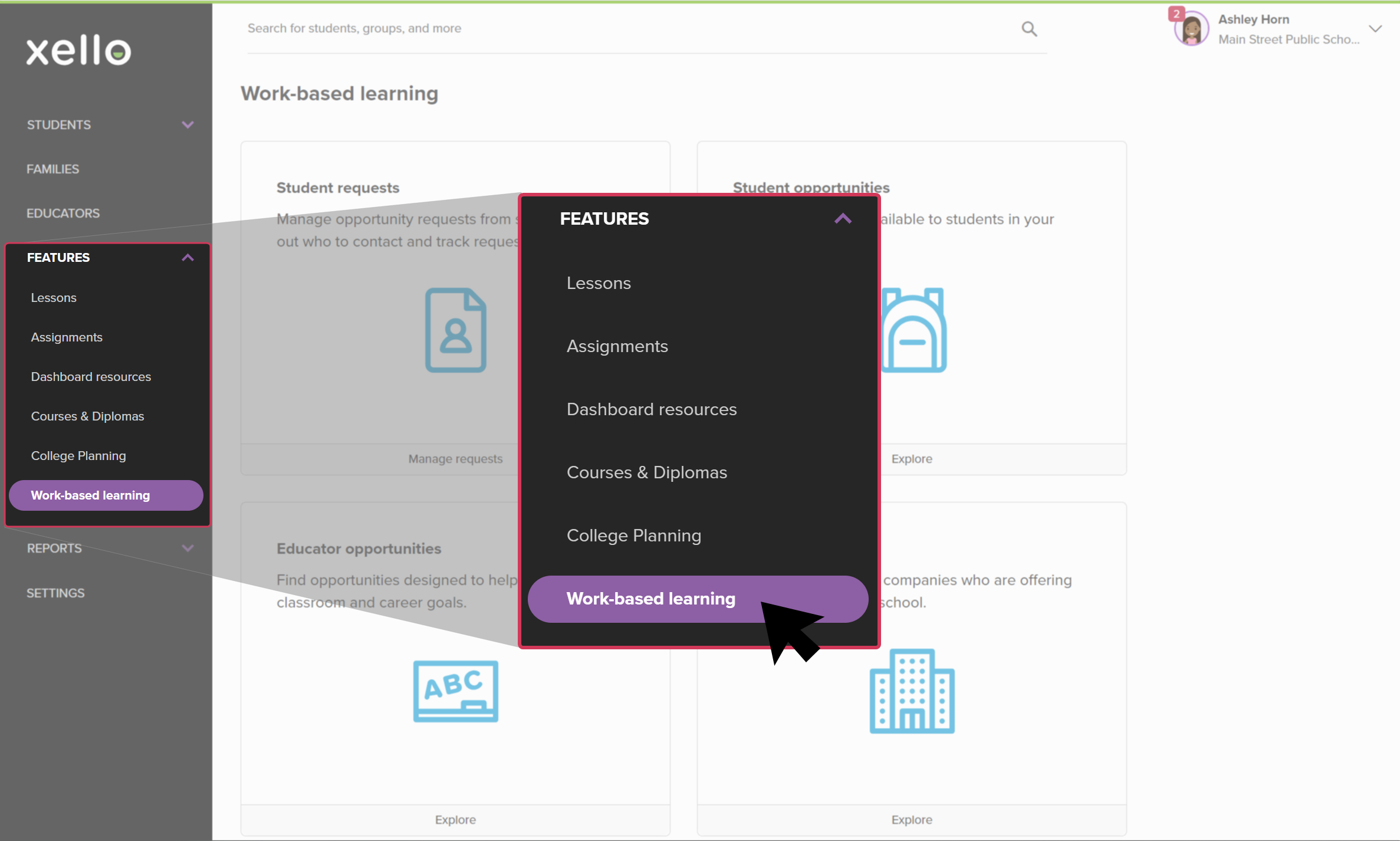
- From your educator account, click Features and select
 Click to enlarge
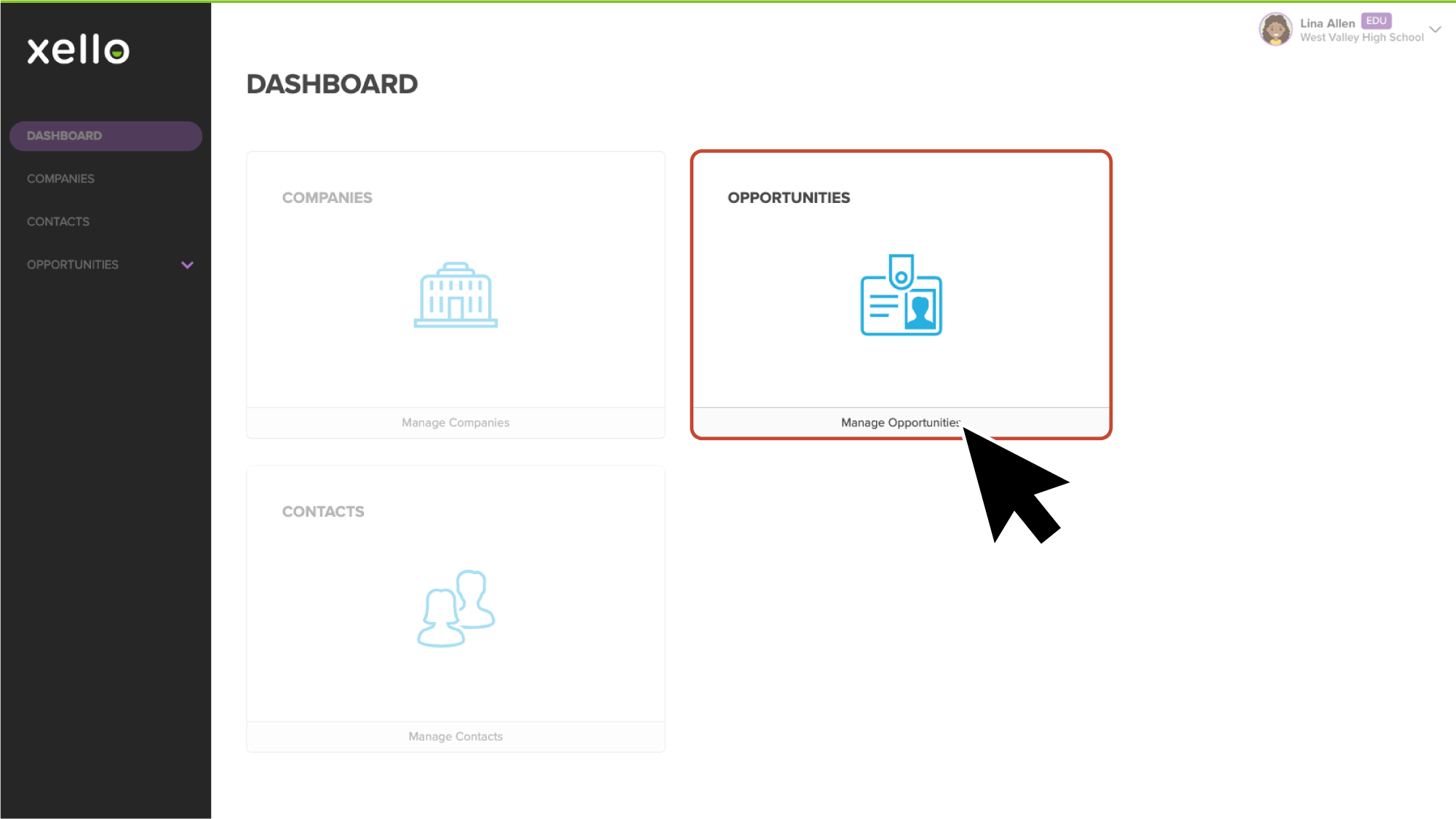
- From the
 Click to enlarge
- Click the opportunity name to open its details page.
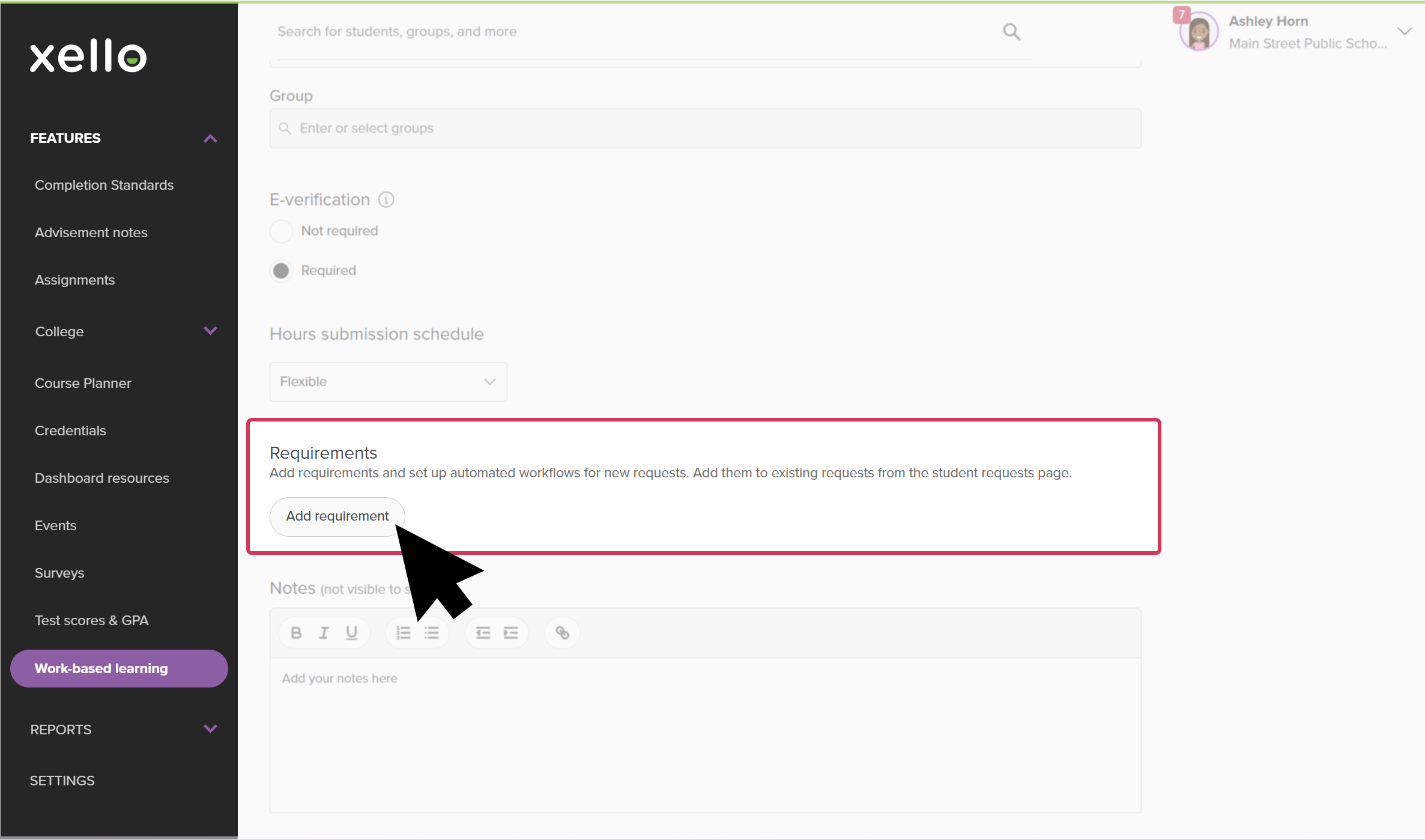
- From the opportunity page, scroll down to the Requirements section and click Add requirement.
 Click to enlarge
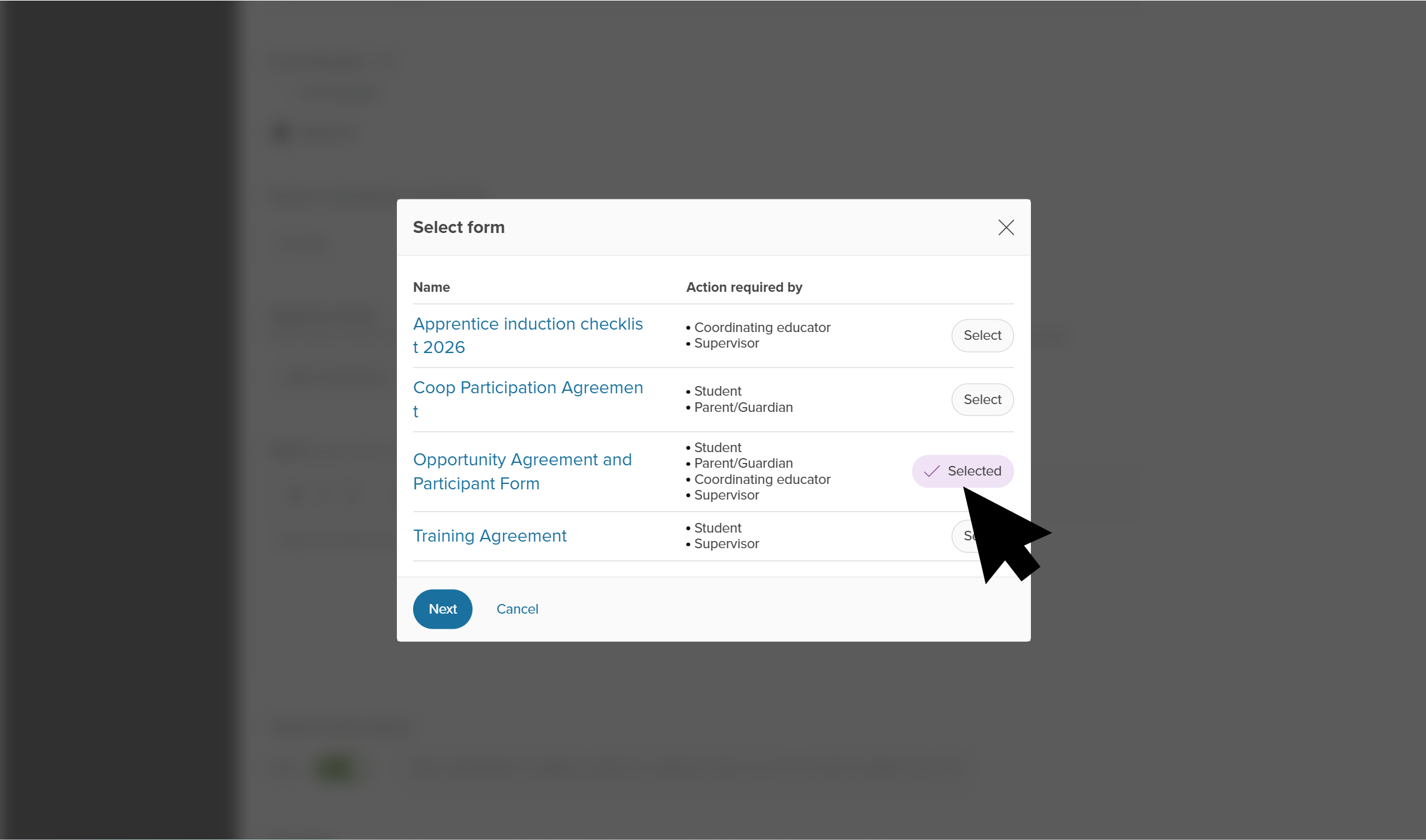
- A Select form modal opens with the list of forms you can choose. Click Select next to the one you want and click Next.
 Click to enlarge
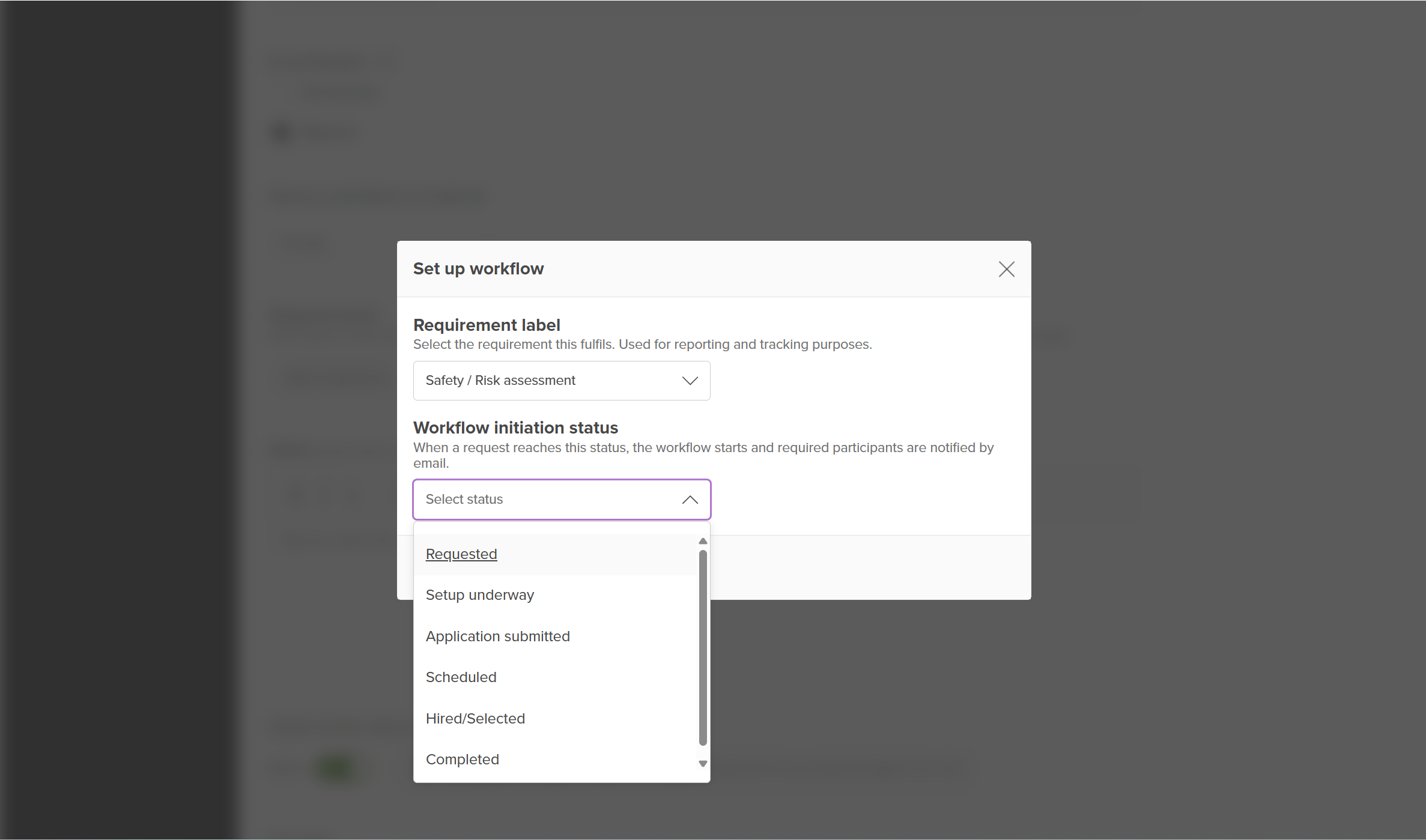
- Select a Requirement label to
- Choose the Workflow initiation status. This is the request status that automatically sends the document out for signatures (for example, sending a permission form when a student reaches Hired/Selected, or an evaluation when set to Completed).
 Click to enlarge
- Click Add form.
- Once the requirement has been added, you can return here to click the three-dot menu and make changes. You can edit or remove the requirement, and download the form.
Note: Adding a requirement does not send out the document immediately. Forms are automatically emailed to participants as soon as the student's request status reaches the status you selected.
 Back to top
Add required forms to an individual student request
Sometimes a specific student needs a form that other participants in the same opportunity do not need (such as a unique confidentiality agreement or customized health clearance form).
To add required forms to a single student request:
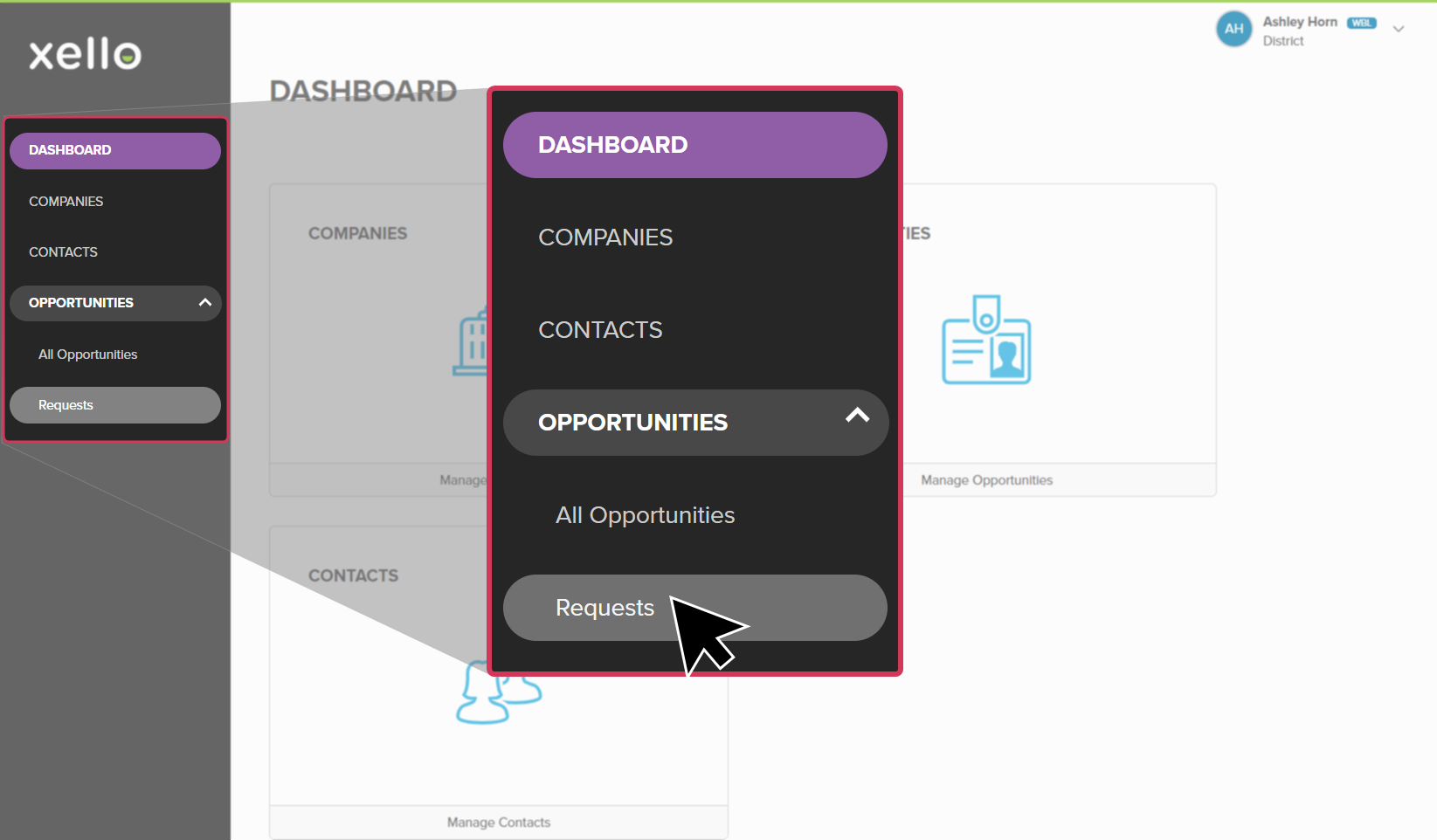
- From your educator account, click Features and select Click to enlarge
- Next to Student requests, click View.
 Click to enlarge
- Click the student's name to open their individual request profile.
- Scroll down to the Requirements section and click Add requirement.
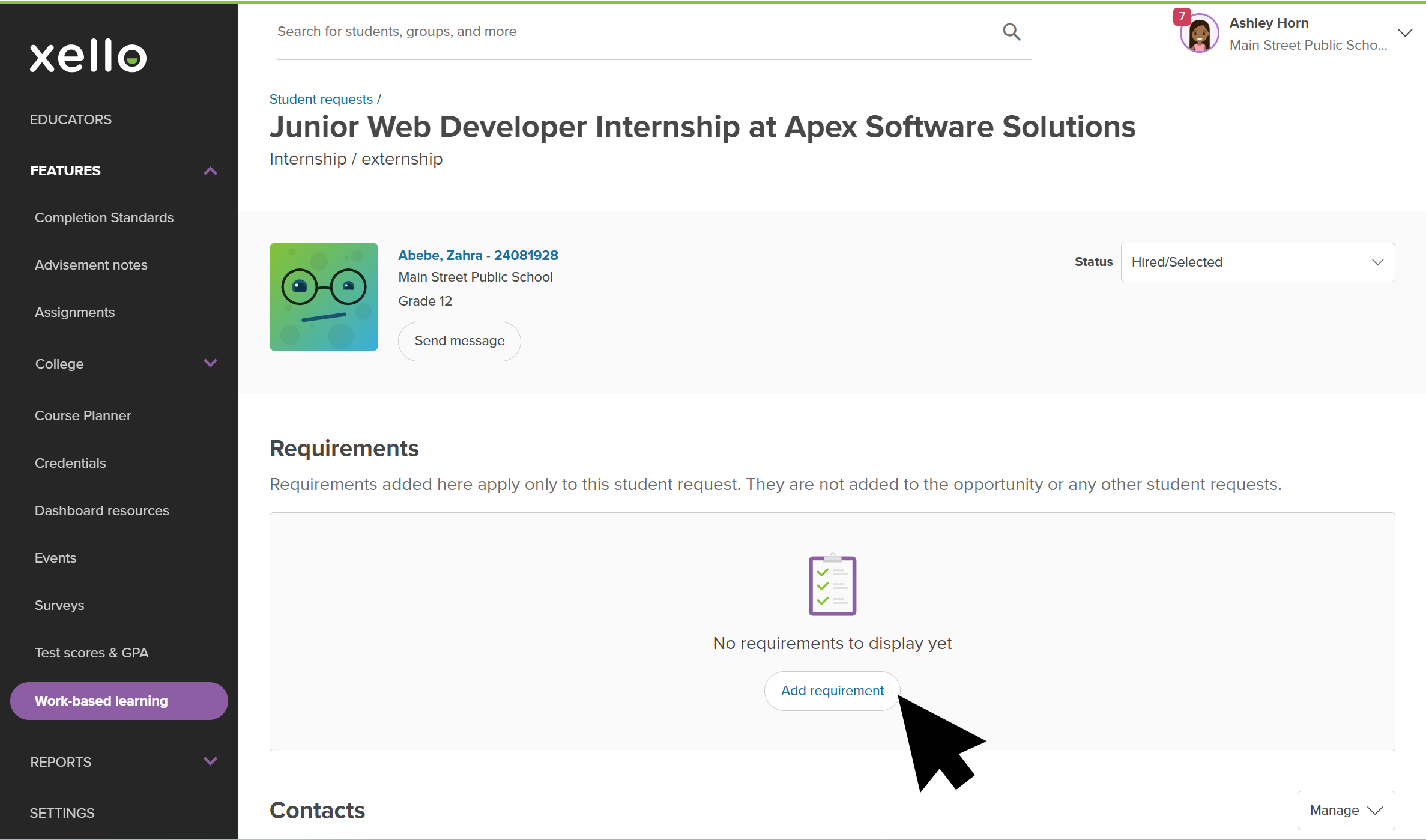 Click to enlarge
- A Select form modal opens with the list of forms you can choose. Click Select next to the one you want and click Next.
Click to enlarge
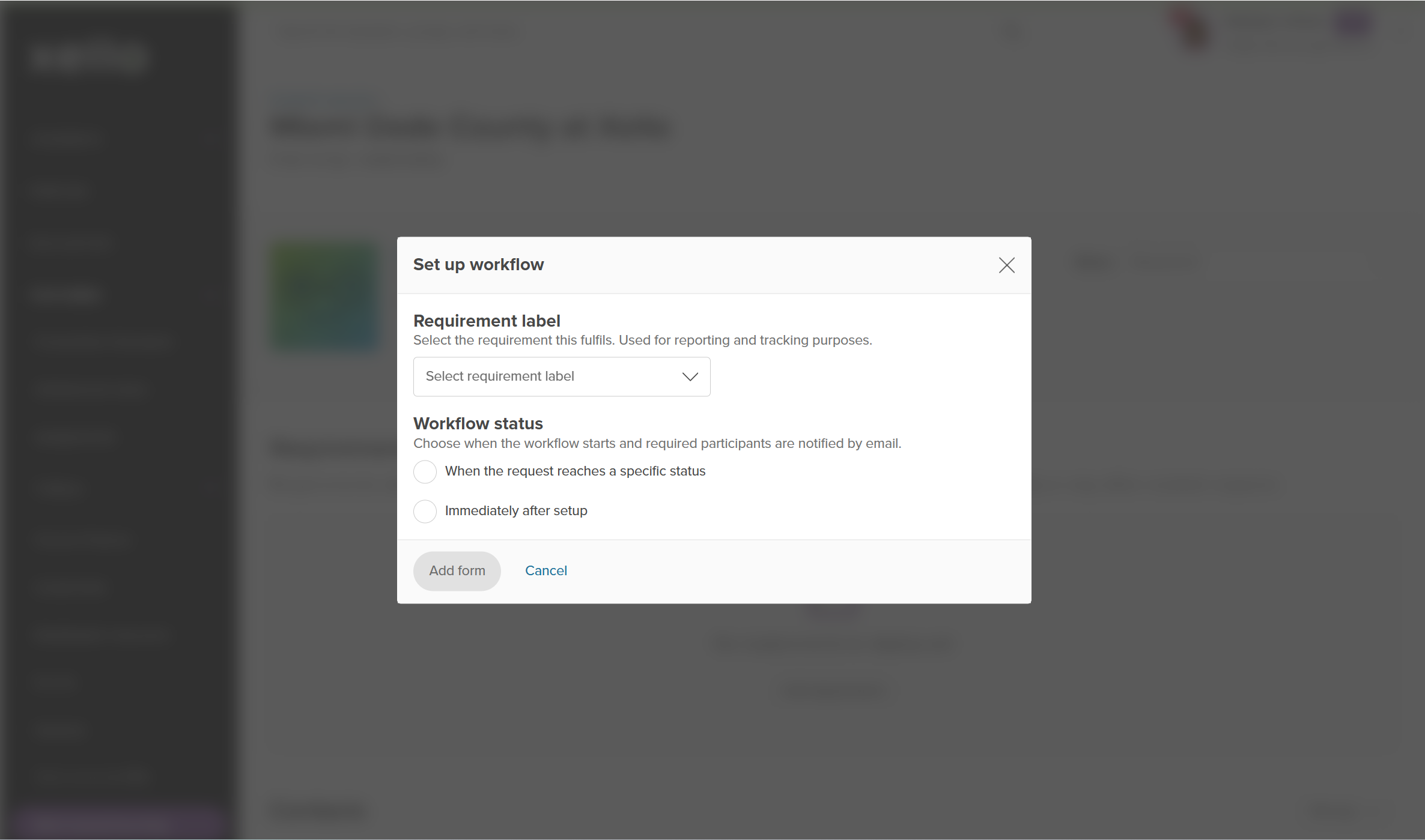
- Select a Requirement label to
 Click to enlarge
- Under Workflow status, choose when to send the document:
- Click When the request reaches a specific status and pick a status from the dropdown. Or,
- Click Immediately after setup.
- Click Add form.
Note: This requirement will only apply to this individual student's request and will not be added to the main opportunity or any other student's request.
Add required forms to student requests in bulk
If a group of students all need the same form added to their active experiences, you can attach requirements to multiple student requests at once.
To add required forms in bulk:
- From your educator account, click Features and select Click to enlarge
- Next to Student requests, click View.
Click to enlarge
- Check the boxes next to each student request you want to update.
- Alternatively: Click Filters to narrow the list (by status, opportunity type, or coordinator), click Apply to return to your narrowed list, then click Selected (0) at the top left to select the entire narrowed list at once.
- At the top of the table, click Add requirement.
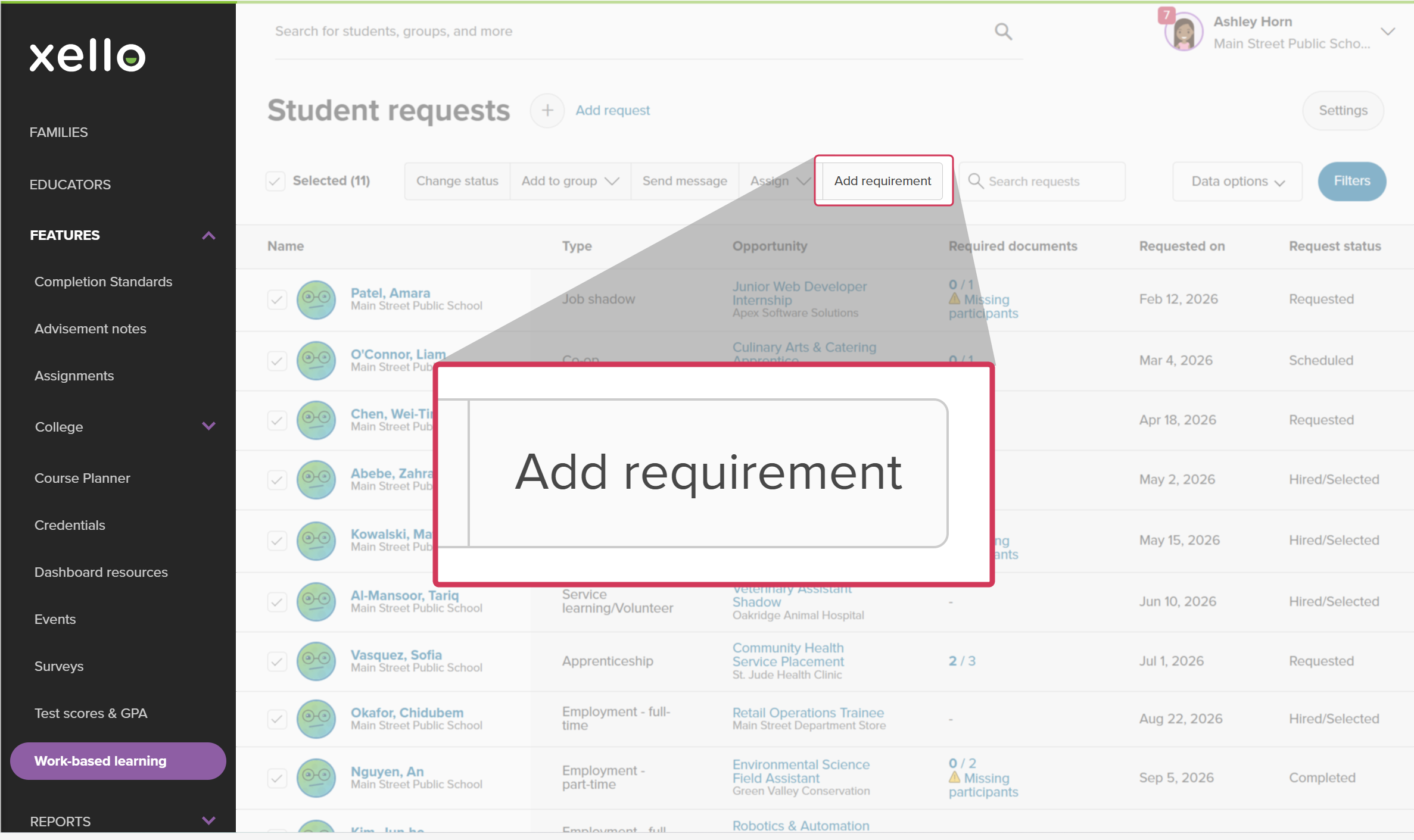 Click to enlarge
- A Select form modal opens with the list of forms you can choose. Click Select next to the one you want and click Next. Click to enlarge
- Select a Requirement label to Click to enlarge
- Under Workflow status, choose when to send the document:
- Click When the request reaches a specific status and pick a status from the dropdown. Or,
- Click Immediately after setup.
- Click Add form to apply the requirement across all selected student requests.
Additional resources
-
 Xello academy
Xello's Work-based learning module
Xello academy
Xello academyXello's Work-based learning moduleAre you a WBL administrator or coordinator working with Xello's Work-Based Learning module? In this course you'll learn how to utilize the additional features students have access to in Xello as you guide students in their exploration of WBL.
-
 PDF
PDFIntroduction to WBL in Xello
PDF
PDFIntroduction to WBL in Xello -
 Short Video
Help students thrive with Work-based learning
Short Video
Short VideoHelp students thrive with Work-based learningUse this short overview video to get an introduction to Xello's work-based learning module. Learn how this integrated platform opens up a world of discovery for students and educators to better prepare them for an ever-changing world.
-
 Recorded webinar
Recorded WebinarThe Basics: WBL in Xello for Admin
Recorded webinar
Recorded WebinarThe Basics: WBL in Xello for Admin -
Recorded webinar
Recorded WebinarBeyond Basics: WBL Learning in Xello for Admin
-
 Xello Resource
Get Started for WBL Administrators
Xello Resource
Xello ResourceGet Started for WBL Administrators