Manage WBL settings
userWBL Admin Xello productXello 6-12 Time1 minute

Learn how to manage Work-based learning (WBL) settings in Xello. You can control student opportunity permissions, set default coordinators, and customize document labels.

noteNote: This is for educators who are assigned the role of WBL Administrator. To learn more about WBL permissions, check out Work-based learning roles.

In this article

Student-created opportunities

WBL Administrators can decide if students can add their own outside opportunities in Xello.

To turn student opportunity creation on or off:

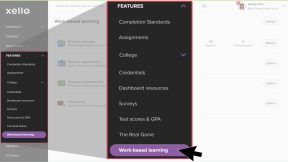
  1. From your educator account, click Features and select Work-based learning.
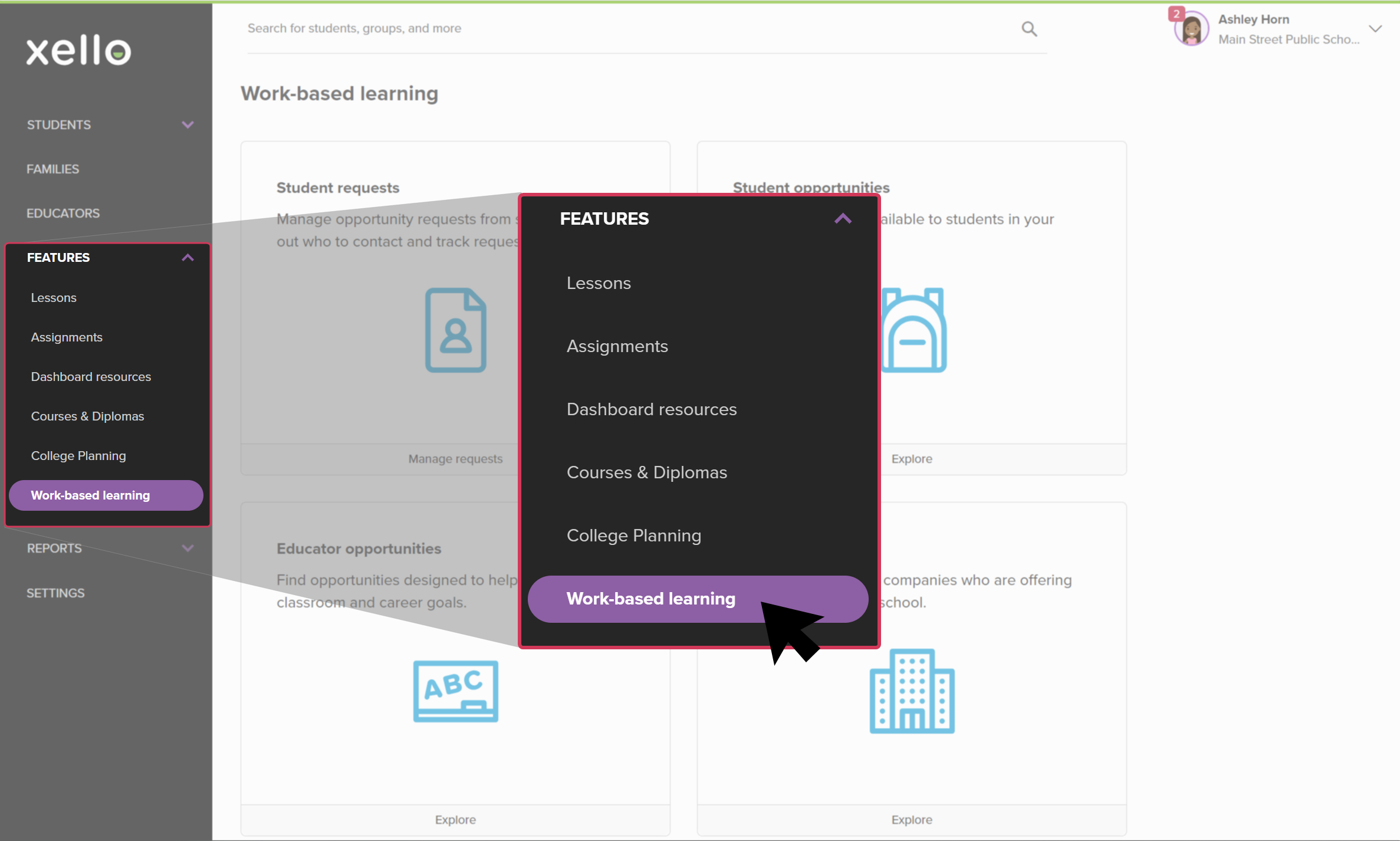
    Educator account in Xello, Opportunities selected from side menu
    Click to enlarge
    Educator account in Xello, Opportunities selected from side menu
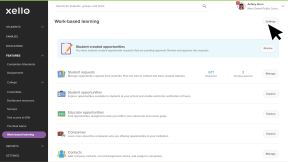
  2. At the top right corner, click Settings.
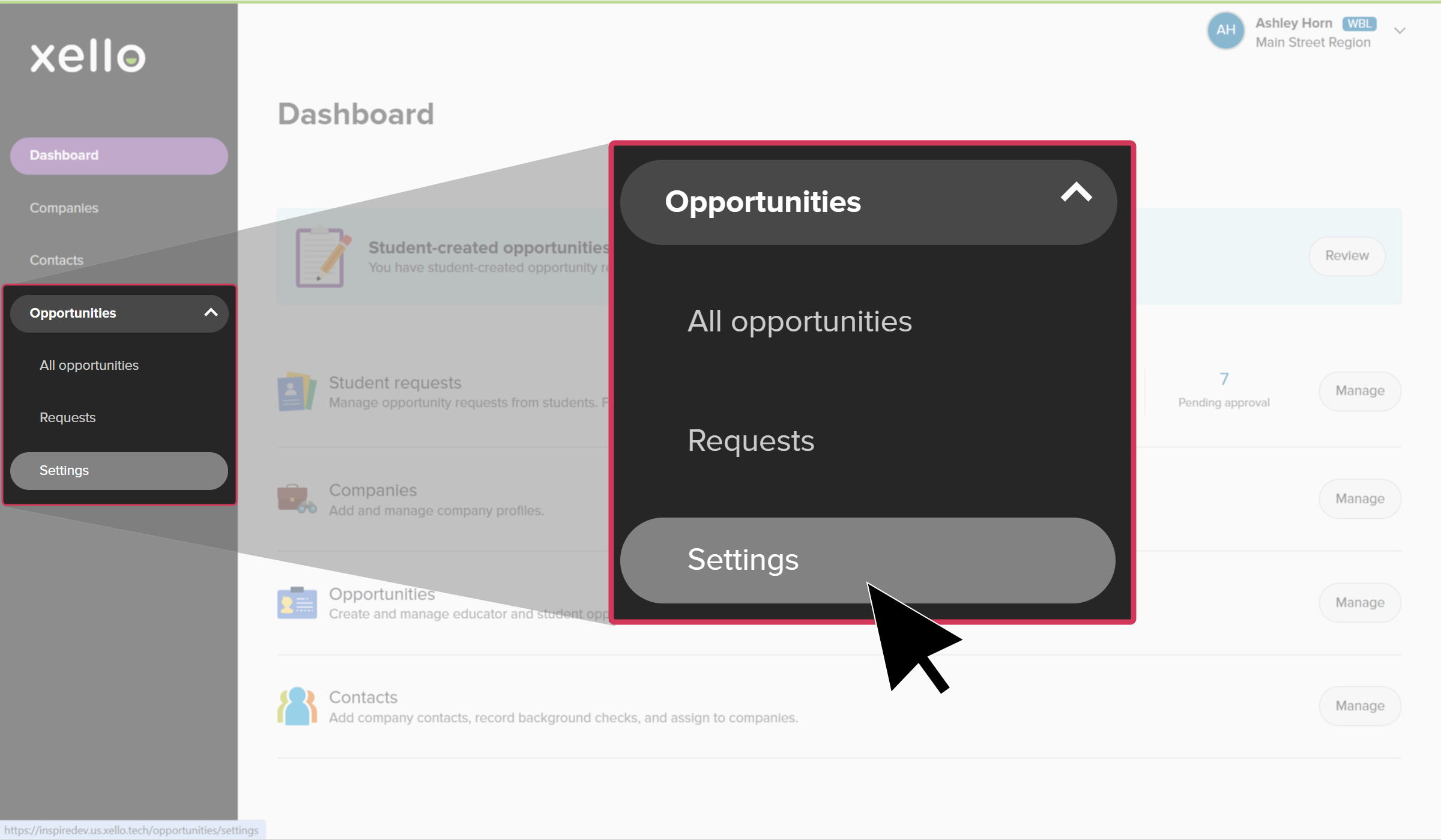
    WBL Admin dashboard with the left menu open. Opportunities submenu is open and Settings is about to be clicked
    Click to enlarge
    WBL Admin dashboard with the left menu open. Opportunities submenu is open and Settings is about to be clicked
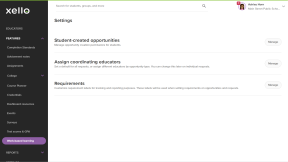
  3. Next to Student-created opportunities, click Manage to open the student list of opportunities.
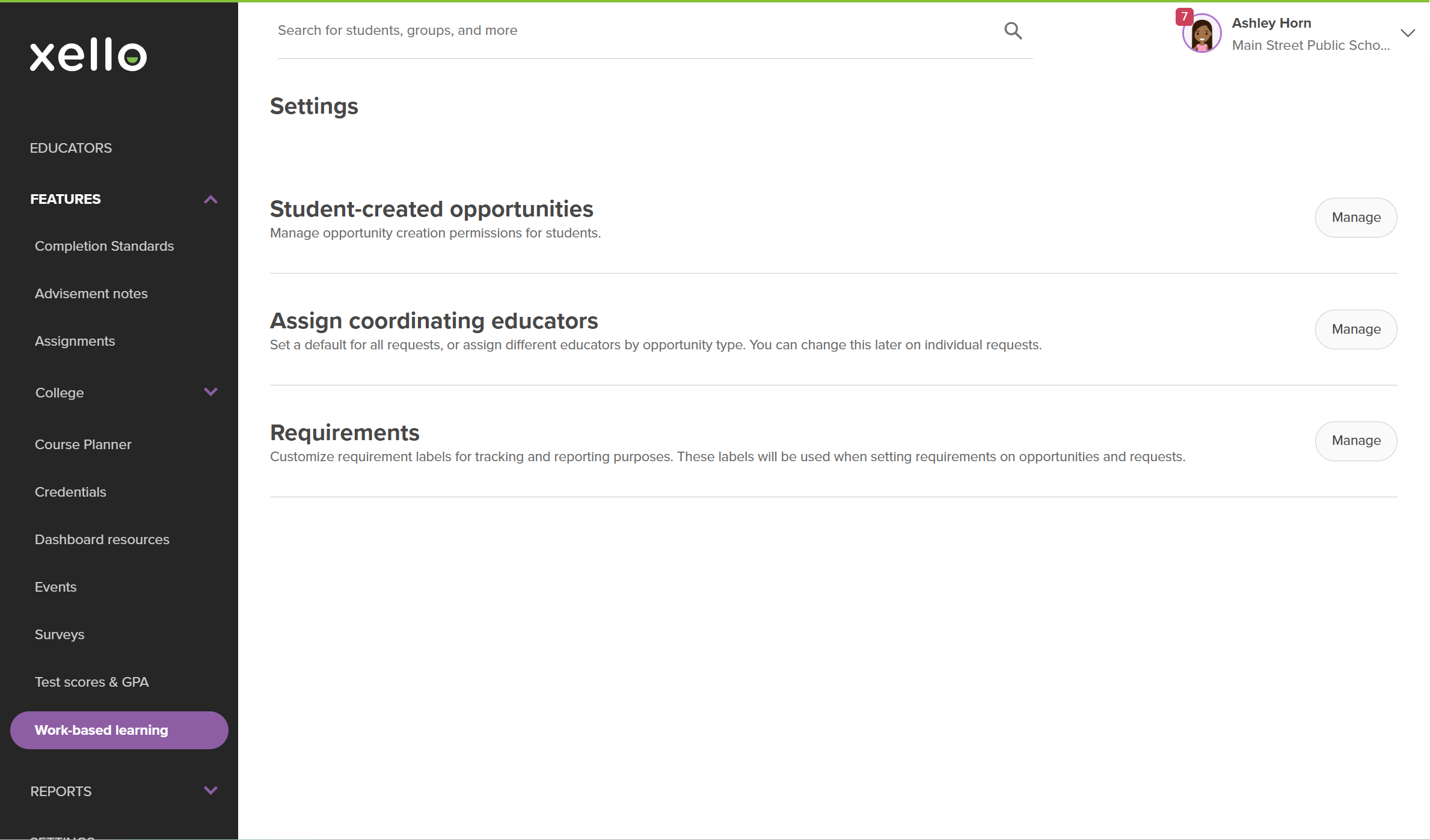
    In Work-based learning, the Settings page. There are three rows with a Manage button: Student-created opportunities, Assign coordinating educators, and Requirements.
    Click to enlarge
    In Work-based learning, the Settings page. There are three rows with a Manage button: Student-created opportunities, Assign coordinating educators, and Requirements.
  4. Click the box next to each student who you would like to enable opportunity creation for.
    • You can narrow the student list by clicking Filters. Once you've narrowed the list, click the box next to Selected (0) to select the entire list of filtered students.
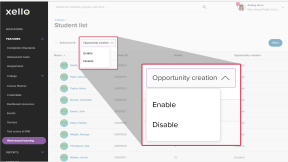
  5. Click the Opportunity creation dropdown and select Enable or Disable.
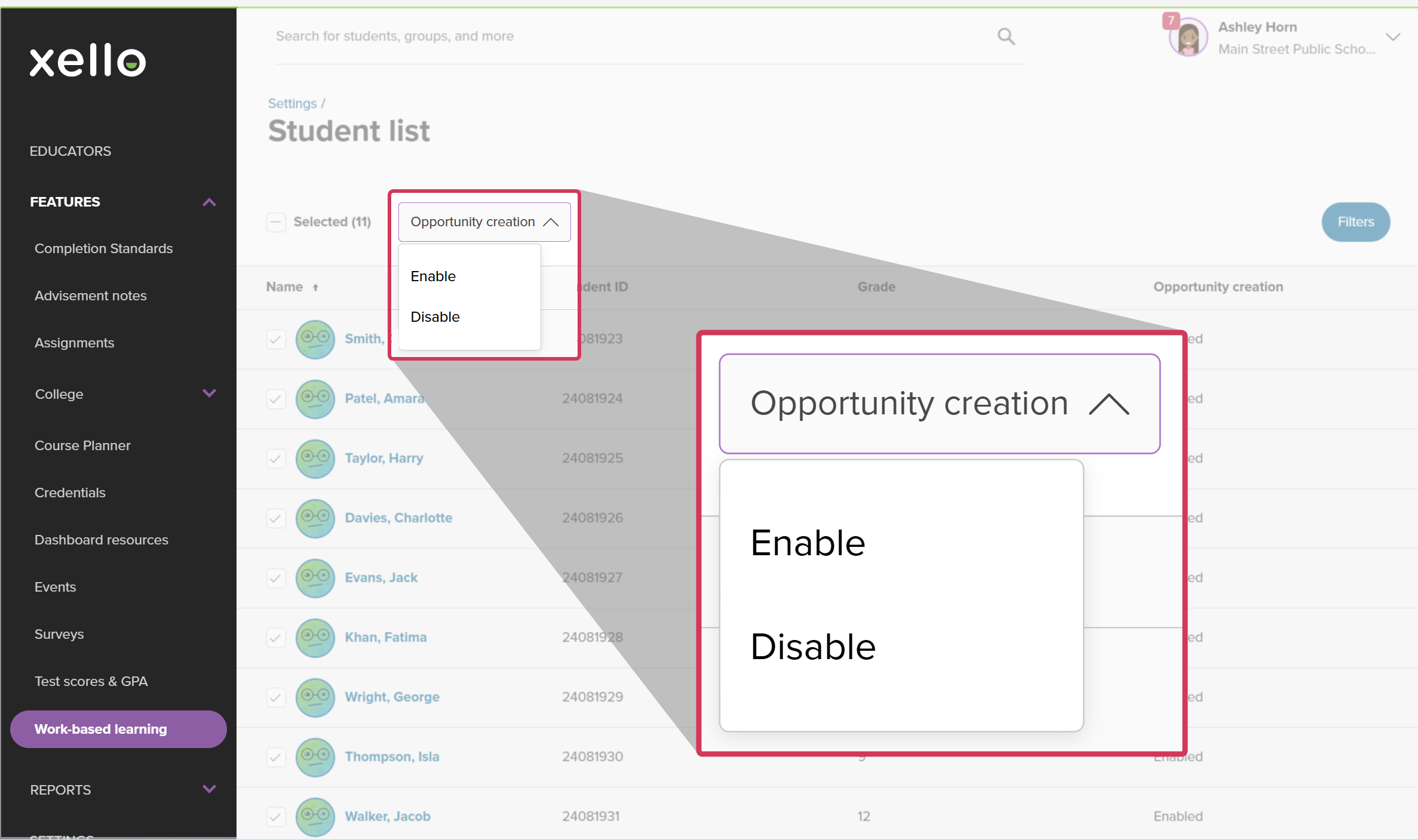
    In Work-based learning, in Settings, in the Student-created opportunities section. 11 students have been selected. The Opportunity creation dropdown is open with the option to Enable or Disable opportunity creation for the selected students.
    Click to enlarge
    In Work-based learning, in Settings, in the Student-created opportunities section. 11 students have been selected. The Opportunity creation dropdown is open with the option to Enable or Disable opportunity creation for the selected students.
  6. A modal will open confirming you want to enable opportunity creation for the students. To confirm, click Ok.

up arrowBack to top

Assign coordinating educators

Coordinating educators manage student requests and get alerts when forms need signatures. Setting a default rule assigns an owner to new requests right away.

To set default coordinating educators:

  1. From your educator account, click Features and select Work-based learning.
    Educator account in Xello, Opportunities selected from side menu
    Click to enlarge
    Educator account in Xello, Opportunities selected from side menu
  2. At the top right corner, click Settings.
    WBL Admin dashboard with the left menu open. Opportunities submenu is open and Settings is about to be clicked
    Click to enlarge
    WBL Admin dashboard with the left menu open. Opportunities submenu is open and Settings is about to be clicked
  3. Next to Assign coordinating educators, click Manage.
    In Work-based learning, the Settings page. There are three rows with a Manage button: Student-created opportunities, Assign coordinating educators, and Requirements.
    Click to enlarge
    In Work-based learning, the Settings page. There are three rows with a Manage button: Student-created opportunities, Assign coordinating educators, and Requirements.
  4. Choose how to assign new requests:
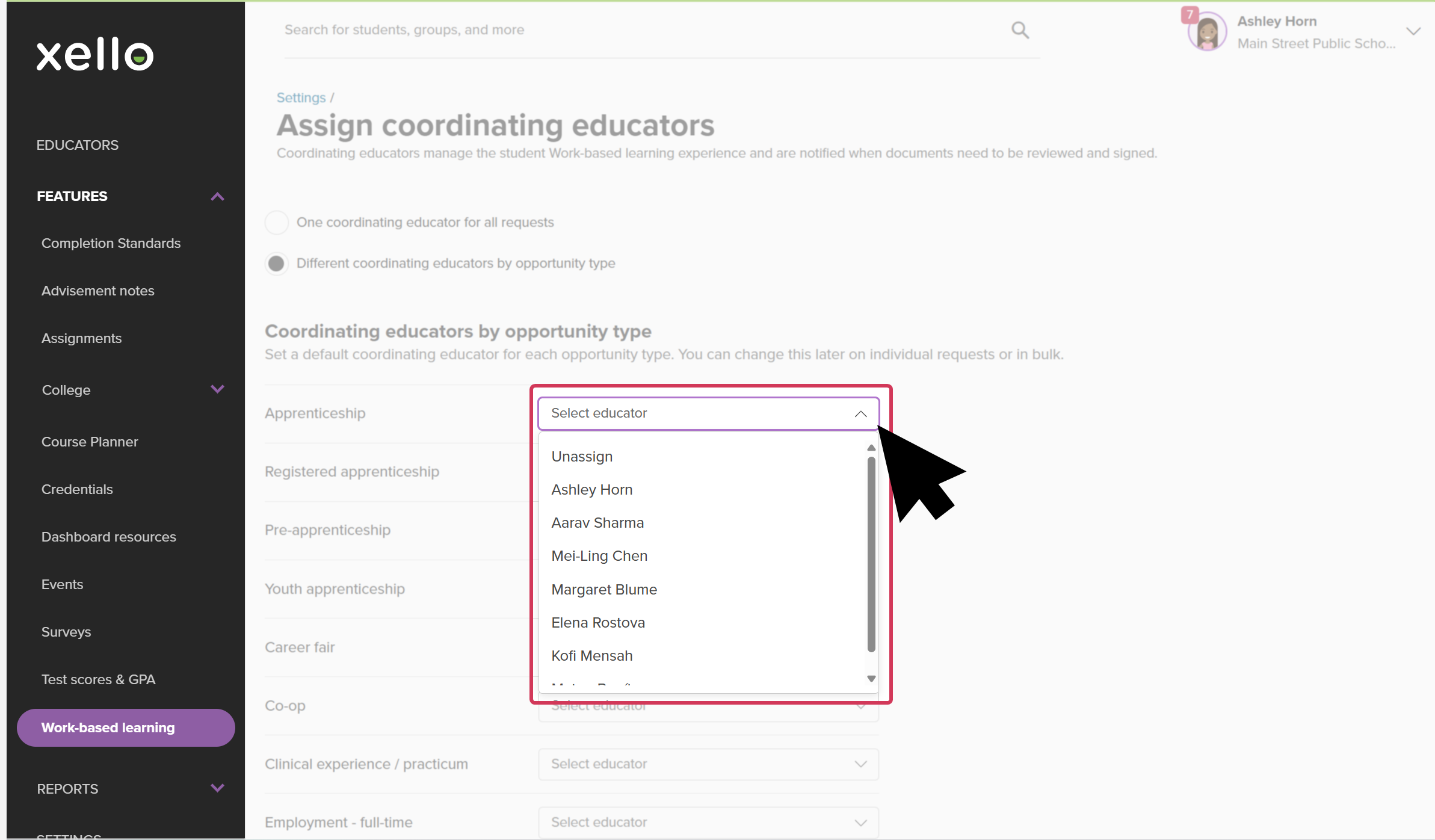
    In Work-based learning, in Settings, in the Assign coordinating educators section. Under Coordinating educators by opportunity type, the cursor has opened the first dropdown to show a list of educators.
    Click to enlarge
    In Work-based learning, in Settings, in the Assign coordinating educators section. Under Coordinating educators by opportunity type, the cursor has opened the first dropdown to show a list of educators.
    • One coordinating educator for all requests: Pick one educator to own all new incoming requests.
    • Different coordinating educators by opportunity type: Assign different educators to specific opportunity types (for example, assign one teacher to all Apprenticeships and another to Job Shadows).
  5. Click Save.

up arrowBack to top

Requirements

Requirements are the forms students, parents, and employers need to fill out (like parent consent or training agreements). Creating custom labels helps you group and track these forms easily.

Add a requirement label

Create new labels to categorize specific forms your school or district needs students to complete.

To add a requirement label:

  1. From your educator account, click Features and select Work-based learning.
    Educator account in Xello, Opportunities selected from side menu
    Click to enlarge
    Educator account in Xello, Opportunities selected from side menu
  2. At the top right corner, click Settings.
    WBL Admin dashboard with the left menu open. Opportunities submenu is open and Settings is about to be clicked
    Click to enlarge
    WBL Admin dashboard with the left menu open. Opportunities submenu is open and Settings is about to be clicked
  3. Next to Requirements, click Manage.
    In Work-based learning, the Settings page. There are three rows with a Manage button: Student-created opportunities, Assign coordinating educators, and Requirements.
    Click to enlarge
    In Work-based learning, the Settings page. There are three rows with a Manage button: Student-created opportunities, Assign coordinating educators, and Requirements.
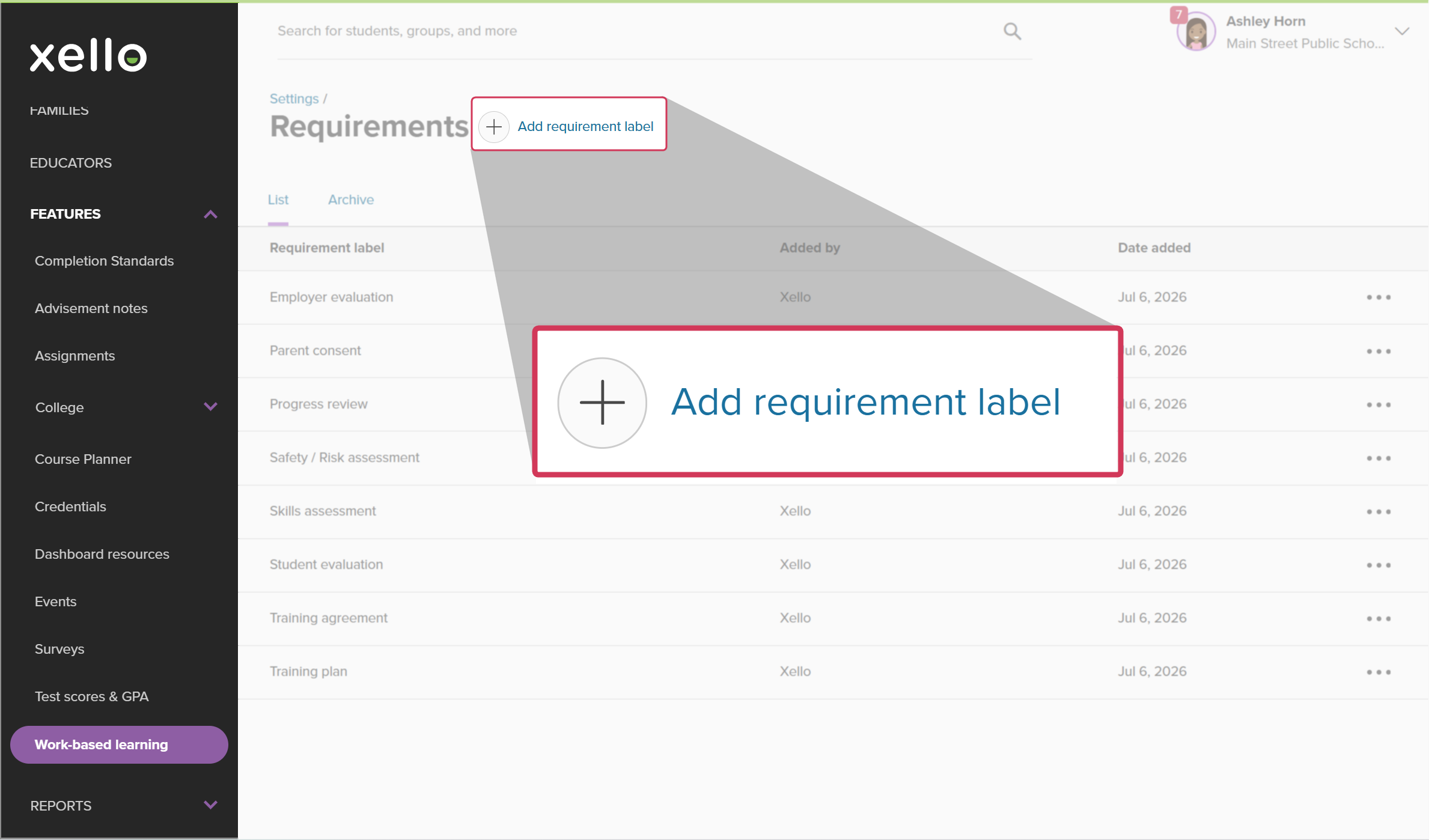
  4. Click Add requirement label.
    In Work-based learning, the Requirements page. The Add requirement label button is highlighted.
    Click to enlarge
    In Work-based learning, the Requirements page. The Add requirement label button is highlighted.
  5. Enter a label name and click Save.

Archive a requirement label

Remove labels you no longer use to keep your requirements list clean and updated.

To archive a requirement label:

  1. From your educator account, click Features and select Work-based learning.
    Educator account in Xello, Opportunities selected from side menu
    Click to enlarge
    Educator account in Xello, Opportunities selected from side menu
  2. At the top right corner, click Settings.
    WBL Admin dashboard with the left menu open. Opportunities submenu is open and Settings is about to be clicked
    Click to enlarge
    WBL Admin dashboard with the left menu open. Opportunities submenu is open and Settings is about to be clicked
  3. Next to Requirements, click Manage.
    In Work-based learning, the Settings page. There are three rows with a Manage button: Student-created opportunities, Assign coordinating educators, and Requirements.
    Click to enlarge
    In Work-based learning, the Settings page. There are three rows with a Manage button: Student-created opportunities, Assign coordinating educators, and Requirements.
  4. Find the label you want to remove in the list.
  5. Click the three-dot icon next to the label and select Archive.
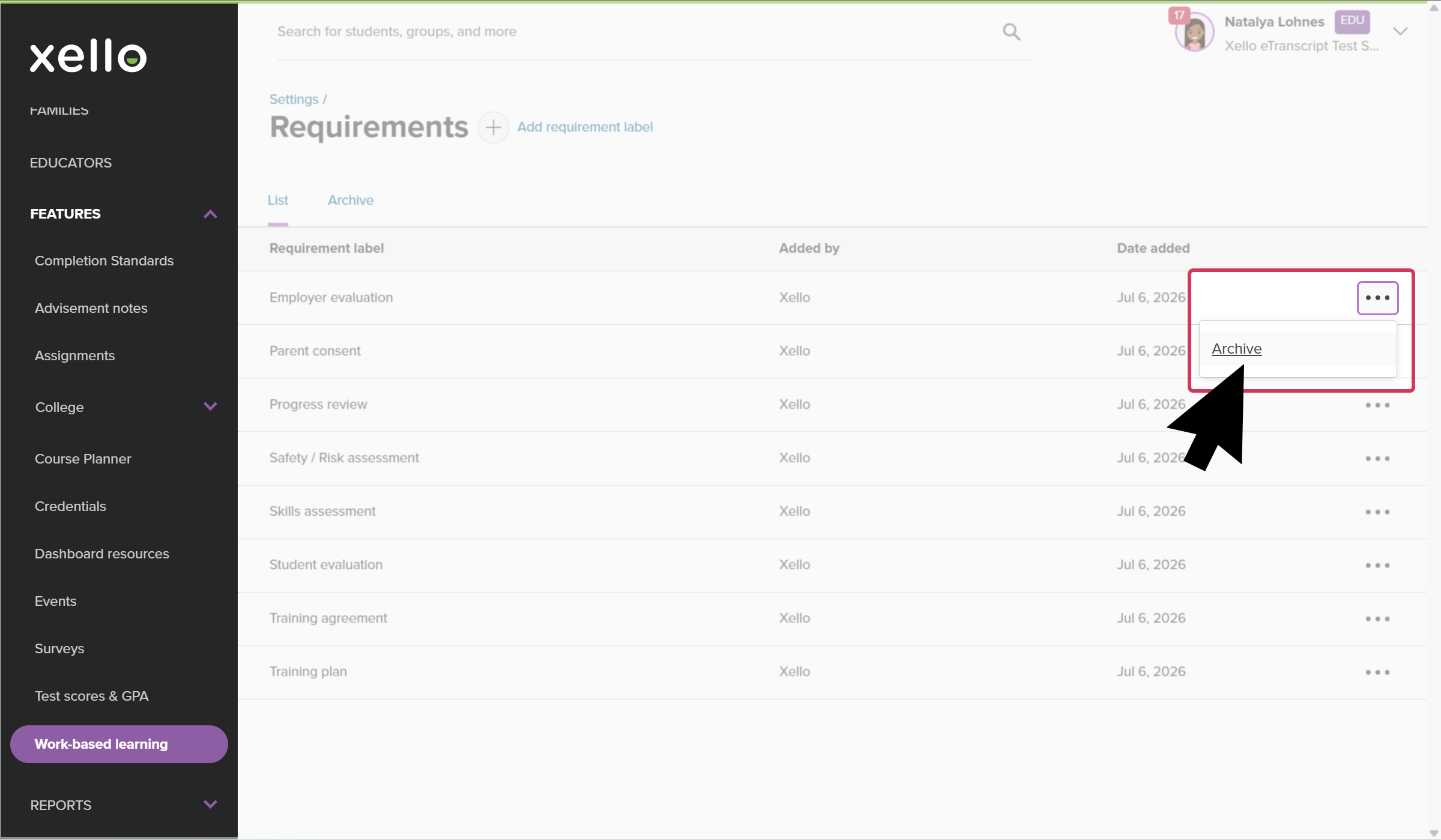
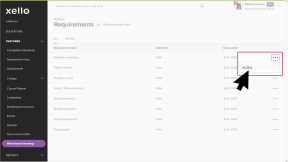
    In Work-based learning, the Requirements page. The cursor has clicked open the three-dot menu and is clicking Archive.
    Click to enlarge
    In Work-based learning, the Requirements page. The cursor has clicked open the three-dot menu and is clicking Archive.

To see or restore old labels, click the Archive tab at the top of the page.

District vs. School Labels: Schools automatically get standard labels from Xello and any custom labels created by the district. School admins can also create their own school-level labels.

up arrowBack to top

up arrowBack to top

Additional resources

  • academyXello academy
    Xello academyXello's Work-based learning module

    Are you a WBL administrator or coordinator working with Xello's Work-Based Learning module? In this course you'll learn how to utilize the additional features students have access to in Xello as you guide students in their exploration of WBL.

  • pdfPDF
    PDFIntroduction to WBL in Xello
  • short videoShort Video
    Short VideoHelp students thrive with Work-based learning

    Use this short overview video to get an introduction to Xello's work-based learning module. Learn how this integrated platform opens up a world of discovery for students and educators to better prepare them for an ever-changing world.

  • live webinarRecorded webinar
    Recorded WebinarThe Basics: WBL in Xello for Admin
  • live webinarRecorded webinar
    Recorded WebinarBeyond Basics: WBL Learning in Xello for Admin
  • pdfXello Resource
    Xello ResourceGet Started for WBL Administrators

arrow upBack to top