6 minutes
When it comes to helping students with
Consider the
 Note: This is for educators who are assigned the role of WBL Administrator or WBL Coordinator. To learn more about WBL permissions, check out Work-based learning roles.
Add a document
All document management, including adding new documents, can be done from the Document
To add a document:
- From your educator account, click Features and select
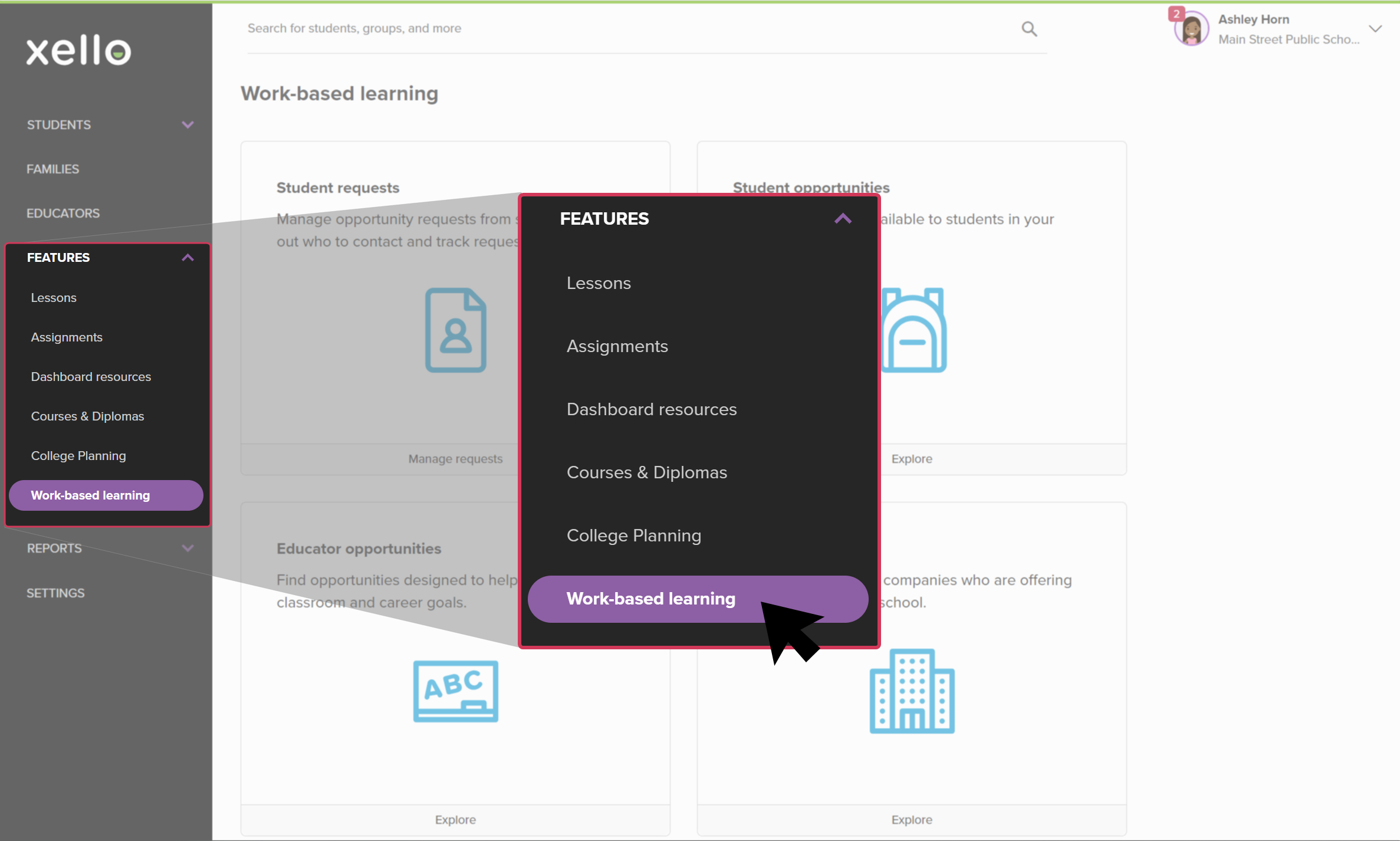 Click to enlarge
- From the
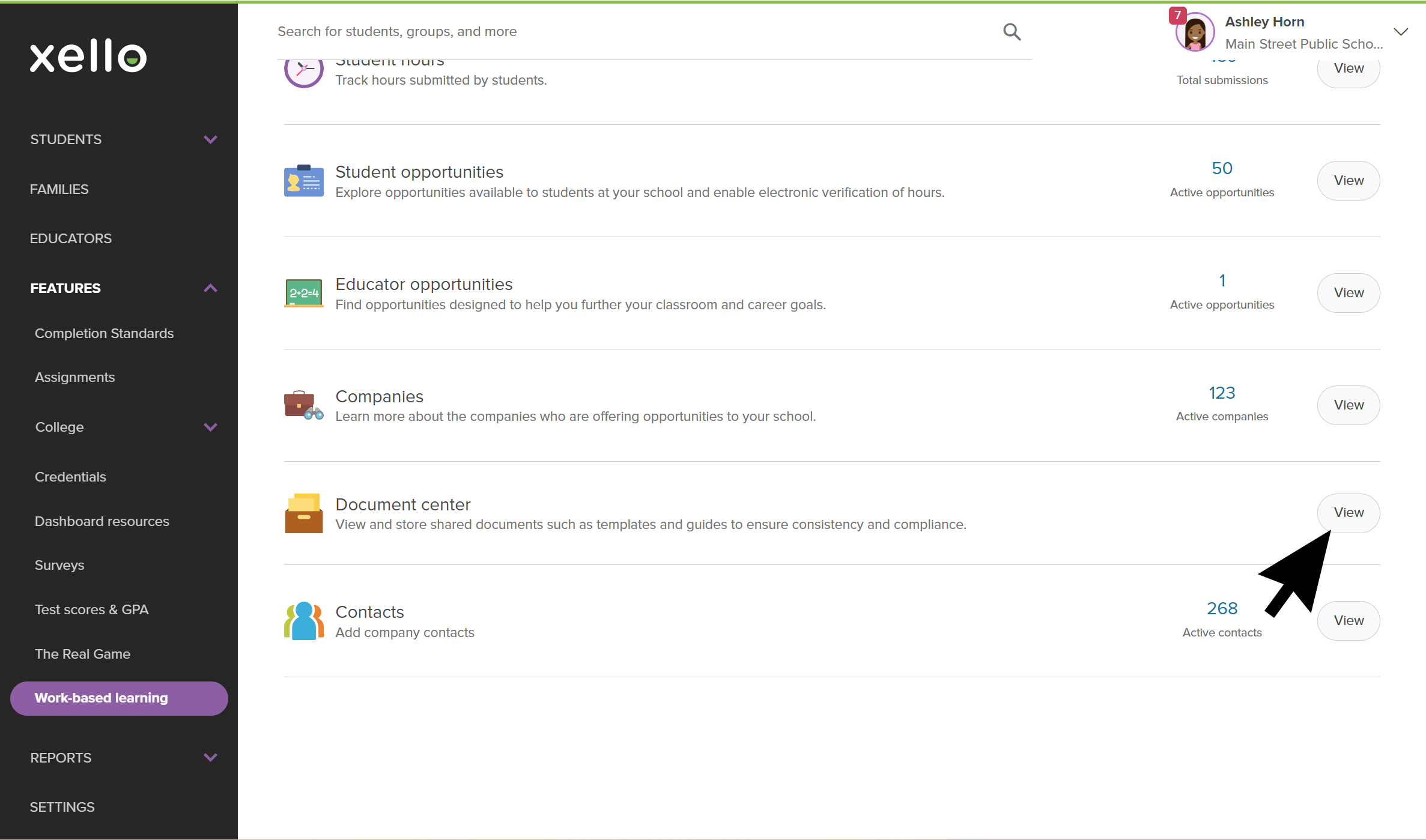 Click to enlarge
- Click Add document.
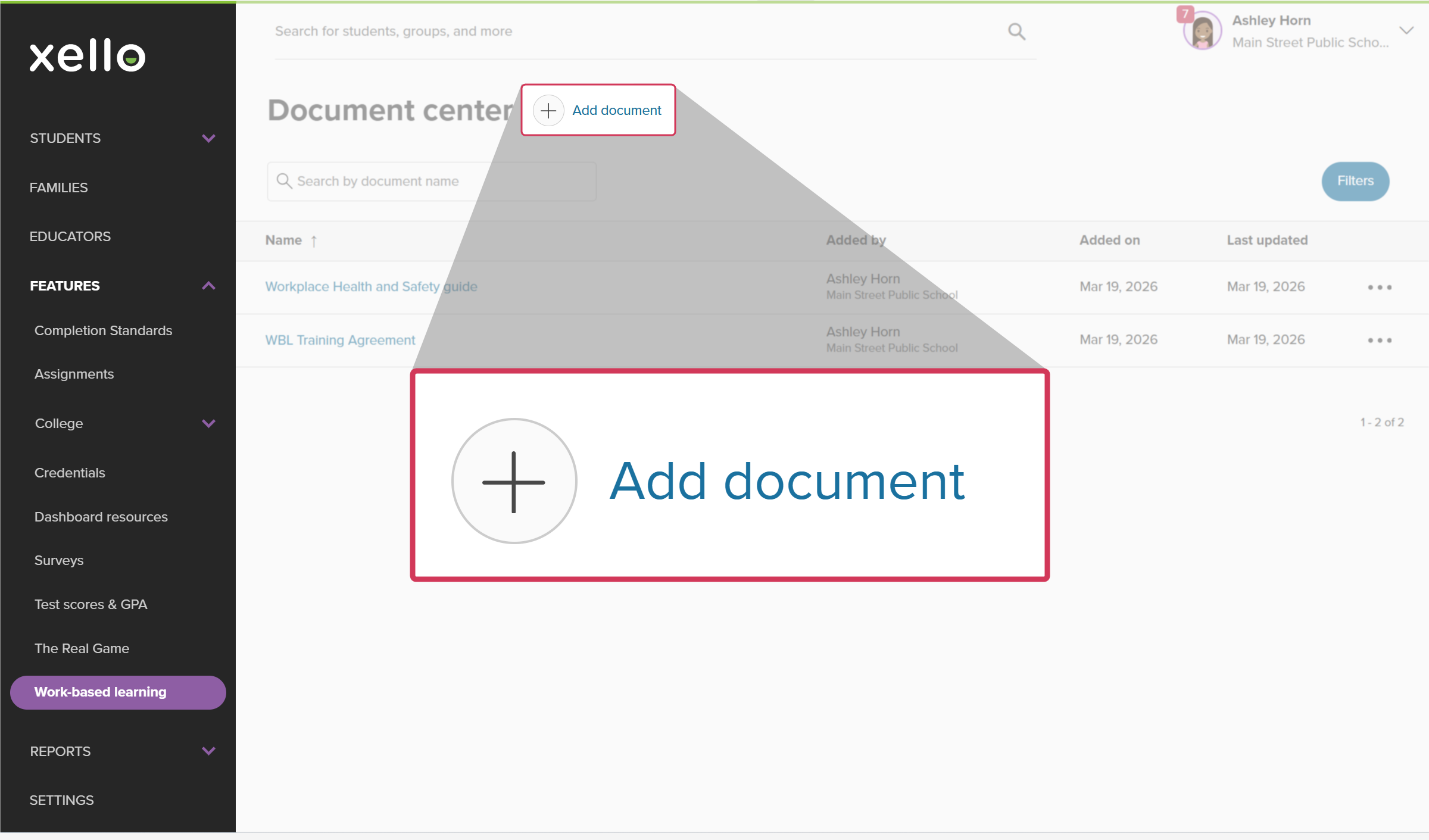 Click to enlarge
- Fill in the document details. A name for the document is required, but a description is optional.
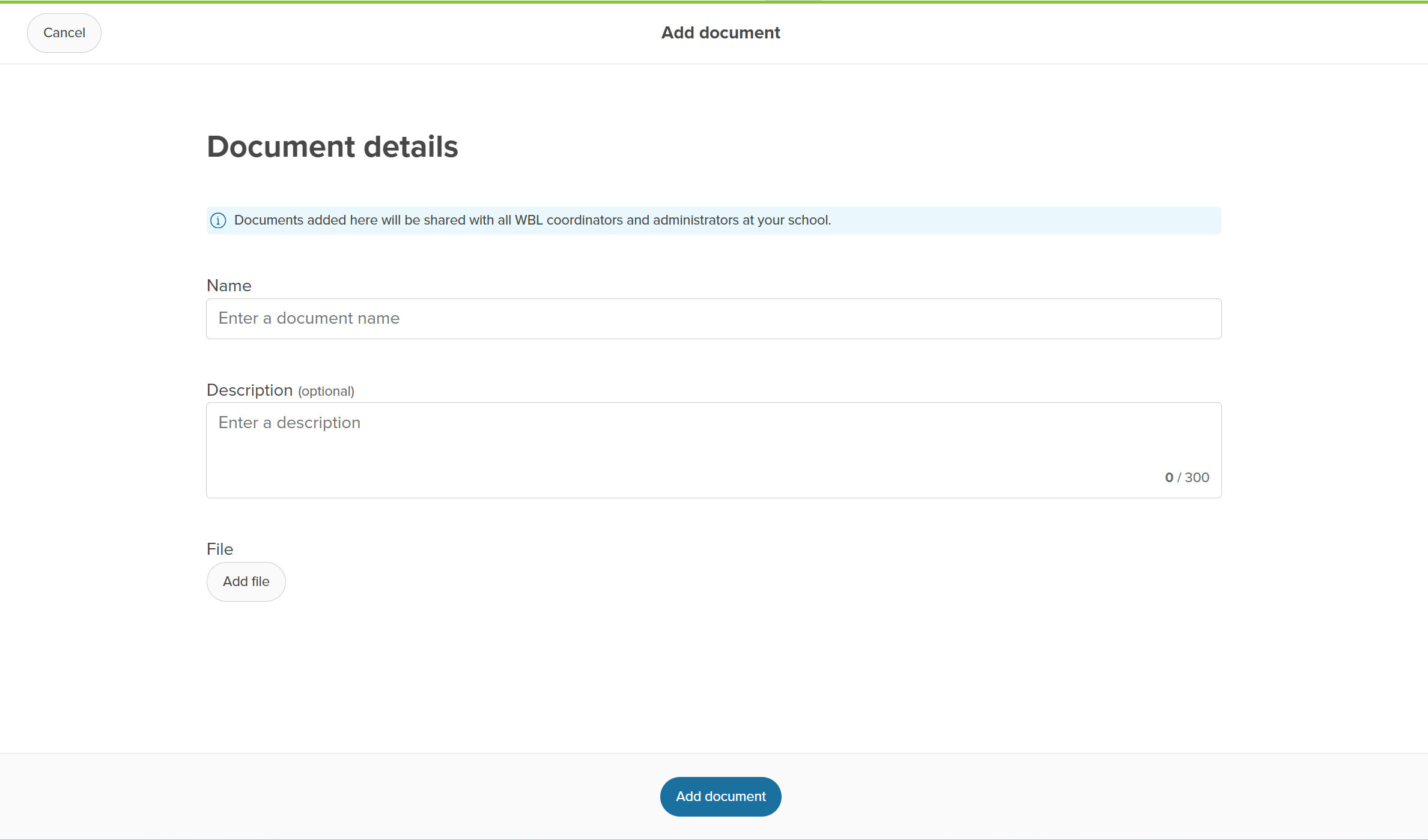 Click to enlarge
- Click Add file to drag and drop or choose the file locally from your device.
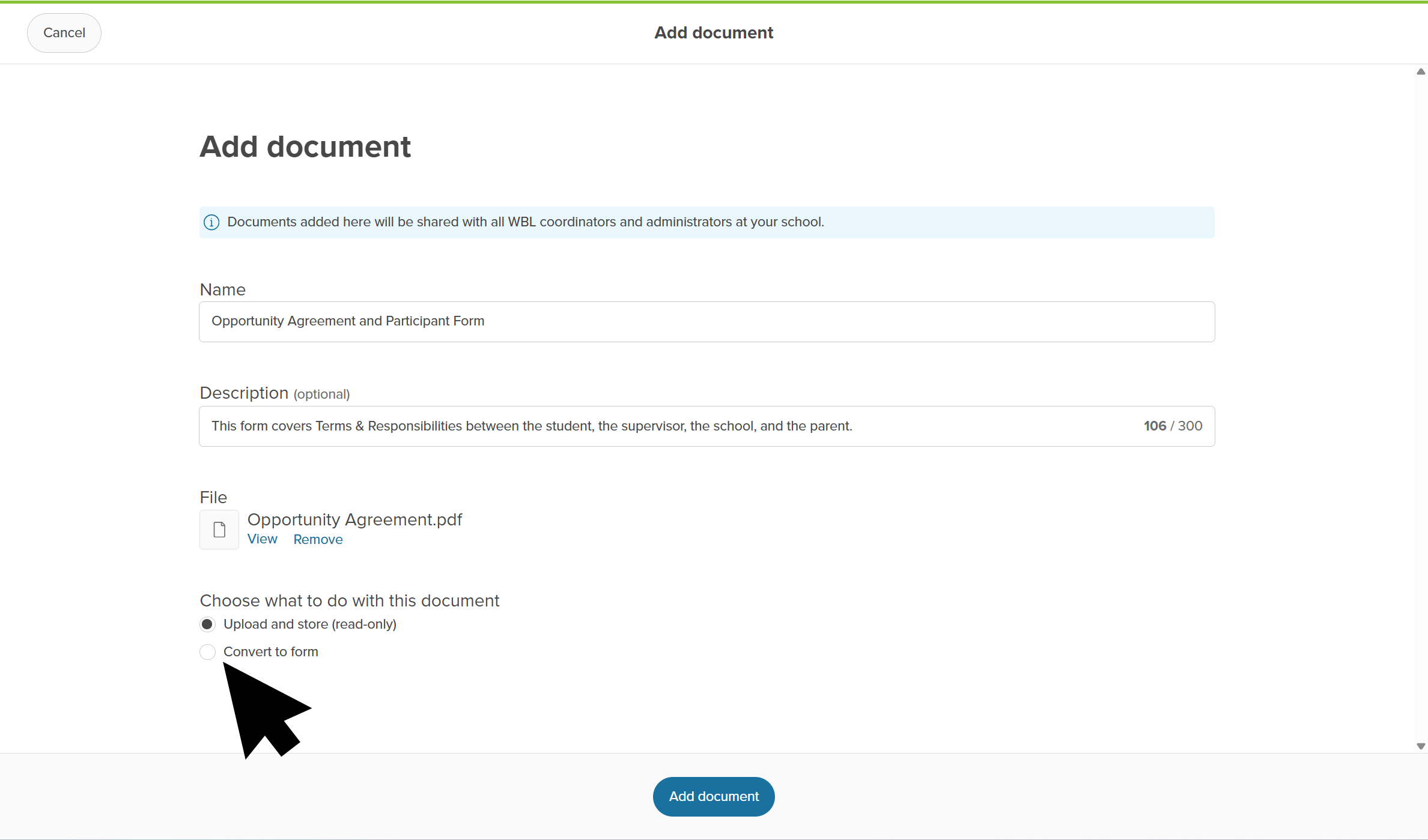
- Choose how you want to use the document:
 Click to enlarge
- Store as read-only: Upload the document as a static reference file (like an informational flyer or handbook).
- Convert to form: Turn a PDF into an interactive digital form that participants can fill out and sign online. Learn details on how to convert a document to a form below.
- Click Add document.
- A success banner will indicate the document has been uploaded.
 Back to top
Convert a document to a form
Converting a PDF into a digital form allows you to collect fillable text, checkbox responses, and signatures online. You can assign each field on the form to a specific participant role so everyone knows who needs to take action.
When a form is sent out, participants (students, parents, or supervisors) receive an email with a direct link. They'll click the link to fill in the form and submit their signature. There's no login required for external signers.
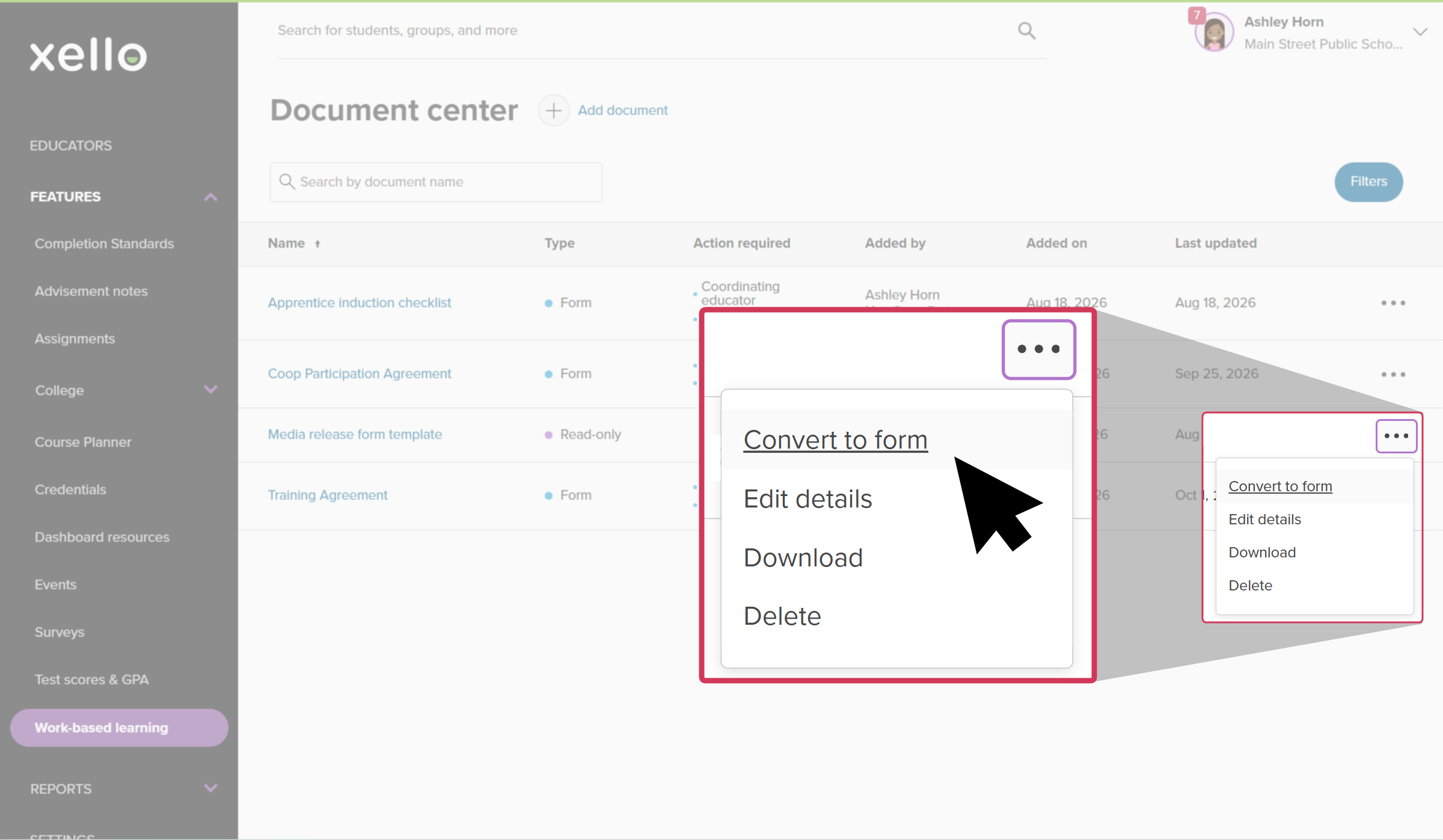
There are two ways to open the form editor:
- When adding a new document: Follow the steps above to add a document, when uploading the PDF, select Convert to form. The form editor will open automatically.
- From an existing document: In the Document
 Click to enlarge
Add and assign fillable fields
Once the form editor is open, set up your fields and roles using the top toolbar:
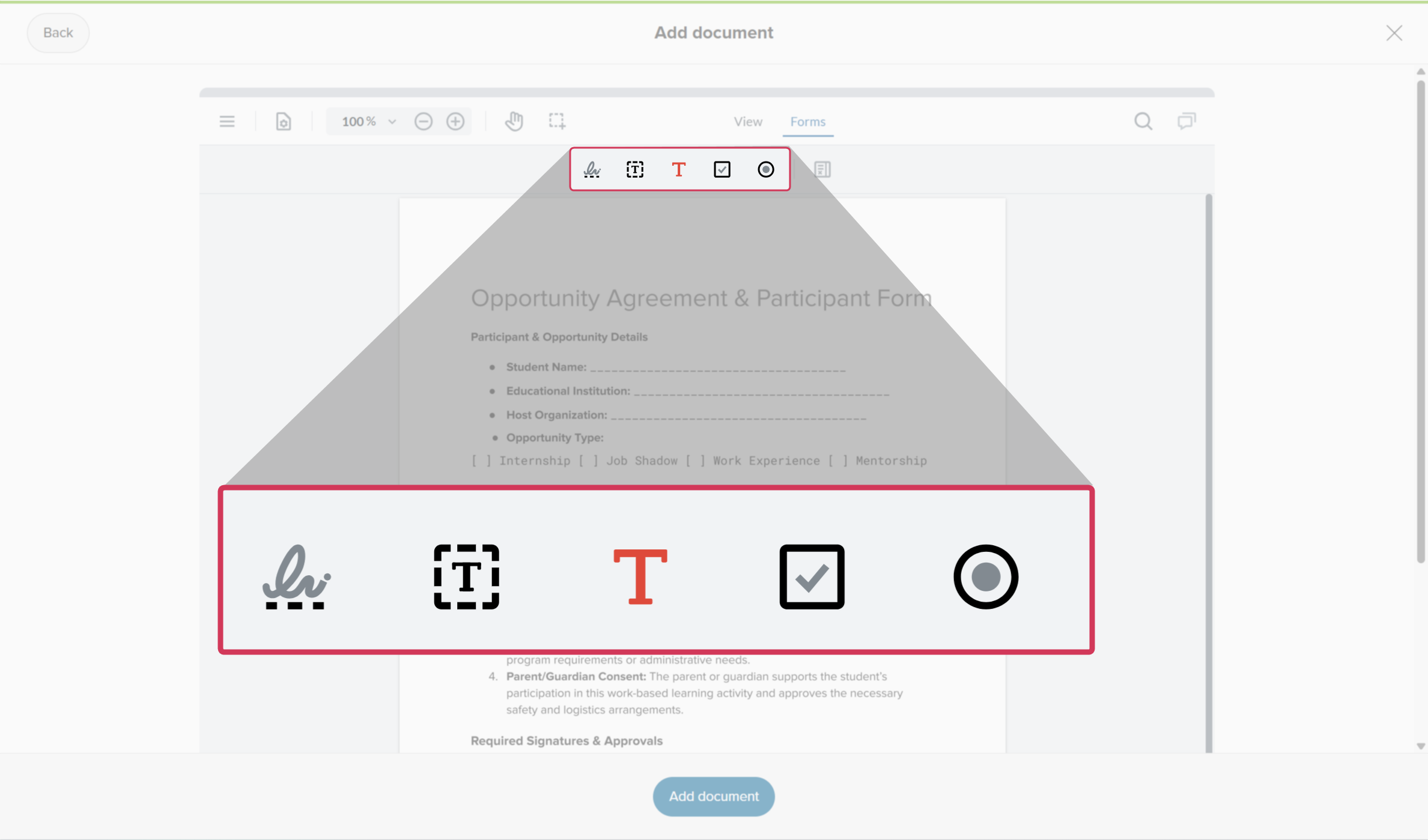
- From the top toolbar, select the field type you want to add. From left to right, you can add:
 Click to enlarge
- Signature field: For official e-signatures.
- Text field: For single-line fillable text like names, dates, or written answers.
- Free text: For adding labels, instructions, or read-only text directly onto the document.
- Checkbox field: For agreement confirmations or selecting options.
- Radio button field: For choosing a single option from a list.
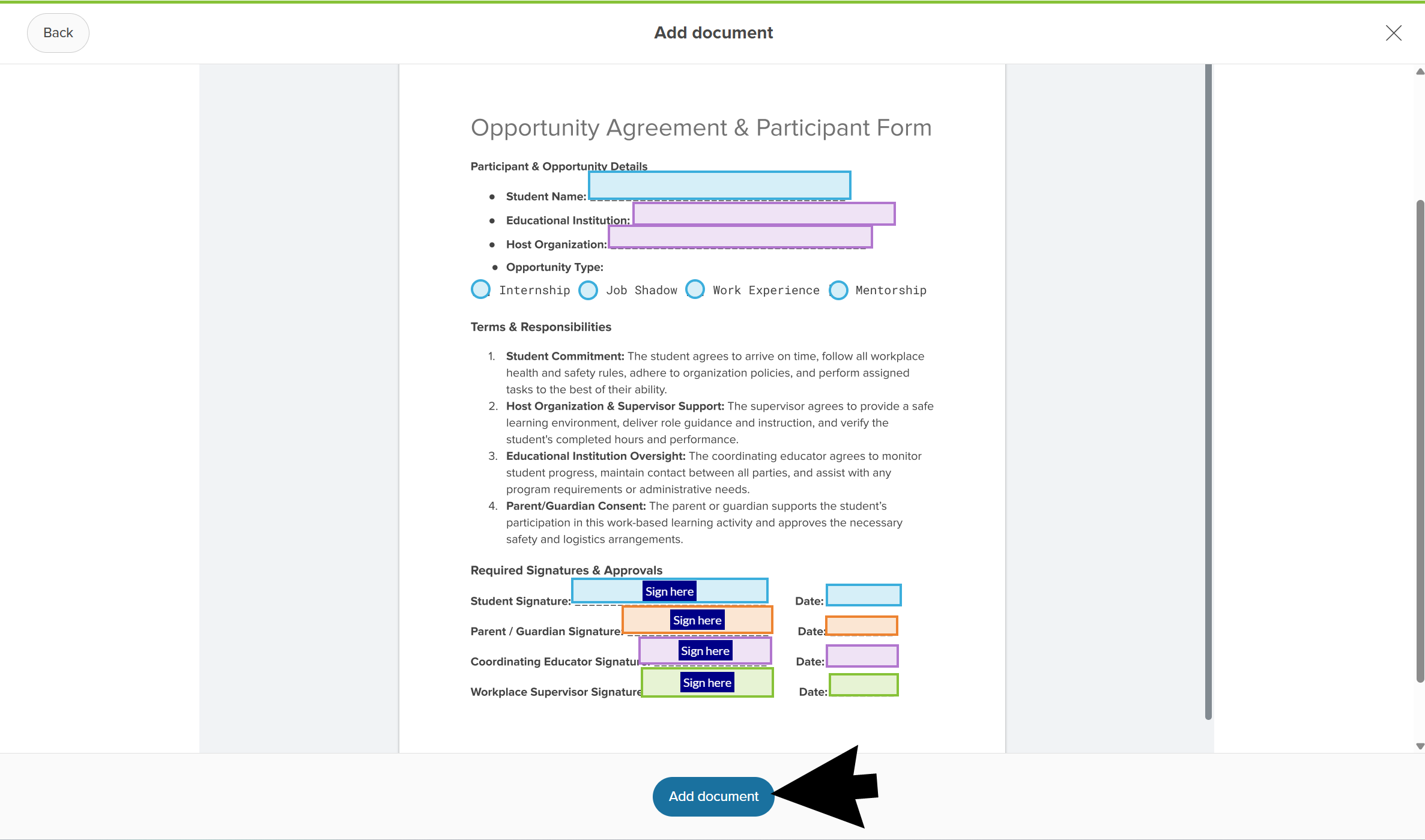
- Over the area where the participant needs to type, check, or sign, click and drag to create the field they'll fill.
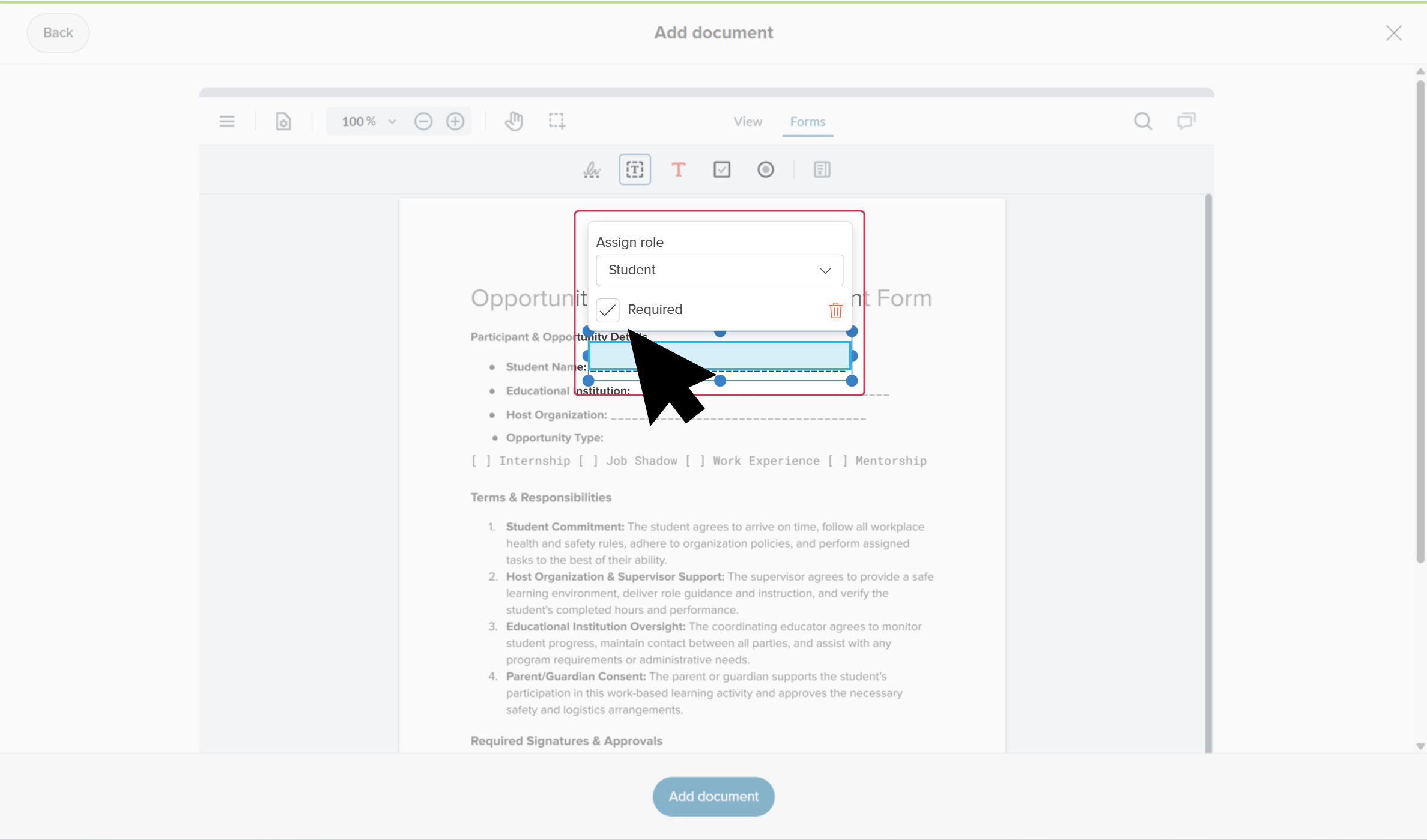
- Once you release from creating the field, a popup to Assign role will appear:
- Click the Assign role dropdown and select the participant responsible for completing the field: Student, Parent/Guardian, Coordinating educator, or Supervisor.
- Check or uncheck the Required box to specify whether the field must be completed before submitting.
 Click to enlarge
- To adjust a field's position or size, click and drag the field or its corner handles.
- To delete or reassign a field, click the field to reopen its Assign role popup, then click the trash icon or select a different role.
- When you have placed and assigned all required fields and signatures, click Add document.
 Click to enlarge
Note: Once a form is attached to an active student requirement, it becomes locked to prevent changes while in use. To edit a locked form, click the three-dot menu next to the form in the Document center, select Copy form, make your edits to the copy, and attach the new version to future requirements.
Work with added documents
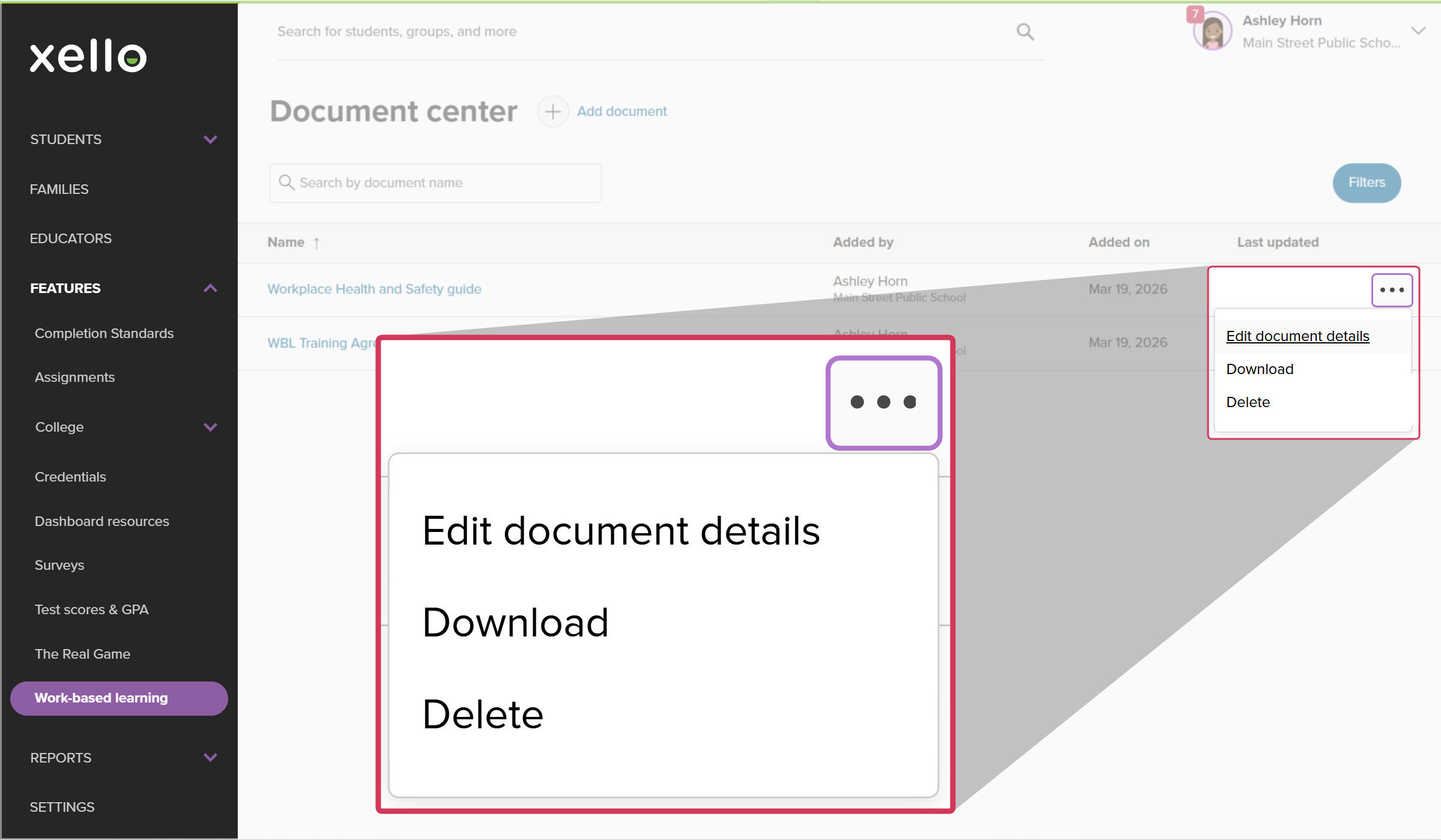
Once a document has been added, you can view and download the document, edit the details, or delete the document.
To work with uploaded documents:
- From your educator account, click Features and select Click to enlarge
- From the Click to enlarge
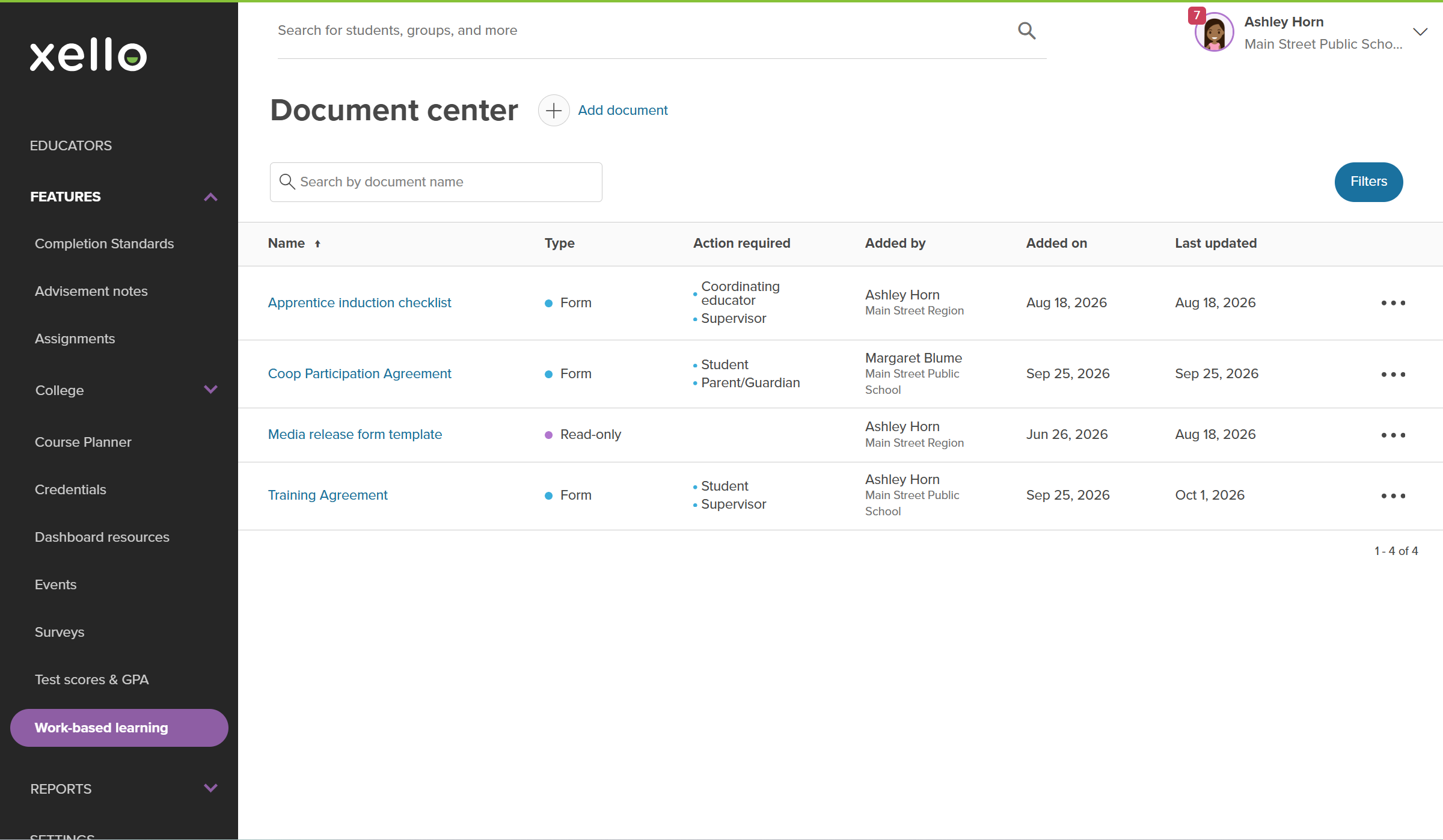
- From this page, there are a few things you can do to easily view and work with documents.
 Click to enlarge
- Search for a specific document by name.
- To narrow the list, click Filters. You can filter by which school or network added the document and when.
- Click a column name to sort the table by that column.
- Click the name of the document to open it in a new tab.
- For forms, click the three-dot menu next to the form to Copy form, Rename, Edit form (only if no one has engaged with it yet), or Download it. Read-only documents can be downloaded.
 Click to enlarge
Sharing hierarchy
To maintain a clean and
| Contributor level | Who can view the document |
|---|---|
| Added at the umbrella network level |
|
| Added at the local |
|
| Added at the district level |
|
| Added at the school level |
|
Additional resources
-
 Xello academy
Xello's Work-based learning module
Xello academy
Xello academyXello's Work-based learning moduleAre you a WBL administrator or coordinator working with Xello's Work-Based Learning module? In this course you'll learn how to utilize the additional features students have access to in Xello as you guide students in their exploration of WBL.
-
 PDF
PDFIntroduction to WBL in Xello
PDF
PDFIntroduction to WBL in Xello -
 Short Video
Help students thrive with Work-based learning
Short Video
Short VideoHelp students thrive with Work-based learningUse this short overview video to get an introduction to Xello's work-based learning module. Learn how this integrated platform opens up a world of discovery for students and educators to better prepare them for an ever-changing world.
-
 Recorded webinar
Recorded WebinarThe Basics: WBL in Xello for Admin
Recorded webinar
Recorded WebinarThe Basics: WBL in Xello for Admin -
Recorded webinar
Recorded WebinarBeyond Basics: WBL Learning in Xello for Admin
-
 Xello Resource
Get Started for WBL Administrators
Xello Resource
Xello ResourceGet Started for WBL Administrators