Custom categories for guidance notes
userXello AdminTime2 minutes

Guidance notes help track important information about student interactions. Creating custom categories for these notes helps ensure that tracking needs are met for your school or district.

Keep guidance note categories up-to-date to ensure the notes educators keep are current, well-organized, and optimized for tracking. Managing guidance notes is done under the Features menu in Xello. You can have up to 10 active categories at one time (including Xello's default categories), with category names up to 50 characters long.

Categories created at the region level are shared with all schools in the region. If categories are created at the school level, they are only used by that school.

noteNote: Only those with administrator access can create or make these changes. To learn more about educator access and permissions, read the article on Educator permissions.
In this article

Create a new category

Creating a new category lets you customise how your school or region tracks student guidance. This helps you group student interactions in ways that align with your specific school or region needs.

To create a new category:

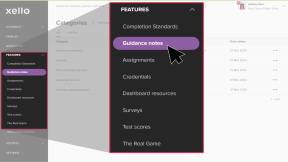
  1. From your educator account, click Features and select Guidance notes.
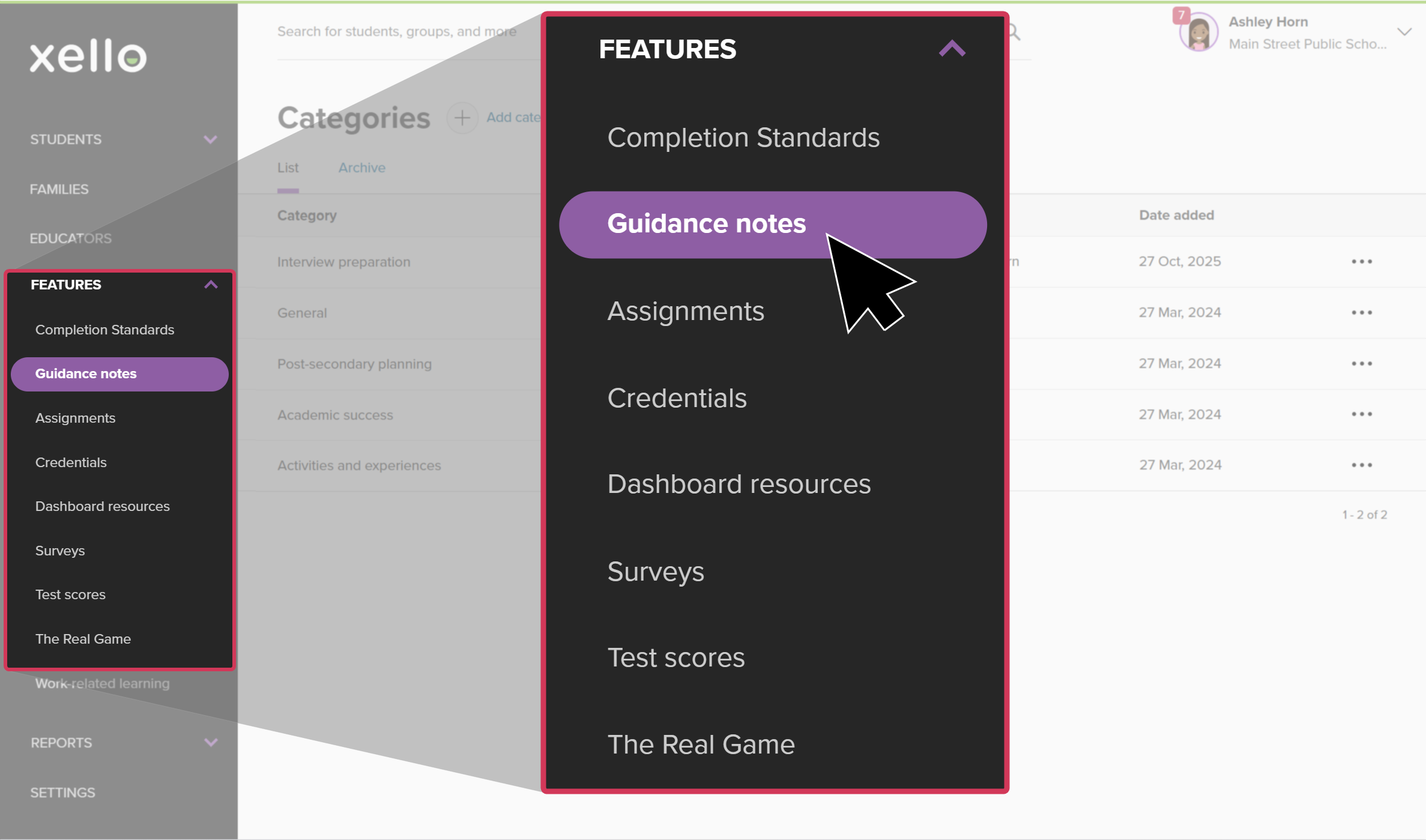
    Educator account in Xello. The left menu is highlighted with Features open. The cursor is clicking Advisement notes.
    Click to enlarge
    Educator account in Xello. The left menu is highlighted with Features open. The cursor is clicking Advisement notes.
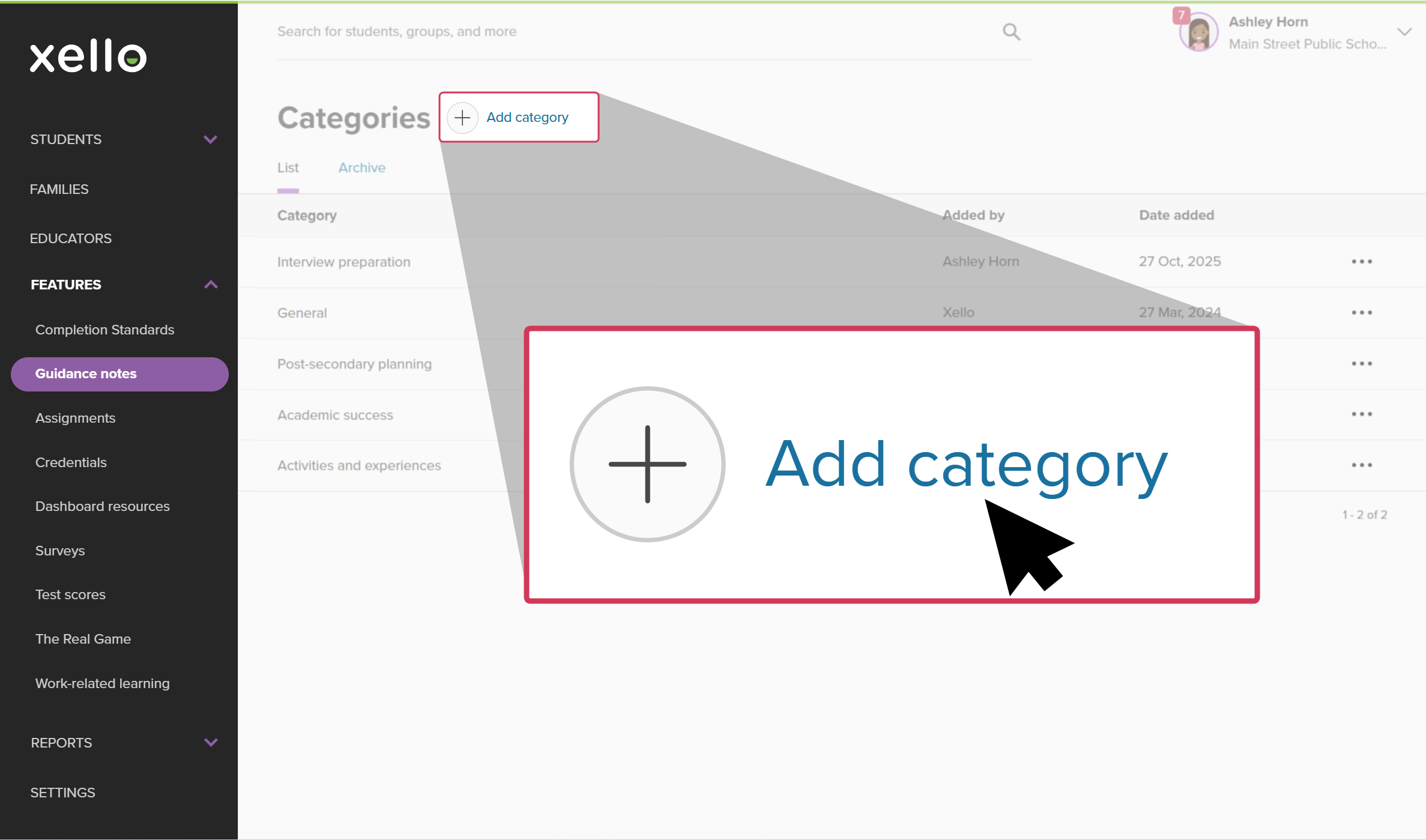
  2. Click Add category.
    Educator account in Xello on the Advisement notes Categories page. The cursor is clicking Add category.
    Click to enlarge
    Educator account in Xello on the Advisement notes Categories page. The cursor is clicking Add category.
  3. Enter the category name.
    noteFYI: A banner will indicate if you're nearing or have exceeded the limit of 10 active categories. To add a new one, archive an existing category.
  4. Click Add.
    • The category will immediately be available for educators to apply to their notes.

up arrowBack to top

Edit a custom category

If your school or region's requirements or standards have changed, renaming a custom category lets you update guidance notes instantly to match those changes.

noteNote: If you edit a custom category, the new name will automatically update on all student notes that used the original name.

To edit a custom category:

  1. From your educator account, click Features and select Guidance notes.
    Educator account in Xello. The left menu is highlighted with Features open. The cursor is clicking Advisement notes.
    Click to enlarge
    Educator account in Xello. The left menu is highlighted with Features open. The cursor is clicking Advisement notes.
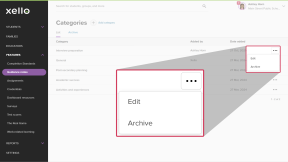
  2. Next to the custom category you want to update, click the three-dot menu and select Edit.
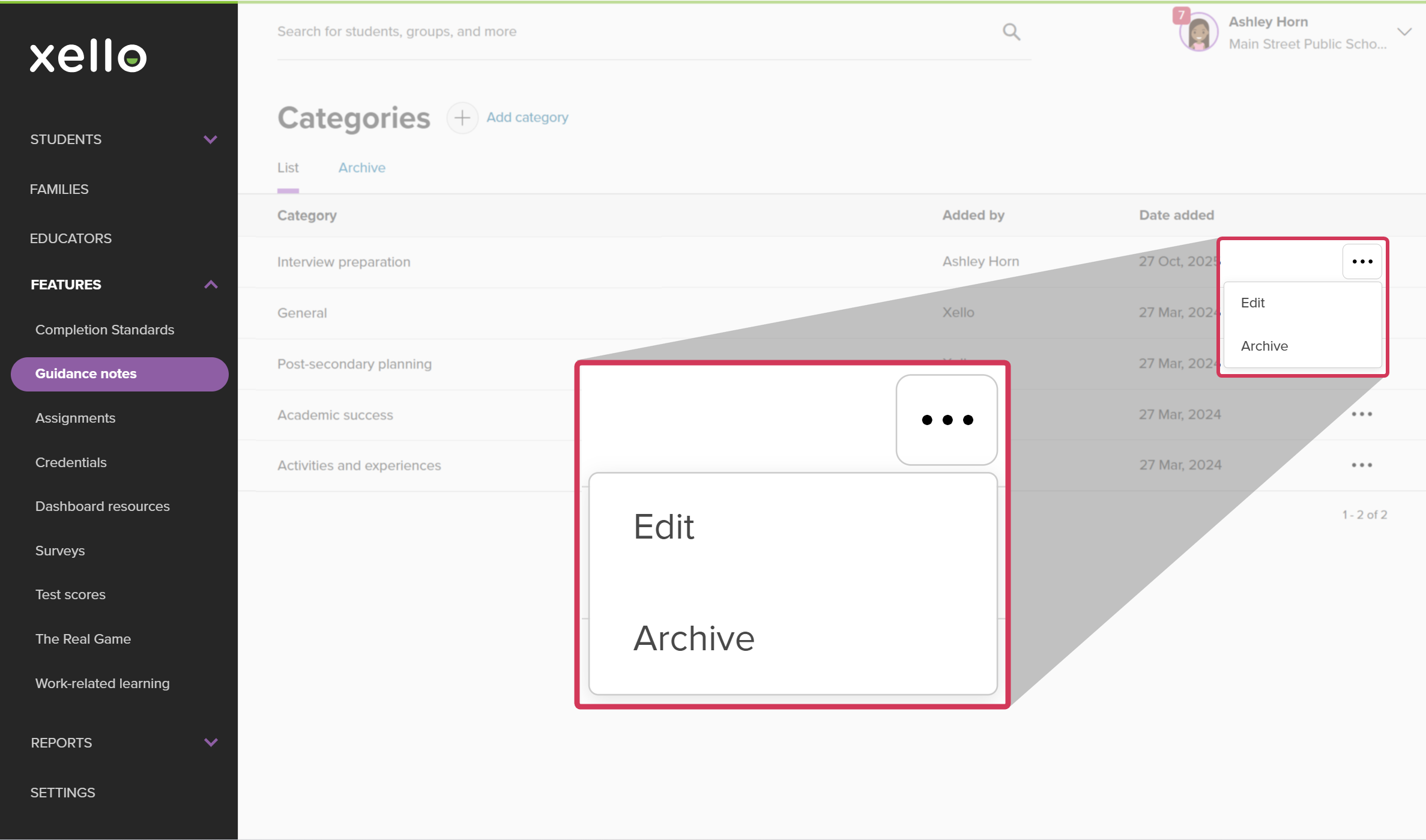
    Educator account in Xello in the Advisement notes category section. Next to a custom category, the three-dot menu is open. The options are Edit and Archive.
    Click to enlarge
    Educator account in Xello in the Advisement notes category section. Next to a custom category, the three-dot menu is open. The options are Edit and Archive.
  3. Enter the new name.
    noteNote: A banner will let you know that the category name will be updated everywhere, including on existing notes that use that category.
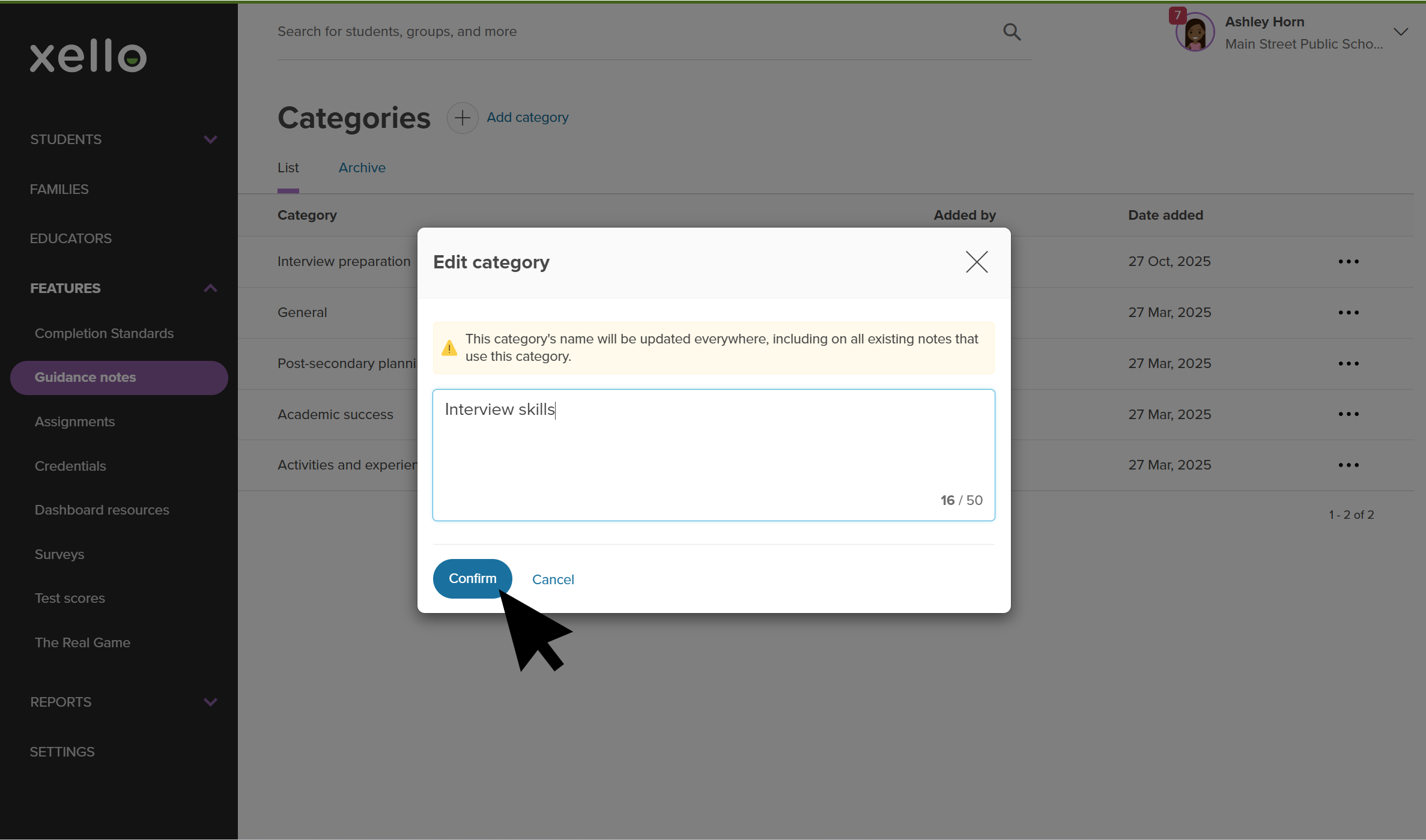
  4. To save your changes, click Confirm.
    Educator account in Xello. An advisement note category is being edited. There's a banner that states the category's name will be updated everywhere, including on all existing notes that use the category. The cursor is clicking Confirm.
    Click to enlarge
    Educator account in Xello. An advisement note category is being edited. There's a banner that states the category's name will be updated everywhere, including on all existing notes that use the category. The cursor is clicking Confirm.

up arrowBack to top

Archive a category

Archiving keeps your list clean and up-to-date by removing unused categories without losing any historical data. Once a category has been archived, all existing notes that used the archived category will stay protected and searchable. This means you can still look up and read notes in the archived category.

To archive a category: 

  1. From your educator account, click Features and select Guidance notes.
    Educator account in Xello. The left menu is highlighted with Features open. The cursor is clicking Advisement notes.
    Click to enlarge
    Educator account in Xello. The left menu is highlighted with Features open. The cursor is clicking Advisement notes.
  2. Next to the custom category you want to archive, click the three-dot menu and select Archive.
    Educator account in Xello in the Advisement notes category section. Next to a custom category, the three-dot menu is open. The options are Edit and Archive.
    Click to enlarge
    Educator account in Xello in the Advisement notes category section. Next to a custom category, the three-dot menu is open. The options are Edit and Archive.
  3. In the window that pops up, click Archive.
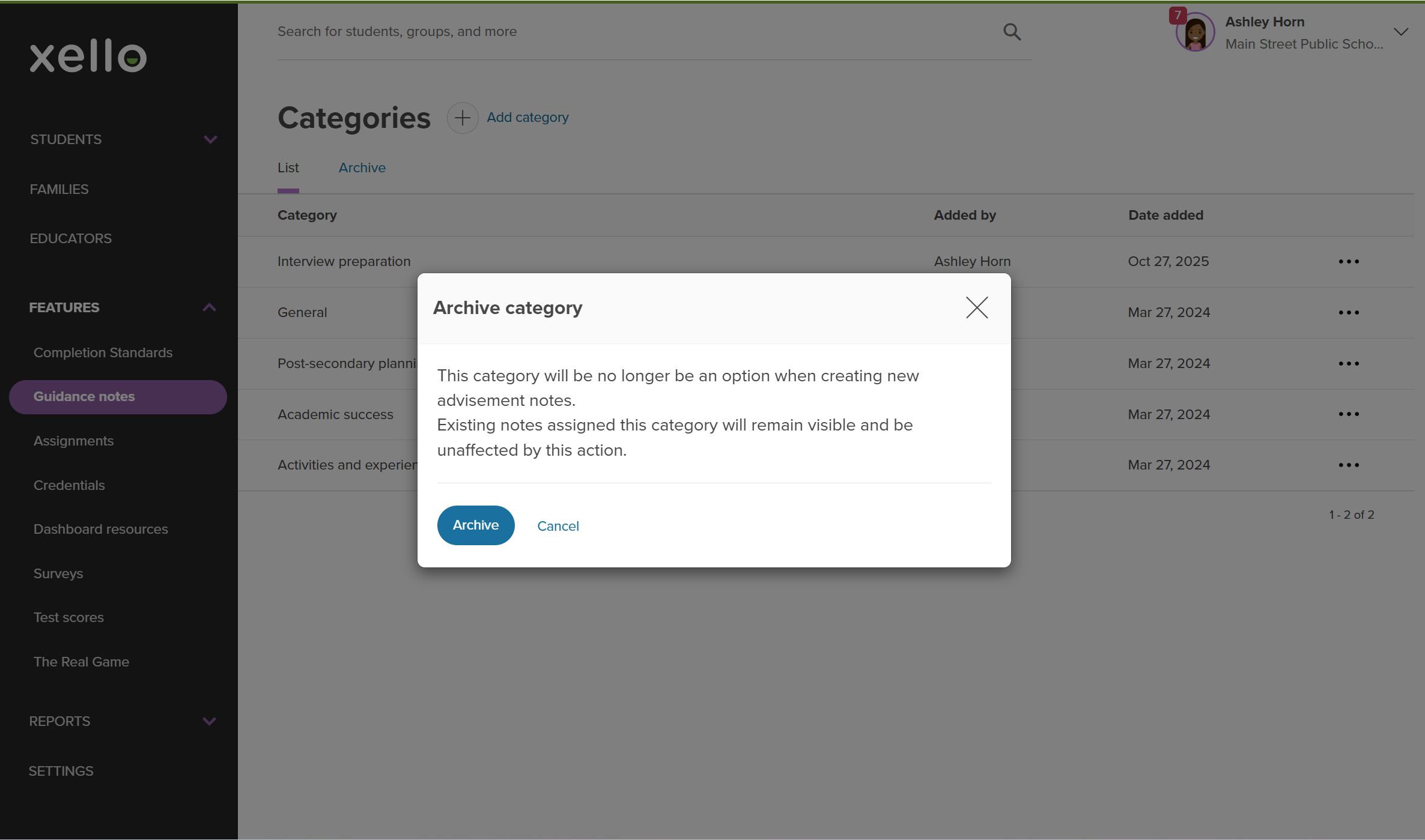
    Educator account in Xello. An advisement note category is being archived. The popup states that the category will no longer be an option when creating new notes. Existing notes assigned the category will remain visible and unaffected.
    Click to enlarge
    Educator account in Xello. An advisement note category is being archived. The popup states that the category will no longer be an option when creating new notes. Existing notes assigned the category will remain visible and unaffected.
    • The category will now be listed in the Archive tab.

up arrowBack to top

Additional resources

  • pdfPDF
    PDFParent/guardian quick guide for guidance notes

    A guide to help parents access guidance notes in their Xello Family account.