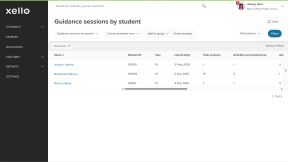
Guidance sessions help educators keep track of their meetings with students, from notes and resources to next steps. As more sessions are recorded across your school, reports give you a clear picture of how much support students are receiving, and which educators are recording sessions.
In your educator account, run reports on Guidance sessions to view the number of sessions recorded by category, by student, or by educator. Use the results to measure staff activity, spot students who haven't yet met with an educator, and make sure support is reaching everyone.
To learn how to record a session, check out Add a guidance session.
Run an Guidance report
There are three reports to choose from:
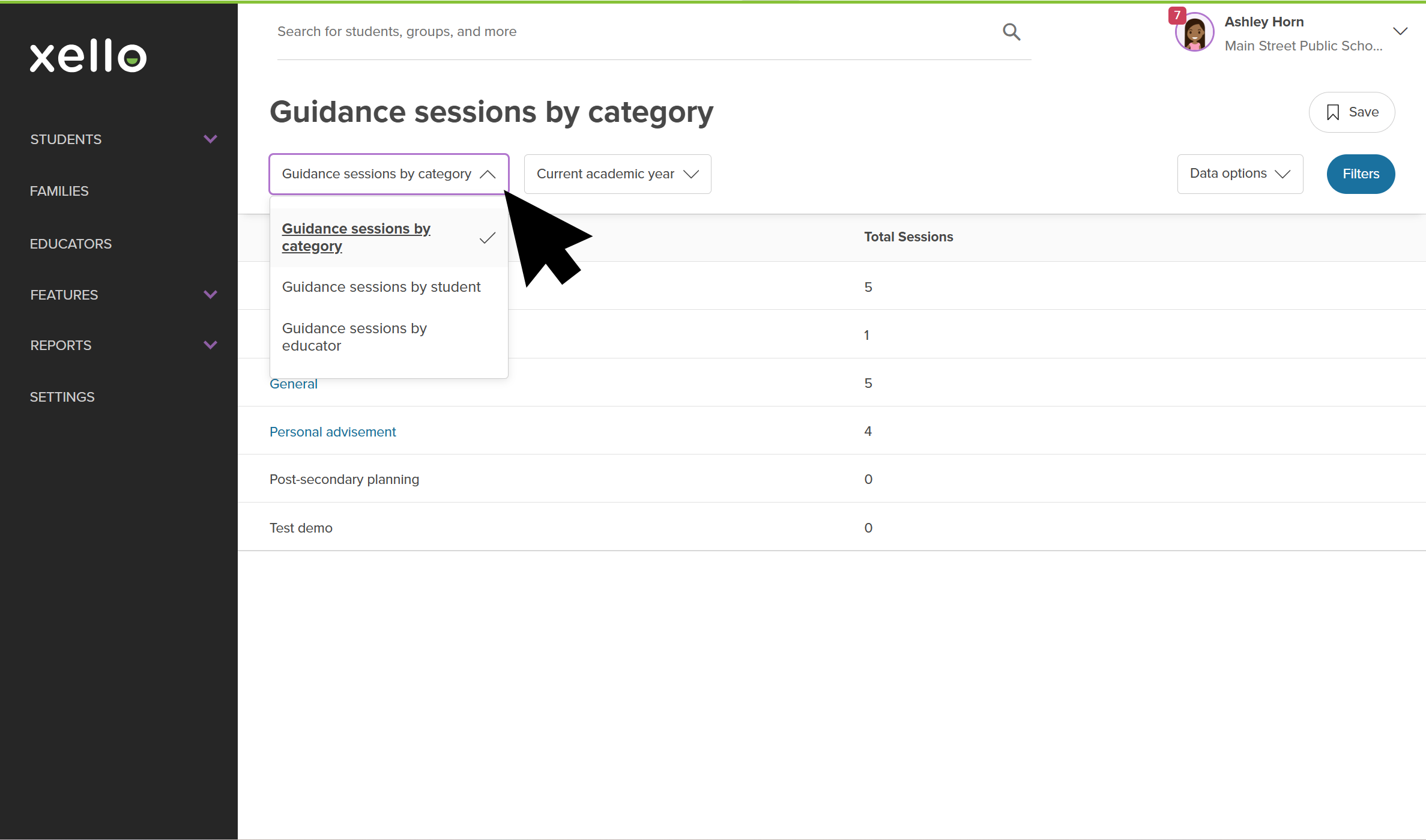
- Guidance sessions by category shows how many sessions have been recorded under each category, so you can see what students are being supported with most.
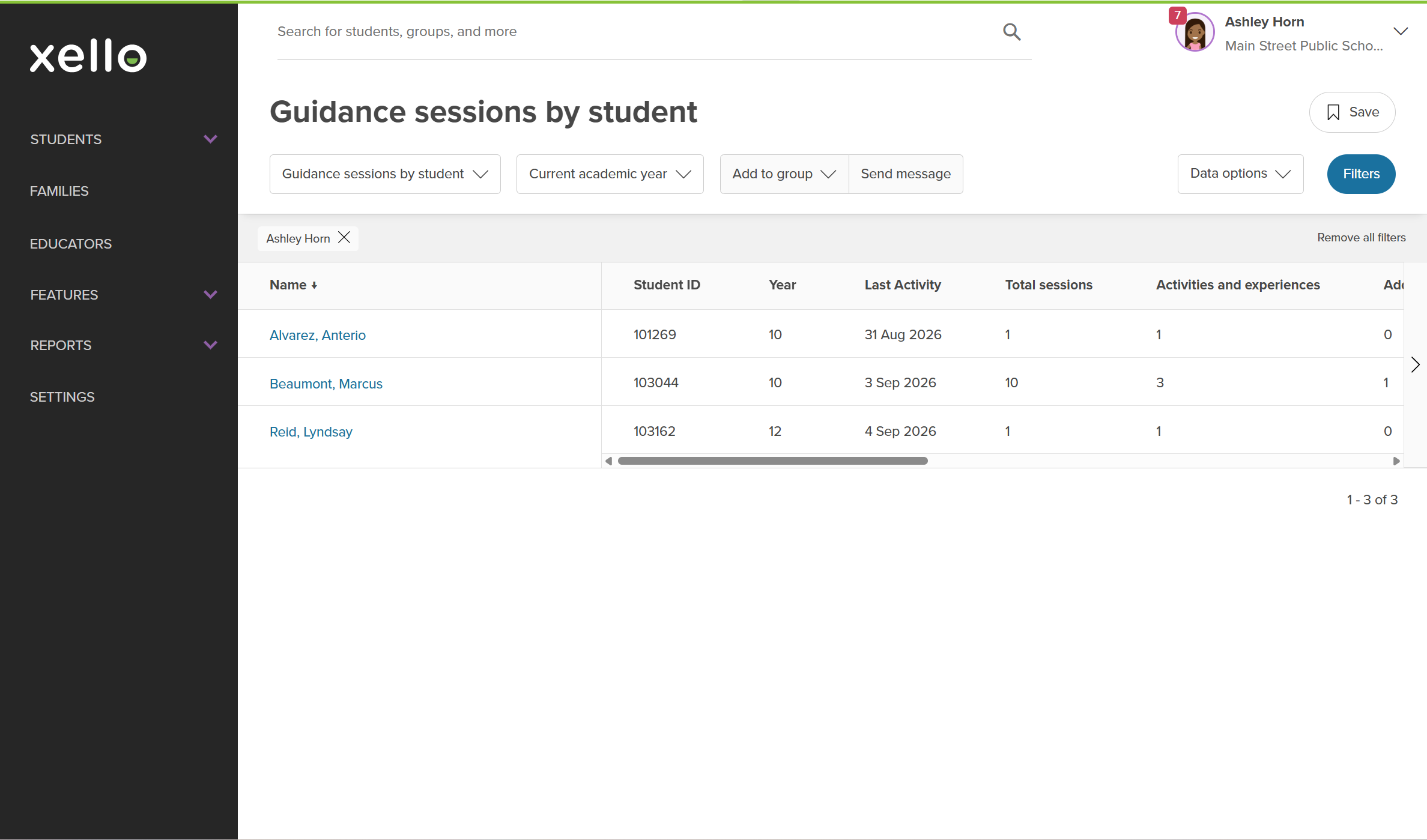
- Guidance sessions by student lists students and the sessions recorded for them, so you can see who is receiving support and who isn't.
- Guidance sessions by educator lists every educator who has recorded a session in Xello. View each educator's last activity, their total number of sessions, and the total under each category.
To run a report:
-
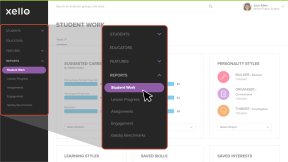
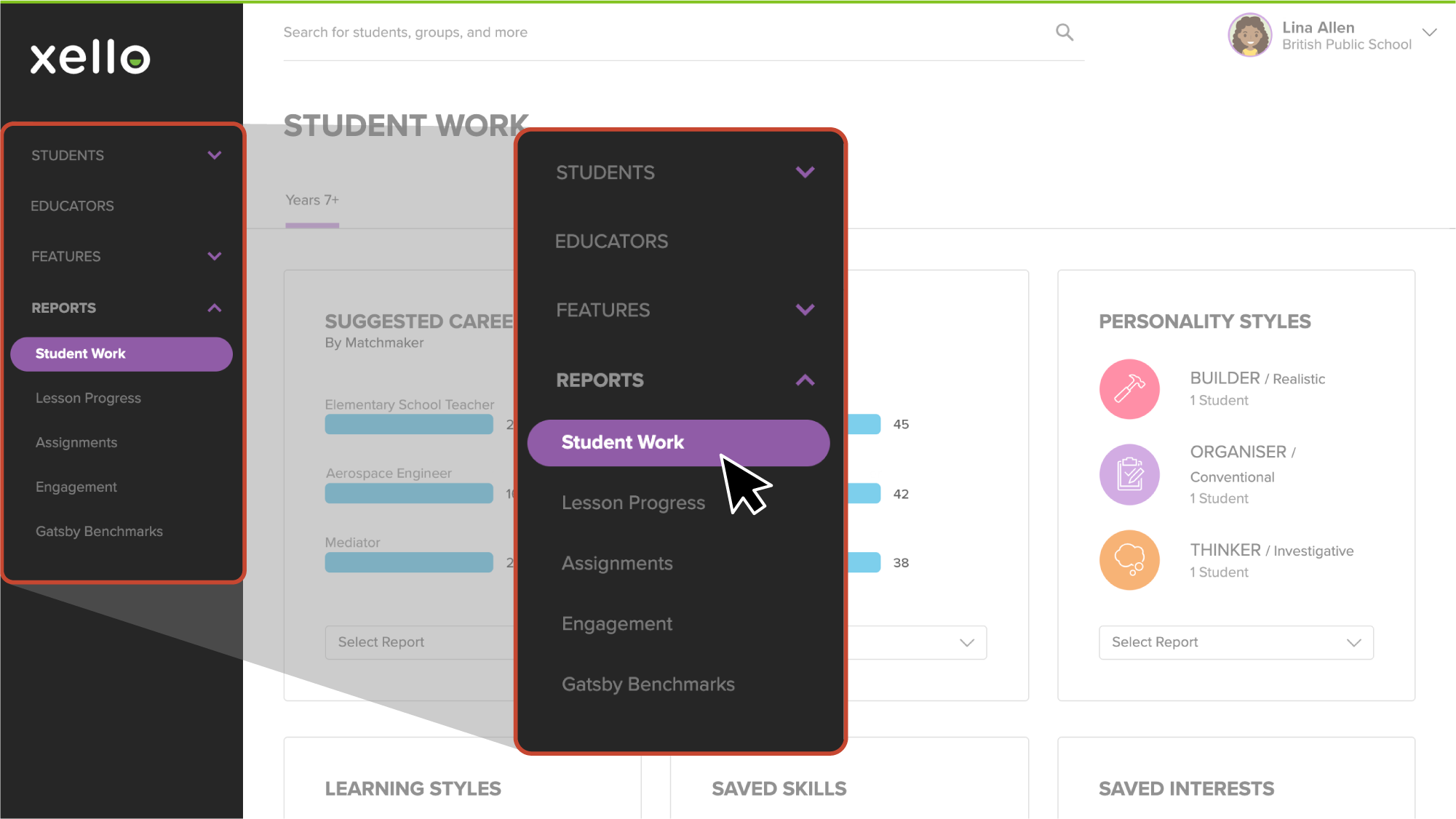
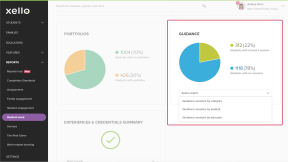
From your educator account, click Reports and select Student work.
Click to enlarge
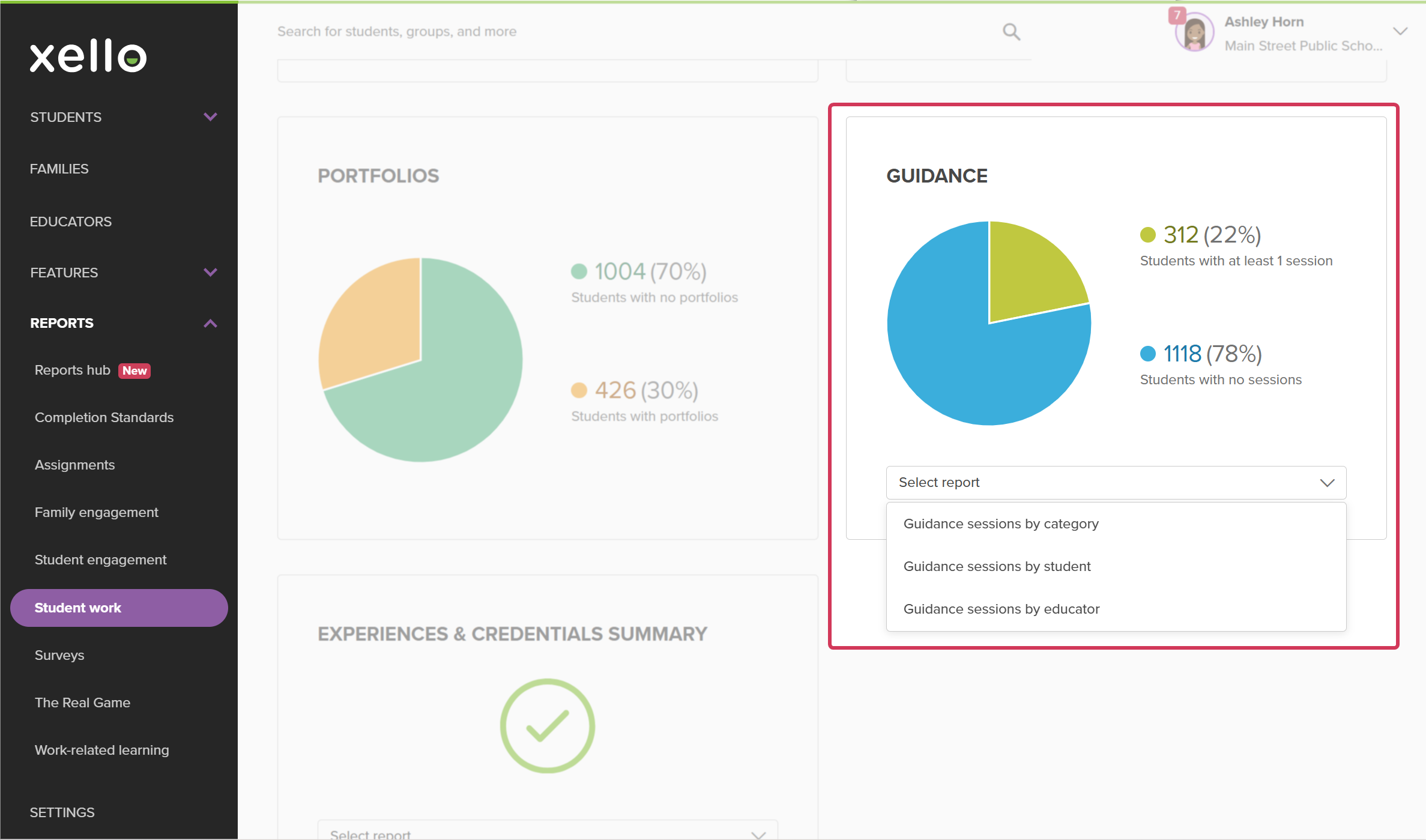
- From the Student work page, scroll down until you find the Guidance card.
- Click Select report and choose which report you'd like to view. You can choose between:
- Guidance sessions by category
- Guidance sessions by student
- Guidance sessions by educator
- To switch to a different report, from above the table, click the report's name in the dropdown and select another report.
Once you've opened the Guidance sessions by educator report, you can do the following:
- View each educator's Last activity, Total sessions, and the number of sessions under each category.
- Click Filters to narrow the list further. You can use filters such as:
- Guidance sessions - choose Educators with at least 1 recorded session or Educators with no recorded sessions. Use the second option to quickly find educators who haven't recorded a session yet.
- Category
- Educator
- Click an educator's name to open the Guidance sessions by student report, filtered to that educator. From there, you can view the students they've recorded sessions for.


 2 minutes
 Click to enlarge
 Click to enlarge
 Click to enlarge
 Click to enlarge