Xello 6-12
 3 minutes
Check out the work your student has submitted in their lessons. Filter their reflection answers, exempt a lesson where needed, and track the progress for your own records.
To review your student's work in Xello-made Lessons:
-
In the search bar located at the top of any page in your educator account, enter the student's name or ID.
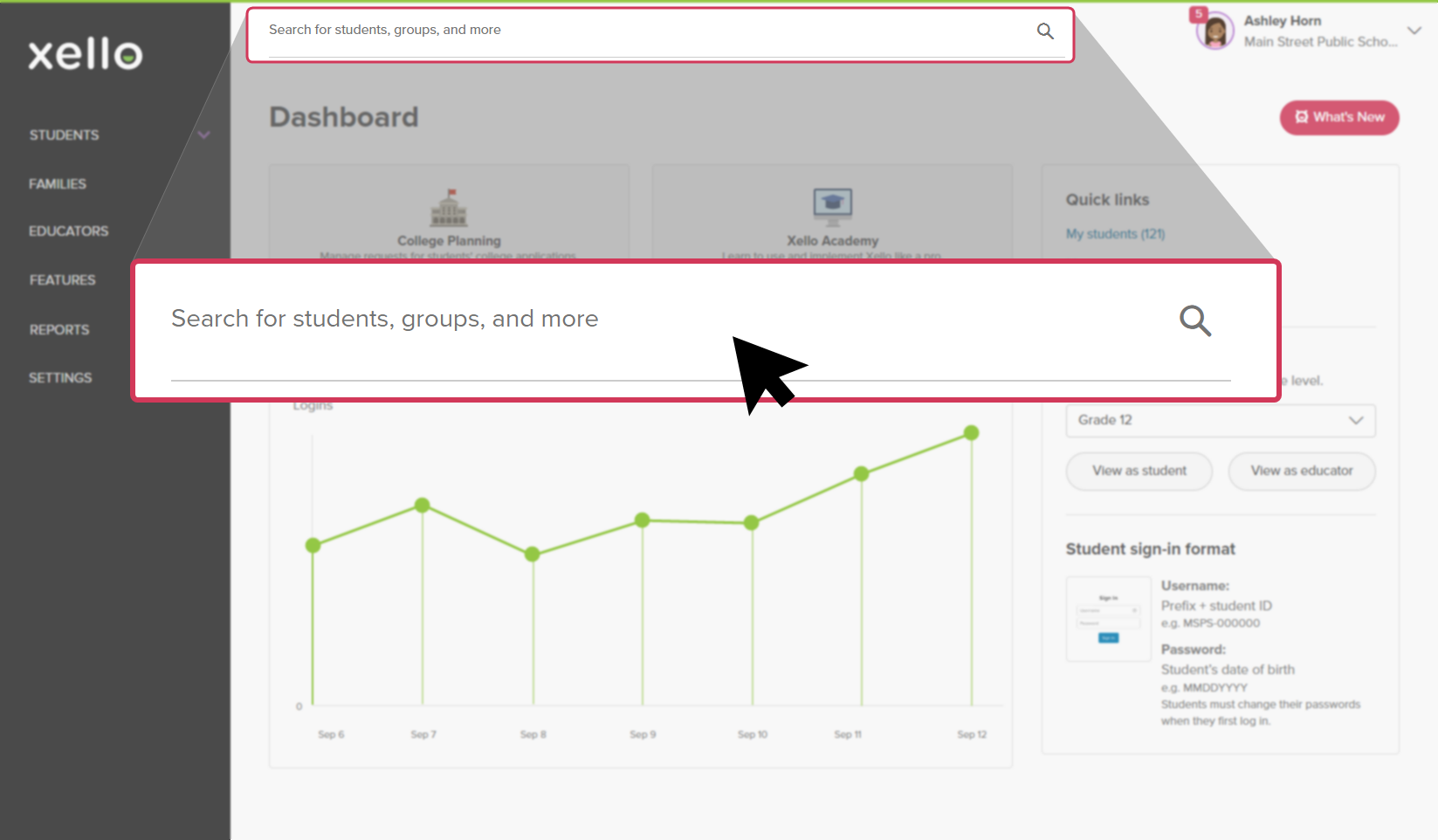 Click to enlarge
 Tip: Alternatively, from the left menu, click Students and select Student list to browse the full list of students.
 -
Click on the student's name. The About student tab of their profile opens.
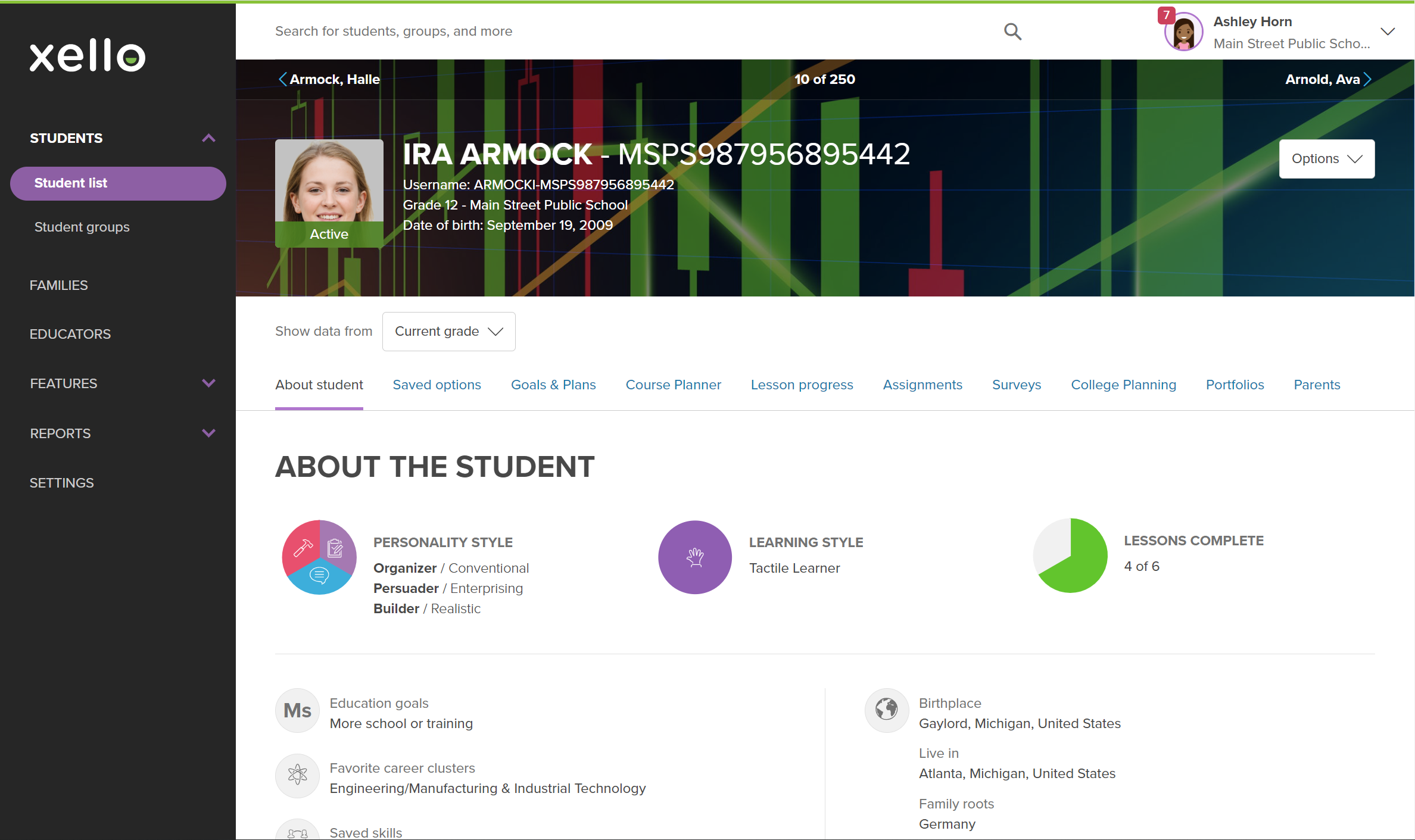 Click to enlarge
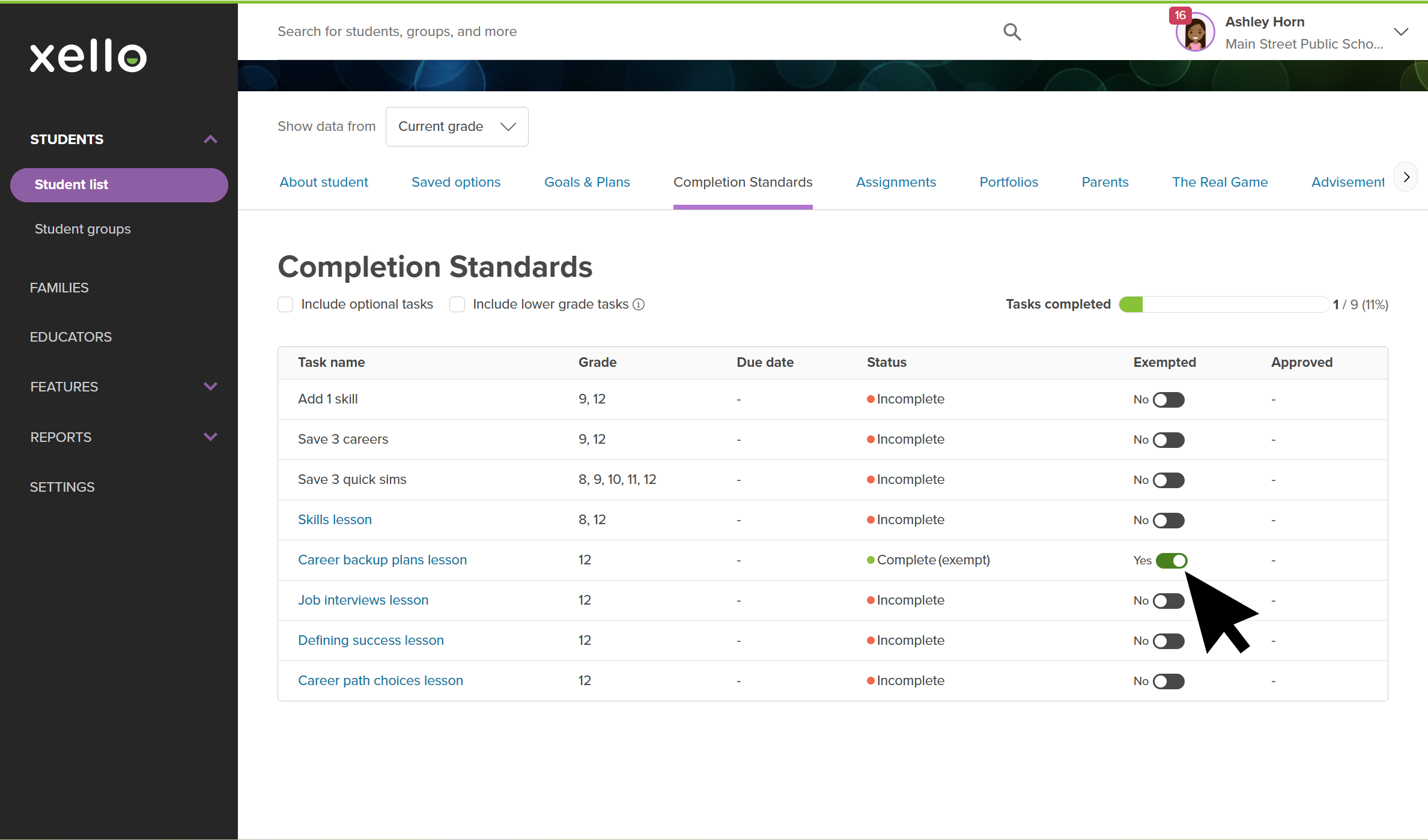
- From the top of the page, click the Completion Standards tab.
- By default, the list is filtered to show assigned tasks. Click Include optional tasks to include optional ones.
- To view tasks and lessons from previous
- To mark the student exempt from completing the lesson, switch the toggle to Yes.
 Click to enlarge
- To begin reviewing their work, click the name of the lesson.
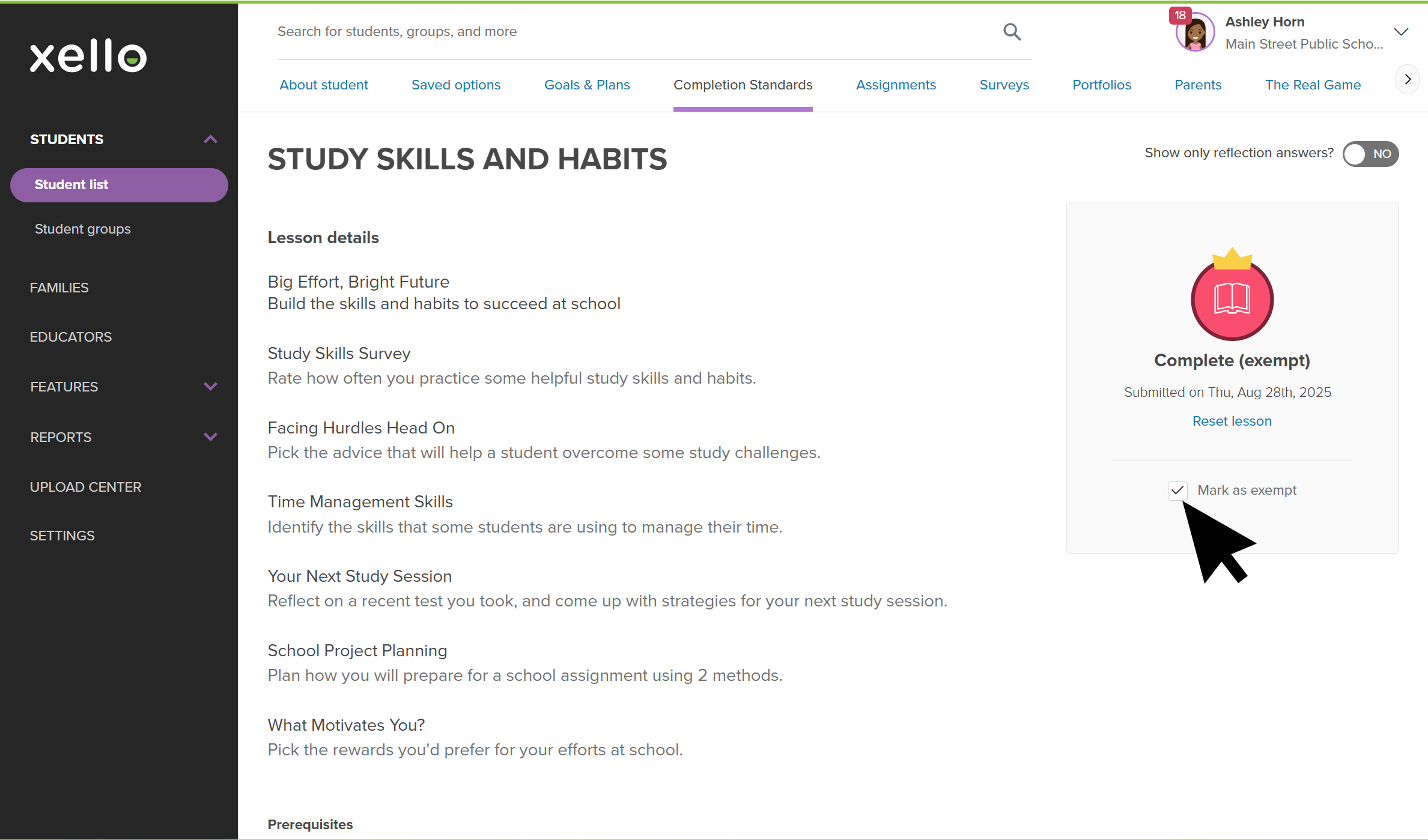
- To show only the answers that require students to submit a written reflection answer, switch the Show only reflection answers? toggle to YES. This lets you quickly locate the questions where students have made personal choices or reflected on what they’ve learned.
- If the student was exempted from completing the lesson, the box next to Mark as exempt will be checked.
 Click to enlarge
 Note: If the lesson configuration was set up to require educator approval, you'll also see the option to Mark as approved. If approval is required, the lesson will show as incomplete here and in reports until marked as approved. For students, the lesson will be marked as In review until it's been approved by an educator.
Additional resources
-
 PDF
PDF
-
PDF
PDFXello 6-12: Recommended scope and sequence for monthly activities
This guide outlines a sequence of tasks that can easily be adapted for 10 monthly 20-minute sessions where Xello will be used to address post-secondary preparedness and planning.
-
PDF
PDFXello 6-12: Recommended scope and sequence for quarterly activities
This guide outlines a sequence of tasks that can easily be adapted to accommodate 4 60-minute sessions per year where Xello will be used to address post-secondary preparedness and planning.
-
PDF
PDFLessons in Xello - student guide
View and share this guide with your students to help them get started with Lessons in Xello.
-
 Google Doc
Xello 6-12 classroom delivery guide
Google Doc
Google DocXello 6-12 classroom delivery guideMake a copy and edit this guide to simplify your experience with delivering assigned Completion Standards tasks. Links to supporting resources and lesson plans provide everything you need.
-
 Short video
Lessons in Xello
Short video
Short videoLessons in XelloCheck out this video to learn how Xello's fully interactive,
-
Short video
Short videoYour dashboard - student-facing video
Share this short video with students to help them learn all about their Xello dashboard.
-
 SUPPLEMENTARY RESOURCE
Introducing Xello 6-12
SUPPLEMENTARY RESOURCE
SUPPLEMENTARY RESOURCEIntroducing Xello 6-12Use the resources on this page to help introduce Xello 6-12 on the first day of class. The presentation and video will help get students started!.
-
 Xello Academy
Instructional Tips for Xello 6-12
Xello Academy
Xello AcademyInstructional Tips for Xello 6-12In this course, you'll explore key tools, discover classroom implementation strategies, and receive teaching tips to help you and your students get the most out of Xello!
-
 Xello Resource
Integrated Lessons in XelloUse this walkthrough to explore how Xello's interactive Lessons helps students build critical skills and knowledge for real-world success while encouraging ongoing reflection.
Xello Resource
Xello ResourceIntegrated Lessons in XelloUse this walkthrough to explore how Xello's interactive Lessons helps students build critical skills and knowledge for real-world success while encouraging ongoing reflection.
 Select