Create and edit a survey in Xello
userEducator & administrator Xello productXello 6-12 Time8 minutes

Surveys in Xello help educators track student progress towards their goals, and can help educators to provide personalized support and guidance for their students based on survey responses.

Build your survey with a variety of different types of questions, choose between making the questions required or optional, include a due date, and even add images and videos.

Admin can create a survey and assign it to groups at the district or school level. Educators can create and publish a survey in Xello for student groups at the school.

In this article

Create a survey

Administrators and educators can create a new survey. Assign the survey to a student group to easily track who received and completed the survey, and later run a report on the submissions.

To create a new survey:

  1. From your educator account, click Features and select Surveys.
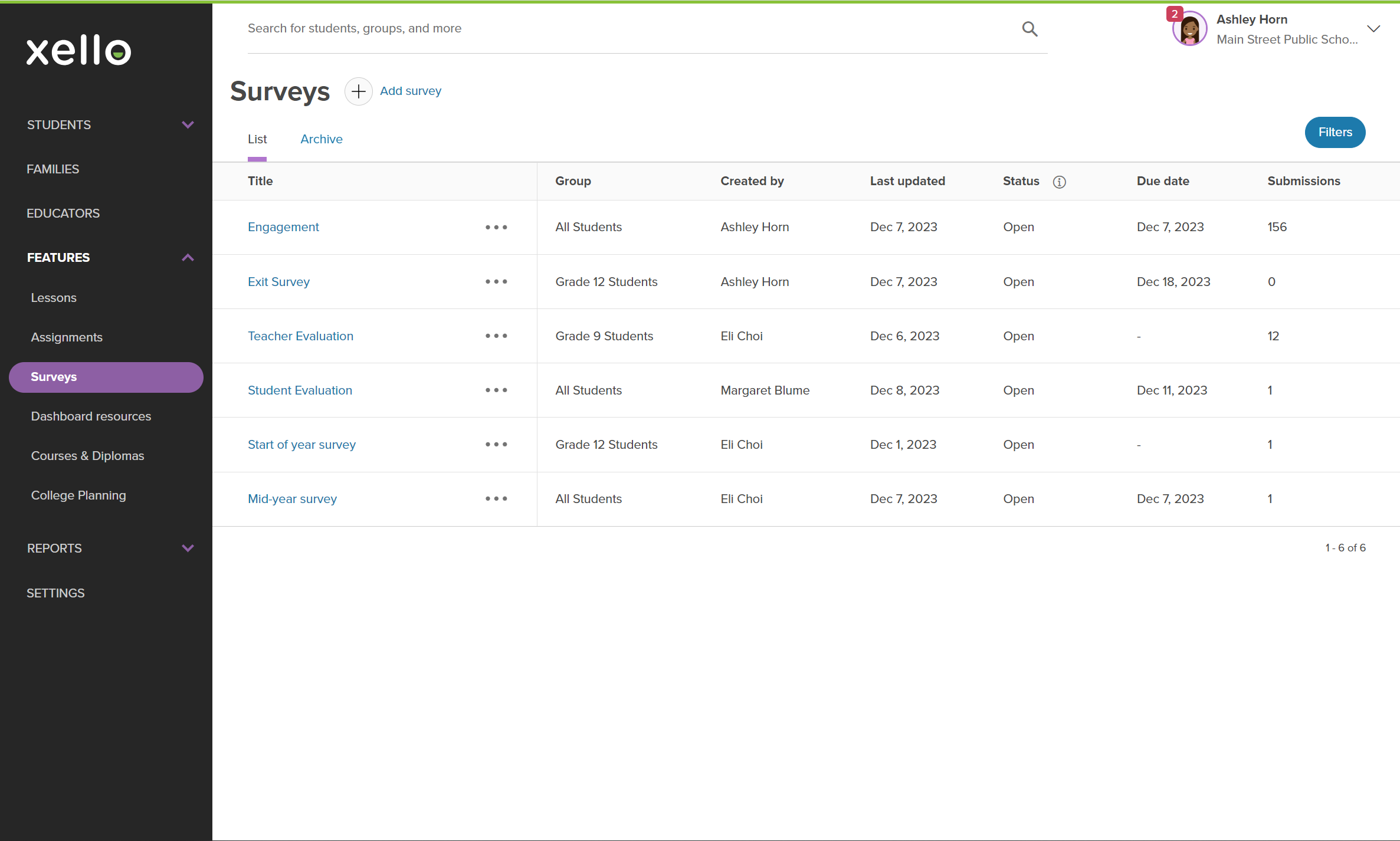
    Left menu in Xello's educator tools with Features open. Cursor is hovering over Surveys
    Click to enlarge
    Left menu in Xello's educator tools with Features open. Cursor is hovering over Surveys
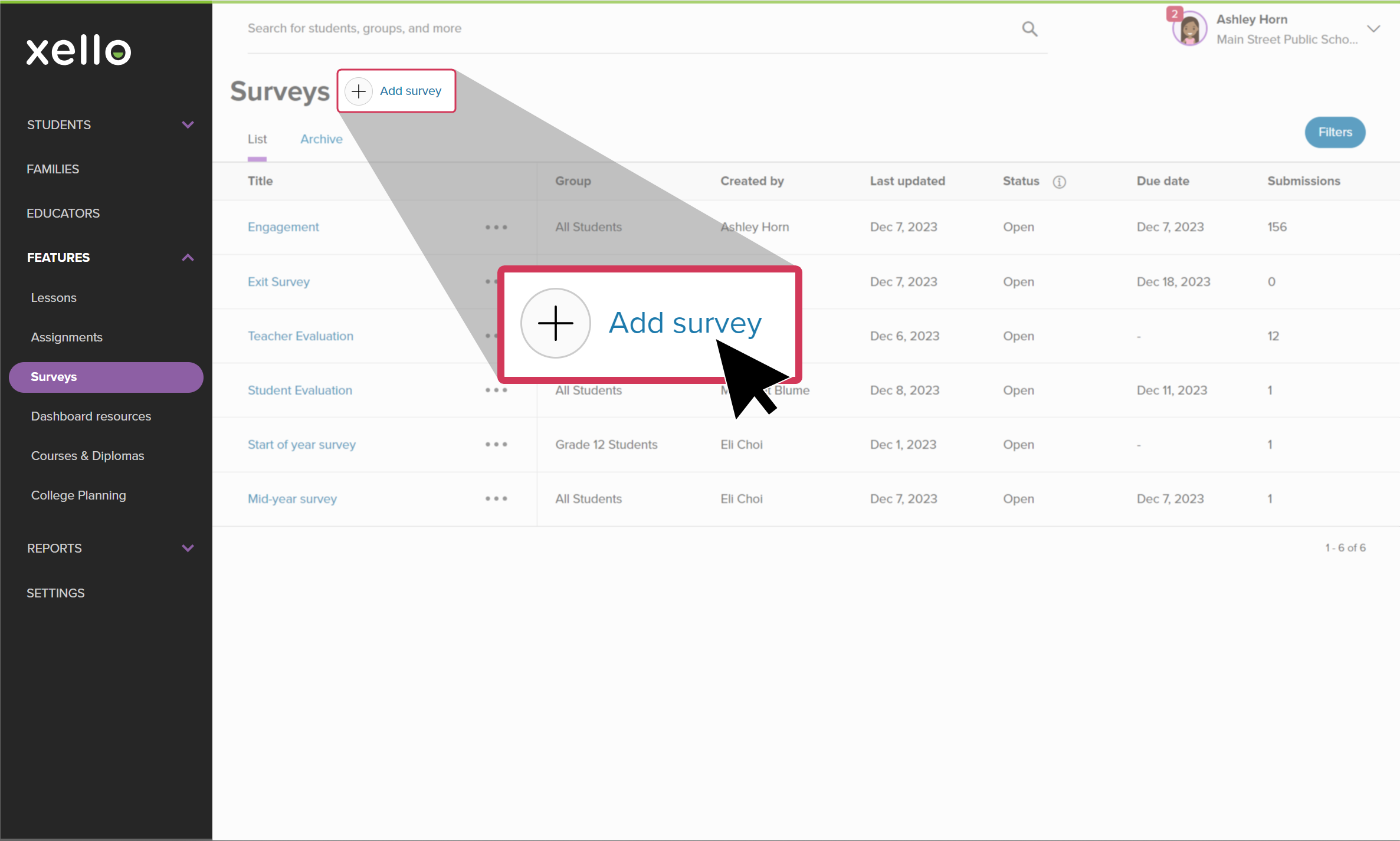
  2. Click Add survey.
    Surveys page in Xello. Cursor is hovering over link called Add survey
    Click to enlarge
    Surveys page in Xello. Cursor is hovering over link called Add survey
  3. Fill out the Survey details. This includes a title, a brief description of the survey, and the due date if applicable.
  4. Add Recipients. Select an existing group of students, or create a new group.
    noteFYI: Clicking Create a group in the survey will redirect you to Student groups in Xello where you can create a new group. Don't worry, all your work will be saved and you can return to the survey to add the group you've just created.
  5. To start adding survey questions, click Add question or content.
    Creating a survey, the cursor hovering over a button called Add first question
    Click to enlarge
    Creating a survey, the cursor hovering over a button called Add first question
    noteNote: No need to worry about adding standard student data (name, ID, grade, and school). These are automatically included in the survey results for you.
  6. Begin adding your questions. Check out Types of questions below for further information on the different kinds of questions you can add.
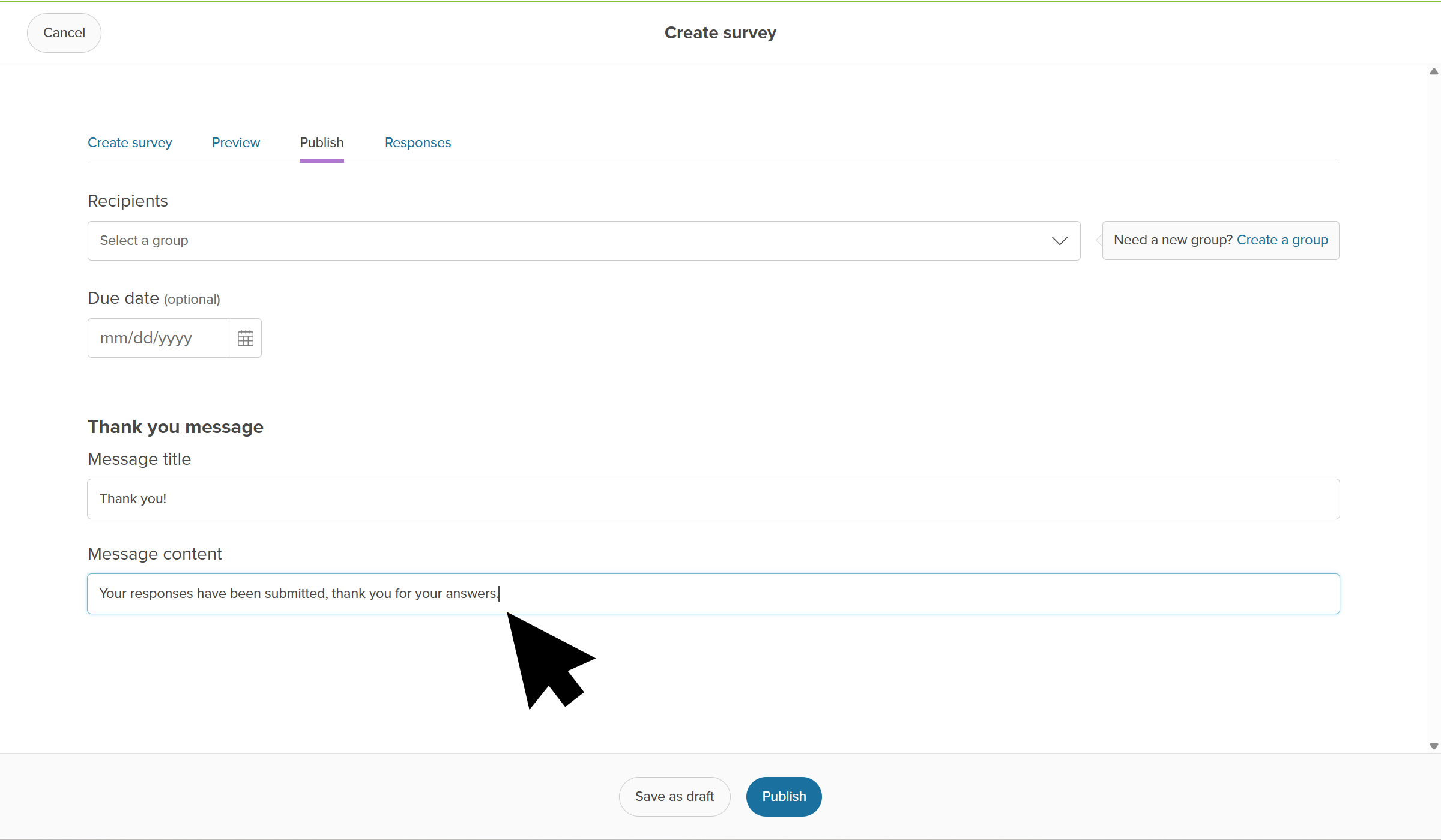
  7. Add a thank you and confirmation message for when the student has finished the survey.
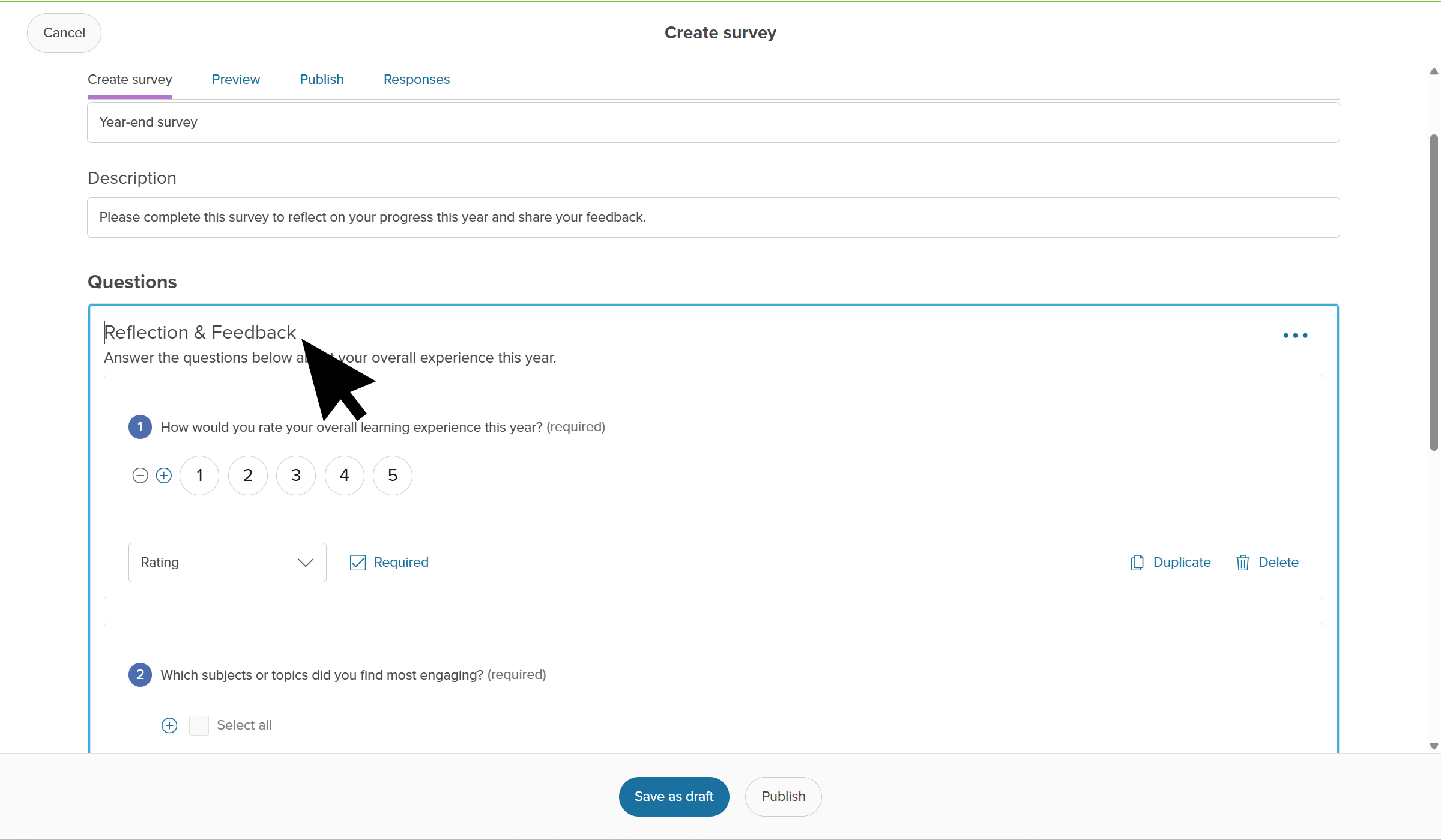
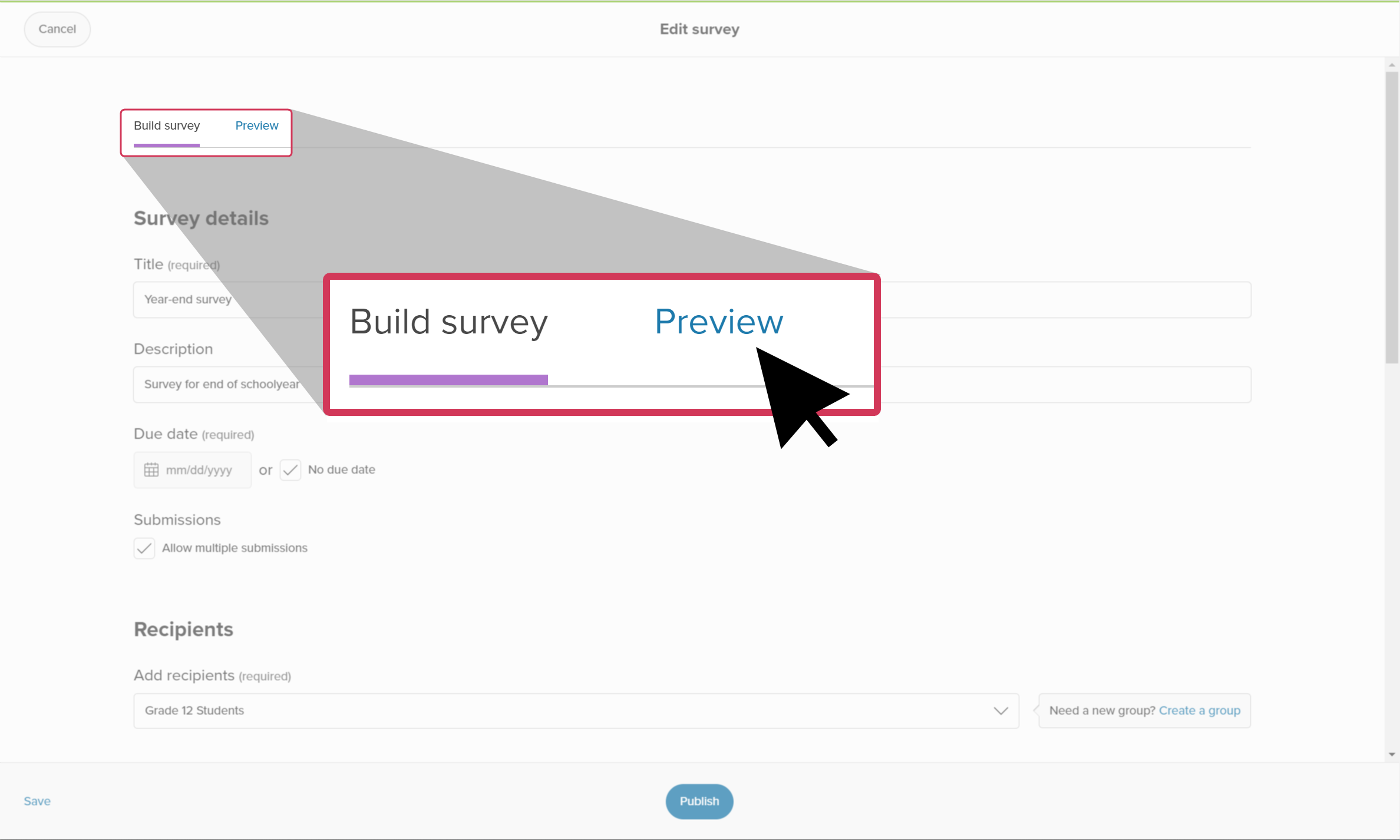
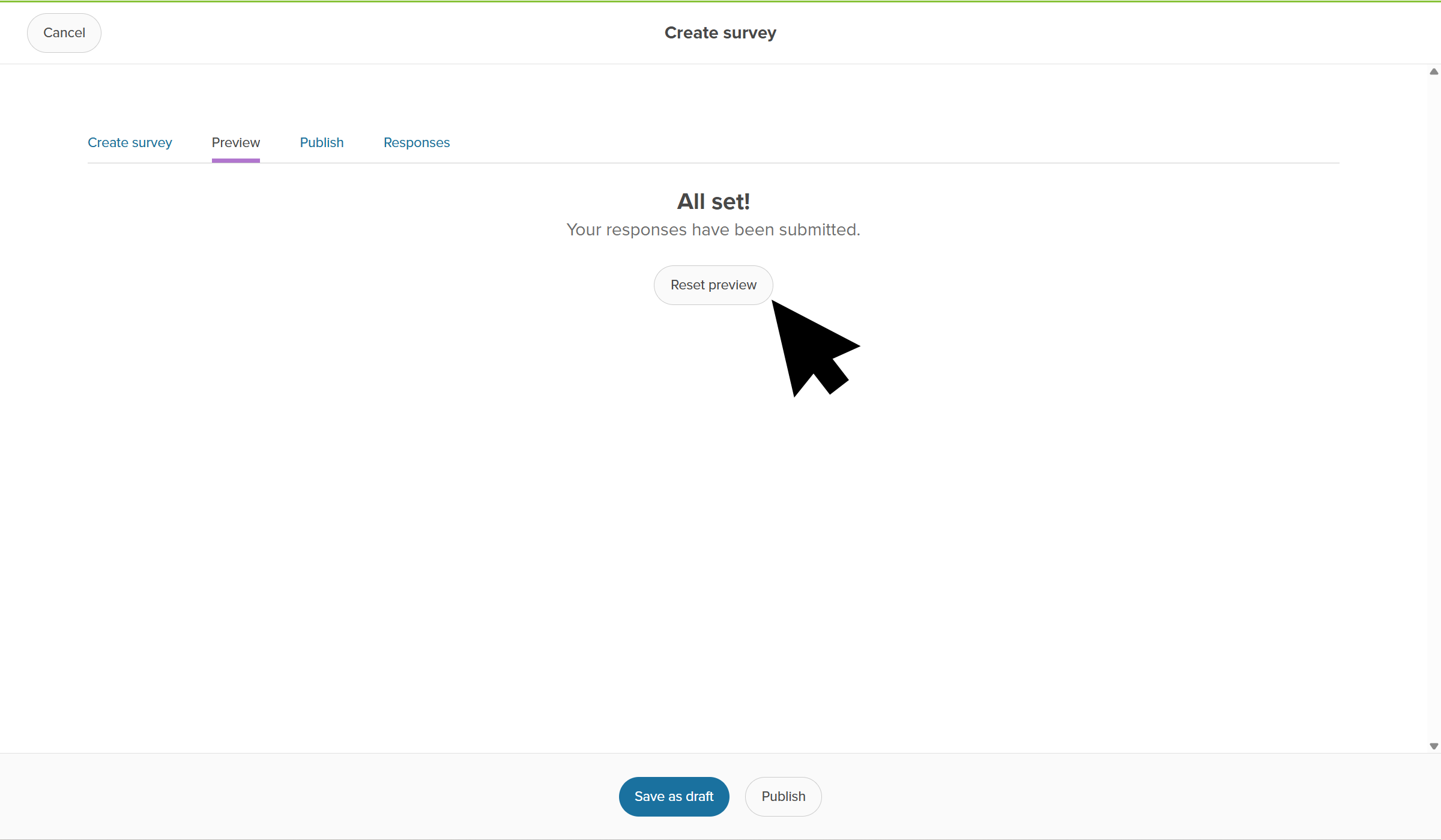
  8. At any point while creating the survey, click Preview to see what it'll look like for your students.
    Creating a survey, the cursor hovering over a link called Preview
    Click to enlarge
    Creating a survey, the cursor hovering over a link called Preview
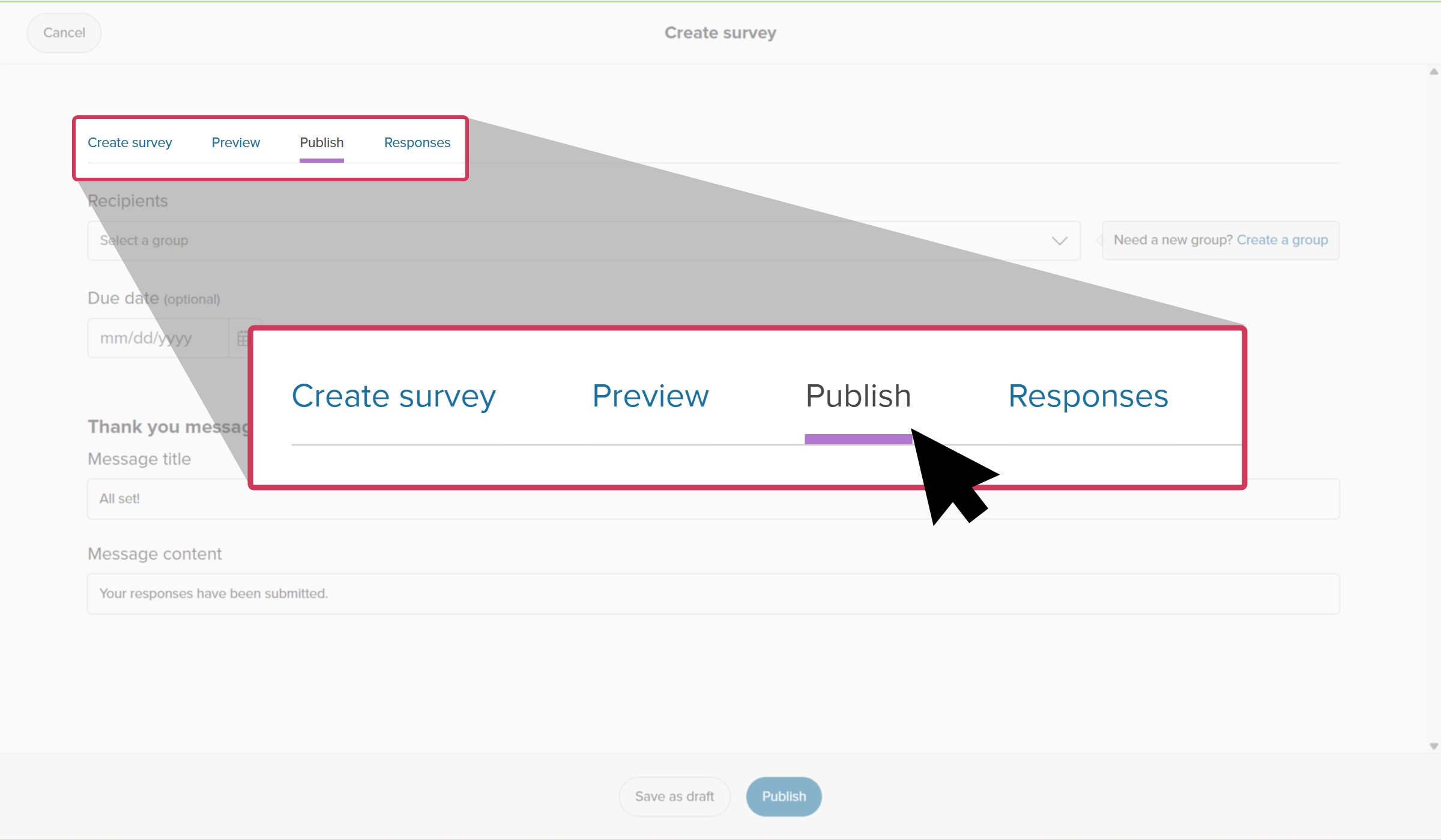
  9. Once you're done, click Publish. It will immediately be available on the student dashboard for them to complete.
    TipTip: If you're not ready to publish and make it available for your students, click Save at the bottom left to keep your work and return to it later.

up arrowBack to top

Types of questions

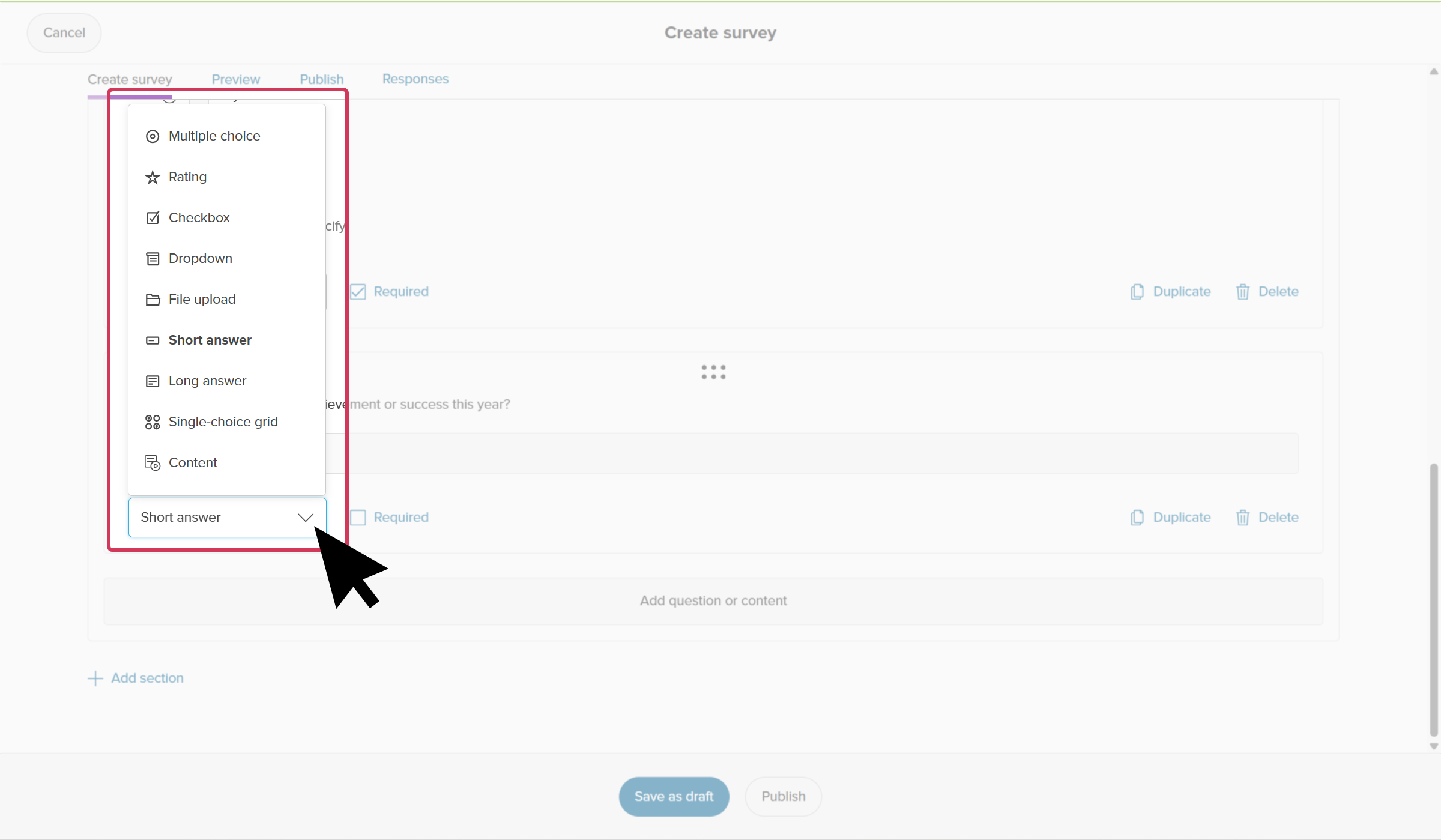
There are several different kinds of questions and content you can add.

Question type Action required of the student

Multiple choice

Students choose one from a selection of choices. You can Add rules to skip sections or guide students to different questions based on their answer.

Rating

Students give a rating. You can add ratings with a minimum of 2 and maximum of 20.

Checkbox

Students select up to multiple options.

Dropdown

Students click the dropdown to choose an option. You can add "Other (please specify)" as an option, which opens a textbox for them to type their answer. You can also Add rules to skip sections or guide students to different questions based on their answer.

File upload

Students are required to upload a file as their response. They can upload a file from their local drive, OneDrive, Google Drive, or Dropbox.

Short answer

Students type out an answer with a maximum of 250 characters.

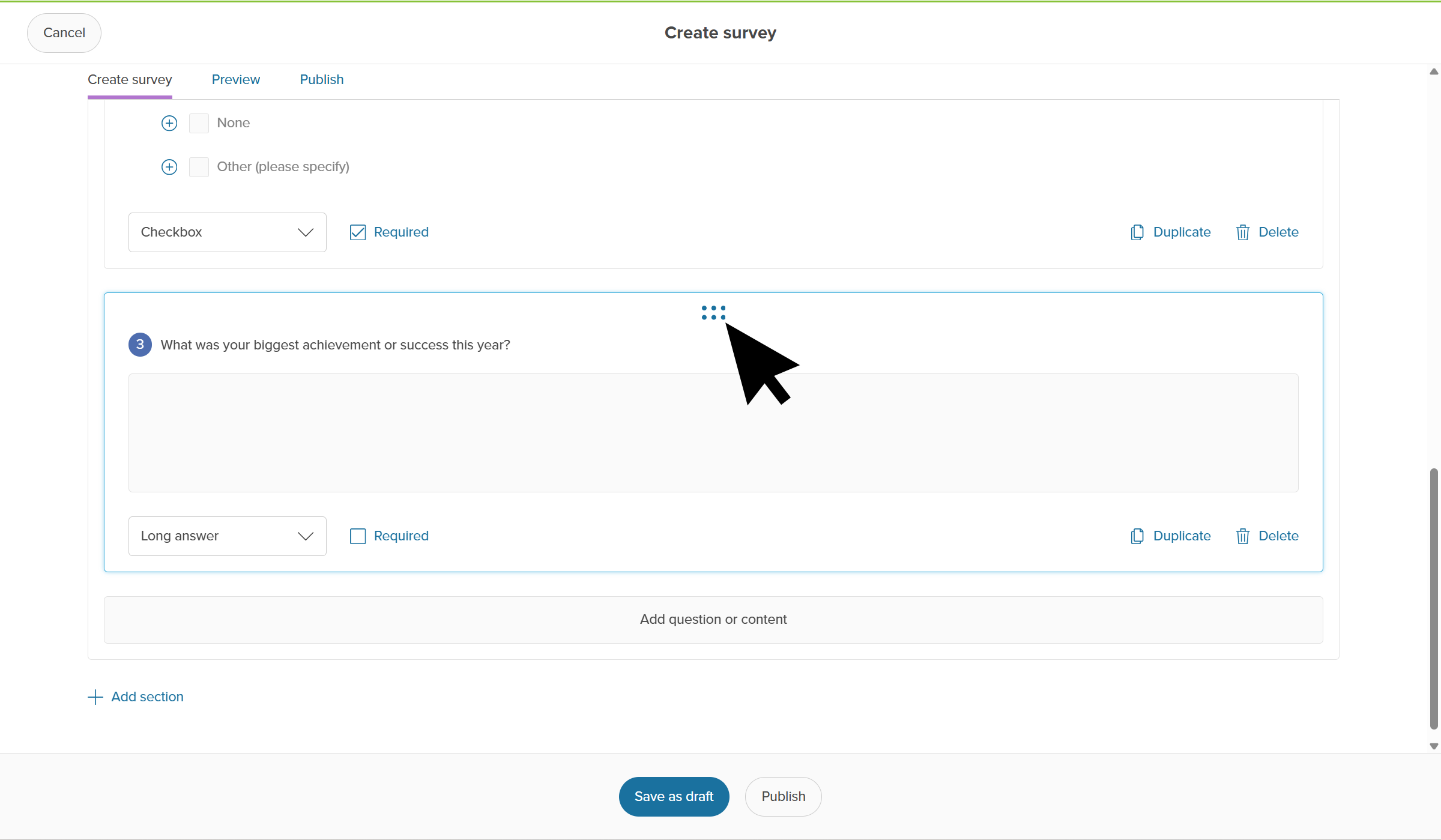
Long answer

Students type out an answer with a maximum of 10,000 characters.

Single-choice grid

Students choose one answer for each statement from a grid of rows and columns.

Content

A place for you to add text, links, or images to share instructions or resources.

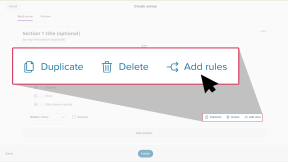
Add rules

When adding a multiple choice or dropdown question, you can Add rules to the question. This allows you to further customize the survey for your students. Adding rules works similarly to a "choose your own adventure" book, where the survey adapts based on how the student answers a multiple choice or dropdown question.
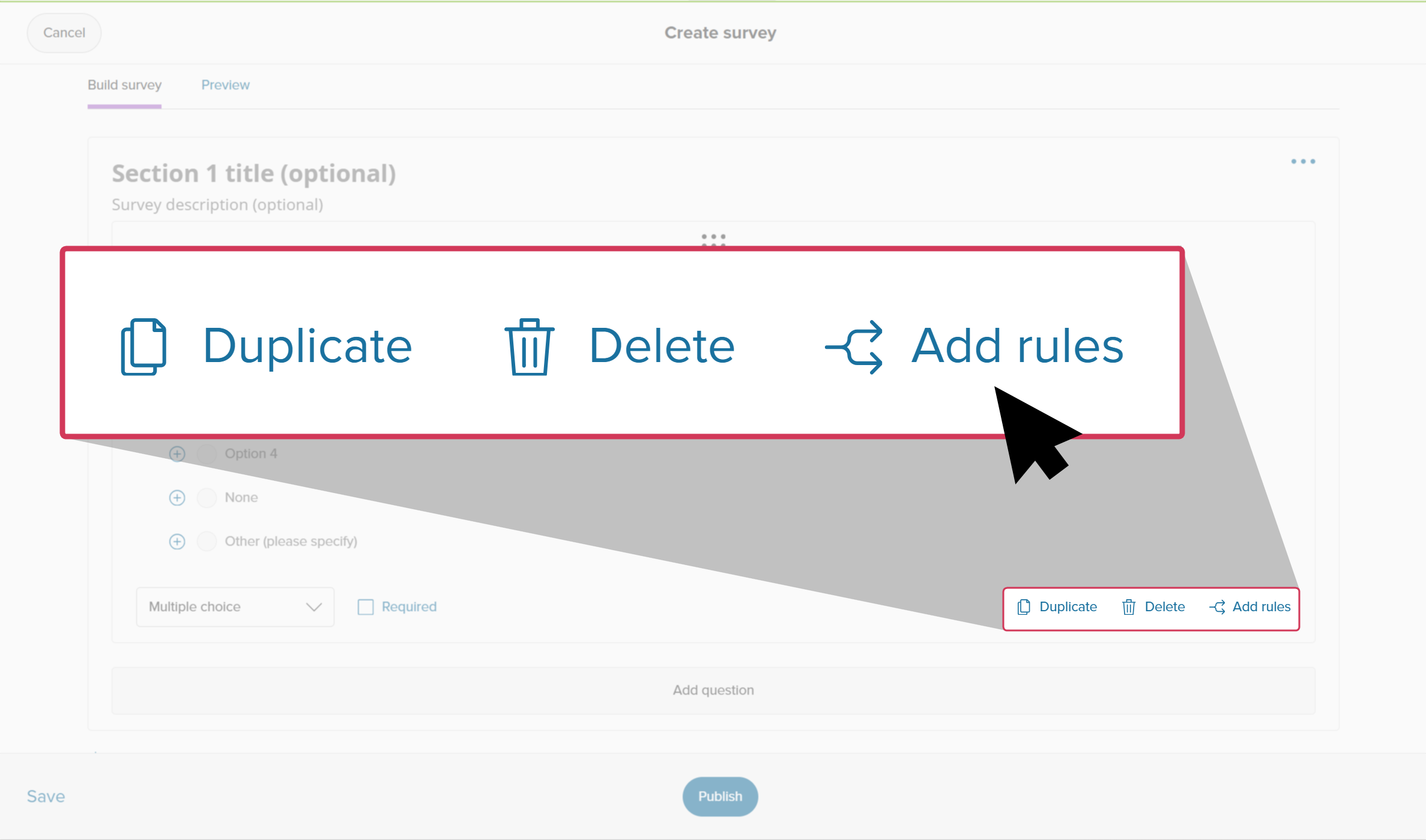
The Create survey page in Xello. A multiple choice question is open and the cursor is clicking on Add rules.
Click to enlarge
The Create survey page in Xello. A multiple choice question is open and the cursor is clicking on Add rules.

Adding rules will mean students can skip irrelevant questions and be guided to topics specific to their interests or needs.

For example, if you were to ask a student "Are you planning to go to college?"

  • Rule A: If the student answers Yes, the rule sends them to section 2 which includes questions about college applications.
  • Rule B: If the student answers No, the rule skips section 2 entirely and sends them to section 3 which includes questions about apprenticeships or entering the workforce.
TipTip: It's generally easiest to create all of your survey sections and questions first, and then go back and add your rules to connect them together.

up arrowBack to top

Copy a survey

If there's an existing survey with similar questions to a new survey you'd like to create, you can copy the existing survey to save yourself some time.

To copy a survey:

  1. From your educator account, click Features and select Surveys.
    Left menu in Xello's educator tools with Features open. Cursor is hovering over Surveys
    Click to enlarge
    Left menu in Xello's educator tools with Features open. Cursor is hovering over Surveys
  2. Find the survey you want to copy and click the three dot menu next to it. Select Copy.
    Surveys page in Xello. Cursor has opened the three dot menu next to a survey. Cursor about to click Copy
    Click to enlarge
    Surveys page in Xello. Cursor has opened the three dot menu next to a survey. Cursor about to click Copy
  3. A copied version of the survey will open. The title will be appended with (copy). Otherwise, the survey details and questions will be the same.
  4. Make any edits. When ready, click Publish. It will immediately be available on the student dashboard for them to complete.
    TipTip: If you're not ready to publish and make it available for your students, click Save at the bottom left to keep your work and return to it later.

up arrowBack to top

Edit a survey

If no students have begun completing a survey, you can go in and edit it. However, once a student has submitted answers or have saved a draft of their answers, the survey can no longer be edited. A banner at the top of the survey will indicate that it cannot be edited.

Survey open with a banner that reads: this survey cannot be edited because it has responses in progress or has already received submissions.
Click to enlarge
Survey open with a banner that reads: this survey cannot be edited because it has responses in progress or has already received submissions.
noteNote: Xello Admin at the district level can edit any school-based survey. Those with User or Limited access can only edit their own surveys. For more information about permissions in Xello, check out Educator permissions.

To edit a survey that has not been started by students: 

  1. From your educator account, click Features and select Surveys.
    Left menu in Xello's educator tools with Features open. Cursor is hovering over Surveys
    Click to enlarge
    Left menu in Xello's educator tools with Features open. Cursor is hovering over Surveys
  2. Click on the survey you want to edit.
  3. Make your changes and click Publish. It will immediately be available on the student dashboard for them to complete.
    TipTip: If you're not ready to publish and make it available for your students, click Save at the bottom left to keep your work and return to it later.

up arrowBack to top

Close a survey

When you want to prevent students from submitting any further responses, you can close it. The responses will still show in reports and can be viewed on student profiles.

Once responses have been submitted by students, closing a survey is ideal so you can track and compare to previous survey data. If you don't wish to see responses or include them in reports, it might be better for you to Archive the survey.

Surveys can be opened again following the same steps below.

To close a survey: 

  1. From your educator account, click Features and select Surveys.
    Left menu in Xello's educator tools with Features open. Cursor is hovering over Surveys
    Click to enlarge
    Left menu in Xello's educator tools with Features open. Cursor is hovering over Surveys
  2. Find the survey you want to close and click the three dot menu next to it. Select Close.
    Surveys page in Xello. Cursor has opened the three dot menu next to a survey. Cursor about to click Close
    Click to enlarge
    Surveys page in Xello. Cursor has opened the three dot menu next to a survey. Cursor about to click Copy
  3. The status of the survey will change to Closed.

up arrowBack to top

Archive a survey

If you no longer want to receive submissions from your students and also do not want submitted responses to show in reports or on student profiles, you can archive the survey.

After archiving a survey, it will no longer appear on student dashboards or in any reports you run.

Surveys can be unarchived. If you unarchive a survey, it will return to the same status as when it was archived (open, closed, or not active), and will immediately show on student dashboards, and in reports.

To archive a survey: 

  1. From your educator account, click Features and select Surveys.
    Left menu in Xello's educator tools with Features open. Cursor is hovering over Surveys
    Click to enlarge
    Left menu in Xello's educator tools with Features open. Cursor is hovering over Surveys
  2. Find the survey you want to close and click the three dot menu next to it. Select Archive.
    Surveys page in Xello. Cursor has opened the three dot menu next to a survey. Cursor about to click Archive
    Click to enlarge
    Surveys page in Xello. Cursor has opened the three dot menu next to a survey. Cursor about to click Archive
  3. The survey will move to the Archive tab. Click the tab to find it again and unarchive if needed.

up arrowBack to top

Delete a survey

You can fully delete a survey. This might be applicable if a survey was created accidentally, is outdated, or is no longer necessary. Once a survey is deleted, it will no longer show in the list of surveys, in the list of archived surveys, or in any reports. Deleting a survey cannot be undone.

Those with Admin access can delete any survey. Those will Limited or User level access can only delete the surveys they have personally created.

To delete a survey: 

  1. From your educator account, click Features and select Surveys.
    Left menu in Xello's educator tools with Features open. Cursor is hovering over Surveys
    Click to enlarge
    Left menu in Xello's educator tools with Features open. Cursor is hovering over Surveys
  2. Find the survey you want to close and click the three dot menu next to it. Select Delete.
    Surveys page in Xello. Cursor has opened the three dot menu next to a survey. Cursor about to click Delete
    Click to enlarge
    Surveys page in Xello. Cursor has opened the three dot menu next to a survey. Cursor about to click Delete
  3. Confirm you want to delete the survey and click Delete.
  4. The survey will be completely deleted from both the List tab and the Archive tab, and all reports.