2 minutes
Students can request educators send a fee waiver form on their behalf to their institutions of choice. They complete the form, upload it to the College Applications page in Xello, and then send the request.
Meanwhile, as an educator, you can run a report to track the number of fee waiver requests, when they were submitted, their current status, and any delivery details.
 FYI: To learn how to group students based on report results, sort the lists in reports, filter the data, and more, check out
Tips and tricks with reports.
FYI: To learn how to group students based on report results, sort the lists in reports, filter the data, and more, check out
Tips and tricks with reports.
 Permission types and fee waivers in Xello
Your educator permissions will determine what you can access and the actions you can complete in the College section in Xello. To learn more, including how to find out your permissions, check out Permissions and college applications.
| Admin | User | Limited | |
|---|---|---|---|
| Access and actions |
|
|
|
To run a report on fee waivers:
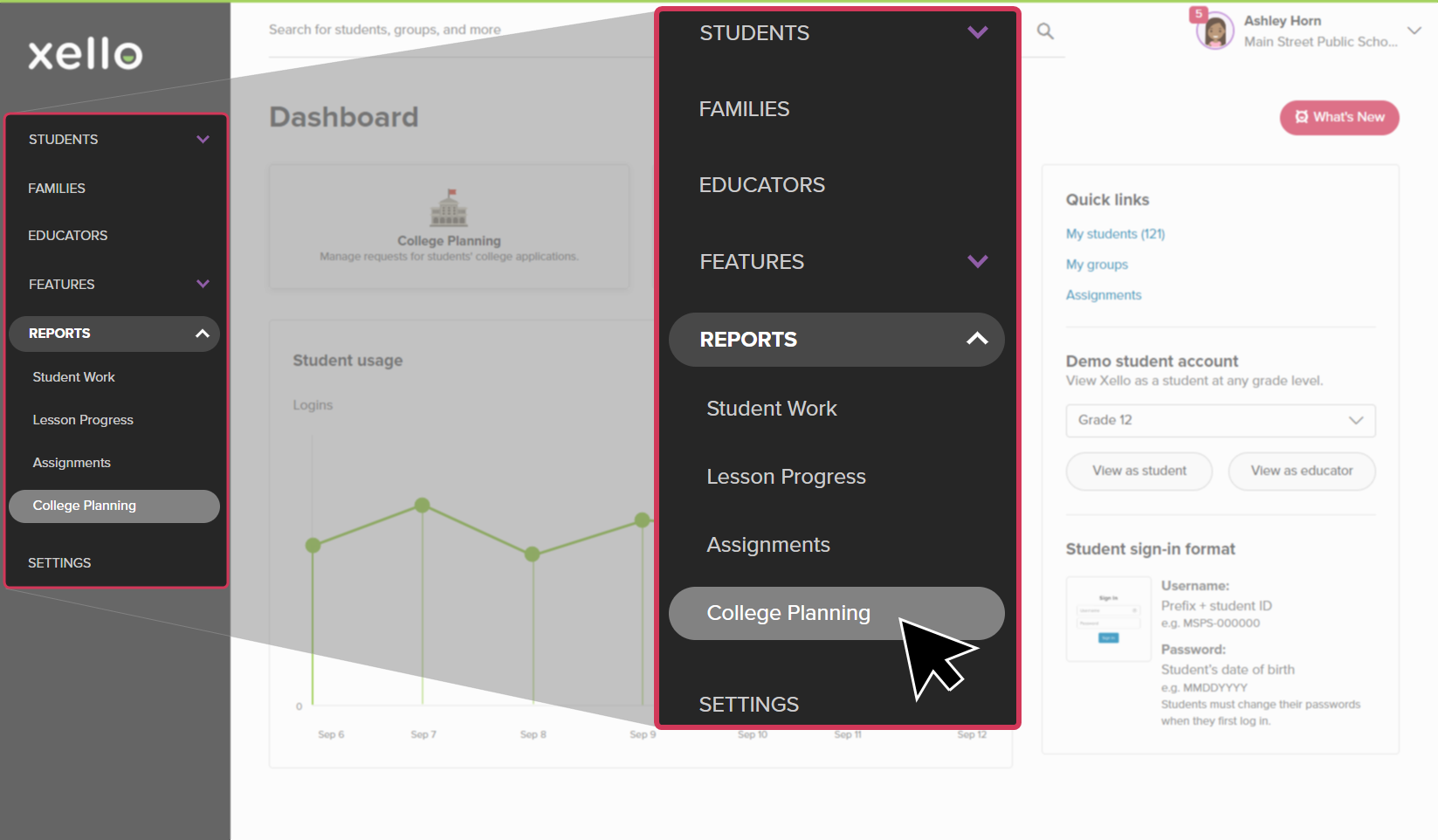
- From your educator account, click Reports and select College applications.
 Click to enlarge
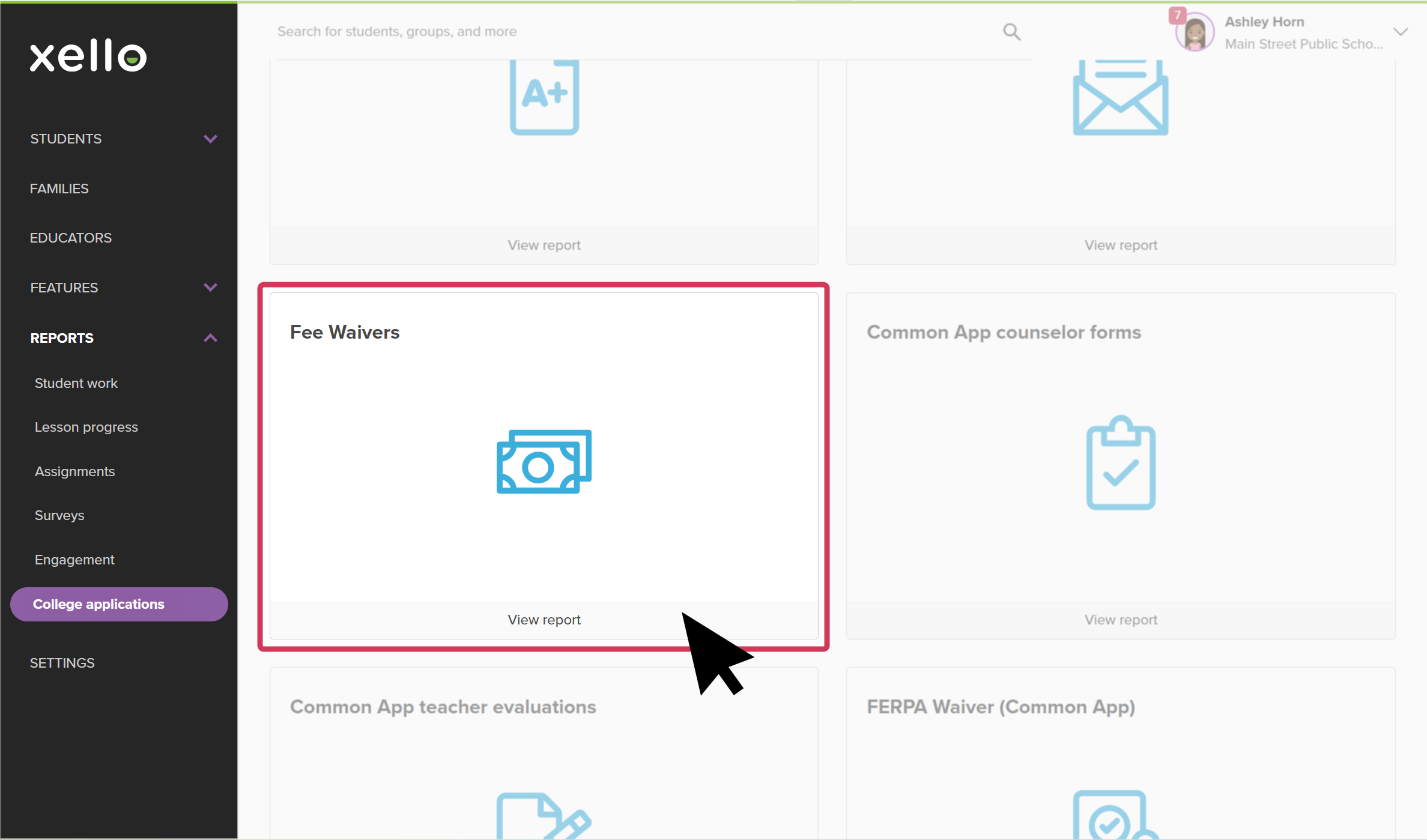
- In the tile called Fee Waivers, click View report.
 Click to enlarge
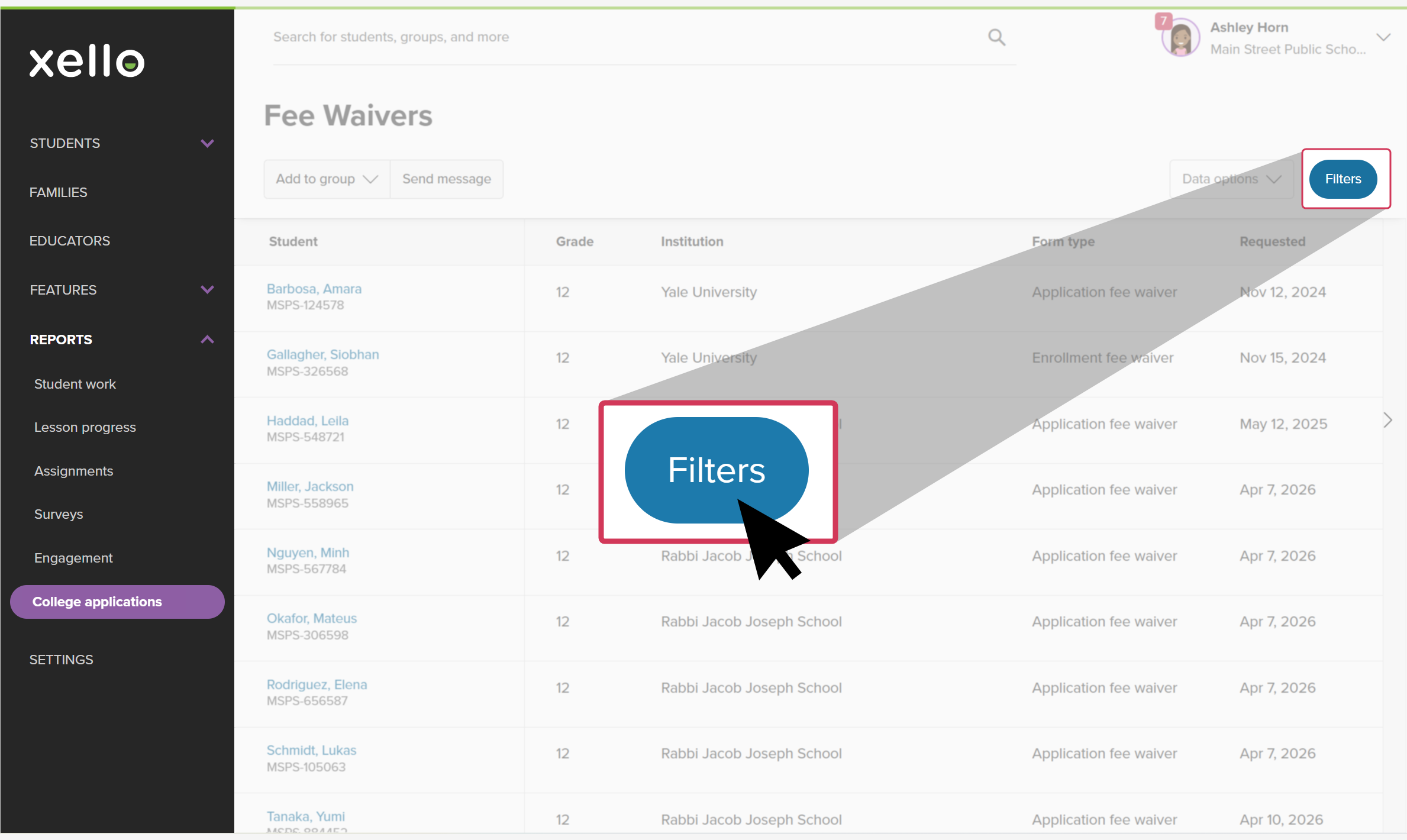
- The Fee Waivers report will open. Information in this report includes:
- The student name. Clicking their name opens their student profile to the College Planning tab.
- The institution the fee waiver is for and its form type (Enrollment fee waiver, or Application fee waiver).
- When it was requested and sent.
- The status (Sent, Delivered, Downloaded, or Expired).
- The delivery details.
- To narrow the list, click Filters. You can narrow the list by group, status, institution, type of fee waiver, and more. You can then add all of the students in the narrowed list to a group or send them all a message.
 Click to enlarge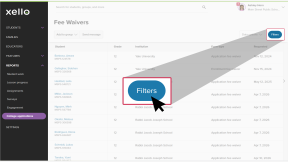
- To export the report, click Data options and choose between Excel or CSV. You can also use Data options to add or remove table columns.
 Back to top
Additional resources
-
 PDF
PDFShare the fee waiver form in Xello
PDF
PDFShare the fee waiver form in XelloYour students can fill out and upload their fee waiver form to Xello for you to send to their chosen schools. Use this guide for the most efficient way to share the form with your students.