3 minutes
Compile and export your students' course requests
To mass export course requests
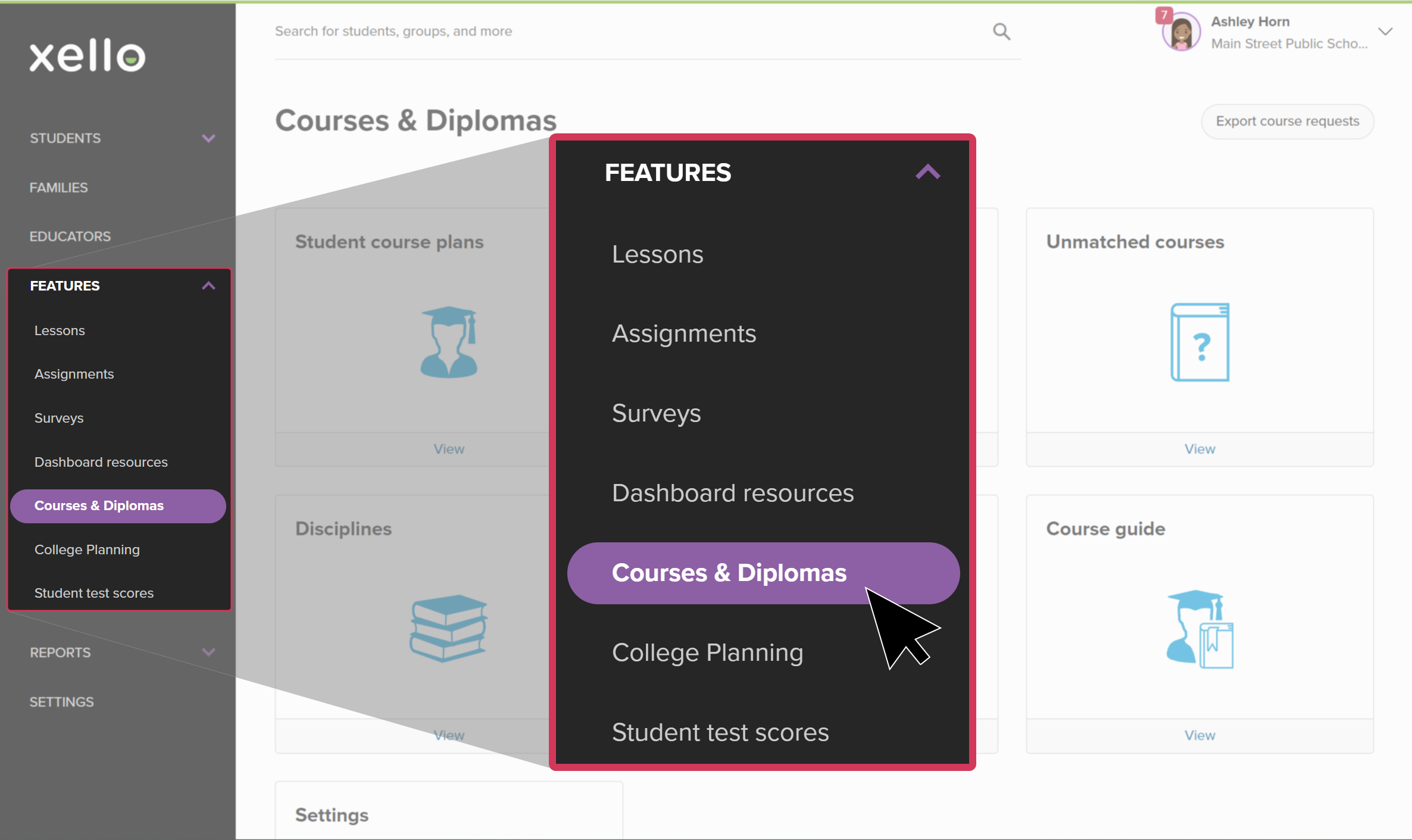
- From your educator account, click Features and select Course Planner.
 Click to enlarge
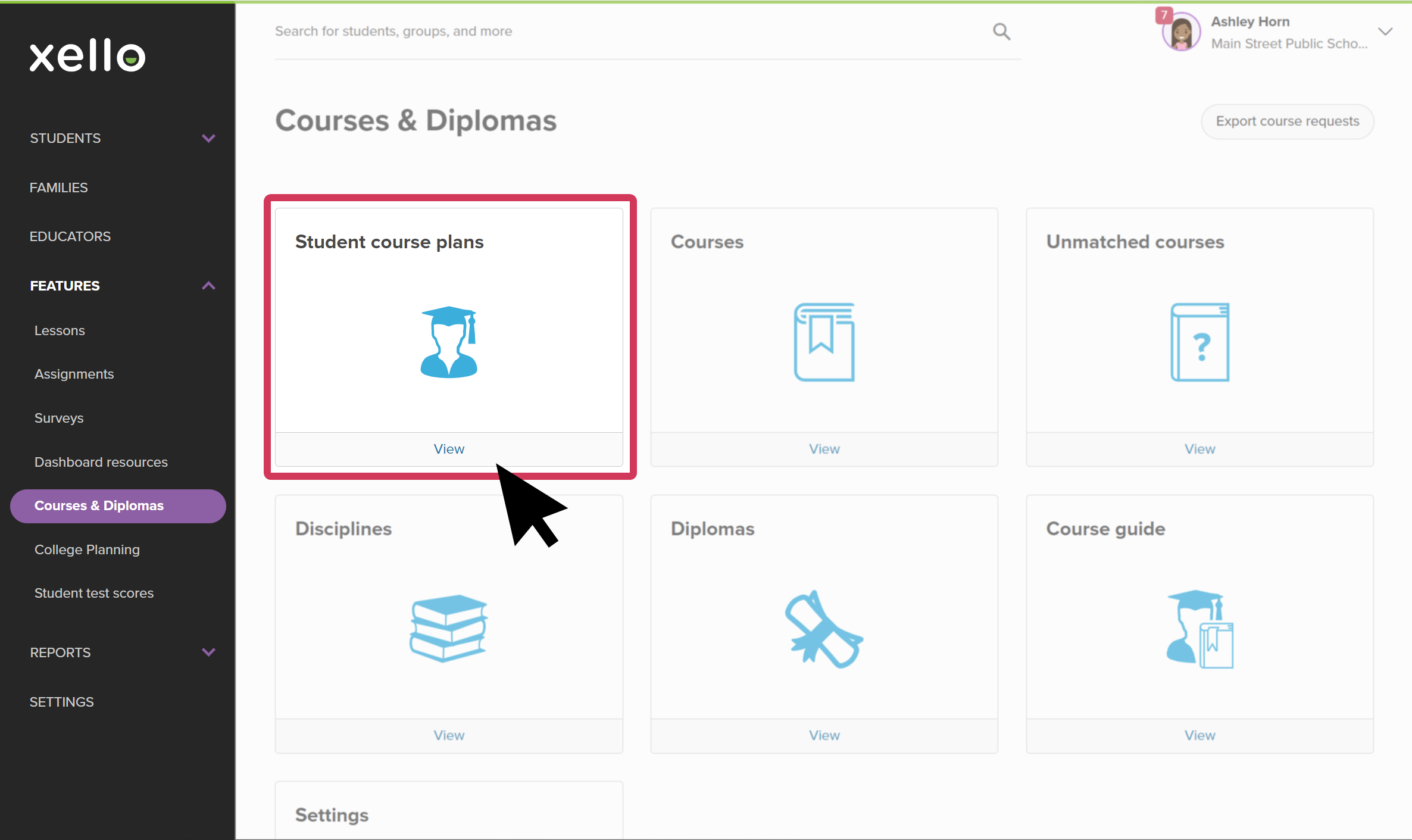
- Click Student course plans to open the student list.
 Click to enlarge
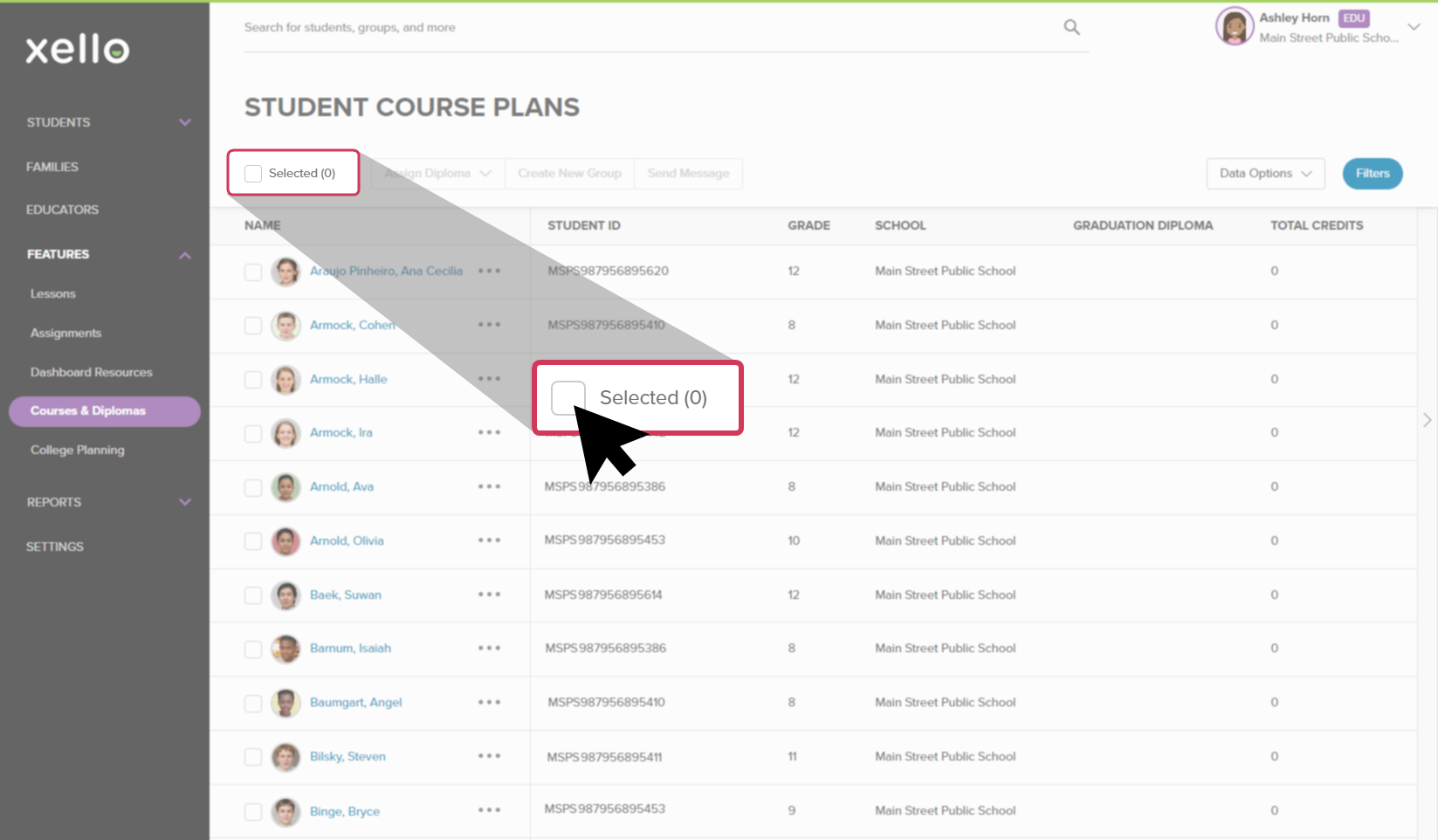
- From the top left of the list, click the Selected (0) box to select all the students in the list.
 Click to enlarge
- Use Filters at the top right of the screen to narrow the student list.
- If you apply a filter, only the students you filtered will be selected.
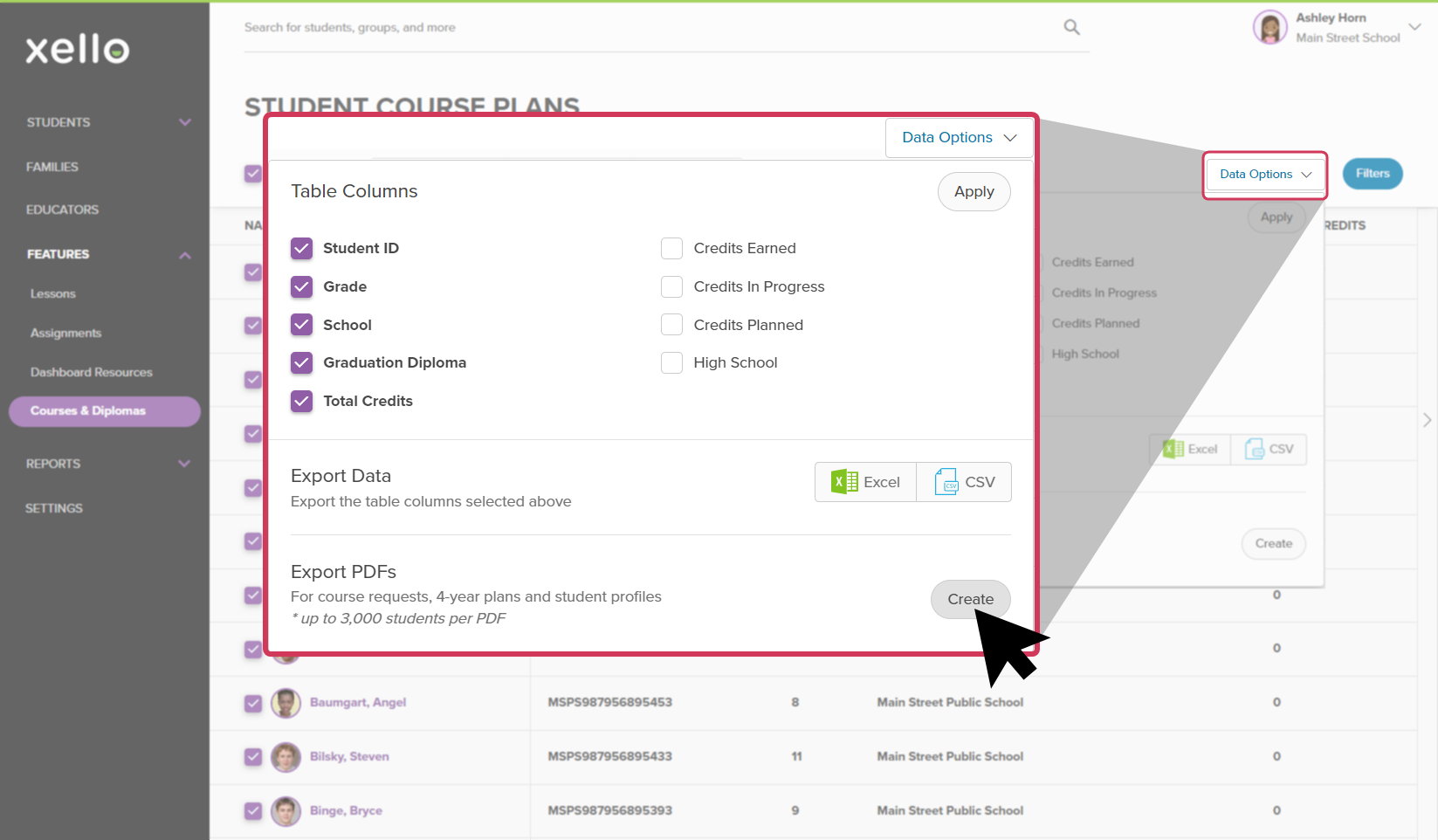
- From the top right of the list, click Data options to open a dropdown. Where it says Export PDFs, click Create to open the Options window.
 Click to enlarge
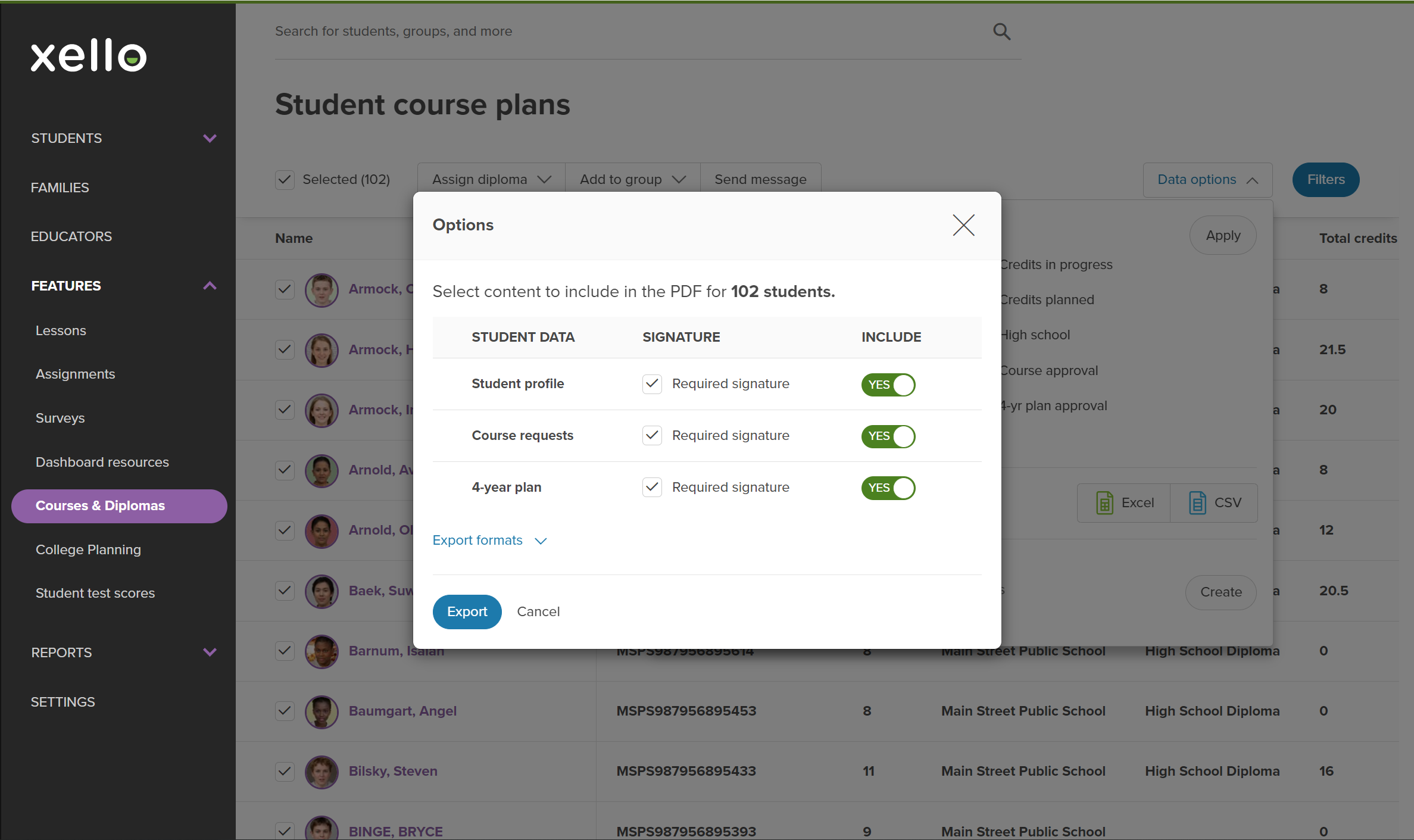
- From this window, select which student data and signature lines you'd like to include, and how you'd like it exported.
 Click to enlarge
- When you've entered all your options, click Export to generate the PDF.
- Large requests may take more than an hour to generate.
- Once the file is ready, you'll receive an email. From that email, click Download to be directed to the Xello login portal.
 Note: This download file will remain active for 2 weeks.
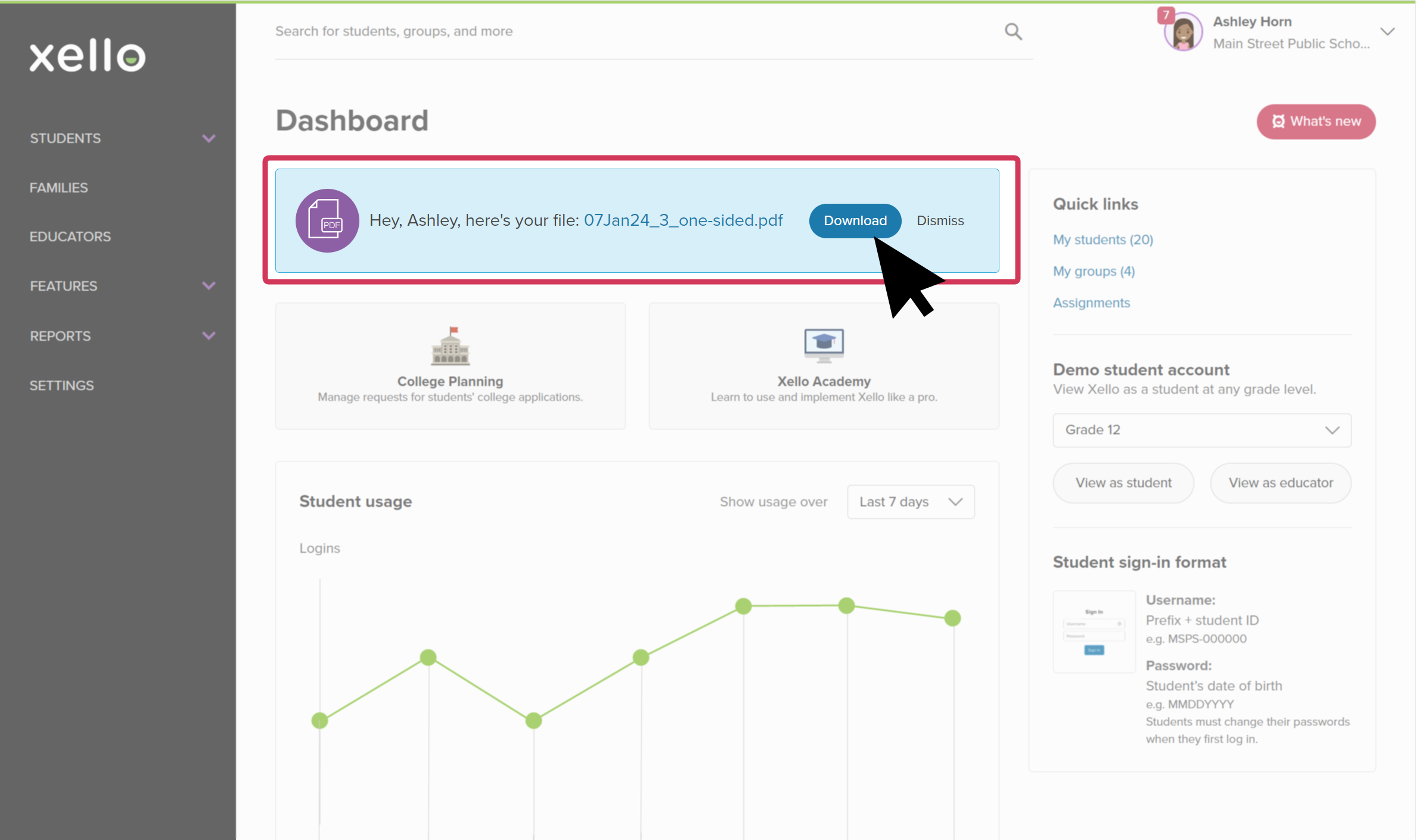
- After you've logged in to Xello, a card on your dashboard indicates that the file is ready. Click Download to begin the download process.
 Click to enlarge
- To download the file again, click again on the link in the email.
 Back to top
Additional resources
-
 Short Video
Managing students' high school course plans - video for educators
Short Video
Short VideoManaging students' high school course plans - video for educatorsIn this short video, you'll see how Xello’s Course Planner lets students manage their course selections to meet diploma requirements.
-
 PDF
PDFWork with high school course plans - guide for educators
PDF
PDFWork with high school course plans - guide for educatorsFollow this guide for tips on how to make your high school course planner review process a breeze. Learn how to review, track, action, and approve student course plans.
-
PDF
PDFWork with middle school course plans - guide for educators
Use this guide to support middle school students in creating their course plans in Xello, helping them stay on track and have confidence in their choices.
-
PDF
PDFCourse Planner annual tasks guide
Download this guide for helpful reminders on what to review and update in Xello's Course Planner each year.