3 minutes
Occasionally a student is not subject to - or has already met - a requirement and so the course needs to be released from the student’s course plan. In Xello, this is called an Exemption.
To exempt a student from a requirement:
-
In the search bar located at the top of any page in your educator account, enter the student's name or ID.
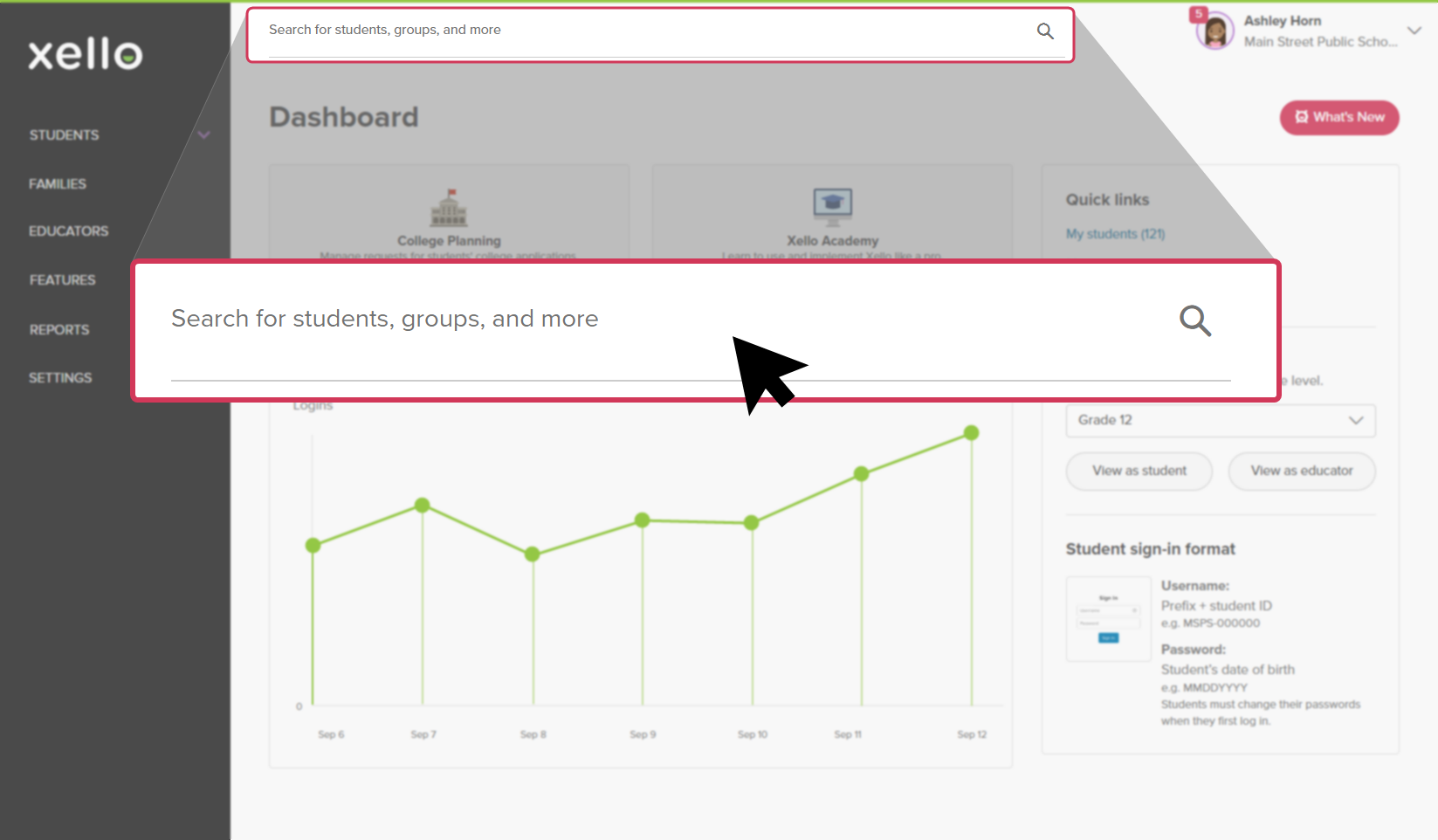 Click to enlarge
 Tip: Alternatively, from the left menu, click Students and select Student list to browse the full list of students.
 -
Click on the student's name. The About student tab of their profile opens.
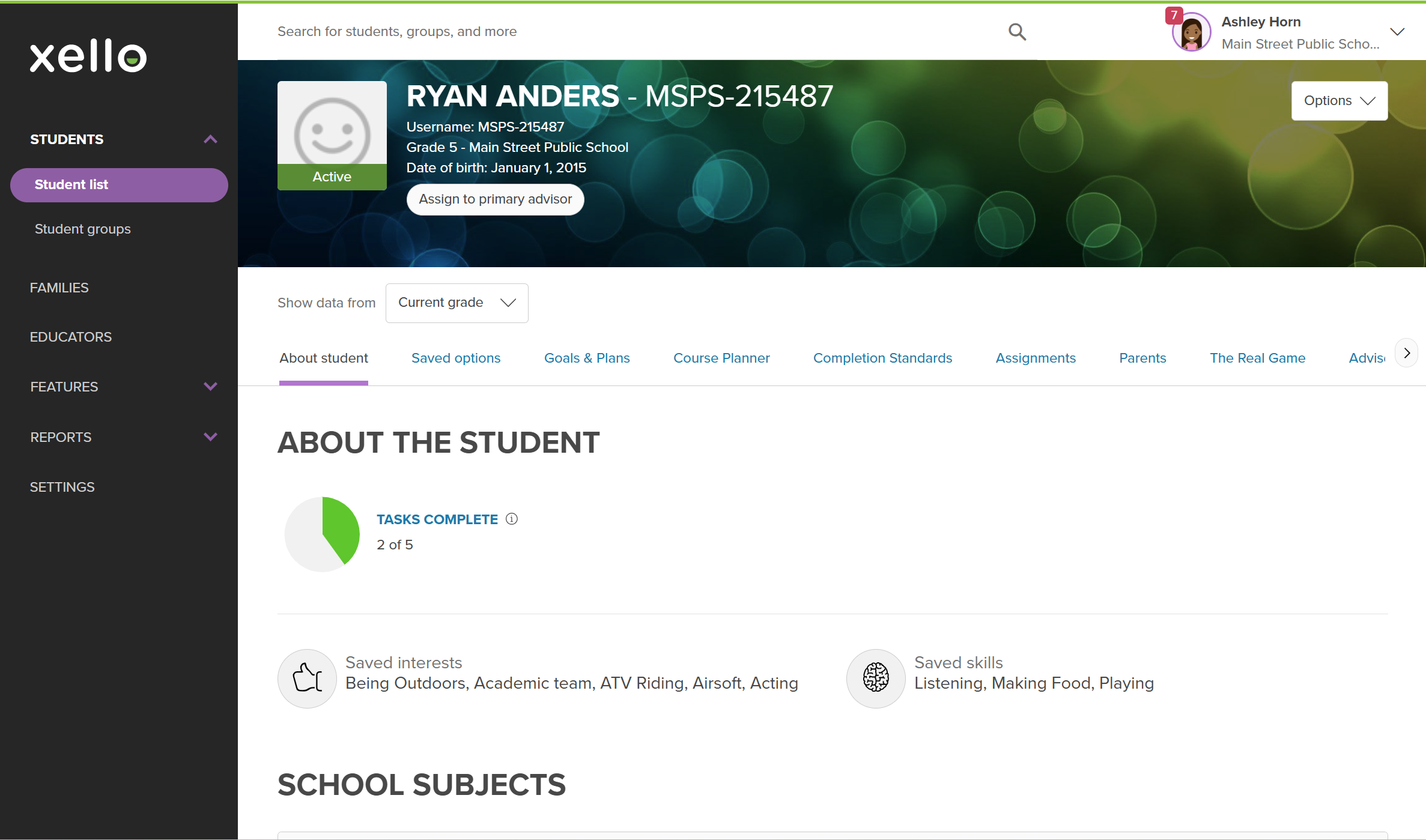 Click to enlarge
- Click the Course Planner tab.
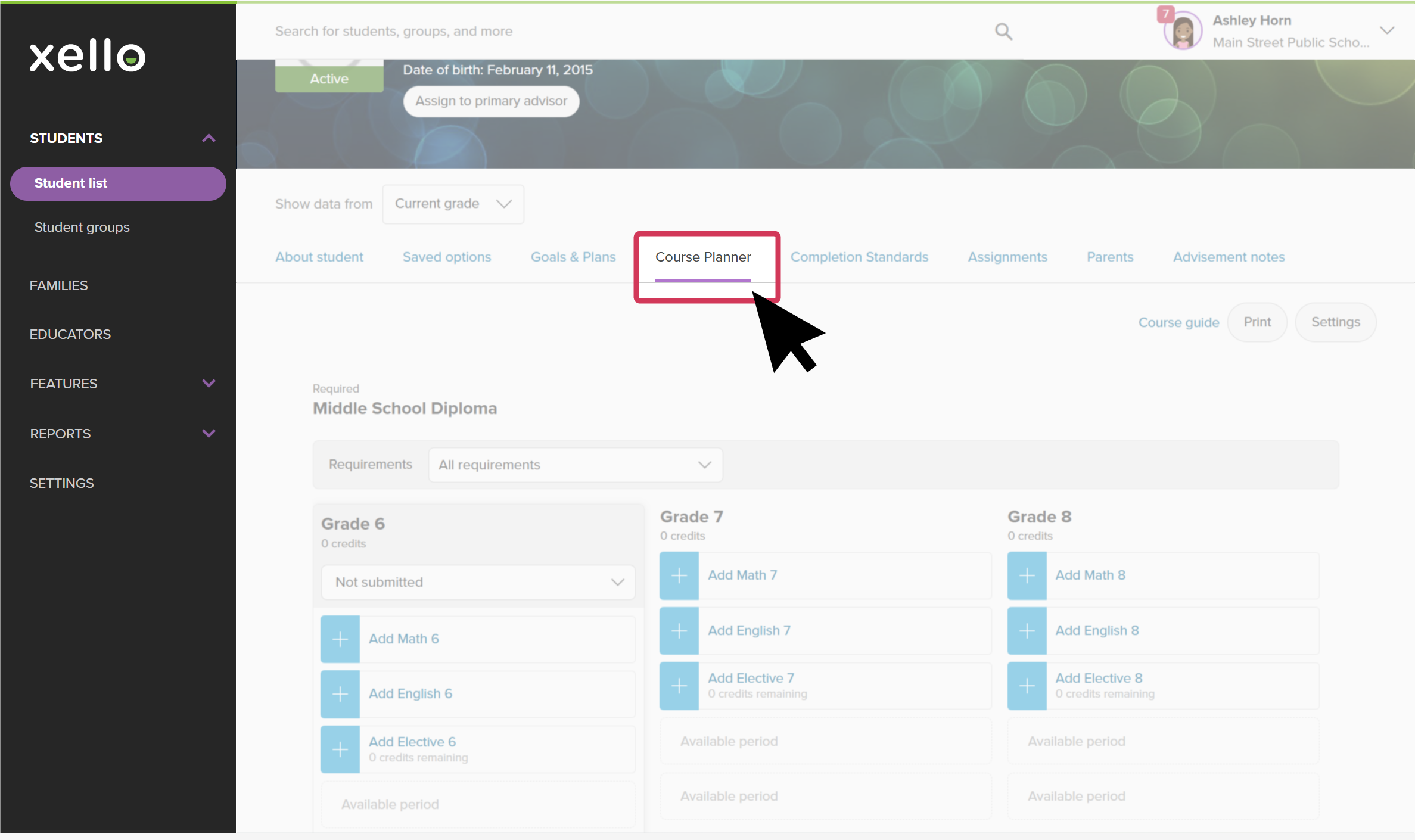 Click to enlarge
- Under the appropriate grade column of the student’s course plan, select the required subject you wish to exempt to open a side pane with the list of courses in that subject for that grade.
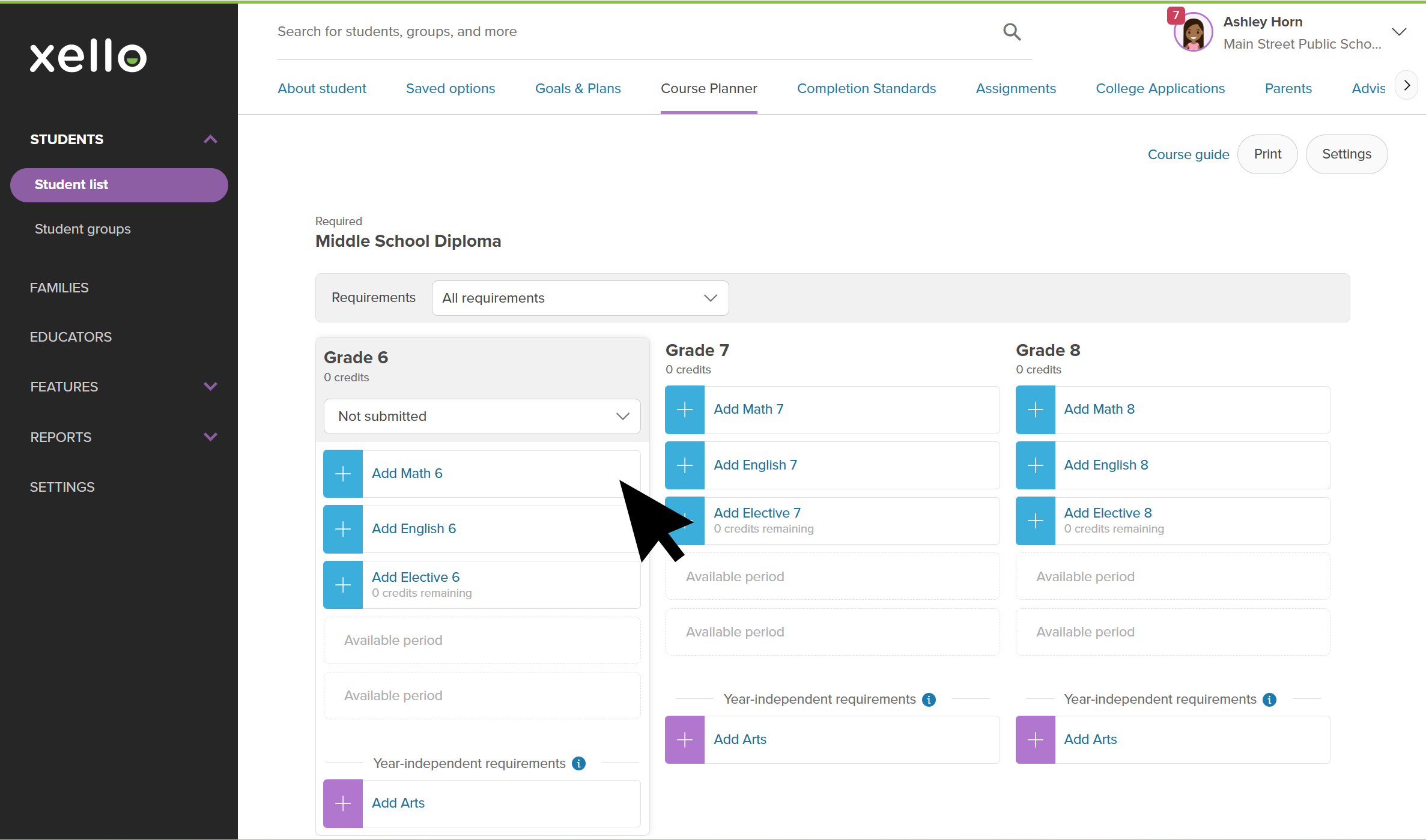 Click to enlarge
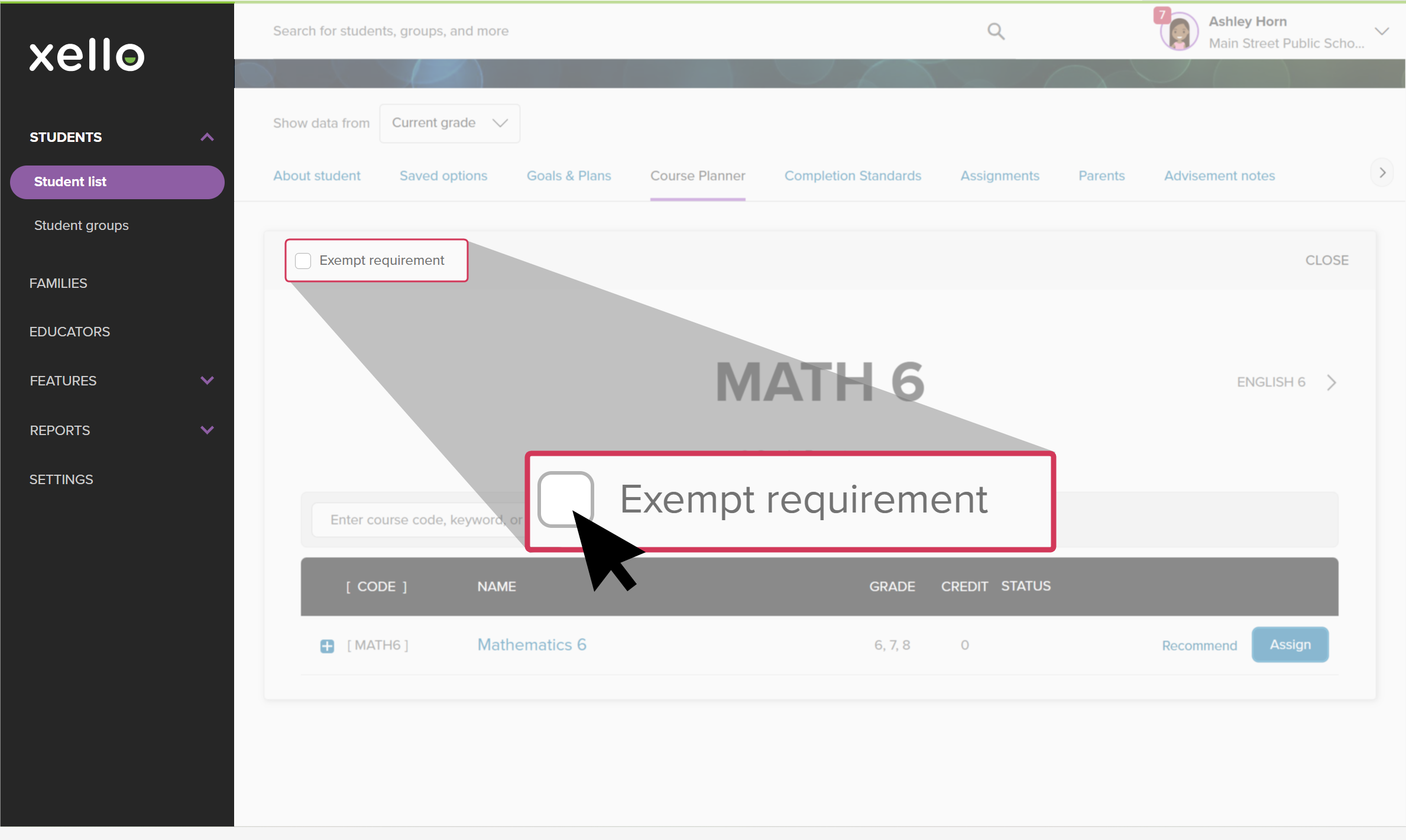
- From the top of the course, click Exempt requirement to remove this subject as a requirement for the student.
 Click to enlarge
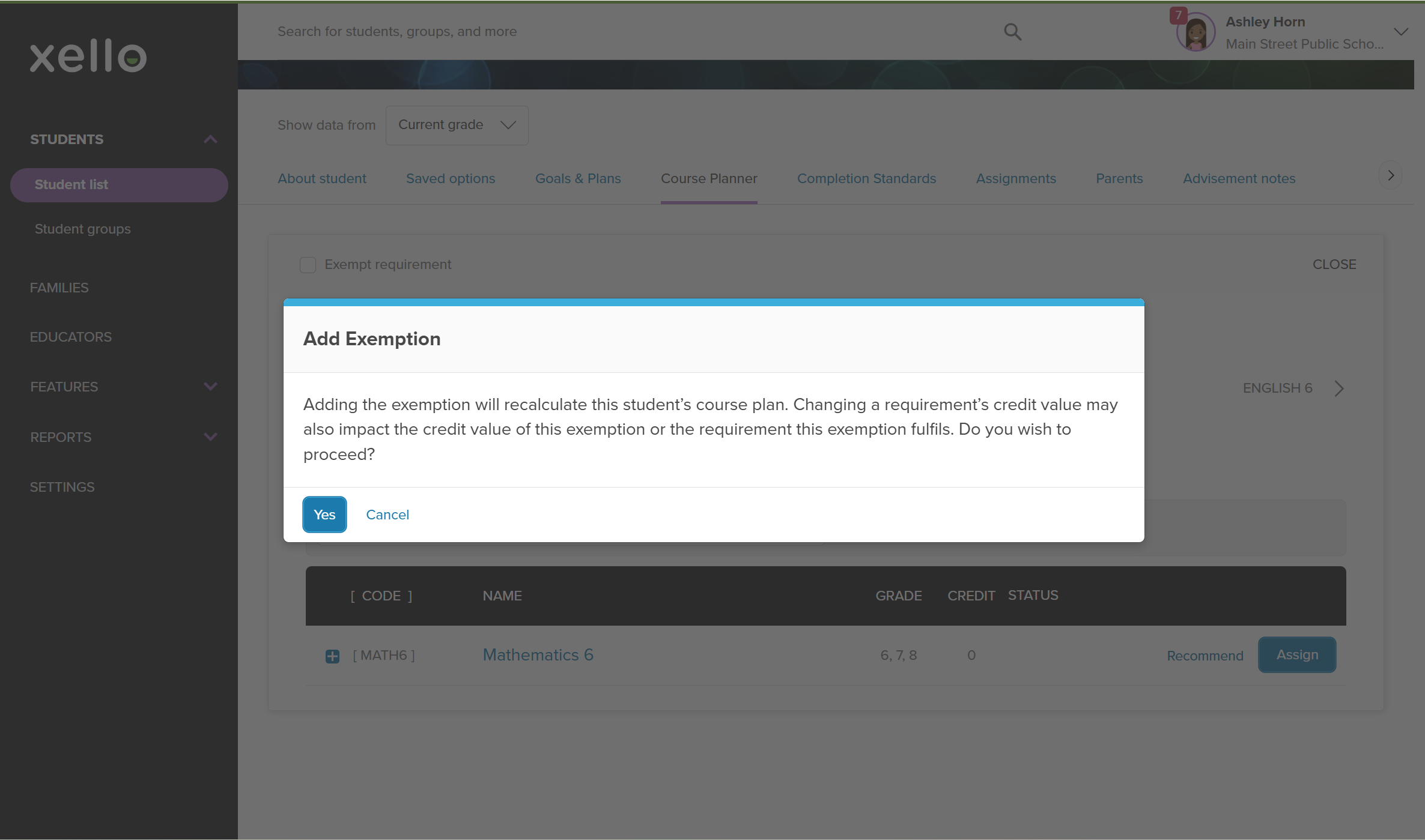
- A message will confirm you wish to proceed. Click Yes to confirm your choice.
 Click to enlarge
- For the student, this course will show as “Exempted” and they will be unable to apply any actions to the course.
- Click the exemption box again to reverse the exemption.
 Back to top
Apply exemption via red alert
When viewing a student's course plan, you may come across alerts. These alerts can indicate a number of things, including a missing prerequisite, required educator approval, or a course note.
To exempt a student from a course using a red alert:
-
In the search bar located at the top of any page in your educator account, enter the student's name or ID.
Click to enlargeTip: Alternatively, from the left menu, click Students and select Student list to browse the full list of students.
-
Click on the student's name. The About student tab of their profile opens.
Click to enlarge
- Click the Course Planner tab.
Click to enlarge
- Locate and click the course with the red alert.
- In the modal that opens, click the Exempt box.
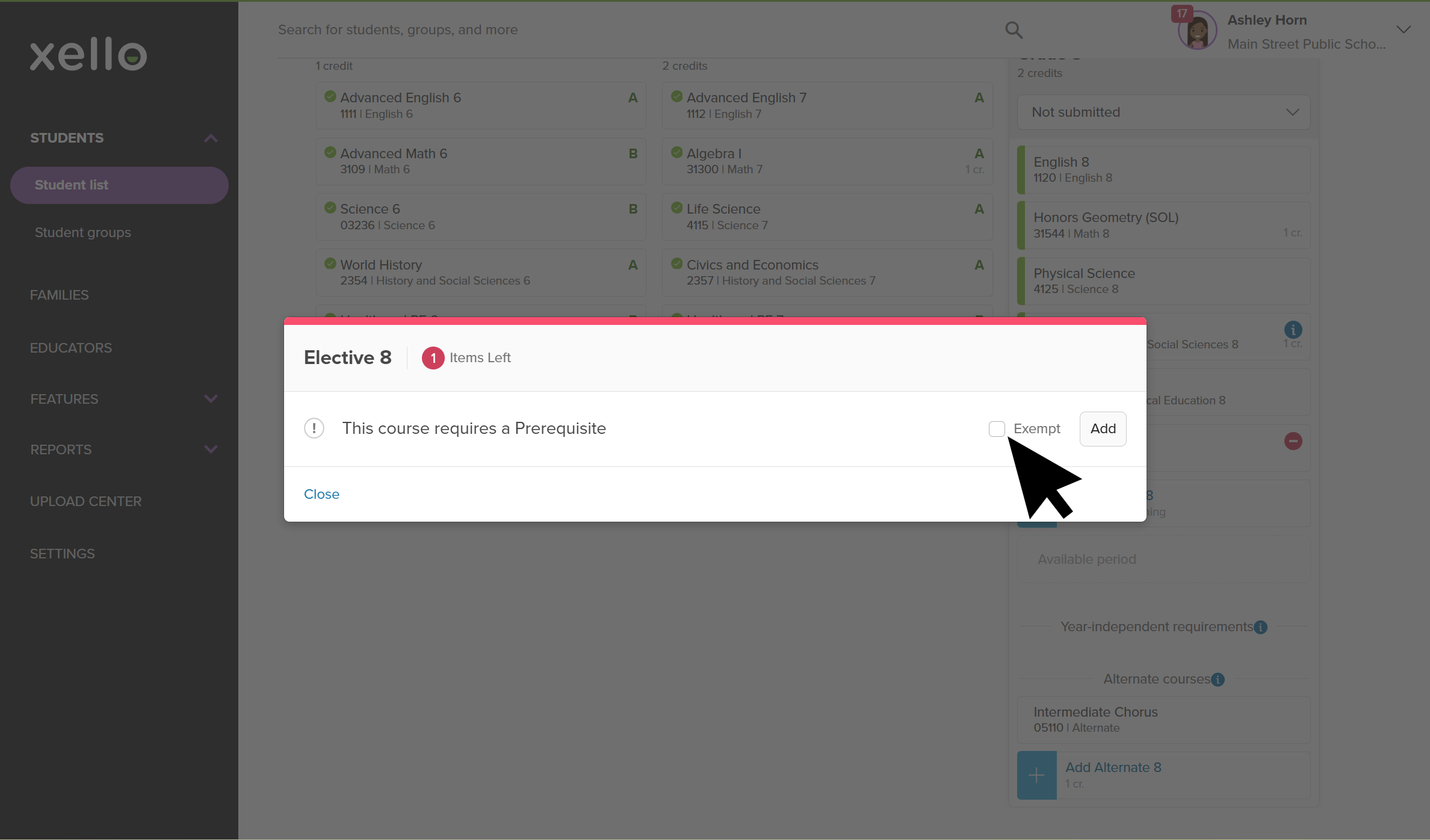 Click to enlarge
Additional resources
-
 PDF
PDFWork with middle school course plans - guide for educators
PDF
PDFWork with middle school course plans - guide for educatorsUse this guide to support middle school students in creating their course plans in Xello, helping them stay on track and have confidence in their choices.
-
 Short Video
Plan your middle school courses in Xello - video for students New
Short Video
Short VideoPlan your middle school courses in Xello - video for students NewCheck out and share this video with students to learn how Xello's Course Planner helps middle school students practice building course plans. They use it to learn more about the electives that interest them and develop their decision-making skills.
-
Short Video
Short VideoCourse Planner for middle school educators - video for educators New
Xello's Course Planner allows middle school students to practice building course plans, helping them develop their decision making skills. Middle school counselors and educators can efficiently utilize Course Planner to support their students in designing a realistic education plan that sets them up for success. Watch this short video to learn more.
-
PDF
PDFCourse Planner annual tasks guide
Download this guide for helpful reminders on what to review and update in Xello's Course Planner each year.
 Select