1 minute
While Xello is digital, sometimes a printed version of student work is necessary - including the student's course plan.
To print a student's course plan:
-
In the search bar located at the top of any page in your educator account, enter the student's name or ID.
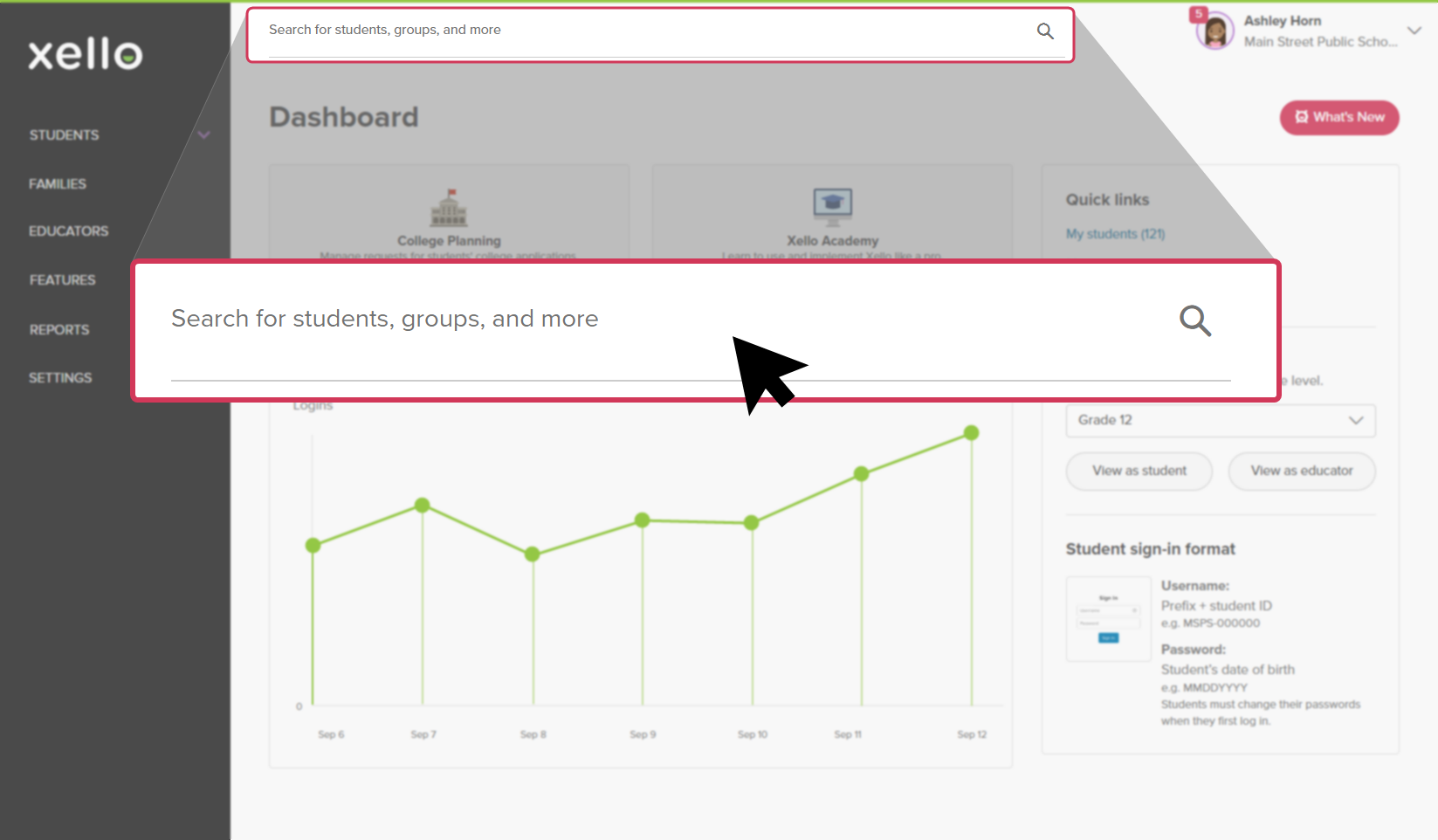 Click to enlarge
 Tip: Alternatively, from the left menu, click Students and select Student list to browse the full list of students.
 -
Click on the student's name. The About student tab of their profile opens.
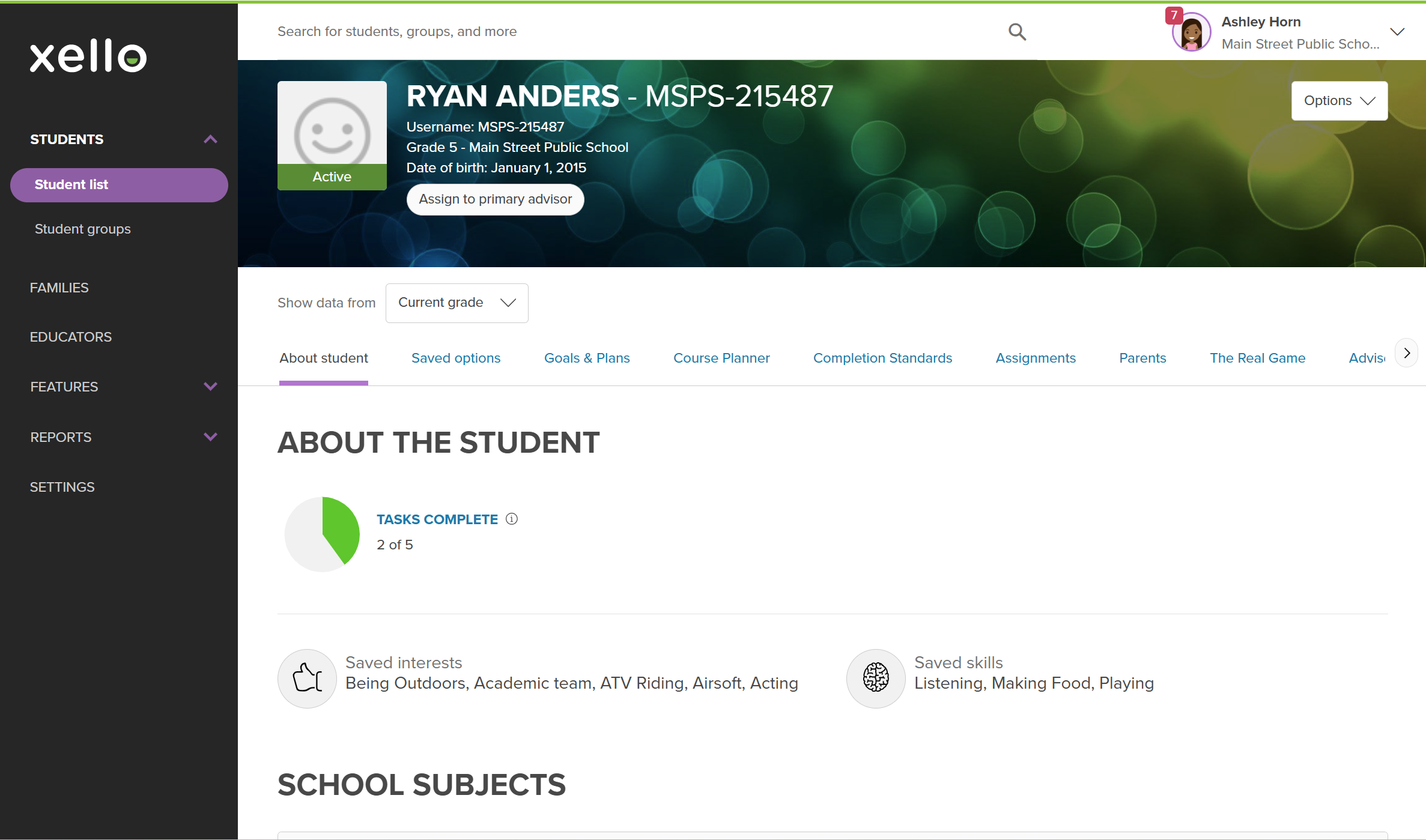 Click to enlarge
- Click the Course Planner tab.
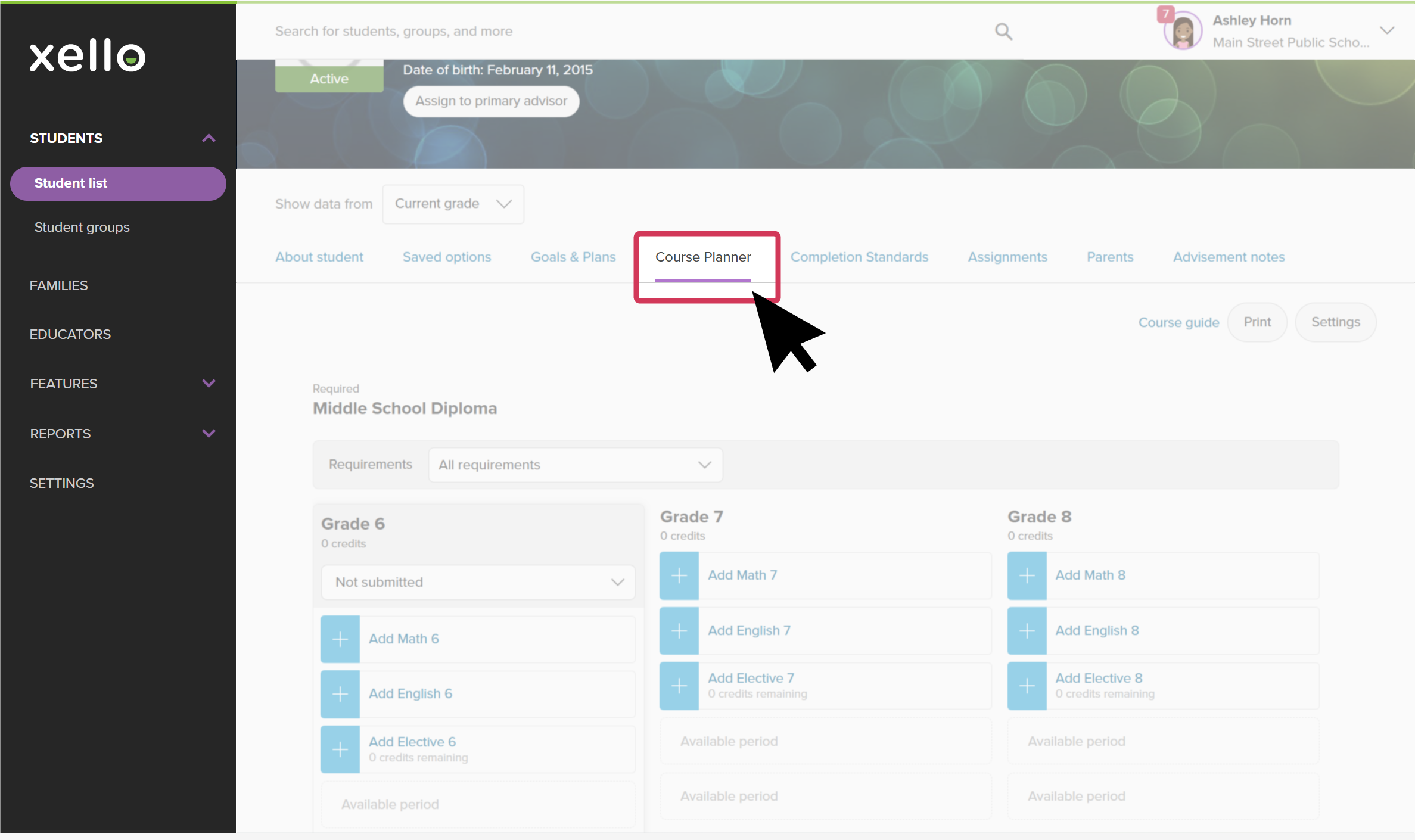 Click to enlarge
- From the top right of the Course Planner page, click Print to open the print preview of the course plan.
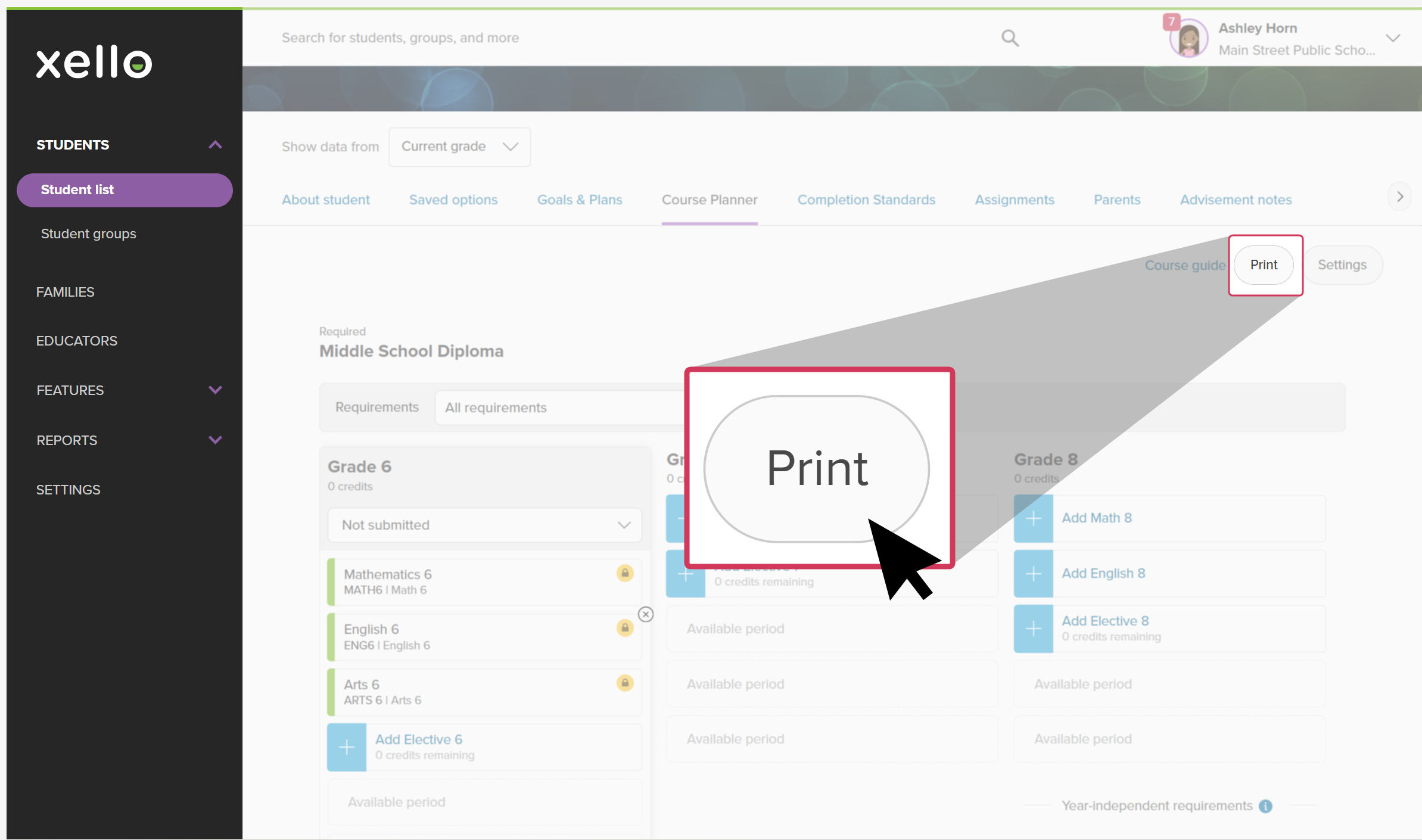 Click to enlarge
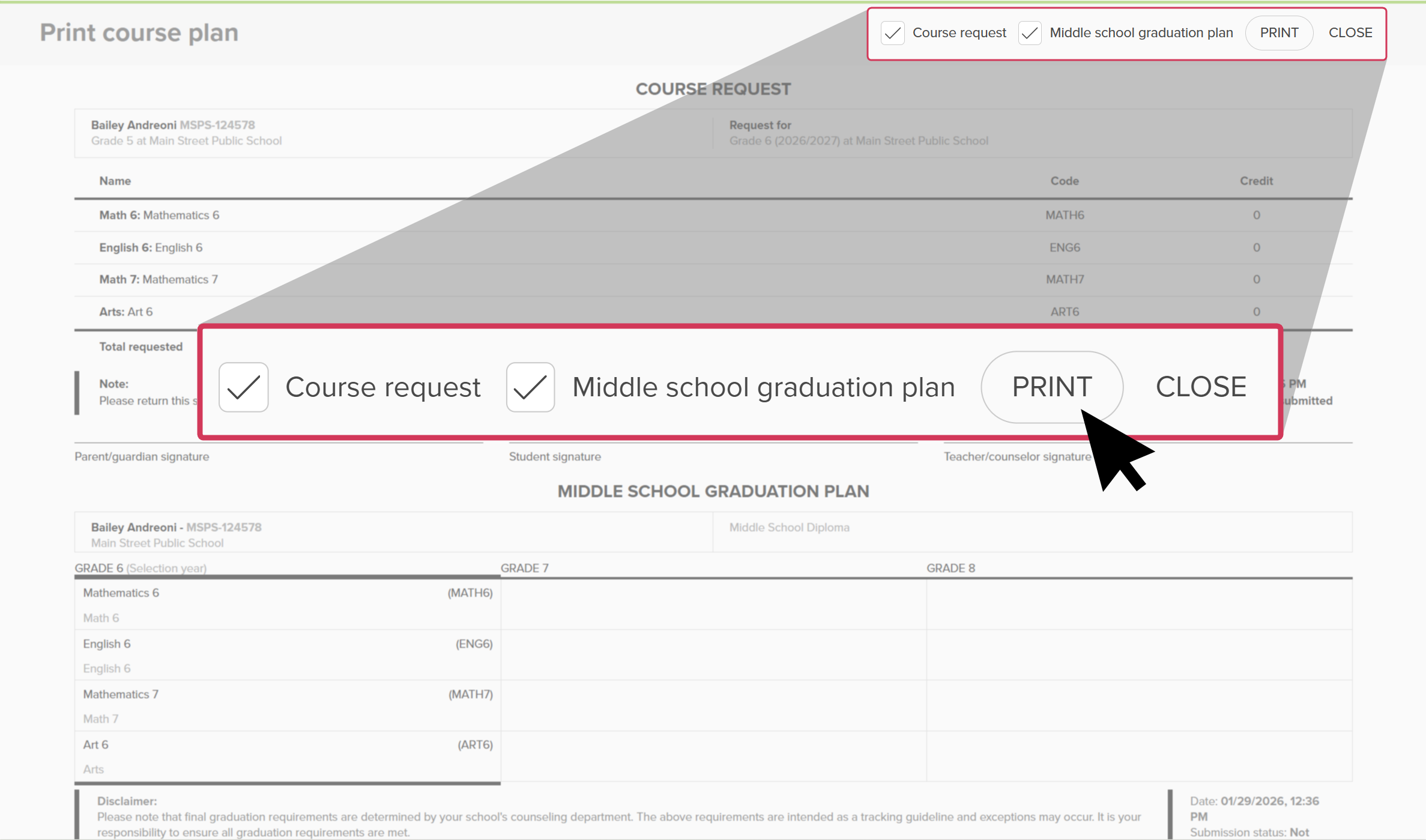
- From the top of the print preview page, click Print.
 Click to enlarge
 Back to top
Additional resources
-
 PDF
PDFWork with middle school course plans - guide for educators
PDF
PDFWork with middle school course plans - guide for educatorsUse this guide to support middle school students in creating their course plans in Xello, helping them stay on track and have confidence in their choices.
-
PDF
PDFCourse Planner annual tasks guide
Download this guide for helpful reminders on what to review and update in Xello's Course Planner each year.