Educator
 5 minutes
You can assign educators as primary advisor for students. Assigning a primary advisor helps educators support their student’s academic and personal growth. Students can feel connected, and with a central space and person who can help give them
There are several places you can assign a primary advisor: from the student list, from a student’s profile, and from the educator profile. You can also find in-context options to assign an advisor directly from some of the reports.
Assign from the student list
Students can be assigned a primary advisor directly from the student list. This might be especially useful if you want to assign multiple students to one educator.
To assign a primary advisor from the student list:
- From your educator account, click Students and select Student list to open the list of all students at your school.
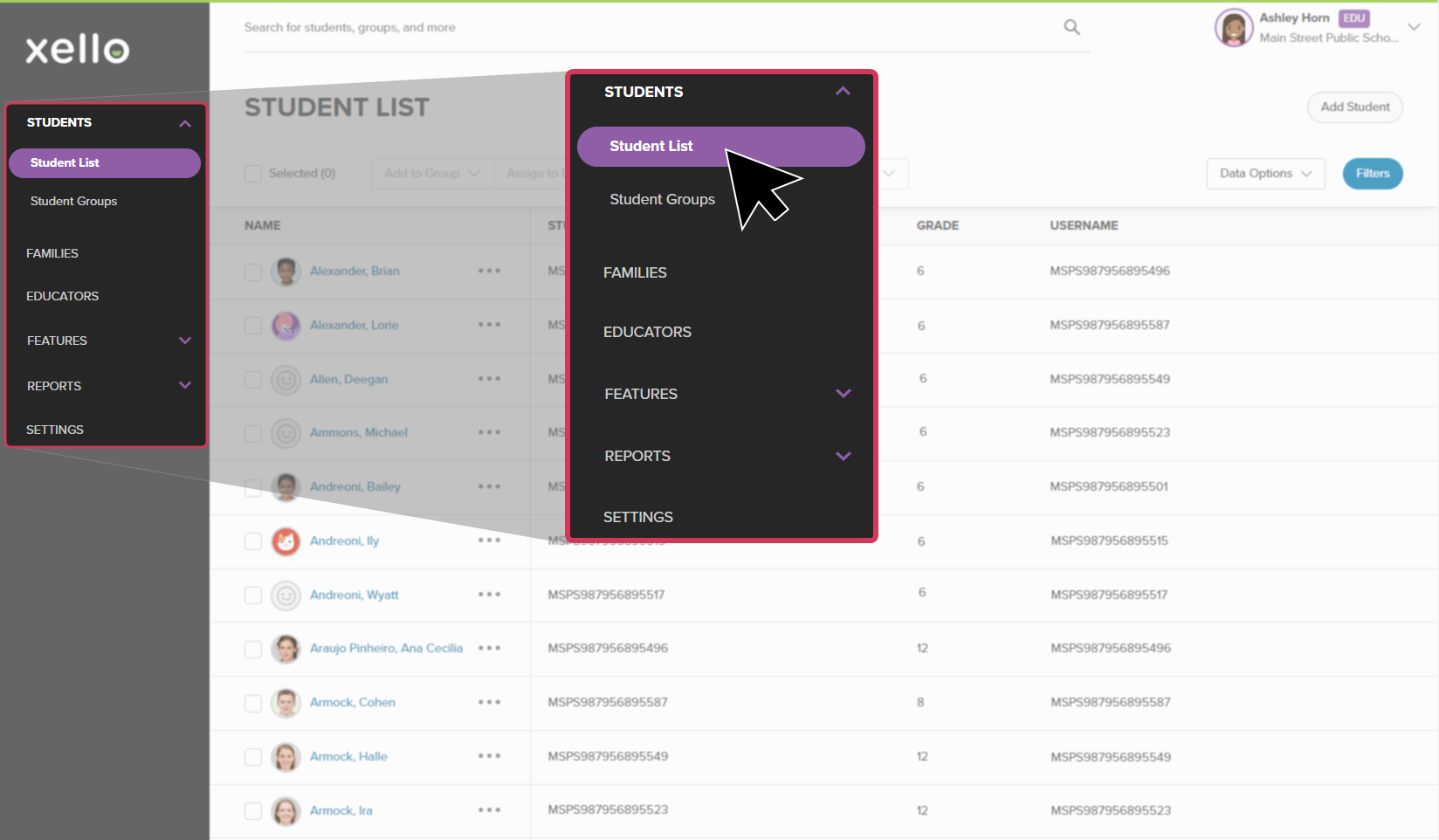 Click to enlarge
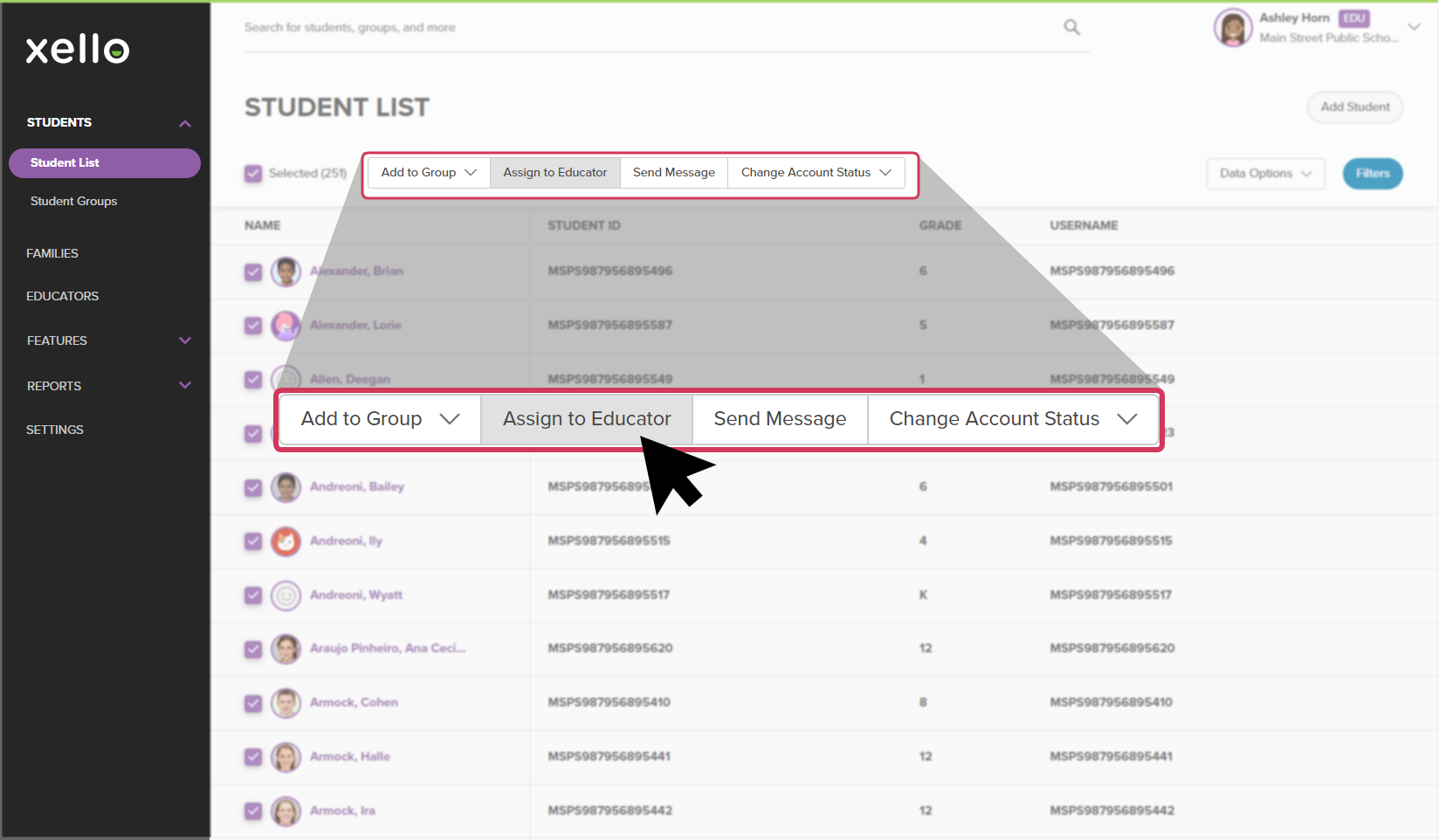
- Check the box next to a student’s name.
- If you know multiple students will be assigned to one primary advisor, you can select multiple students.
- If assigning multiple students to an advisor, you can narrow the list by clicking Filters and selecting options like
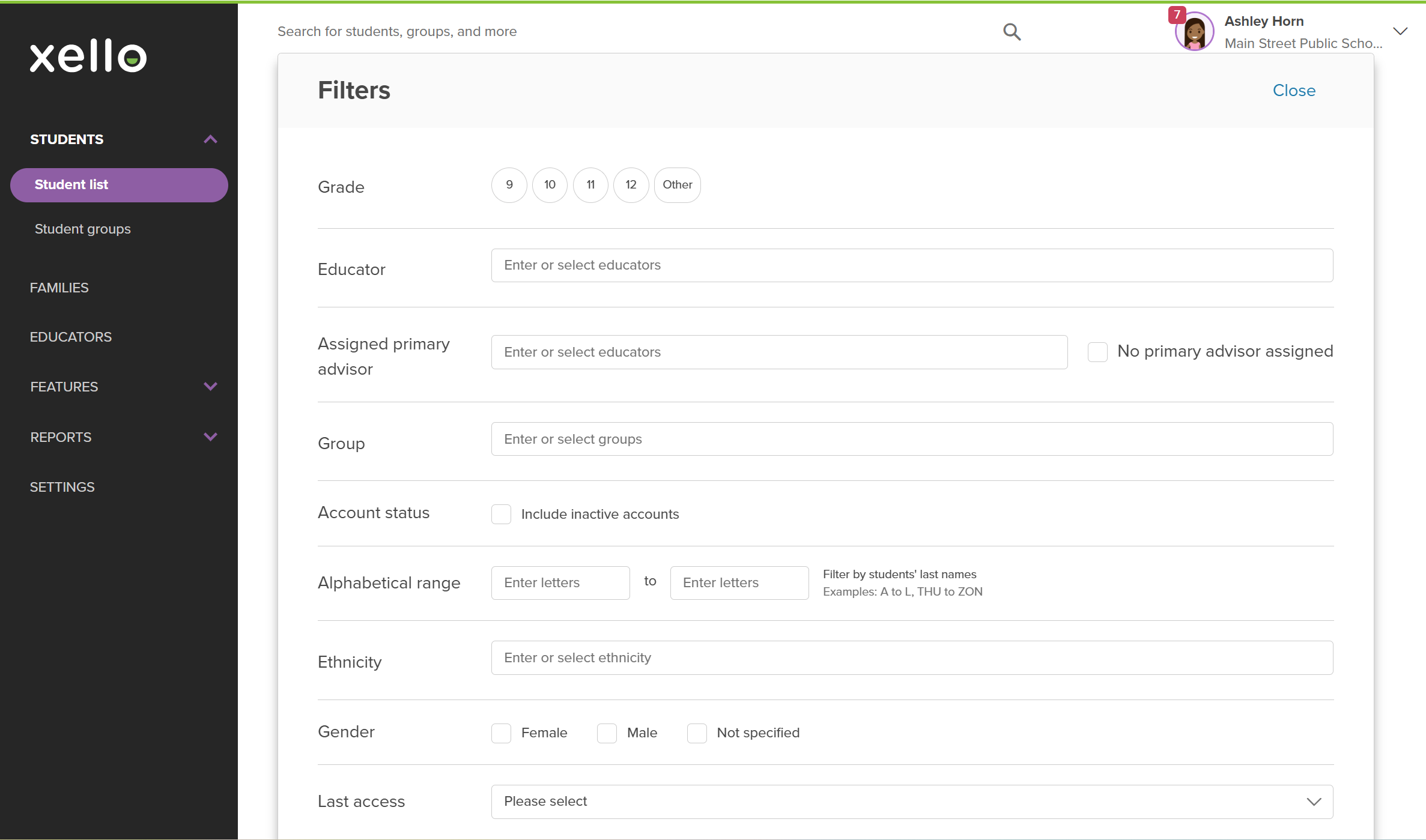 Click to enlarge
- Click the Assign to… dropdown, and select Primary advisor.
 Click to enlarge
- In the modal, start typing the name of the educator. Suggestions will auto-fill.
- Once you’ve selected the primary advisor, click Assign.
- A banner will indicate the assignment was successful.
 Back to top
Assign from the student profile
You can assign a primary advisor directly from a student’s profile. This in-context option makes it easy to assign while you’re in there reviewing their work in Xello.
To assign a primary advisor from the student profile:
-
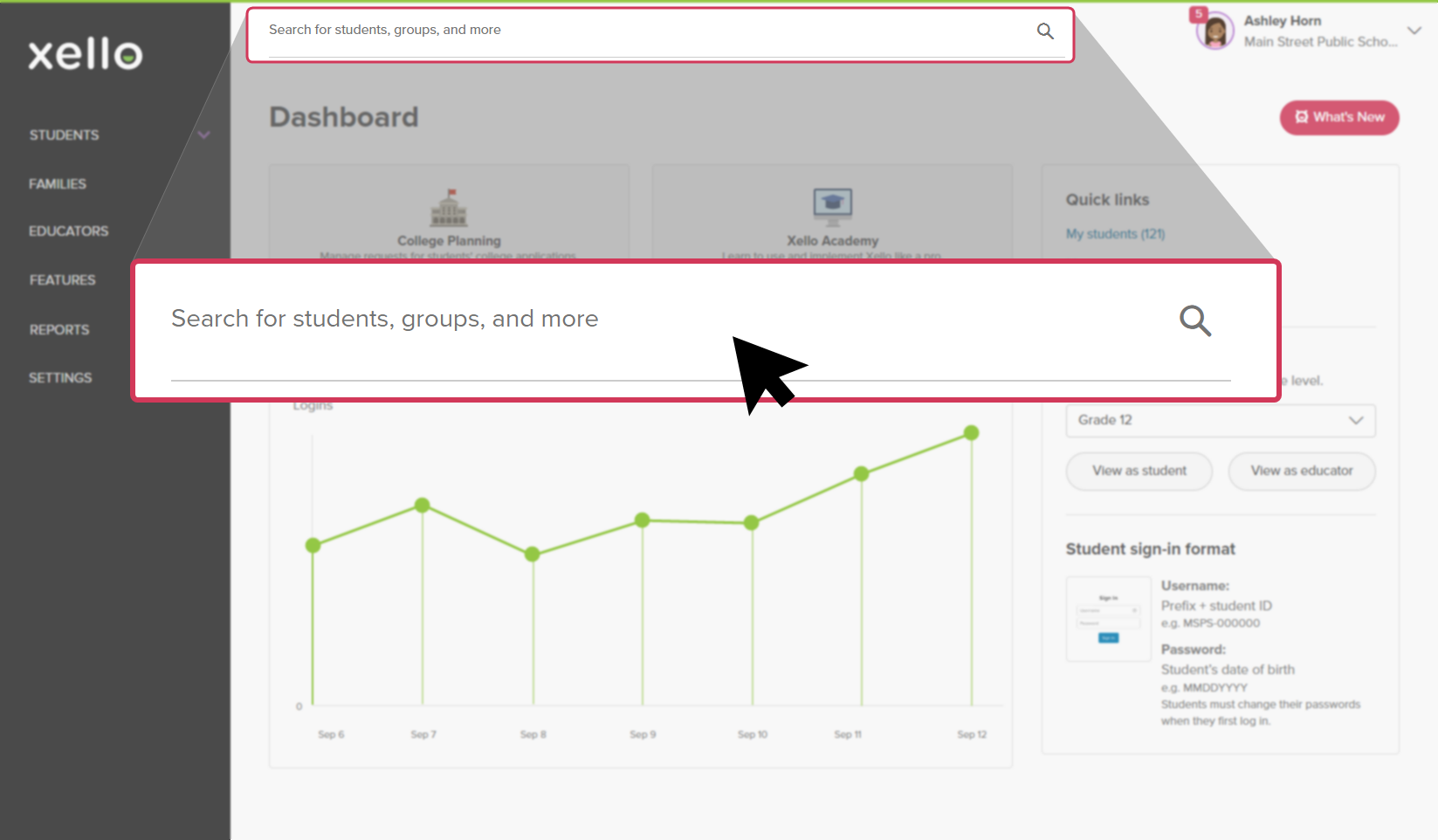
In the search bar located at the top of any page in your educator account, enter the student's name or ID.
 Click to enlarge
 Tip: Alternatively, from the left menu, click Students and select Student list to browse the full list of students.
 -
Click on the student's name. The About student tab of their profile opens.
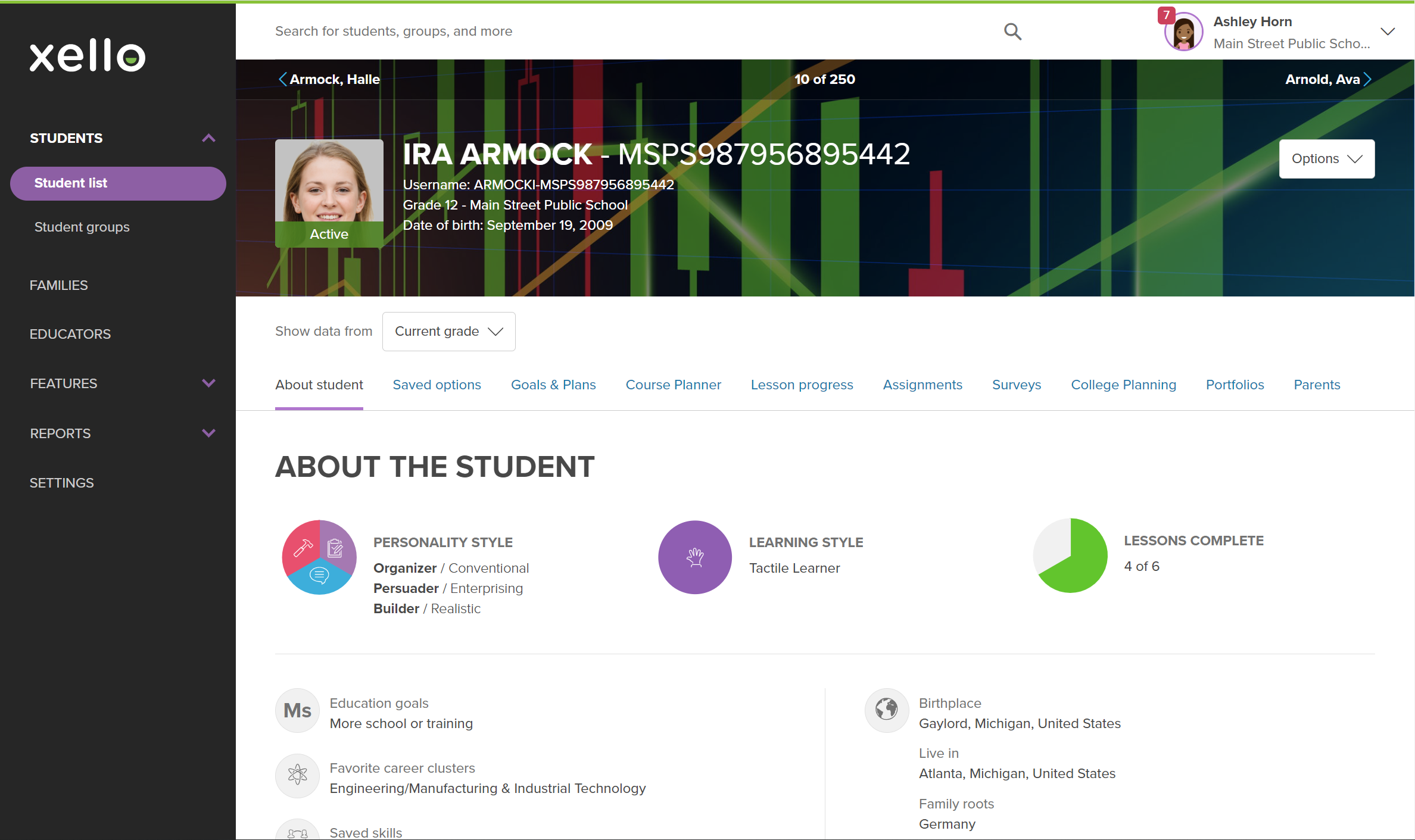 Click to enlarge
- Under their name and next to their avatar, click the Assign to primary advisor button.
- You can also access it and other options from the Options dropdown.
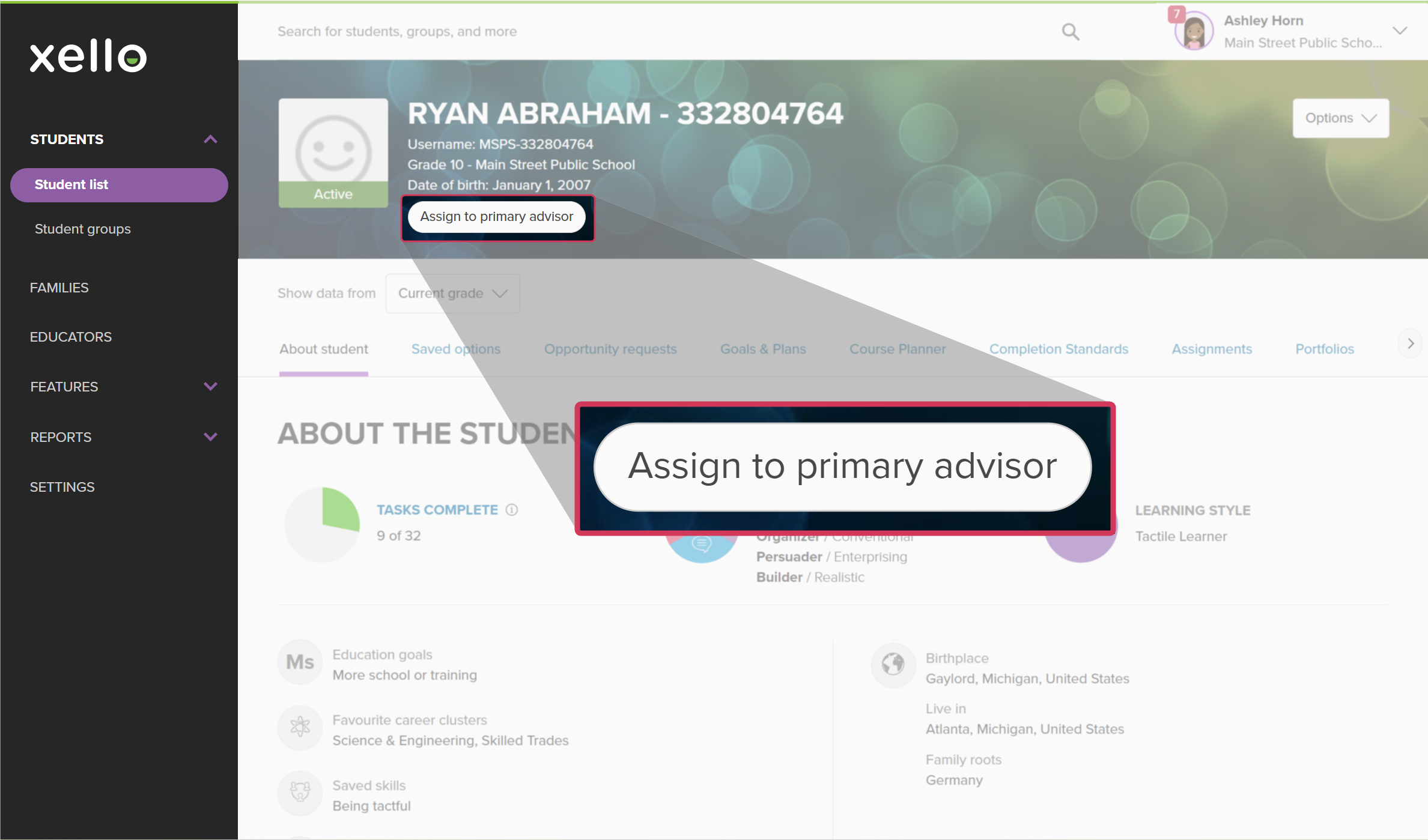 Click to enlarge
- In the modal, start typing the name of the educator. Suggestions will auto-fill.
- Once you’ve selected the primary advisor, click Assign.
- A banner will indicate the assignment was successful.
Assign from an educator profile
If you know you’ll be assigning primary advisor to multiple students to yourself or another educator, you can do this from the educator profile.
To assign a primary advisor from an educator profile:
-
In the left menu, click Educators to open the list of all educators.
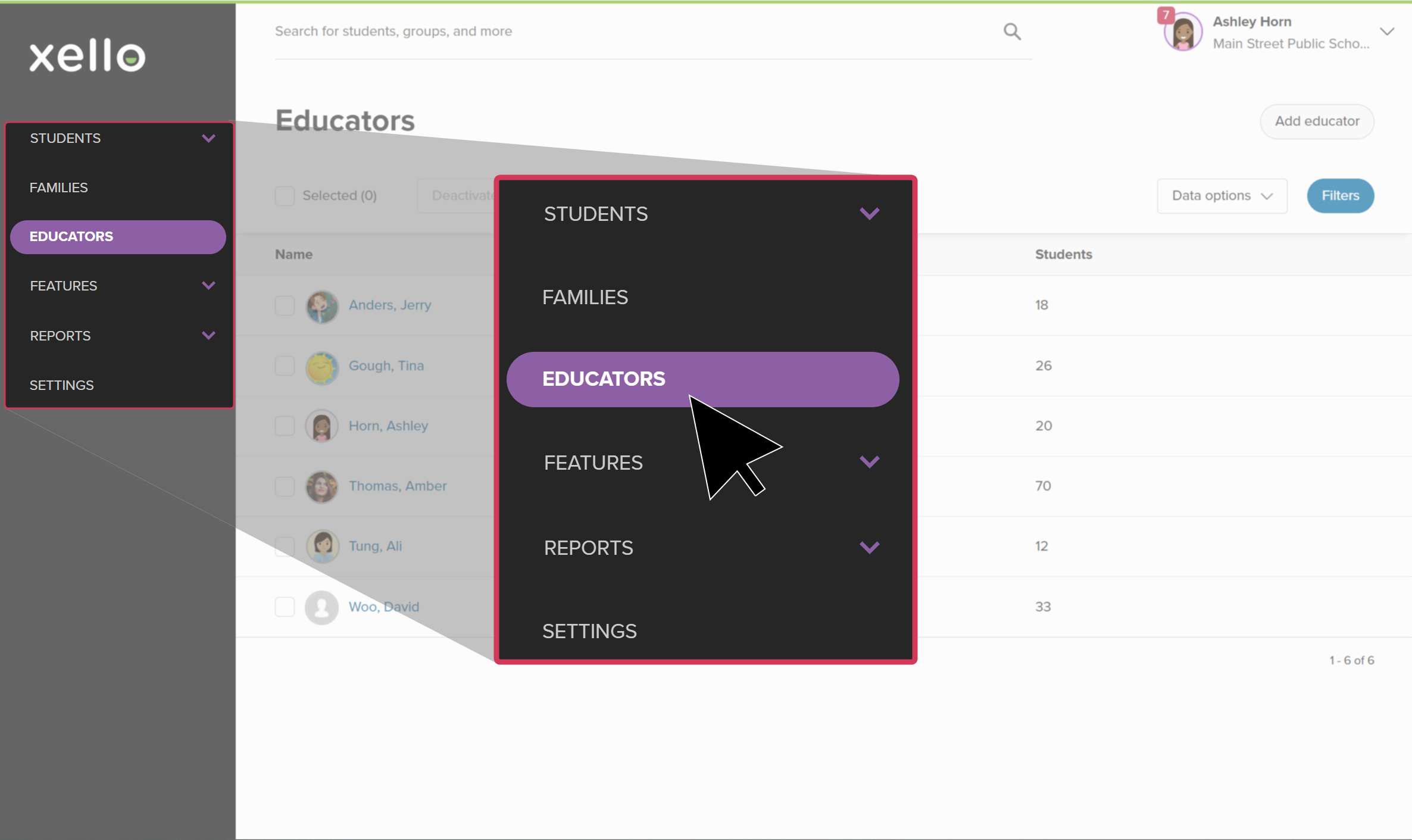 Click to enlarge
- Click the educator you’ll be assigning primary advisor to. This opens their educator profile.
- Scroll down to the Students section.
- Start typing the name of the student. Suggestions will auto-fill.
- Click the Select a role dropdown and select Primary advisor.
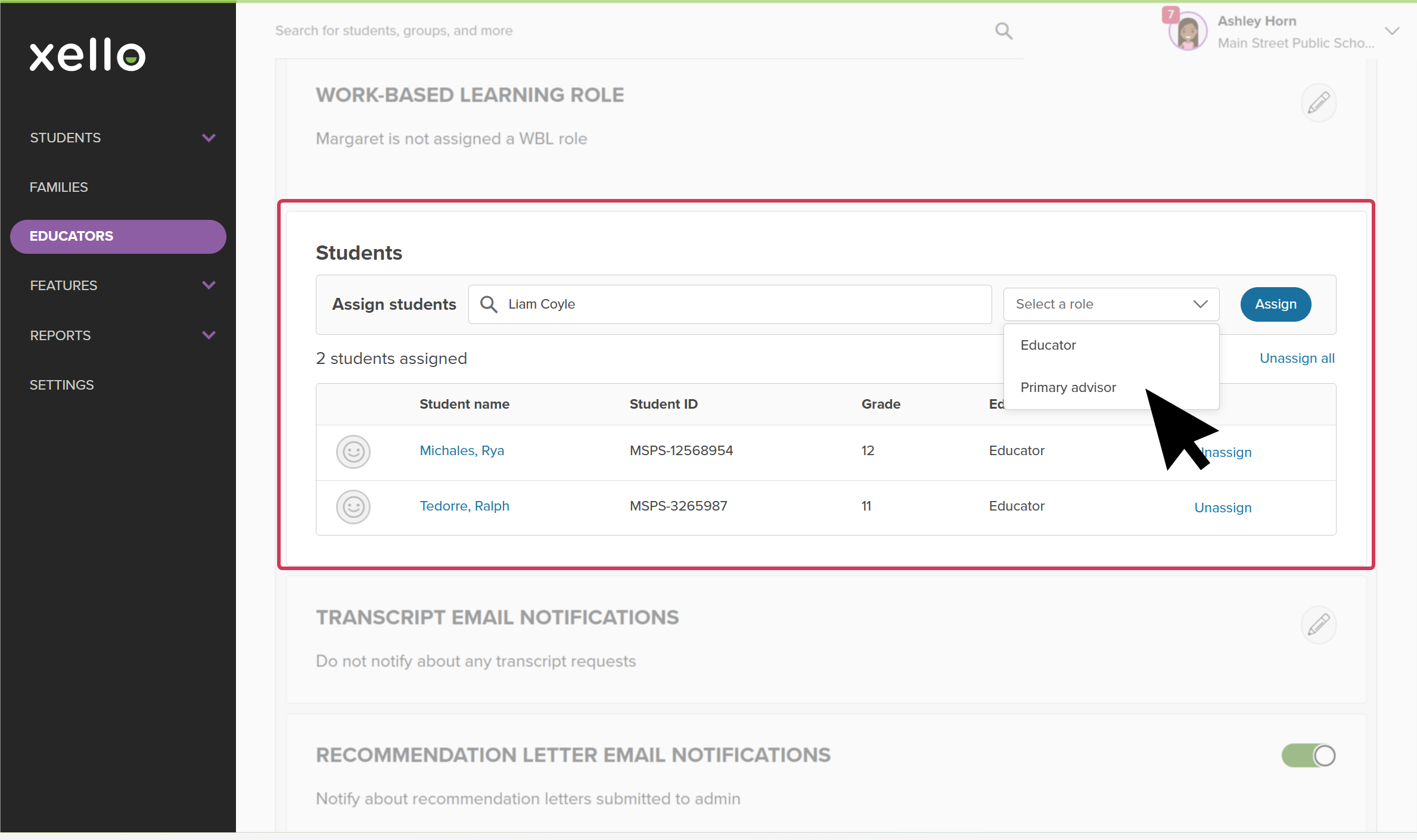 Click to enlarge
- Click Assign.
- A banner will indicate the assignment was successful.