6 minutes
Surveys in Xello help educators track student progress towards their goals, and can help educators to provide
Manage existing surveys in Xello to update content, duplicate and edit a survey, close a survey to submissions, and archive or delete outdated ones.
Edit a survey
If no students have begun completing a survey, you can go in and edit it. However, once a student has submitted answers or have saved a draft of their answers, the survey can no longer be edited. A banner at the top of the survey will indicate that it cannot be edited.
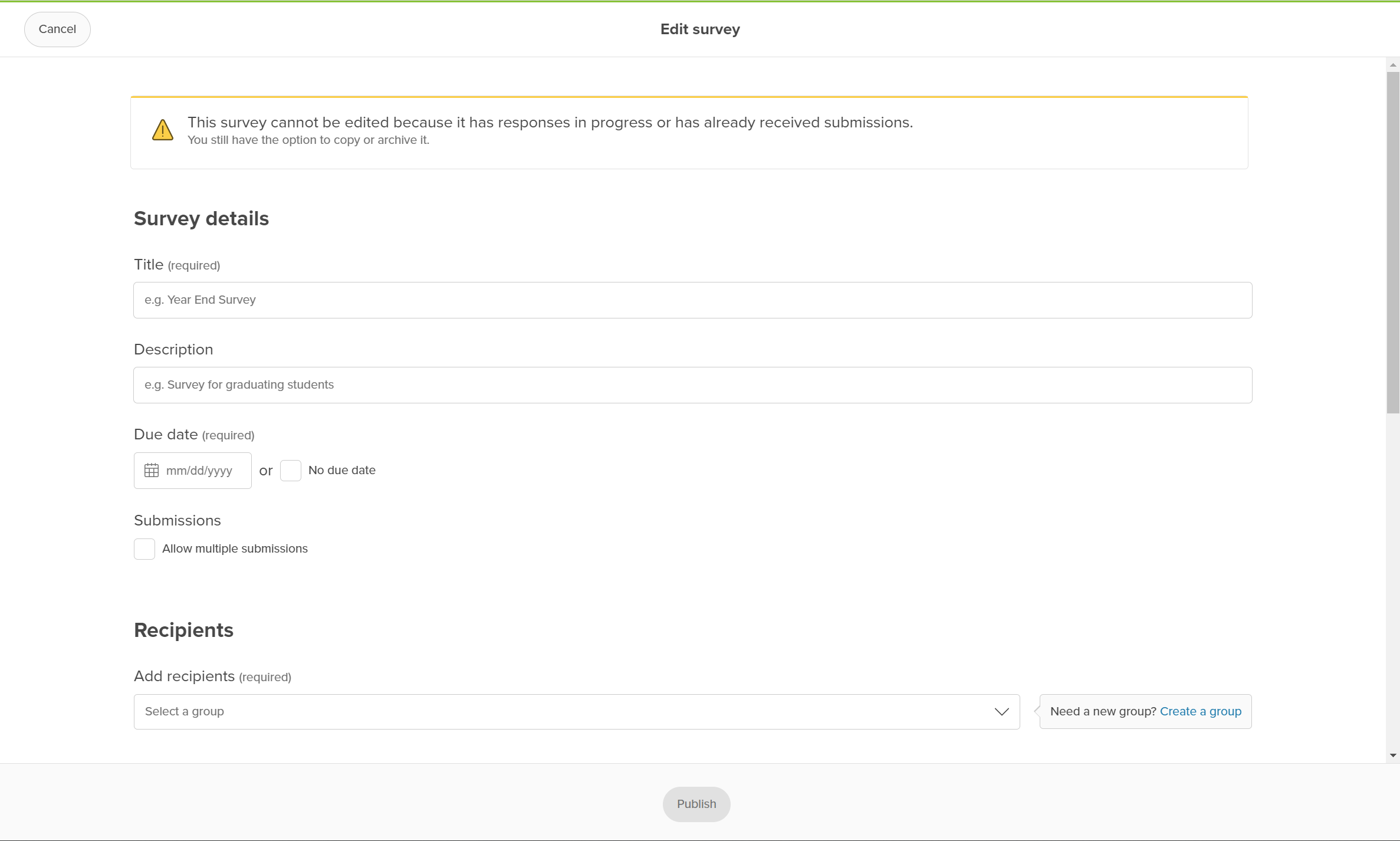
 Note: Xello Admin at the district level can edit any school-based survey. Those with User or Limited access can only edit their own surveys. For more information about permissions in Xello, check out Educator permissions.
To edit a survey that has not been started by students:
-
From your educator account, click Features and select Surveys.
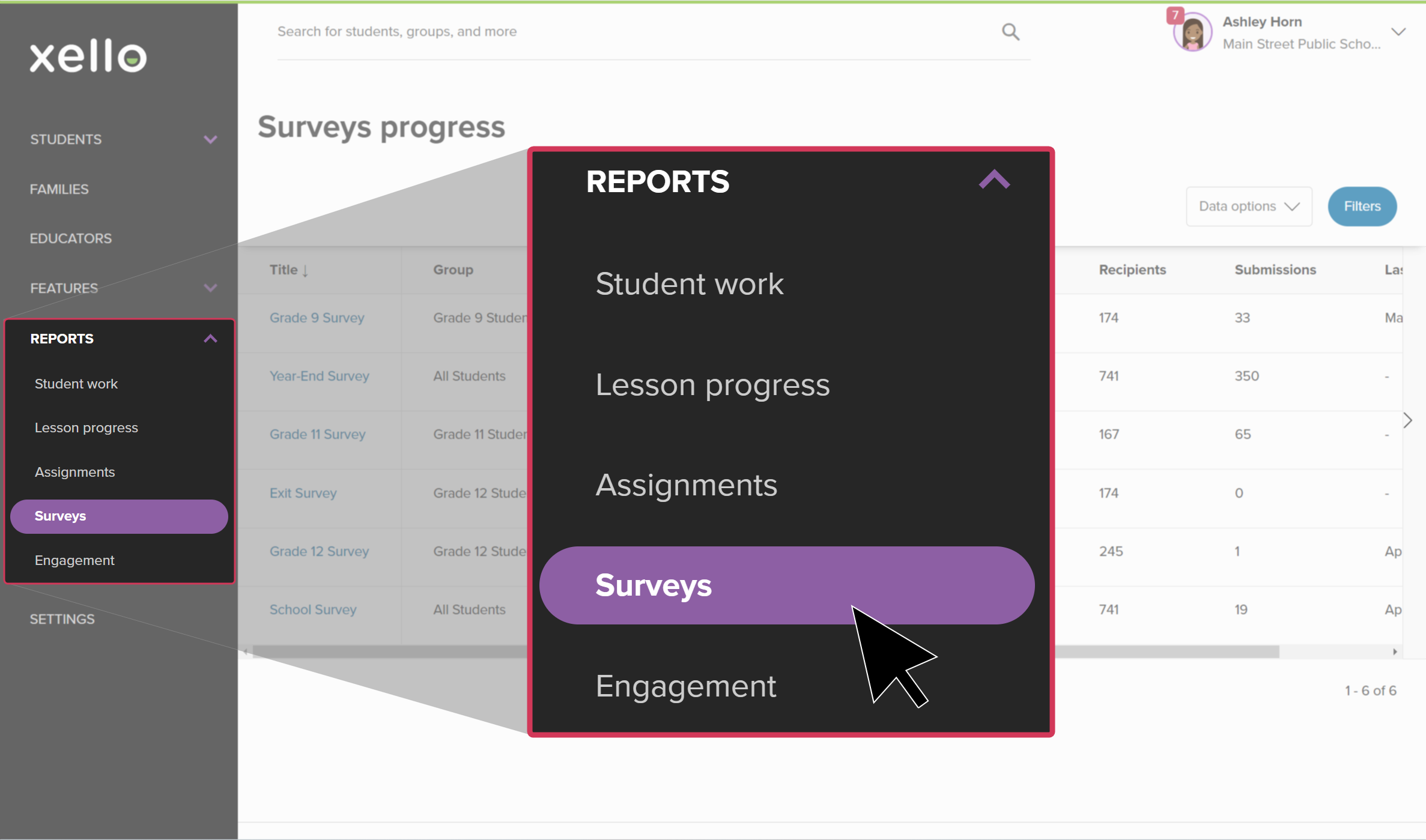 Click to enlarge
- Click on the survey you want to edit.
- Make your changes and click Publish. It will immediately be available on the student dashboard for them to complete.
 Back to top
Copy a survey
If there's an existing survey with similar questions to a new survey you'd like to create, you can copy the existing survey to save yourself some time.
To copy a survey:
-
From your educator account, click Features and select Surveys.
Click to enlarge
-
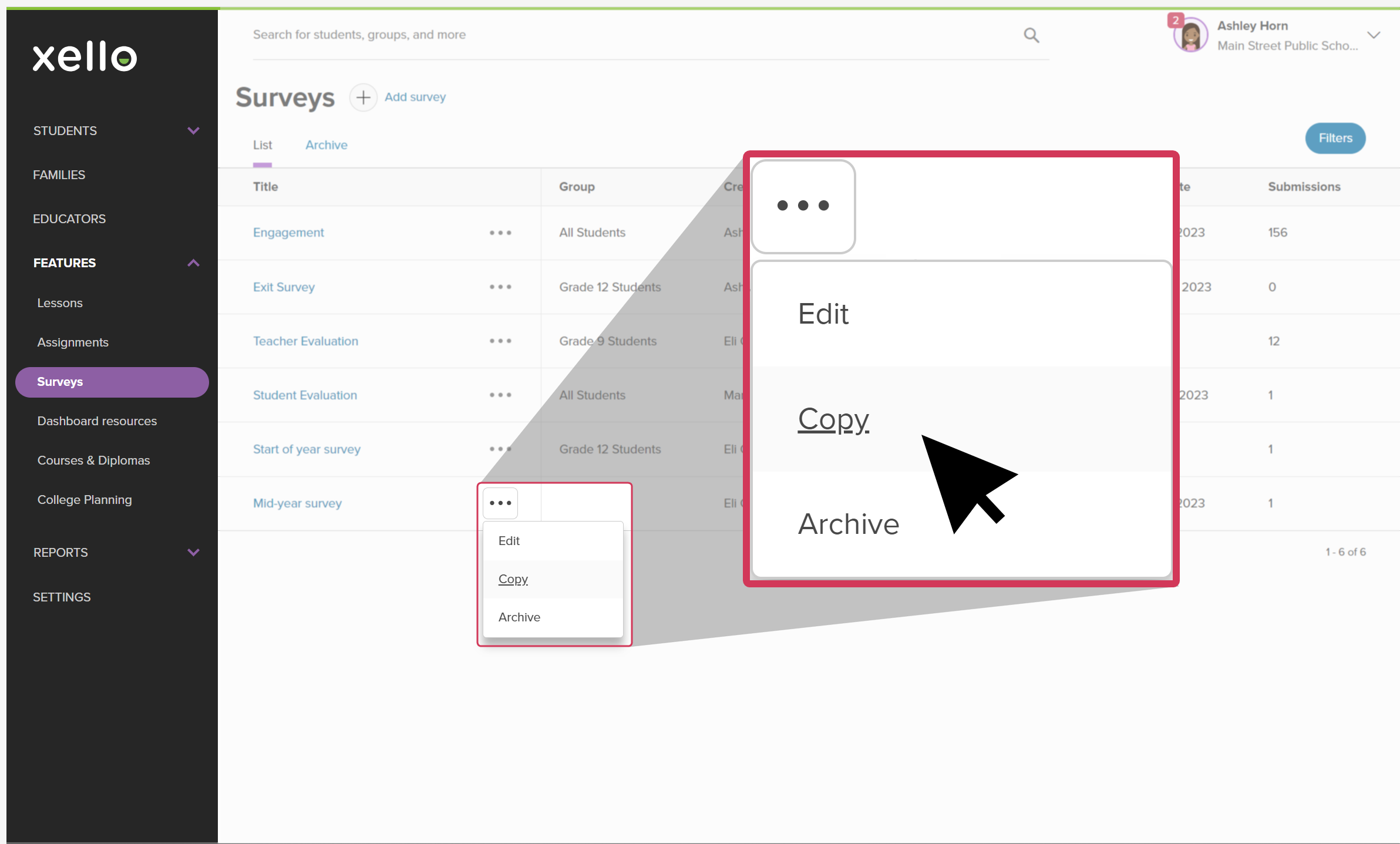
Find the survey you want to copy and click the three dot menu next to it. Select Copy.
 Click to enlarge
- A copied version of the survey will open. The title will be appended with (copy). Otherwise, the survey details and questions will be the same.
- Make any edits. When ready, click Publish. It will immediately be available on the student dashboard for them to complete.
 Tip: If you're not ready to publish and make it available for your students, click Save as draft to keep your work and return to it later.
Close a survey
When you want to prevent students from submitting any further responses, you can close it. The responses will still show in reports and can be viewed on student profiles.
Once responses have been submitted by students, closing a survey is ideal so you can track and compare to previous survey data. If you don't wish to see responses or include them in reports, it might be better for you to Archive the survey.
Surveys can be opened again following the same steps below.
To close a survey:
-
From your educator account, click Features and select Surveys.
Click to enlarge
-
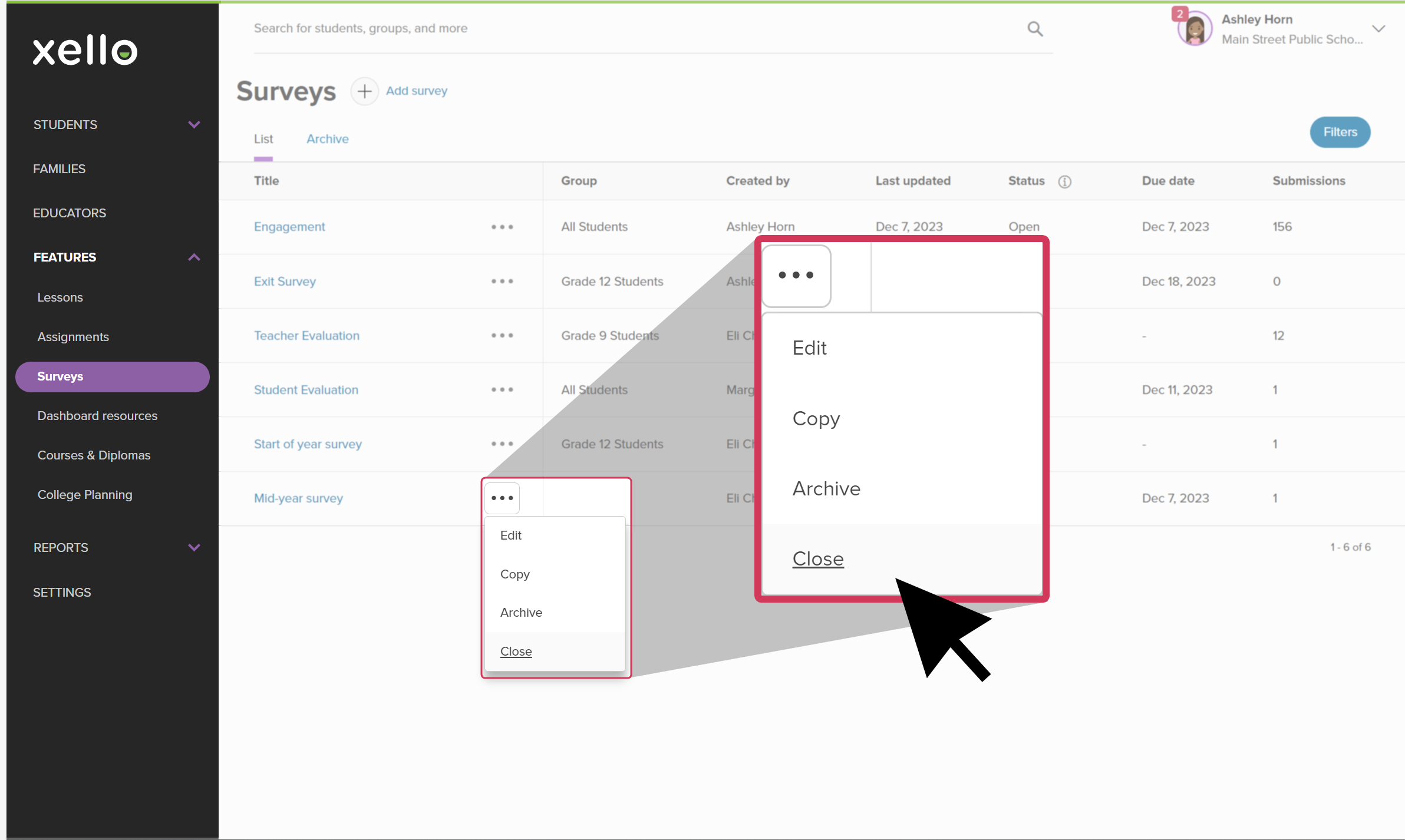
Find the survey you want to close and click the three dot menu next to it. Select Close.
 Click to enlarge
 - The status of the survey will change to Closed.
Archive a survey
If you no longer want to receive submissions from your students and also do not want submitted responses to show in reports or on student profiles, you can archive the survey.
After archiving a survey, it will no longer appear on student dashboards or in any reports you run.
Surveys can be unarchived. If you unarchive a survey, it will return to the same status as when it was archived (open, closed, or not active), and will immediately show on student dashboards, and in reports.
To archive a survey:
- From your educator account, click Features and select Surveys.
Click to enlarge
-
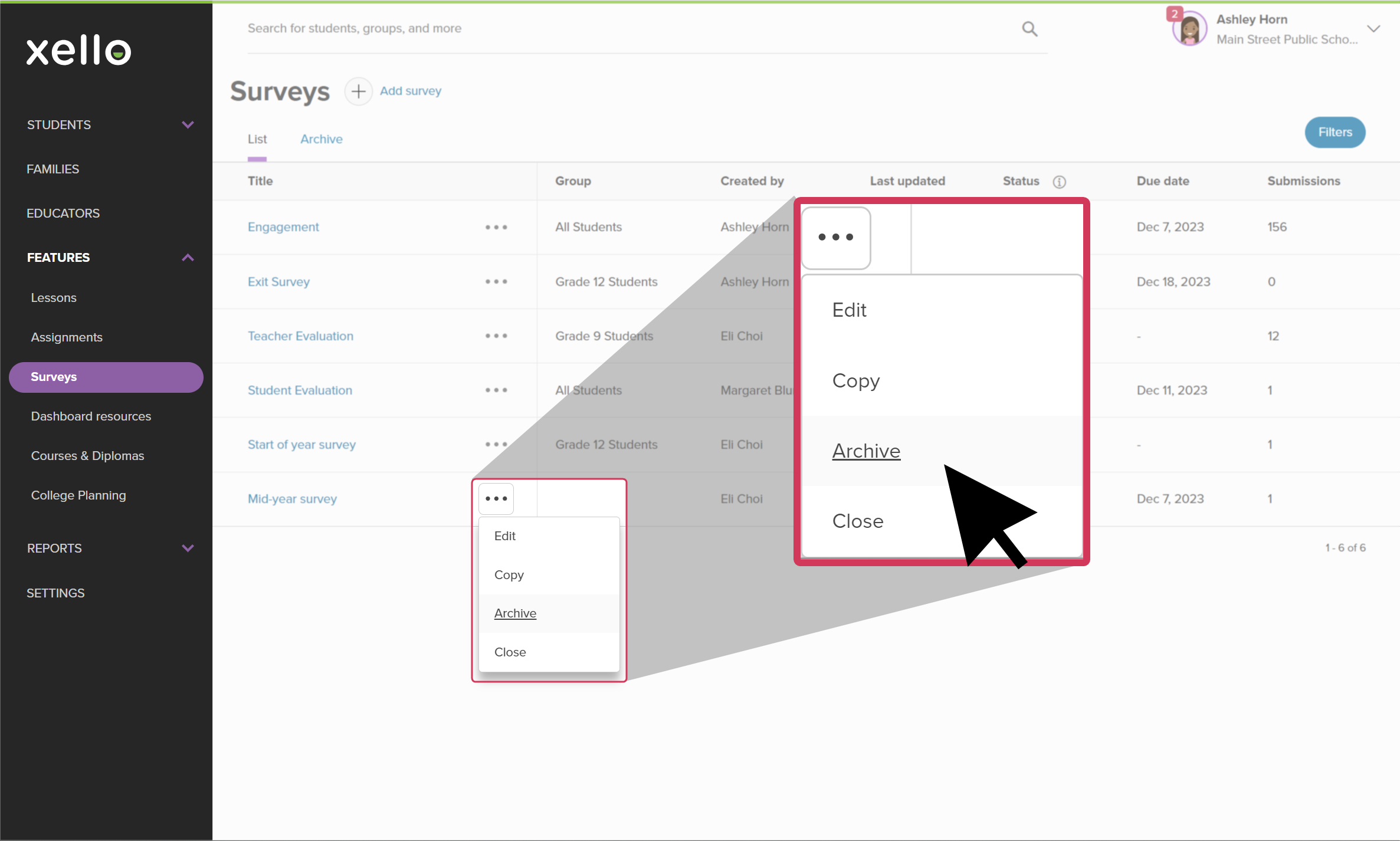
Find the survey you want to close and click the three dot menu next to it. Select Archive.
 Click to enlarge
- The survey will move to the Archive tab. Click the tab to find it again and unarchive if needed.
Delete a survey
You can fully delete a survey. This might be applicable if a survey was created accidentally, is outdated, or is no longer necessary. Once a survey is deleted, it will no longer show in the list of surveys, in the list of archived surveys, or in any reports. Deleting a survey cannot be undone.
Those with Admin access can delete any survey. Those will Limited or User level access can only delete the surveys they have personally created.
To delete a survey:
- From your educator account, click Features and select Surveys.
Click to enlarge
-
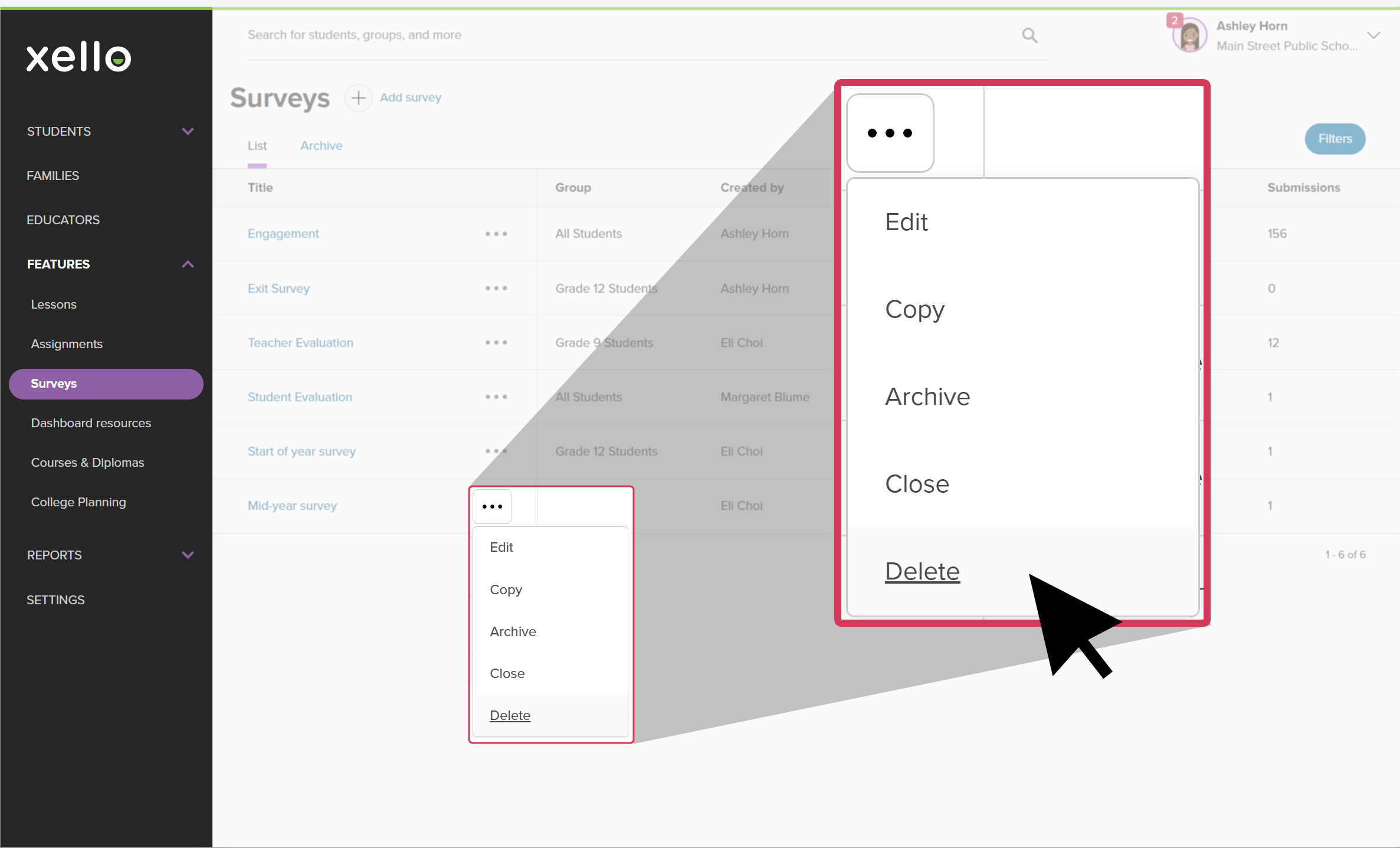
Find the survey you want to close and click the three dot menu next to it. Select Delete.
 Click to enlarge
- Confirm you want to delete the survey and click Delete.
- The survey will be completely deleted from both the List tab and the Archive tab, and all reports.