3 minutes
Xello’s Course Planner can help introduce elementary students to the habit of looking ahead. By exploring their future class options for grades 6, 7, and 8, students feel more prepared and excited for the transition to middle school. Building their own course plan gives them a sense of ownership over their journey as they begin making their first real school choices.
 Tip: Download and share this quick guide with your 5th grade students to walk them through how to add classes to their course planner: Add your courses in Xello (also available in Spanish).
How elementary students build a course plan:
- They click My goals.
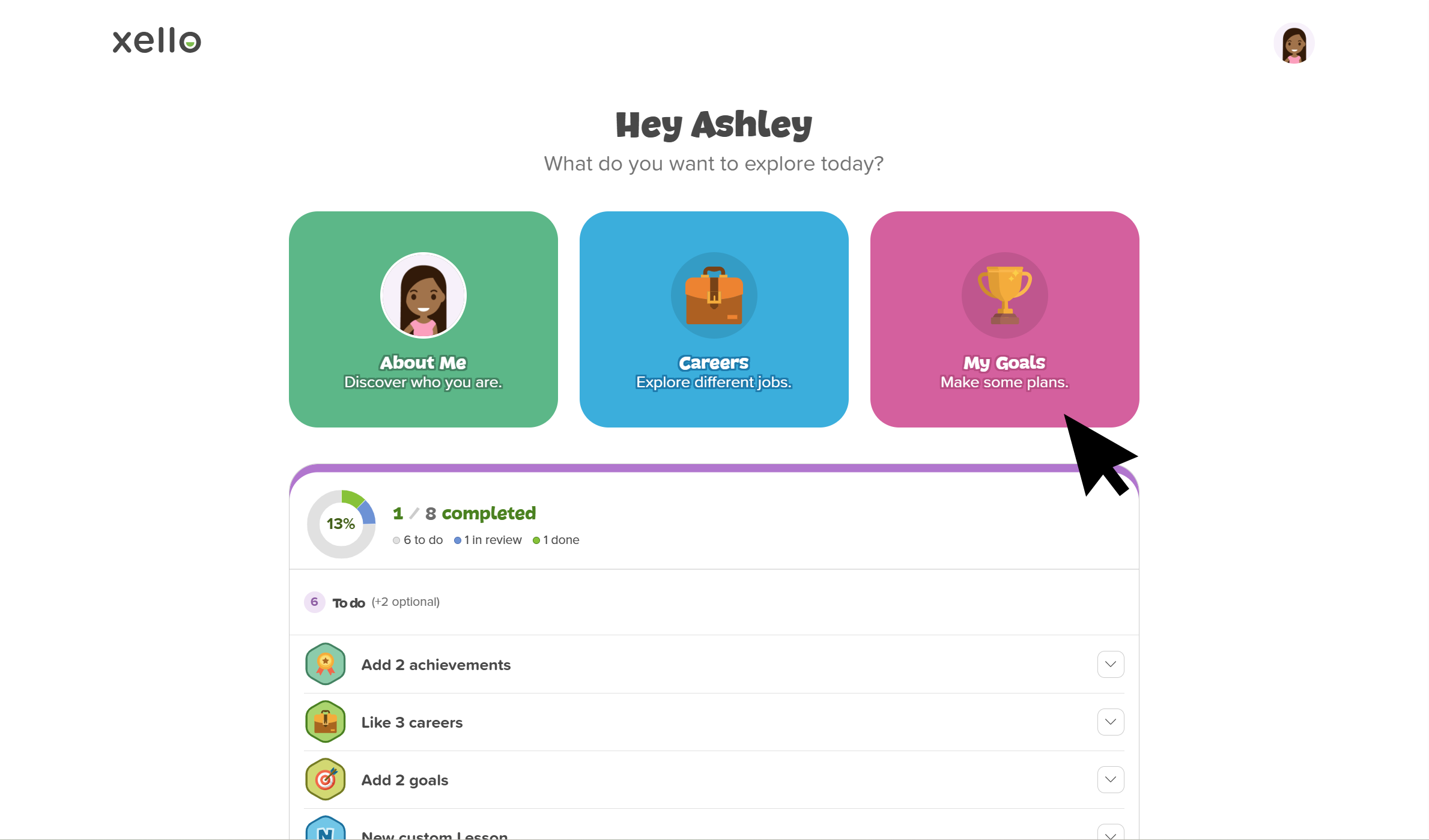 Click to enlarge
- Under Course Planner, they click Make a plan.
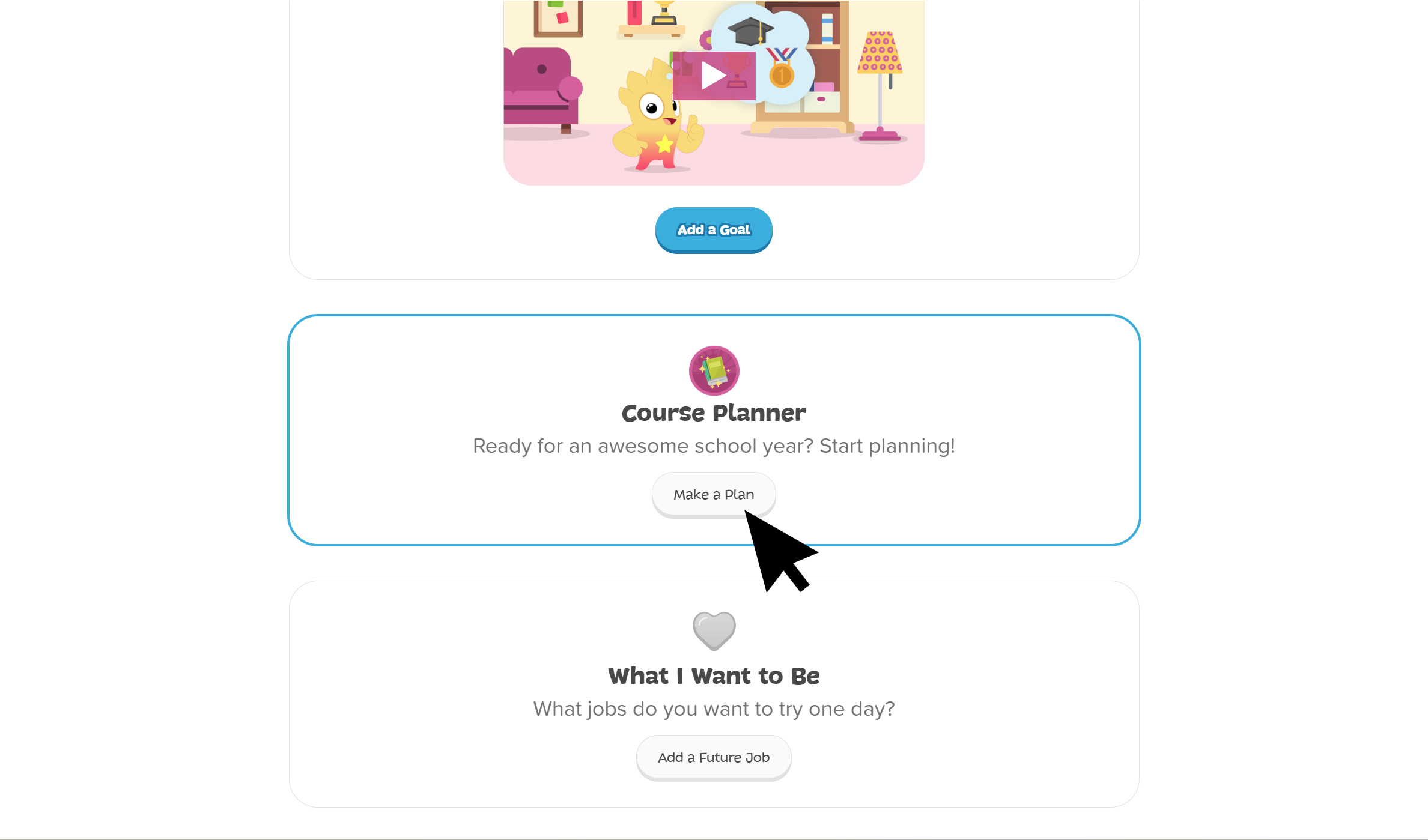 Click to enlarge
 Note: Students will only see Course Planner if the feature setting is turned on for their grade. Check out Change Course Planner settings to learn more.
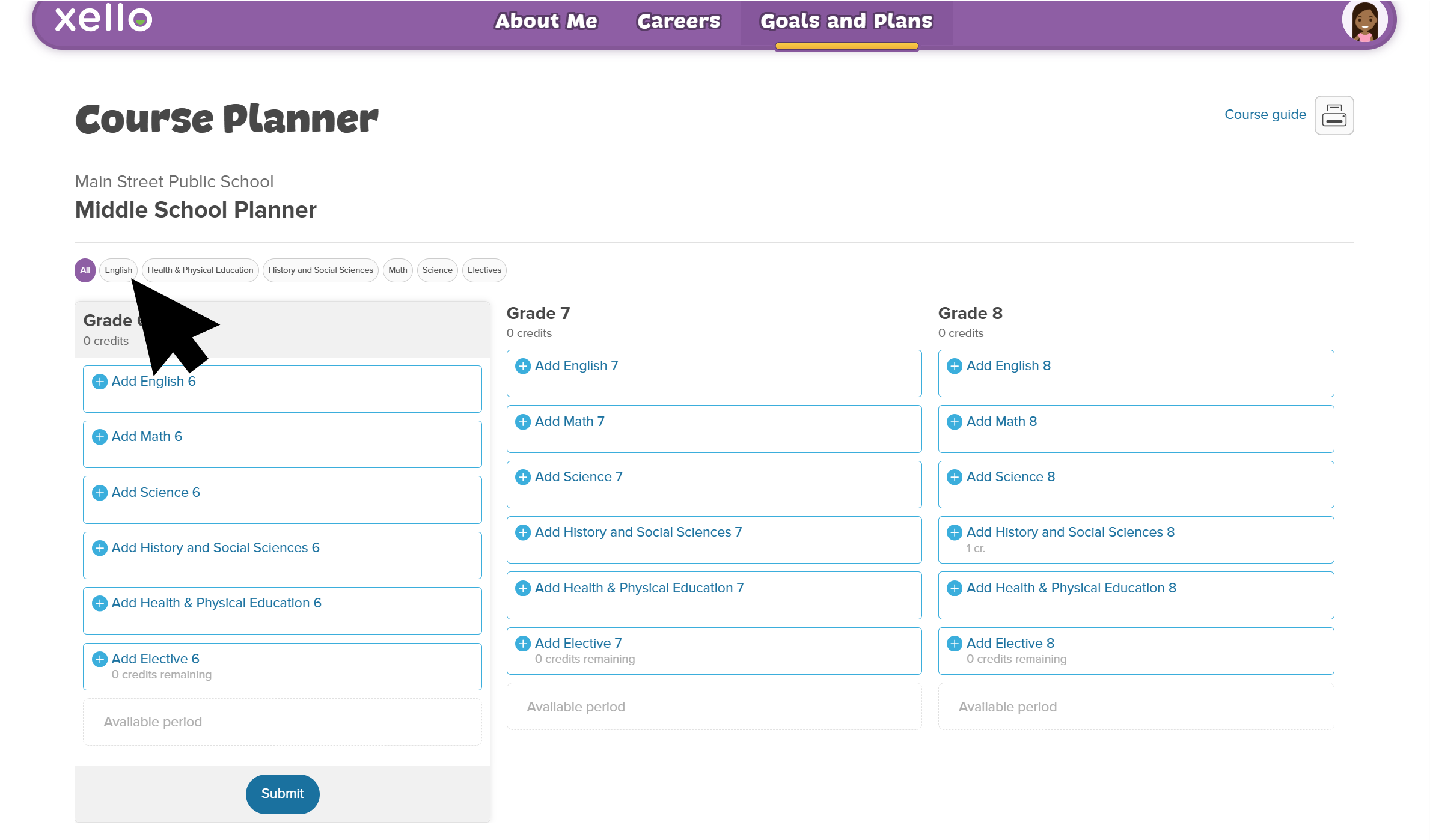
 - On the Course Planner page, there is a column for each middle school grade.
- To simplify the page, they can click the a school subject requirement and narrow the planner to one subject.
 Click to enlarge
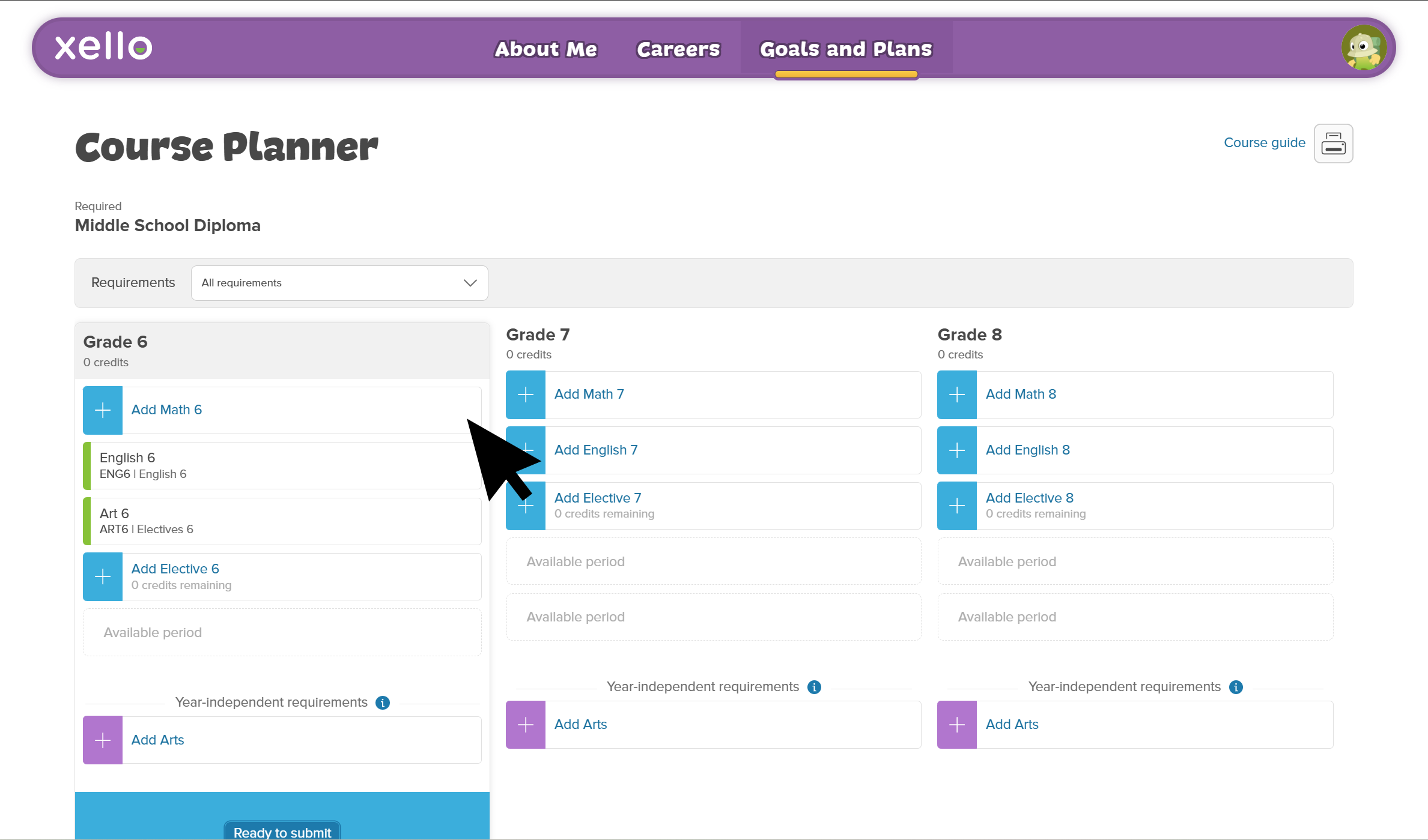
- They click the subject to open a side panel with the list of available courses.
 Click to enlarge
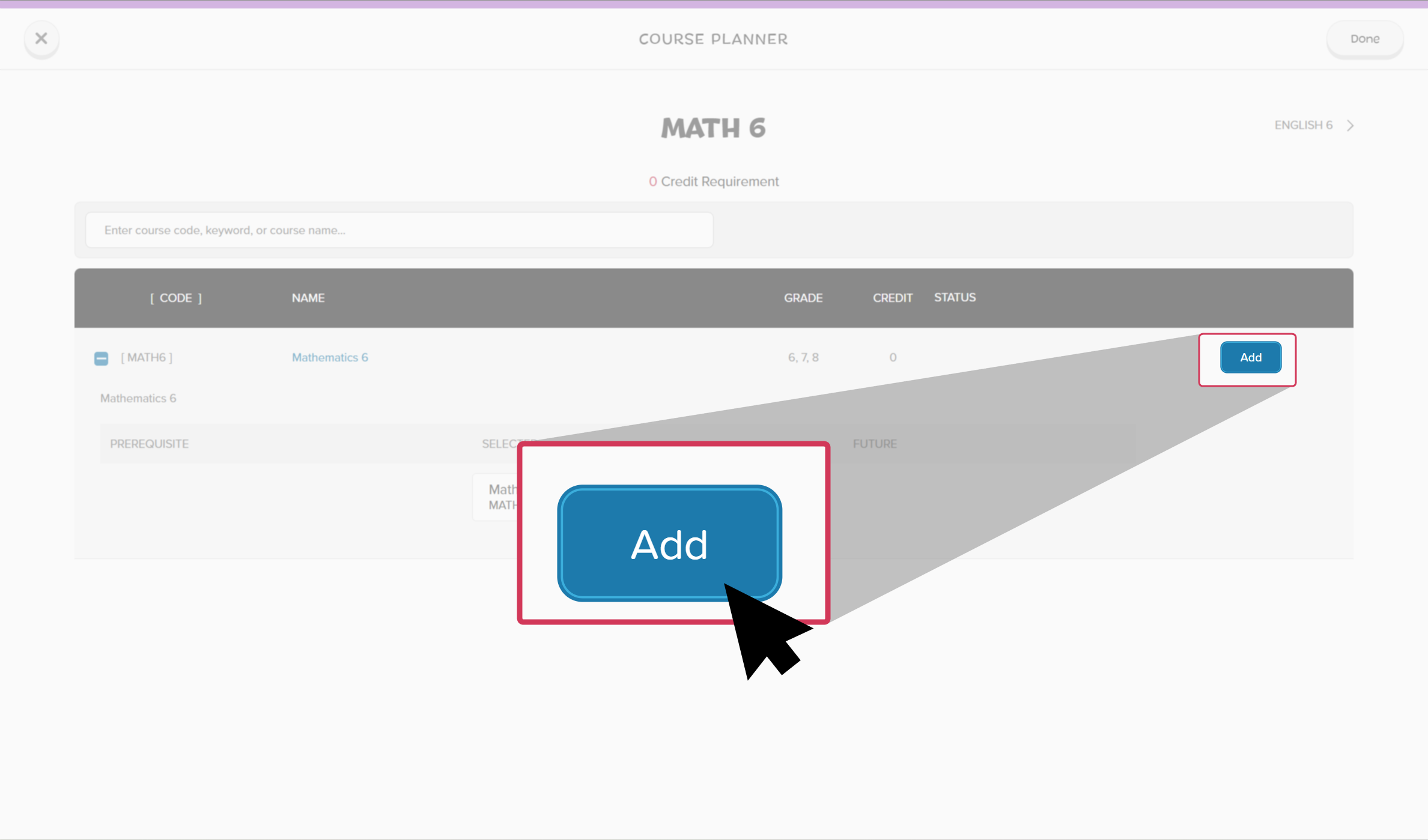
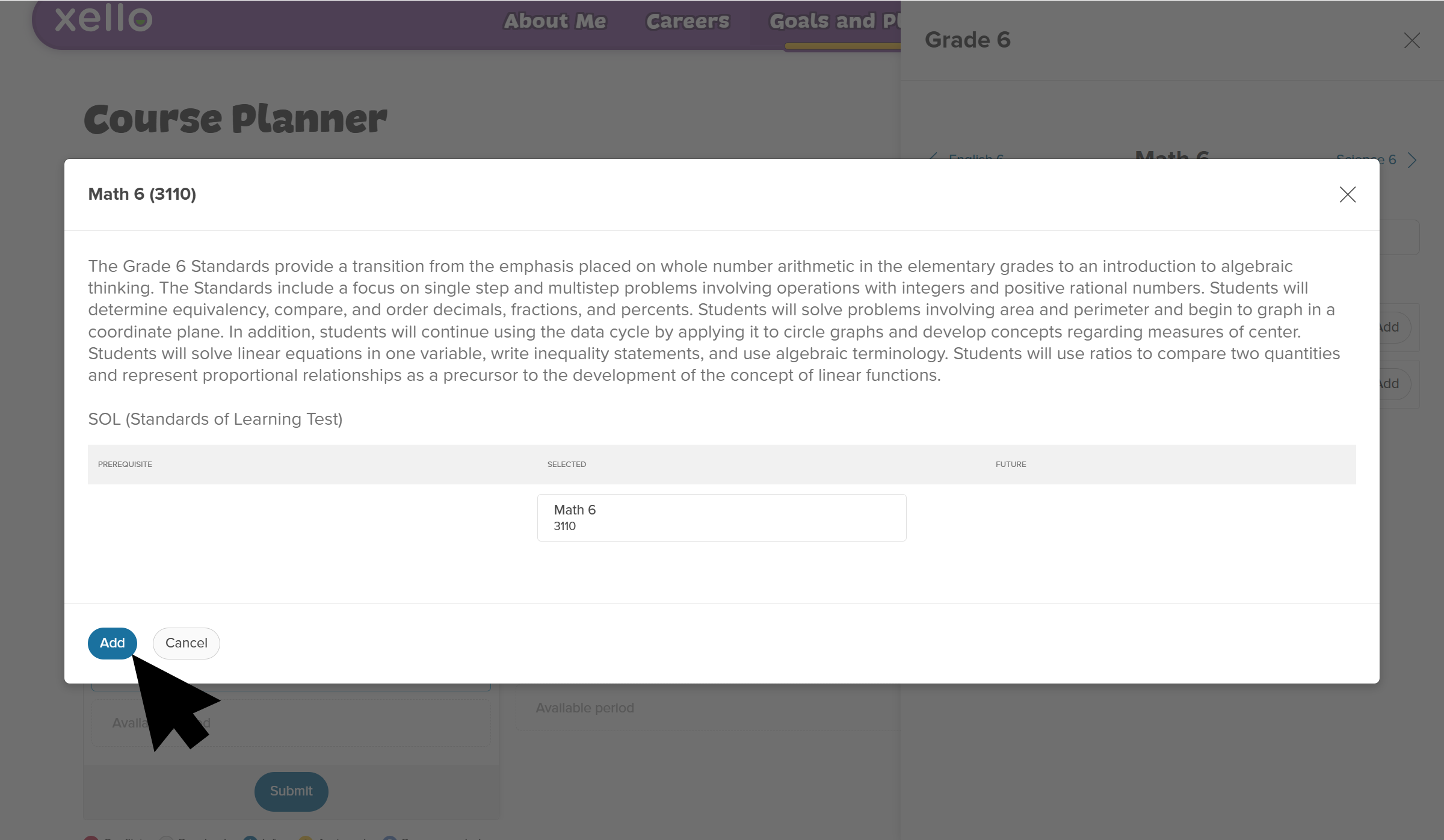
- They click on the course name to open a modal with information about the course including course description, required prerequisites, and future courses that students may take once they complete the course.
 Click to enlarge
- Once they've chosen the course they want, they click Add. A green checkmark and tag confirm that the course was added to their plan.
 Click to enlarge
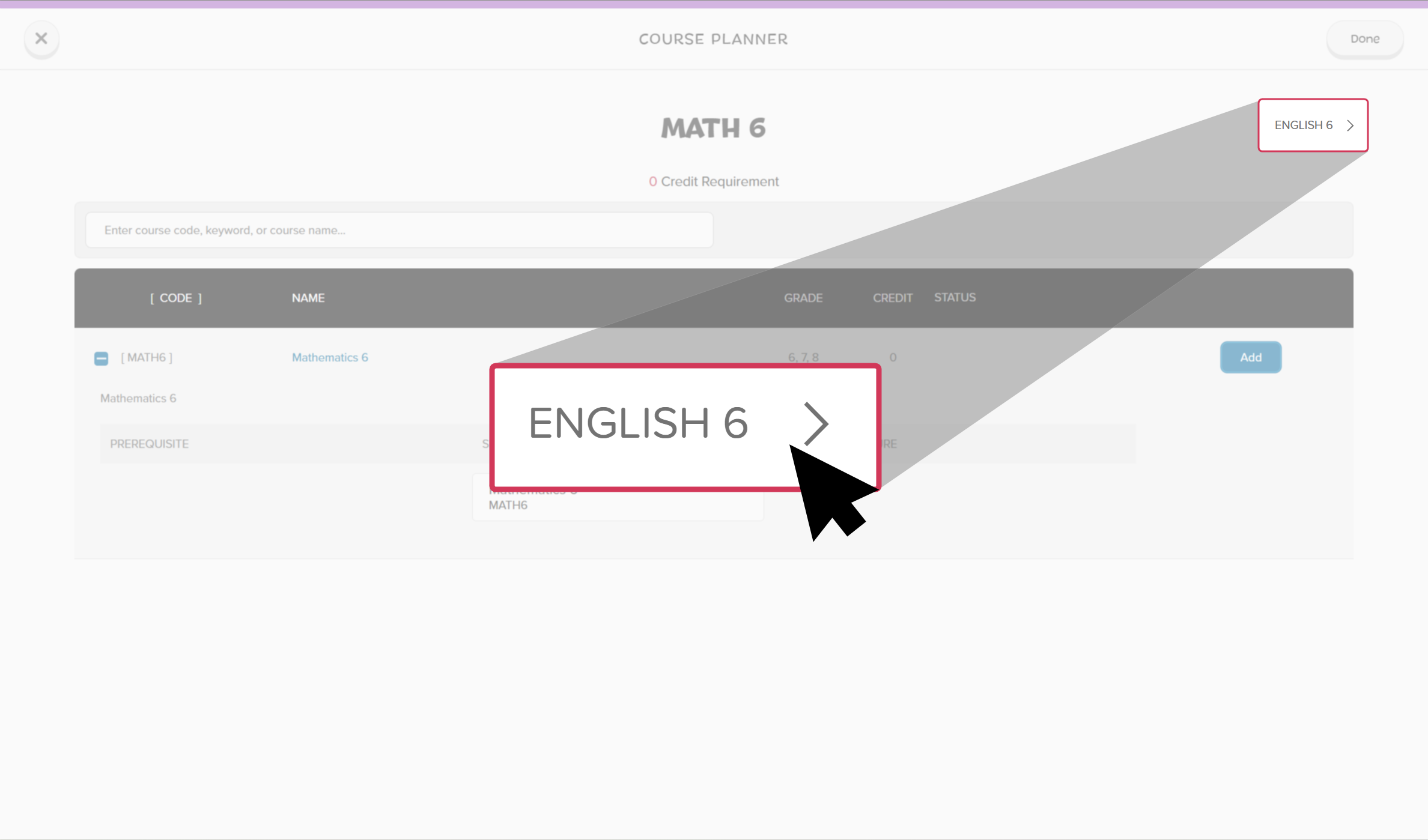
- To navigate to the next requirement or elective, they click the subject name next to the current subject title.
 Click to enlarge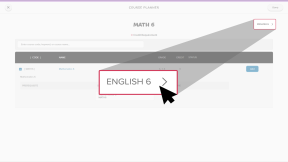
- When they're done adding courses, they click Done.
- From the bottom of the upcoming grade column, they click Submit when their course plan is complete.
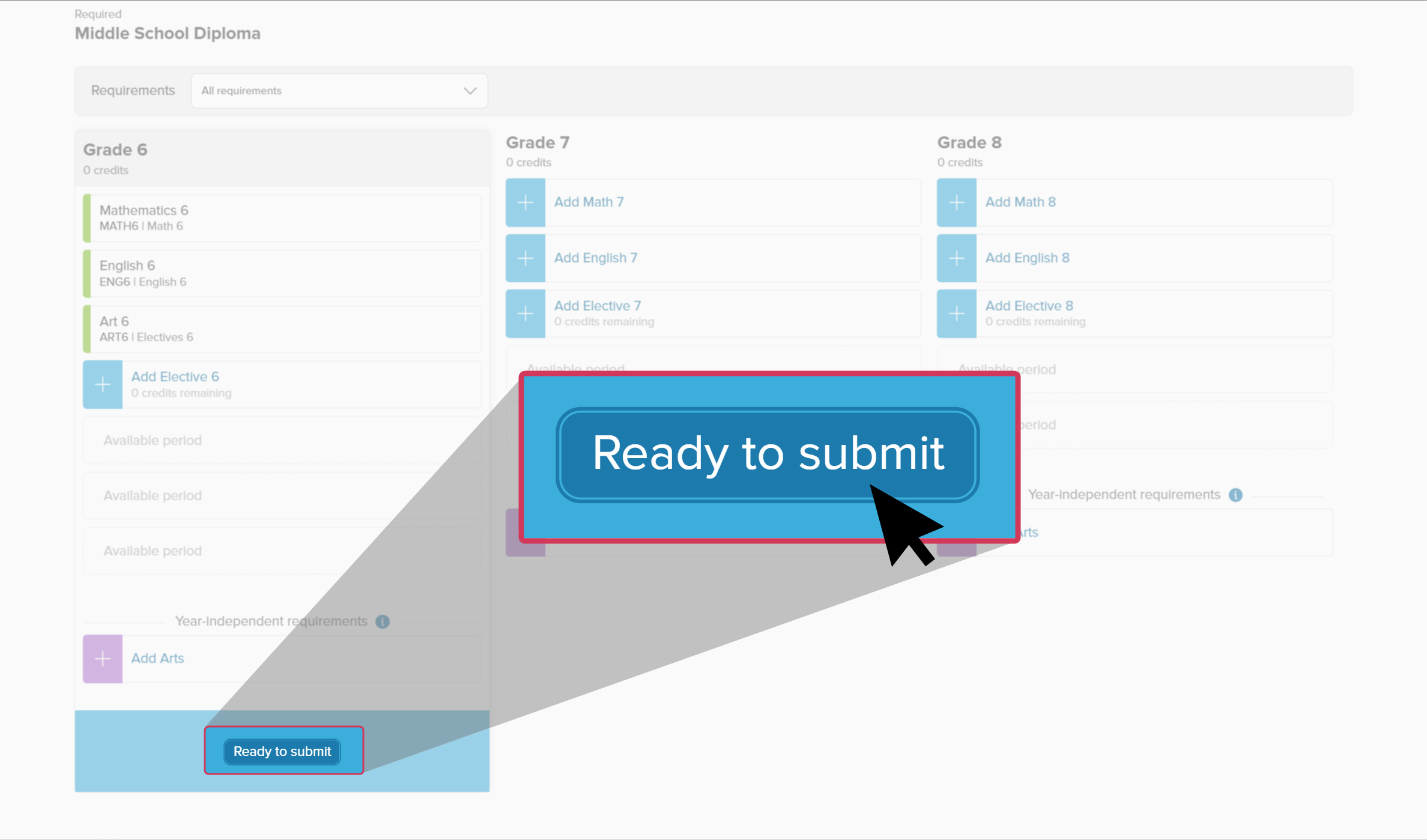 Click to enlarge
- If there are any alerts or issues, they'll get a message before they submit with what needs to be fixed. Check out Course Planner alerts to learn which alerts they may get.