3 minutes
About the course guide
The course guide is created by those with administrator access to provide an easily accessible document that summarizes all the courses available.
The guide is organized by discipline. Each discipline lists the courses available. The course information will include a short description, the number of credits, the grade, any course notes, and any prerequisites.
To skip through and view the disciplines and courses you're most interested in, use the table of contents on the left side of the page.
View and share the course guide
The course guide is accessible to educators, students, and families. There are several places to access the course guide. Once opened, there's a Share link with a URL so everyone can easily view the courses available.
Students
Students are able to view the course guide from their Course Planner page. Once they've opened the guide, they can copy and share the link.
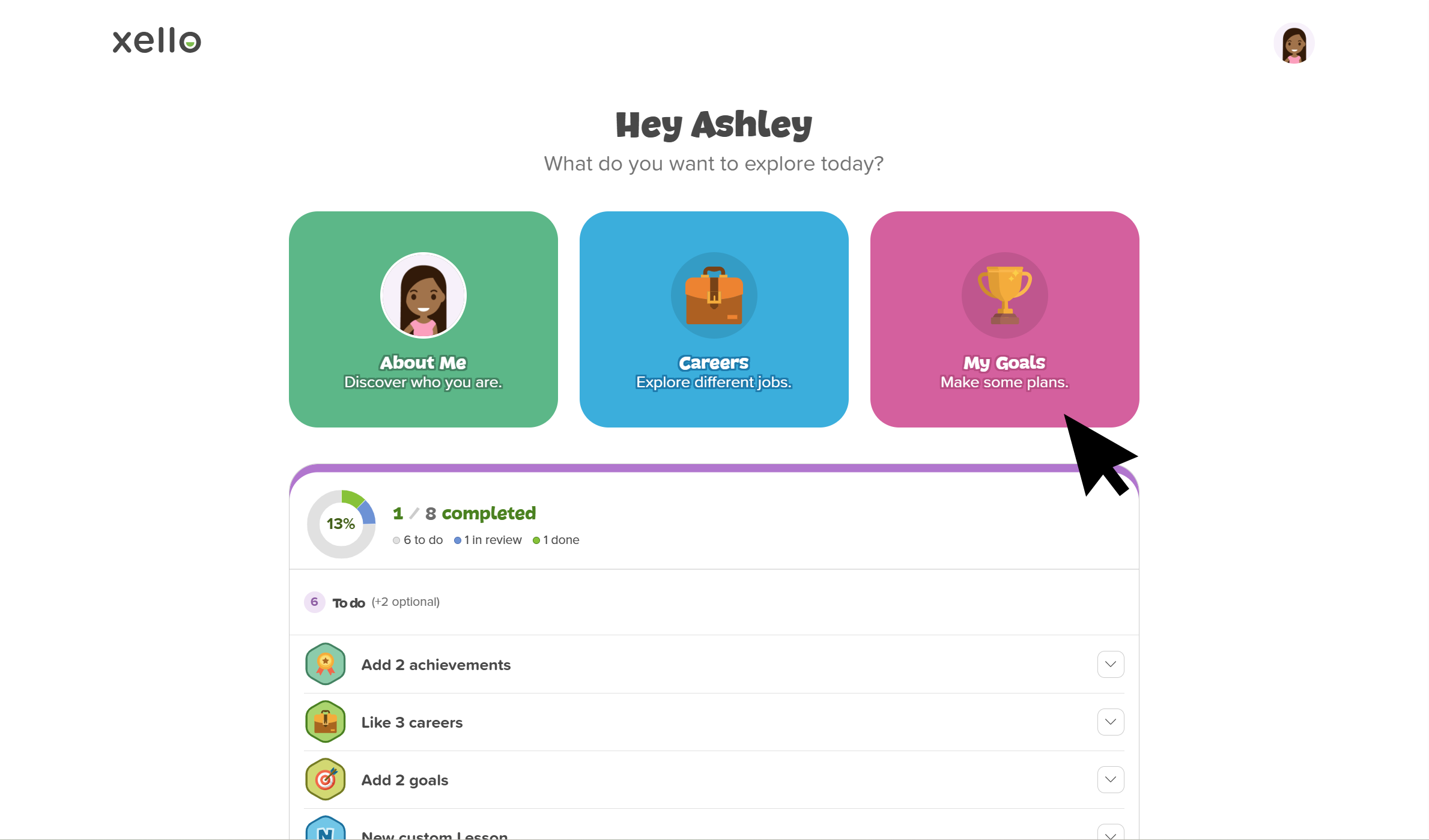
How students view and share the course guide:
- They click My goals.
 Click to enlarge
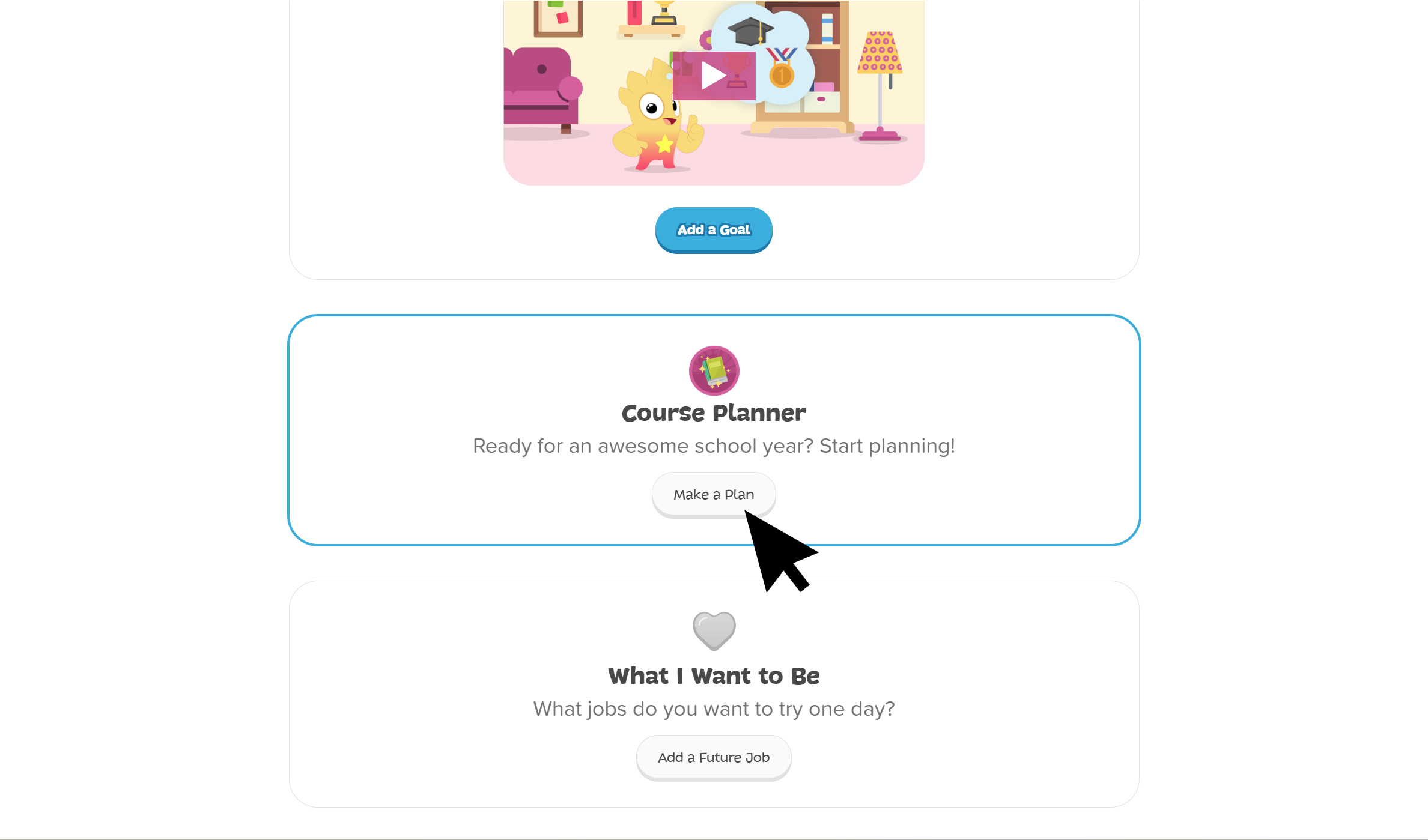
- Under Course Planner, they click Make a plan.
 Click to enlarge
 Note: Students will only see Course Planner if the feature setting is turned on for their grade. Check out Change Course Planner settings to learn more.
 - From the top of the screen, they click Course guide.
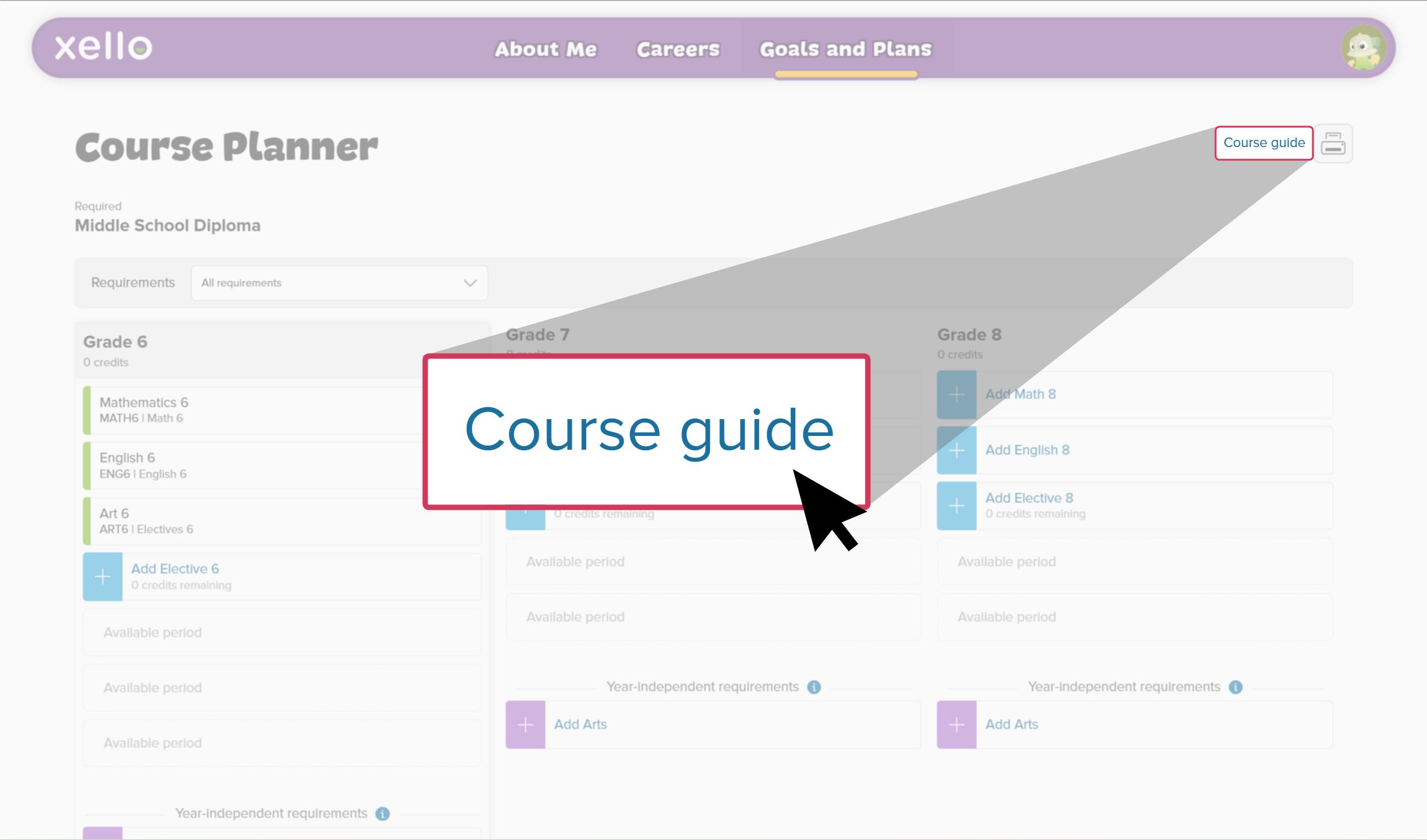 Click to enlarge
- The course guide page opens in a new tab.
- From the top right of the page, they click Share.
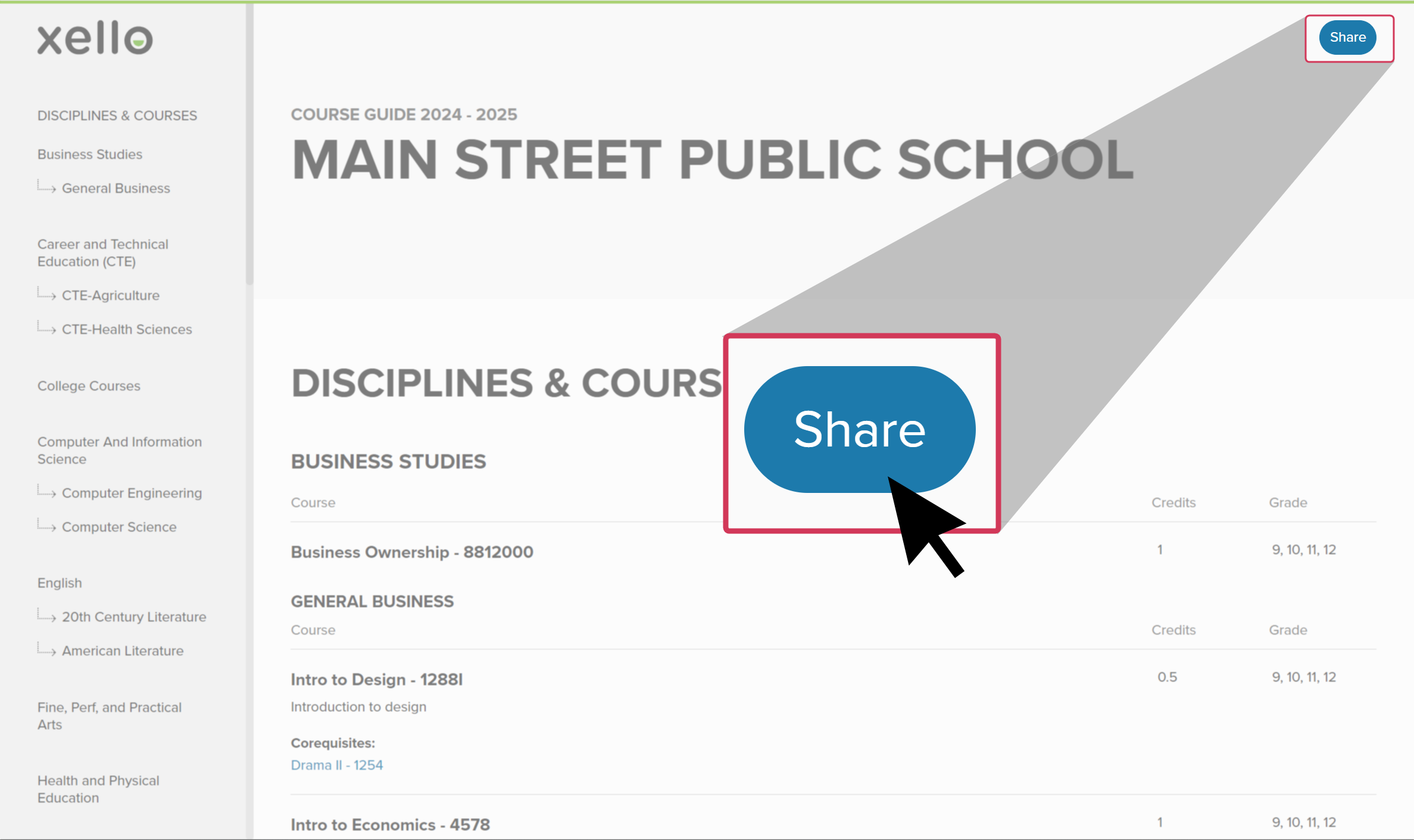 Click to enlarge
Educators
To view and share the course guide:
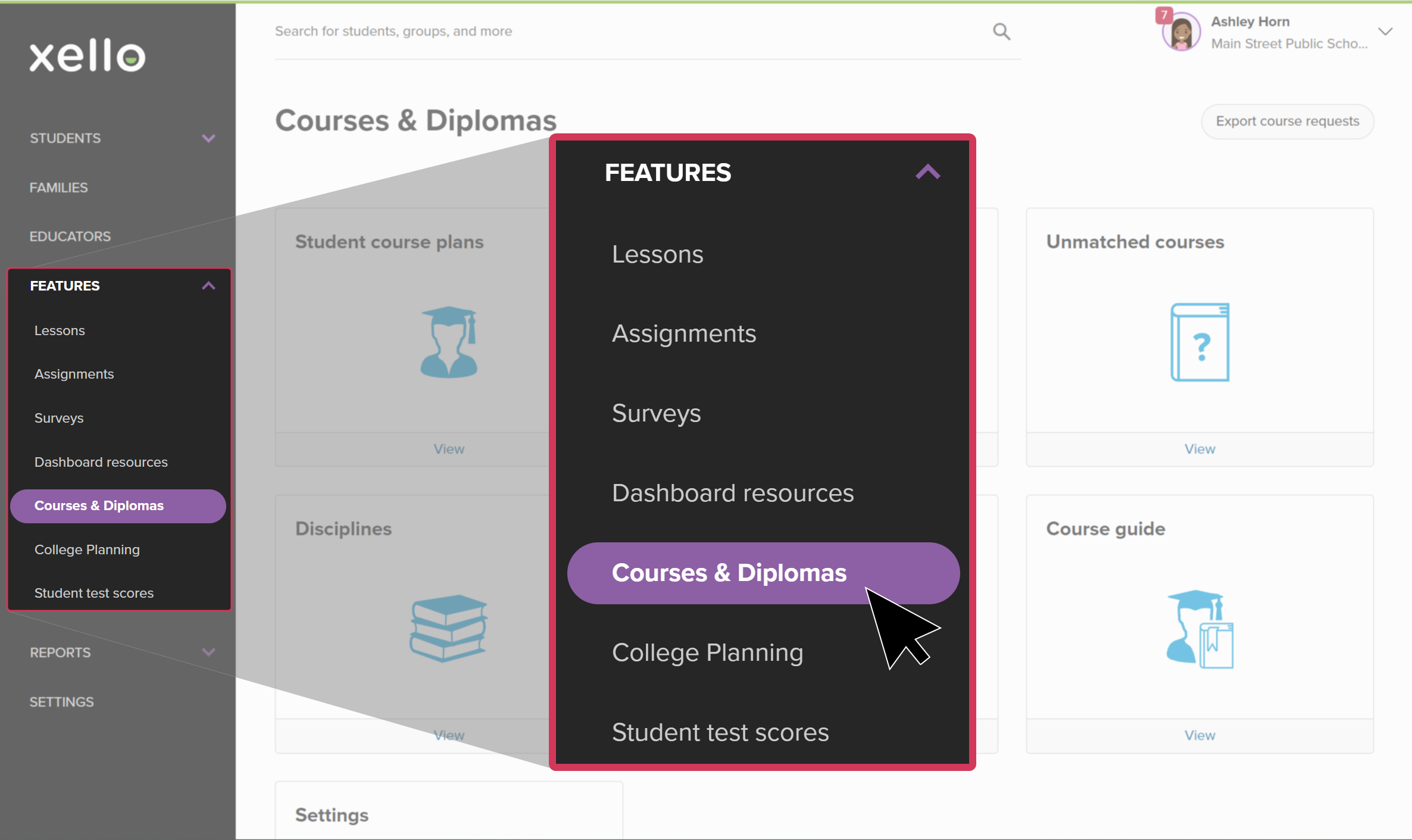
- From your educator account, click Features and select Course Planner.
 Click to enlarge
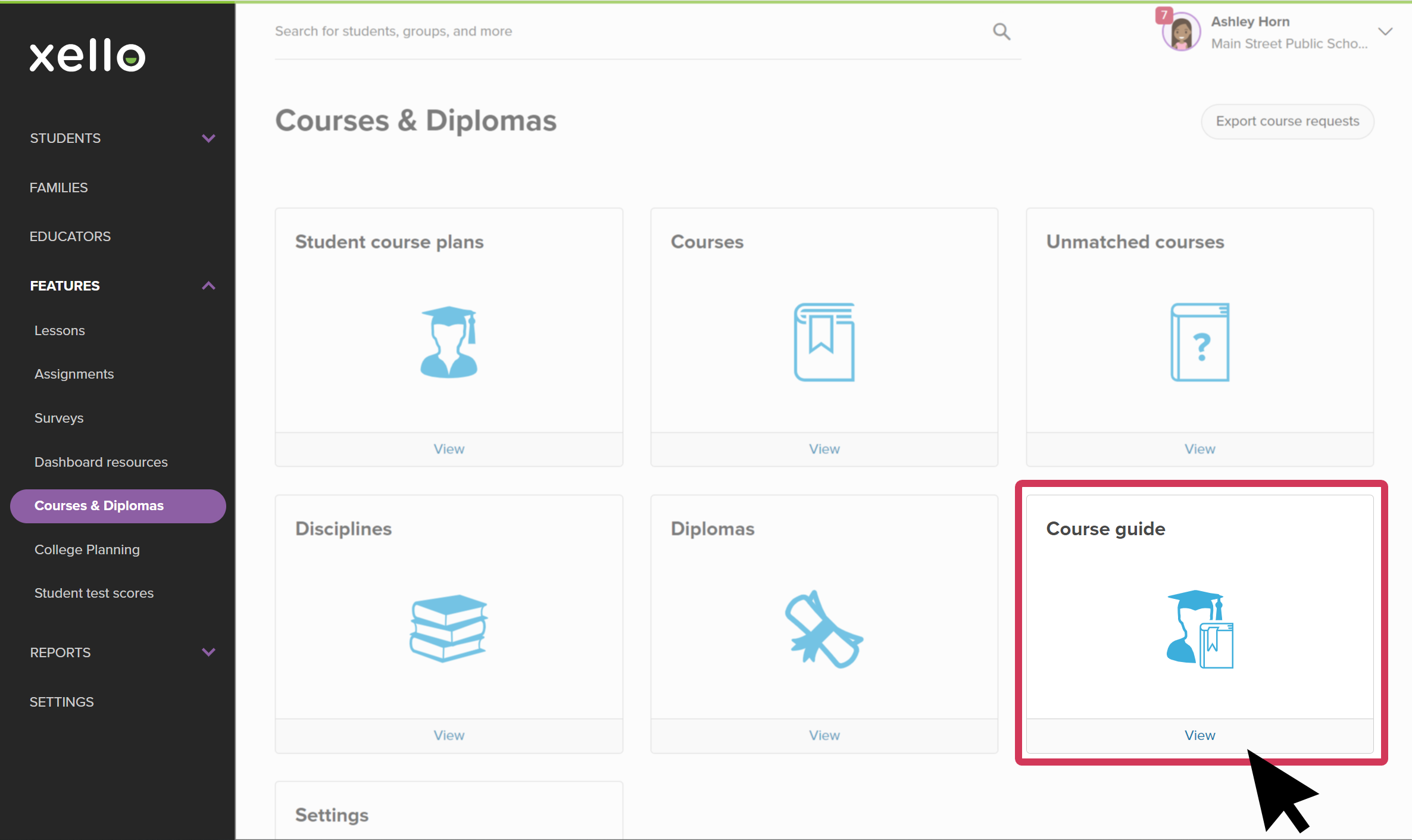
- Click Course guide.
 Click to enlarge
- The course guide page opens in a new tab.
- Use the table of contents on the left side of the page to navigate to different sections and courses.
- From the top right of the page, click Share. Copy the link and send it to educators, students, and families.
Click to enlarge
Xello Admin
To view and share the course guide:
- From your educator account, click Features and select Course Planner.
Click to enlarge
- Click Course guide.
Click to enlarge
- The course guide edit page opens.
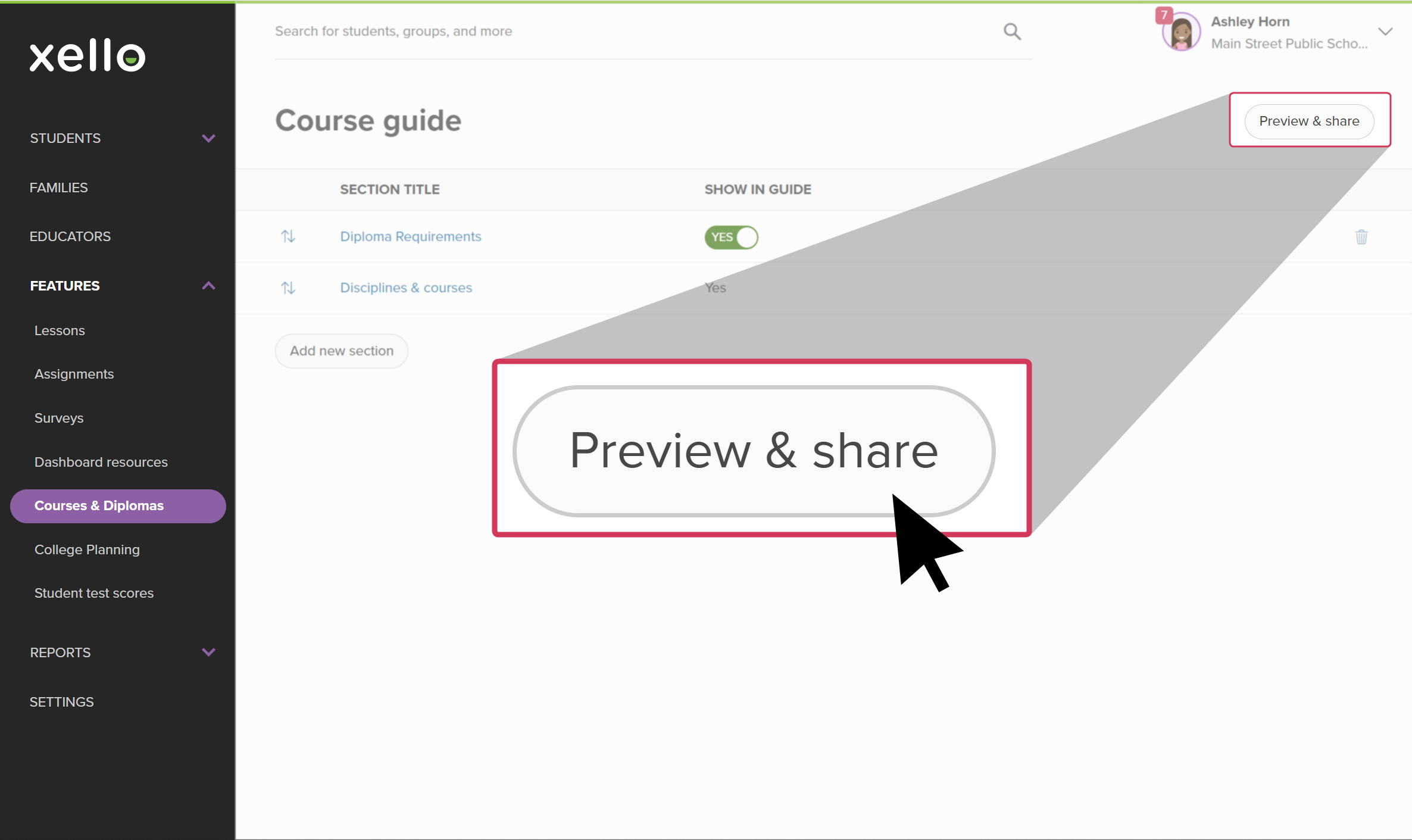
- Click Preview & share to open the guide in a new tab.
 Click to enlarge
 Note: If you're logged in at a region with multiple schools, clicking Preview & share will open a page with the option to view the course guide for the whole region or you can choose a single school.
 - Use the table of contents on the left side of the page to navigate to different sections and courses.
- From the top right of the page, click Share. Copy the link and send it to educators, students, and families.
Click to enlarge
 Back to top
Additional resources
-
 PDF
PDFWork with middle school course plans - guide for educators
PDF
PDFWork with middle school course plans - guide for educatorsUse this guide to support middle school students in creating their course plans in Xello, helping them stay on track and have confidence in their choices.
-
 Short Video
Plan your middle school courses in Xello - video for students New
Short Video
Short VideoPlan your middle school courses in Xello - video for students NewCheck out and share this video with students to learn how Xello's Course Planner helps middle school students practice building course plans. They use it to learn more about the electives that interest them and develop their decision-making skills.
-
Short Video
Short VideoCourse Planner for middle school educators - video for educators New
Xello's Course Planner allows middle school students to practice building course plans, helping them develop their decision making skills. Middle school counselors and educators can efficiently utilize Course Planner to support their students in designing a realistic education plan that sets them up for success. Watch this short video to learn more.
-
PDF
PDFParent/guardian course plan approval for 5th grade students
A quick guide to be shared with parents/guardians of students in 5th grade to walk them through approving their child's course plan in Xello.
-
PDF
PDFCourse Planner annual tasks guide
Download this guide for helpful reminders on what to review and update in Xello's Course Planner each year.
 Select