2 minutes
Students record, plan, and track personal, school, and other goals that they want to accomplish. They also have the chance to start thinking about careers as potential future goals by reflecting on what excites them about the careers they have liked.
When they navigate to their My Goals page, they’ll have the chance to watch a short video with Xellion character, Dax. Students will learn about different types of goals and tips about how to set achievable ones. They follow along as Dax sets a goal for herself to do a cartwheel.
How students add goals in Xello:
- From their dashboard, they click My Goals.
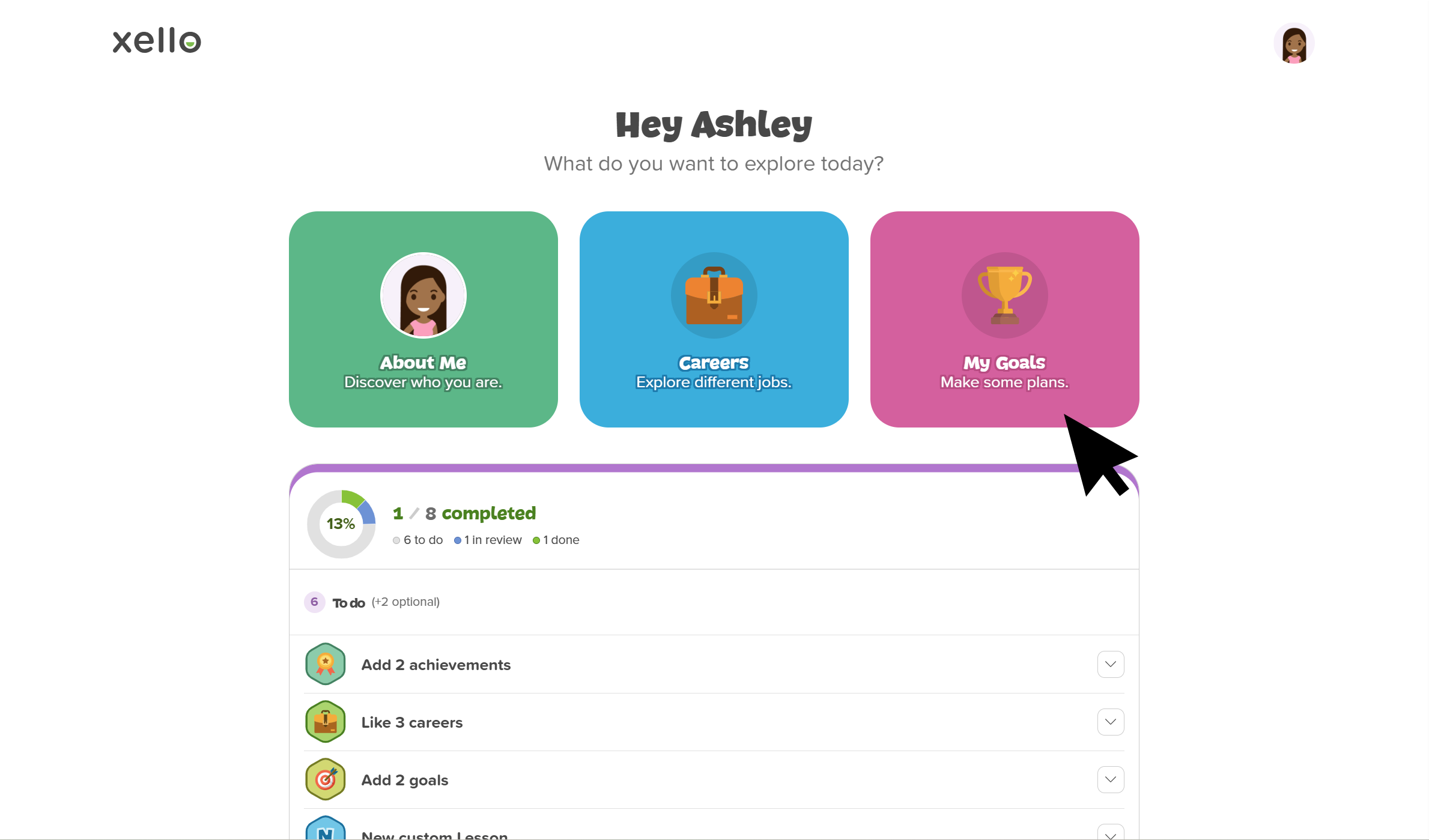 Click to enlarge
- In the Goals card, they click the video. This opens the short video where they learn about different kinds of goals and how to set them.
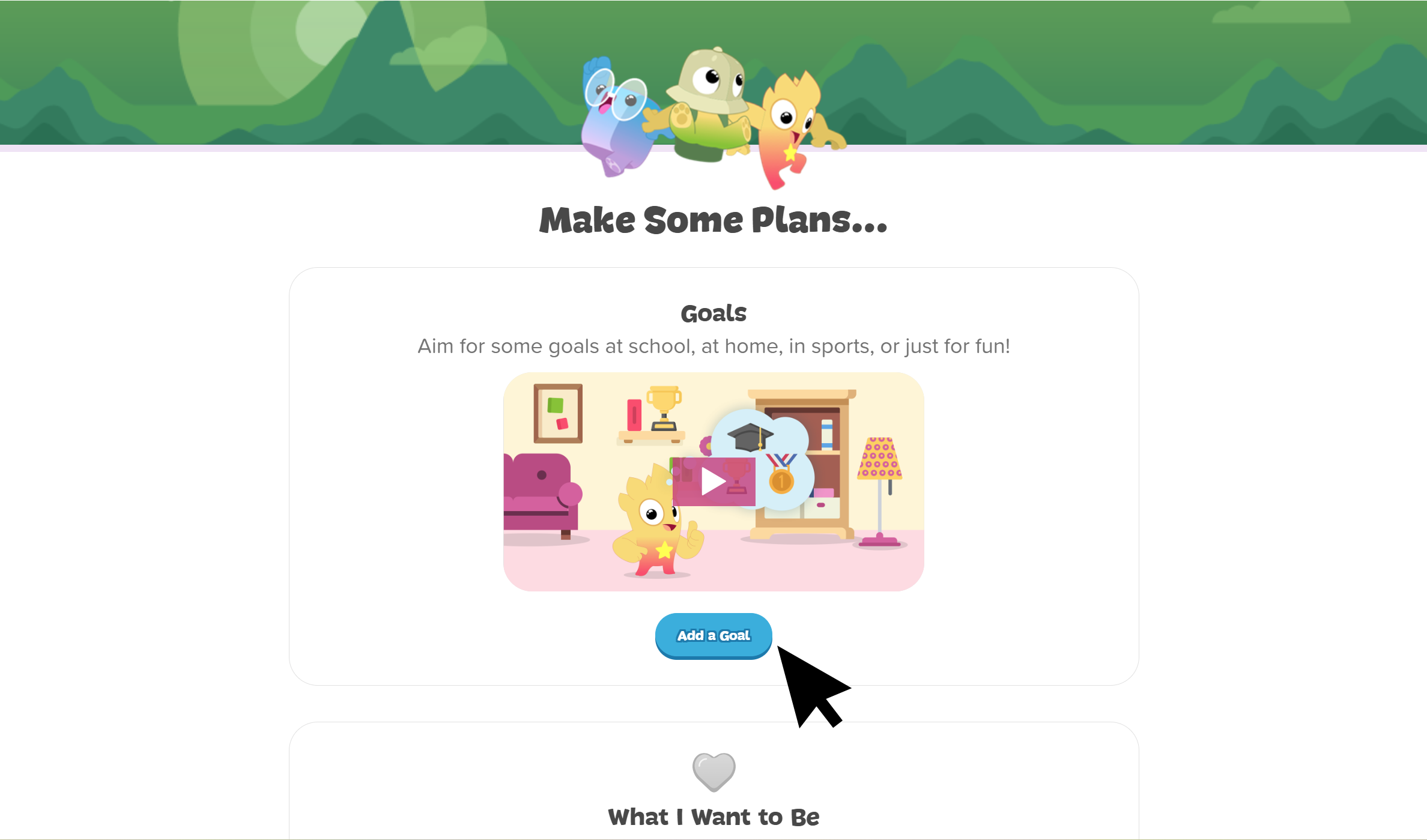 Click to enlarge
- Alternatively, they click Add a Goal to skip the video.
- There will be two prompts for them to complete:
- What is your goal?
- Why does this goal matter to you?
- To help them answer this question, they can click Idea starters to answer the reflection questions included.
- Once they’ve filled in the prompts, they click Next where they’ll begin thinking about next steps.
- On the Steps to Take page, they pick at least one step, or they can add their own. Steps to choose from include:
- Ask for help from family or friends
- Practise the skills I need for this goal
- Get advice from people who have met a similar goal
- Gather any equipment or materials I’ll need
- They click Next.
- They review their goal and steps. If they want to change an answer, they click the pencil icon. When ready, they click Add Goal to save their work and be returned to the My Goals page.
- In the Goals section, they’ll see their newly-created goal.