6 minutes
Students use the Course Planner to create a course plans that support intentional course selections.
For 8th grade and high school students, the planner includes prerequisite checking, graduation tracking, and suggestion mode.
For educators, help your students manage their plans, assign a course, apply an exemption, or optimize their plan for maximum benefit.
Middle school students and Course Planner
Using Course Planner in Xello, students can create their course plans for 7th and 8th grade. By picking their classes in middle school, they can gain confidence and familiarity for when it's time to build their high school course plans.
 Tip: Share the following guide with your students to help get them started with Course Planner in Xello: Add your classes to Course Planner
  .
.
.
.
How students in middle school build their course plans in Xello:
- They open Plans and click Course Planner.
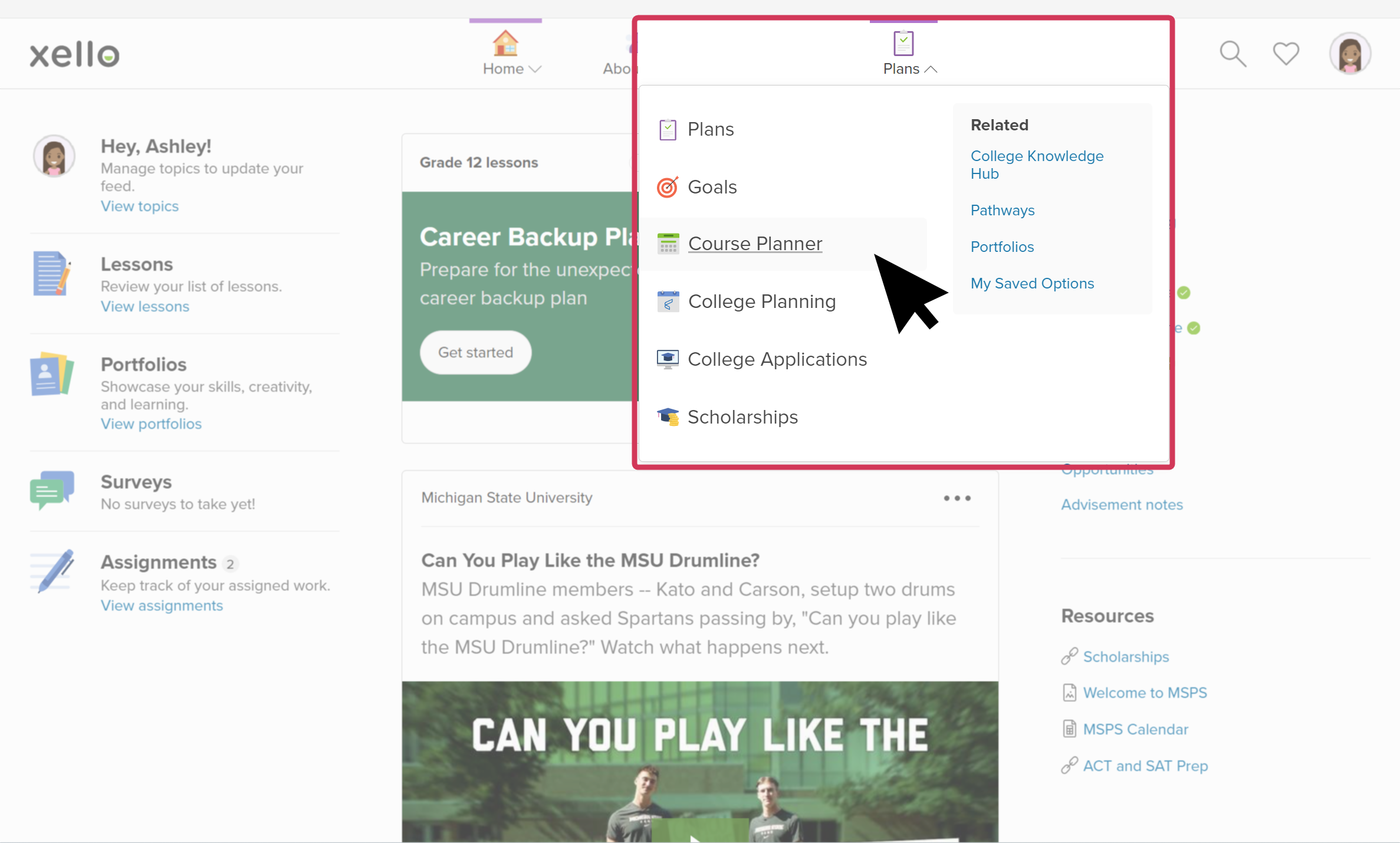 Click to enlarge
 Note: Students will only see Course Planner if the feature setting is turned on for their grade. Check out Change Course Planner settings to learn more.
 - On the Course Planner page, there is a column for each grade. For previous grades, they'll be able to view their marks in each subject.
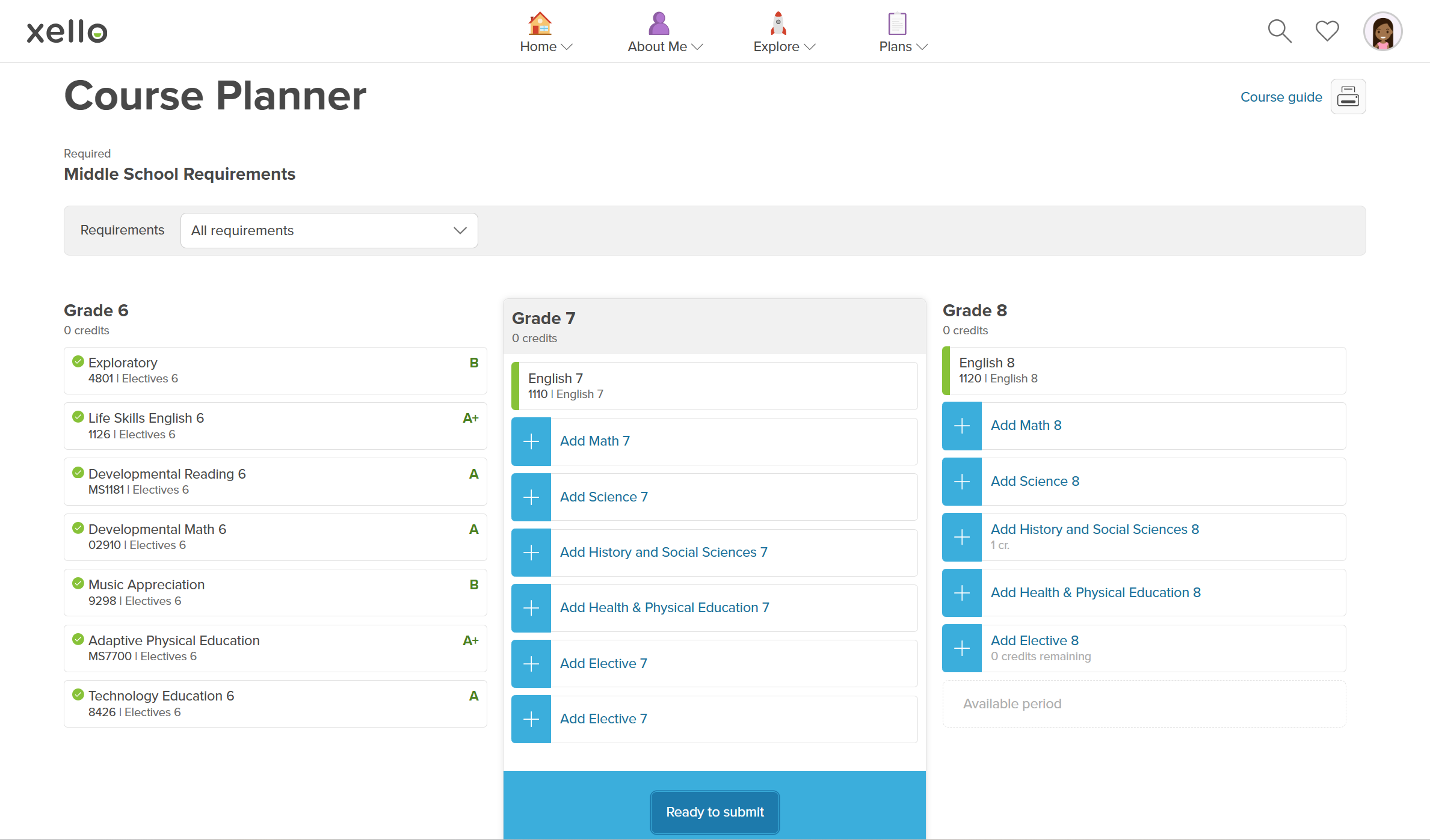 Click to enlarge
- To simplify the page, they can click the a school subject requirement and narrow the planner to one subject.
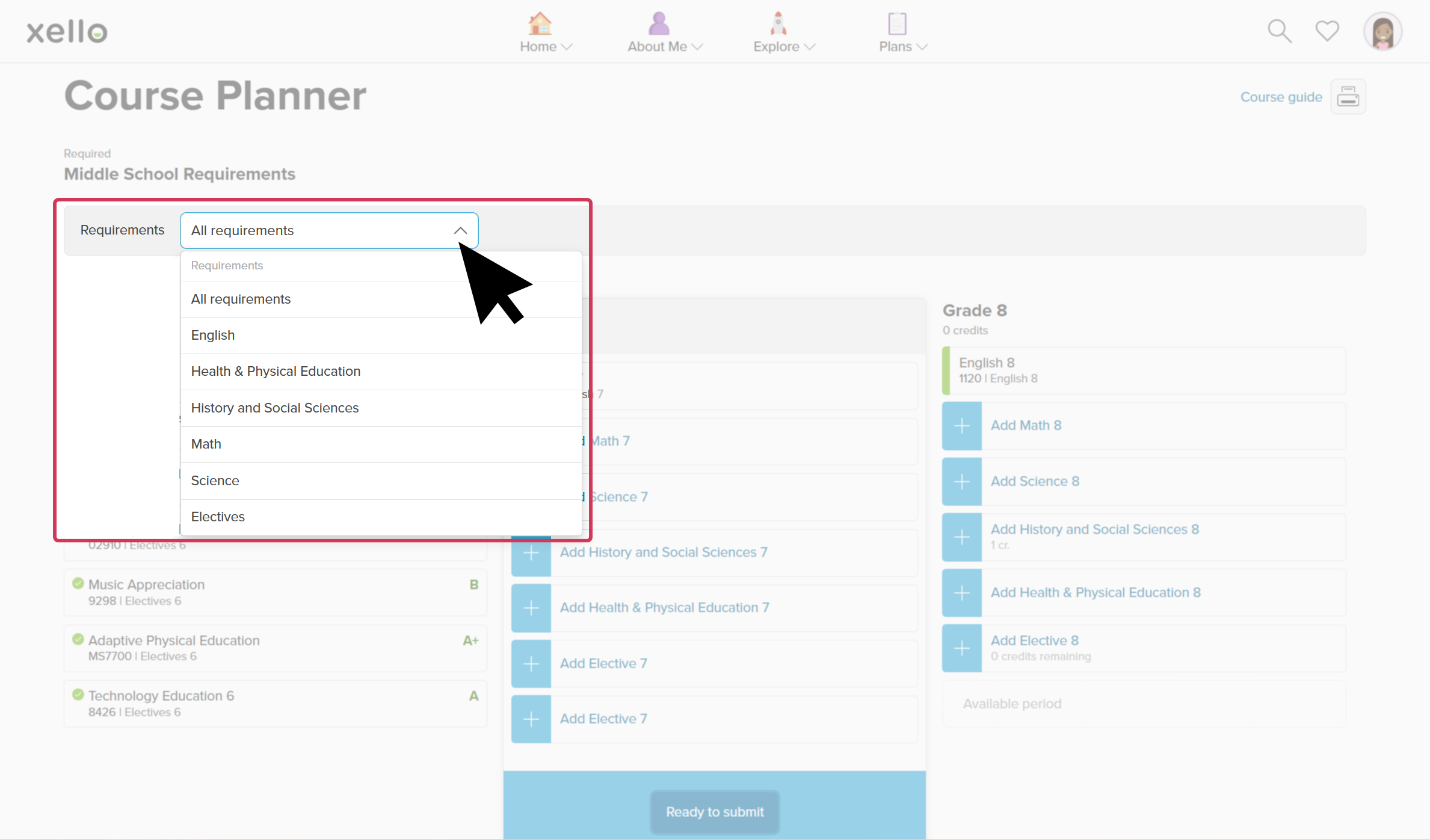 Click to enlarge
- They click the requirement to open a side panel with the list of available courses.
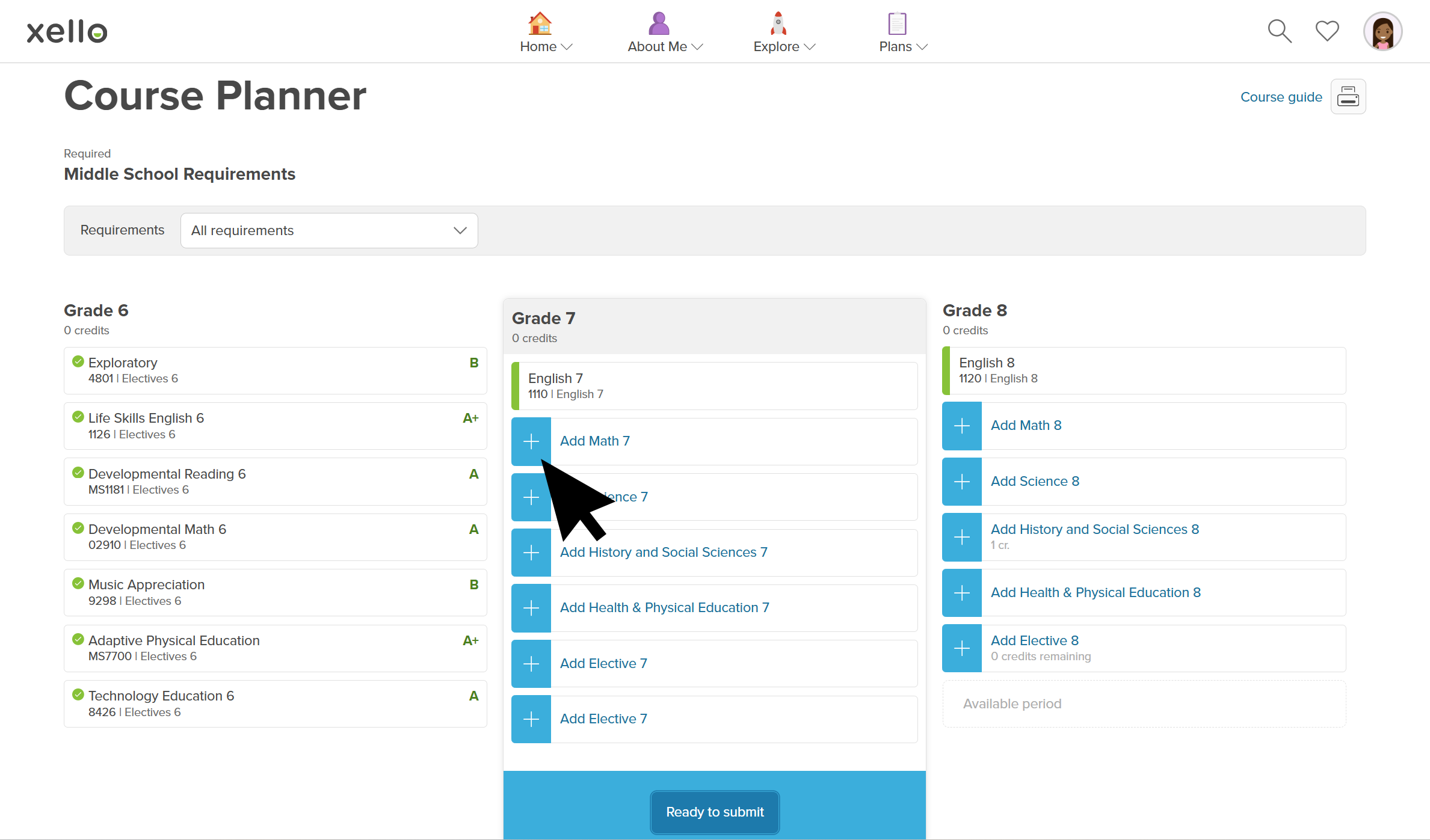 Click to enlarge
- They click on the course name to open a modal with information about the course including course description, required prerequisites, and future courses that students may take once they complete the course. Prerequisites in green indicate that the student has completed the required prerequisite.
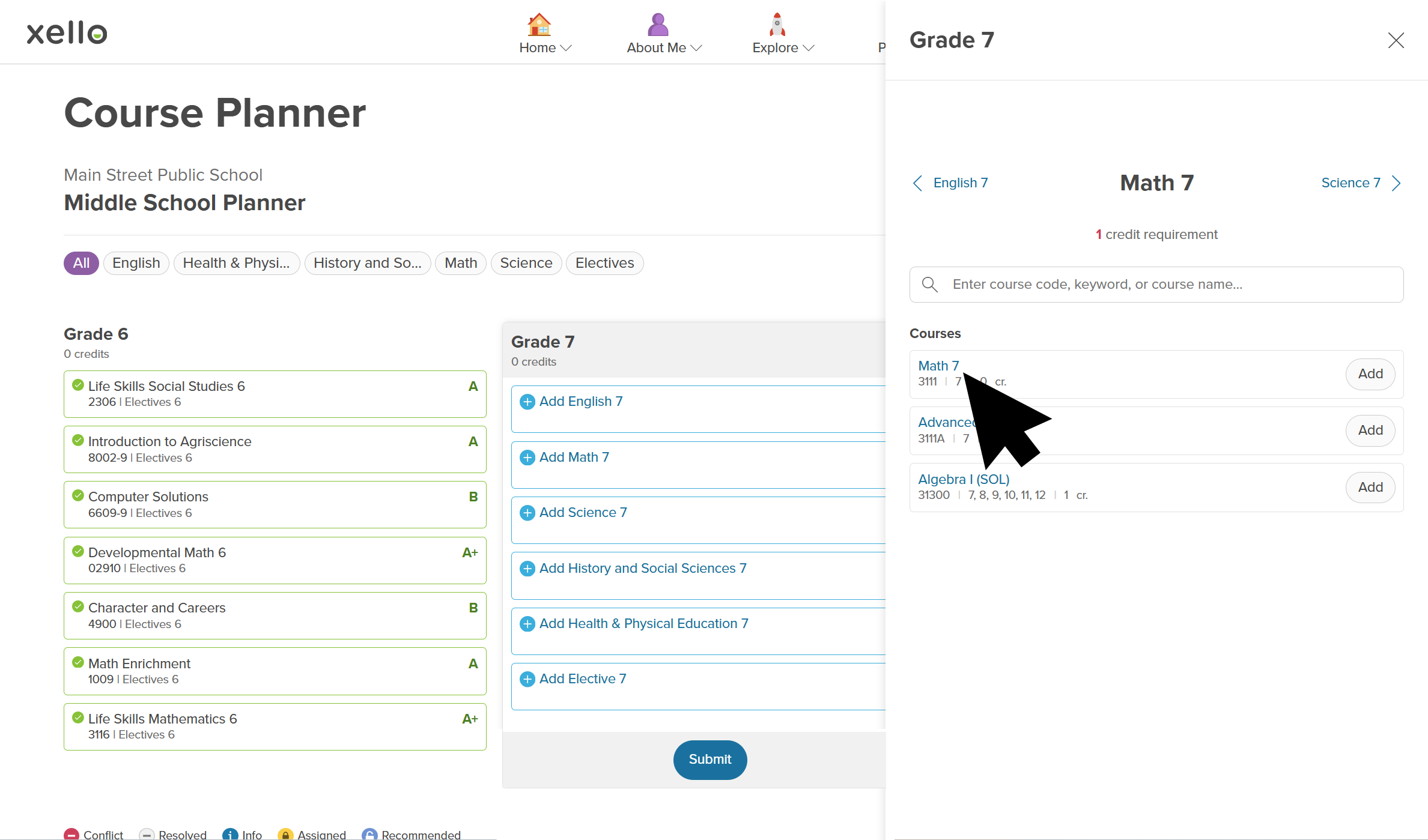 Click to enlarge
- Once they've chosen the course they want, they click Add. A green checkmark and tag confirm that the course was added to their plan.
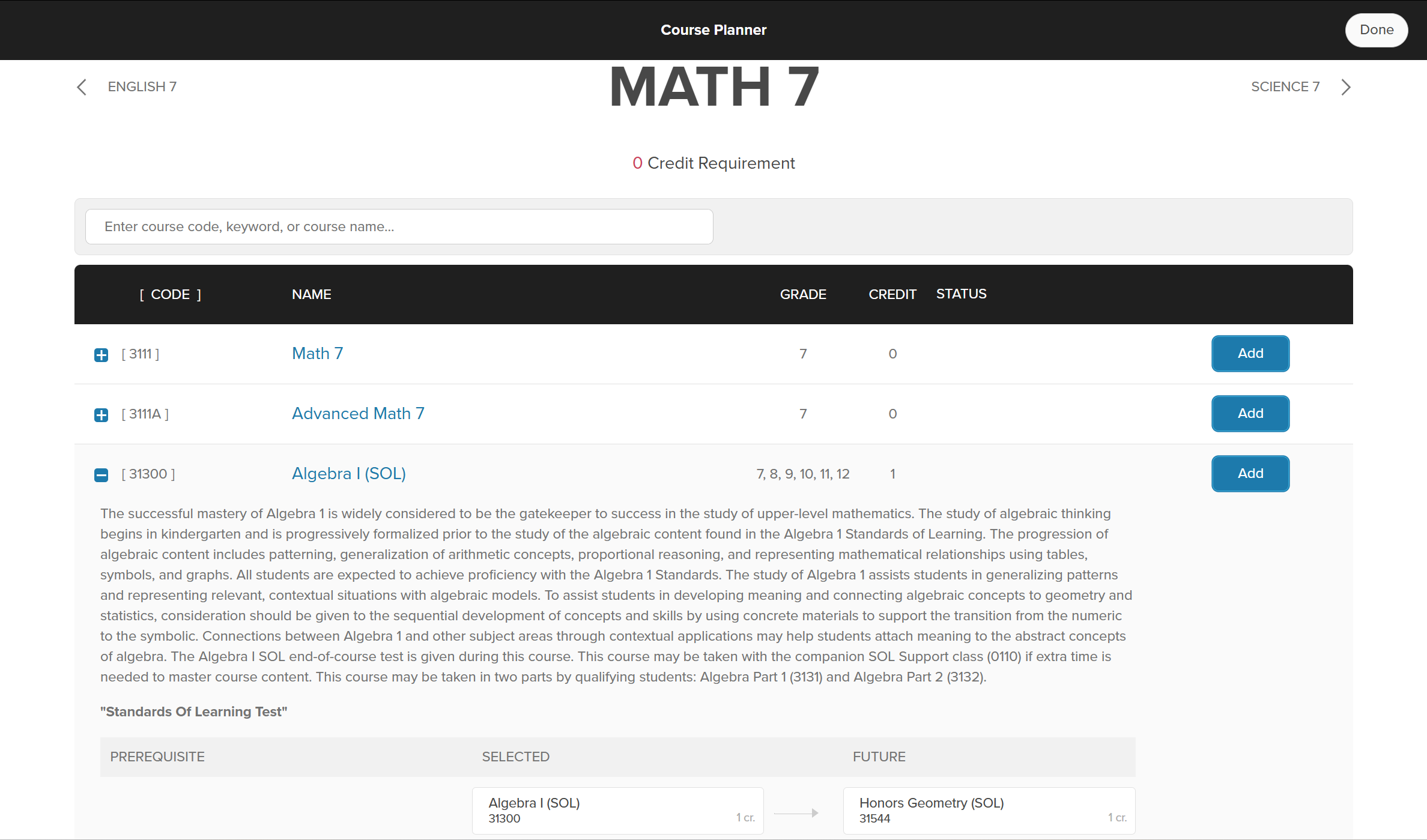 Click to enlarge
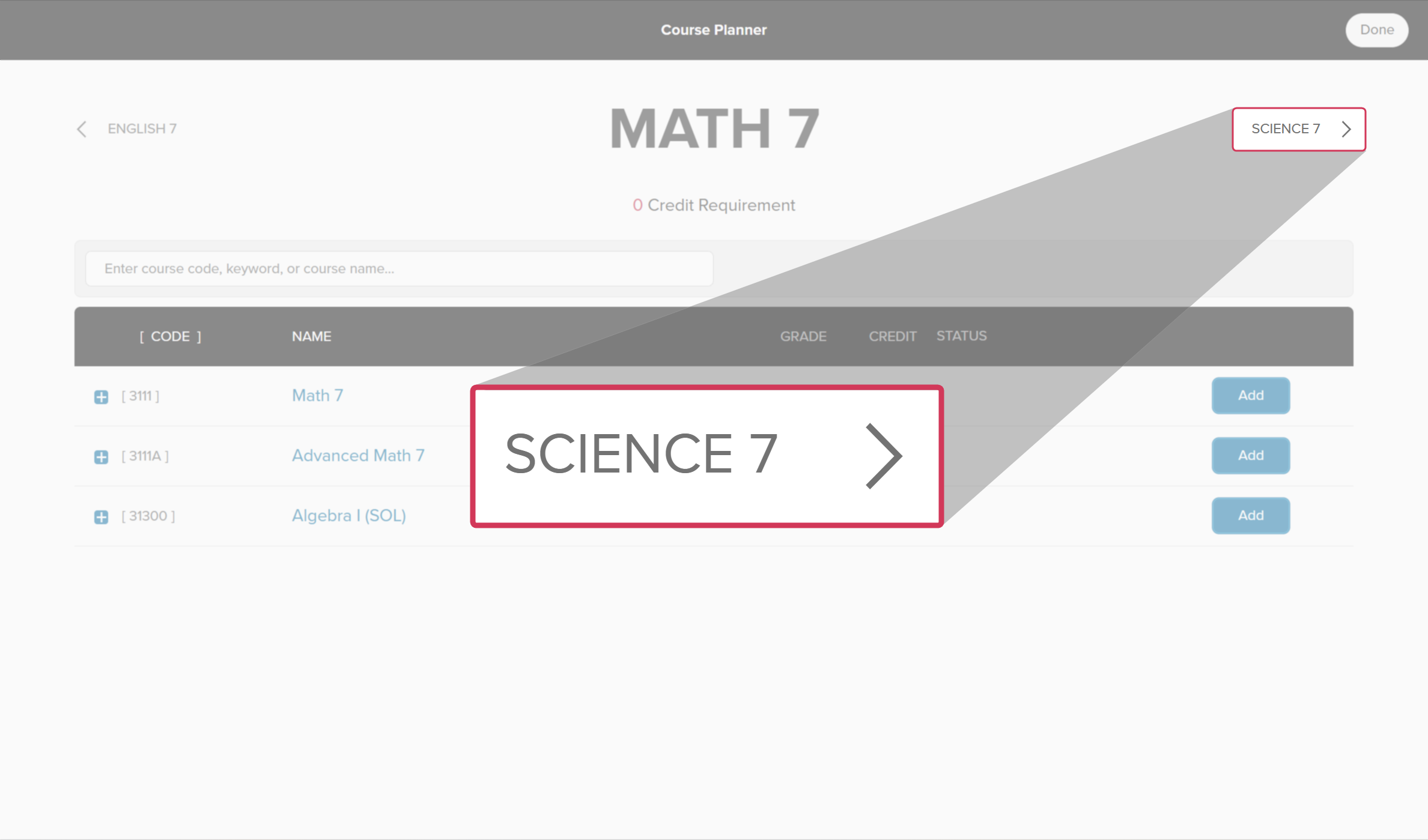
- To navigate to the next requirement or elective, in the side panel, they click the subject name next to the current subject title.
 Click to enlarge
- When they're done adding courses, they click Done.
- When they've finished adding the courses for a grade, they click Submit.
- If there are any alerts or issues, they'll get a message before they submit with what needs to be fixed. Check out Course Planner alerts to learn which alerts they may get.
Use the resources below to learn more about Course Planner for middle school students and to help introduce it to them and their parents/guardians.
-
 PDF
PDFAdd your classes to Course Planner - middle school student guide
PDF
PDFAdd your classes to Course Planner - middle school student guideShare this quick guide with your middle school students to help get them started with Course Planner.
-
 Short Video
Plan your middle school courses in Xello - video for students New
Short Video
Short VideoPlan your middle school courses in Xello - video for students NewCheck out and share this video with students to learn how Xello's Course Planner helps middle school students practice building course plans. They use it to learn more about the electives that interest them and develop their decision-making skills.
-
Short Video
Short VideoCourse Planner for middle school educators - video for educators New
Xello's Course Planner allows middle school students to practice building course plans, helping them develop their decision making skills. Middle school counselors and educators can efficiently utilize Course Planner to support their students in designing a realistic education plan that sets them up for success. Watch this short video to learn more.
-
PDF
PDFWork with middle school course plans - guide for educators
Use this guide to support middle school students in creating their course plans in Xello, helping them stay on track and have confidence in their choices.
-
 Xello Academy
Course Planner for middle school educators New
Xello Academy
Xello AcademyCourse Planner for middle school educators NewAre you a middle school educator who works with Course Planner in Xello? In this course, you will learn how to effectively utilize Course Planner and support students in learning about how to create realistic education plans..
-
PDF
PDFMiddle school Course Planner parent/guardian approval - guide for parents/guardians
A quick guide to be shared with parents/guardians of students in 6th and 7th grade to walk them through approving their child's course plan in Xello.
-
 recorded webinar
Recorded webinarHow students plan middle school courses in Xello
recorded webinar
Recorded webinarHow students plan middle school courses in XelloSimplify middle school course selection! Master Xello's Course Planner with your 5th-7th grade students. Track submissions, manage requests, approve plans, and leverage key reports for seamless administration.
 Select
 Back to top
High school students and Course Planner
In Course Planner, students can create course plans that satisfy the requirements of an assigned diploma or specialization.
Depending on their objectives, students can create their plans for the upcoming school year or for all 4 years of high school. They can also plan out just the upcoming school year.
Tip: Share the Course Planner and Xello orientation quick guide to help get your students started with Course Planner.
.
How students build their course plans in Xello:
- They open Plans and click Course Planner. Click to enlargeNote: Students will only see Course Planner if the feature setting is turned on for their grade. Check out Change Course Planner settings to learn more.
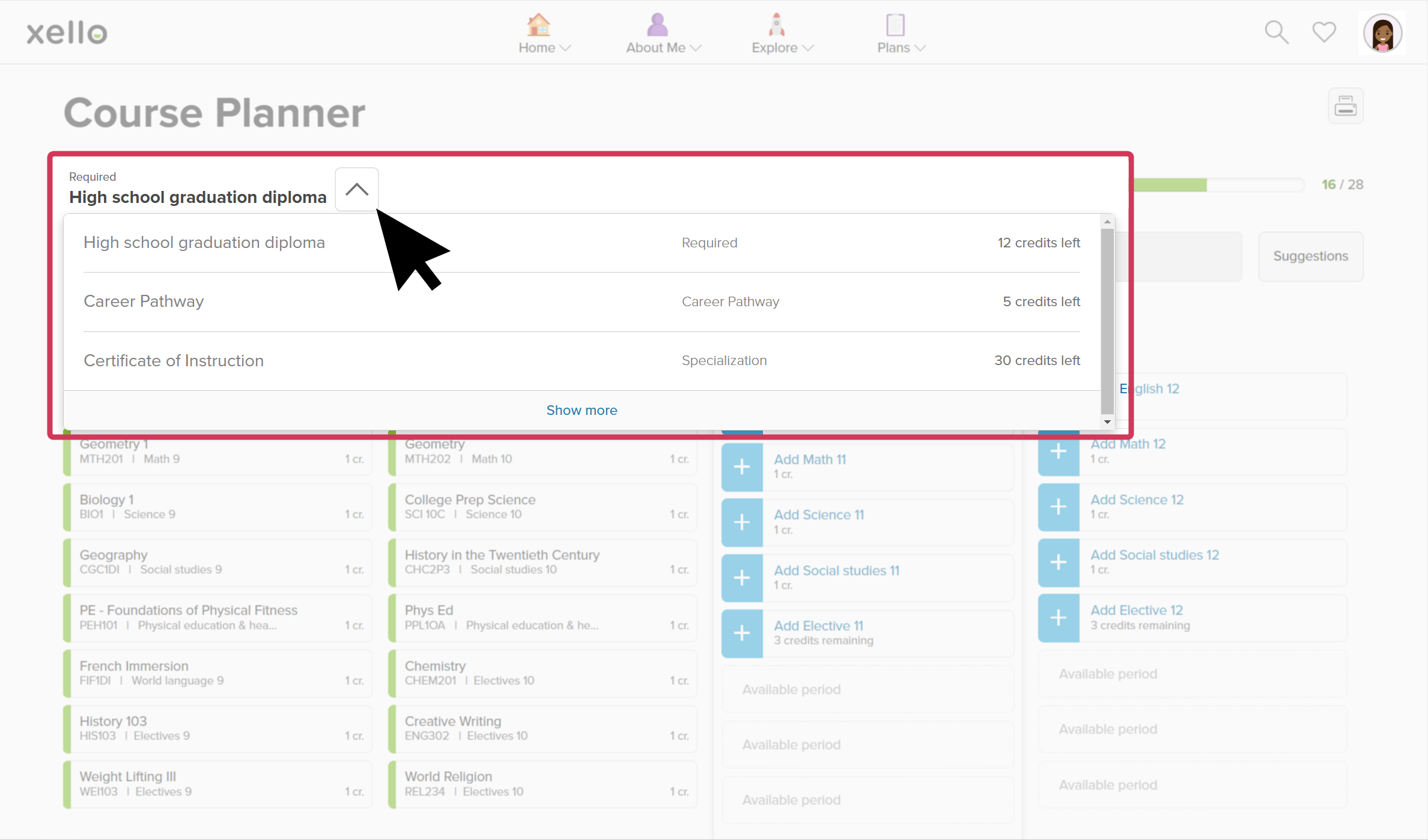
- They can click the diploma dropdown menu to select a different diploma or specialization. This section will always default to their assigned diploma. Changing to a different diploma or specialization allows them to build their course plan according to the specific requirements of their selected program.
 Click to enlarge
- They can either start in Grade 12, if they are creating a 4-year plan, or in their grade for the upcoming school year. If they start in Grade 12, Xello will present course options in earlier years based on their Grade 12 selections.
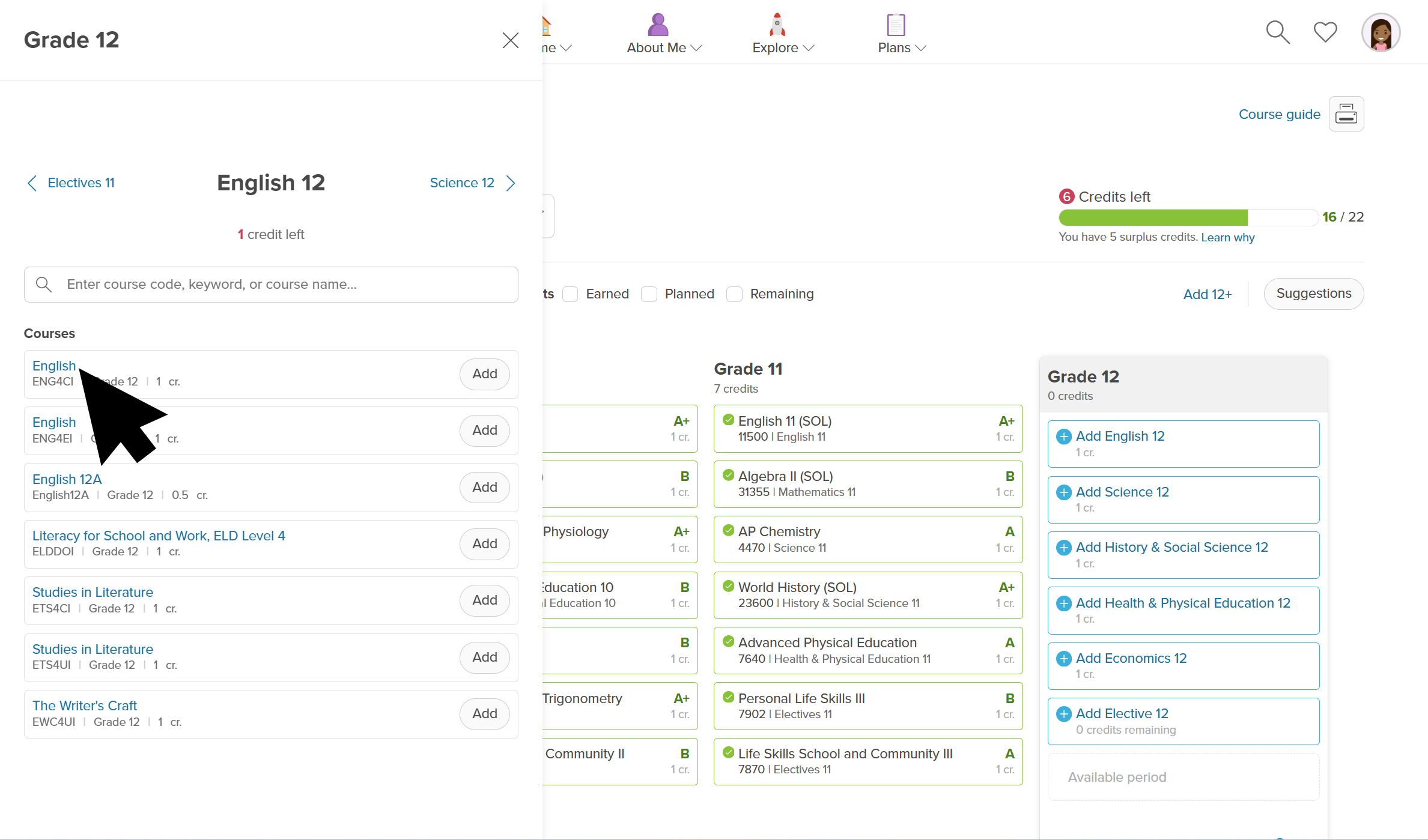
- They click the requirement to open a side panel with the list of available courses.
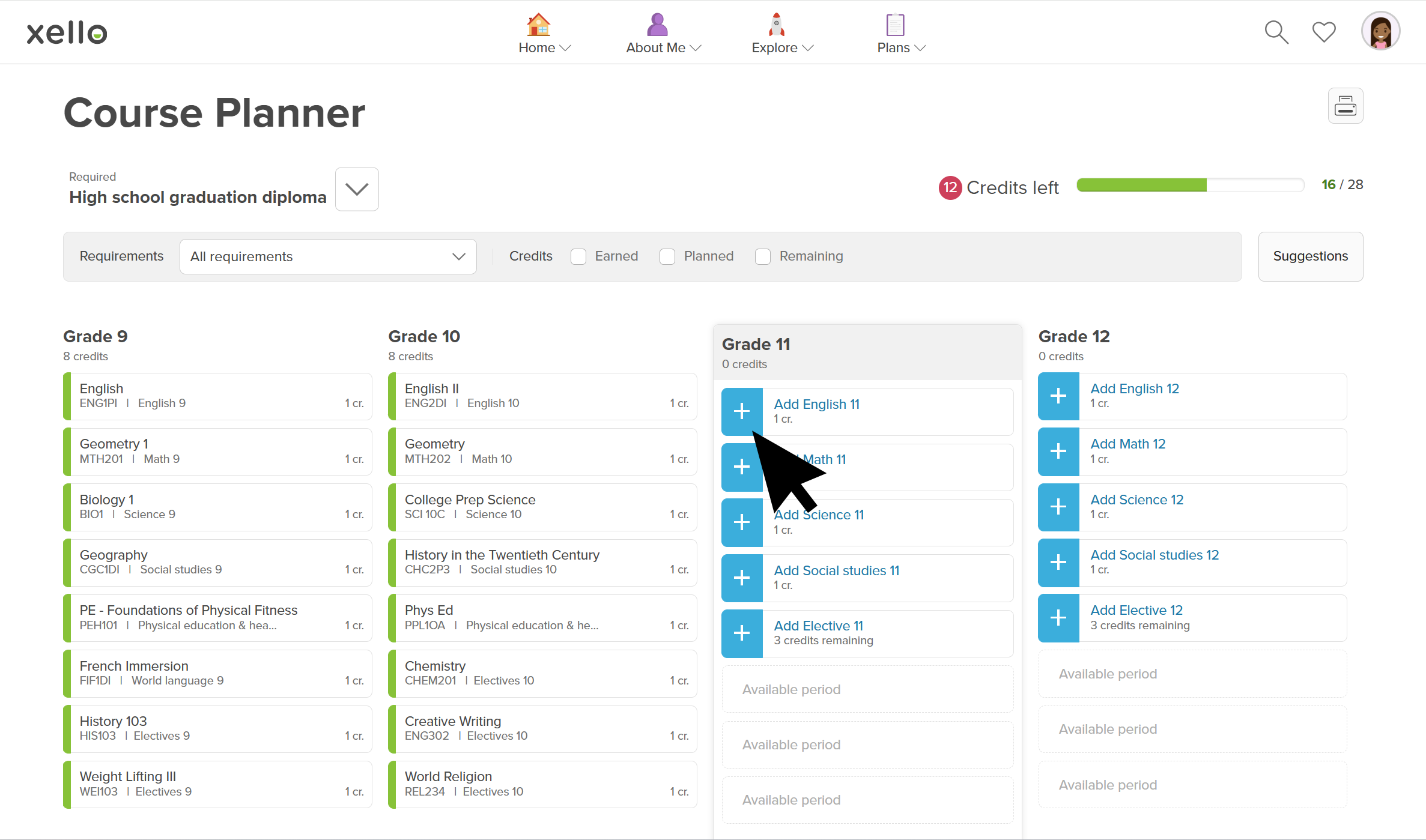 Click to enlarge
- They click on the course name to see information about the course including course description, required prerequisites, and future courses that students may take once they complete the course. Prerequisites in green indicate that the student has completed the required prerequisite.
 Click to enlarge
- Once they've chosen the course they want, they click Add. A green checkmark and tag confirm that the course was added to their plan.
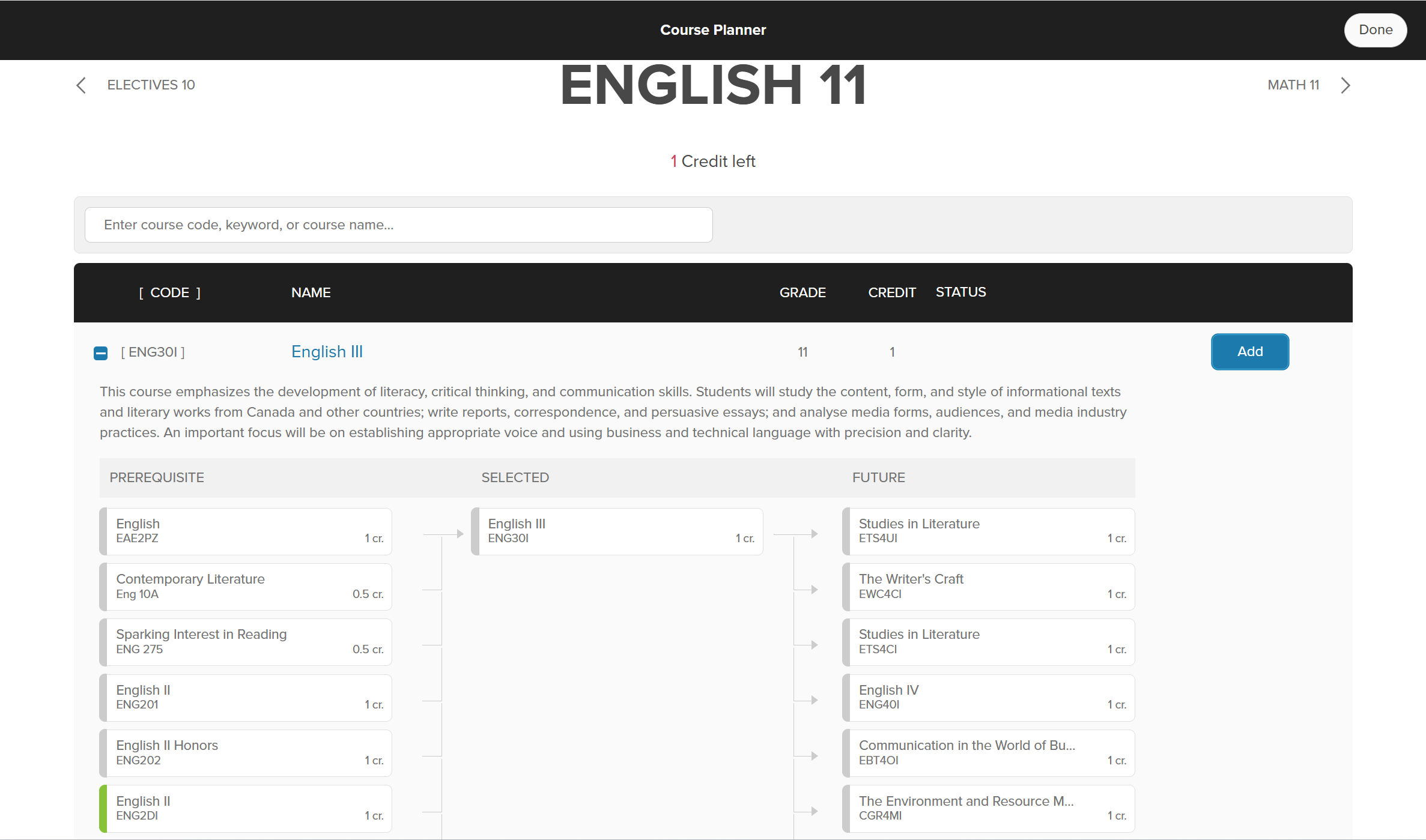 Click to enlarge
- To navigate to the next requirement or elective, in the side panel, they click the subject name next to the current subject title.
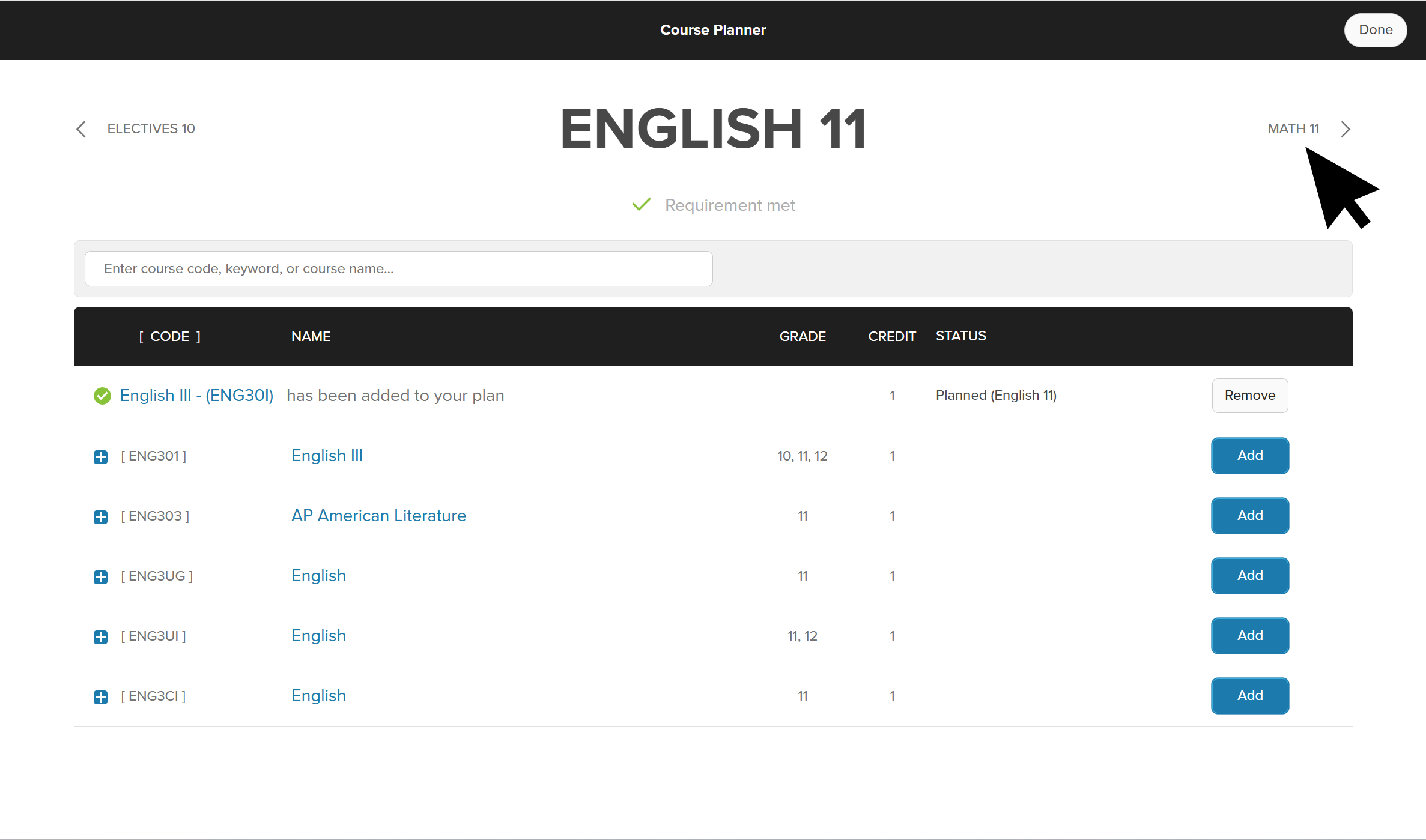 Click to enlarge
- When they're done adding courses, they click Done.
- From the bottom of the upcoming grade column, they click Submit when their course plan is complete.
- If there are any alerts or issues, they'll get a message before they submit with what needs to be fixed. Check out Course Planner alerts to learn which alerts they may get.
Check out the resources below to learn more about Course Planner for high school students. Download and share the guides and videos to help introduce it to students and their parents/guardians.
-
PDF
PDFCourse Planner and Xello - high school student guide
Share this quick guide with your high school students to help get them started with Course Planner.
-
Short Video
Short VideoPlan your high school courses in Xello - video for students
To see how students use Course Planner in Xello, check out this video and share it with your students.
-
Short Video
Short VideoManaging students' high school course plans - video for educators
In this short video, you'll see how Xello’s Course Planner lets students manage their course selections to meet diploma requirements.
-
Xello Academy
Xello AcademyCourse Planner for high school
Are you a high school
-
PDF
PDFWork with high school course plans - guide for educators
Follow this guide for tips on how to make your high school course planner review process a breeze. Learn how to review, track, action, and approve student course plans.
-
PDF
PDFHigh school Course Planner parent/guardian approval - guide for parents/guardians
Share this guide with parents/guardians of students in 8th grade and high school to help walk them through approving their child's course plan in Xello.
-
recorded webinar
Recorded webinarHow students plan high school courses in Xello
See how Xello's Course Planner helps students build out their high school courses to support their goals. In this session, you'll learn how it works and what your role in managing their course plans will be.
Educators and Course Planner
Meanwhile, as an educator, you'll view student course plans, assign courses to students, apply exemptions and specializations where necessary, and view and share the course guide.
When students have finished filling out their course plans, learn how you can send the plans for Course Planner parent/guardian approval.
Finally, keep on top of submissions, how many courses, specializations, and diplomas have been added by students, and which plans require either parent or educator by running Course Planner reports.
For all of our Course Planner Knowledge Base articles, check out Course Planner in Xello 6-12.